Configure Catalog Object Storage
Configure an Oracle Cloud Infrastructure (OCI) Object Storage bucket for the Essbase file catalog. Essbase on Autonomous AI Lakehouse uses the file catalog internally for many features. Perform this one-time configuration before users begin using Essbase.
Before you Begin
Coordinate with an OCI administrator or Object Storage administrator in the OCI tenancy where your Autonomous AI Database instance is provisioned. Refer to: Overview of Object Storage.
Make sure that the following tasks are complete:
-
An OCI user has created an Object Storage bucket for the Essbase file catalog.
-
The OCI user has recorded the bucket name, Object Storage namespace, and OCI region.
-
An OCI user who has access to the bucket has an API signing key.
-
You have obtained the following information for that API-key user:
- User OCID
- API key fingerprint
- Tenancy OCID
- Private API signing key
- Private key passphrase, if applicable
-
You have permission to access the Console in the Essbase web interface.
The user who created the bucket and the user whose API key you provide can be different users. However, the API-key user must have access to the bucket.
The private key must be in PEM format. Treat the private key as sensitive information and transfer it using an approved secure method. Do not share it with regular Essbase users.
For information about obtaining OCI API-key details, see Required Keys and OCIDs. For information about Object Storage namespaces, see Object Storage Namespaces.
Configure Catalog Object Storage
-
Sign in to the Essbase web interface.
-
In the navigation panel, click Console.
-
Click Catalog Object Storage.
-
If the fields are not editable, click Edit.
-
Enter the OCI information in the fields:
Field Enter User ID The OCID of the OCI user associated with the API signing key and private key. Do not enter the user name or email address. Fingerprint The fingerprint of the public API key associated with the private key. The fingerprint, User ID, and private key must belong to the same OCI user and API key. Tenancy The OCID of the OCI tenancy where your Autonomous AI Database instance is provisioned. Region The OCI region identifier for the Object Storage bucket, such as us-phoenix-1. Key file Select or drag the private API signing key file. Key file content If you do not select a key file, paste the complete contents of the PEM private key, including the BEGIN and END lines. Namespace The Object Storage namespace associated with the bucket. Bucketname The exact name of the Object Storage bucket. Do not enter a bucket URL or OCID. Private key passphrase The passphrase for the private key, if the key is encrypted. Leave this field blank if the key does not have a passphrase. 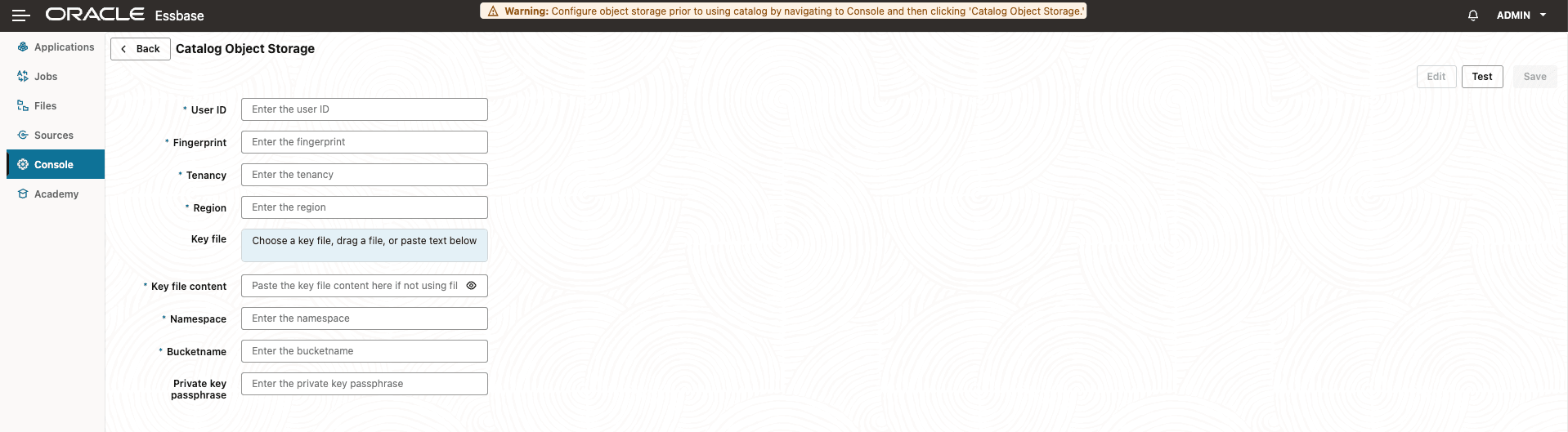
-
Use either Key file or Key file content to provide the private key.
-
Click Test.
-
If the test succeeds, click Save.
After the configuration is saved, Essbase can use the Object Storage bucket for the Essbase file catalog. To verify the configuration, click Files and open the catalog.
Troubleshoot the Configuration
-
If the Catalog Object Storage option is not available, verify that you are using Essbase on Autonomous AI Lakehouse and that you have permission to access the Console.
-
If authentication or signature validation fails, verify that User ID, Fingerprint, and the private key belong to the same OCI user and API key.
-
If OCI returns an authorization error, ask the OCI administrator or Object Storage administrator to verify that the API-key user has access to the Object Storage bucket.
-
If the bucket cannot be found, verify the Region, Namespace, and Bucketname values. Enter the region identifier, not the region’s display name.
-
If the private key cannot be read, verify that it is a PEM-format private key and that the passphrase is correct.
Parent topic: Quick Start