Analytics Filtering
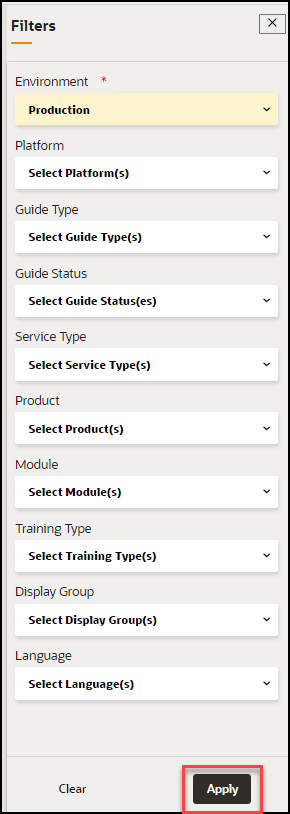
Apply data filters by selecting the Filter (Funnel  icon) and then apply the desired filter from the available filter types. Use
these filters to refine the data and the selected data gets displayed in the
dashboard.
icon) and then apply the desired filter from the available filter types. Use
these filters to refine the data and the selected data gets displayed in the
dashboard.
Once a user has applied a filter, the number of filters will be displayed.
Hover the mouse pointer over the filters links to display which filters have been
applied:
The following is a list of the available filters:
- Environment: Development/ Production
- Platform: Desktop/Mobile
- Guide Type: Smart-Tip/Process/Message/Beacon/Link/Process/Task List/Training/Video
- Guide Status: Draft/Published/Inactive/Unpublished Revision
- Service Type: Managed/Unmanaged services.
- Product: Only available if the Products & Modules have been defined and items assigned. Refer to the Defining Products and Modules section
- Module: Only available if the Products & Modules have been defined and items assigned. Refer to the Defining Products and Modules section
- Training Type: Available if the OGL instance has been configured to track different training guide types
- Display Group: All Display Groups created in the Display Group Manager. Refer to the Display Groups section.
- Languages: Filter based on the supported languages. This is only available for multilanguage deployments.
