Creating a Message Guide
Use Message Guides to provide notification content.
To create a Message Guide:
- On the OGL console Homepage, select Message in the Create row.

Or
On the My Content page, select the (
 ) button.

The New Content modal appears
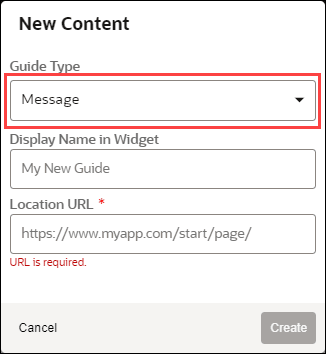
- Select Message from the Guide Type drop-down menu.
- Enter the Display Name and the Location URL.
Note:
The following characters are not allowed: / \ | : " < > ?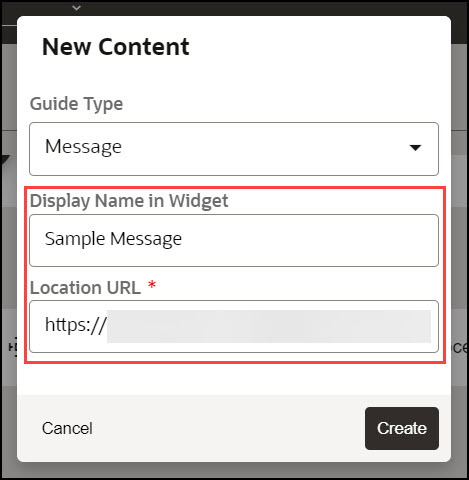
- Select the Create button (
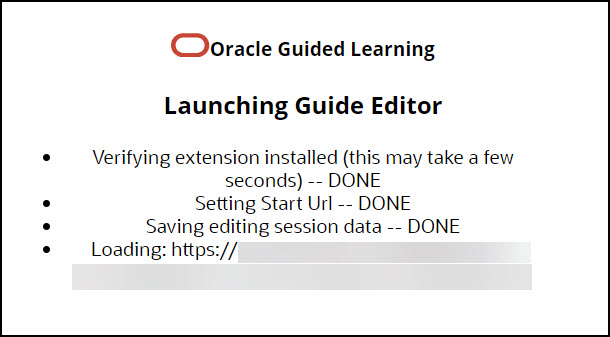
 ) to launch the OGL Editor.
The OGL Editor launches in a new tab, where you can start capturing the contents of the guide.
Note:
The editor appears as an overlay on your application. - Select the (
 ) button to display a message on the page.
- Enter your message text into the Message field.
A live preview of your text will appear in the message as you type.
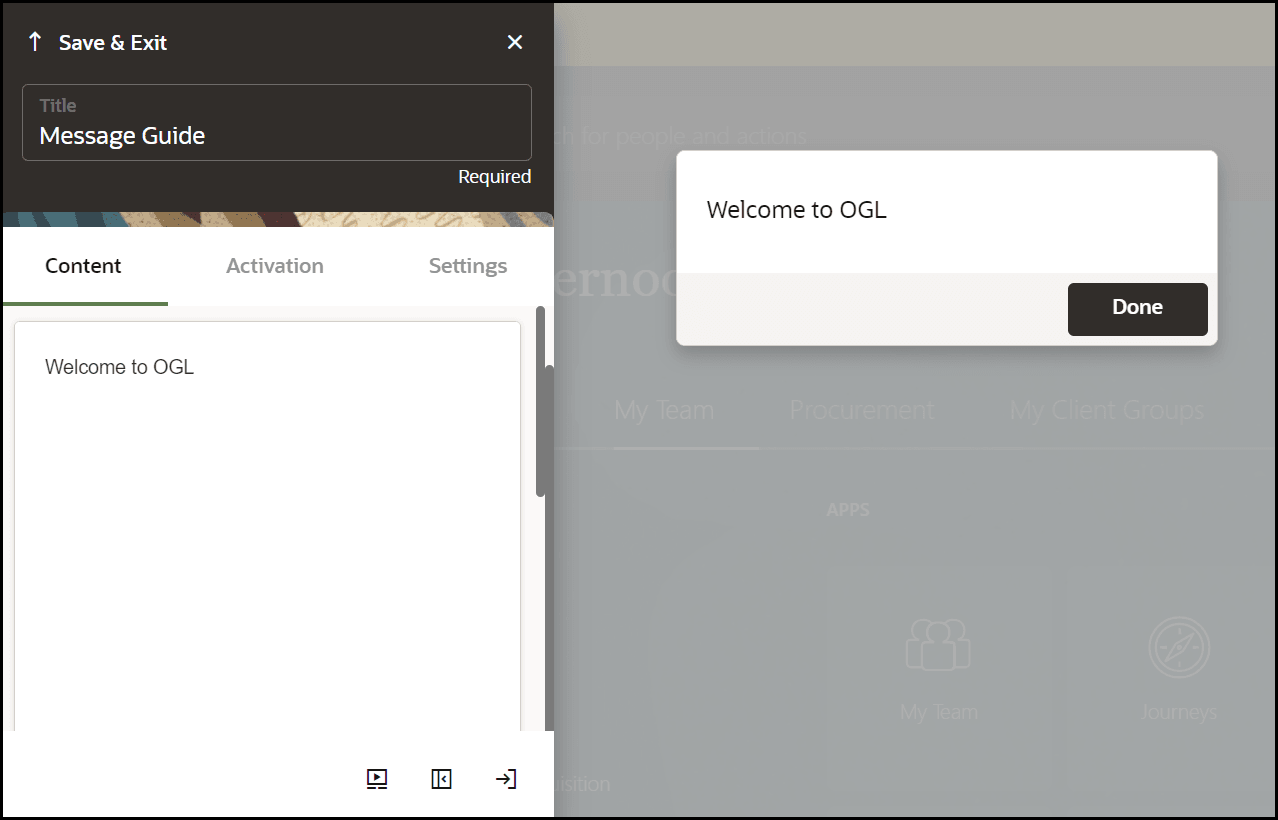
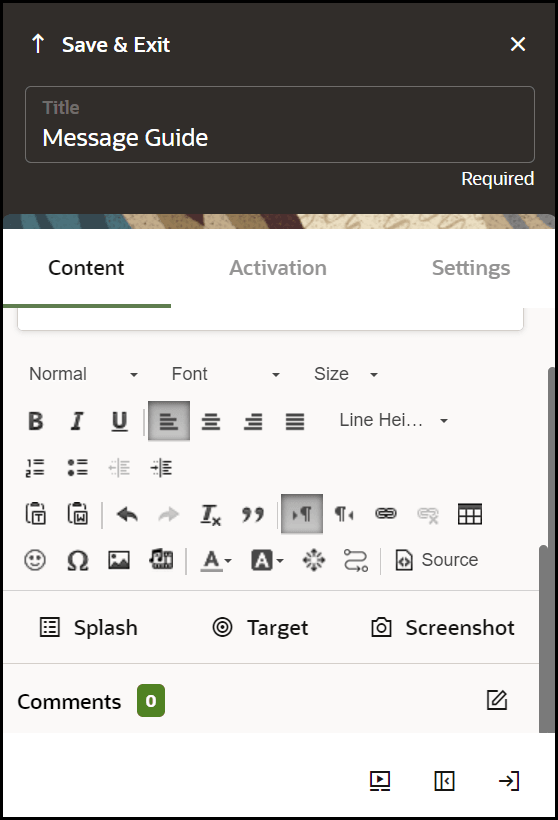
- Scroll down to view more tools options.
- Format your text, as required.
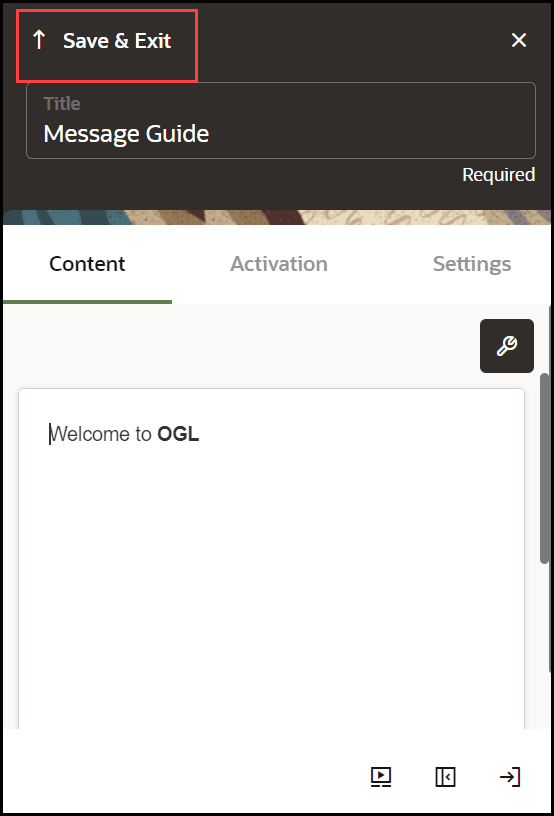
- Select Save & Close to exit the full editor.
Note:
After creating a message, you may need to check and configure the Guide Activation Settings to ensure that the guide displays and behaves correctly. For more information, refer to the Enabling Guide Activation Settings section.
