Custom CSS Rules for Guided Learning Theme
Enabling Multiple Styles in the same Guide
Guided learning allows for custom CSS classes where there is a requirement to have different formatting for tips or help icons within the same guide (or even the same step). An example of this would be having a different look for Smart Tip with varying levels of information, you could have red, amber, and green alerts with varying information.
All of your CSS styles must go between the IRIDIZE_CUSTOM_THEME_START and IRIDIZE_CUSTOM_THEME_END comment lines in the Design Kit. Examples are in the table below. You can set your own class names (i.e. ORG_CUSTOM1 instead of RED_ALERT).
| Reference Image | CSS Rule |
|---|---|
 |
Theme default, no custom CSS |
 |
/*The following code will result in the help icon
having a red background when the RED_ALERT class is
active*/div.RED_ALERT.ir-marker{background-color: red;} |
 |
/*The following code will result in the help icon
having an amber background when the AMBER_ALERT class is
active*/div.AMBER_ALERT.ir-marker{background-color: #F7AC08;} |
 |
/*The following code will result in the help icon
having a green background when the GREEN_ALERT class is
active*/div.GREEN_ALERT.ir-marker{background-color: #599964;} |
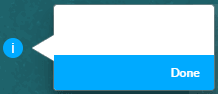 |
Theme default, no custom CSS |
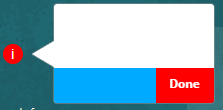 |
/*The following code will result in the Next and Done
buttons being RED when the RED_BTN class is
active*/div.sttip div.tooltip.RED_BTN div.stFooter [data-iridize-role="nextBt"] {
background-color: red;
} |
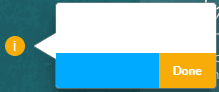 |
/*The following code will result in the Next and Done
buttons being AMBER when the AMBER_BTN class is
active*/div.sttip div.tooltip.AMBER_BTN div.stFooter [data-iridize-role="nextBt"] {
background-color: #F7AC08;
} |
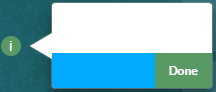 |
/*The following code will result in the Next and Done
buttons being GREEN when the GREEN_BTN class is
active*/div.sttip div.tooltip.GREEN_BTN div.stFooter [data-iridize-role="nextBt"] {
background-color: #599964;
} |
| Grey image missing | /*The following code will result in the back button
being grey when the GREY_BTN class is
active*/div.sttip div.tooltip.GREY_BTN div.stFooter [data-iridize-role="prevBt"] {
background-color:grey;
} |
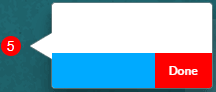 |
/*The following code will result in the help icon
having a red level indicator as 5 when the RED_ALERT class is
active*/div.RED_ALERT.ir-marker:after {content: "5";} |
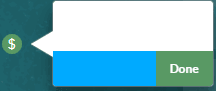 |
/*The following code will result in the help icon
having a the $ when the GREEN_ALERT class is
active*/div.GREEN_ALERT.ir-marker:after {content: "$";} |
Once the updates have been made, upload the Design kit to Guided Learning (see Upload the Design Kit in Configuring Themes).
Set the Custom CSS Class for Tooltips
- Open the item with the OGL Full Editor
- Expand the Display Settings section in Step Settings
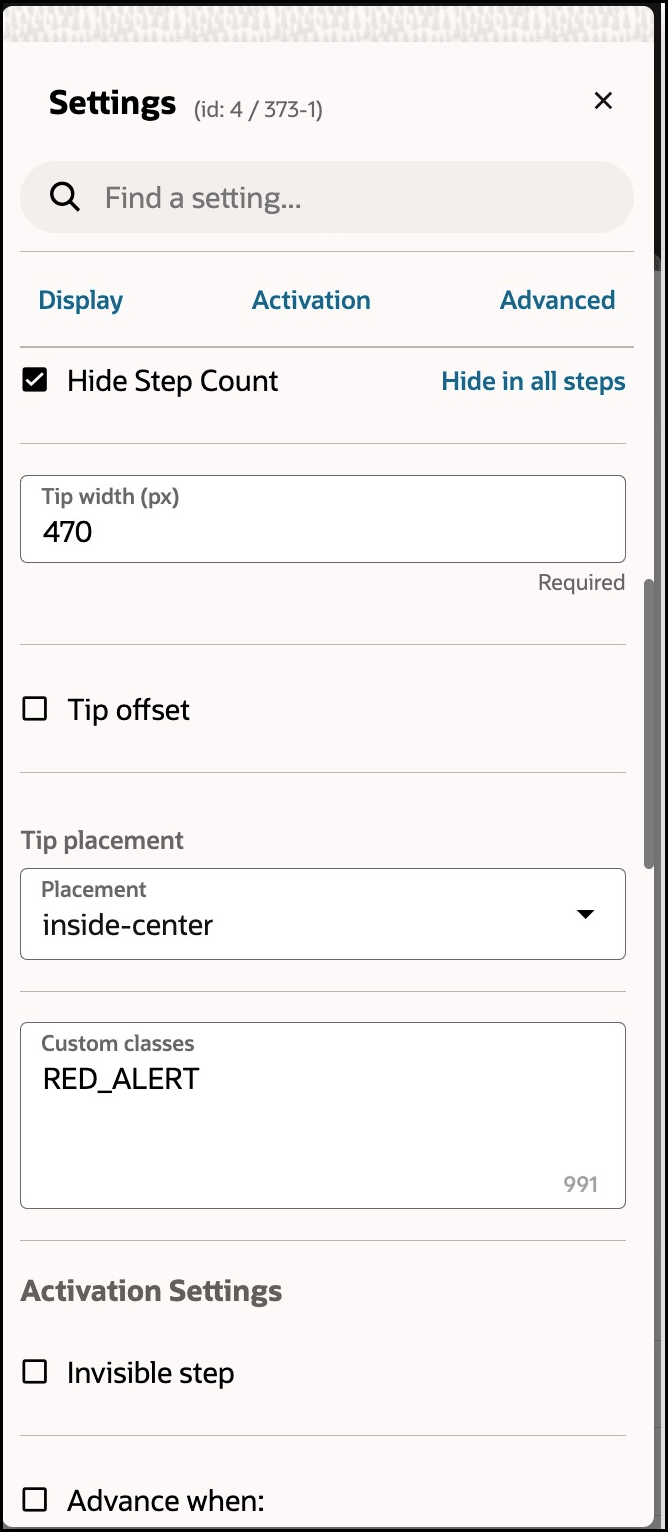
- Find the Custom classes field and set the custom class for the
tooltip
Note: Set multiple custom classes by separating the class name with a single whitespace ( <custom_class_name_1><whitespace><custom_class_name_2><whitespace><custom_class_name_3>)
- Save the changes and close the OGL Editor
- Validate the changes in your test environment