Feedback
Accessing the Feedback Settings
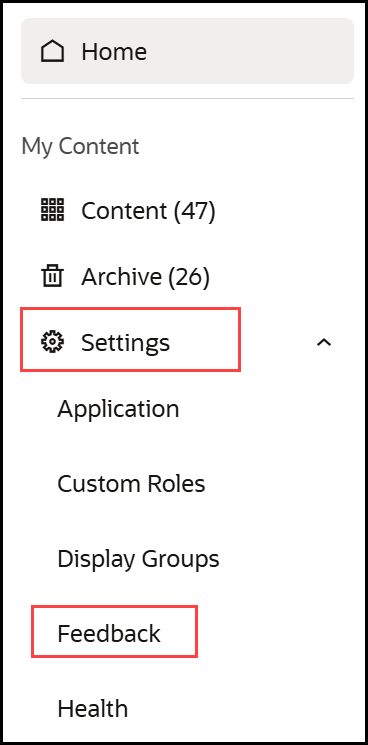
- In the left navigation panel, select the Settings menu.
- Select Feedback from the list.
Note:
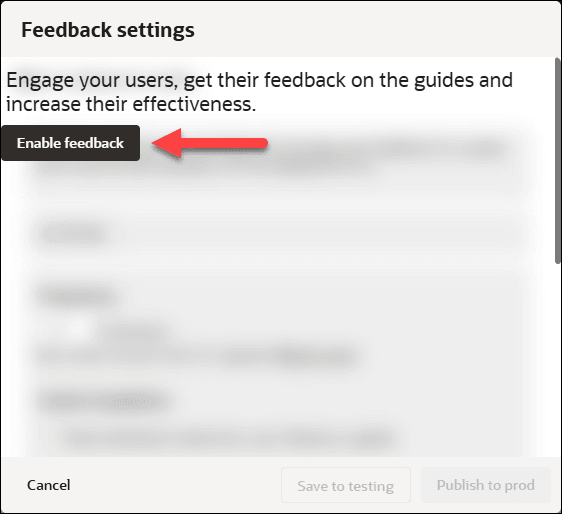
Feedback is disabled by default, to enable, select the Enable Feedback button. Once enabled, feedback is enabled for all items in the My Content library (See Guide Level Control of Feedback below)
| # | Description |
|---|---|
| 1 |
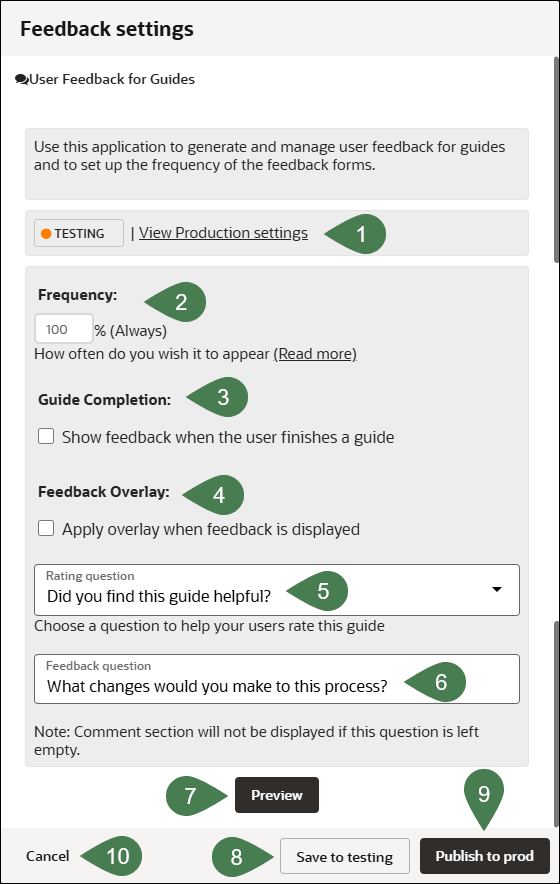
Testing | View Production settings or Production | View Testing settings Toggle between the Testing and Production settings using the link. |
| 2 |
Frequency Controls how frequently a user will be requested to provide feedback. Range 0% (Never) to 100% (Always). If set to 50% this means there is a 50% probability that feedback will be requested from the user. Key considerations: Guided Learning runs several checks before displaying the request for feedback to the user, they are:
|
| 3 |
Guide Completion If the "Show feedback when the user finishes a
guide" checkbox is selected, the feedback dialog will be
presented to users each time a user has closed/completed the
guide.
Note: Enabling this setting will override any Frequency settings above. Do not enable this setting if you intend to set the frequency for feedback.) |
| 4 |
Feedback Overlay If selected, an overlay will be applied to the page when the feedback is displayed. Elements outside the feedback tip will be visible but inaccessible while the feedback is active/being displayed. |
| 5 |
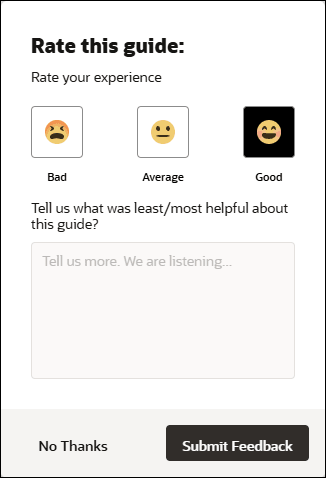
Rating Question Predefined questions can be selected from the drop-down, these are meant to assist users to rate the guide. Available options are:
|
| 6 |
Feedback Question This provides a free text field to allow for the customization of the feedback question. This field is prepopulated with the statement "Tell us what was least/most helpful about this guide" Once presented to the user, they can then enter their comments in the provided field. (See Preview) |
| 7 |
Preview Provides a preview of the feedback settings before saving them to testing/production
|
| 8 |
Save to Testing Saves the current feedback settings to DRAFT status. Settings will be reflected in the Development/Testing environment(s) where the OGL configuration is set to Development |
| 9 |
Publish to prod Saves the current feedback settings to PUBLISHED status. Settings will be reflected in the Production environment where the OGL configuration is set to Production Note: For multi-language content, you will need to translate the Application Properties in the Translations modal to ensure that the feedback settings modal using the Auto Translate option in the translations modal). Once the Application Properties are translated, you need to go the feedback settings modal and click on 'Publish to prod'. |
| 10 |
Cancel Discards any changes and closes the Feedback settings modal |
Enabling feedback at the application ID level enables it for all items in the library. Depending on the organizational requirements, OGL also provides item level control of feedback settings, this means feedback can be disabled for some items in the library or enabled only for a select few items.
For instance, in a library of 20 items, your organization might only be interested in feedback for 5 of the items, this means, you can use item-level control to disable feedback for the 15 items and enable it only for the 5.
To view an items feedback settings:
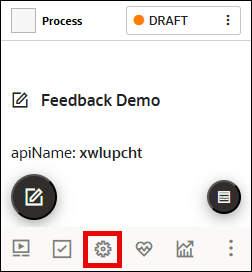
From the My Content library, select the settings icon on the guide tile.
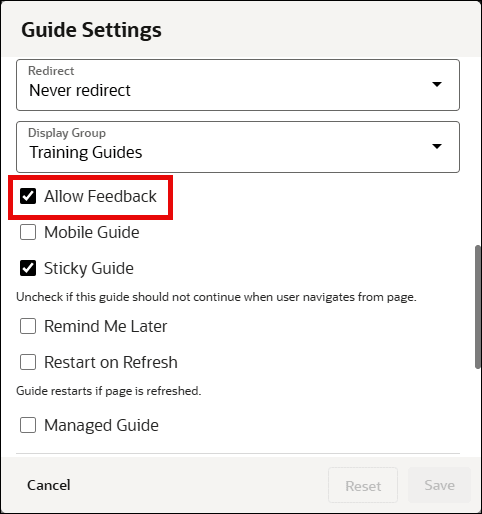
Set the Allow Feedback setting as required
Note: Checked = Feedback allowed and Unchecked = Feedback not allowed
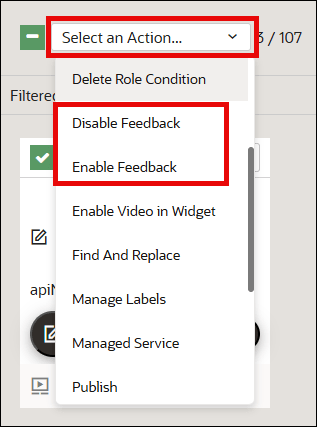
To allow/disallow feedback in bulk:
- Select multiple content items using the checkboxes.
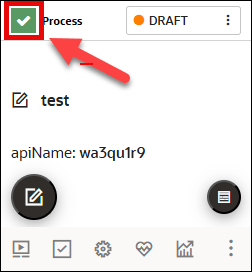
- Click the Action menu drop-down, then select Enable
Feedback or Disable Feedback.
Note:
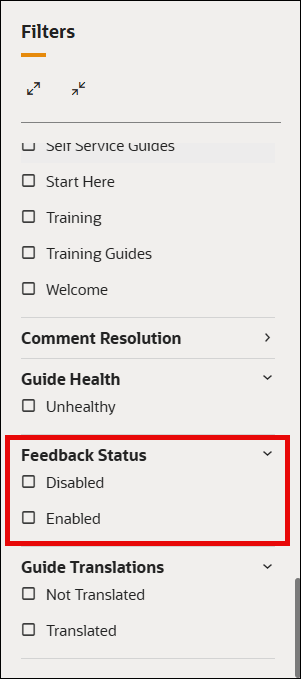
Once completed, you can filter using the Feedback Status filter option.