Net Promoter Score (NPS) Survey
In addition to the other available survey question types (Multiple Choice, Single Select, True or False, Rating Scale, Experience Rating, and Question), OGL also offers a New Promoter Score (NPS) survey type. This unique survey type employs a slightly different guide editing flow than traditional survey types and also has a separate analytics dashboard for analyzing NPS survey responses.
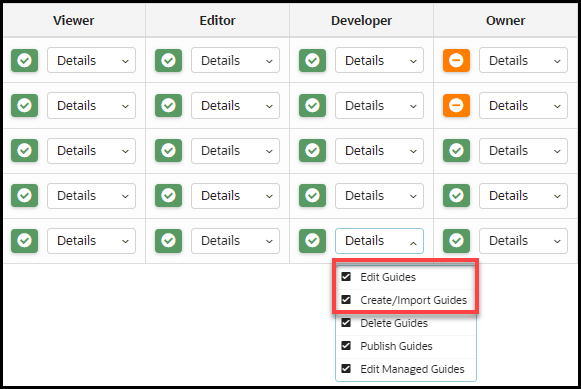
The survey feature requires the following OGL security role and permissions: Developer role → Edit Guides and Create/Import Guides permissions.
What is a NPS survey?
Net Promoter Score (NPS) is a market research metric that is based on a single survey question that asks respondents to rate the likelihood that they would recommend a company, product, or a service to a friend or colleague. The survey asks customers a single question: "How likely are you to recommend our products or services to others?"
Customers respond on a scale of 0-10, with 0 being "not at all likely" and 10 being "extremely likely".
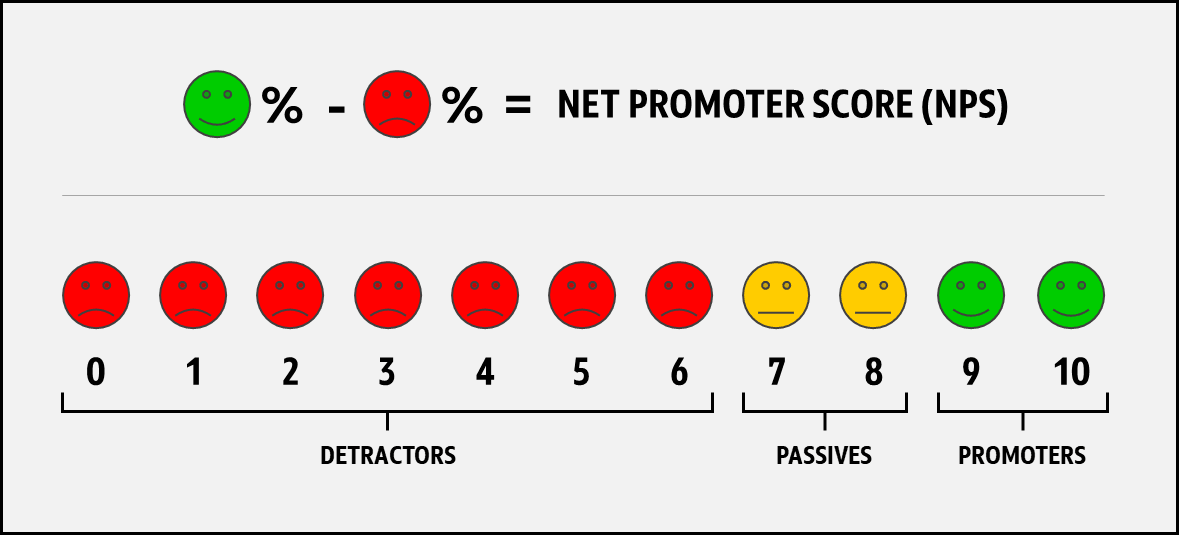
Based on the survey responses, customers are classified into three groups:
- Promoters (score 9-10): These customers are loyal enthusiasts who are likely to recommend the business to others and are valuable assets to the business.
- Passives (score 7-8): These customers are satisfied but not necessarily loyal and may be easily swayed by competitors.
- Detractors (score 0-6): These customers are unhappy and likely to spread negative feedback about the business, which can harm the business's reputation.
How is a Net Promoter Score calculated?
Net Promoter Score is calculated by subtracting the percentage of detractors from the percentage of promoters. The formula for calculating Net Promoter Score is:
NPS = % Promoters - % Detractors
Note:
For example, if 60% of respondents are promoters, 10% are detractors, and 30% are passives, your NPS would be: 60-10=50Steps to create a NPS survey
- From the My Content page, select the “Create” icon to create a new
guide.
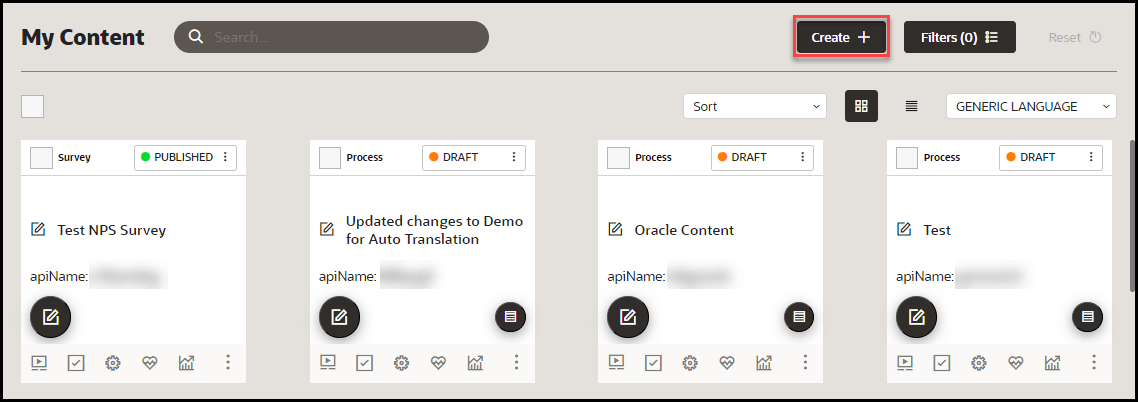
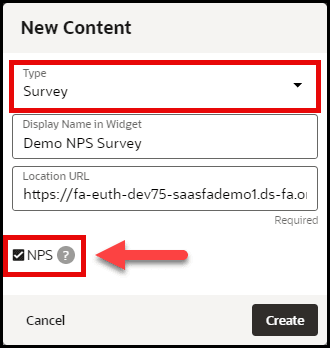
- In the New Content modal, select Survey from the Type
dropdown menu, enter a display name, and location URL, as
required.Important: Select the NPS checkbox. This will load
the NPS survey guide editor and flow.Then select Create.
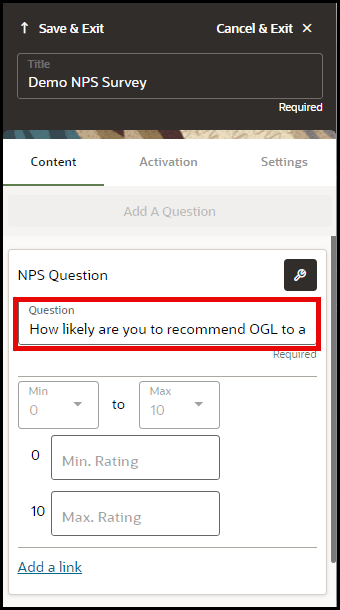
- In the NPS Survey editor, enter the text for your survey question
in the Question field.(Optional - You can select Add a link to create a
hyperlink to a specified URL.)
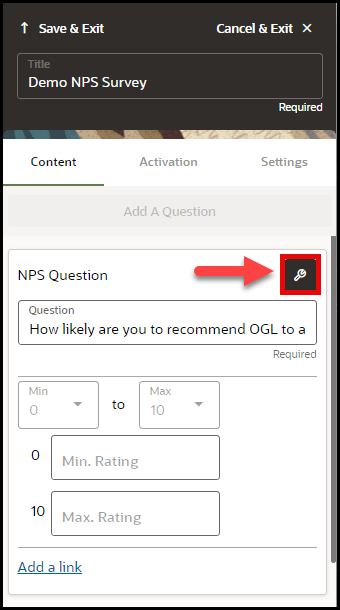
- Select the Question Settings button (
 )to apply any additional Display, Activation, or Advanced settings, as
needed.
)to apply any additional Display, Activation, or Advanced settings, as
needed.
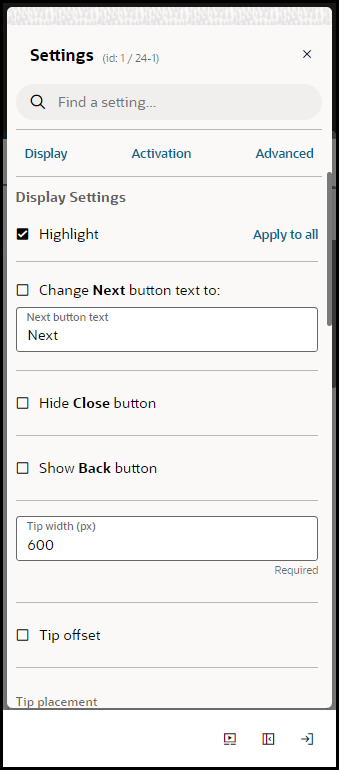
Apply settings, as needed, and close the Settings panel.
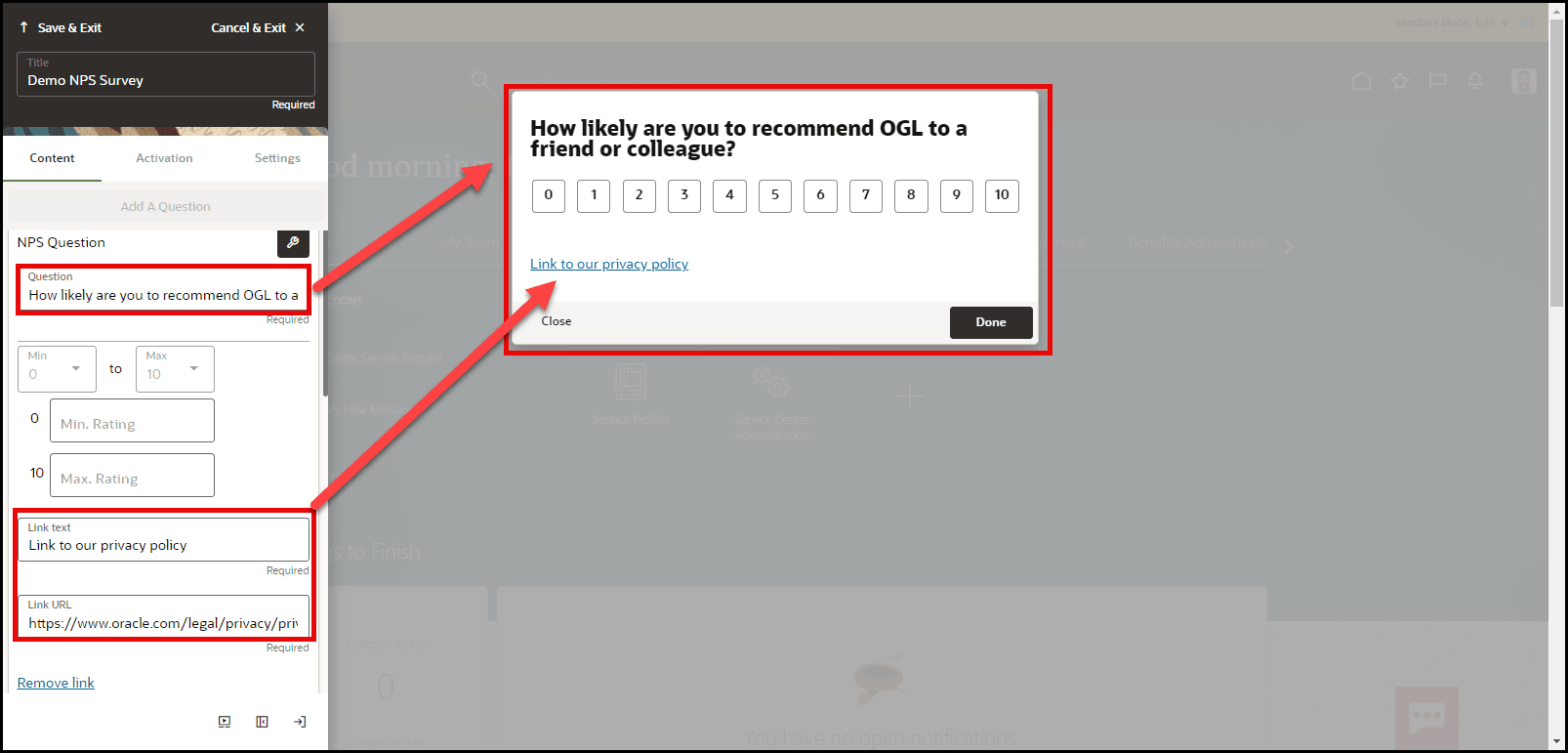
The survey question will appear in the NPS survey tip, as shown below:
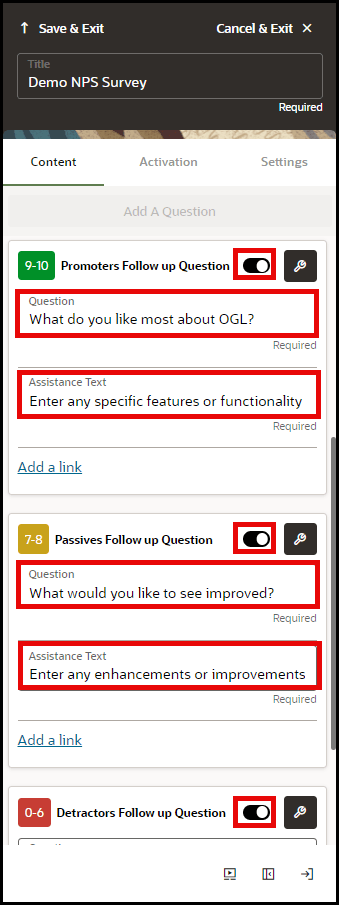
- To enable follow questions, select the Switch to show button
(
 ) to enable follow up questions for Promoters, Passives, and Detractors,
as needed.
) to enable follow up questions for Promoters, Passives, and Detractors,
as needed.
- The Follow up question will be triggered based upon the
survey respondent's rating
(Rating of 9-10 triggers the Promotors Follow up Question, rating of 7-8 triggers the Passives Follow up Question, rating of 0-6 triggers the Detractors Follow up Question)
- Enter the Question text and Assistance Text for each follow up question, as needed.
- Select the Question Settings button () to apply any additional Display, Activation, or Advanced
settings, as needed.
- The Follow up question will be triggered based upon the
survey respondent's rating
- Select Save & Exit.
NPS Survey Analytics
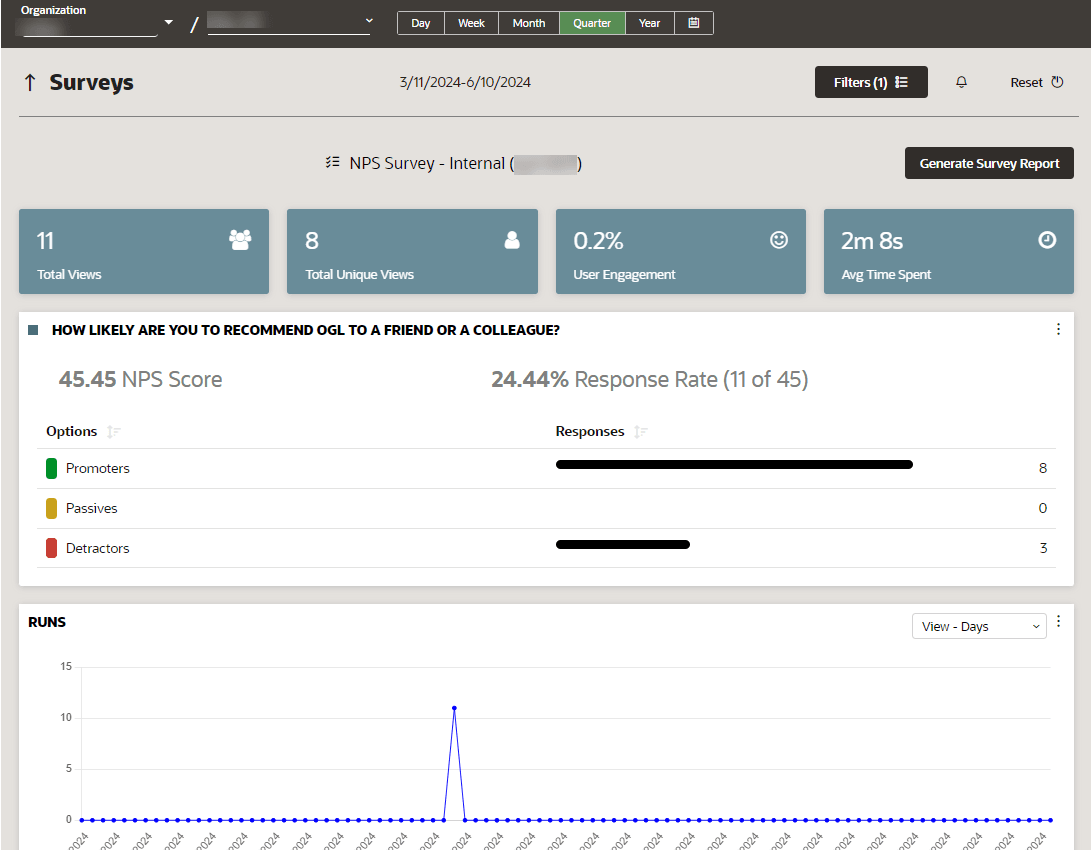
OGL's NPS Survey feature offers a unique analytics dashboard that allows OGL administrators to view analytics specific to the NPS survey responses. The NPS Analytics dashboard allows to you see data related to Total Views, Total Unique Views, User Engagement, and Average Time Spent as well as an analysis of the NPS survey responses, including a breakdown of the total responses by Promoters, Passives, and Detractors. The Net Promoter Score is calculated by subtracting the percentage of detractors from the percentage of promoters.
The formula for calculating Net Promoter Score is:
NPS = % Promoters - % Detractors
Note:
For more information about the NPS Survey analytics, refer to the Surveys Analytics Dashboard topic