Permalinks
Permalinks provide end users with quick access to launch a guide without having to go through the Launch Widget. These links can be embedded into an email message, knowledge base article, or LMS asset to allow end users to quickly launch a guide simply clicking the link. This link, when opened, automatically launches the guide in the host application, providing more efficiency and flexibility in distributing OGL content to end-users.
Note:
For more information about Permalinks, refer to this OGL Knowledge Article: https://docs.oracle.com/en/education/customer-success/guided-learning/ogl-faq/tips-tricks.html#GUID0C732461-4044-4220-A010-9A85E1BB0FD0
With OGL 25B, this console enhancement allows developers to quickly view and copy a Permalink for a guide for each specified domain from within the More Actions menu on the guide tile.
Permalinks can be obtained via the modal for the following supported guide types:
- Message
- Process
- Survey
Accessing the Permalink
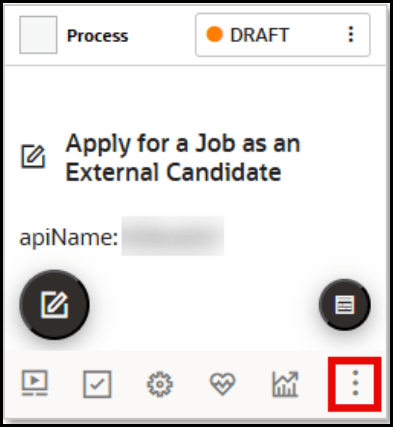
- From the My Content page, locate the guide from which to copy the Permalink.
- Select the More
 button in the bottom-right of the guide tile.
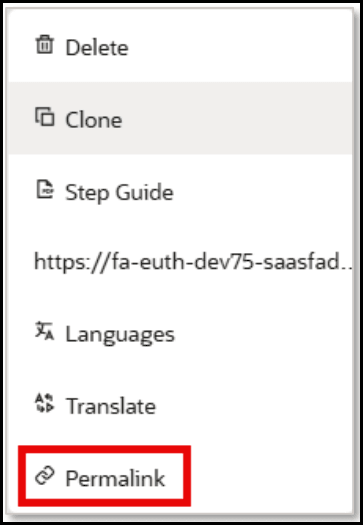
- In the More Actions menu, select Permalink.
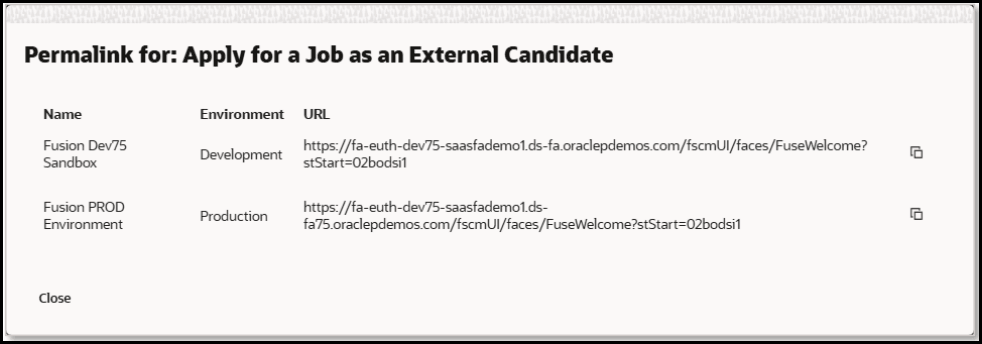
4. The Permalink modal will appear providing the Domain Name, Environment, and URL of each available Permalink.
Note:
A separate, unique Permalink will be listed for each available Domain.Select the Copy (
 ) button to copy the Permalink to your clipboard or select the URL
to open the Permalink.
) button to copy the Permalink to your clipboard or select the URL
to open the Permalink.
5. You can now paste the Permalink into your source documentation (e.g., email template, knowledge article/document, LMS content link, etc.).
Known Issues/Expected BehaviorNote:
For the Permalink functionality to work properly, OGL must first be deployed to your host application (i.e., Fusion) and you must have your OGL Domains setup for your DEV and/or PROD environments. Permalinks areunique and specific to each guide (apiName) and domain.Expected behavior:
- Signing into the Host Application:
- For Fusion applications, when an end user clicks a Permalink, they will be redirected to sign in with their Fusion login credentials before launching the guide (if the user is not already logged in).
- For Non-Fusion applications, the Permalink may or may not launch the guide depending upon the server configuration. As a best practice, end users should sign into the host application before attempting to access the Permalink.
- Permalinks do not recognize activation conditions assigned to the guide and can be opened by any user who opens the link, provided that they have access to the host application.
- For the Permalink to work properly, the guide must be Active and in Draft or Published status.
- Permalinks can only be obtained via the modal from the following
supported guide types:
- Message
- Process
- Survey
- In Fusion applications, Permalinks can only launch a guide from the home page and cannot launch to specific pages or deep links.
- For non-Fusion applications, Permalinks are dependent on the host application configuration and we recommend that you thoroughly test Permalinks in both the DEV and/or PROD environments before deploying them to end-users.
- Signing into the Host Application:
