Instance Panel
From the above example, let us switch to the instance `*otlpacdb_3*`. It is the customary status panel.
Figure 6-10: Instance Panel
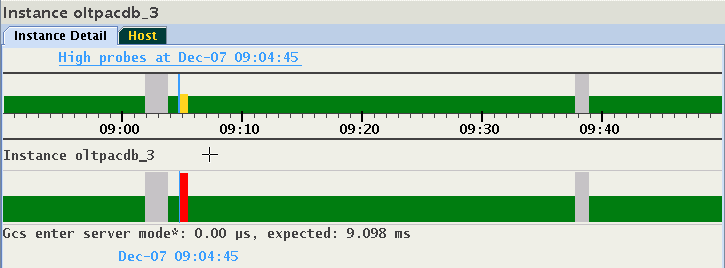
The panel displays two interruptions in service mentioned in the previous section. This display does not indicate that the instance was in fact running on more than one host at different points in time. Click the "Host" tab to visualize where the instance was running. The relationship is 1:1. An instance runs always on only one host at a particular point in time.
Figure 6-11: Instance Panel
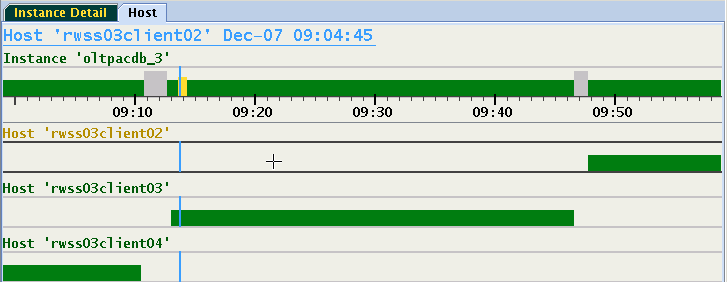
From this display, switching to any of the hosts is performed by either double-clicking its name, or by selecting the timeline and hitting the Enter key on your keyboard. Using this method, you can quickly switch between host and instances. As the image illustrates, this panel displays a form of cascaded time ranges from most recent on top to the oldest on the bottom. When resizing the window, the display may change dynamically causing timelines to be added or removed.
For example:
Figure 6-12: Instance Panel
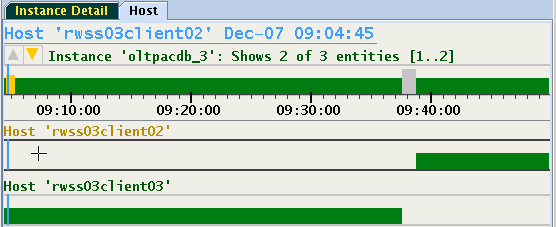
The run time of the instance on host rwss03client04 is no longer indicated because it ended prior to 9:04 and this time is not shown in the narrower window.