Accessing the Replication Page in Cloud Control
The Replication page in Cloud Control is the recommended interface for configuring Recovery Appliance replication.
To access the Replication page:
-
Access the Recovery Appliance Home page, as described in “Accessing the Recovery Appliance Home Page”.
-
From the Recovery Appliance menu, select Replication.
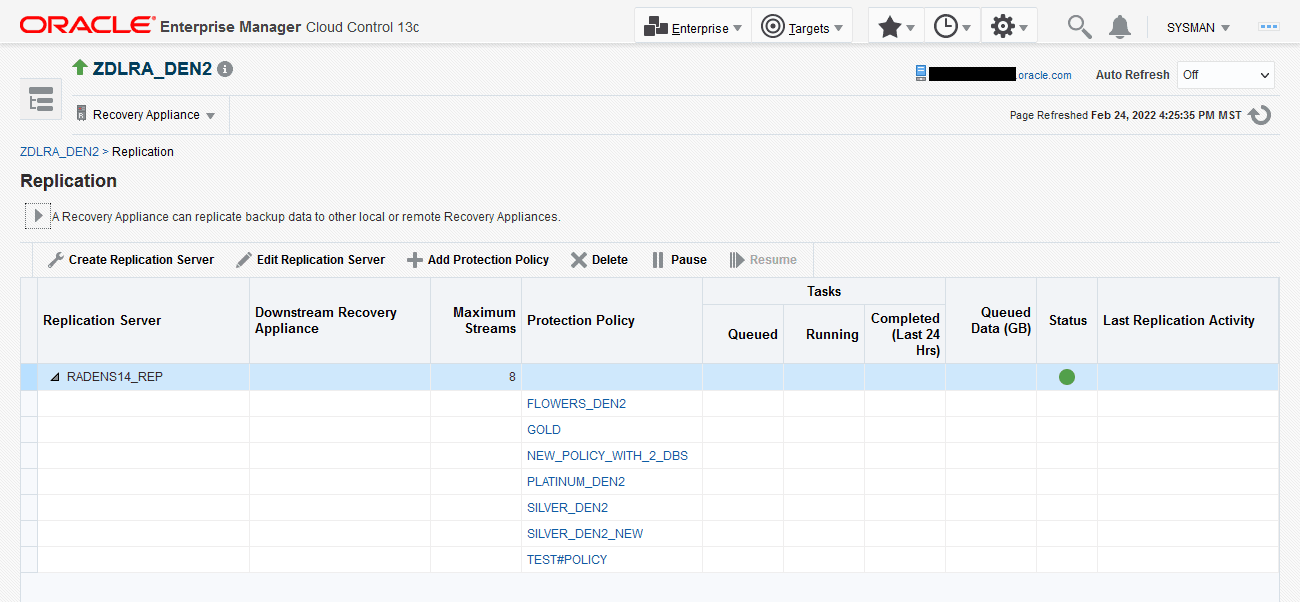
The Replication page appears, as shown in Figure 6.
Figure 6: Replication Page
Description of the illustration replication_page.png
In the above figure, the replication server named
RADENS14_REPis already configured. The Status column shows that it is available.
Configuring Recovery Appliance Replication Using Cloud Control
This section describes how to configure Recovery Appliance replication using the Replication page in Cloud Control.
Prerequisites
Your environment must meet the following prerequisites:
-
The upstream and downstream Recovery Appliance can communicate with each other over the network.
-
Every protected database whose backup data will be replicated must be enrolled with the upstream Recovery Appliance.
-
The downstream Recovery Appliance must be started and configured to receive backups.
Assumptions
Assume that the following statements are true of your Recovery Appliance environment:
-
The protected databases
orcl11andorcl12back up to upstream Recovery ApplianceZDLRA Boston. -
You want
ZDLRA Bostonto replicate to downstream Recovery ApplianceZDLRA_DEN2. -
A replication user account named
repuser_from_bostonexists on the downstream Recovery Appliance (ZDLRA_DEN2). -
A virtual private catalog account named
vpc_boston1exists on the upstream Recovery Appliance (ZDLRA Boston). -
You know the credentials for the operating system user who owns the upstream Recovery Appliance (
ZDLRA Boston) database installation.
To configure Recovery Appliance replication:
-
Access the Recovery Appliance Home page on the upstream Recovery Appliance. Refer to “Accessing the Recovery Appliance Home Page”.
-
From the Recovery Appliance menu on the upstream Recovery Appliance, select Protection Policies to create one for replication.
In this example, you access the Create Protection Policy page for
ZDLRA Boston, which is the upstream Recovery Appliance.If required, enter your login credentials, and then click Login.
The Protection Policies page appears.
-
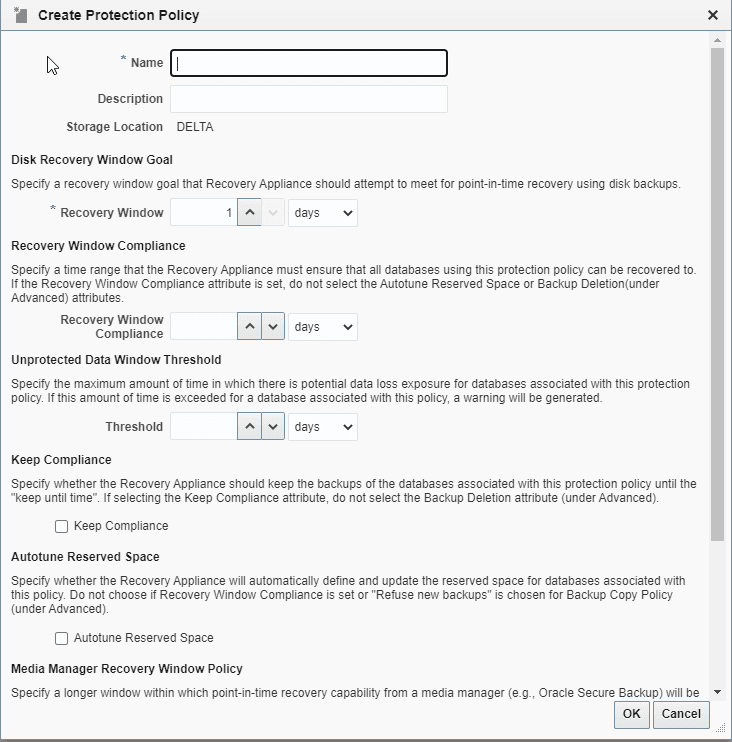
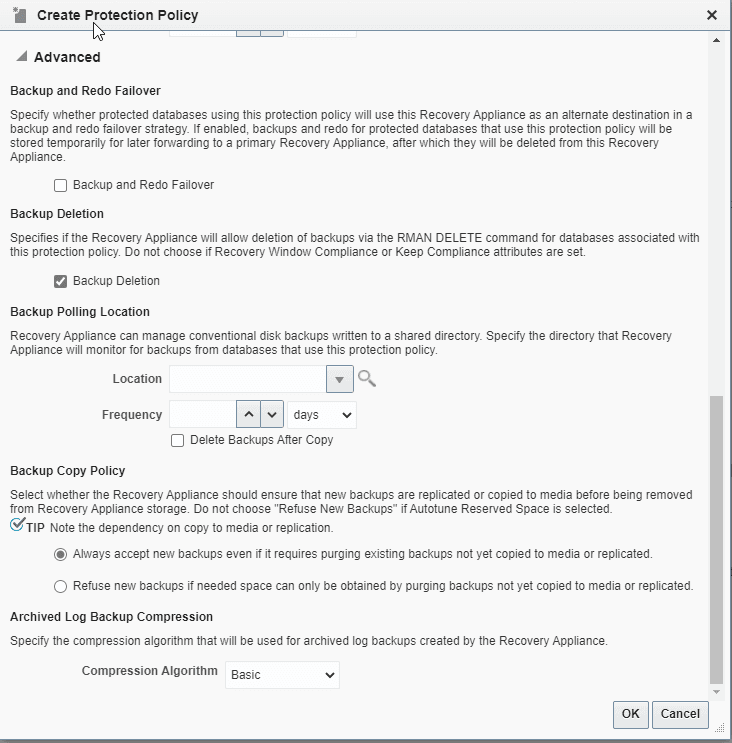
Create a replication protection policy. This is a normal protection policy that is later tied to replication, and is presented in Creating a Protection Policy.
Figure 7: Create Protection Policy Page
Description of the illustration create_prot_pol_page.png
Figure 8: Protection Policy Advanced Parameters
Description of the illustration create_prot_pol_advanced.png
In this example, you create a policy named
reppolicy_ds_gold. -
From the Recovery Appliance drop-down menu on the upstream Recovery Appliance, select Protected Database.
Select Add from the Protected Database tool bar. It shows the Add Protected Databases dialog box.
-
Select Add from this dialog box, which provides a Select Targets tool to Search for databases.
After a database is selected, it appears in the Database table. You can repeat this for other databases.
-
After the databases have been selected in Add Protected Databases dialog box, select the appropriate replication policy, such as
reppolicy_ds_goldin this example.When finished, select Next creates a job for the databases in the replication protection policy.
-
From the Recovery Appliance drop-down menu on the upstream Recovery Appliance, select Replication.
If the Recovery Appliance Login page appears, enter your login credentials and then click Login.
The Replication page appears, as shown in Figure 6.
In the preceding example, the replication server was named
ZDLRA9_REP. -
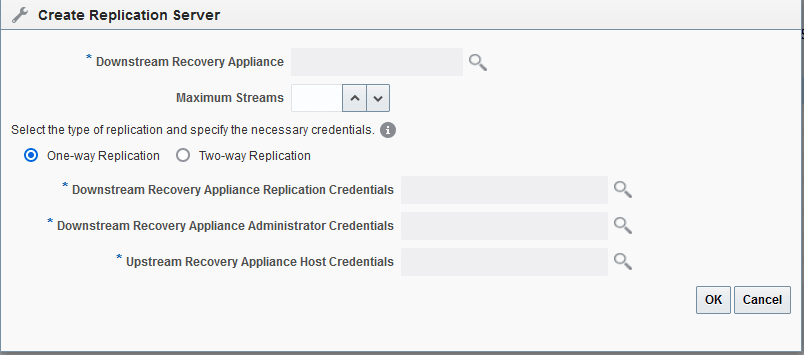
Select Create Replication Server on the Replication page.The Create Replication Server page appears.
Figure 9: Create Replication Server Page
-
Enter values as follows, and then click OK.
-
In the Downstream Recovery Appliance field, click the magnifying glass, and then from the list of discovered targets, select the Recovery Appliance that you want to configure in the downstream role.
For example, select ZDLRA_DEN2.
-
In the Downstream Recovery Appliance Database Credentials section, specify credentials for a virtual private catalog account on the downstream Recovery Appliance.
Note: This catalog account must have been granted permission to manage the replicated backups on the downstream Recovery Appliance. See racli add db_user.
For example, enter
vpc_den2. -
In the Upstream Recovery Appliance Database Credentials section, specify credentials for the operating system user who owns the upstream Recovery Appliance database installation.
An Information message appears showing the job submission ID.
-
-
After the new Replication Server appears in the list on the Replication page, select Add Protection Policy.
In this example, you created a policy named
reppolicy_ds_goldto be added to the replication server.
Once the replication server is configured on the upstream Recovery Appliance, the policies and configuration are handled for the downstream Recovery Appliance.