4 Configuring CNC Console IAM
Note:
Not applicable for OCI deployment.This section provides details on how to configure CNC Console IAM.
Restricted Actions on CNC Console IAM
Figure 4-1 Restrict Access
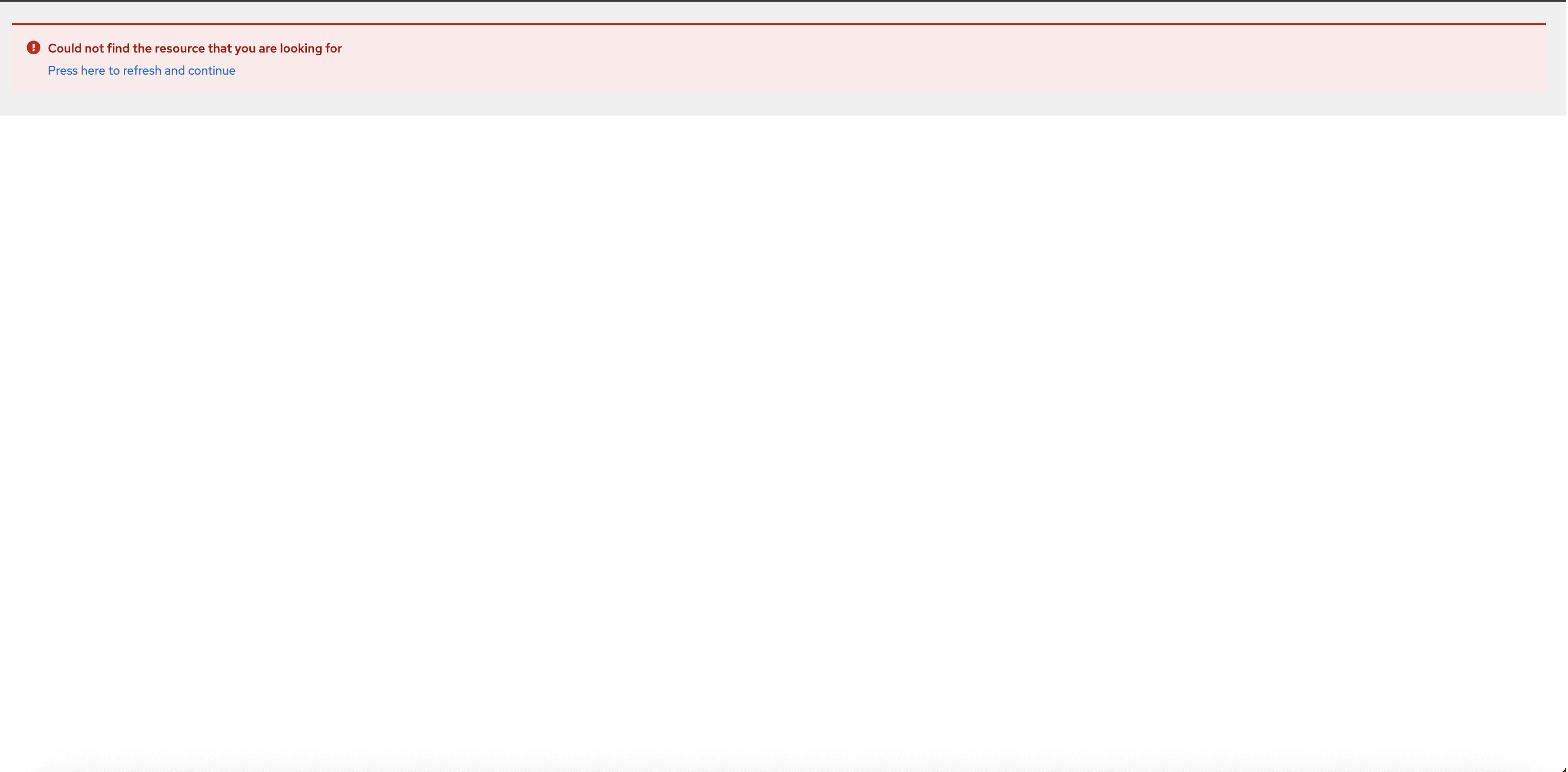
Click the Press here to refresh and continue link to reload CNC Console IAM.
4.1 Role-Based Access Control in CNC Console IAM
Role-Based Access Control (RBAC) is one of the main methods for advanced access control.
It enables you to restrict network access to authorized users based on their assigned roles.
Role
A Role is a collection of permissions that you can apply to users. Roles are defined according to the authority and responsibility of the users within the organization. Using roles makes it easier to add, remove, and update permissions for users.
Composite Role
A composite role is a collection of one or more additional roles grouped together.
4.1.1 Types of Roles in CNC Console
Role-Based Access Control (RBAC) is managed by the Identity and Access Management (IAM) functionality in CNC Console IAM.
The following roles are predefined in the CNC Console IAM:
Roles for CNC Console IAM Admin Users
Admin Role
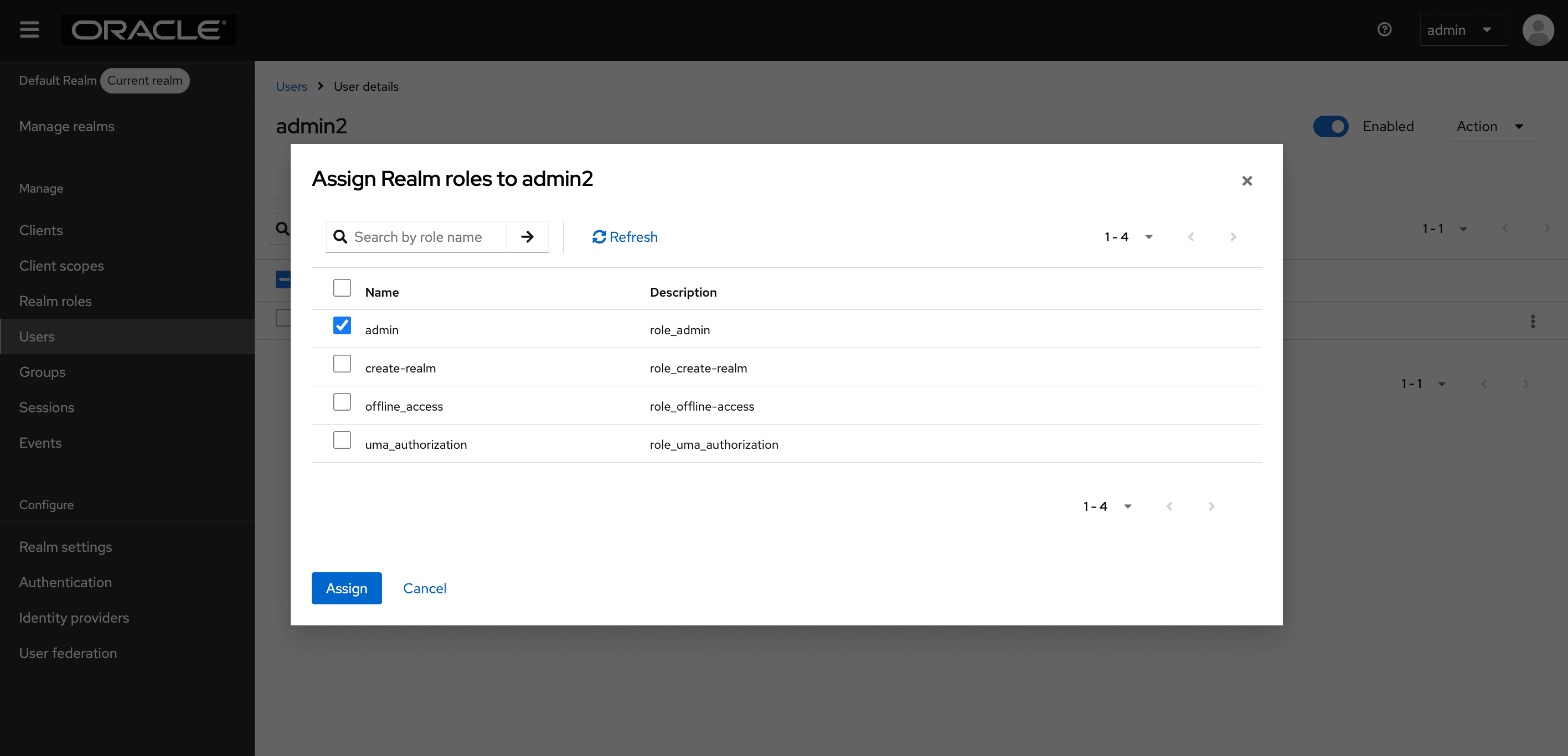
In CNC Console IAM, a user in the default realm must be assigned the Admin role to gain administrative privileges.
An admin user has the necessary permissions to modify settings related to other admin users.
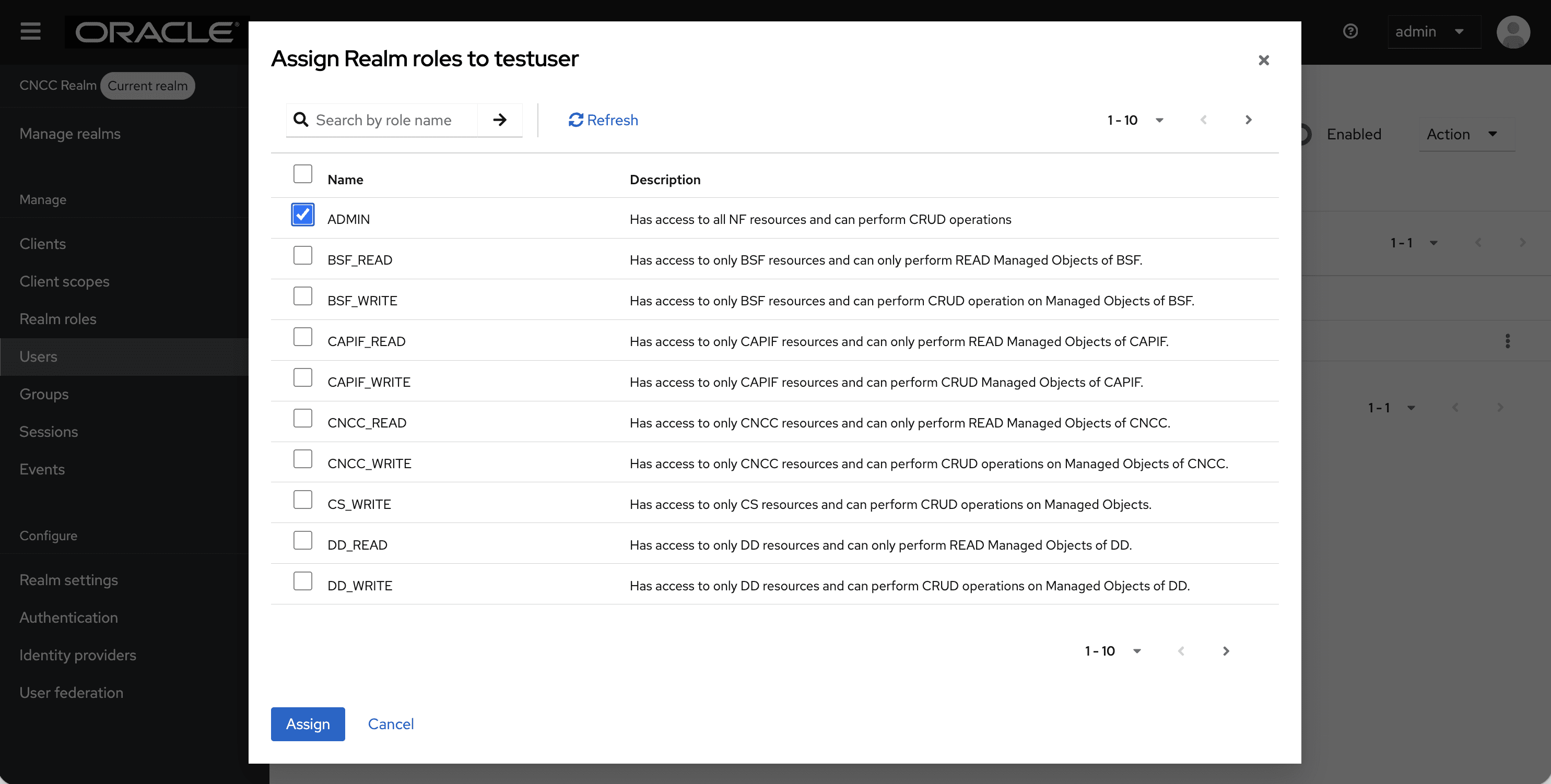
Figure 4-2 Assign Realm roles to admin
Roles for CNC Console Core Users
- NF RolesThe user assigned this role can perform read and write operations for the assigned NFs. NF level roles are classified into:
- <NF>_READ: With this permission, the
assigned user can perform the read operation for NFs.
For example, if the user has the POLICY_READ role, then the user can only read configurations of any MOs within the Policy, and cannot write, update, or delete any record.
- <NF>_WRITE: With this permission, the assigned user can perform create, read, update, and delete operations for NFs. For example, if the user has POLICY_WRITE then the user can read, write, update, or delete any MOs configurations within the NF.
Note:
CNCC_READ/WRITE roles are also included under NF roles. - <NF>_READ: With this permission, the
assigned user can perform the read operation for NFs.
- Common Services Roles
Role: CS_WRITE
The user assigned this role has access to all the common services and can perform create, read, update, and delete (CRUD) operations.The user can read, add, update, or delete MOs configurations for all common services such as Grafana, Kibana, Jaeger, Prometheus, Alertmanager, Promxy, OpenSearch, and Jaeger-ES supported by CNC Console application. For example, if user has CS_WRITE then, the user can read, write, update, or delete any MOs configurations in common services.
- Admin Roles
Role: ADMIN
The user assigned this role has access to all resources (NF resources and CS resources) within the CNC Console application.
The user can create, read, update, and delete MOs configurations for all NFs and CSs supported by CNC Console. For example, if the user has ADMIN, then they can read, create, update, or delete any MO configurations of any NFs and CSs supported by CNC Console.
In case of multicluster
deployments, in addition to ADMIN, <NF>_READ , <NF>_WRITE, or CS_WRITE
roles, the user must be assigned a cluster role that corresponds to the cluster in
which they are accessing a particular NF or CS. The name of the cluster role must
match with role name given in Helm configuration in
global.mCnccCores.role/global.mCnccCores.id or
global.aCnccs.role/global.aCnccs.id for M-CNCC and A-CNCC
respectively. From 24.2.0 onwards, Cluster roles will be automatically created by
Helm hooks.
The user can access all NFs or CS in that cluster. For example, if a user has the Cluster1 role, and ADMIN, <NF>_READ, <NF>_WRITE, or CS_WRITE then they can access all the NFs or VS in Cluster1.
Instance Role
The operator can
enable or disable this feature using the
global.instanceLevelAuthorizationEnabled flag in Helm
configuration. By default, this flag is set as false. Instance-level roles
allow users to have access to specific NF instances. A user can be associated with a
single or multiple instance roles. Instance role name must match the instance ID of
that particular instance given in Helm configuration in
global.instances[i].id. Instance roles are automatically
created by Helm hooks.
The user can only access one NF or CS. For example, if the user has Cluster1-SCP-instance1 role, ADMIN, SCP_READ, or SCP_WRITE role, and Cluster1 role in case it is a multicluster deployment, then they can only access Cluster1-SCP-instance1.
Role: INSTANCE_ALL
INSTANCE_ALL is a catch-all role for all instance level roles. A user with INSTANCE_ALL role can access all instances, provided they have ADMIN, <NF>_READ, or <NF>_WRITE role, and a cluster-level role if it is a multicluster deployment. This role is automatically assigned to all local users during the first upgrade when this feature is enabled. If the operator wants to restrict a user to a particular instance, then they have to unassign INSTANCE_ALL role and assign any of the instance-level roles to the user.
The user can access all NF and CS instances. For example, if a user has INSTANCE_ALL role, then they can access all NF or CS instances, provided they have ADMIN, <NF>_READ, or <NF>_WRITE role and a cluster-level role in case of a multicluster deployment.
The following table describes the roles that must be assigned to a user to grant them access to NF or CS configurations:
Table 4-1 Accessing NF or CS Configurations
| Multicluster Flag (global.isMultiClusterDeployment) | Instance Role Flag (global.instanceLevelAuthorizationEnabled) | Roles Required |
|---|---|---|
| Enabled | Enabled | Cluster-level role, instance-level role, and NF-level role |
| Enabled | Disabled | Cluster Level role and NF Level role |
| Disabled | Enabled | Instance Level role and NF Level role |
| Disabled | Disabled | NF Level role |
Note:
For more information on how to assign roles to a user, see Oracle Communications Cloud Native Configuration Console Installation, Upgrade, and Fault Recovery Guide.4.1.2 Accessing Roles in CNC Console Applications
Viewing the Roles
- Log into CNC Console IAM using Admin credentials.
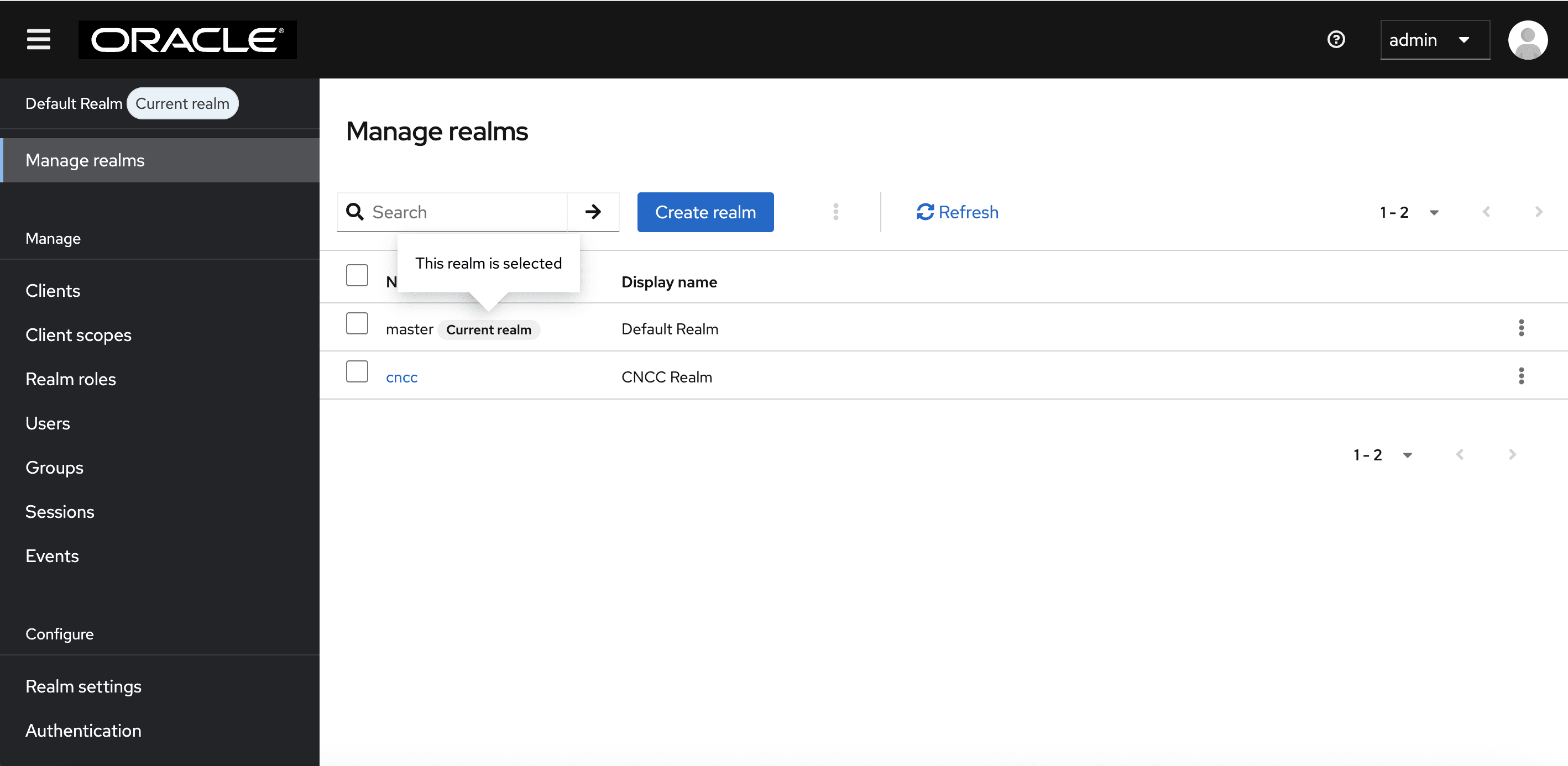
Select the appropriate realm based on the users whose roles you want to view. To switch realms, go to Manage Realm and select the desired realm from the list of available realms.
- To view roles in the default realm, select realm as shown
below:
Figure 4-3 Viewing Realm
- To view roles in the CNCC realm, select the cncc realm. The following screen appears:
Figure 4-4 Viewing cncc Realm
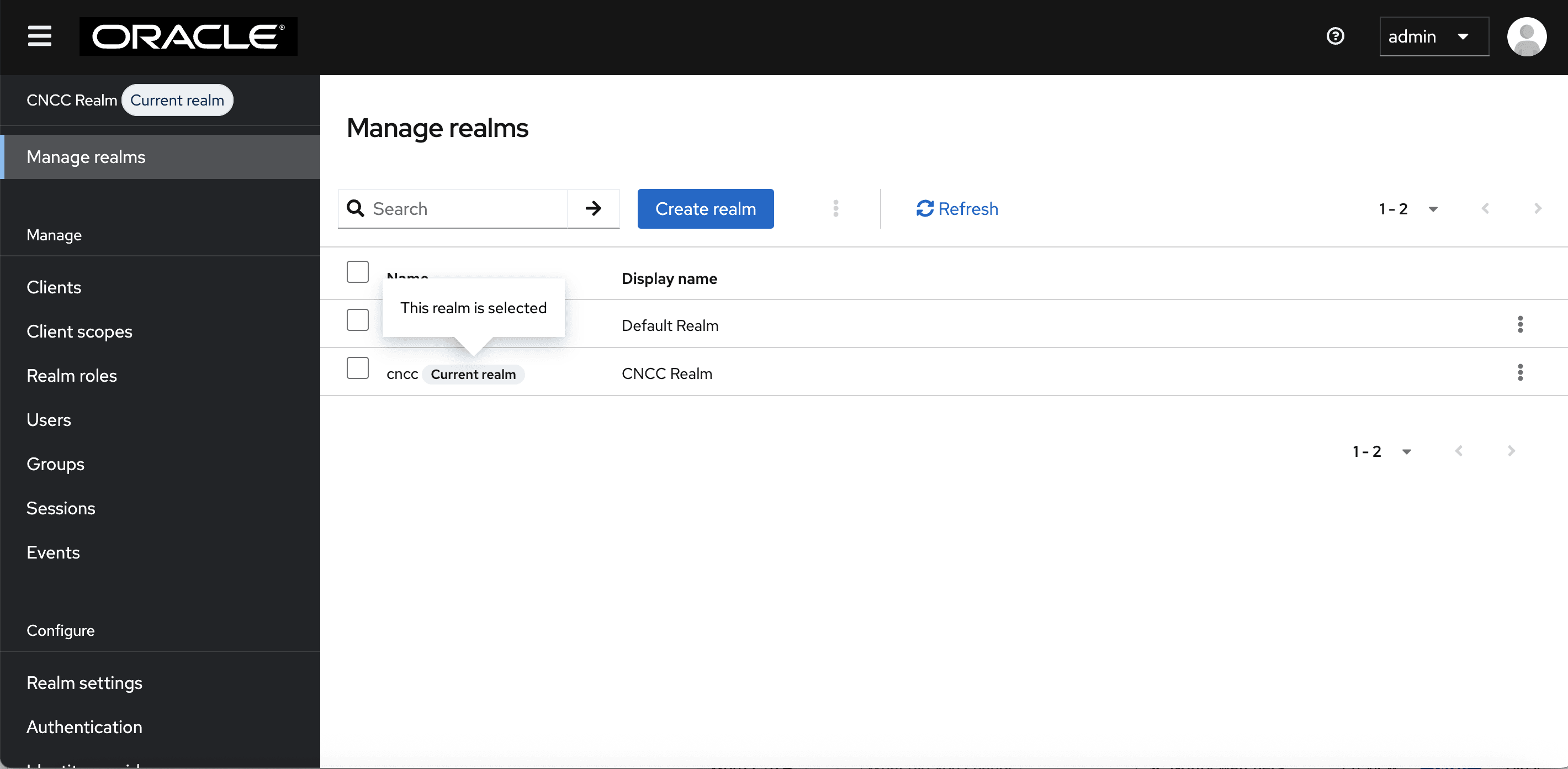
In the example below, the cncc realm is selected to view the available CNCC realm roles.
Follow similar step as outlined below in the default realm to view the available roles for CNCC IAM admin users.
- To view roles in the default realm, select realm as shown
below:
- To access or view the available roles, click
Realm Roles on the left pane. The defined roles are displayed on the
right pane. Here, the cncc realm is selected.
Figure 4-5 Realm roles
Note:
To know more about roles, see Role Based Acess Control in CNC Console IAM.
4.1.3 Creating or Updating Admin User Password in CNC Console IAM
This section describes how to create or update the admin password in CNC Console IAM.
- Log in to CNC Console IAM with your login credentials. Go to
Manage realms and select the default realm from the
list of available realms.
Figure 4-6 Log in to CNC Console IAM
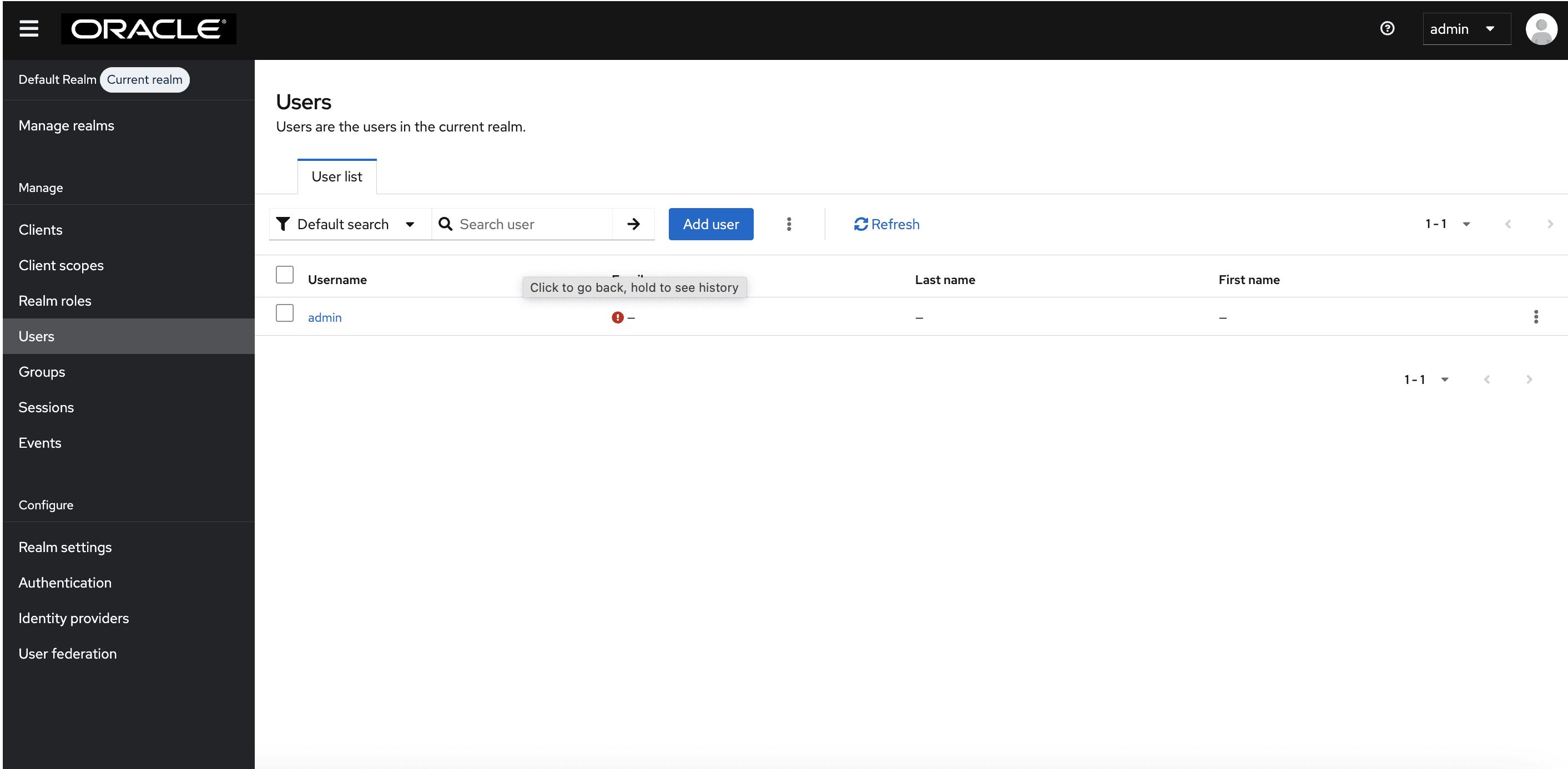
- Select the Users tab to see all the users in the realm.
Click the user for which you want to change password.
Figure 4-7 Users
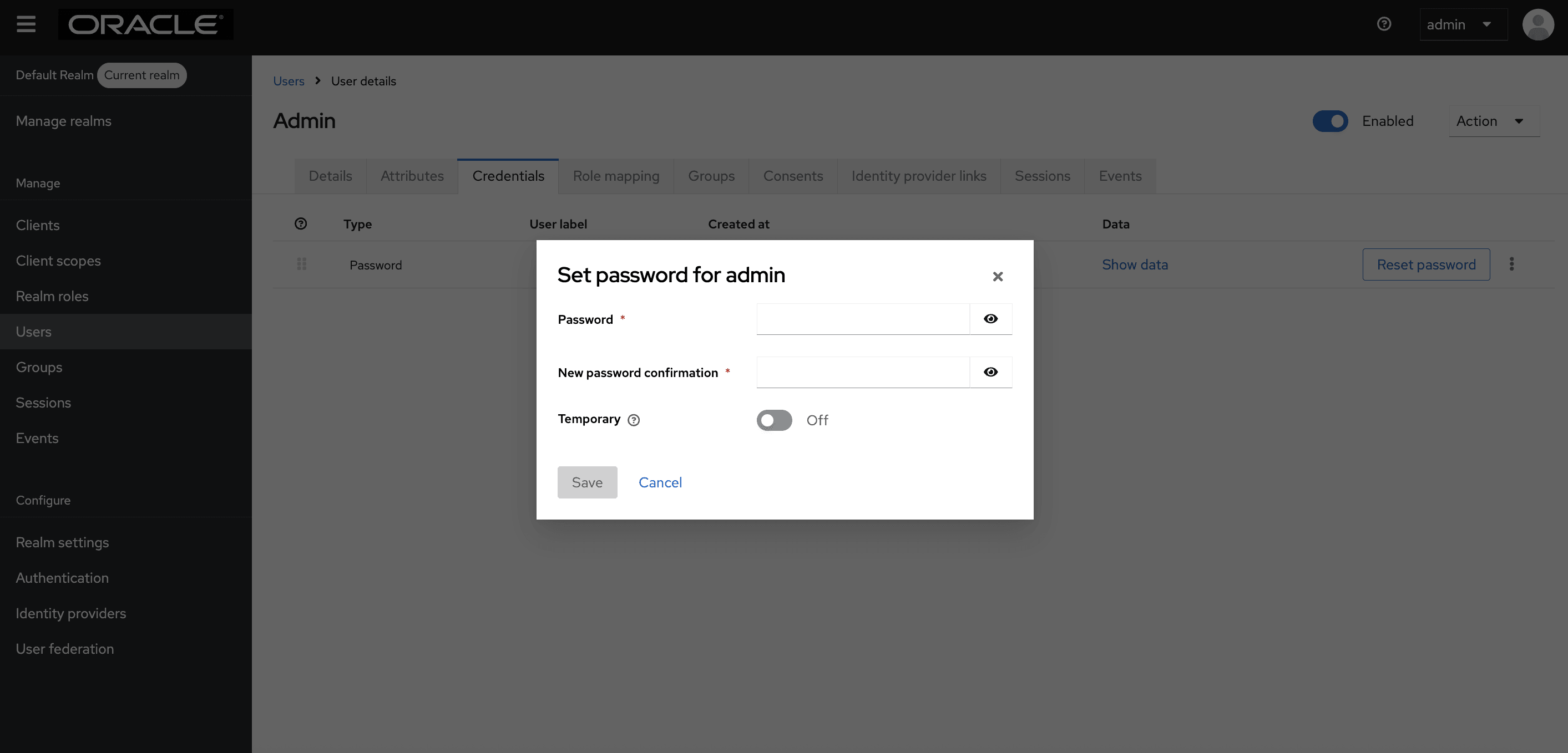
- Under the Credentials tab, click Reset Password.
- Enter the new password in the Password field and enter the new password again in the New Password Confirmation field.
- Set Temporary to Off and click Save.
Figure 4-8 Credentials
4.1.4 Creating or Updating CNC Console Core User Password in CNC Console IAM
This section describes how to create or update the user password in CNC Console.
Perform the following steps to create or update the user password:
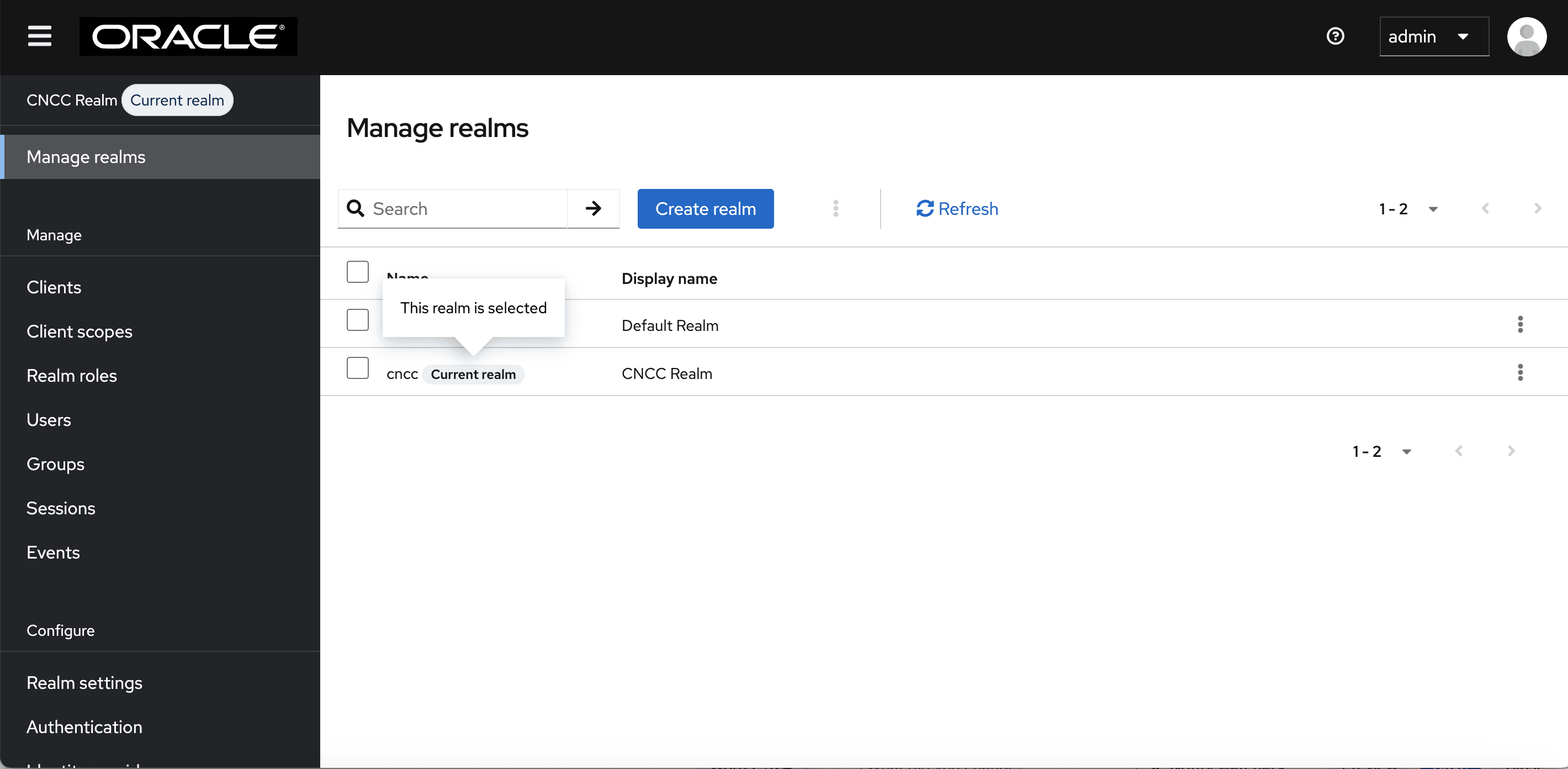
- Login to CNC Console, go to Manage realms,
and select the cncc realm from the list of available realms.
Figure 4-9 Realm Settings
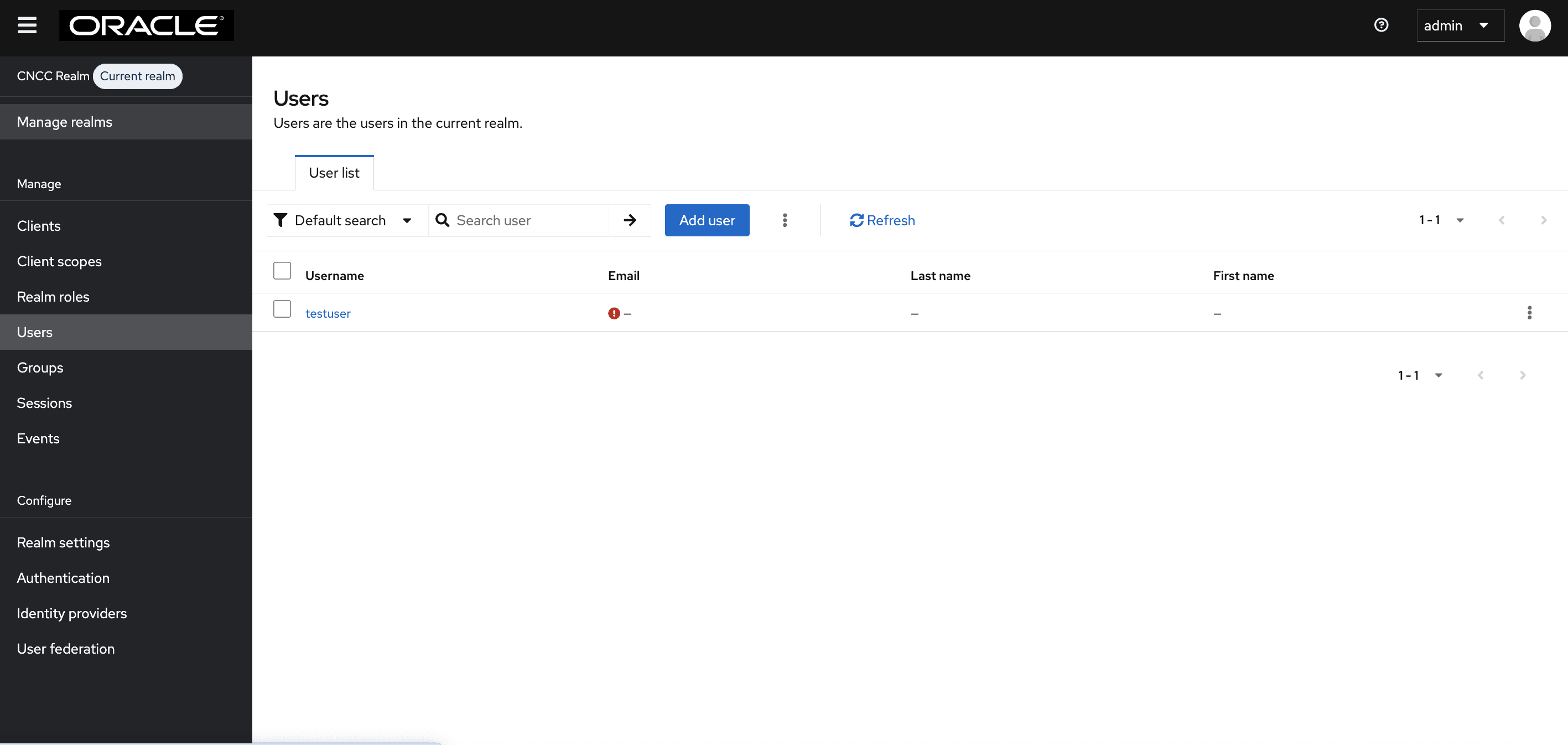
- Click Users on the left pane to view all users. Click the
Username of the user to update the credentials.
Figure 4-10 Users
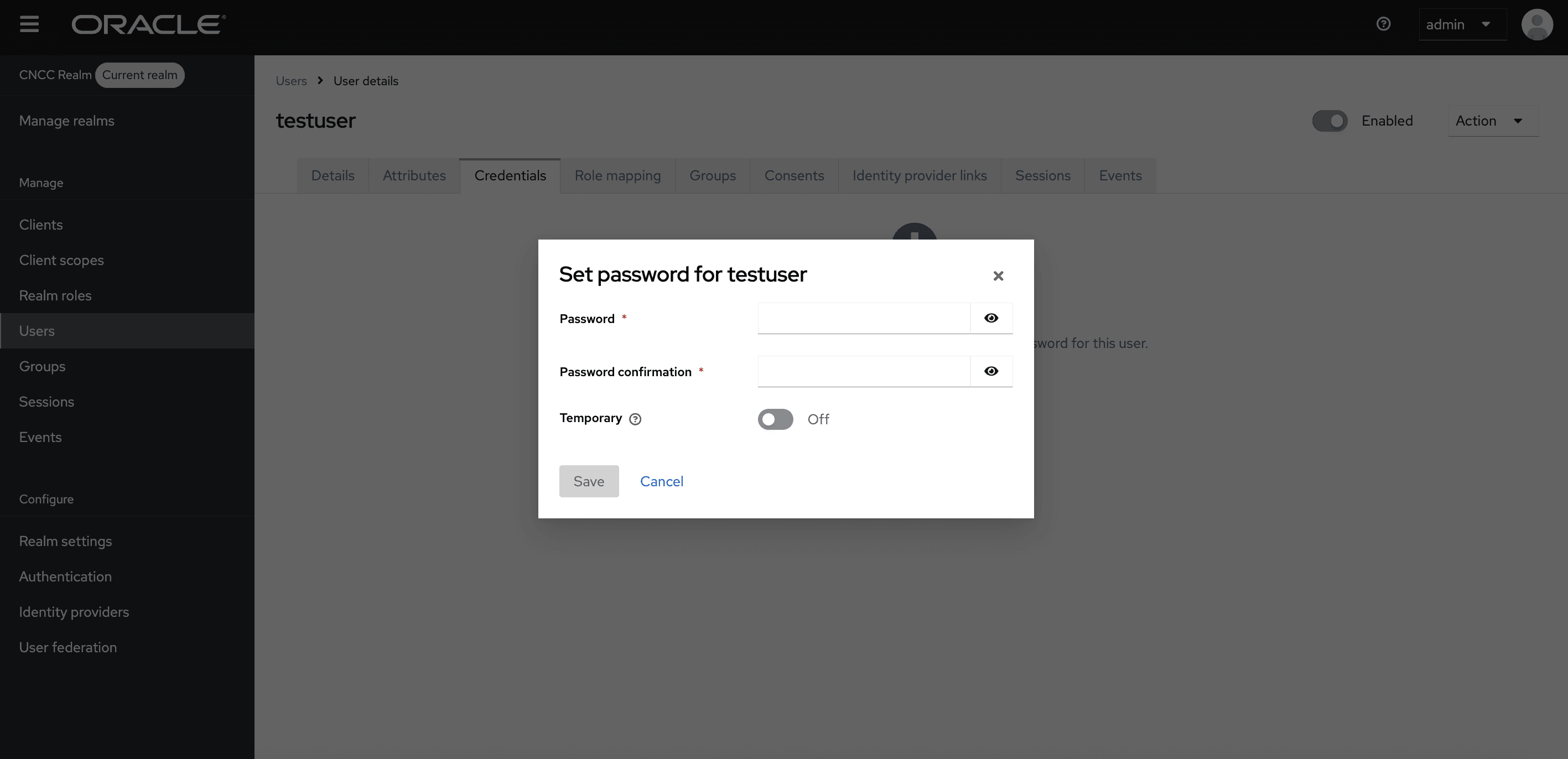
- Under the Credentials tab, click Set Password.
- Enter the new password in the Password field and enter the new password again in the New Password Confirmation field.
- Set Temporary to Off and click Save.
Figure 4-11 Credentials
4.1.5 Password Policies for CNC Console Users
The following password policies are enabled by default for all CNCC Console users.
These password policies are disabled for CNC Console IAM users by default
but can be enabled by setting the flag
global.enableDefaultAdminPasswordPolicy to true in the
occncc_custom_values_<version>.yaml file.
Table 4-2 Password Policies for CNC Console Users
| Policy | Description | Value |
|---|---|---|
| Expire Password | The number of days the password is valid before a new password is required. | 30 |
| Special Characters | The minimum number of special characters required in the password string. | 1 |
| Uppercase Characters | The minimum number of uppercase characters required in the password string. | 1 |
| Lowercase Characters | The minimum number of lowercase characters required in the password string. | 1 |
| Digits | The minimum number of numerical digits required in the password string. | 1 |
| Not Recently Used | Prevents a recently used password from being reused. | 5 |
| Not Username | The password cannot match the username. | ON |
4.2 Configuring the CNC Console Redirection URL
After successfully deploying CNC Console IAM, the administrator must perform the following steps to configure the CNC Console redirection URL:
- Log in to CNC Console IAM with your login credentials. Go to Manage realms and select the cncc realm from the list of available realms.
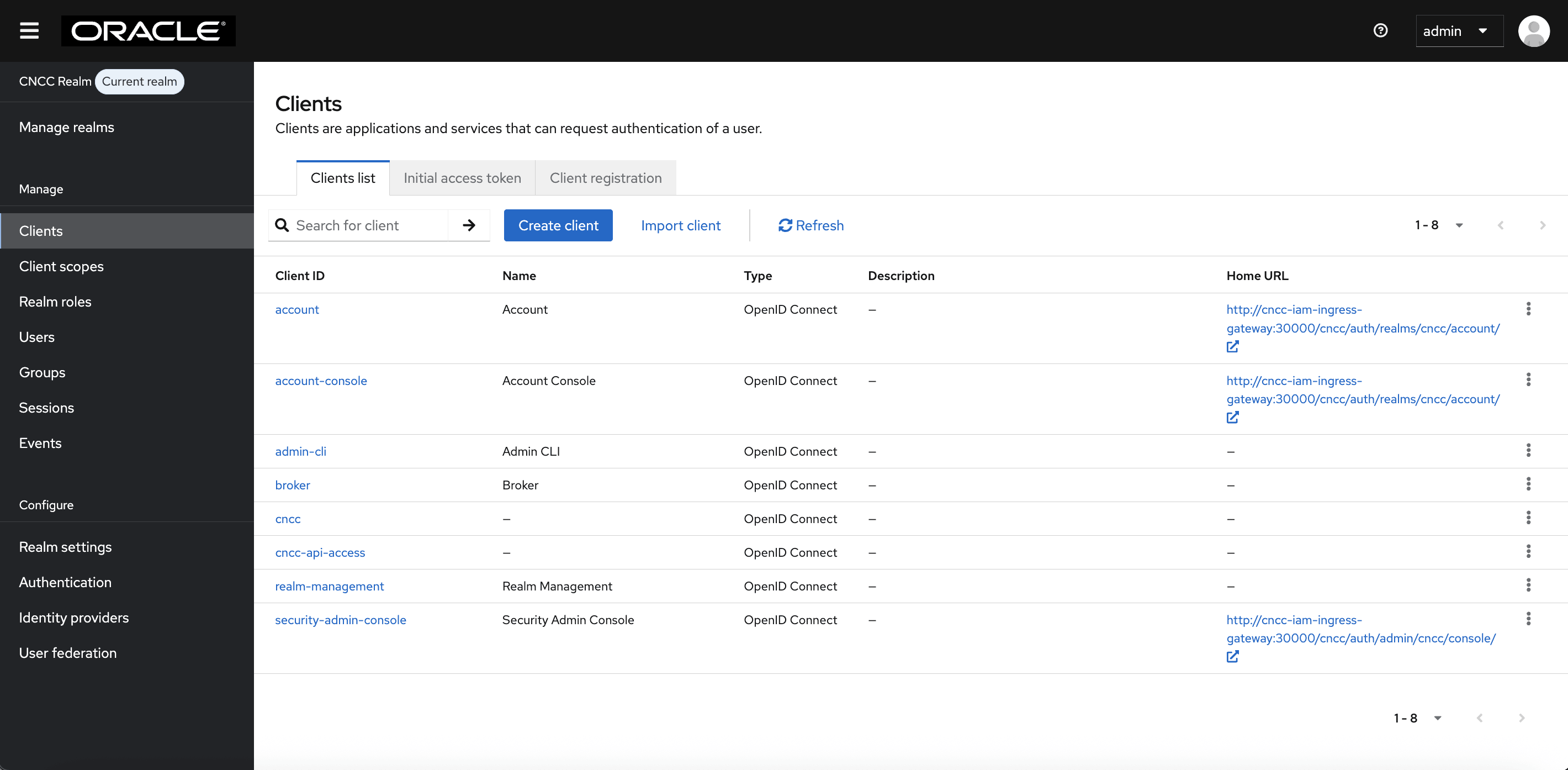
- On the left pane, select Clients and on the right pane
select the cncc Client ID.
Figure 4-12 Clients Screen
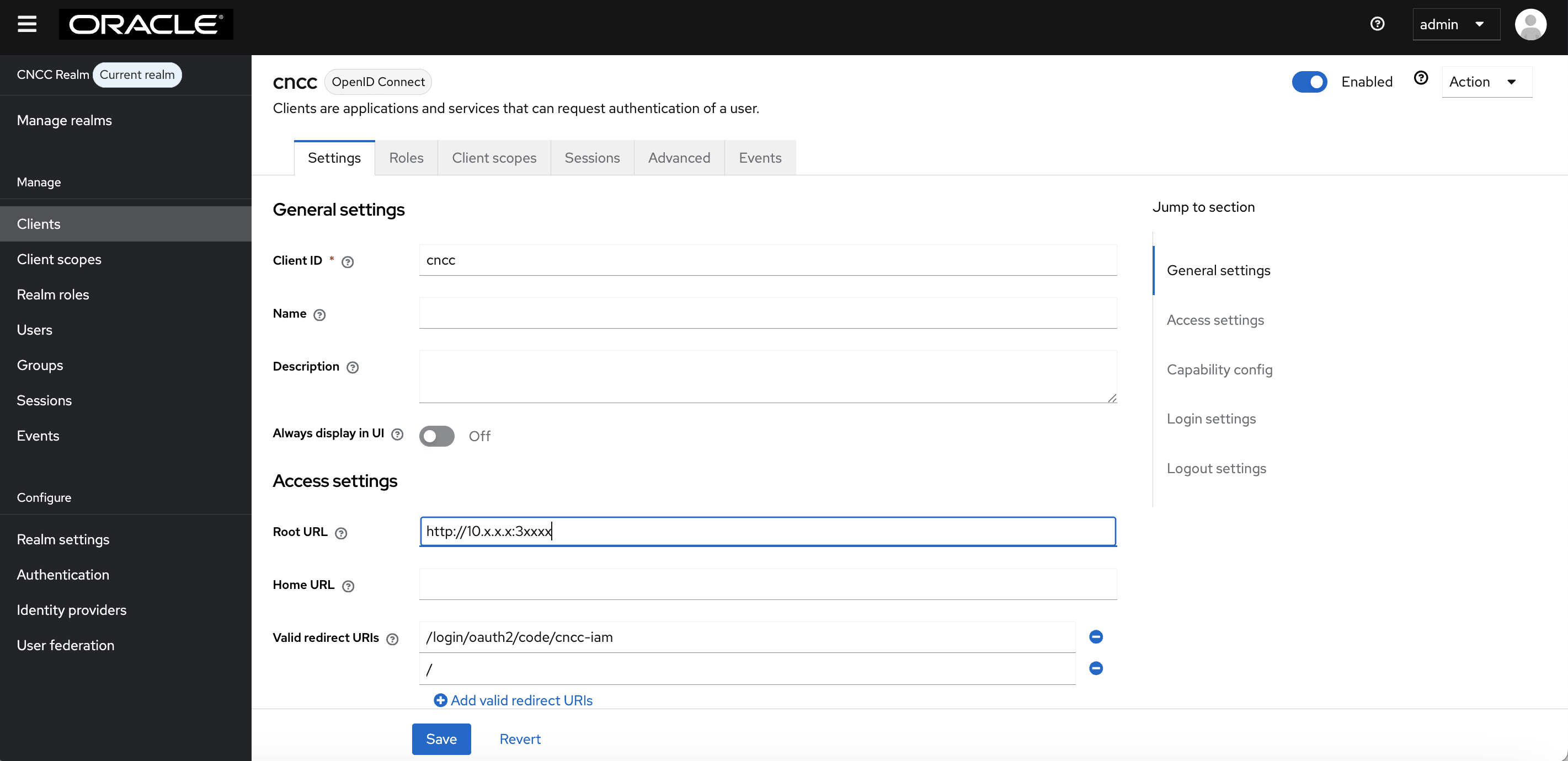
- Enter CNC Console Core Ingress URL in the Root URL field
and click
Save.
<scheme>://<cncc-mcore-ingress IP/FQDN>:<cncc-core-ingress Port>Note:
Valid Redirect URIs are populated automatically; only the root URL needs to be configured as part of the post-installation procedure.Figure 4-13 Redirection URL
4.3 Users in CNC Console IAM
Users can be created in both the default (master) and CNC Console realms.
A user created in the default realm will have administrative privileges, enabling them to log in to CNC Console IAM and perform various tasks related to user management, authentication, authorization, and system configuration.
A user created in the CNC Console realm can log in to the CNC Console Core GUI and access Network Functions (NF) and Common Services, depending on the roles assigned to them.
Note:
For the details on setting or updating the admin password, see Creating or Updating Admin User Password in CNC Console IAM.Note:
For the details about setting or updating the user password, see Creating or Updating CNC Console Core User Password in CNC Console IAM.Note:
In CNC Console IAM, the default realm refers to master realm. Users created in default (master) realm refers to CNC Console IAM admin users and users created in cncc realm refers to CNC Console users.
4.3.1 Creating the Users
- Log in to CNC Console IAM and select the appropriate realm based on where you
want to create users. To switch realms, go to Manage
realms and select the desired realm from the list of available
realms.
- To create users in the default realm, select the default
realm. The following screen appears:
Figure 4-14 default realm
- To create users in the cncc realm, select the cncc realm. The following screen appears:
In the example below, the cncc realm is selected to create CNC Console users, as users have access to CNC Console. Follow similar steps as outlined below in the default realm to create CNC Console IAM admin users.Figure 4-15 cncc realm
- To create users in the default realm, select the default
realm. The following screen appears:
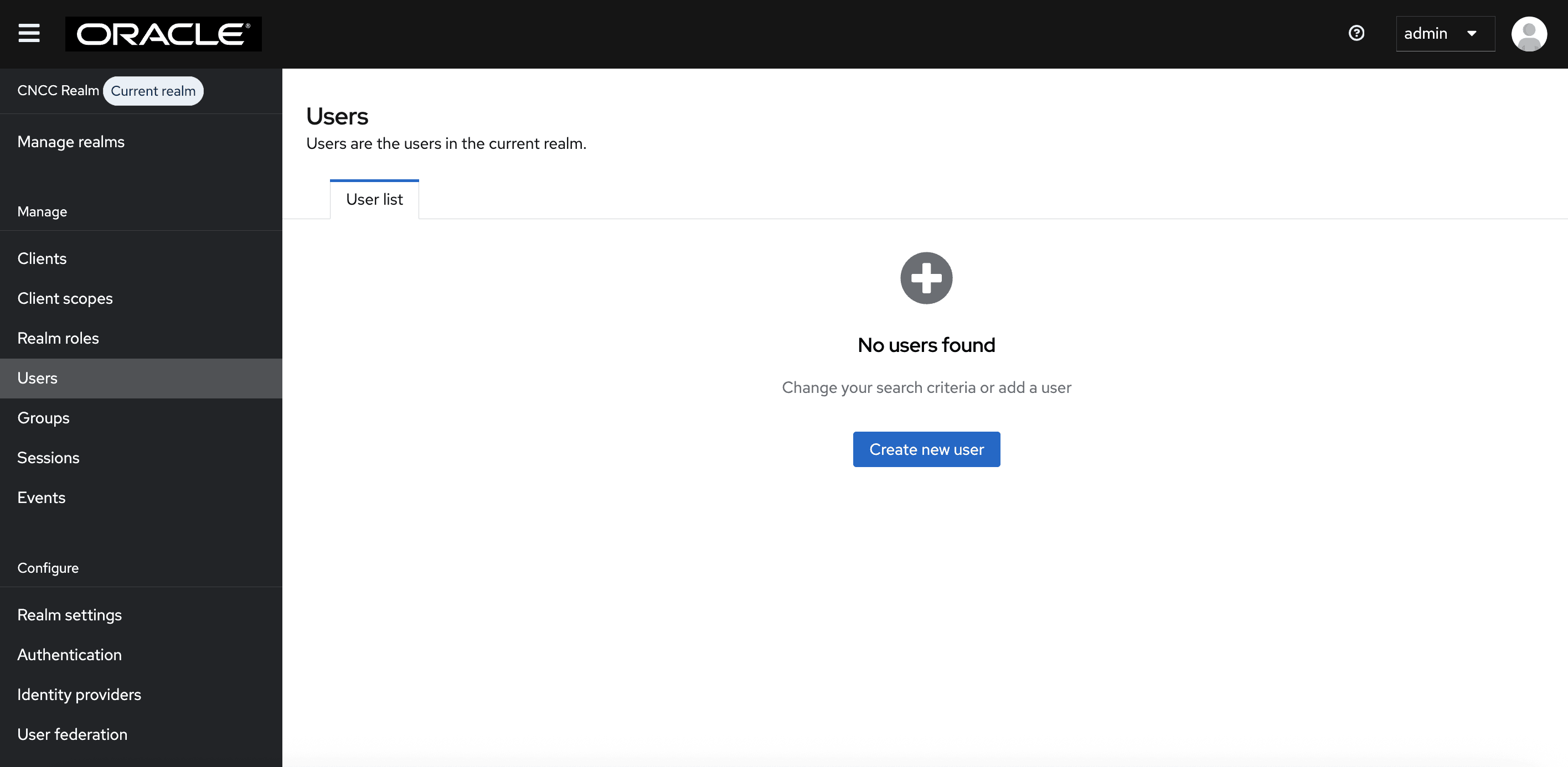
- Click Users on
the left navigation bar and click Create new user.
Figure 4-16 Add User
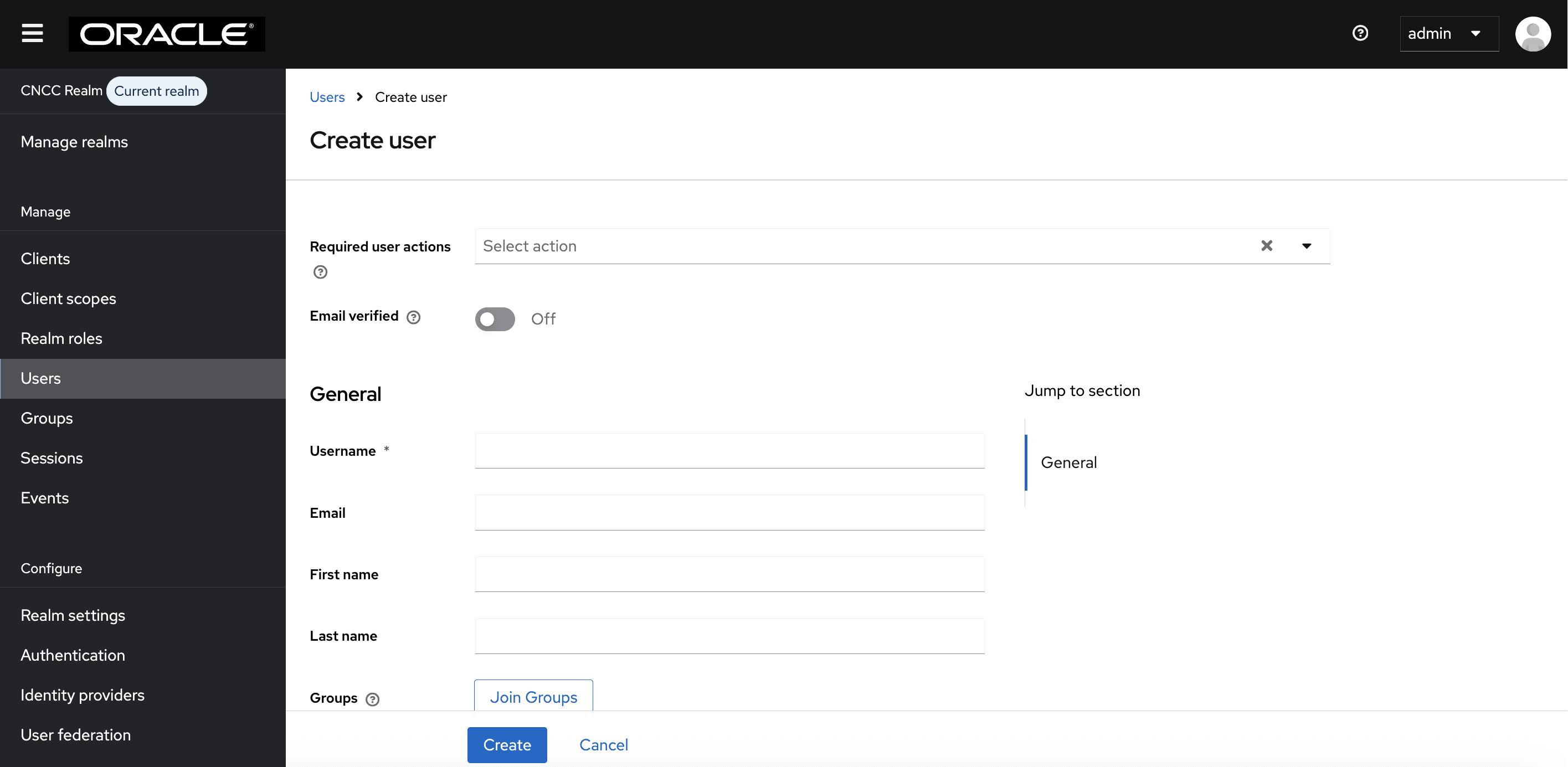
- The Create
user screen appears. Add the user details and click Create.
Figure 4-17 Create user
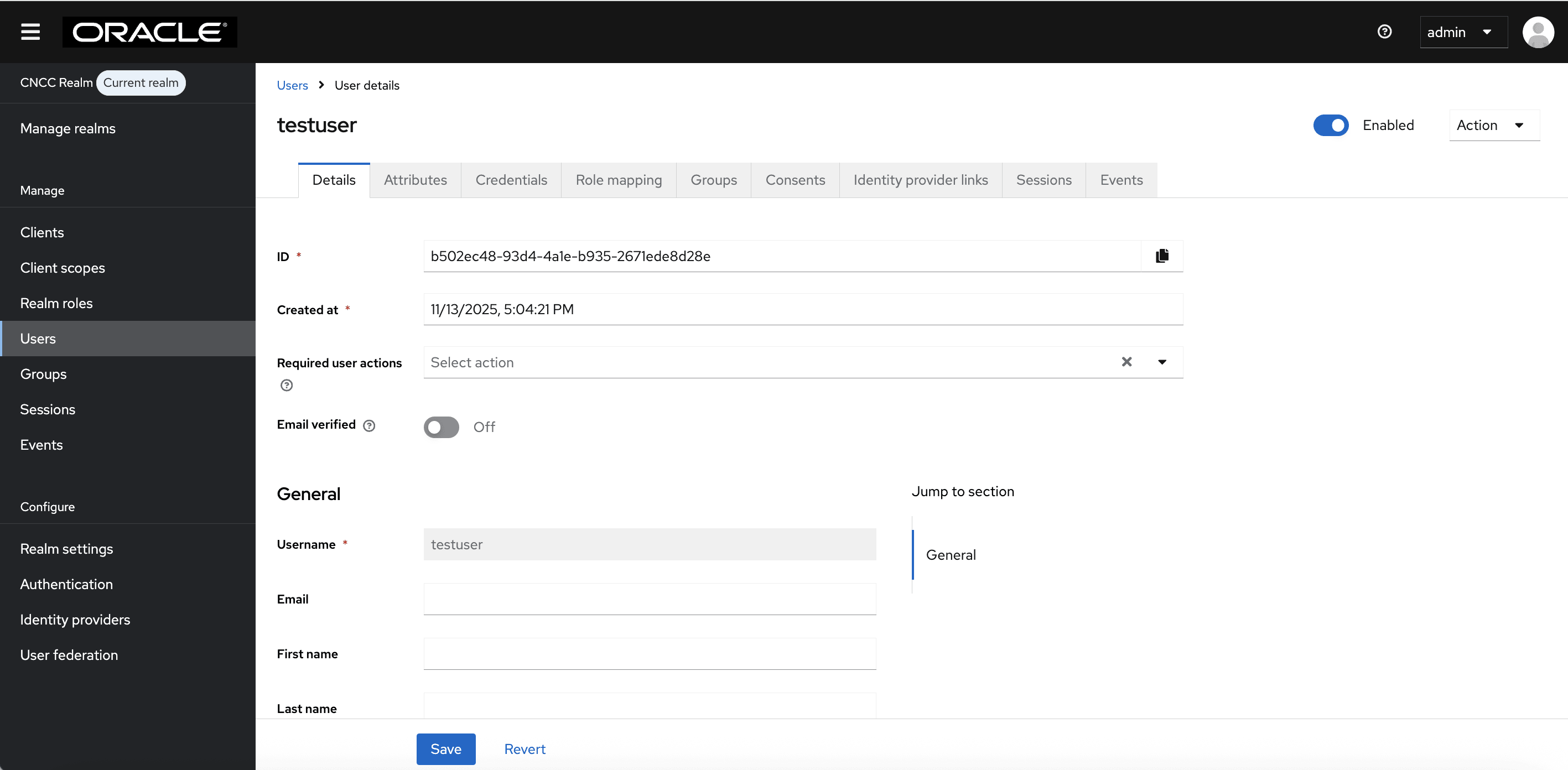
- The user has been created and the user details screen appears.
Figure 4-18 New user details
- Go to the Credentials tab and click Set Password to set the password for that user.
- Set Temporary to On to prompt the user to change their password when they log in for the first time to the CNC Console UI.
Note:
It is recommended to enable the Temporary flag for security.Figure 4-19 Set Password

Note:
Setting the Temporary flag ON prompts the user change the password when logging in to the CNC Console for the first time.4.3.2 Viewing the Users
Perform the following procedure to view users:
- Log in to CNC Console IAM and select the appropriate realm based on how users want
to view. To switch realms, go to Manage Realm and select the
desired realm from the list of available realms.
- To view the users with administrative privileges, select the
default realm.
Figure 4-20 default realm
- To view users with access to CNCC, select the cncc realm. The following screen appears:
In the example below, the cncc realm is selected to view users with access to CNCC. Follow similar steps as outlined below in the default realm to view CNCC IAM admin users.Figure 4-21 CNCC Realm
- To view the users with administrative privileges, select the
default realm.
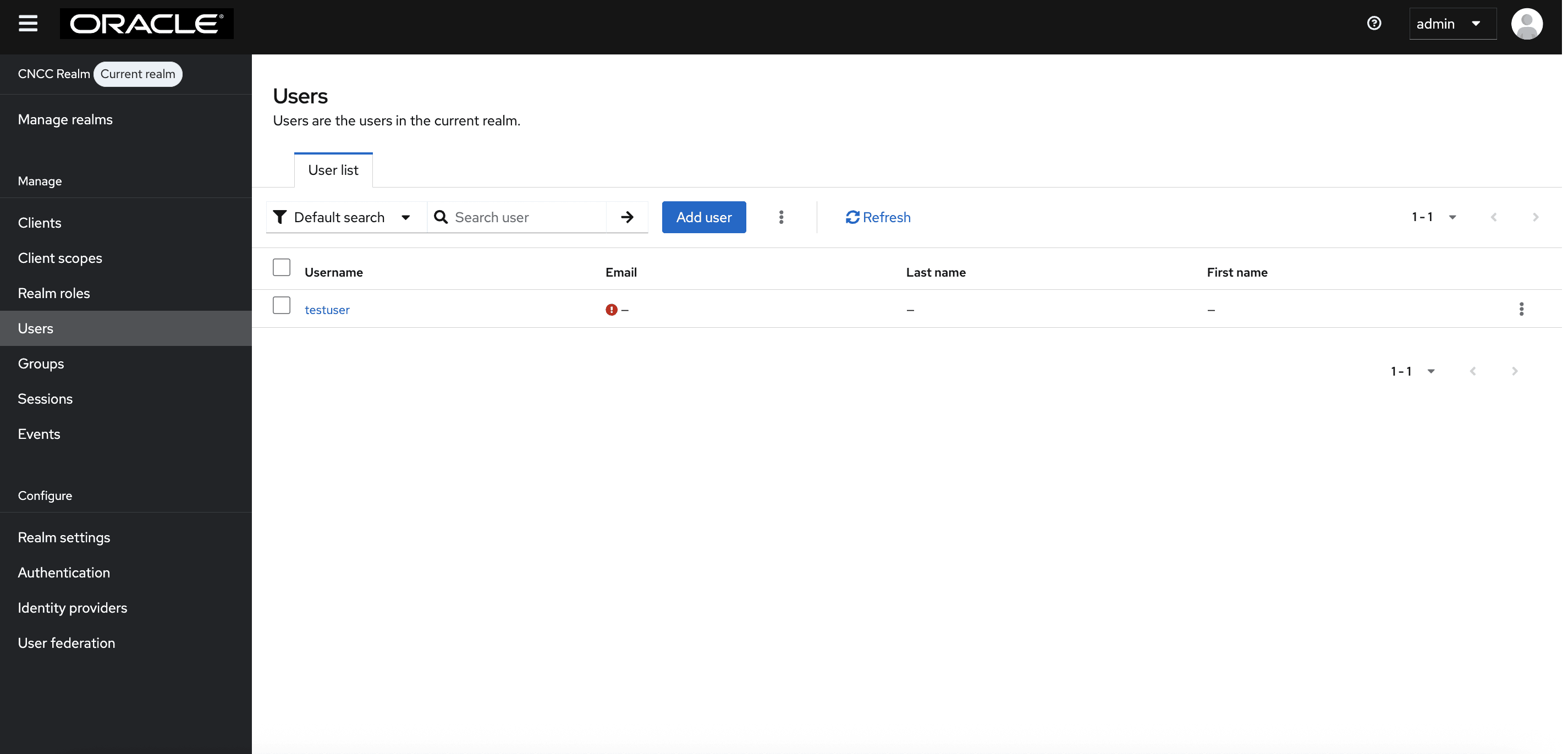
- Select Users on the
left-side navigation bar. A list of users will be displayed.
Figure 4-22 View All Users
4.3.3 Assigning Roles to the User
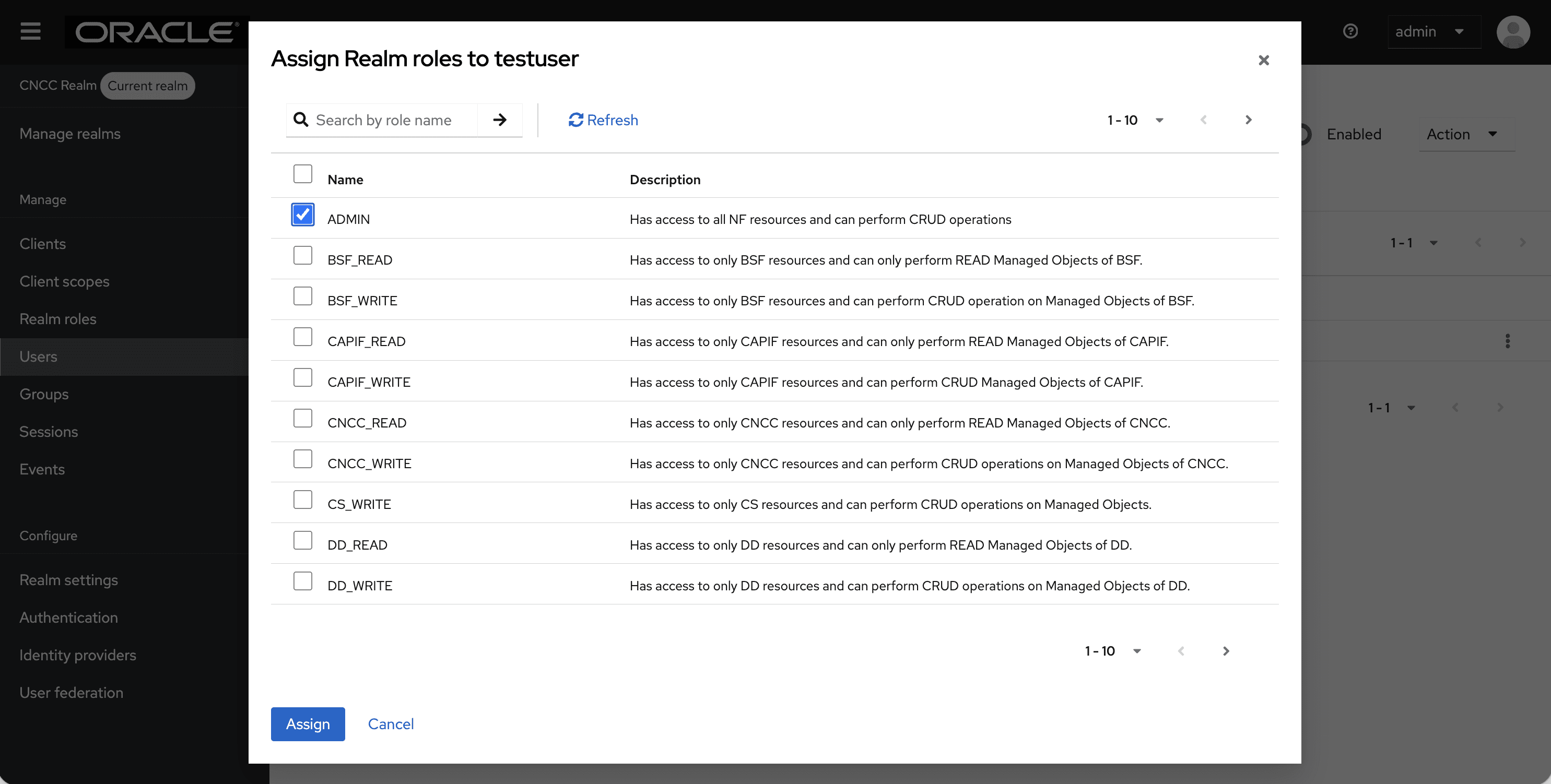
- Select a user to assign roles. Navigate to the Role Mappings tab, click
Assign Role, and then choose Realm Roles from the drop-down
menu.
Figure 4-23 Assign Realm Roles to User
Note:
You must change the number of entries displayed per page from the pagination drop-down to 100 per page to view all entries. - Select the checkbox for the roles you wish to assign to the user and click Assign at the bottom to save the changes.
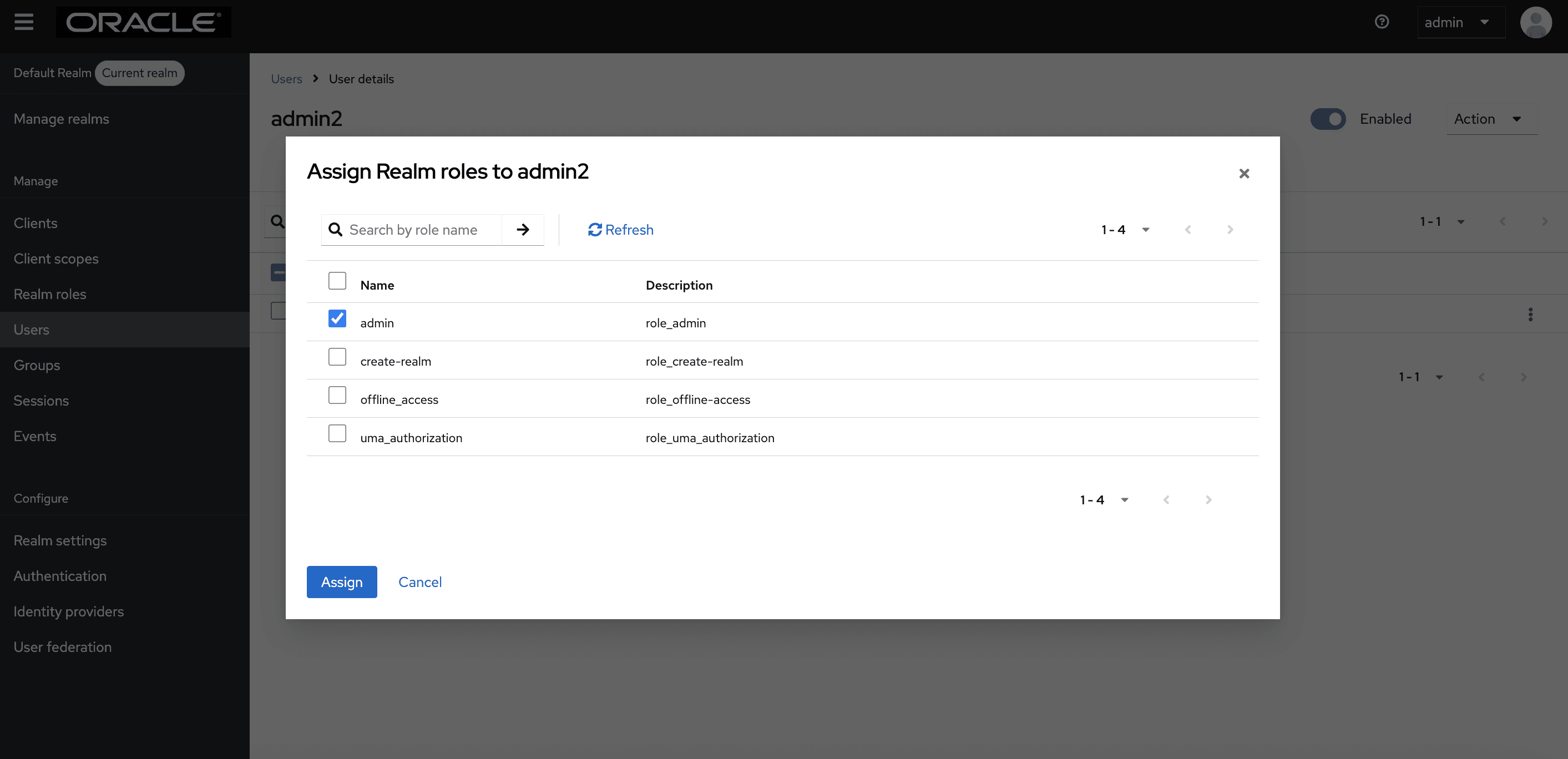
- For users created in the default realm, ensure that the admin role is assigned
to the newly created user from the list of available roles.
Figure 4-24 Assign Realm Roles to Admin
4.4 CNC Console SAML SSO Integration
4.4.1 Integrating SAML SSO with CNC Console IAM
Overview
Security Assertion Markup Language (SAML) is an open standard that allows identity providers (IdP) to pass authorization credentials to service providers (SP). The identity provider authenticates the user and returns the assertion information about the authenticated user and the authentication event to the application. Using SSO, if the user tries to access any other application that uses the same identity provider for user authentication, the user does not need to log in again. This is the principle of SSO (Single Sign-on).
Note:
To enable SAML identity provider authentication for user login, ensure that the CNC Console is deployed using the secure HTTPS protocol.Note:
CNC Console supports SAML 2.0.CNC Console SAML SSO Flow Overview
This section provides an overview of how a user can configure the SAML SSO flow in CNC Console IAM.
The following are the high-level steps; the detailed procedure is explained in the section "Configuring SAML Identity Provider in CNC Console IAM.".
- Configure the External SAML IdP in CNC Console IAM
- Configuration required in External SAML IdP
- Make sure the required user details are present in the
External SAML IdP. In your external IdP, create user accounts that will
access the CNC Console.
Note:
Do not create the user in CNC Console IAM; we suggest to create user in external IDP only for SAML SSO flow - Define Roles in the External SAML IdP and Assign Them to
Users. Within the external IdP, create roles or groups and assign them
to the appropriate users.
Note:
No role assignment is required in CNC Console IAM; roles should only be assigned in external IDP for SAML SSO Flow
- Make sure the required user details are present in the
External SAML IdP. In your external IdP, create user accounts that will
access the CNC Console.
- Map SAML IdP Roles to CNC Console IAM Roles.
- Log in to CNC Console using Single Sign On (SSO) Option.
Note:
Log in to CNC Console only by clicking the Single Sign-On (SSO) option displayed on the login screen. This will redirect to the external IdP. Do not use CNC Console user credentials configured in CNC Console IAM to log in.Configuring SAML Identity Provider in CNC Console IAM
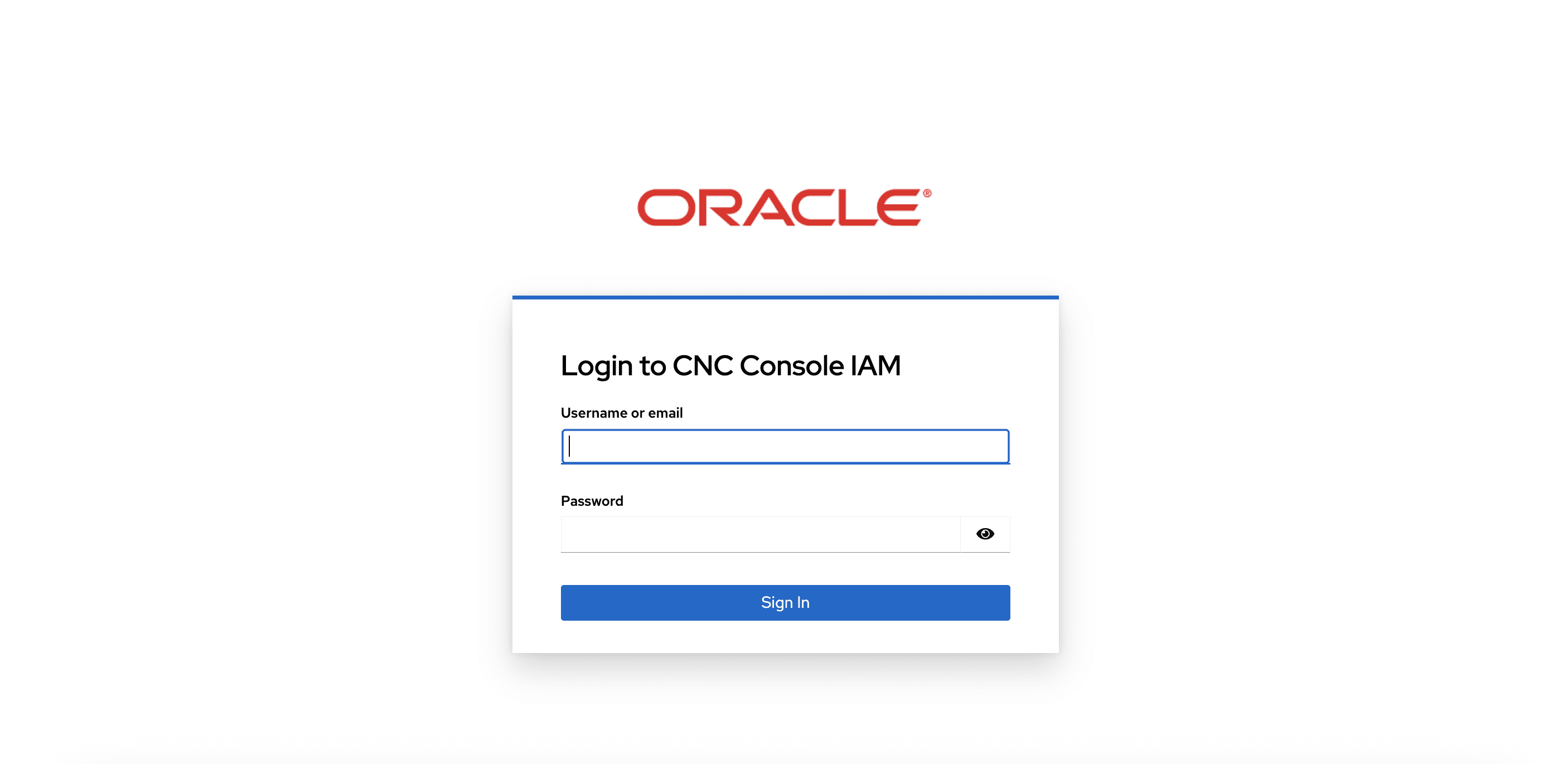
- Log in to CNC Console IAM Console using admin credentials
provided during CNC Console IAM installation.
http://<cncc-iam-ingress-extrenal-ip>:<cncc-iam-ingress-service-port>
Example: http://cncc-iam-ingress-gateway.cncc.svc.cluster.local:30085/
Figure 4-25 Login screen
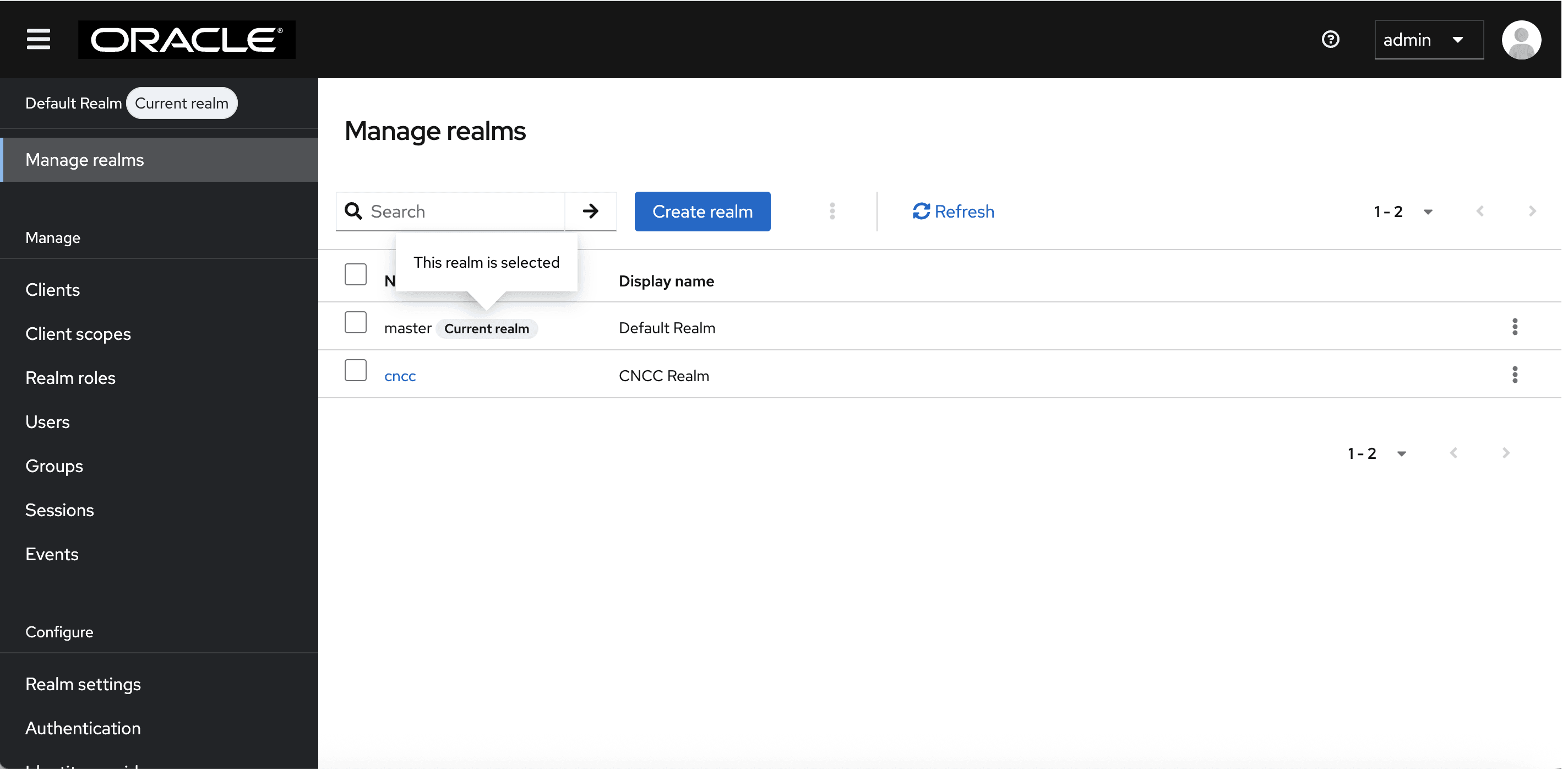
- Select the appropriate realm based on where you want to enable
authentication through an identity provider. To switch realms, go to
Manage Realm and select the desired realm from the list of
available realms:
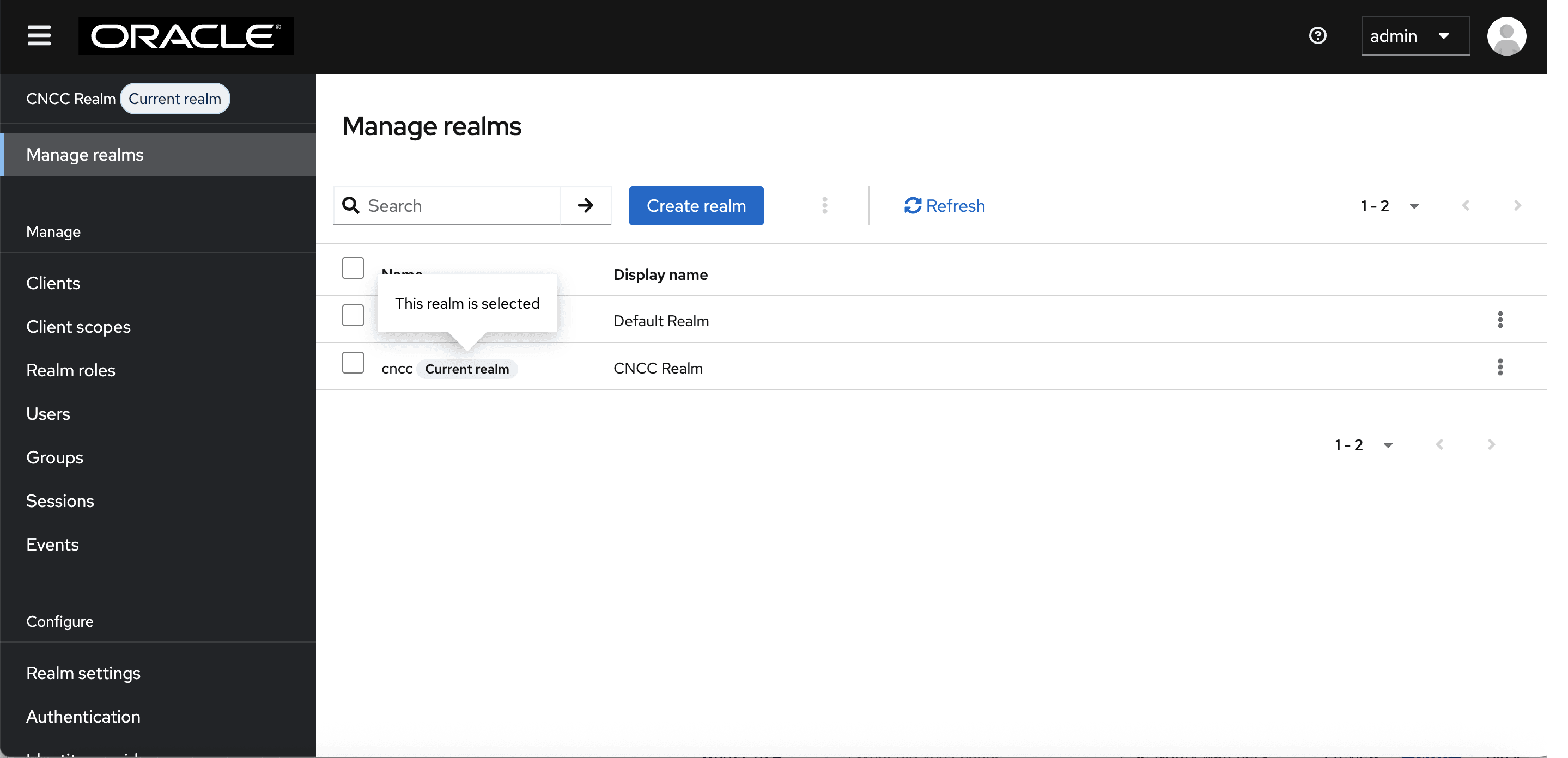
- To enable authentication for CNC Console IAM admin
users, choose the default realm.
Figure 4-26 default realm
- To enable authentication for CNC Console users, choose
the cncc realm.
Figure 4-27 cncc realm
- To enable authentication for CNC Console IAM admin
users, choose the default realm.
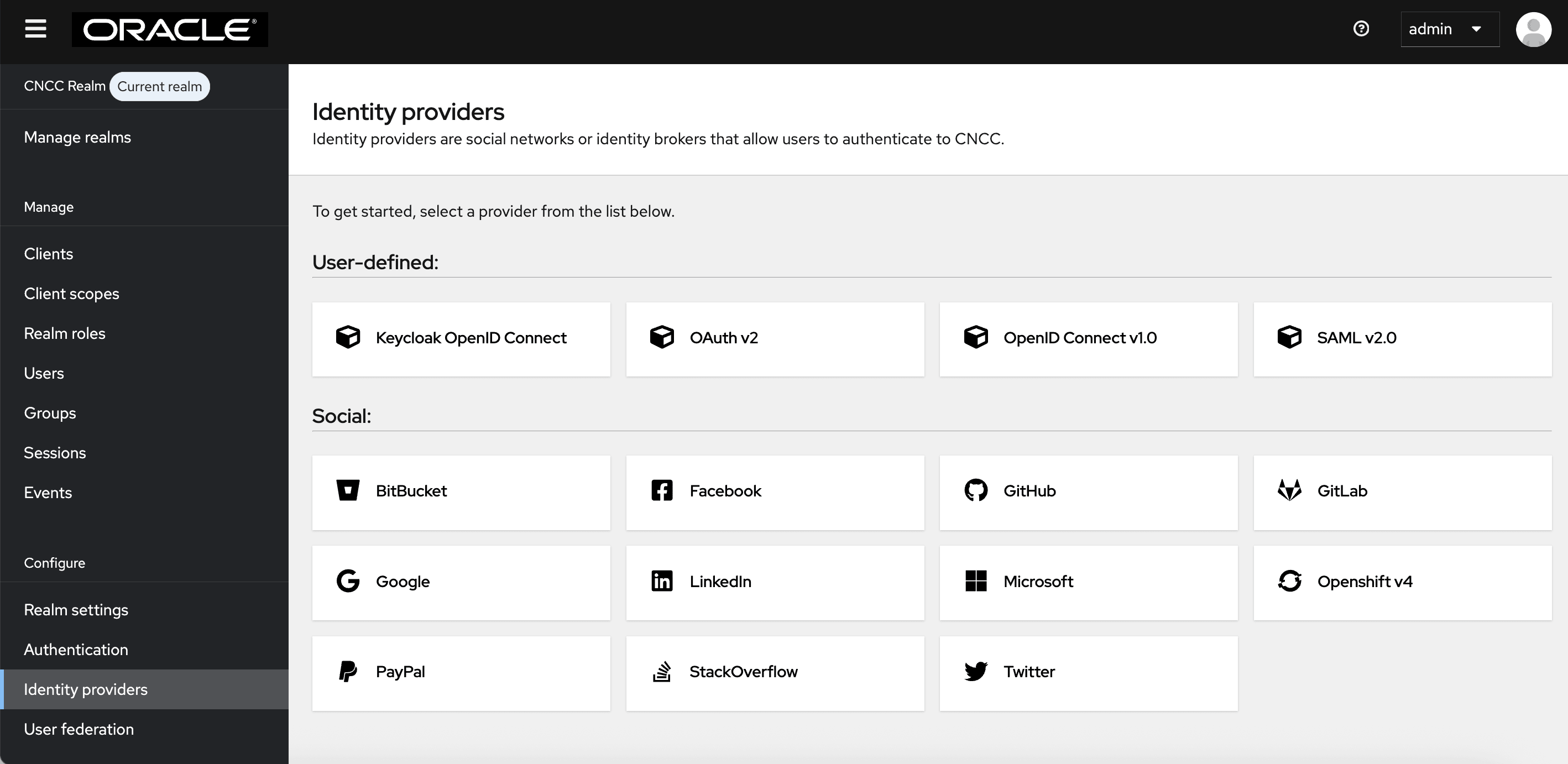
- Select the cncc realm, and click Identity
providers on the left navigation bar to open the Identity
providers screen appears.
Figure 4-28 Identity Provider Screen
- Select SAML v2.0 from the available options to open the
Add SAML Provider form and configure your SAML IdP
parameters.
Figure 4-29 SAML Settings
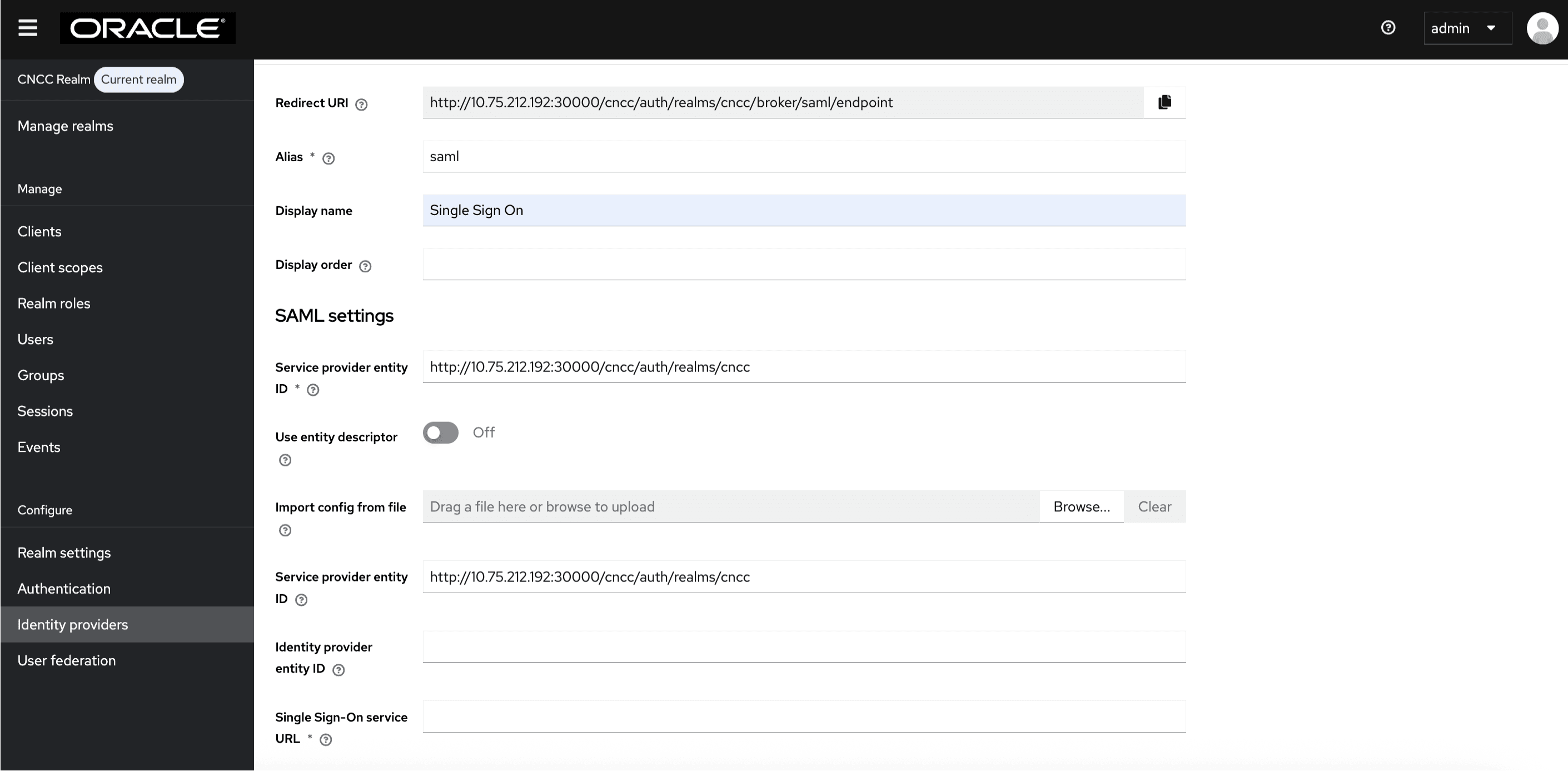
- Give an appropriate name for the Display Name field.
- To import the metadata file exported from SAML client in the
IdP, disable the Use Entity descriptor flag, and click Browse
in the Import from config file field to upload the
file.
Figure 4-30 Import from Config File

Click Import and Save. The other required fields populate automatically.
Perform the following procedure to configure the IdP manually, if you are facing difficulty in importing the metadata file from the IdP Client:
- Navigate to the Identity providers screen and click SAML v2.0.
- Set the value of Single Sign-On Service URL to
the URL of the preferred IdP.
Example:
<IP/FQDN>:<PORT>/auth/realms/master/protocol/saml(URI for their preferred IdP where SAML AuthnRequest will be sent). - Set the value of Single Logout Service URL.
Example:
<IP/FQDN>:<PORT>/auth/realms/master/protocol/saml(URI for their preferred IdP where logout requests must be sent). - If the IdP supports HTTP POSTbinding methods, enable HTTP-POST Binding Response, HTTP-POST Binding Logout and HTTP-POST Binding for AuthnRequest flags. By default, HTTP-Redirect will be used.
- If the IdP is sending signed Assertions, set Want Assertions Signed to ON.
- Set Validate Signature to ON.
- Provide value for Validating X509 Certificates (If you are using keycloak as an IdP, use the certificate from master realm-> Realm Settings-> Keys).
- Click Add.
IdP is now configured manually.
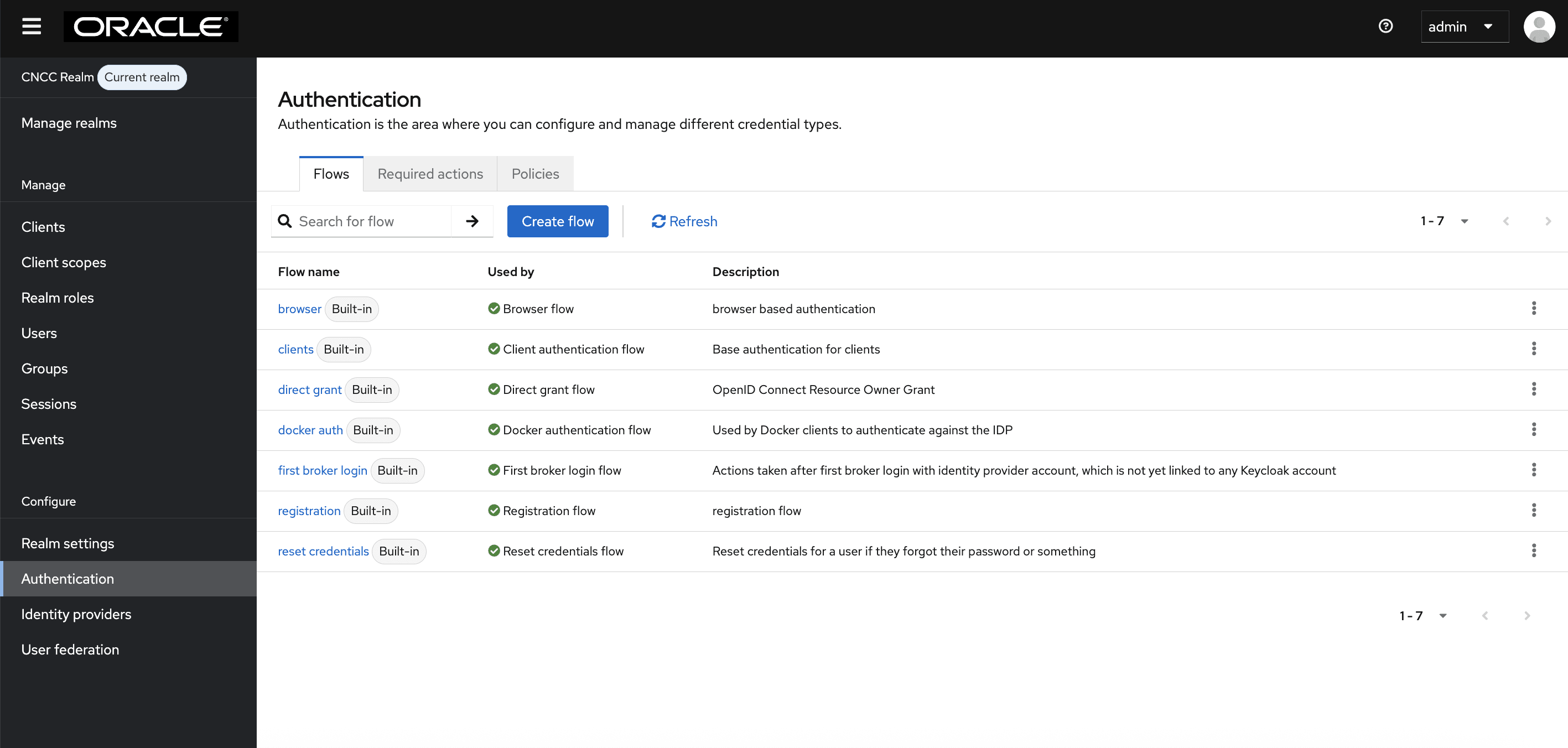
- To create custom First Login Flow, click
Authentication tab on the left pane. The Authentication
screen appears.
Figure 4-31 Import from
- Click Create Flow on the right pane. The Create
Flow screen appears.
Figure 4-32 Create Flow
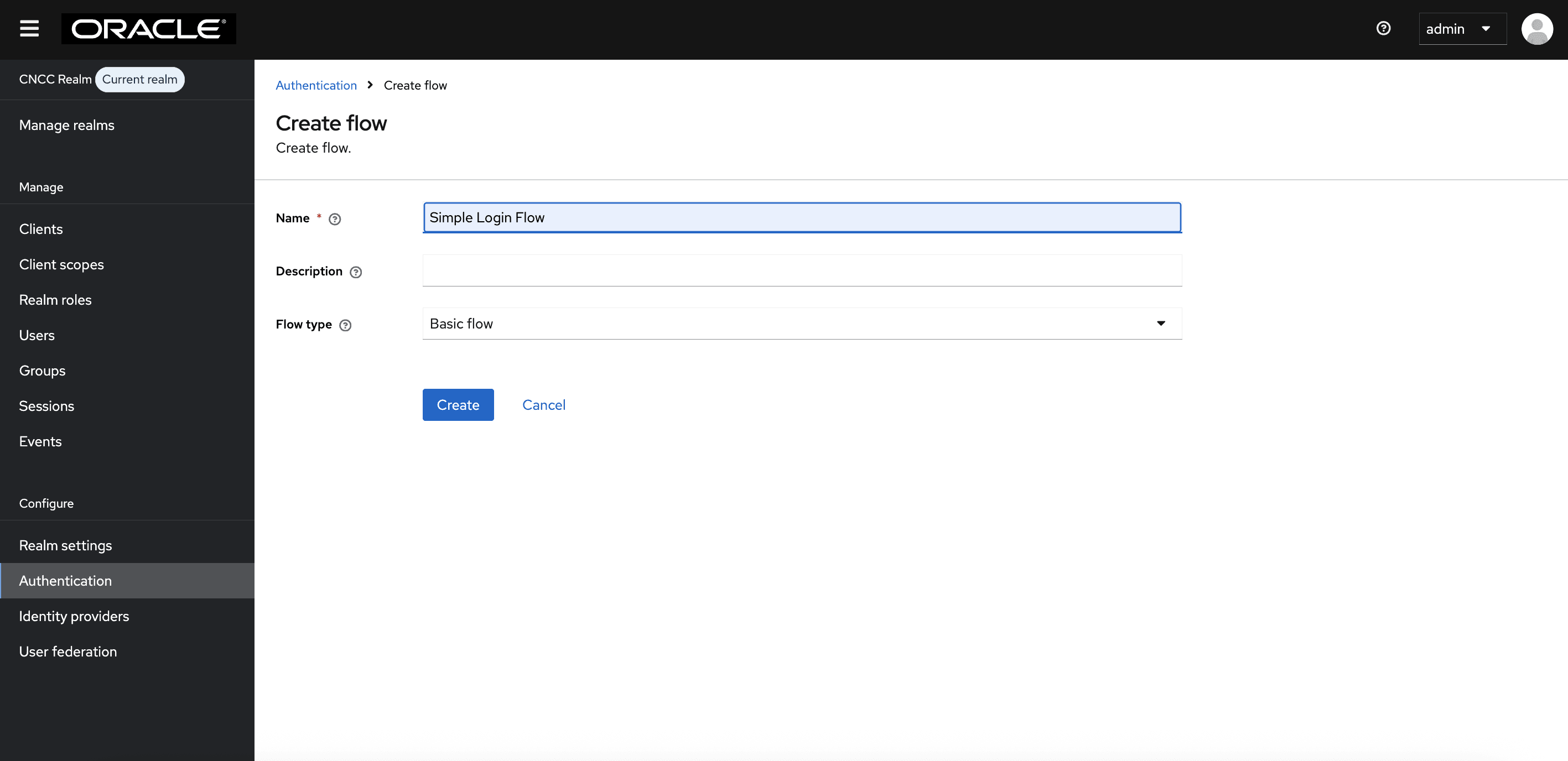
Enter the appropriate name and click Create.
- The Simple Login Flow screen appears. Click Add
execution on the right pane.
Figure 4-33 Simple Login Flow
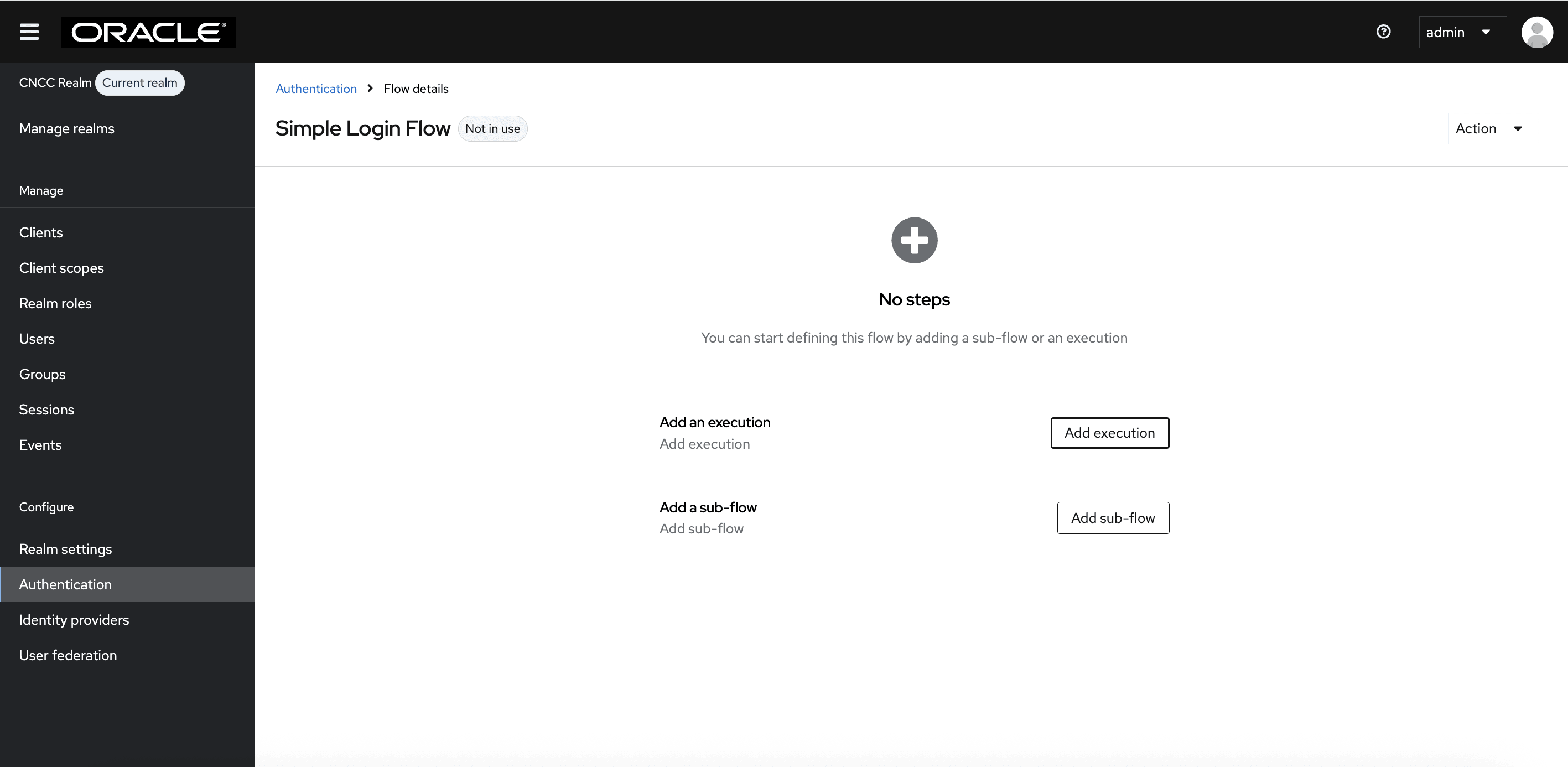
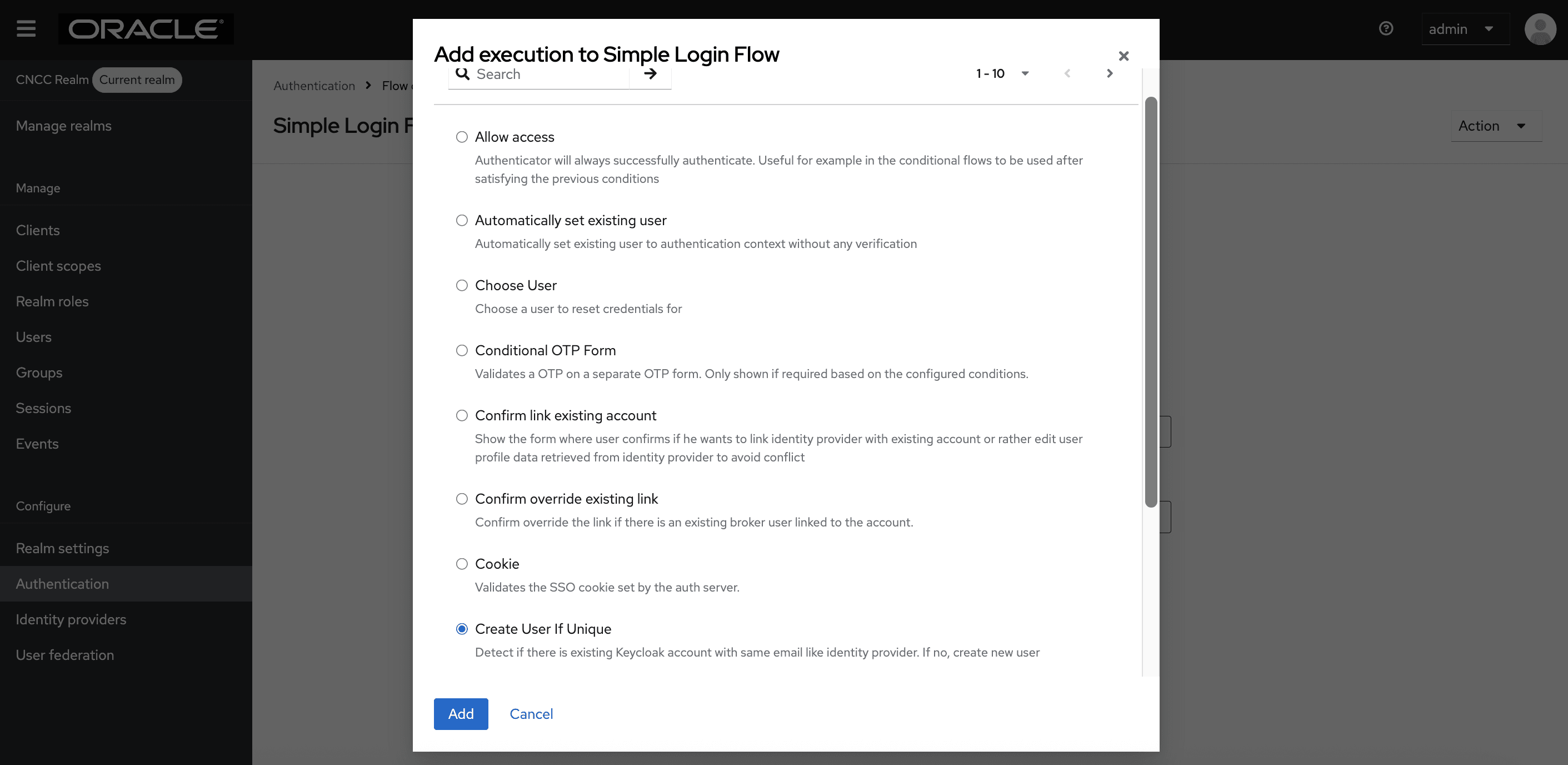
- Select Create User If Unique, and click Add.
Figure 4-34 Add Execution to Simple Login Flow
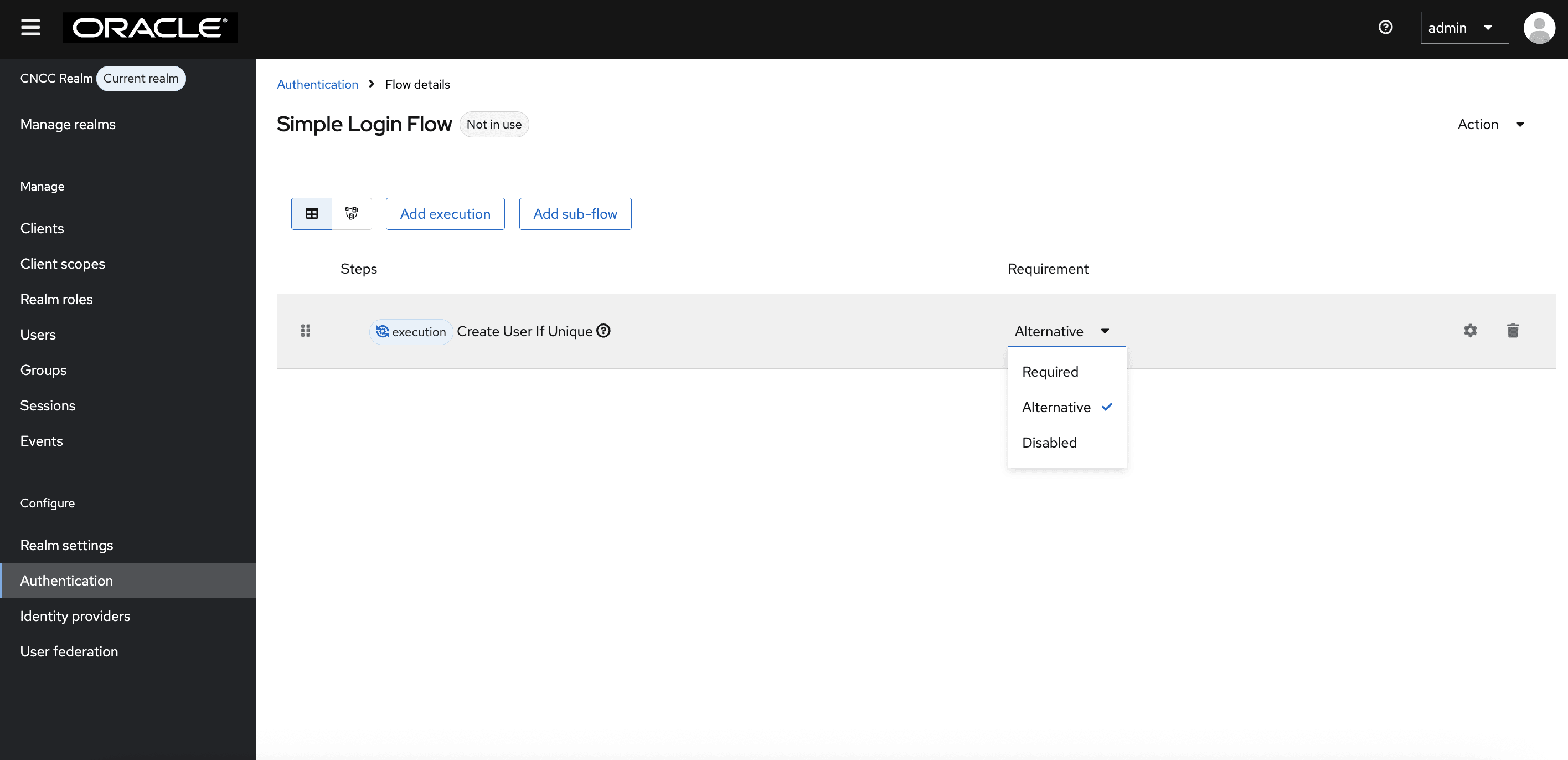
- You will be redirected to Authentication page. From
Requirement section, select Alternative.
Figure 4-35 Authentication
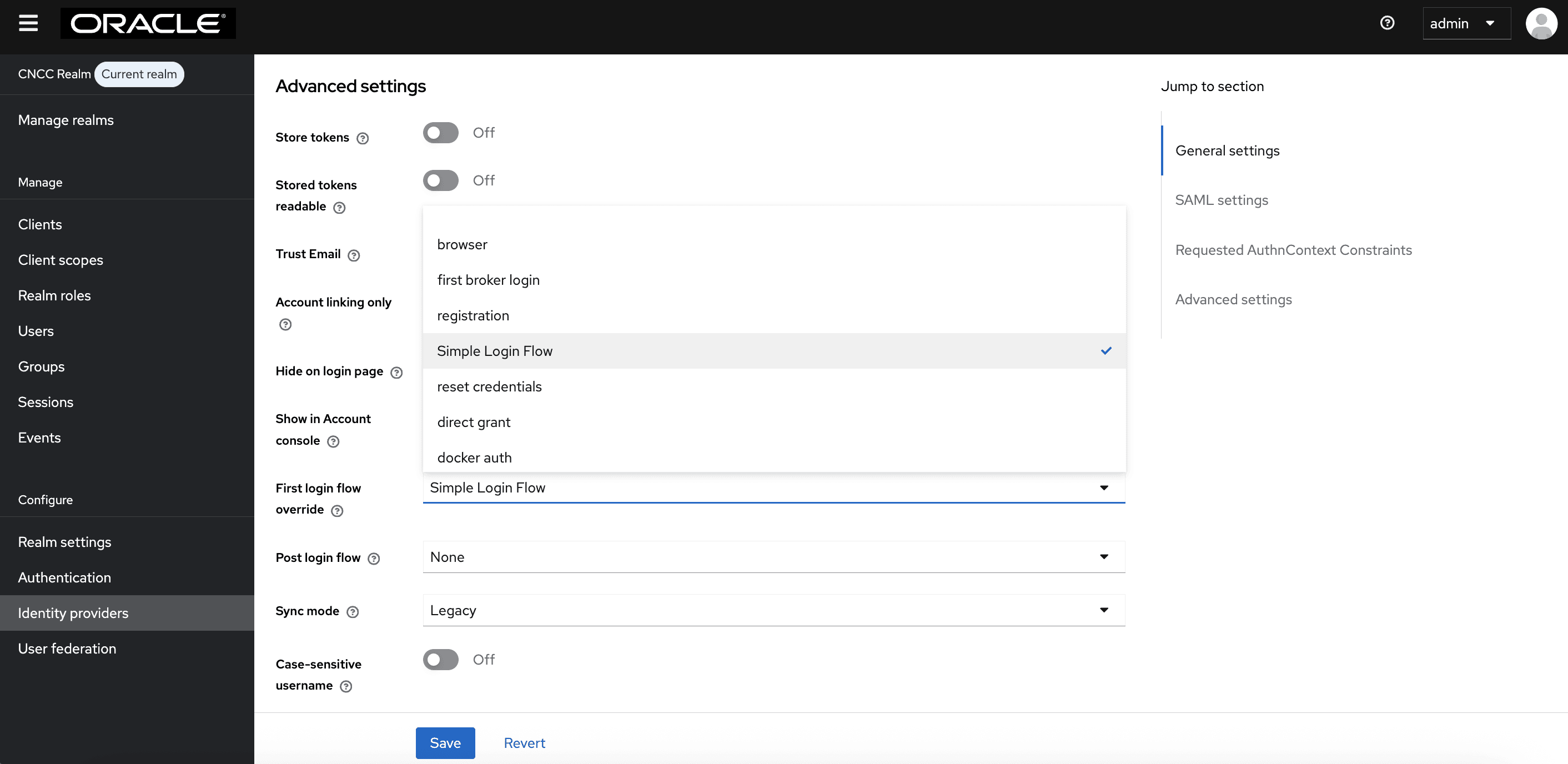
- Navigate to the Identity Provider settings and select your custom
flow from the First Login Flow Override dropdown. The completed form
appears:
Figure 4-36 Advanced Settings Page
- Click Save.
The above screen appears. Map the SAML IdP roles with CNC Console IAM API roles.
Note:
CNC Console IAM(SP) Configuration in IdP
In a SAML based SSO Implementation, the IdP needs to send SAML assertions towards a Service Provider (CNC Console IAM in this case) endpoint.
http://<IP/FQDN>:<PORT>/cncc/auth/realms/cncc/broker/saml/endpointhttp://cncc-iam-ingress-gateway.cncc.svc.cluster.local:30085/cncc/auth/realms/cncc/broker/saml/endpointMapping SAML IdP roles with CNC Console IAM API roles
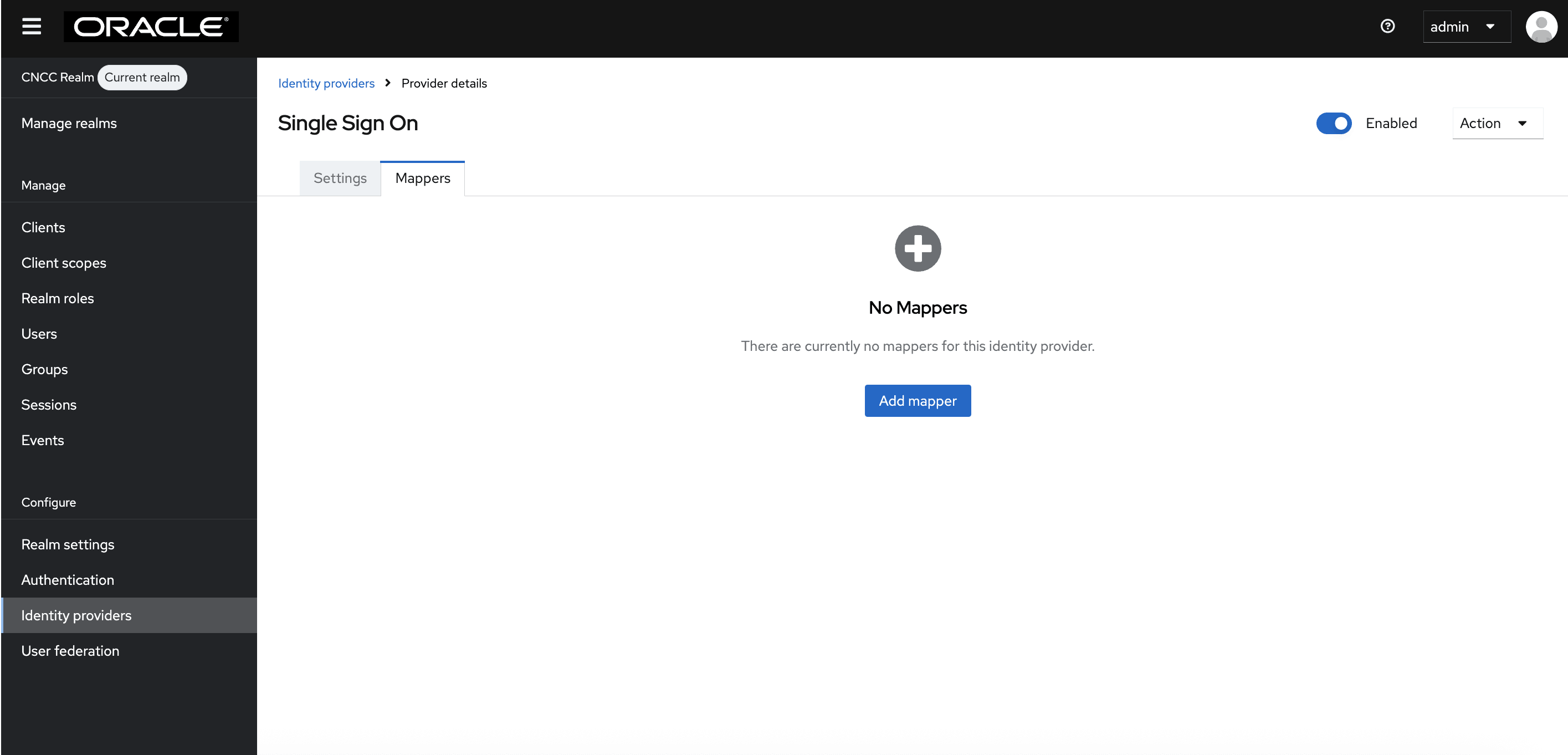
- After saving SAML IdP configurations in CNC Console IAM, select
Identity providers on the left pane and click the name of your
identity provider. Click Mappers tab on the right pane. Click Add
Mapper.
Figure 4-37 Single Sign On
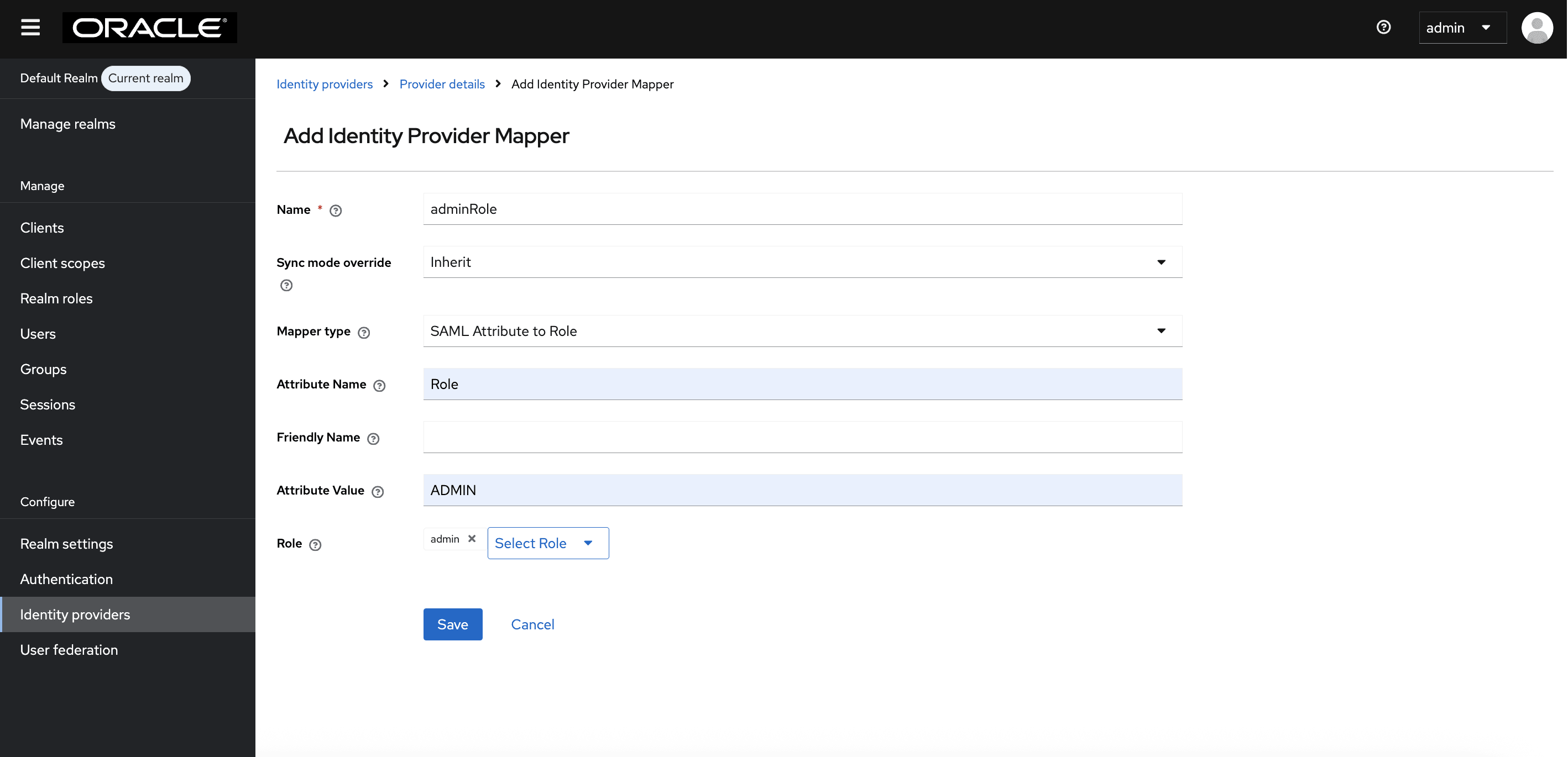
- The Add Identity Provider Mapper screen appears.
- Give an appropriate name for the Identity Provider Mapper in the Name field.
- select SAML Attribute to Role from the Mapper Type drop-down.
- Enter the Attribute Name.
Note:
The attribute value (role) may not be the same as given in example, it is specific to which SAML IdP customer is using. For the exact attribute value, refer to your SAML IdP documentation or support, or you can find it in the SAML response from your SAML IdP. - Enter the Attribute Value as the one of the roles added in SAML IdP. For example: 'NRF', 'SCP', etc.
- Click Select Role to select the API roles to be enabled for this mapping.
- Click Assign. Then click Save.
Figure 4-38 Example Values for scpRole Mapper for cncc realm
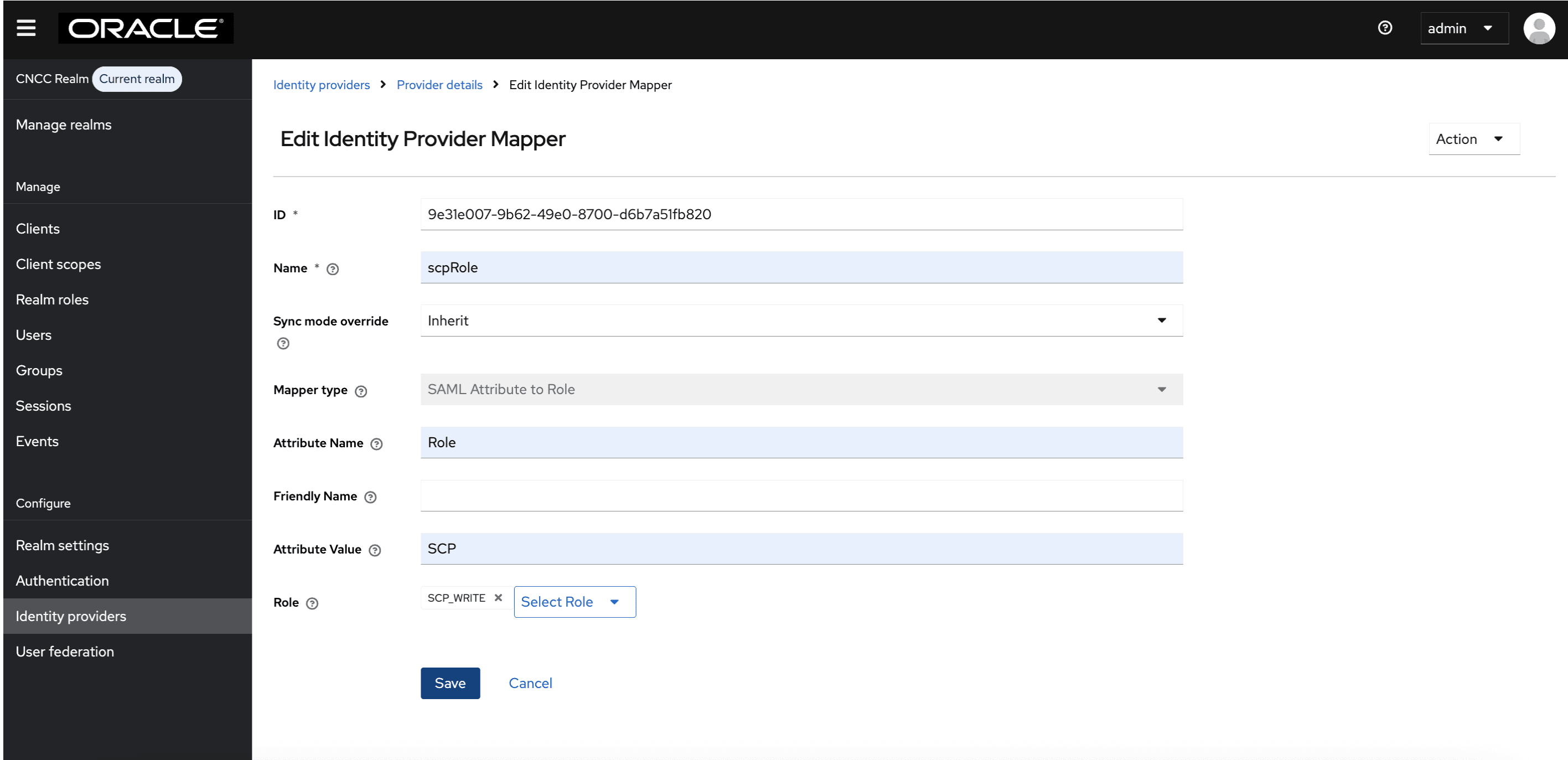
Figure 4-39 Example Values for admin role mapper for default realm
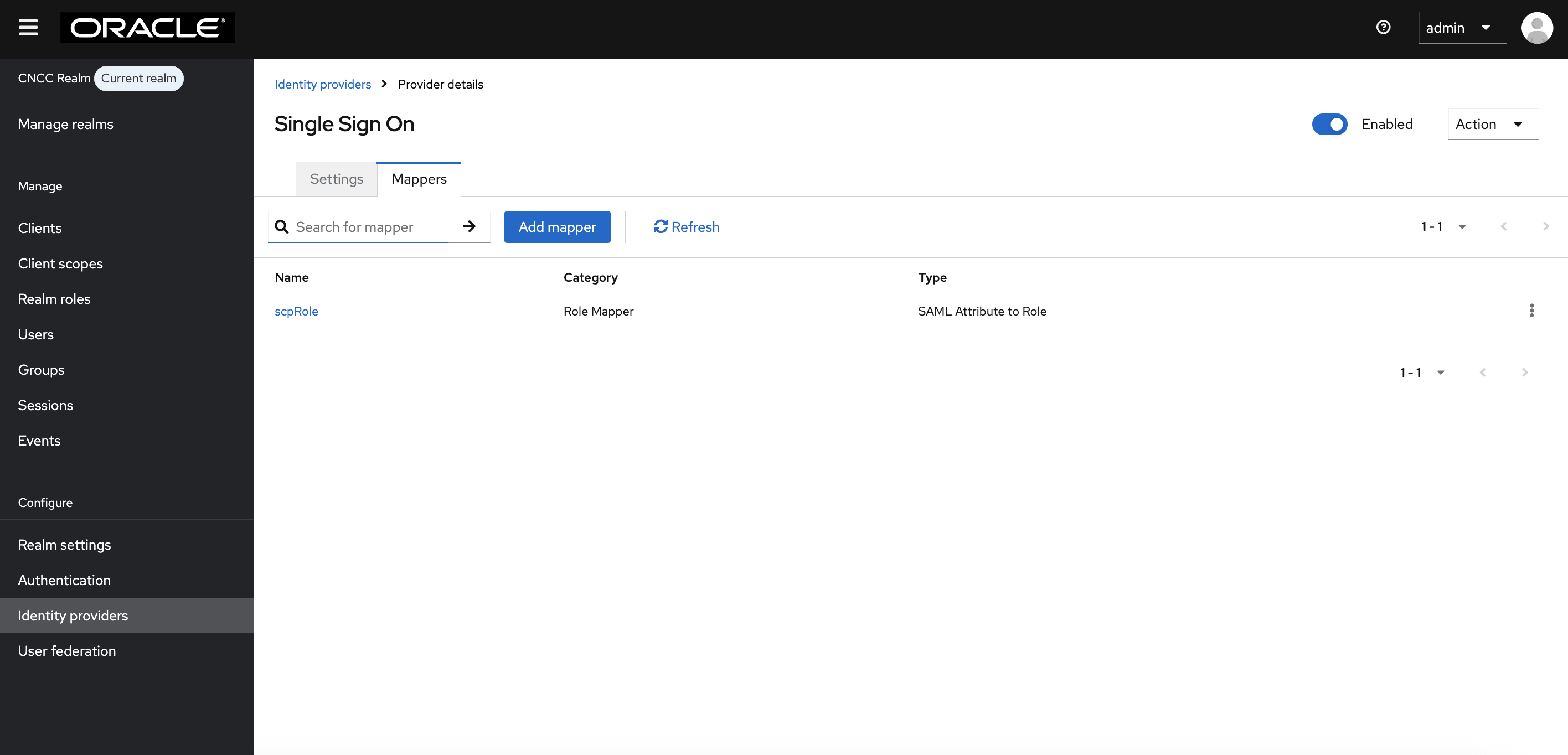
- Once the mappers are created, they appear in the list as shown
following screen shot. If there are future requirements to map additional
attributes, similar mappers can be created by following the same steps. For
user profile attribute mappings, see Additional Attribute Mappings (Optional User Profile Attribute Mapping).
Figure 4-40 Single Sign On
Additional Attribute Mappings (Optional User Profile Attribute Mapping)
In addition to role mappings, CNC Console IAM supports importing user profile attributes from the Identity Provider (IdP) during SAML authentication. This allows attributes such as User Name,First Name, Last Name, and Email Address to be automatically populated in CNC Console IAM based on SAML assertions provided by the IdP.
If your IdP includes these attributes, you can configure corresponding attributes in the CNC Console IAM SAML client to map them to the CNC Console user profile.
Note:
The attribute names listed below are examples. Your IdP may use different attribute names as per its own standards. The attribute name shown by the IdP is the one that needs to be selected during mapping.<saml:Attribute Name="uid" NameFormat="urn:oasis:names:tc:SAML:2.0:attrname-format:basic">
<saml:AttributeValue xsi:type="xs:string">user_saml</saml:AttributeValue>
</saml:Attribute>
<saml:Attribute Name="FirstName" NameFormat="urn:oasis:names:tc:SAML:2.0:attrname-format:basic">
<saml:AttributeValue xsi:type="xs:string">User</saml:AttributeValue>
</saml:Attribute>
<saml:Attribute Name="LastName" NameFormat="urn:oasis:names:tc:SAML:2.0:attrname-format:basic">
<saml:AttributeValue xsi:type="xs:string">Saml</saml:AttributeValue>
</saml:Attribute>
<saml:Attribute FriendlyName="email" Name="urn:oid:1.2.840.113549.1.9.1" NameFormat="urn:oasis:names:tc:SAML:2.0:attrname-format:basic">
<saml:AttributeValue xsi:type="xs:string”>user_saml@oracle.com</saml:AttributeValue>
</saml:Attribute>- Log in to CNC Console IAM Administration Console.
- Select cncc realm
- Navigate to Identity Providers and select your SAML provider.
- Go to the Mappers tab and click Add mapper.
- Provide a name to the mapper.
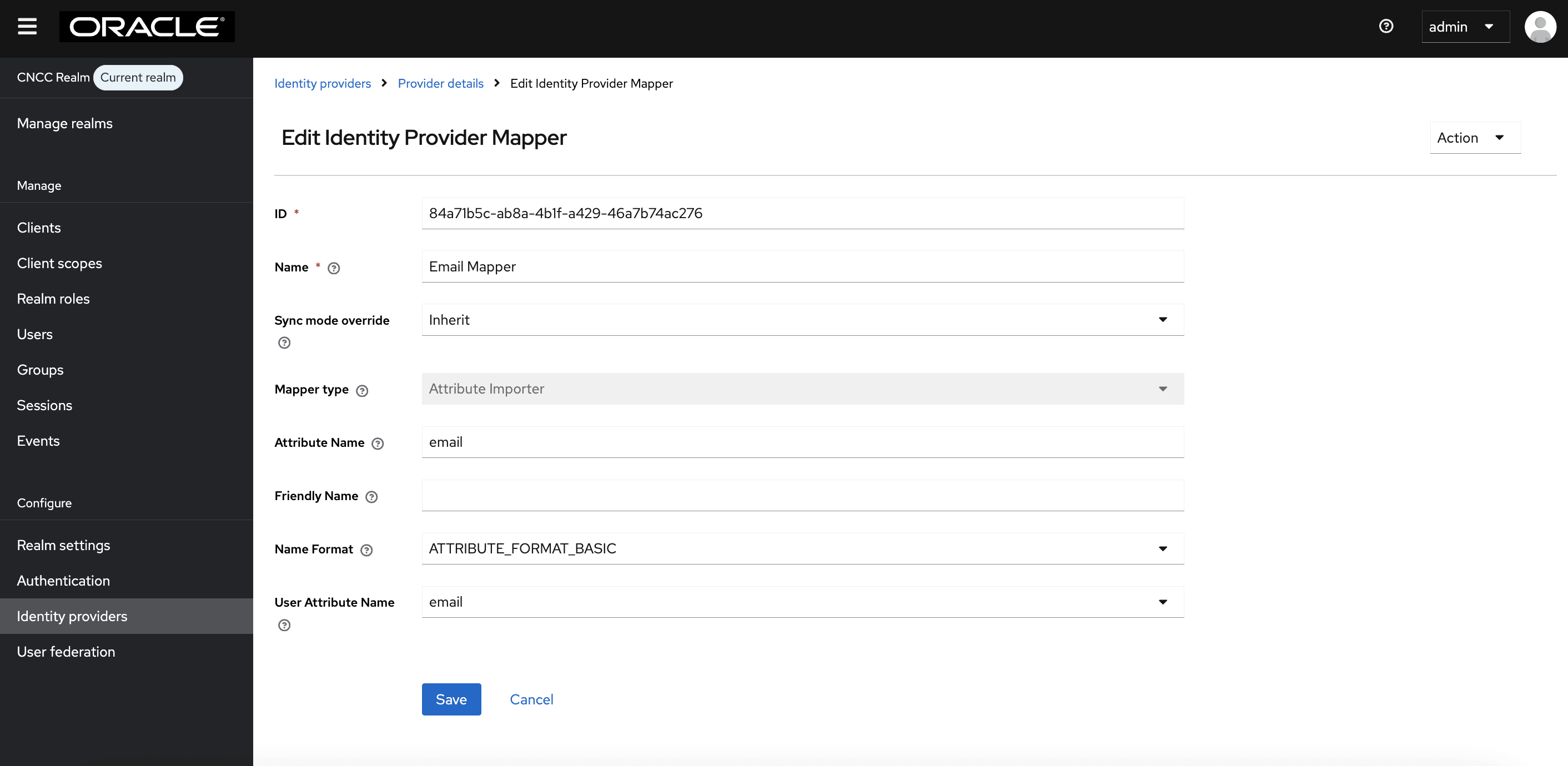
- Set the Mapper Type to User Attribute Importer.
- Set Name Format to: ATTRIBUTE_FORMAT_BASIC (default)
- In Attribute Name, enter the SAML
attribute name as provided by the IdP (for example,
uid, FirstName,LastName,email, or your IdP’s equivalent). - In User Attribute, select
username,firstName,lastName, andemailfrom the dropdown, or if these attributes are already available in CNC Console IAM and do not need to be created, set Sync Mode to Inherit (default) - Click Save.
Repeat these steps for each attribute (username,
firstName, lastName, or
email) that you want to map.
Table 4-3 Sample Attribute Mapping Summary
| SAML Attribute from IdP | CNC Console User Attribute (Drop down) | Purpose |
|---|---|---|
uid |
username |
Populates the user name in CNC Console UI or User Profile |
FirstName |
firstName |
Populates the first name in CNC Console UI or user profile |
LastName |
lastName |
Populates the last name in CNC Console UI or user profile |
email |
email |
Populates the email address in CNC Console UI or user profile |
Note:
The IdP must include the attributes in the SAML response for the mapping to work. If attribute names differ from the example, use the exact attribute names configured at your IdP. No CNC Console application-level changes are required. All configurations are done in the CNC Console IAM GUI.Figure 4-41 Mapper for Username
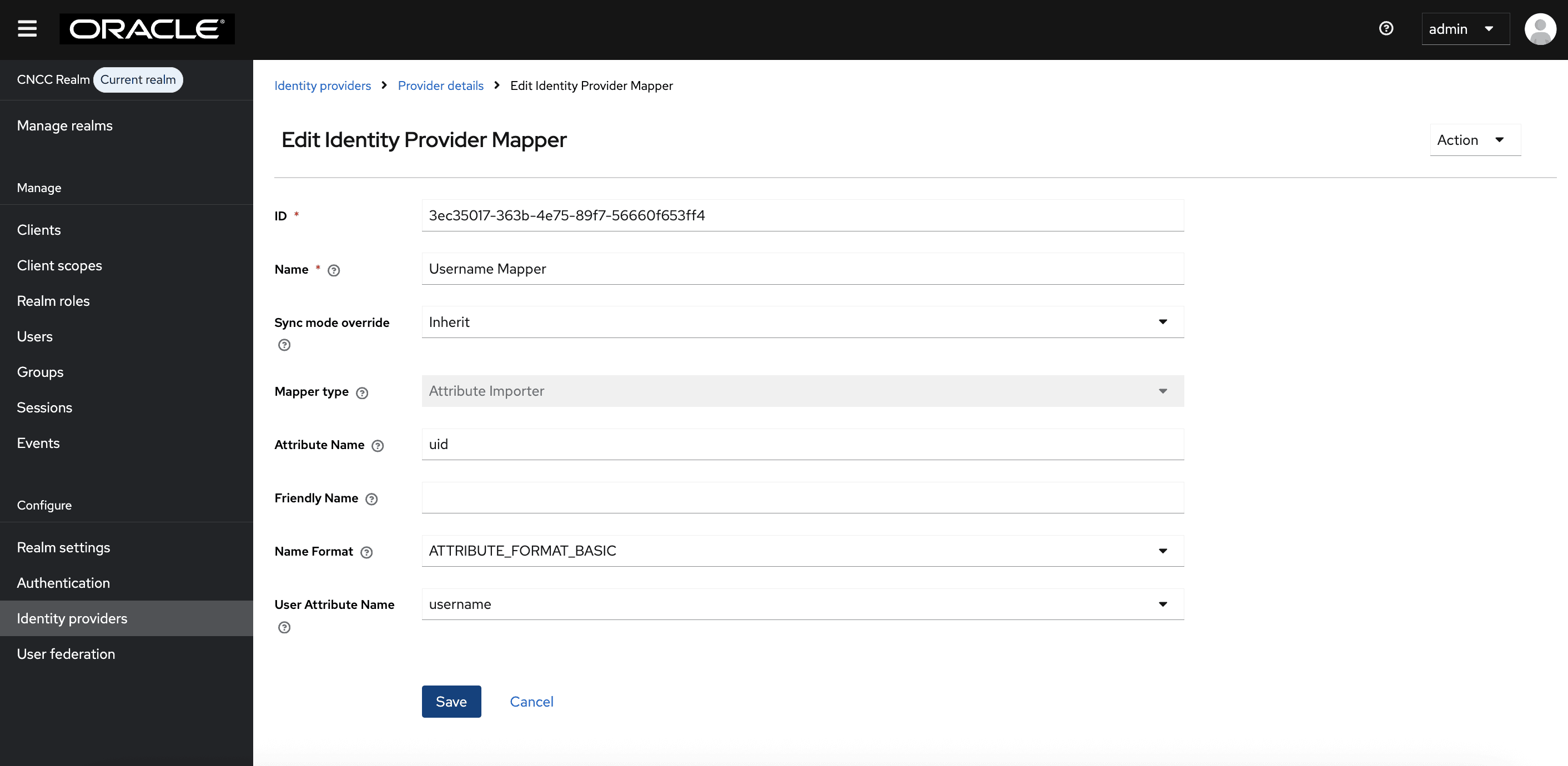
Figure 4-42 Mapper for First Name
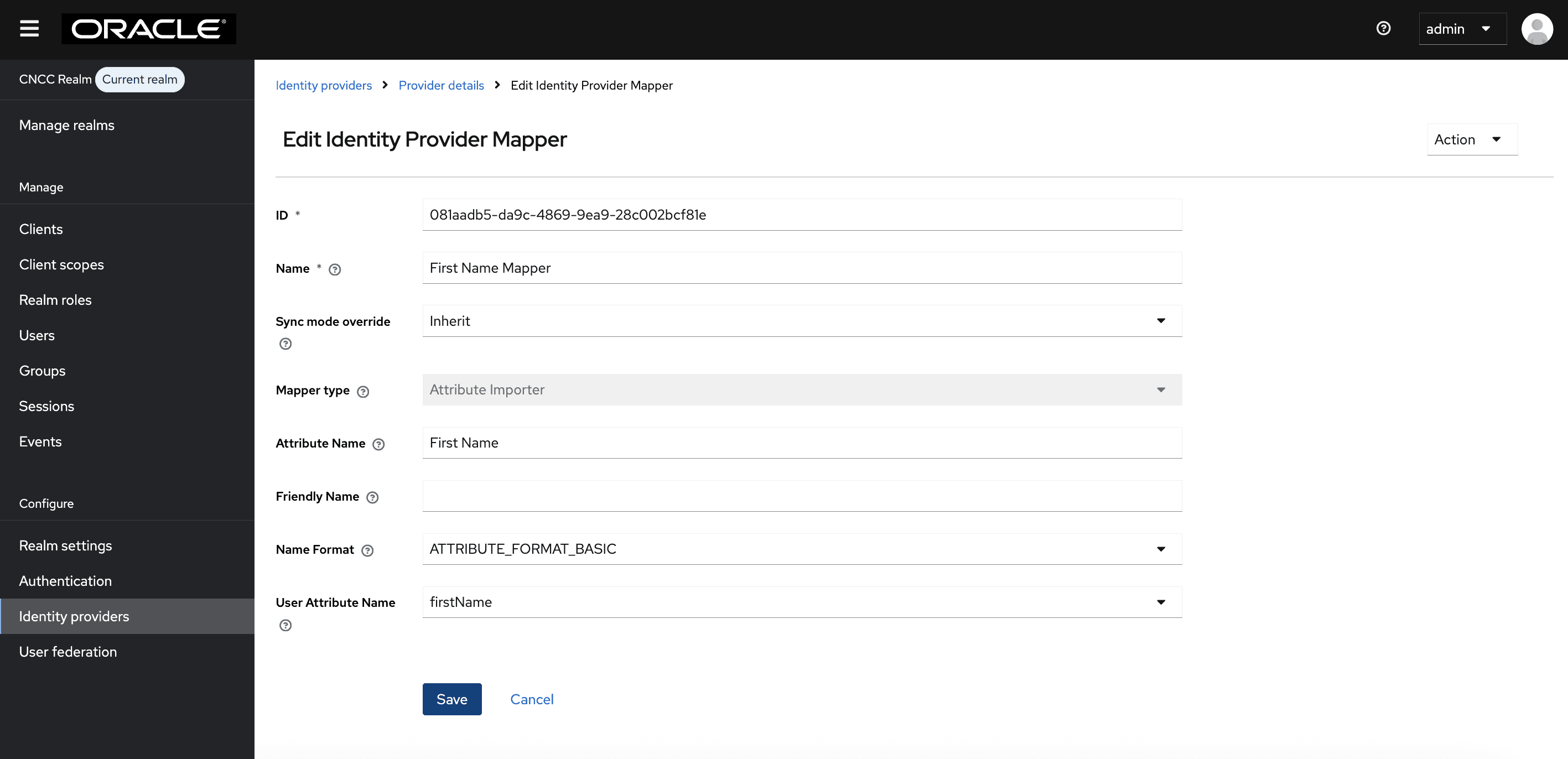
Figure 4-43 Mapper for Last Name
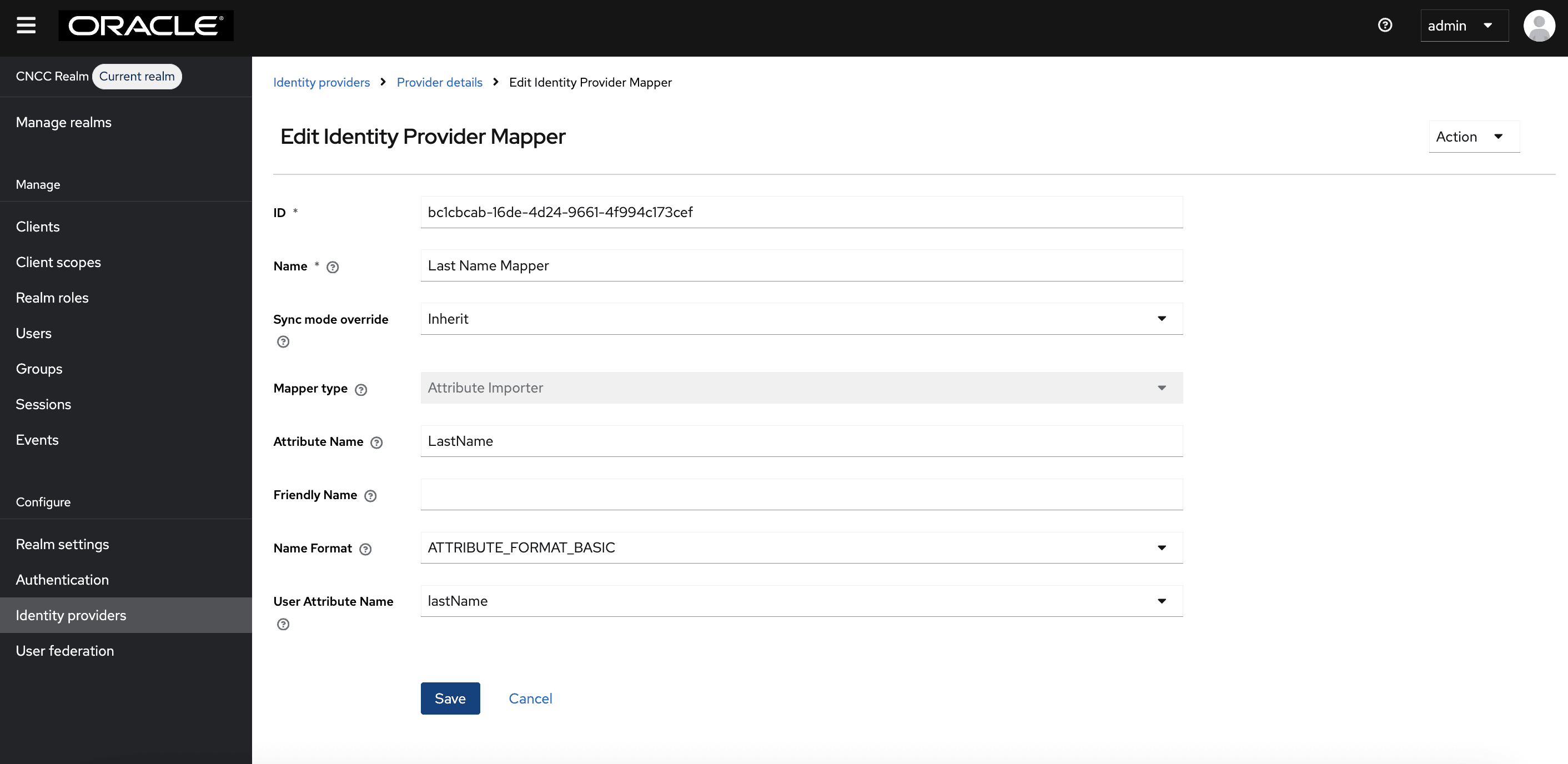
Figure 4-44 Mapper for Email
Verification
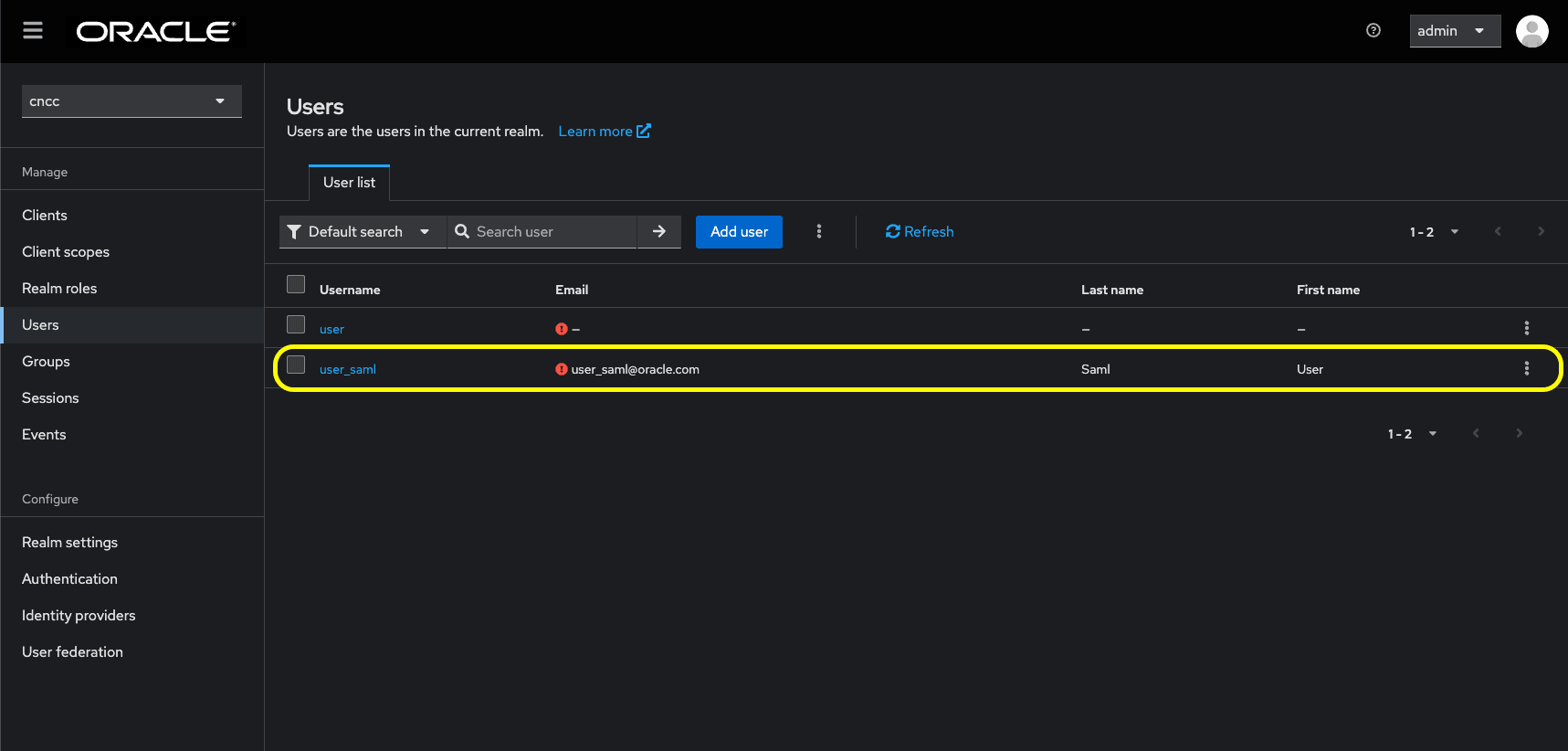
When these mappers are configured during the first SAML login,
- CNC Console IAM will automatically populate
username, firstName, lastName,andemailfor the user. - No additional manual updates are required in M-CNCC Core or M-CNCC IAM.
Figure 4-45 SAML User in CNC Console IAM After Adding Mappers
Accessing CNC Console Core Application
- Log in to CNC Console Core, and browse to the application using
hostname and port. The user is redirected to CNC Console IAM (broker).
http://<cncc-core-ingress-extrenal-ip>:<cncc-iam-ingress-service-port>
Example: http://cncc-core-ingress-gateway.cncc.svc.cluster.local:30075/
- Click Single Sign On to authenticate using SAML SSO. The user is redirected to SAML IdP log in. Enter user details to access CNC Console Core application.
4.5 Integrating CNC Console LDAP Server with CNC Console IAM
Overview
The CNC Console IAM can be used as an integration platform to connect to existing LDAP and Active Directory servers.
User Federation in CNC Console IAM lets you sync users and groups from LDAP and Active Directory servers and assign roles.
CNC Console IAM provides an option to configure a secured connection URL to your LDAP store.
For example: `ldaps://myhost.com:636'
CNC Console IAM uses SSL to communicate with the LDAP server. The truststore must be properly configured on the CNC Console IAM server side, otherwise CNC Console IAM cannot trust the SSL connection to LDAP.
Sample LDAP LDIF Filedn: dc=oracle,dc=org
objectclass: top
objectclass: domain
objectclass: extensibleObject
dc: oracle
dn: ou=groups,dc=oracle,dc=org
objectclass: top
objectclass: organizationalUnit
ou: groups
dn: ou=people,dc=oracle,dc=org
objectclass: top
objectclass: organizationalUnit
ou: people
dn: uid=ben,ou=people,dc=oracle,dc=org
objectclass: top
objectclass: person
objectclass: organizationalPerson
objectclass: inetOrgPerson
cn: Ben Alex
sn: Alex
uid: ben
userPassword: benspass
dn: uid=bob,ou=people,dc=oracle,dc=org
objectclass: top
objectclass: person
objectclass: organizationalPerson
objectclass: inetOrgPerson
cn: Bob Hamilton
sn: Hamilton
uid: bob
userPassword: bobspass
dn: uid=joe,ou=people,dc=oracle,dc=org
objectclass: top
objectclass: person
objectclass: organizationalPerson
objectclass: inetOrgPerson
cn: Joe Smeth
sn: Smeth
uid: joe
userPassword: joespass
dn: cn=admin,ou=groups,dc=oracle,dc=org
objectclass: top
objectclass: groupOfUniqueNames
cn: admin
uniqueMember: uid=ben,ou=people,dc=oracle,dc=org
ou: admins
dn: cn=scp,ou=groups,dc=oracle,dc=org
objectclass: top
objectclass: groupOfUniqueNames
cn: scp
uniqueMember: uid=ben,ou=people,dc=oracle,dc=org
uniqueMember: uid=joe,ou=people,dc=oracle,dc=org
ou: scpusers
dn: cn=nrf,ou=groups,dc=oracle,dc=org
objectclass: top
objectclass: groupOfUniqueNames
cn: nrf
uniqueMember: uid=ben,ou=people,dc=oracle,dc=org
uniqueMember: uid=bob,ou=people,dc=oracle,dc=org
ou: nrfusersThe above data will be used as a reference to integrate LDAP with CNC Console IAM to import users into the cncc realm.
ldap-ldif file used to import LDAP users and groups into CNC
Console
IAM.dn: dc=oracle,dc=org
objectclass: top
objectclass: domain
objectclass: extensibleObject
dc: oracle
dn: ou=groups,dc=oracle,dc=org
objectclass: top
objectclass: organizationalUnit
ou: groups
dn: ou=people,dc=oracle,dc=org
objectclass: top
objectclass: organizationalUnit
ou: people
dn: uid=ben,ou=people,dc=oracle,dc=org
objectclass: top
objectclass: person
objectclass: organizationalPerson
objectclass: inetOrgPerson
cn: Ben Alex
sn: Alex
uid: ben
userPassword: benspass
dn: uid=bob,ou=people,dc=oracle,dc=org
objectclass: top
objectclass: person
objectclass: organizationalPerson
objectclass: inetOrgPerson
cn: Bob Hamilton
sn: Hamilton
uid: bob
userPassword: bobspass
dn: cn=admin,ou=groups,dc=oracle,dc=org
objectclass: top
objectclass: groupOfUniqueNames
cn: admin
uniqueMember: uid=ben,ou=people,dc=oracle,dc=org
uniqueMember: uid=bob,ou=people,dc=oracle,dc=org
ou: adminsThe above data can be used as a reference to integrate LDAP with CNC Console IAM for importing users into the default realm.
4.5.1 Configuring User Federation with CNC Console IAM
This section provides information about configuring user federation with CNC Console IAM (LDAP Server integration).
- Log in to the CNC Console IAM console using admin credentials provided during
CNC Console IAM installation.
Figure 4-46 Login Screen
- Select the appropriate realm based on where you want to import users. To switch
realms, go to Manage Realm and select the desired realm from the list of
available realms:
- To grant LDAP users access to CNC Console IAM, choose the
default realm.
Figure 4-47 default realm
- To grant LDAP users access to CNC Console Core, choose the
cncc realm.
Figure 4-48 cncc realm
- To grant LDAP users access to CNC Console IAM, choose the
default realm.
- Click User Federation on
the left pane. The User
Federation screen appears.
Figure 4-49 User Federation
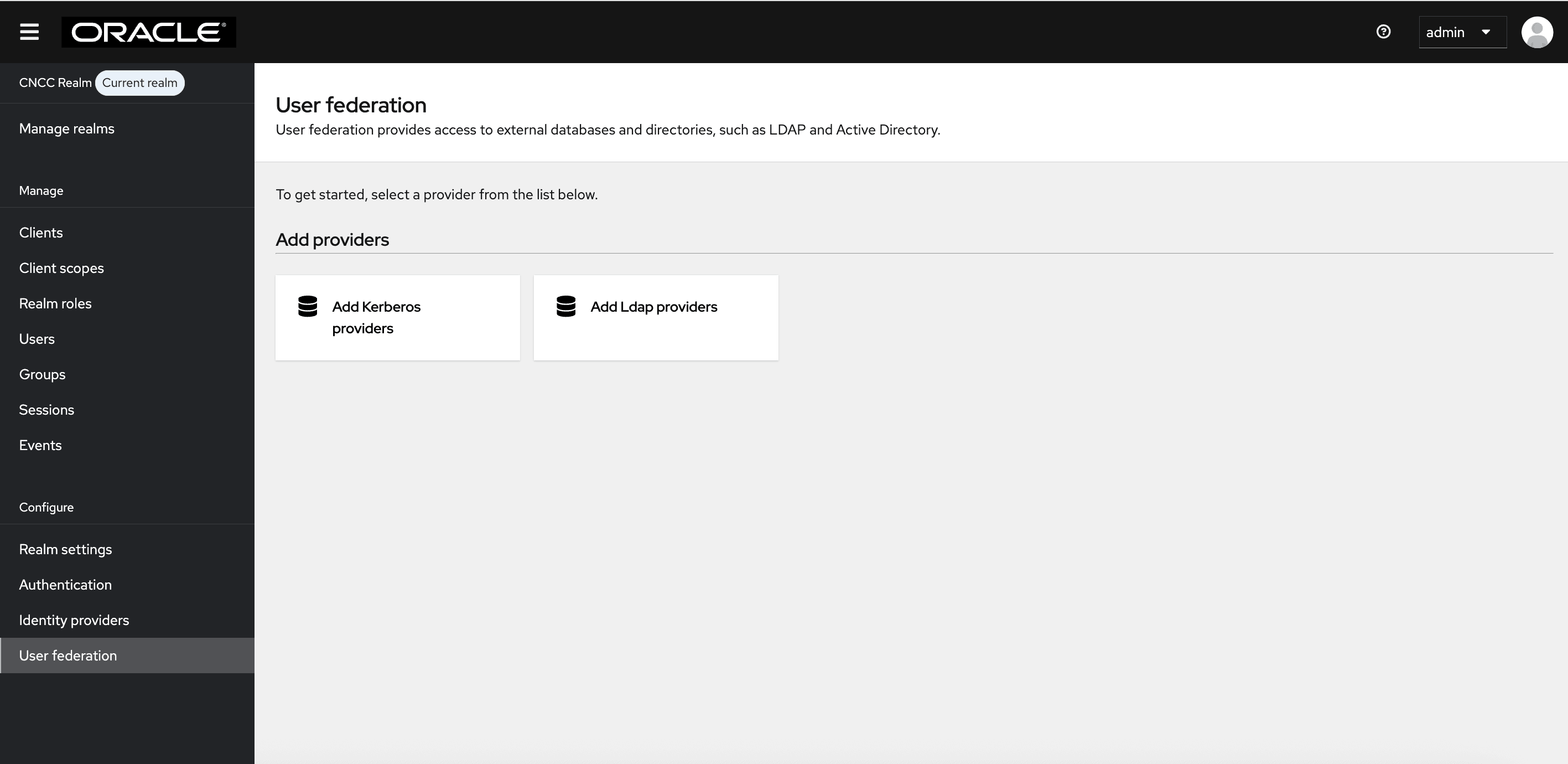
- Click Add LDAP providers. The following page will
automatically open a form to fill in your LDAP connection parameters. The form
will be initially empty as shown below:
Figure 4-50 Add LDAP providers
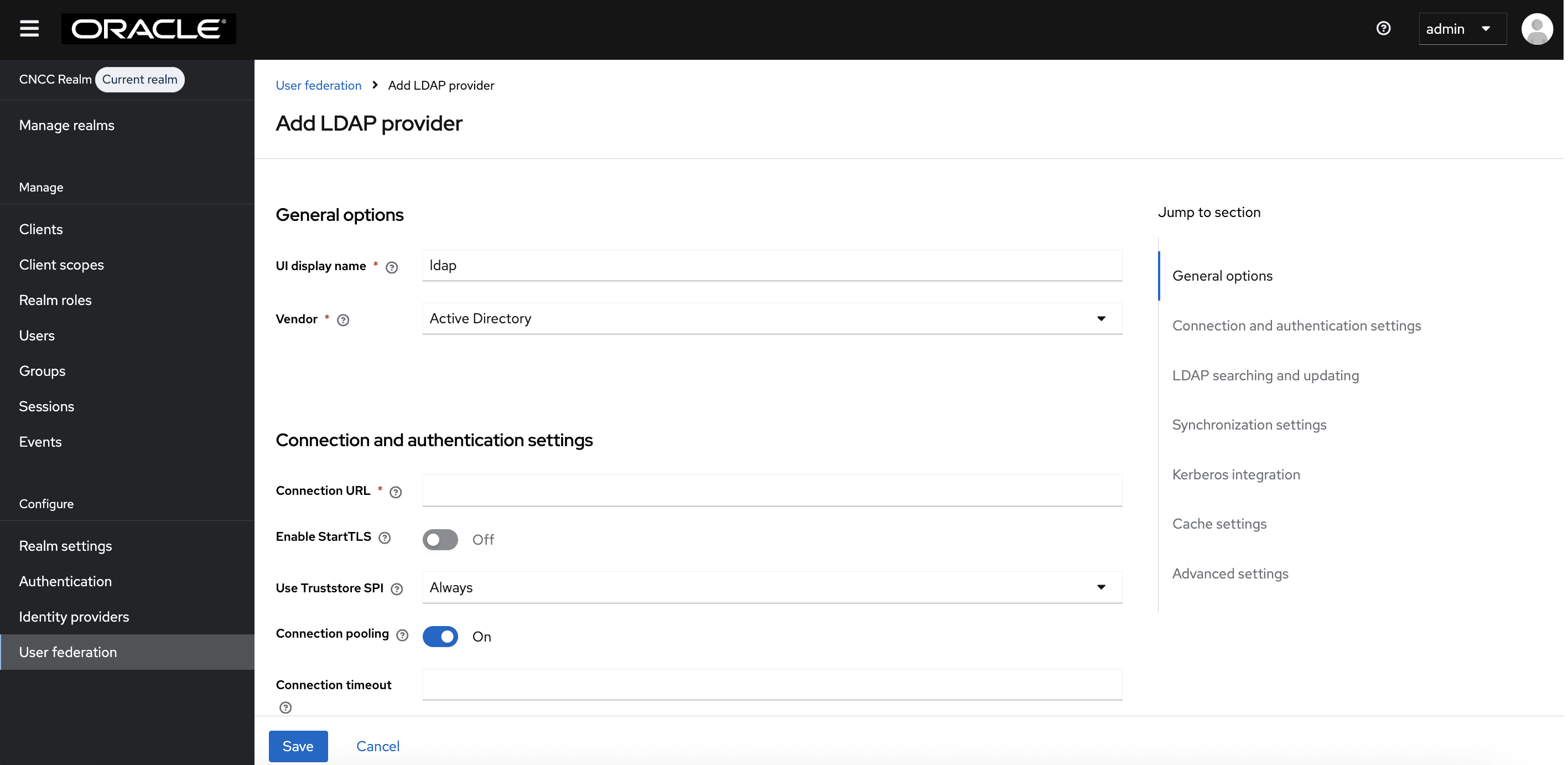
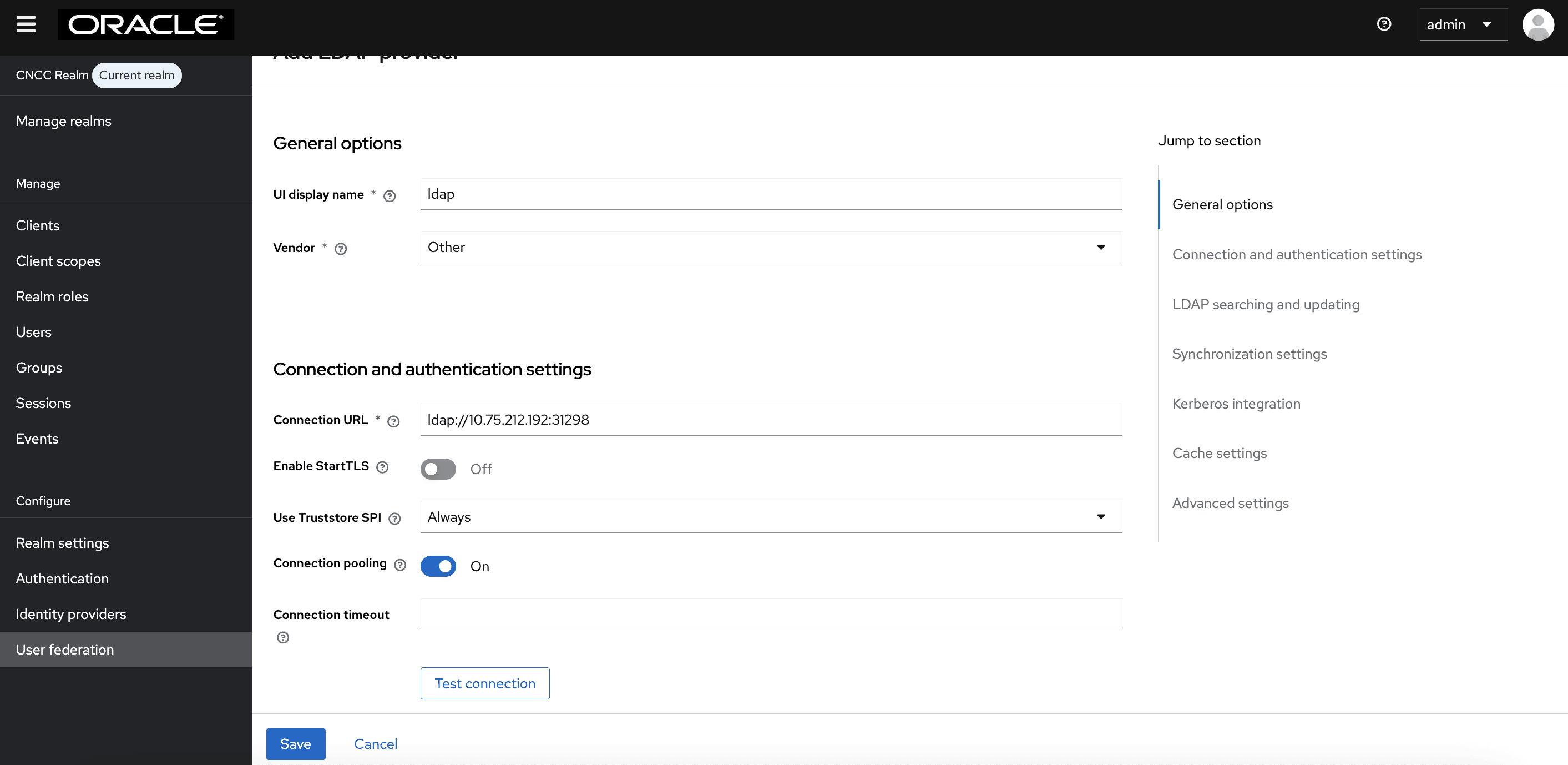
- Enter the values for the following fields:
- UI Display Name: Enter the display name.
- Vendor: Enter the LDAP server provider name for the company.
Note:
This usually populates the defaults for many fields. However, in case the user has a different setup than the defaults, the correct values must be provided. Based on the current setup, select Other from the drop-down list.- Provide your company LDAP server details in the
Connection URL field, in the same way as you provided for
ldap-ldiffile already. That is, the connection URL (hostname prefixed with ldap:// OR when LDAP Secure connection enabled (LDAPS) hostname prefix should be ldaps://), and the port.Figure 4-51 General Options
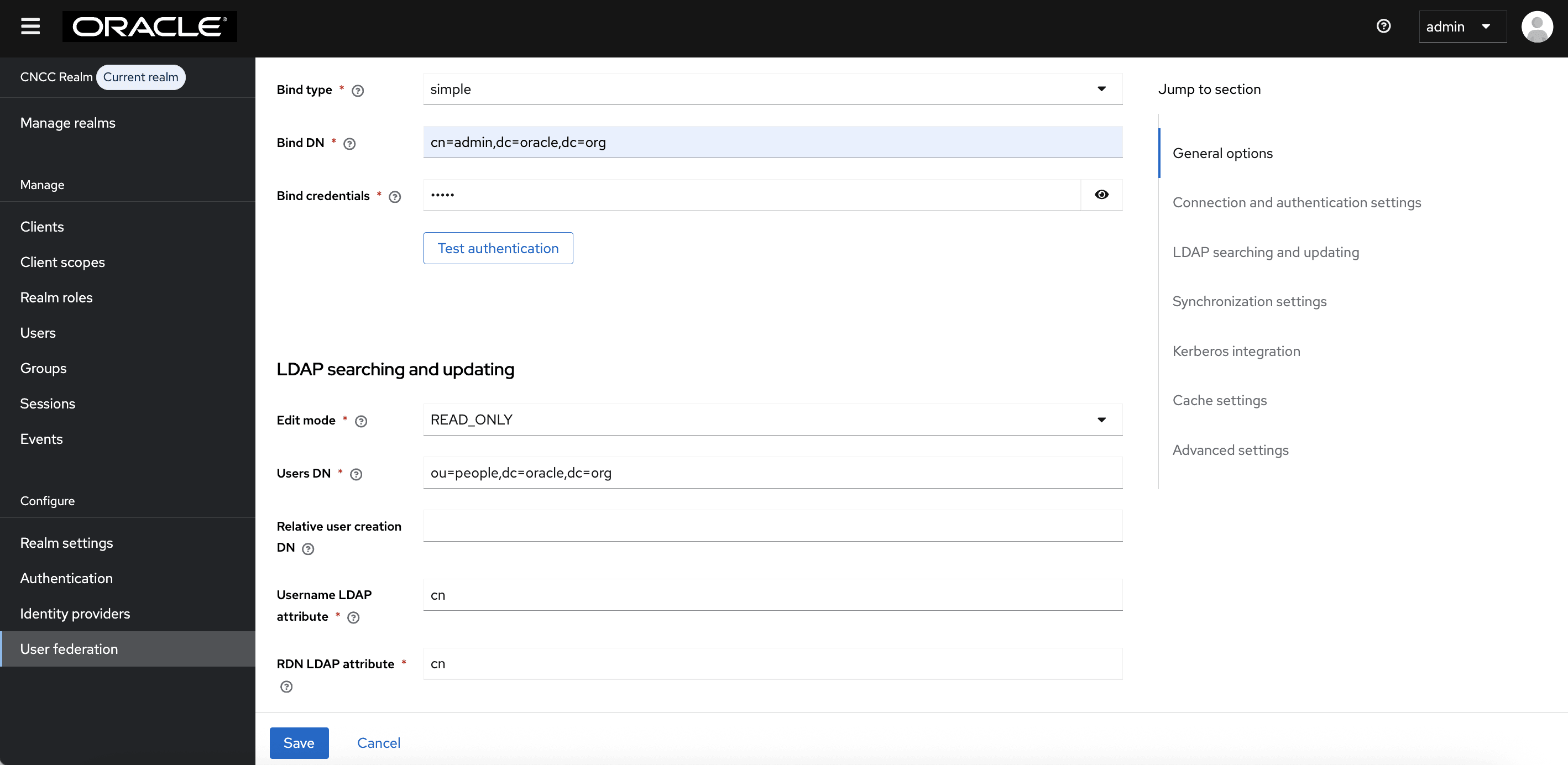
- If your LDAP is secured then select simple from the Bind type drop-down, and add the admin bind username and password, or select the Bind type as none. Sample data for the field Bind DN: "cn=admin,dc=oracle,dc=org".
- Click Test Connection and Test Authentication. Both of these tests should be successful.
- From the Edit Mode drop-down list, select READ_ONLY.
- In most cases, the UUID LDAP attribute value is set as entry UUID. If you do not have a suitable value, use an alternate unique identifier.
- Click Test Connection and Test
Authentication.
Figure 4-52 LDAP searching and updating
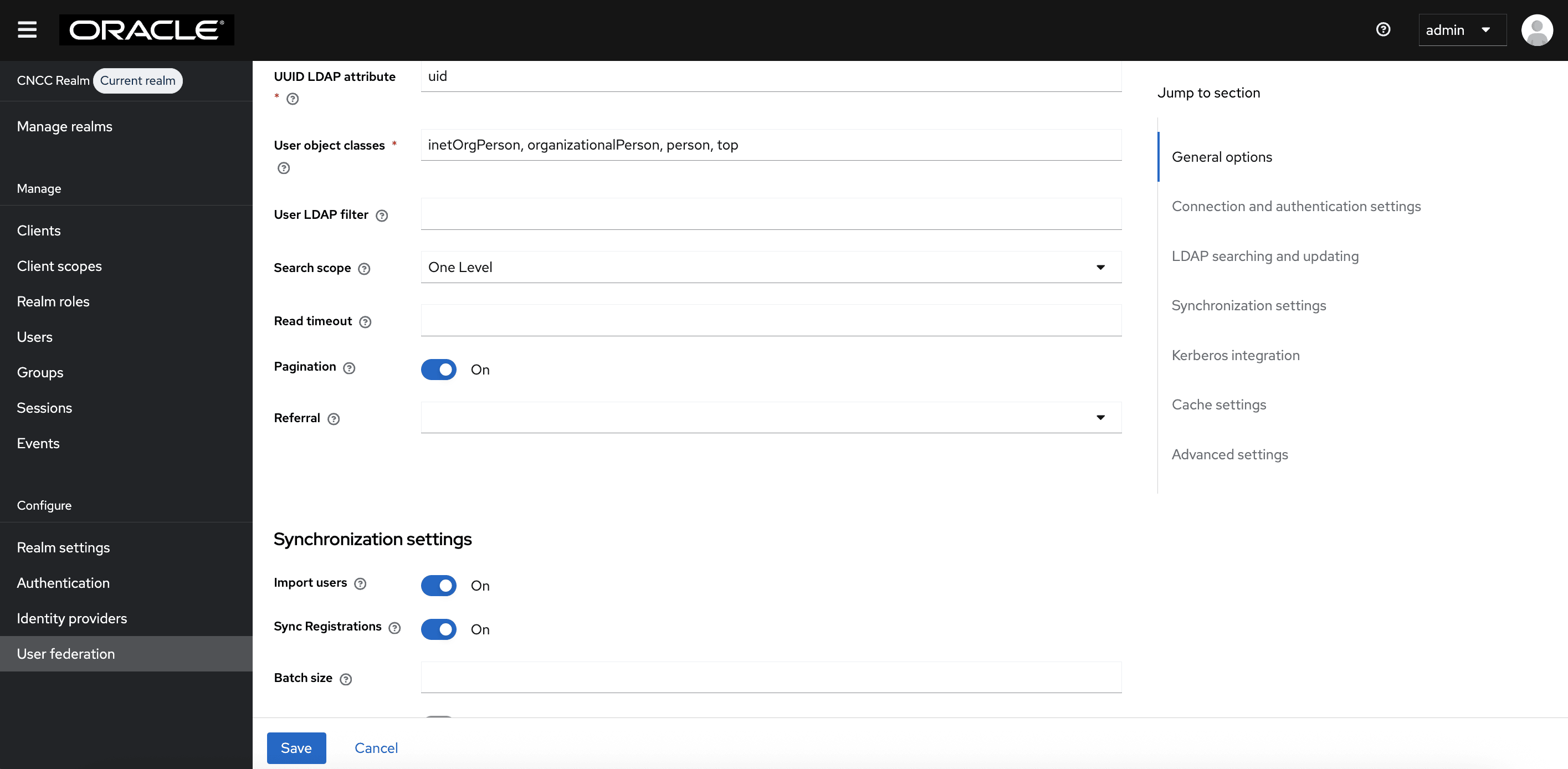
- The default setting for Import Users is ON. Change it to OFF to disable user sync.
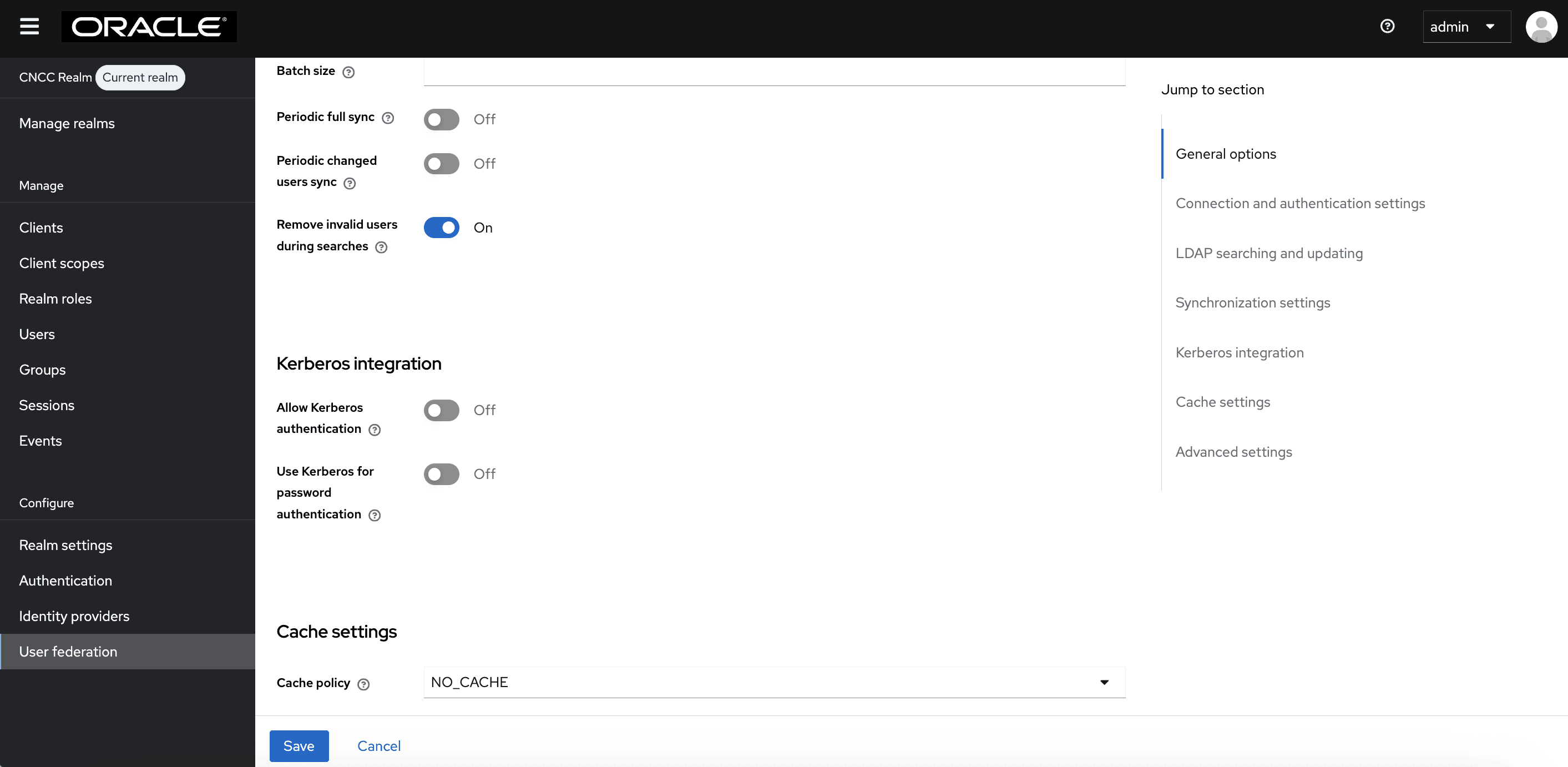
- Set the cache policy to NO_CACHE.
- After populating the required fields, the following screen appears:
Figure 4-53 Synchronization settings
- Click Save.
Figure 4-54 Kerberos Integration
Note:
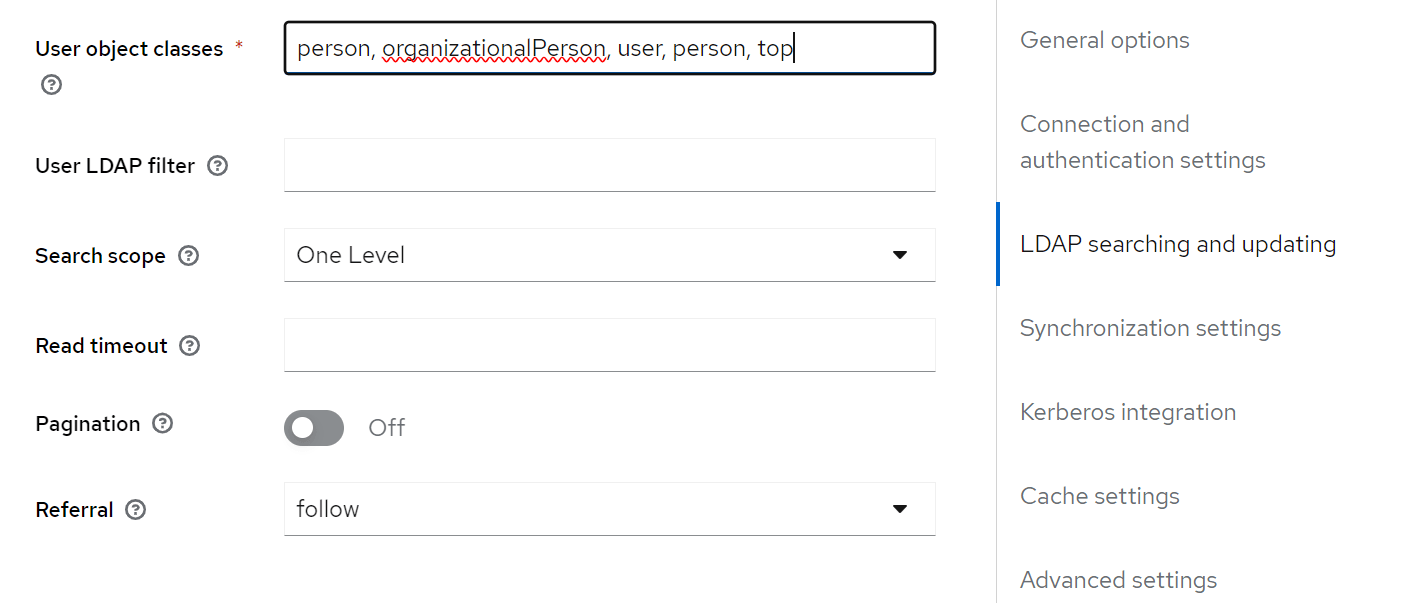
Enabling and Disabling the Manage DSA IT Control in LDAP Requests:CNC Console IAM allows the user to enable or disable Manage DSA IT Control in the LDAP requests sent from CNC Console IAM pods to the LDAP server.
Manage DSA IT Control is enabled by default as Referral is set to Ignore in the User Federation Setup.
You can disable this by setting Referral to Follow.Figure 4-55 Enabling and Disabling the Manage DSA IT Control in LDAP Requests
4.5.2 Grouping the LDAP Mapper and Assigning the Roles
Group Mapper
The Group Mapper allows you to configure group mappings from LDAP into CNC Console IAM group mappings. Group mapper can be used to map LDAP groups from a particular branch of an LDAP tree into groups in CNC Console IAM. It also propagates user-group mappings from LDAP into user-group mappings in CNC Console IAM.
- Under Configure in the left pane, click User
Federation. Click ldap and select the Mappers tab, and
then click Add Mapper.
Figure 4-56 LDAP Mapper Page
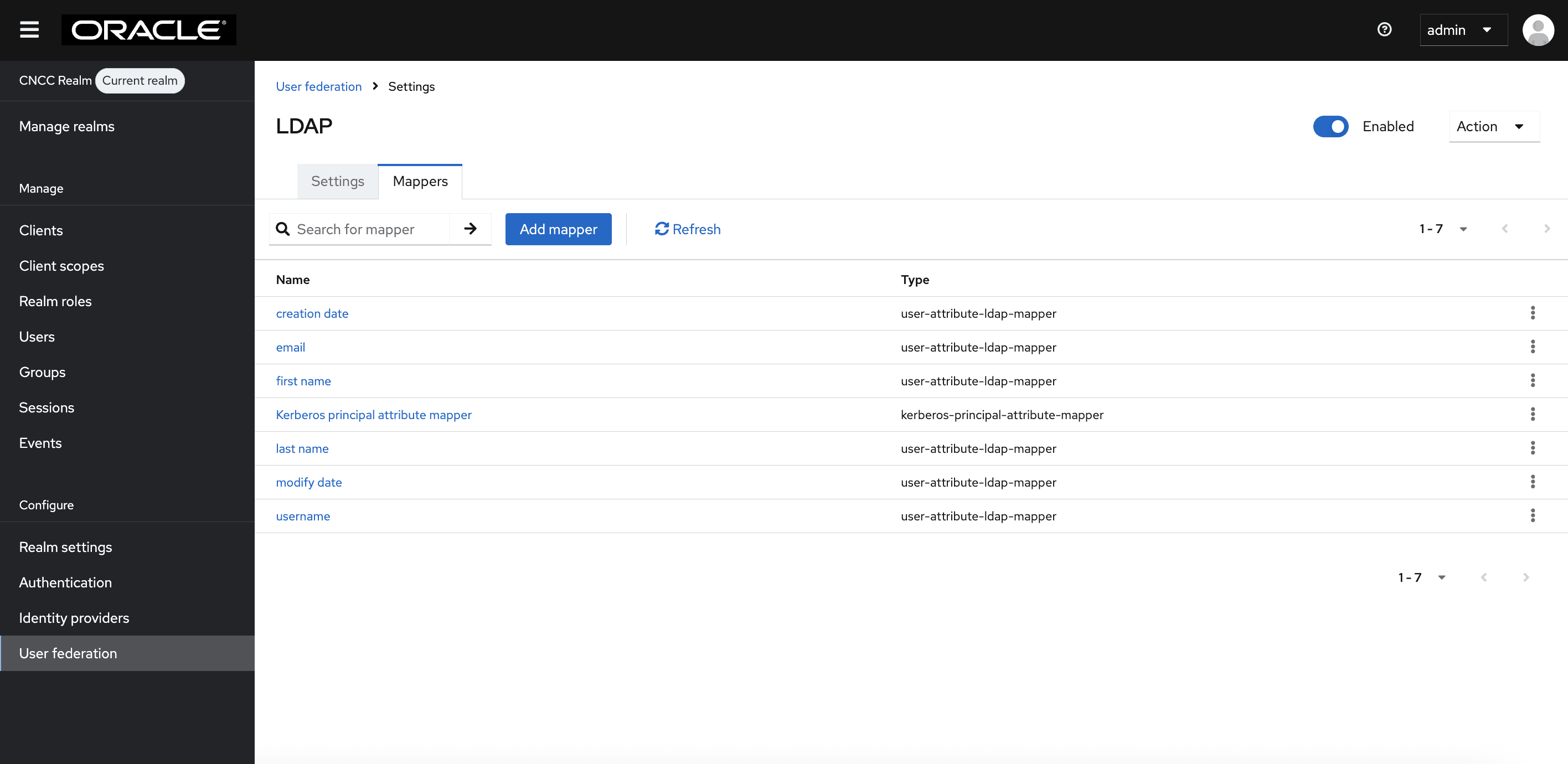
- The Create New Mapper
page appears. Give an appropriate name for the field Name. Select
group-ldap-mapper from the Mapper Type drop-down menu. Click Save.
Figure 4-57 User Federation Mapper Page
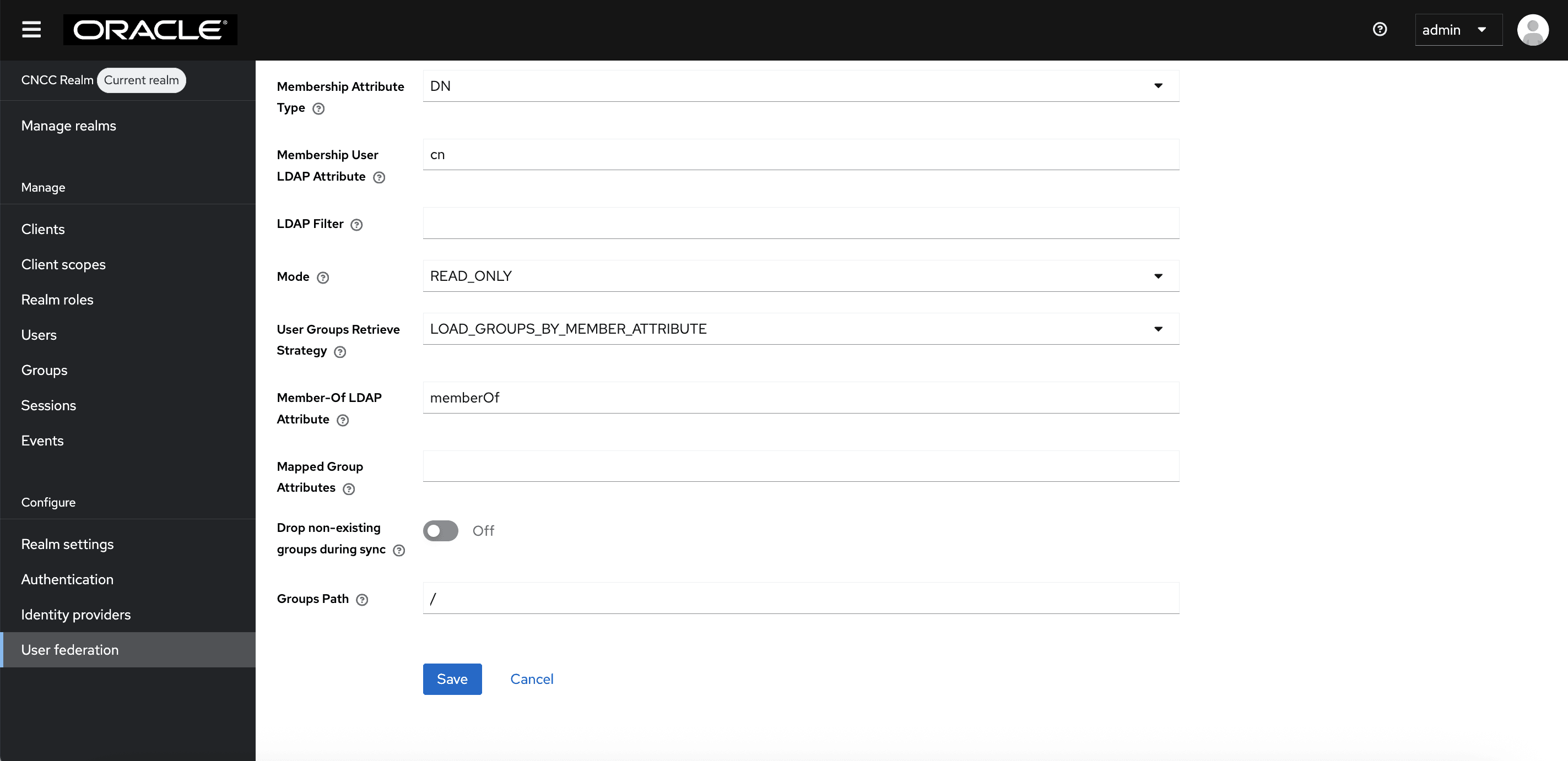
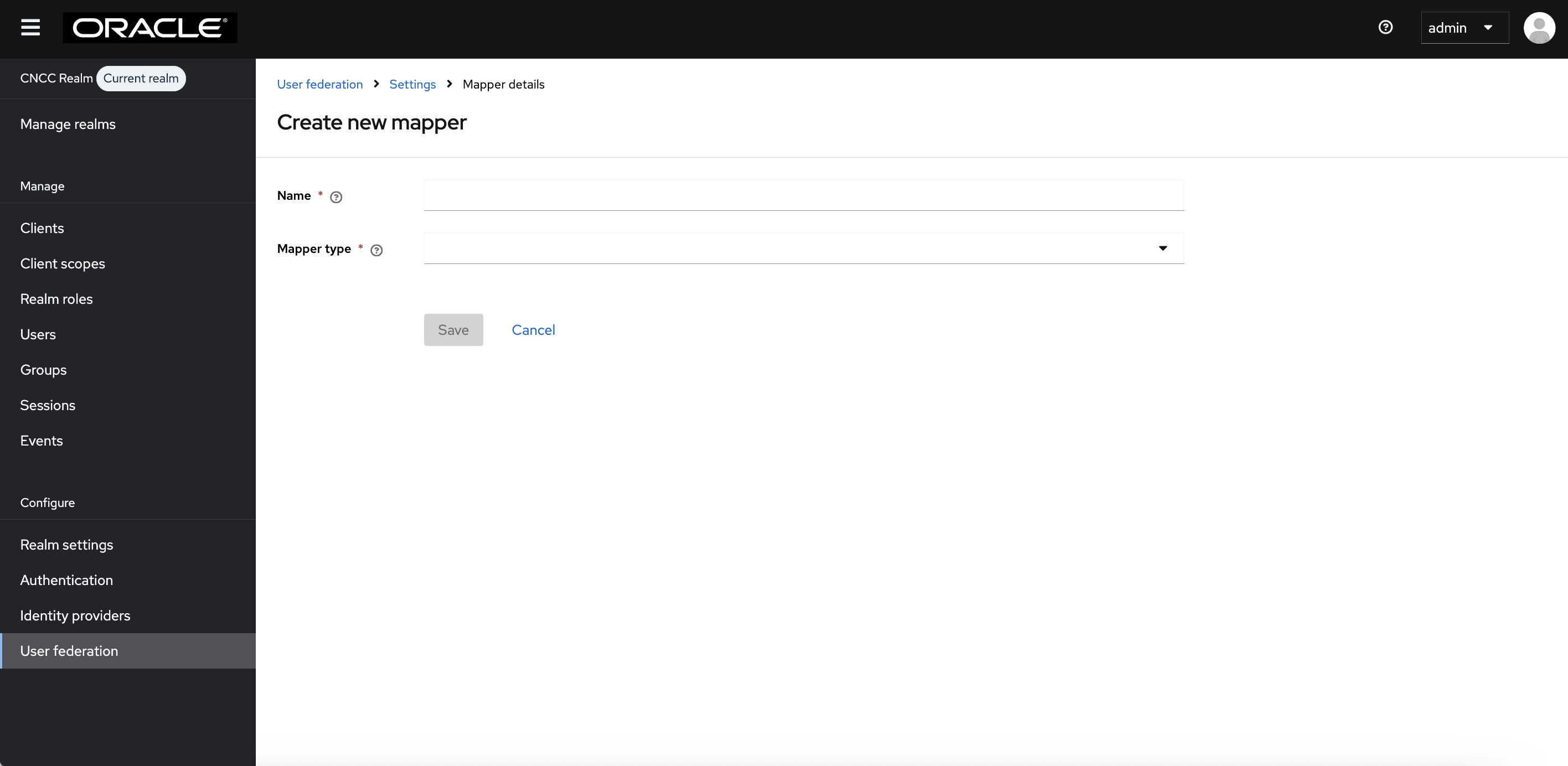 The following screen appears:
Figure 4-58 LDAP Mapper Filled Form

Note:
When selected, default values will be set by CNC Console IAM. However, you must change some values based on your LDAP records. - Click Save.
Figure 4-59 Save
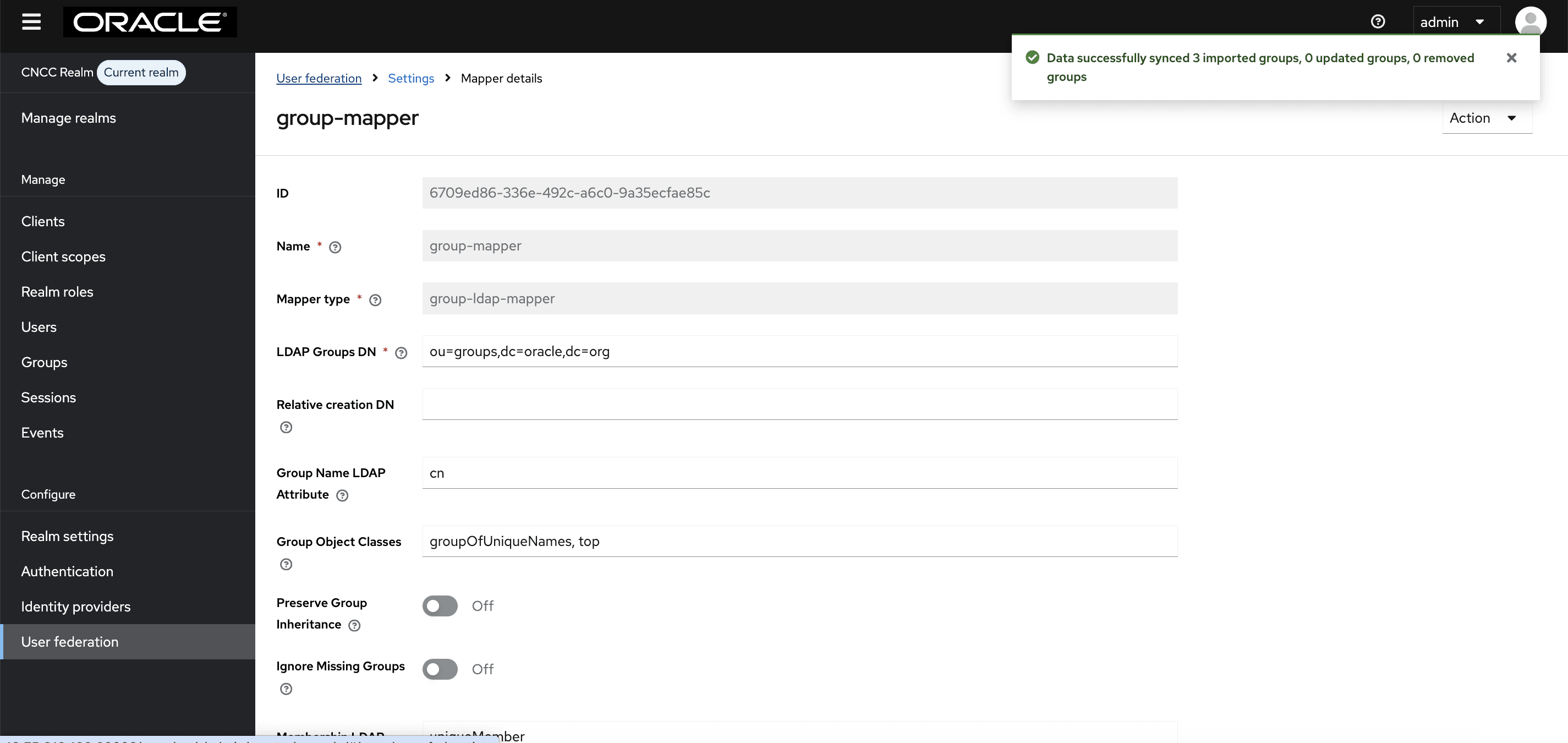
- Click the name of your mapper. Under the Action
menu, click Sync LDAP
Groups to Keycloak. The success message appears with the number of
groups imported and so on.
Figure 4-60 Group Mapper
Note:
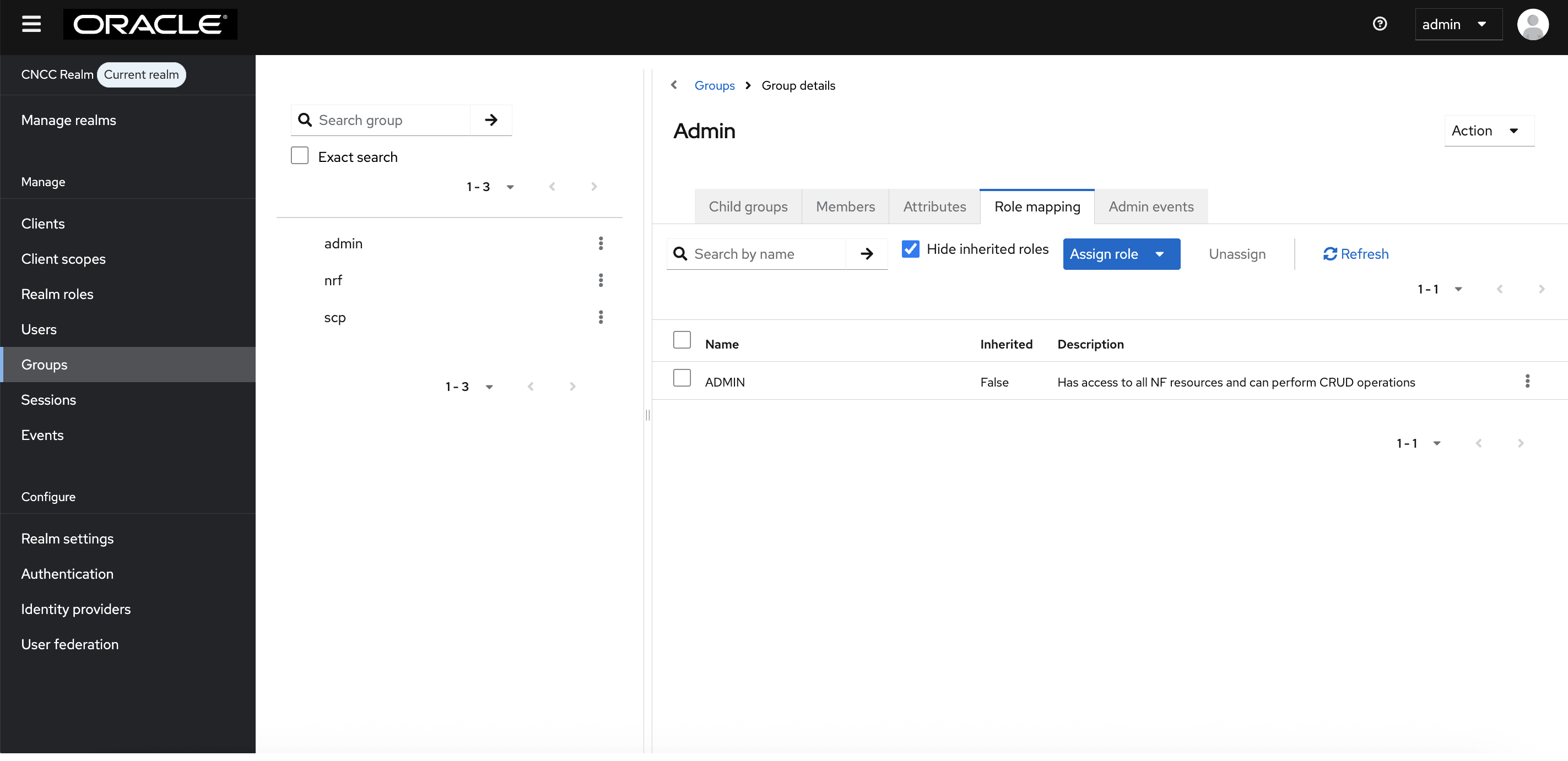
If this step fails, then you might need to look through the troubleshooting section and check the CNC Console IAM logs in debug mode. See the "CNC Console Logs" section in Oracle Communication Cloud Native Configuration Console Troubleshooting Guide for further details. - Select the Groups in the left pane to view all groups.
Figure 4-61 Groups
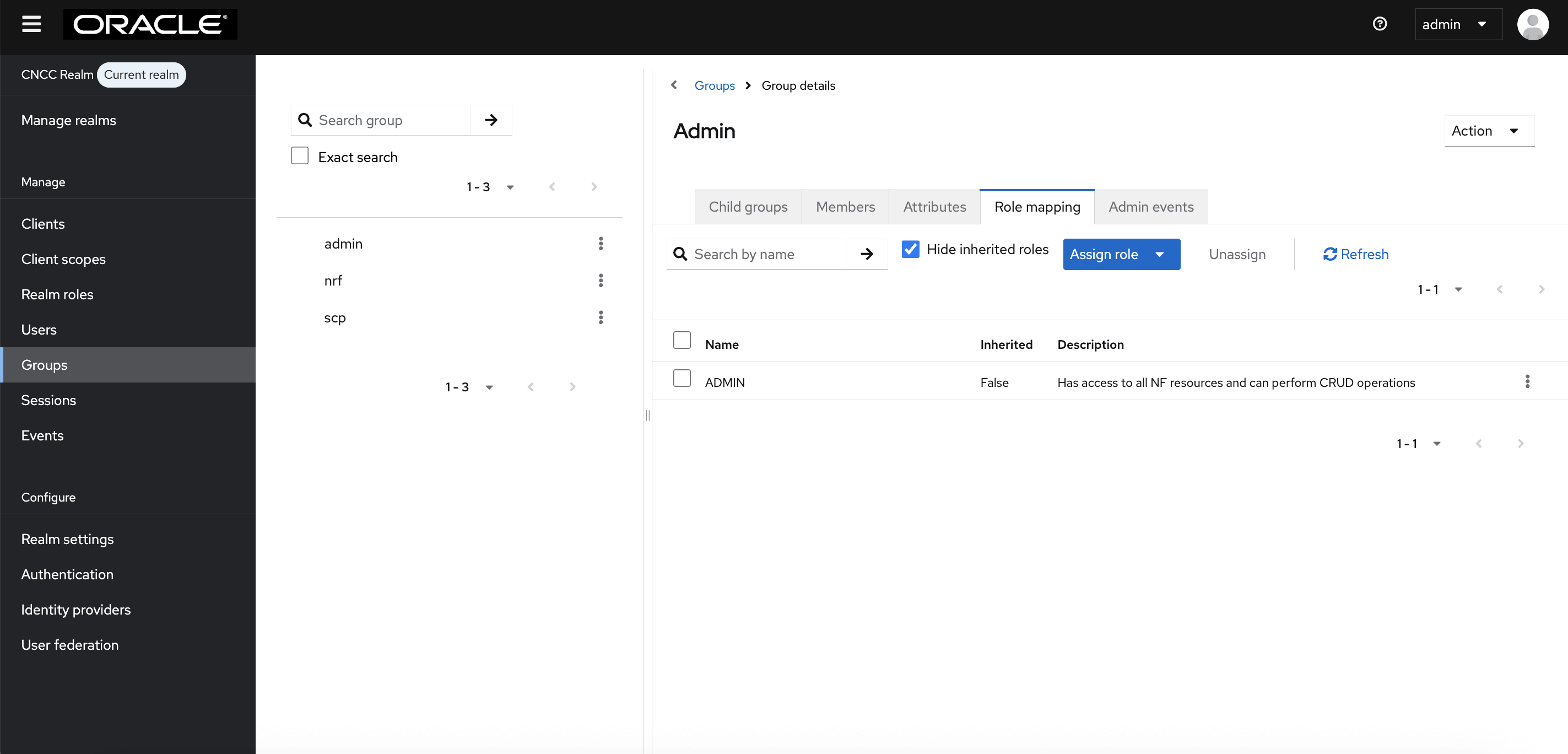
- Click any group and click Edit. The following tabs appear: Child groups, Attributes,
Role Mappings, and Members.
- Select the Role Mapping tab to view a list of roles that are predefined in CNC Console IAM.
- Select one or more roles from Available Roles and assign it to the group.
- When you are done, you can test authentication and authorization by logging into the CNC Console GUI.
Figure 4-62 Role mapping to LDAP Group
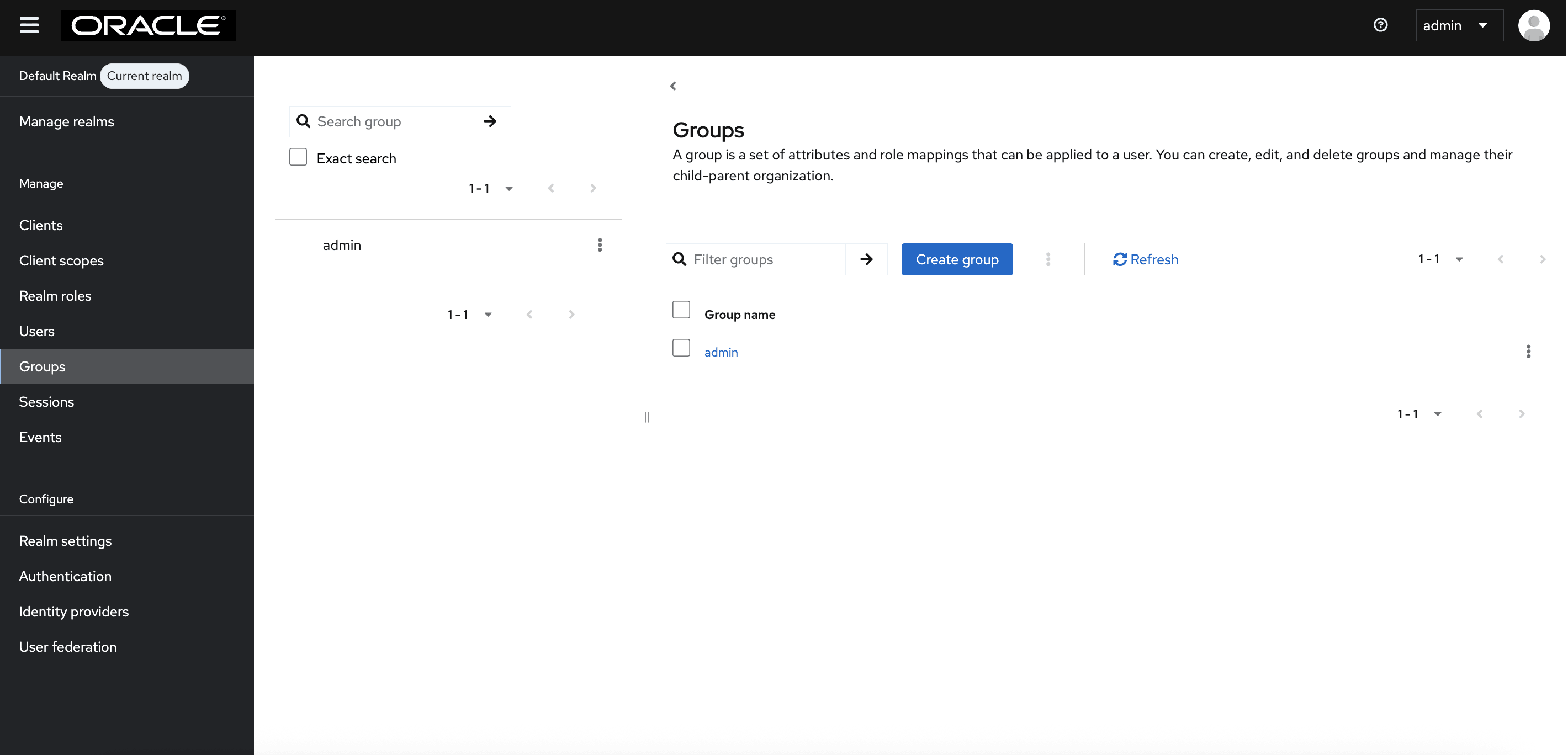
- In the default realm, if the group admin is assigned the ADMIN role, any user belonging to the admin group automatically inherits the Admin role, granting full permissions to perform all operations and manage the realm.
Figure 4-63 CNC Console IAM Role mapping to LDAP Group for default Realm
Note:
- When the user password is updated from CNC Console IAM and sent to LDAP, it is always sent in plain text. This is different from updating the password to the built-in CNC Console IAM database, where hashing and salting is applied to the password before it is sent to the DB. In the case of LDAP, CNC Console IAM relies on the LDAP server to provide hashing and salting to passwords.
- Most LDAP servers (Microsoft Active Directory, RHDS, FreeIPA) provide this by default. Some servers (OpenLDAP, ApacheDS) may store the passwords in plain text by default, and the user must explicitly enable password hashing for these servers.