5 Configuring NSSF using CNC Console
This chapter describes how to configure different NSSF managed objects using Oracle Communications Cloud Native Configuration Console (CNCC).
5.1 Support for Multicluster Deployment
CNC Console supports both single and multiple cluster deployments by facilitating NSSF deployment in local and remote Kubernetes clusters. For more information about single and multiple cluster deployments, see Oracle Communications Cloud Native Configuration Console Installation, Upgrade, and Fault Recovery Guide.
A single instance of CNC Console can configure multiple clusters of NSSF deployments, where each cluster has an agent console installation and a NSSF installation.
5.2 CNC Console Interface
This section provides an overview of the Oracle Communications Cloud Native Configuration Console (CNCC), which includes an interface to configure the NSSF features.
To configure the NSSF services using the CNCC, log in to the CNCC application. To log into CNCC, update the hosts file available at the C:\Windows\System32\drivers\etc location when CNCC is hosted on a third party cloud native environment.
- In the Windows system, open the hosts file in the notepad as an
administrator and append the following set of lines at the end of the hosts
file:
For example:<CNCC Node IP> cncc-iam-ingress-gateway.cncc.svc.cluster.local <CNCC Node IP> cncc-core-ingress-gateway.cncc.svc.cluster.local10.75.212.88 cncc-iam-ingress-gateway.cncc.svc.cluster.local 10.75.212.88 cncc-core-ingress-gateway.cncc.svc.cluster.localNote:
The IP Address mentioned above may change when the deployment cluster changes. - Save and close the hosts file.
Before logging into CNC Console, create a CNCC user name and password. Log in to the CNC Console application using these login credentials. For information on creating a CNC Console user and password, see Oracle Communications Cloud Native Configuration Console Installation, Upgrade, and Fault Recovery Guide.
CNC Console Log in
Following is the procedure to log into CNC Console:
- Open any web browser.
- Enter the URL: http://<host name>:<port number>.
where, host name is cncc-iam-ingress-ip and port number is cncc-iam-ingressport.
- Enter valid login credentials.
- Click Log in. The CNC Console interface is displayed.
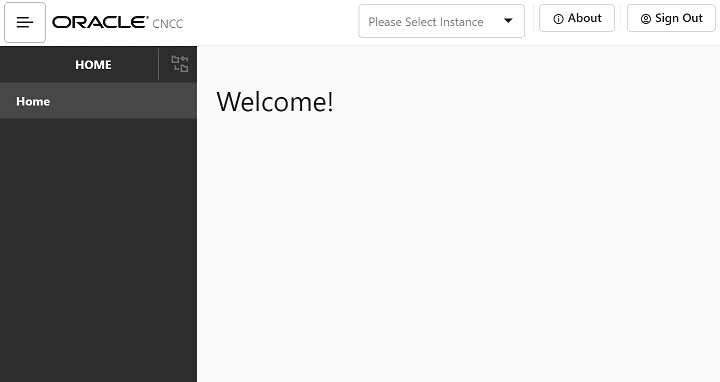
Select the required NF instance from the Select Instance drop-down list. The left pane displays the selected network function.
5.3 NSSF Configuration
This section describes how to configure different managed objects of NSSF using CNC Console.
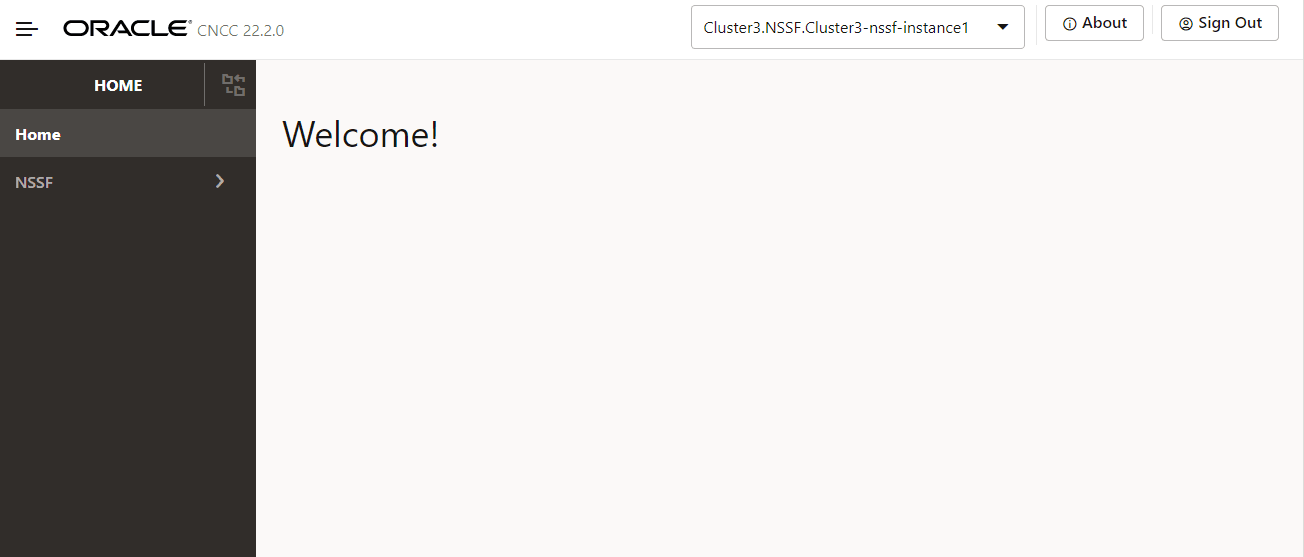
Figure 5-1 NSSF Welcome Screen
5.3.1 NSSF System Option
Perform the following procedure to configure NSSF System Option:
- From the left navigation menu, navigate to NSSF and click NSSF System Option.
- The NSSF System Option page is displayed. This page shows the existing configurations, if any.
- To add or update configurations, click Edit in the top-right corner. This opens the Edit NSSF System Option page.
- On the Edit NSSF System Option page, configure the following fields:
- AutoAuthorizeNssaiAvailabilityDataEnable: Toggle to enable or disable automatic authorization of NSSAI availability data from the AMF.
- EnhancedPatchBehaviourEnable: Toggle to enable or disable the
allowZeroSnssaiInTaisetting. When enabled, the NSSF allows removing all supported S-NSSAIs in a TAI viaNssaiAvailabilityPatchand PUT. - PlmnLevelSystemOptionsList: Configure system options at the PLMN level for all supported PLMNs. A three-column table displays existing entries.
- To add a new item to the PlmnLevelSystemOptionsList:
- Click Add to open the Add PlmnLevelSystemOptionsList pop-up.
- Fill in the following fields:
- PLMN ID: Enter the PLMN ID in the format MCC-MNC (e.g., 310-260, where 310 is MCC and 260 is MNC). Ensure the ID is validated against PLMN-level information. All configured PLMNs must be covered; otherwise, the system returns an HTTP 400 Bad Request.
- EnhancedAllowedNssaiEnable: Toggle to enable or disable the enhancedAllowedNssaiEnable feature for this PLMN.
- Click Save to add the configuration or Cancel to discard changes and return.
- To edit an existing PlmnLevelSystemOptionsList item:
- Click Edit next to the desired item, make changes, then click Save.
- To delete an item:
- Click Delete next to the desired item.
- Note: At least one item must remain in the PlmnLevelSystemOptionsList. It cannot be empty.
- After all updates:
- Click Save to apply changes to the NSSF System Option configuration.
- Click Cancel to discard changes and return to the previous page.
- Click the Refresh button in the top-right corner to reload the latest configuration and reset any unsaved changes.
For more information on parameter values, see Oracle Communications Cloud Native Core, Network Slice Selection Function REST Specification Guide.
5.3.2 NSI Profile
Perform the following procedure to configure NSI Profile::
- From the left navigation menu, navigate to NSSF and click NSI Profile.
- The NSI Profile page is displayed. This page shows the existing configurations in a tabular format, if any.
- To add configurations, click Add in the top-right corner. This opens the Add NSI Profile page.
- On the Add NSI Profile page, configure the following fields:
- NsiId: Enter the unique identifier (NSI ID) of the selected Network Slice instance.
- NRF URI: Enter the API URI of the NRF NFDiscovery Service. This URI is used to discover and select Network Functions (NFs) and services within the specified Network Slice instance.
- NRF NF Management URI: If applicable, enter the API URI of the NRF NFManagement Service. This is used for managing NF instances.
- NRF Access Token URI: If applicable, enter the API URI of the NRF Access Token Service. This is used to retrieve access tokens for authorized communication with the NRF.
- Click Save to add the configuration or Cancel to discard changes and return to the NSI Profile page.
- Click the Refresh button in the top-right corner to reload the latest configuration and reset any unsaved changes.
Note:
- Use the Edit, Delete, and View icons available in the Actions column of the NSI Profile page to update, delete, or view any preconfigured information.
- For more information on parameter values, refer to the Oracle Communications Cloud Native Core, Network Slice Selection Function REST Specification Guide.
5.3.3 Supported Slices Mapping Config
Note:
Dependency: NsiProfile and SystemOptions must be configured for PlmnID and nsiInformationList before configuring Supported Slices Mapping.Perform the following procedure for Supported Slices Mapping Configuration:
- From the left navigation menu, navigate to NSSF and click Supported Slices Mapping Config.
- The Supported Slices Mapping Config page is displayed. This page shows the existing configurations in a tabular format, if any.
- To add configurations, click Add in the top-right corner. This opens the Add Supported Slices Mapping Config page.
- On the Add Supported Slices Mapping Config page, configure the following
fields:
- Name: Enter a unique name for the mapping. This acts as the identifier for the slice-to-TAI mapping configuration.
- supportedSnssaiList: Click Add to open the Add
supportedSnssaiList pop-up. Note: Each item must contain
valid SNSSAI information, including SST and optionally SD.
Note:
Each item must contain valid SNSSAI information, including SST and optionally SDNote:
Validation rules:
- NSI Profile Existence: Each NSI profile referenced must exist in the NSI profiles table.
- SNSSAI Uniqueness: Duplicate SNSSAIs are not allowed within the same entry.
- SNSSAI Configuration: Each SNSSAI must exist in the ConfiguredNssai for the PLMN specified in the plmnTacList.
- Barred SNSSAI Check: SNSSAIs in the barredSnssaiList for the same PLMN are not allowed.
- Configuration Conflict: SNSSAIs must not be listed in BarredSlicesMappingConfig for the same TAI.
- SST: Enter Slice or Service Type.
- SD: Slice Differentiator (6-digit hexadecimal).
- AccessType: Select from the drop-down list:
- 3GPP_ACCESS
- NON_3GPP_ACCESS
- BOTH
- NsiInformationList: Click Add to open the Add
NsiInformationList pop-up. Configure the following
fields:
- NsiProfileId: Select the SliceId associated with the
NSI (Network Slice Instance) Profile from the drop-down.
This links the configuration to a specific NSI
profile.
Note:
Note: Must correspond to an existing entry in the NSI Profiles table. - Salience: Enter a numeric priority value for NSI
selection logic. Determines preference when multiple NSIs
match a request.
Note:
Note: Default value is 1 if left empty. Must be greater than 1. - Click Save to add the configuration or Cancel to discard changes and return to the Add supportedSnssaiList pop-up.
- Use Edit or Delete icons to update or remove entries in the NsiInformationList.
- NsiProfileId: Select the SliceId associated with the
NSI (Network Slice Instance) Profile from the drop-down.
This links the configuration to a specific NSI
profile.
- Click Save in the Add supportedSnssaiList pop-up to add the configuration or Cancel to discard changes and return.
- Use Edit or Delete icons to update or remove entries in the supportedSnssaiList.
- Plmn Tac List: Specify the list of Tracking Area Codes (TACs)
associated with a PLMN. Each entry must include a valid PLMN ID (in MCC-MNC
format) and one or more unique TACs. Configure the following fields:
- PlmnId: Select from the drop-down list of predefined PLMN IDs. The PLMN IDs shown in this list are populated here from the NSSF System Option configuration.
- Tac List: Click Add to open the Add Tac List
pop-up. Configure the following fields:
- TAC: Tracking Area Code (4- or 6-digit
value).
Notes:
- TAC Uniqueness: Must be unique within a single entry and across all entries.
- Duplicate TACs: Repeating TACs in the same entry or across multiple entries is invalid.
- Unsupported PLMN: Do not include PLMNs not listed in the supported configuration.
- Click Save to add the TAC or Cancel to discard changes and return.
- Use Edit or Delete icons to update or remove TAC entries.
- TAC: Tracking Area Code (4- or 6-digit
value).
- Click Save on the Add Supported Slices Mapping Config page to add the configuration or Cancel to discard changes and return to the Supported Slices Mapping Config page.
- Click the Refresh button in the top-right corner to reload the latest configuration and reset any unsaved changes.
Note:
- Use the Edit, Delete, and View icons in the Actions column to update, delete, or view preconfigured information for Supported Slices Mapping.
- For more information on parameter values, refer to the Oracle Communications Cloud Native Core, Network Slice Selection Function REST Specification Guide.
5.3.4 PLMN Config
Note:
Dependency: NsiProfile and SystemOptions must be configured for PlmnID and nsiInformationList before configuring PLMN Config.Perform the following procedure for PLMN Configuration:
- From the left navigation menu, navigate to NSSF and click Plmn Config.
- The Plmn Config page is displayed. This page shows the existing configurations in a tabular format, if any.
- To add configurations, click Add in the top-right corner. This opens the Add Plmn Config page.
- On the Add Plmn Config page, configure the following fields:
- PlmnId: Select from the drop-down list of predefined PLMN IDs. The PLMN IDs are populated from the NSSF System Option configuration.
- ConfiguredNssai: Click Add to open the Add
ConfiguredNssai pop-up.
Note:
Each item must contain valid NSSAI information, including SST and optionally SD- SST: Enter Slice or Service Type.
- SD: Slice Differentiator (6-digit hexadecimal).
- AccessType: Select from the drop-down list:
- 3GPP_ACCESS
- NON_3GPP_ACCESS
- BOTH
- NsiInformationList: Click Add to open the Add
NsiInformationList pop-up. Configure the following
fields:
- NsiProfileId: Select the SliceId associated with the NSI Profile. Must correspond to an existing NSI Profile entry.
- Salience: Enter a numeric priority value for NSI selection logic. Input value must be greater than 1.
- Click Save to add the configuration or Cancel to discard changes and return.
- Use Edit or Delete icons to update or remove entries in the NsiInformationList.
- Click Save in the Add ConfiguredNssai pop-up to add the configuration or Cancel to discard changes.
- Use Edit or Delete icons to update or remove entries in ConfiguredNssai.
- NsiInformationList: Click Add to open the Add
NsiInformationList pop-up. Configure the following fields:
- NsiProfileId: Select the SliceId associated with the NSI Profile.
- Salience: Enter a numeric priority value; must be greater than 1.
- Click Save to add the configuration or Cancel to discard changes.
- Use Edit or Delete icons to update or remove entries in NsiInformationList.
- BarredSnssaiList: Click Add to open the Add
BarredSnssaiList pop-up. Configure the following fields:
- SST: Slice or Service Type.
- SD: Slice Differentiator (6-digit hexadecimal).
- Click Save to add the configuration or Cancel to discard changes.
- Note: Any S-NSSAI in this list must not appear in the allowed S-NSSAI list of any TAI within the same PLMN.
- Use Edit or Delete icons to update or remove entries in BarredSnssaiList.
- Click Save on the Add Plmn Config page to add the configuration or Cancel to discard changes and return to the Plmn Config page.
- Click the Refresh button in the top-right corner to reload the latest configuration and reset any unsaved changes.
Note:
- Use the Edit, Delete, and View icons in the Actions column to update, delete, or view preconfigured PLMN configuration information.
- For more information on parameter values, refer to the Oracle Communications Cloud Native Core, Network Slice Selection Function REST Specification Guide.
5.3.5 Barred Slices Mapping Config
Note:
Dependency: SystemOptions and Plmn Config must be configured for PlmnID before configuring Barred Slices Mapping.Perform the following procedure for Barred Slices Mapping Configuration:
- From the left navigation menu, navigate to NSSF and click Barred Slices Mapping Config.
- The Barred Slices Mapping Config page is displayed. This page shows the existing configurations in a tabular format, if any.
- To add configurations, click Add in the top-right corner. This opens the Add Barred Slices Mapping Config page.
- On the Add Barred Slices Mapping Config page, configure the following
fields:
- Name: Enter a unique name for the mapping.
- Barred Snssai List:
- Click Add to open the Add Barred Snssai List pop-up.
- Each item must contain valid SNSSAI information, including
SST and optionally SD:
- SST: Enter Slice or Service Type.
- SD: Slice Differentiator (6-digit hexadecimal).
- Click Save to add the configuration or Cancel to discard changes and return to Add Barred Slices Mapping Config page.
- Use Edit or Delete icons to update or remove entries in Barred Snssai List.
- Plmn Tac List:
- Specify the list of Tracking Area Codes (TACs) associated with a PLMN. Each entry must include a valid PLMN ID (MCC-MNC format) and one or more unique TACs.
- Configure the following fields:
- PlmnId: Select from the drop-down list of predefined PLMN IDs. These are populated from the NSSF System Option configuration.
- Tac List: Click Add to open the Add Tac
List pop-up. Configure the following field:
- TAC: Tracking Area Code (4- or 6-digit value).
Note:
- TAC Uniqueness: TACs must be unique within a single entry and across all entries.
- Duplicate TACs: Repeating TACs in the same entry or across multiple entries is invalid.
- Unsupported PLMN: Do not include PLMNs not listed in the supported configuration.
- Click Save to add the TAC or Cancel to discard changes and return.
- Use Edit or Delete icons to update or remove TAC entries.
- TAC: Tracking Area Code (4- or 6-digit value).
- Click Save on the Add Barred Slices Mapping Config page to add the configuration or Cancel to discard changes and return to the Barred Slices Mapping Config page.
- Click the Refresh button in the top-right corner to reload the latest configuration and reset any unsaved changes.
Note:
- Use the Edit, Delete, and View icons in the Actions column to update, delete, or view preconfigured Barred Slices Mapping information.
- For more information on parameter values, refer to the Oracle Communications Cloud Native Core, Network Slice Selection Function REST Specification Guide.
5.3.6 Georedundant Sites
Perform the following procedure to configure Georedundant Sites:
- From the left navigation menu, navigate to NSSF and click Georedundant Sites.
- The Georedundant Sites page is displayed. This page shows the existing configurations in a tabular format, if any.
- To add configurations, click Add in the top-right corner. This opens the Add Georedundant Sites page.
- On the Add Georedundant Sites page, configure the following fields:
- Site ID: Enter a unique ID for the NSSF site.
- NF Instance ID: Enter the instance ID of the NSSF site in UUID format.
- Rank: Specify the priority to be given to this georedundant site.
- Click Save to add the configuration or Cancel to discard changes and return to the Georedundant Sites page.
- Click the Refresh button in the top-right corner to reload the latest configuration and reset any unsaved changes.
Note:
- Use the Edit, Delete, and View icons in the Actions column to update, delete, or view preconfigured Georedundant Sites information.
- For more information on parameter values, refer to the Oracle Communications Cloud Native Core, Network Slice Selection Function REST Specification Guide.
5.3.7 Logging Level Options
Perform the following procedure to configure Logging Level Options:
- From the left navigation menu, navigate to NSSF.
- Select NSSF and click Logging Level Options.
The Logging Level Options page is displayed.
This page displays a list of preconfigured log levels with the following details:- Service
- Application Log Level
- Click View on the right most column of a log level from the list to see the preconfigured log level details in a pop-up window named View Log Level List.
- Click X icon to close View Log Level List pop-up window.
- Click Edit from the top right side to edit Logging Level Options parameters.
- Configure Logging Level Options fields as described in the
following table:
Table 5-1 Logging Level Options Parameters
Field Name Description Service Type Select the service type you want to configure from the drop-down list with the following options: - App-info
- perf-info
- alternate route
- nsavailability
- nsselection
- nsaudit
- nsconfig
- nssubscription
- egw
- igw
- nrf-client-nfmanagement
Application Log Level Select log level for the application from the drop-down list with the following options: - DEBUG
- ERROR
- INFO
- TRACE
- WARN
- FATAL
Additional Error Logging Select Additional Error Logging option from the drop-down list with the following options: - ENABLED
- DISABLED
Note:
Applicable only when Service Type is selected as nrf-client-nfdiscovery or nrf-client-management.Log Subscriber Info Select Log Subscriber Info option from the drop-down list with the following options: - ENABLED
- DISABLED
Note:
Applicable only when Service Type is selected as nrf-client-nfdiscovery or nrf-client-management.Package Log Level This is a list of packages with corresponding log level applicable to the selected Service Type. - Click Edit under Package Log Level to edit the Package Log Level parameters for the selected Service Type. The Edit Package Log Level pop-up window appears.
- Enter the values for Edit Package Log Level parameters as
described in the following table:
Table 5-2 Package Log Level Parameters
Field Name Description Package This field should not be edited. It is preconfigured based on the selected Service Type. Caution:
Do not edit it.Log Level Select log level for the package from the drop-down list with the following options: - DEBUG
- ERROR
- INFO
- TRACE
- WARN
- FATAL
- Click Save to save or Cancel to discard your progress in the Edit Package Log Level pop-up window.
- Log Discarding: <Conditional> applicable only when Service
Type is selected as egw or igw. Configure the following fields
in Log Discarding form:
- Enabled: Use the toggle to enable or disable Log Discarding.
- Feature To Threshold Mapping: Use Add icon to add new Feature
To Threshold Mapping, or use Edit icon to edit the configuration of
existing Feature To Threshold Mapping. Configure the following fields in
Add Feature To Threshold Mapping or Edit Feature To Threshold
Mapping form:
- Feature Name: Enter the name of the feature. Available
options are:
- RATE_LIMITING
- OVERLOAD_CONTROL
- ROUTE_LEVEL_RATE_LIMITING
- EGRESS_RATE_LIMITING
- Threshold Factor: Enter threshold factor for the feature between 0-100.
- Click Save to save or Cancel to discard your progress on the Add Feature To Threshold Mapping or Edit Feature To Threshold Mapping form.
- Feature Name: Enter the name of the feature. Available
options are:
- Click Save to save or Cancel to discard your progress on the Edit Logging Level Options page.
For more information on parameter values, see Oracle Communications Cloud Native Core, Network Slice Selection Function REST Specification Guide.
5.3.8 NSSF Restore
This API provides the functionality to restore an existing configuration restored as backup.
- From the left navigation menu, navigate to NSSF.
- Select NSSF and click NSSF Restore.
- The NSSF Restore page is displayed.
- Click Edit from the top-right corner.
- A tabbed interface for Response and Request body appears.
- Click on the Request tab to configure request body parameters in JSON format.
- Configure the request body using the parameters described in the Oracle Communications Cloud Native Core, Network Slice Selection Function REST Specification Guide.
- Click Submit to send the request with the configured request body parameters.
- Click the Response tab to view the response body of the request.
Note:
- Use the Edit option to update an existing configuration.
- Use the Export option to download the response data as a JSON file.
- Use the Clear option to clear the Request and Response panes.
- For more information on parameter values, refer to the Oracle Communications Cloud Native Core, Network Slice Selection Function REST Specification Guide.
5.3.9 NSSF Backup
This API provides the functionality to backup an existing configuration.
Configuring NSSF Backup
Perform the following procedure to configure NSSF Backup:
- From the left navigation menu, navigate to NSSF.
- Select NSSF and click NSSF Backup.
The NSSF Backup page is displayed.
- Click Get from the top right side.
A panel interface for Response appears, which contains the response body of the sent Get request.
For more information on REST API, see Oracle Communications Cloud Native Core, Network Slice Selection Function REST Specification Guide.
Note:
- Use Export option to download the response data as a JSON file.
- Use Clear option to clear the Request and Response panes.
5.4 Common Services Configuration
Use this section to navigate to respective sections of Egress Gateway and Ingress Gateway configurations.
5.4.1 Egress Gateway
This section contains the Egress Gateway APIs.
5.4.1.1 Peer Configuration
This URI is used to add or update the list of peers wherein each peer consists of ID, host, port or virtualHost, and apiPrefix. The ID of each peer is mapped to Peer Identifier in Peer Set Configuration. The default value is null.
Perform the following configurations:
- From the left navigation menu, navigate to NSSF and click the Common Configuration option.
- Click the Egress Gateway option to configure the Egress Gateway APIs.
- Click the Peer Configuration option under Egress Gateway to configure
peers.
The Peer Configuration page is displayed.
- Click Add to add the peer configuration.
The Create Peer Configuration page is displayed.
- Configure the following fields in the Create Peer
Configuration page:
- ID: Enter a unique Peer identifier.
- Host: Enter the Host details of a local peer. It can be IPv4, IPv6, and FQDN details.
- Port: Enter the port details of the local host peer.
- API Prefix: Enter the API prefix details of a
peer.
Note: It is recommended to set the value as /.
- Virtual Host: Enter the Host details of a remote peer. This FQDN is sent to an alternate route service.
- healthApiPath: Parameter to support SCP
health check API. It contains path of the health API.
Note:
The value of this parameter should be configured to align with the SCP configuration.
- Click Save on the Create Peer Configuration page to save the details. Click Cancel to discard your progress and go back to Peer Configuration page.
Note:
- Use Edit icon available in the next column of the specific entry to update configured the Peer Configuration information.
- Use Refresh icon to refresh the list of peers configured.
For more information on recommended parameter values, range, default values, and whether they are mandatory, optional, or conditional, see Oracle Communications Cloud Native Core, Network Slice Selection Function REST Specification Guide.
5.4.1.2 Peer Set Configuration
This URI is used to add or update the list of peer sets wherein each peer set consists of id and list of http/https instances. Each instance consists of priority and peer identifier that is mapped to id in peerconfiguration resource. The id of each peer set is mapped to peerSetIdentifier in routesconfiguration resource. The default value is null.
Perform the following configurations:
- From the left navigation menu, navigate to NSSF and click the Common Configuration option.
- Click the Egress Gateway option to configure the Egress Gateway APIs.
- Click the Peer Set Configuration option under
Egress Gateway to configure peers.
The Peer Set Configuration page is displayed.
- Click Add to add the peer set configuration.
The Create Peer Set Configuration page is displayed.
- Configure the following fields in the Create Peer
Configuration page:
- ID: Enter a unique Peer set identifier.
- Click Add in HTTP
Configuration section to add HTTP Configuration. The
Add HTTP Configuration dialog box is displayed.
- Enter the following information on this page:
- Priority: Enter the Priority of peer to be used in a peer set.
- Peer Identifier: Enter the Peer identifier is the value of peer configured during PeerConfiguration.
- Click Save to save HTTP Configuration. Click Cancel to discard your progress, close the dialog box, and go back to Create Peer Set Configuration page.
- Enter the following information on this page:
- Click Add in HTTPS
Configuration section to add HTTPs Configuration. The
Add HTTPS Configuration page is displayed.
- Enter the following information on this page:
- Priority: Enter the Priority of peer to be used in a peer set.
- Peer Identifier: Enter the Peer identifier is the value of peer configured during Peer Configuration.
- Click Save to save HTTP Configuration. Click Cancel to discard your progress, close the dialog box, and go back to Create Peer Set Configuration page.
- Enter the following information on this page:
- Click Save on the Create Peer Set Configuration page to save the details. Click Cancel to discard your progress and go back to Peer Set Configuration page.
Note:
- Use Edit icon available in the next column of the specific entry to update configured the Peer Set Configuration information.
- Use Refresh icon to refresh the list of peer sets configured.
For more information on recommended parameter values, range, default values, and whether they are mandatory, optional, or conditional, see Oracle Communications Cloud Native Core, Network Slice Selection Function REST Specification Guide.
5.4.1.3 Peer Monitoring Configuration
This URI is used to update the peer configuration with healthApiPath.
Perform the following configurations:
- From the left navigation menu, navigate to NSSF and click the Common Configuration option.
- Click the Egress Gateway option to configure the Egress Gateway APIs.
- Click the Peer Monitoring Configuration option under
Egress Gateway to configure peers.
The Peer Monitoring Configuration page is displayed with default configured values.
- Click Edit to update the peer monitoring configuration.
The Edit Peer Monitoring Configuration page is displayed.
- Configure the following fields in the Edit Peer Monitoring
Configuration page:
- Enabled: Use the switch to enable or disable peer monitoring feature.
- Timeout: Attribute to configure the duration of time after which calls to the SCP health API is timed out.
- Frequency: Indicates the frequency or recurring interval at which Egress Gateway initiates health check calls toward SCP.
- FailureThreshold: Indicates the number of failure responses after which a healthy SCP can be marked as unhealthy.
- SuccessThreshold: It indicates the number of successful responses after which an unhealthy SCP can be marked as healthy.
- Click Save on the Edit Peer Monitoring Configuration page to save the details. Click Cancel to discard your progress and go back to Peer Monitoring Configuration page.
Note:
- Use Refresh icon to refresh the peer monitoring configuration.
For more information on recommended parameter values, range, default values, and whether they are mandatory, optional, or conditional, see Oracle Communications Cloud Native Core, Network Slice Selection Function REST Specification Guide.
5.4.1.4 Routes Configuration
This URI is used to add or update list of routes.
Perform the following configurations:
- From the left navigation menu, navigate to NSSF and click the Common Configuration option.
- Click the Egress Gateway option to configure the Egress Gateway APIs.
- Click the Routes Configuration option under Egress
Gateway to configure peers.
The Routes Configuration page is displayed.
- Click Add to add the peer configuration.
The Create Routes Configuration page is displayed.
- Configure the following fields in the Create Routes
Configuration page:
- ID: Enter a unique route configuration identifier.
- URI: Provide any dummy URL, or leave the existing URL with existing value.
- Order: Provide the order of the execution of this route.
- Configure the following fields in the metadata
section:
- httpsTargetOnly: Enable it to select SBI
instances for https list only (if 3gpp sbi target root header is
http). Keep it disabled to select as per provided scheme.
Note:
SBI Routing feature will not work if this switch is disabled. - httpRuriOnly: This switch indicates the
scheme of the outgoing request from NSSF. If it is enabled, the
scheme of RURI is changed to http. If it is disabled, no change
occurs to the scheme.
Note:
SBI Routing feature will not work if this switch is disabled. - sbiRoutingEnabled: Switch to enable or disable SBI Routing feature.
- httpsTargetOnly: Enable it to select SBI
instances for https list only (if 3gpp sbi target root header is
http). Keep it disabled to select as per provided scheme.
- predicates: Click Add in the
right side column to add predicates.
Add predicates window is displayed.
- Configure the following fields in the Add predicates
window:
- pattern: Enter pattern details.
- Name: Enter name of the predicate.
- Click Save to save predicates configuration. Click Cancel to discard your progress, close the window, and go back to Create Routes Configuration page.
- Filters: Click Add in the
right side column to add filters.
Add Filters window is displayed.
- Configure the following fields in the Add Filters
window:
- PeerSetIdentifier: Enter PeerSetIdentifier for the filter.
- customPeerSelectorEnabled: Use this switch to enable or disable Custom Peer Selector.
- errorHandling: Click
Add in the right side column to add
errorHandling scenarios.
Add errorHandling window is displayed.
- Configure the following fields in the Add
errorHandling window:
- errorCriteriaSet: Enter errorCriteriaSet.
- actionSet: Enter actionSet.
- priority: Enter priority.
- Click Save to save errorHandling configuration. Click Cancel to discard your progress, close the window, and go back to Add Filters window.
- Configure the following fields in the Add
errorHandling window:
- Click Add at the bottom of the window to save filters configuration.
- Click Remove to remove filter configuration.
Add Filters window is displayed with reset fields.
- Click Save in Add Filters window to save your progress (Add Filter or Remove Filter). Click Cancel to discard your progress, close the window, and go back to Create Routes Configuration page.
- Click Save on the Create Routes Configuration page to save the details. Click Cancel to discard your progress and go back to Routes Configuration page.
Note:
- Use Edit icon available in the next column of the specific entry to update configured information.
- Use Refresh icon to refresh the routes configuration.
For more information on recommended parameter values, range, default values, and whether they are mandatory, optional, or conditional, see Oracle Communications Cloud Native Core, Network Slice Selection Function REST Specification Guide.
5.4.1.5 SBI Error Action Sets
This URI is used to list or update SBI error action sets configuration at Egress gateway. By default this configuration is disabled.
Perform the following configurations:
- From the left navigation menu, navigate to NSSF and click the Common Configuration option.
- Click the Egress Gateway option to configure the Egress Gateway APIs.
- Click the SBI Error Action Sets option under
Egress Gateway to configure peers.
The SBI Error Action Sets page is displayed.
- Click Add to add an error action set
configuration.
The Create SBI Error Action Sets page is displayed.
- Configure the following fields in the Create SBI Error Action Sets page:
- ID: Enter an unique ID for SBI routing error action set.
- Action: Indicate the action that needs to be taken when specific criteria set is matched.
- Attempts: Enter the maximum number of retries to either same or different peer in case of error or failures from backend.
- Block List: Perform the following
configuration:
- Enabled: Use the switch to disable or enable the peer bloacking feature using the server headers received in the response.
- Duration: Enter the duration for which the peer is blocked and no traffic is routed to that peer for this period.
- Click Save on the Create Routes Configuration page to save the details. Click Cancel to discard your progress and go back to Create Routes Configuration page.
Note:
- Use Edit icon available in the next column of the specific entry to update the Error Action Sets information.
- Use Refresh icon to refresh the configuration.
5.4.1.6 SBI Error Criteria Sets
This URI is used to list or update SBI error criteria sets configuration at Egress Gateway. By default, this configuration is disabled.
Perform the following configurations:
- From the left navigation menu, navigate to NSSF and click the Common Configuration option.
- Click the Egress Gateway option to configure the Egress Gateway APIs.
- Click the SBI Error Criteria Sets option under Egress
Gateway to configure peers.
The SBI Error Criteria Sets page is displayed.
- Click Add to add an error action set
configuration.
The Create SBI Error Criteria Sets page is displayed.
- Configure the following fields in the Create SBI Error Criteria Sets page:
- ID: Enter an unique ID for SBI routing error action set.
- Method: Indicate the type of methods for which the re-route need to be attempted.
- Exceptions: Enter the specific exceptions for which reroute or retry will be triggered.
- Response: Configure the following fields under Statuses
section. Click Add to add HTTP status details:
- Status Series: Enter the HTTP status series for which reroute or retry is triggered, when the error response is received from downstream.
- Status: Specify HTTP statuses that belongs to above mentioned status series for which reroute or retry is triggered. To enable retry or reroute for all the HTTP status belonging to a status series, configure this as -1.
- Click Save in Add Statuses window to save statuses configuration. Click Cancel to discard your progress, close the window, and go back to Create SBI Error Criteria Sets page.
- Click Save on the Create SBI Error Criteria Sets page to save the details. Click Cancel to discard your progress and go back to Create SBI Error Criteria Sets page.
Note:
- Use Edit icon available in the next column of the specific entry to update the SBI Error Criteria Sets information.
- Use Refresh icon to refresh the configuration.
For more information about the configuration parameters, see Oracle Communication Cloud Native Core, Network Repository Function REST Specification Guide.
5.4.1.7 User Agent Header Generation
This URI is used to Enable or Disable User-Agent Header.
Perform the following configurations:
- From the left navigation menu, navigate to NSSF and click the Common Configuration option.
- Click the Egress Gateway option to configure the Egress Gateway APIs.
- Click the User Agent Header Generation option
under Egress Gateway to configure peers.
The User Agent Header Generation page is displayed with default configured values.
- Click Edit to update the User Agent Header
Generation.
The Edit User Agent Header Generation page is displayed.
- Configure the following fields in the Edit User Agent Header
Generation page:
- Enabled: Use the switch to enable or disable User Agent Header feature.
- NF Type: : Attribute to configure the nfType that is used to generate the User Agent Header. In this case, it is NSSF.
- NF Instance ID: : Indicates the UUID (Instance ID) of the NSSF deployment used to generate the User Agent Header.
- NF FQDN: : This is an optional parameter, if operators want to include the FQDN string configured under this section then the parameter Add Fqdn To Header needs to be enabled.
- Add Fqdn To Header: : Use the allow or deny User Agent from appending the NSSF FQDN information while generating the User Agent Header.
- Overwrite Header: Use this switch to govern if you
want to include the User Agent Header generated at NSSF Egress Gateway or
forward the User Agent received from service request.
Note:
- When User Agent Header is enabled but the header information is missing, then it is picked from the OAuthClient module.
- If the User Agent Header is present in the request towards AMF or NRF, then the value present in the header is overwritten or forwarded based on the Overwrite Header switch. If this switch is enabled, then the header is overwritten.
- Click Save on the Edit User Agent Header Generation page to save the details. Click Cancel to discard your progress and go back to User Agent Header Generation page.
Note:
- Use Refresh icon to refresh the User Agent Header Generation.
For more information on recommended parameter values, range, default values, and whether they are mandatory, optional, or conditional, see Oracle Communications Cloud Native Core, Network Slice Selection Function REST Specification Guide.
5.4.2 Ingress Gateway Configuration
This section contains the Ingress Gateway APIs.
5.4.2.1 Error Code Profiles
This URI can be used to update the errorCodeProfiles that is used in Overload Control feature for populating details in error responses when a request is discarded. By default, the errorCodeProfiles remains null.
Perform the following configurations:
- From the left navigation menu, navigate to NSSF and click the Common Configuration option.
- Click the Ingress Gateway option to configure the Ingress Gateway APIs.
- Click the Error Code Profiles option under
Ingress Gateway.
The Error Code Profiles page is displayed.
- Click Add to add the profiles.
The Add Error Code Profiles page is displayed.
- Configure the following fields in the Add
Error Code Profiles page:
- Name: Enter the name for the error profile. This name is also used while create Create Overload Control Discard Policies.
- Error Code: Enter the HttpStatusCode. This field in the errorScenario determines the HttpStatusCode that needs to be populated in ProblemDetails (HttpStatus field) response from Ingress Gateway when the exception occurred at Ingress Gateway matches the configured errorScenario's exceptionType field.
- Error Cause: Enter the error cause details. This field in the errorScenario determines the error cause that needs to be populated in ProblemDetails (Cause field) response from Ingress Gateway when the exception occurred at Ingress Gateway matches the configured errorScenario's exceptionType parameter.
- Error Title: Enter the error title. This field in the errorScenario determines the title that needs to be populated in ProblemDetails (Title field) response from Ingress Gateway when the exception occurred at Ingress Gateway matches the configured errorScenario's exceptionType parameter.
- Redirect URL: Enter the redirection URL. This value is populated in LOCATION header while sending response from Ingress Gateway. The header is populated only when the exception occurred at Ingress Gateway matches the configured errorScenario's exceptionType parameter, the errorCode configured for the particular errorScenario lies in 3xx error series and the redirectUrl field for the particular errorScenario is configured appropriately.
- Retry After: Enter the value in seconds or particular date after which the service should be retried, this value is populated in Retry-After header while sending response from Ingress Gateway.
- Error Description: Enter the description that needs to be populated in ProblemDetails (Detail field) response from Ingress Gateway when the exception occurred at Ingress Gateway matches the configured errorScenario's exceptionType field.
- Click Save on the Add Error Code Profiles page to save the details. Click Cancel to discard your progress and go back to Add Error Code Profiles page.
Note:
- Use Edit icon available in the next column of the specific entry to update the Error Code Profiles information.
- Use Refresh icon to refresh the configuration.
For more information on recommended parameter values, range, default values, and whether they are mandatory, optional, or conditional, see Oracle Communications Cloud Native Core, Network Slice Selection Function REST Specification Guide.
5.4.2.2 Create Overload Control Discard Policies
This URI can be used to update discard policies that will be used in overload control to select the appropriate policy from the configured list based on the load level of a particular service. By default, ocDicardPolicies is null.
Perform the following configurations:
- From the left navigation menu, navigate to NSSF and click the Common Configuration option.
- Click the Ingress Gateway option to configure the Ingress Gateway APIs.
- Click the Overload Control Discard Policies option under Ingress Gateway. The Overload Control Discard Policies page is displayed.
- Click Add to add the configuration.
The Create Overload Control Discard Policies page is displayed.
- Configure the following fields in the Create Overload
Control Discard Policies page:
- Name: Enter the name of the discarded policy.
- Scheme: Enter the discarded policy scheme based on percentage.
-
Click Add in the Policies section.
The Add Policies page is displayed.
- Configure the following fields under the Add
Policies page:
- Value: Enter the value of priority above which requests are considered as potential candidates for drop. It is the percentage of requests to drop in the current sampling period over the calculated rate in the previous sampling period.
- Action: Enter the action to be taken on selected requests rejection based on error code. For example, RejectWithErrorCode.
- Level: Enter the overload level.
- Error Code Profile: Enter the name of the error code profile created in Error Code Profiles.
- Click Save on the Add Policies page to save the details. Click Cancel to discard your progress and go back to Add Policies page.
- Click Save on the Create Overload Control Discard Policies page to save the details. Click Cancel to discard your progress and go back to Create Overload Control Discard Policies page.
Note:
- Use Edit or Delete icon available in the next column of the specific entry to update or delete the Policies information.
For more information on recommended parameter values, range, default values, and whether they are mandatory, optional, or conditional, see Oracle Communications Cloud Native Core, Network Slice Selection Function REST Specification Guide.
5.4.2.3 Discard Policy Mapping
This URI can be used to update service names and corresponding policy names for the service which is mapped to "ocDiscardPolicies" based on "policyName" and also to enable or disable the Overload Control feature and the sampling period in overload control. By default, the Overload Control feature is disabled and the sampling period is 6000.
Perform the following configurations:
- From the left navigation menu, navigate to NSSF and click the Common Configuration option.
- Click the Ingress Gateway option to configure the Ingress Gateway APIs.
- Click the Discard Policy Mapping option under
Ingress Gateway to configure peers.
The Discard Policy Mapping page is displayed with default configured values.
- Click Edit to update the Discard Policy
Mapping.
The Edit Discard Policy Mapping page is displayed.
- Configure the following fields in the Edit Discard Policy
Mapping page:
- Enabled: Use the switch to enable or disable discard policy mapping.
- Mappings: Configure the following fields
in Mappings section. Click Add
to open Add Mappings window and add mapping details:
Note:
A value for Mappings is required when Enabled is switched on. If Mappings is empty, the Overload Control feature will behave as if it is disabled.- Service Name: Enter the service
name. This field is used to determine a mapping between service and
discard policy name per service name. It must be added in the
following format:
<deployment-name>-<servicename>
Note:
- If a value for Policy Name is provided, then Service Name is mandatory.
- servicename is fixed and cannot be changed.
- Policy Name: Enter the policy
name. It determines a mapping between the service and discards
policy name per service.
Note:
If a value for Service Name is provided, then Policy Name is mandatory.
- Service Name: Enter the service
name. This field is used to determine a mapping between service and
discard policy name per service name. It must be added in the
following format:
- Click Save on the Add
Mappings window to save the details. Click
Cancel to discard your progress and go back to
Edit Discard Policy Mapping page.
Note:
- Use Edit icon to edit an existing configuration.
- Use Delete icon to remove an existing configuration.
- Sampling Period: Add sampling period. It is the time frame for each cycle of Overload Control per service. Its value is in milliseconds.
- Click Save on the Edit Discard Policy Mapping page to save the details. Click Cancel to discard your progress and go back to Discard Policy Mapping page.
Note:
- Use Refresh icon to refresh the peer monitoring configuration.
For more information on recommended parameter values, range, default values, and whether they are mandatory, optional, or conditional, see Oracle Communications Cloud Native Core, Network Slice Selection Function REST Specification Guide.
5.4.2.4 Error Code Series
This URI can be used to update the errorcodeserieslist that are used in Overload Control feature and Server Header feature to list the configurable exception or error for an error scenario in Ingress Gateway.
Perform the following configurations:
- From the left navigation menu, navigate to NSSF and click the Common Configuration option.
- Click the Ingress Gateway option to configure the Ingress Gateway APIs.
- Click the Error Code Series option under Ingress Gateway.
The Error Code Seriespage is displayed.
- Click Edit to add the code series.
The Edit Error Code Series page is displayed.
- Configure the following fields in the Edit Error Code
Seriespage:
- ID: Enter an unique ID for error code.
- Exception List: Lists the configurable exception or error for an error scenario in Ingress Gateway. The supported values are: ConnectionTimeout, RequestTimeout, UnknownHostException, ConnectException, RejectedExecutionException, InternalError, NotFoundException, ClosedChannelException, and BlackListIpException
- Click Add in the Error Code
Series section.
The Add Error Code Series page is displayed.
- Configure the following fields in the Add Error Code
Series page:
- Error Set: Enter the possible values
include all error codes in the respective HttpSeries value assigned for
"errorSet".
Note: Use single value of "-1" if all error codes in that HttpSeries are to be considered.
- Error Codes: Enter the possible values for "errorSet" attribute: 5xx, 4xx, 3xx, 2xx, 1xx.
- Click Save on the Add Error Code Series page to save the details. Click Cancel to discard your progress and go back to Add Error Code Series page.
- Error Set: Enter the possible values
include all error codes in the respective HttpSeries value assigned for
"errorSet".
- Click Save on the Edit Error Code Series page to save the details. Click Cancel to discard your progress and go back to Edit Error Code Series page.
Note:
- Use Edit icon available in the next column of the specific entry to update the Error Code Series information.
- Use Refresh icon to refresh the configuration.
For more information on recommended parameter values, range, default values, and whether they are mandatory, optional, or conditional, see Oracle Communications Cloud Native Core, Network Slice Selection Function REST Specification Guide.
5.4.2.5 Routes Configuration
The configuration of "routesconfiguration" is required for Server Header and Overload control feature to map route ID and its corresponding route-level configuration. By default, this configuration is null.
Perform the following configurations:
- From the left navigation menu, navigate to NSSF and click the Common Configuration option.
- Click the Ingress Gateway option to configure the Ingress Gateway APIs.
- Click the Routes Configuration option under
Ingress Gateway.
The Routes Configuration page is displayed.
- Click Add to add the configuration.
The Create Routes Configuration page is displayed.
- Configure the following fields in the Create Routes Configuration page.
- ID: Value of "id" attribute defines a specific service for route
configuration. It specifies the route IDs for which you need to define
server header.
Note:
Ensure that route ID used in REST configuration is same as the route ID used in values.yaml file - serverHeaderDetails: Configure the
following fields in serverHeaderDetails section:
- Enabled: Use the switch to enable or disable server header at route level.
- Error Code Series Id: : Specify
the error list ID.
Note:
Ensure that an errorCodeSeries exists corresponding to the errorCodeSeriesId.
- ID: Value of "id" attribute defines a specific service for route
configuration. It specifies the route IDs for which you need to define
server header.
- Click Save to save Routes configuration. Click Cancel to discard your progress, close the window, and go back to Create Routes Configuration page.
For more information on recommended parameter values, range, default values, and whether they are mandatory, optional, or conditional, see Oracle Communications Cloud Native Core, Network Slice Selection Function REST Specification Guide.
5.4.2.6 OAuth Validator Configurations
This REST API configuration is required for enabling access token validation using NRF Instance ID and key-ID (K-ID).
Before this configuration, perform the prerequisite steps and helm configuration explained in OAuth Access Token Based Authorization.
After Helm configuration, send the REST requests to use configured public key certificates. Using REST-based configuration, you can distinguish between the certificates configured on different NRFs and can use these certificates to validate the token received from a specific NRF.
Perform the following configurations:
- From the left navigation menu, navigate to NSSF and click the Common Configuration option.
- Click the Ingress Gateway option to configure the Ingress Gateway APIs.
- Click the OAuth Validator Configurations option
under Ingress Gateway.
The OAuth Validator Configurations page is displayed.
- Click Edit to add the OAuth Validator
Configurations.
The Edit OAuth Validator Configurations page is displayed.
- Configure the following fields in the Edit OAuth Validator
Configurations page:
- Key ID List: Click
Add in the Key ID List
section and configure the following fields in Add Key ID
List window:
- Key ID: Enter the Key-ID.
- Kubernetes Secret Name: Enter Kubernetes Secret Name.
- Kubernetes Secret Key For Certificate: Enter Kubernetes Secret Key for the certificate.
- Access Token Generation Algorithm: Enter the Access Token Generation Algorithm.
- Click Save on the Add Key ID List page to save the details. Click Cancel to discard your progress, close the window, and go back to Edit OAuth Validator Configurations page.
- Instance ID List: Click
Add in the Instance ID
List section and configure the following fields in
Add Instance ID List window:
- Instance ID: Enter the NRF Instance ID.
- Kubernetes Secret Name: Enter the Kubernetes Secret Name.
- Kubernetes Secret Key For Certificate: Enter Kubernetes Secret Key for the certificate.
- Access Token Generation Algorithm: Enter the Access Token Generation Algorithm.
- Key ID List: Click
Add in the Key ID List
section and configure the following fields in Add Key ID
List window:
- Click Save on the Add Instance ID List page to save the details. Click Cancel to discard your progress, close the window, and go back to Edit OAuth Validator Configurations page.
- Access Token Validation Mode: Enter the mode of validation, which are INSTANCEID_ONLY, KID_ONLY, or KID_PREFERRED. It will check for keyIdList or instanceIdList for validation of token received based on mode selected.
- Click Save on the Edit OAuth Validator Configurations page to save the details. Click Cancel to discard your progress and go back to Edit OAuth Validator Configurations page.
Note:
- Use Edit icon available in the next column of the specific entry to update the Key ID List or Instance ID List.
- Use Refresh icon to refresh the configuration.
For more information on recommended parameter values, range, default values, and whether they are mandatory, optional, or conditional, see Oracle Communications Cloud Native Core, Network Slice Selection Function REST Specification Guide.
5.4.2.7 Server Header Details
This API can be used for adding Server Header in the error responses sent from Ingress Gateway. By default, this feature is disabled. To enable the feature, invoke the following REST API and update the enable switch.
Perform the following configurations:
- From the left navigation menu, navigate to NSSF and click the Common Configuration option.
- Click the Ingress Gateway option to configure the Ingress Gateway APIs.
- Click the Server Header Details option under
Ingress Gateway to configure peers.
The Server Header Details page is displayed with default configured values.
- Click Edit to update the Server Header Details.
The Edit Server Header Details page is displayed.
- Configure the following fields in the Edit Server Header
Details page:
- Enabled: Use the switch to enable or disable Server Header.
- Error Code Series Id: Specify the error
list ID.
Note:
Ensure that an errorCodeSeries exists corresponding to the errorCodeSeriesId. - Configuration: Configure the following
fields in Configuration section:
- NF Type: Specify the type of network function. In this case, it is NSSF.
- NF Instance Id:: Enter the NSSF instance ID. It represents the UUID of the NSSF deployment that is used to generate the Server Header.
- Click Save on the Edit Server Header Details page to save the details. Click Cancel to discard your progress and go back to Server Header Details page.
5.5 cnDBTier APIs
- From the left navigation menu, navigate to NSSF
and then click cnDBTier tab.
The cnDBTier page is displayed.
- Click the Backup List to view the list of
completed backups along with backup ID, backup size, and backup creation
timestamp.
The Backup List page is displayed.
Note:
The following APIs are read-only.Table 5-3 Backup List
Fields Description Site Name This attribute displays the name of the current site to which NSSF is connected. Backup Details This attribute displays the following information like backup id, backup size, and backup creation timestamp. Backup Id This attribute displays the ID of the stored backup. Backup Size (bytes) This attribute displays the size of the stored backup. Creation TimeStamp This attribute displays the time recorded when the backup was stored. - Click cnDBTier Backup Status to view the backup status
details.
The cnDBTier Backup Status page is displayed.
- Last Backup Run Schedule: Shows the time stamp of last backup attempt.
- Last Backup Run Status: Shows status if the last backup attempt was completed or failed.
- Next Backup Run Schedule: Shows the time stamp of next scheduled backup attempt.
- Click cnDBTier Health to view the health status
of the microservices like replication, backup manager, monitor services, and NDB
services.
The cnDBTier Health page is displayed.
- Click the Backup Manager Health Status to view the
health status of the backup manager.
The Backup Manager Health Status page is displayed.
Note:
The following APIs are read-only.Table 5-4 Backup Manager Health Status
Fields Description Service Name This attribute displays the service name of the backup manager microservice. Service Status This attribute displays the service status of the backup manager microservice. Possible values are UP and DOWN.
DB Connection Status This attribute displays the database connection status of the backup manager microservice. Possible values are UP and DOWN.
Overall Backup Manager Service Health This attribute displays the overall health status of the backup manager microservice. Possible values are UP and DOWN.
Backup Executor Health Status This attribute displays the following information like node id and DB connection status of the backup executor. Node Id This attribute displays the id of the node. DB Connection Status This attribute displays the backup executor database connection status with the nodes. Possible values are UP and DOWN.
- Click the Monitor Health Status to view
the health status of the services.
The Monitor Health Status page is displayed.
Note:
The following APIs are read-only.Table 5-5 Monitor Health Status details
Attribute Description Service Name This attribute displays the service name of the monitor microservice. DB Connection Status This attribute displays the database connection status of the monitor microservice. Possible values are UP and DOWN.
Metric Scrape Status This attribute displays the status of the metric scrape, that is if the metrics are fetched or not. If the metrics are fetched then the service is up and vice versa. Possible values are UP and DOWN.
Overall Monitor Service Health This attribute displays the overall health status of the monitor microservice. Possible values are UP and DOWN.
- Click the NDB Health Status to view the
health status of the network database.
The NDB Health Status page is displayed.
Note:
The following APIs are read-only.Table 5-6 NDB Health Status details
Attribute Description Local Site Name This attribute displays the name of the current site. For example, site 1, site 2. NDB Health Status Details This attribute displays the health status of the network database like name of the NDB service, status of the service, health status of PVC. Service Name This attribute displays the service name. For example, ndbmgmd-0, ndbmtd-0, ndbmyappsqld-1, ndbmysqld-2. Service Status This attribute displays the status of the service. Possible values are UP and DOWN.
- Click the Replication Health Status to
view the health status of the replication sites.
The Replication Health Status page is displayed.
Note:
The following APIs are read-only.Table 5-7 Replication Health Status details
Attribute Description Local Site Name This attribute displays the name of the current site (site 1, site 2 ). Health Status Details This attribute displays the health status details of the local site like replication service name, replication service status, database connection status of the replication service, and the overall health status of the replication micorservices. The number of rows in this table varies depending on the type of deployment (for example, two-site, three-site deployments). Service Name This attribute displays the name of the available replication service. Service Status This attribute displays the status of the available replication service. Possible values are UP and DOWN.
DB Connection Status This attribute displays the database connection status of the replication microservice. Possible values are UP and DOWN.
Overall Replication Service Health This attribute displays the overall health status of the replication microservice. Possible values are UP and DOWN.
- Click the Backup Manager Health Status to view the
health status of the backup manager.
- Click cnDBTier Version to view the version.
The cnDBTier Version page is displayed.
Note:
The following APIs are read-only.Table 5-8 cnDBTier Version Attributes
Attribute Description cnDBTier Version This attribute displays the cnDBTier version. NDB Version This attribute displays the network database (NDB) version. - Click the Database Statistics Report to view the
available databases.
The Database Statistics Report page is displayed.
Note:
The following APIs are read-only.Table 5-9 Database Statistics Report
Fields Description Database Count This attribute displays the number of available database. Database Tables Count This attribute displays the available database names and their table count. Database Name This attribute displays the database name. Table Count This attribute displays the table count for each database. Database Table Rows Count This attribute displays the table rows present in each table. Database Name This attribute displays the database name. - Click on the View icon available next to
the database name to view the View Database Table Rows
Count screen.
The View Database Table Rows Count page is displayed.
Table 5-10 View Database Table Rows Count
Fields Description Database Name This attribute displays the database name. Tables This attribute displays the table names and the corresponding rows in each table. Table Name This attribute displays the table name. Row Count This attribute displays the table rows present in each table.
- Click on the View icon available next to
the database name to view the View Database Table Rows
Count screen.
- Click Georeplication Recovery to access the Georeplication Recovery Status of
the cnDBTier cluster. This includes options such as Update Cluster As Failed, Start
Georeplication Recovery, and Georeplication Recovery Status.
Georeplication Recovery page is displayed.
- Click Update Cluster As Failed to mark the cnDBTier cluster as
FAILED.
The Update Cluster As Failed page is displayed.
Table 5-11 Update Cluster As Failed
Attribute Description Cluster Name This field displays a list of cnDBTier clusters that can be marked as failed. Failed Cluster Name This field displays a cnDBTier cluster that is marked as failed. - Update Cluster: Click to update the cluster details.
- Cancel: Click to discard progress and go back to Georeplication Recovery page.
- Click Start Georeplication Recovery to start the georeplication
recovery process for a failed site.
The Start Georeplication Recovery page is displayed.
Table 5-12 Start Georeplication Recovery
Attribute Description Failed Cluster Name This field displays a list of all the cnDBTier clusters that have been marked as failed. Backup Cluster Name (Optional) This field displays a list of all the healthy cnDBTier clusters. If no cnDBTier cluster is selected, the system uses the first available healthy cnDBTier cluster for the backup. - Start Georeplication Recovery: Click to start georeplication recovery.
- Cancel: Click to discard progress and go back to Georeplication Recovery page.
- Click Georeplication Recovery Status to view the status of
georeplication recovery for cnDBTier clusters.
The Georeplication Recovery Status page is displayed.
Table 5-13 Georeplication Recovery Status
Attribute Description Local Cluster Name This field displays the name of the local cnDBTier cluster. Georeplication Recover Status Details This field displays the details of the georeplication recovery status of cnDBTier clusters. Cluster Name This field displays the cnDBTier clusters by name. Georeplication Recovery Status This field displays the current georeplication recovery status of the corresponding cnDBTier cluster. For more information about the georeplication recovery status, see Oracle Communications Cloud Native Core, cnDBTier User Guide. - Refresh: Click to refresh georeplication recovery status.
- Click Update Cluster As Failed to mark the cnDBTier cluster as
FAILED.
- Click Georeplication Status to view the local
site and remote site name to which NSSF is connected.
The Georeplication Status page is displayed.
Note:
The following APIs are read-only.Table 5-14 GeoReplication Status
Attribute Description Local Site Name This attribute displays the local site name to which NSSF is connected.
Note: The number of local site names may vary depending on the type of georeplication used in NSSF.
Remote Site Name This attribute displays the remote site name.
Note: The number of remote site names may vary depending on the type of georeplication used in NSSF.
Replication Status This attribute displays the replication status with corresponding sites.
Note: The number of replication statuses may vary depending on the type of georeplication used in NSSF.
Seconds Behind Remote Site This attribute displays the number of seconds that the last record read by the local site is behind the latest record written by the remote site for all the replication groups. Note: The number of replication statuses may vary depending on the type of georeplication used in NSSF.
- Click on the View icon in the
Actions menu, to view the View
Georeplication Status screen.
The Georeplication Status page is displayed.
Table 5-15 Georeplication Status
Attribute Description Replication Group Delay This attribute displays the seconds behind the remote site for individual replication groups. Replication Channel Group Id This attribute displays the ID of the replication channel group. - Click on the View icon to view the
Replication Group Delay attributes.
The Replication Group Delay page is displayed.
Table 5-16 View Replication Group Delay
Attribute Description Channel Details This attribute displays the channel details such as Remote Replication IP and Role. Remote Replication IP This attribute displays the IP of the remote replication channel. Role This attribute displays the role of the replication channel IP.
- Click on the View icon in the
Actions menu, to view the View
Georeplication Status screen.
- Click Georeplication Status Across All Sites to access the georeplication
status across all configured sites in the cnDBTier cluster.
The Georeplication Status Across All Sites page is displayed.
Table 5-17 Georeplication Status Across All Sites
Fields Description Site Name This field displays the primary site for which the georeplication status is being reported. Remote Site Name This field displays the remote site involved in replication with the local site. Status This field displays the georeplication status. Actions Click the icon in actions column to view the View Georeplication Status Across All Sites attributes. - Actions: Click the icon in actions column to view the View
Georeplication Status Across All Sites attributes.
The View Georeplication Status Across All Sites page is displayed.
Table 5-18 View Replication Details Per Group ID
Attribute Description Replication Group ID This field displays the unique identifier assigned to the replication group. Replication Channel Group Status This field displays the replication status for the specific replication group. All SQL Status Details This field displays the detailed SQL and replication state information for all SQL nodes for the specified replication group. Action Click on the icon in action column to view the View All SQL Status Details attributes. - Action: Click on the icon in action column to view the View
All SQL Status Details attributes.
The View All SQL Status Details page is displayed.
Attribute Description SQL Node This field displays the SQL node whose replication metrics are being reported. Source Host This field displays the remote host from which the SQL node pulls replication data. External IP This field displays the external endpoint through which the SQL node is accessible within the site. Replica I/O Running Status This field displays whether the replication I/O thread is currently active or not. Possible values: Yes or No. Replica SQL Running Status This field displays whether the SQL thread responsible for applying replicated changes is running or not. Possible values: Yes or No. Server ID This field displays the unique server identifier used in the replication topology. Role This field displays the role of the SQL node within the replication setup (for example, ACTIVE or STANDBY). Last Error Code This field displays the most recent SQL thread error code encountered during replication. Last Error Message This field displays the most recent error message reported by the SQL thread. Last I/O Error Code This field displays the most recent I/O thread error code encountered during replication. Last I/O Error Message This field displays the most recent error message reported by the I/O thread. Last SQL Error Code This field displays the most recent SQL execution error code encountered while applying replicated transactions. Last SQL Error Message This field displays the last SQL execution error message reported. SQL Remaining Delay This field displays the replication lag or delay (if any) between the source site and this SQL node. Unit: seconds.
- Action: Click on the icon in action column to view the View
All SQL Status Details attributes.
- Actions: Click the icon in actions column to view the View
Georeplication Status Across All Sites attributes.
- Click Local Cluster Status to view the local
cluster status for the current site.
The Local Cluster Status page is displayed.
Note:
The following APIs are read-only.Table 5-19 Local Cluster Status
Attribute Description Site Name This attribute displays the name of the current site to which NSSF is connected. Cluster Status This attribute displays the local cluster status for the current site. - Click the On Demand Backup to create a new
backup and view the status of initiated on-demand backups.
The On Demand Backup page is displayed.
Note:
The following APIs are read-only.Table 5-20 On Demand Backup Details
Fields Description Site Name This attribute displays the name of the current site to which NSSF is connected. DR Status This attribute displays the disaster recovery status . Backup Id This attribute displays the ID of the stored backup. Backup Status This attribute displays the status of backup. Remote Transfer Status The attribute displays the status of remote transfer. Initiate Backup The attribute displays whether the backup is initiated or not. Note:You can read and write this API.
- Click Edit. The
Edit On Demand Backup page appears.
Note:
The Edit mode is available only for Initiate Backup. - Use the Toggle option to Initiate the backup and click Save. A confirmation message "Save successfully" appears.
- Click Cancel to navigate back to the On Demand Backup page.
- Click Refresh to reload the On Demand Backup page.
- Click Edit. The
Edit On Demand Backup page appears.
- Click the Replication HeartBeat Status to view
the connectivity between local site and remote site name to which NSSF is connected.
The Replication HeartBeat Status page is displayed.
Note:
The following APIs are read-only.Table 5-21 Replication HeartBeat Status
Fields Description Site Name This attribute displays the name of the current site to which NSSF is connected. HeartBeat Details This attribute displays the following information like remote site name, heart beat status, heart beat lag, and replication channel group id. Remote Site Name This attribute displays the remote site name. Heartbeat Status This attribute displays the connectivity status with corresponding sites. Heartbeat Lag This attribute displays the lag or latency in seconds it took to synchronize between sites. Replication channel Group Id This attribute displays the ID of the replication channel group.