6 ACS Configuration
ACS Configuration Screen
Introduction
The ACS Configuration screen allows you to configure the various sets used with ACS. It contains these tabs:
- Geography
- Holidays
- Announcements
- VARS
- VARS mapping
- Feature Sets
- Notifications
- Profile Tag Details
- Profile Tag Mapping
Geography Sets
Introduction
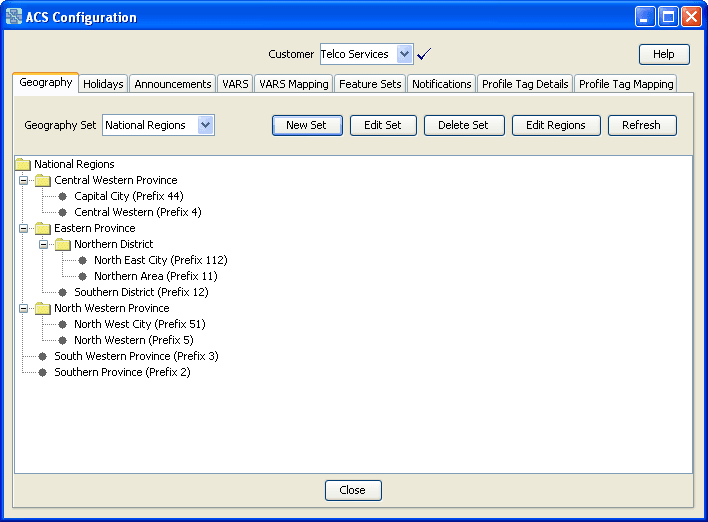
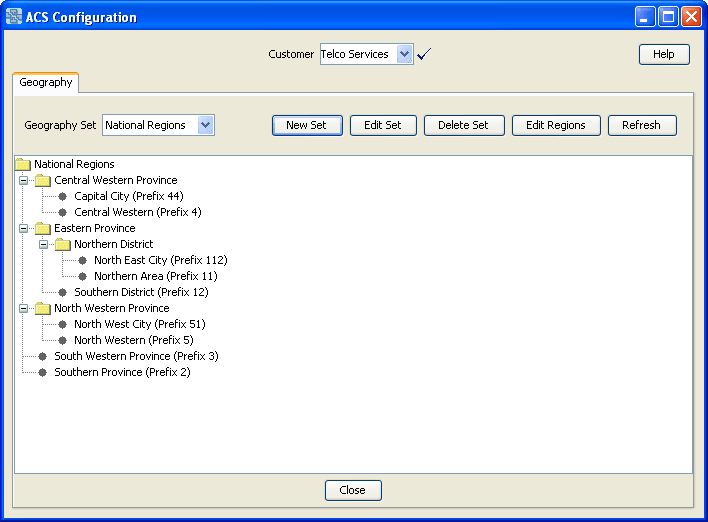
The Geography tab of the ACS Configuration screen is used to add, edit and remove geography sets and their respective entries.
Note:
It is never possible to delete a geography set or entry that is currently in use by a compiled control plan. Deleting a geography set will delete all entries in that set. Editing a geography set or entry will cause all compiled control plans that use that geography set to be recompiled.
Geography Set Definition
A geography set is a group of geography entries. A geography set may belong to a specific customer, or may be public — usable by any customer. Here are some example geography sets:
- North/South Island (Public)
- Major City Breakdown (Public)
- Pizza delivery company nearest call center to each major exchange (service provider specific).
Geography Entry Definition
A geography entry is a calling area defined by a prefix in the dialed number. The prefix is a code for the given location and can be used in whatever way ACS requires. For example, in the geographic routing feature node it is matched to the calling party number.
Geography Region Definition
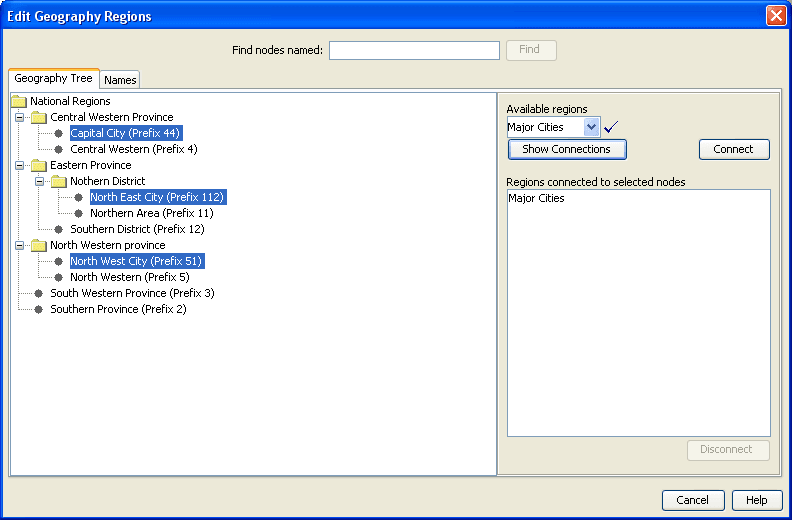
A Geography region is a group of geography entries. This screen shows an example of a geography region.
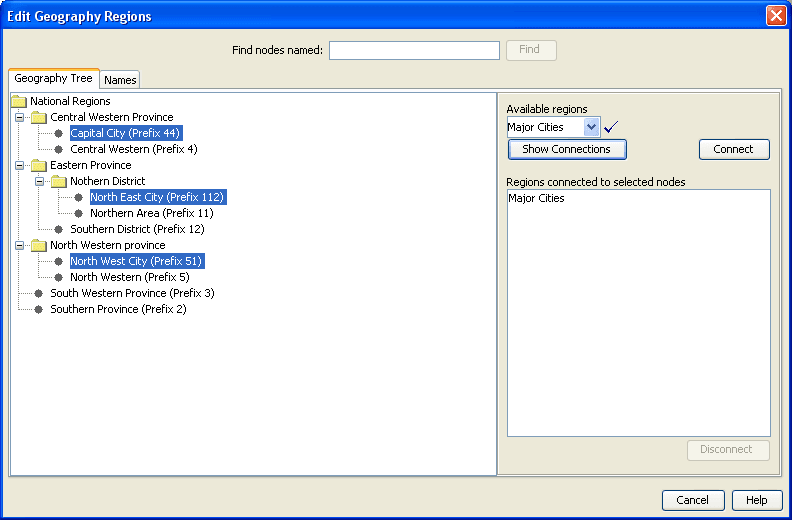
In the example, all of the highlighted entries are members of
the Major Cities region even though they belong to
different branches of the geography tree.
The Geographical Routing feature node can make use of geography regions. In this way, the node can route calls to one geography region rather than to many individual prefixes.
Geography Sets and Entries
Adding Geography Sets
Follow these steps to add a new geography set.
-
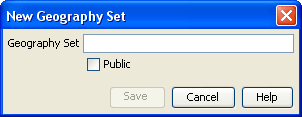
On the Geography tab, click New Set.
Result: The New Geography Set screen is displayed.
-
In the Geography Set field, enter the name of the set.
Geography set names must be unique for each customer. Sets do not need to be unique between customers unless they are to be public, in which case they must be unique.
The name can be up to 50 alphanumeric characters in length, but may not be left blank.
-
If you require a:
- Public geography set (that is, you want the new set to be available to all users), select the Public box.
- Customer-specific geography set, leave the box not selected.
Note:
A private set may not be edited and made public, nor may a public set be edited to become private.
-
Click Save to add the geography set to the database.
Result: The new geography set will be available in the drop-down list.
Adding Geography Entries
Follow these steps to add a new geography entry to a geography set.
-
On the Geography tab, select the geography set to edit from the Geography Set drop-down list.
-
Click Edit Set.
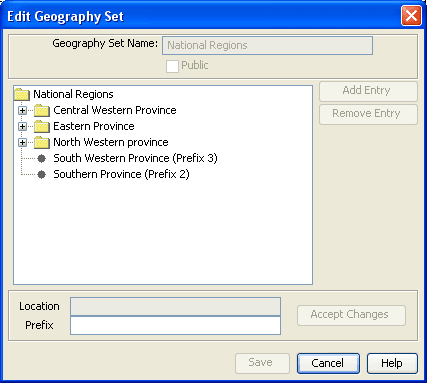
Result: The Edit Geography Set screen is displayed.
-
Select the folder you would like to add the new entry to.
Result: Once selected, the folder name is displayed in the Location field.
-
Click Add Entry.
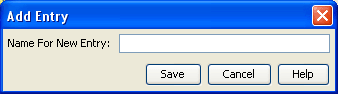
Result: The Add Entry Screen appears.
-
In the Name for New Entry: field, enter the name of the new geography entry.
-
Click Save.
Result: The geography entry will be added as a branch under the geography set name.
-
Select the new geography entry from the Edit Geography Set screen.
-
If required, enter a prefix for the entry in the Prefix field.
-
Click Accept Changes.
Note:
If the geography entry contains nested entries, a prefix is not required and the Accept Changes button remains unavailable. If the geography entry does not contain nested entries, the Accept Changes button becomes available when the Prefix field is populated.
-
Click Save.
Result: The geography set changes are added to the database.
Note:
If the set is used in a compiled control plan, the compiler will attempt to recompile all control plans that use the set and will display the compiler report. The compiler report gives details of all the control plans that were affected by the change and provides a report on status of each control plan.
Editing Geography Entry Prefixes
Follow these steps to add or edit prefixes for existing geography entries.
-
On the Geography tab, select the geography set to edit from the Geography Set drop-down list.
-
Click Edit Set.
Result: The Edit Geography Set screen is displayed.
-
Select the entry you would like to change the prefix for.
Result: Once selected, the entry name is displayed in the Location field.
-
In the Prefix field, make the necessary changes to the prefix.
-
Click Accept Changes.
Note: The Accept Changes only becomes available for entries that have no nested entries below them.
-
Click Save.
Result: The geography set changes are saved to the database.
Note:
If the edited geography set is used in a compiled control plan, the compiler will attempt to recompile all control plans that use the set and will display the compiler report. The compiler report gives details of all the control plans that were affected by the change and provides a report on status of each control plan.
Deleting Geography Entries
Follow these steps to remove a geography entry.
-
In the Edit Geography Set screen, select the geography entry to delete.
-
Click Remove Entry.
Result: The geography entry is deleted.
-
Click Save.
Result: The geography set changes are saved to the database.
Note:
Deleting a geography entry will cause all compiled control plans that use that geography set to be recompiled and will display the compiler report. The compiler report gives details of all the control plans that were affected by the change and provides a report on status of each control plan.
Deleting Geography Sets
Follow these steps to remove an existing geography set from the database.
-
On the Geography tab, select the geography set to delete from the Geography Set drop-down list.
-
Click Delete Set.
Result: The Confirm Delete prompt is displayed.
-
Click OK.
Result: The geography set is deleted.
Tip:
It is not possible to delete a geography set that is used in a control plan. To delete this geography set, the control plans that use the geography set must first be changed to use another set. Once this set is not used by any node in any control plan, then it may be deleted.
Geography Regions
Adding Geography Regions
Follow these steps to create a geography region, and add geography entry prefixes to that region.
-
On the Geography tab, click Edit Regions.
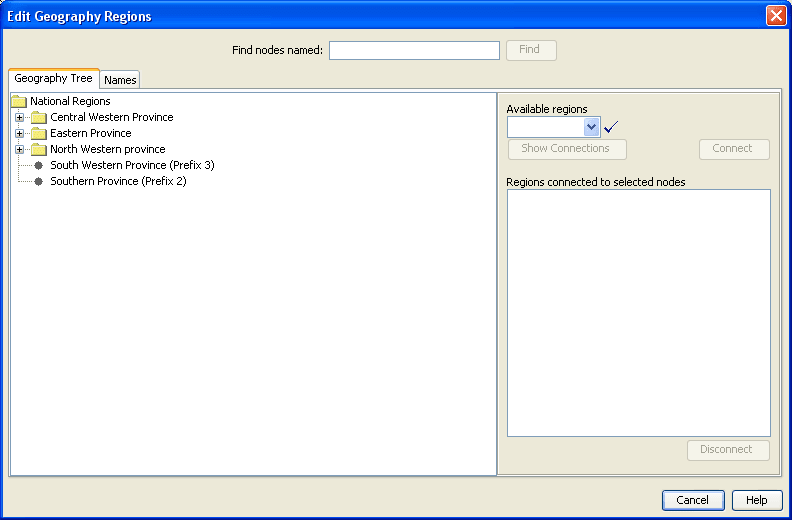
Result: The Edit Geography Regions screen is displayed.
-
In the Available regions field, enter the name of the region.
This field may be used to search for and select existing regions or create new regions.
-
From the Geography Tree, select the geography entry or geography prefix that is to be part of the selected region.
-
Click Connect to connect the selected geography entry or prefix to the selected region.
Note:
Where a geography entry is connected to a region, then all prefixes below that entry are also connected to the same region unless a prefix is specifically connected to a different region.
-
Add all entries and prefixes to the region as required.
-
Once the region is complete, click Cancel to return to the Geography tab.
Note:
All changes to a region are automatically saved to the database.
Displaying all Nodes in a Region
Follow these steps to display all nodes (that is, geography entries and prefixes) that are connected to a specified region.
-
In the Available Regions combo box, either enter a new name or select a name from the drop-down list.
Note:
The combo box may be used to search for and select existing regions or create new regions. See Combo boxes for details on how to use this field.
-
Click Show Connections.
Result: The entries and prefixes that are connected to the region will be highlighted in the Geography Tree.
Geography Tree Tab with Highlighted Entries
Here is an example Geography Tree tab, with the entries and prefixes that are connected to the region highlighted.
Disconnecting from a Region
Follow these steps to disconnect a geography entry or prefix from a region.
-
From the Geography tab, click Edit Regions.
Result: The Edit Geography Regions screen opens, with the Geography Tree tab active.
-
From the geography tree, select the geography entry or prefix to disconnect.
Result: If the geography entry or prefix has nodes associated with it, node names will appear in the Regions connected to selected nodes field of the Geography Tree tab.
-
In the Regions connected to selected nodes field, click the node to disconnect.
-
Click Disconnect.
-
Click Cancel to return to the Geography tab.
Note:
The changes will still be saved to the database.
Finding a Geography entry
Follow these steps to locate a geography entry (node) in a geography tree by name.
-
On the Geography tab, click Edit Regions.
Result: The Edit Geography Regions screen is displayed.
-
In the Find nodes named field, enter the name of the node (geography entry) to searched for.
-
Click Find.
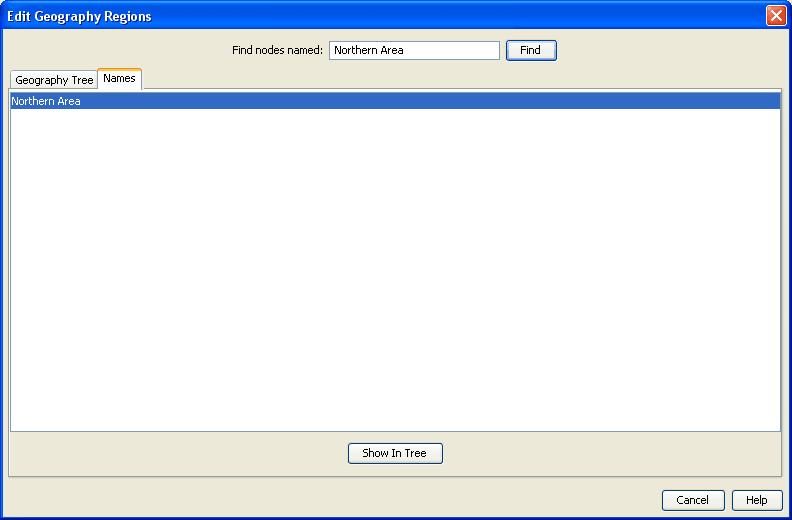
Result: Entries that match the search criteria will be displayed on the Names tab .
-
Select the entries to be located in the geography tree and click Show In Tree.
Result: The Geography Tree tab is displayed with the selected entries highlighted.
Holidays
Introduction
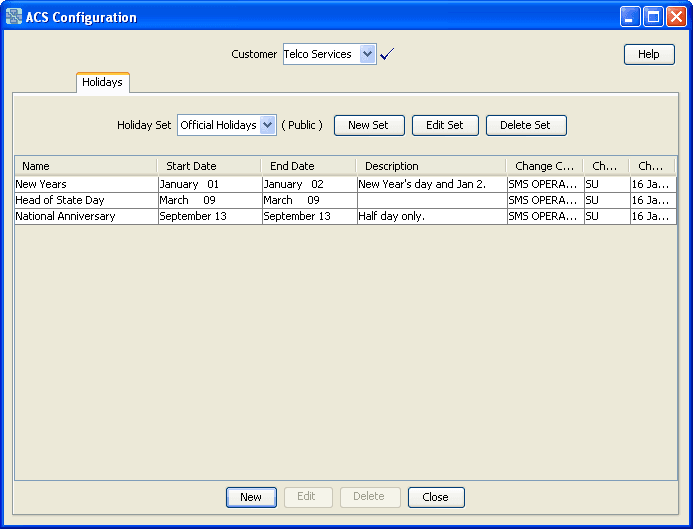
You use the Holidays tab to configure holiday sets and holiday records for each of your customers.
A holiday set is a set of day-of-year records that mark specific days as being "holiday" days.
About Updated Holiday Set Data in Control Plans
Customers can use holiday set data in Day Of Year feature node configurations in their control plans (for example, to route calls to a messaging service when their businesses are closed).
When you update the entries in a holiday set, all the control plans that reference the updated holiday set in a Day Of Year feature node are recompiled automatically. However, if a control plan was already in the control plan cache when the holiday set data was updated, because the control plan is being triggered by platform traffic, then the updates will not be available until the recompiled control plan is reloaded into the cache. This creates a delay between recompilation and new data being available on the SLC.
Control plans are reloaded into the control plan cache at
regular intervals, and when the SLEE is restarted. You may be able
to configure the frequency with which the control plan cache is
flushed for some services. For example, you configure when to flush
the control plan cache for the CCS service by configuring the
following parameters in the ccsSvcLibrary section of
the eserv.config configuration file:
-
callPlanAndDataCacheFlushTime -
callPlanAndDataCacheMaxAge
For more information, see CCS Technical Guide.
For information about control plan configuration, see CPE User's Guide.
Adding Holiday Sets
Follow these steps to add a new holiday set.
-
On the Holidays tab, click New Set.
Result: The New Holiday Set screen is displayed.
-
In the Holiday Set field, enter the name of the set.
Note:
Each holiday set name must be unique for a particular customer - but two different customers may have sets with the same name. If the holiday set is to be saved as a public set, then the name must be unique. The set name may be up to 50 alphanumeric characters in length, but cannot be left blank.
-
In the Description field, enter a description of the set.
-
If you require a:
- Public holiday set, select the Public check box.
- Customer-specific holiday set, leave the box not selected.
Note:
A private set may not be edited and made public, nor may a public set be edited to become private.
-
Click Save to add the new holiday set to the database.
Editing Holiday Sets
Follow these steps to edit an existing holiday set.
-
On the Holidays tab, select the holiday set to edit from the Holiday Set drop-down list.
-
Click Edit Set.
Result: The Edit Holiday Set screen is displayed.
-
Make the necessary changes to the description.
Note:
You cannot change the Holiday Name or change the public/customer-specific status.
-
Click Save.
Result: The holiday set changes are saved to the database.
Note:
Editing a holiday set or holiday entry causes all compiled control plans that use that holiday set to recompile. The compiler report gives details about the status of each affected control plan.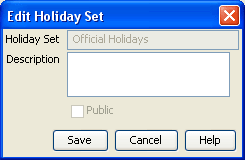
Deleting Holiday Sets
Follow these steps to delete an existing holiday set.
Note:
Deleting a holiday set will delete all holiday entries in that set. It is not possible to delete a holiday set that is currently in use by a compiled control plan.
-
From the Holidays tab, select the holiday set to delete.
-
Click Delete Set.
Result: The Confirm Delete prompt is displayed.
-
Click OK.
Result: The holiday set is removed from the database.
Tip:
It is not possible to delete a holiday set that is used in a control plan. To delete this holiday set, the control plans that use the holiday set must first be changed to use another set. Once this set is not used by any node in any control plan, then it may be deleted.
Adding Holiday Entries
Follow these steps to add a new holiday entry to an existing holiday set.
-
On the Holidays tab, select the holiday set to add a new holiday entry to from the Holiday Set drop-down list.
-
Click New.
Tip:
The New button is located at the bottom of the screen. The new button at the top of the screen is New Set.
Result: The New Holiday screen is displayed.
-
In the Name field, enter the name of the holiday entry.
-
From the Start Date and End Date drop-down boxes, select a start and end date.
Tip:
Holiday entries may not overlap. Each day may only belong to one holiday within the holiday set.
-
In the Description field, enter a description of the holiday entry.
-
Click Save to add the holiday entry to the holiday set selected in step 1.
Note:
Adding an entry to a set that is used in compiled control plans will cause all control plans that use that set to be recompiled and will display the compiler report. The compiler report gives details of all the control plans that were affected by the change and provides a report on status of each control plan.
Editing Holiday Entries
Follow these steps to edit an existing holiday entry in a holiday set.
-
On the Holidays tab, select the holiday set which contains the holiday entry to edit.
-
From the table, select the holiday entry to edit.
-
Click Edit.
Tip:
The Edit button is located at the bottom of the screen. The edit button at the top of the screen is Edit Set.
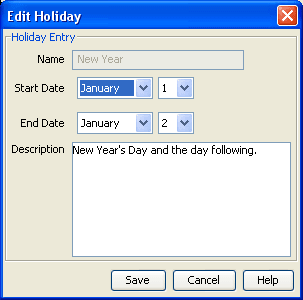
Result: The Edit Holiday screen is displayed.
-
Make the necessary changes to the Start and End dates and description.
Note:
You cannot edit the Name field.
-
Click Save.
Result: The holiday entry changes are saved to the database.
Note:
Editing a holiday set or holiday entry will cause all compiled control plans that use that holiday set to be recompiled and will display the compiler report. The compiler report gives details of all the control plans that were affected by the change and provides a report on status of each control plan.
Deleting Holiday Entries
Follow these steps to delete an existing holiday entry from a holiday set.
-
On the Holidays tab, select the holiday set which contains the holiday entry to delete.
-
From the table, select the holiday entry to delete.
-
Click Delete.
Tip:
The Delete button is located at the bottom of the screen. The delete button at the top of the screen is Delete Set.
Result: The Confirm Delete prompt is displayed.
-
Click OK.
Result: The holiday entry is removed from the holiday set in the database.
Tip:
It is not possible to delete a holiday entry that is used in a control plan. To delete this holiday entry, the control plans that use it must first be changed to use another holiday entry. Once this entry is not used by any node in any control plan, then it may be deleted.
Note:
Deleting a holiday entry will cause all compiled control plans that use that holiday set to be recompiled and will display the compiler report. The compiler report gives details of all the control plans that were affected by the change and provides a report on status of each control plan.
Announcements
Introduction
All the announcements that are used in your customer control plans must belong to an announcement set. Announcement sets are a convenient way of grouping common announcements together.
An announcement set may belong to a specific customer or may belong to no customer, in which case the announcements it contains are public (that is, they can be used by any customer). For example:
- General announcements (public)
- Please hold announcements (public)
- Warehouse mail order announcements (customer-specific)
- Warehouse head office announcements (customer-specific)
Note: It is not possible to delete an announcement set that is currently in use by a compiled control plan. Deleting an announcement set will delete all announcement records in that set. Editing an announcement set or announcement entry will cause all compiled control plans that use that announcement set to be recompiled.
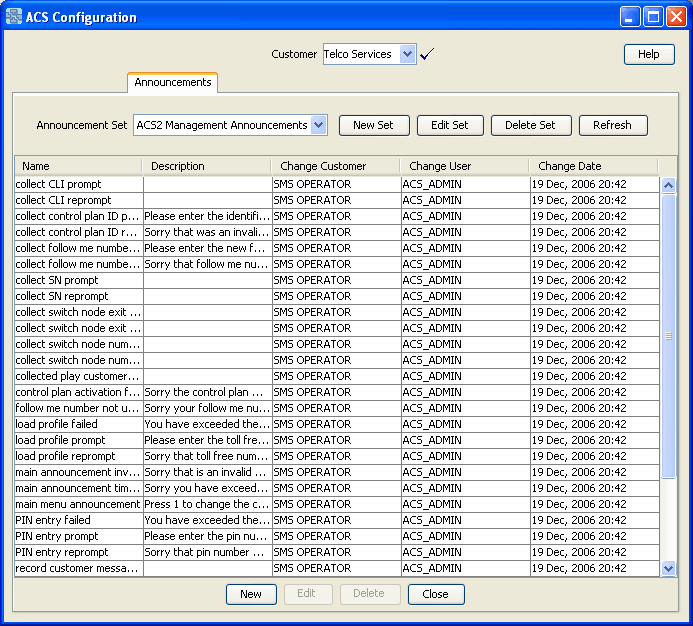
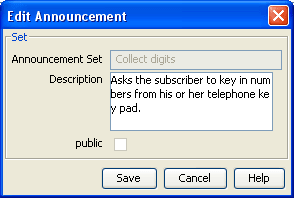
Announcement Set Fields
This table describes each field of an Announcement Set screen.
| Field | Description |
|---|---|
| Announcement Set |
The name of the set. Note: This field cannot be changed after it is first saved. |
| Description | A description of the set. |
| Public |
Controls the availability of this set. If selected, the set is a public announcement set and can be used by all users of the system. If not selected, the set is customer-specific and can only be used by the ACS customer which created it. Notes:
|
Adding Announcement Sets
Follow these steps to add a new announcement set.
-
On the Announcements tab, click New Set.
Result: The New Announcement Set screen is displayed.
-
Configure this record by entering data in the fields on this screen.
For information about the fields on this screen, see Announcement Set Fields .
-
Click Save to save the details to the database.
Result: The new announcement set will be available from the announcement set drop-down list.
Editing Announcement Sets
Follow these steps to edit an existing announcement set.
-
On the Announcements tab, select the announcement set to edit from the Announcement Set drop-down list.
-
Click Edit Set.
Result: The Edit Announcement screen is displayed.
-
Edit the fields to make the required changes.
For information about the fields in this screen, see Announcement Set Fields.
-
Click Save.
Result: The announcement set changes are saved to the database.
Note:
Editing an announcement set will cause all compiled control plans that use that announcement set to be recompiled and will display the compiler report. The compiler report gives details of all the control plans that were affected by the change and provides a report on status of each control plan.Deleting Announcement Sets
Follow these steps to delete an existing announcement set.
WARNING:
Deleting an announcement set will delete all announcement entries in that set.
-
On the Announcements tab, select the announcement set to delete from the Announcement Set drop-down list.
-
Click Delete Set.
Result: The Confirm Delete prompt is displayed.
-
Click OK.
Result: The announcement set and all its announcement entries are removed from the database.
Tip:
It is not possible to delete an announcement set that is used in a control plan. To delete this announcement set, the control plans that use the announcement set must first be changed to use another set. Once this set is not used by any node in any control plan, then it may be deleted.
Announcement Entries
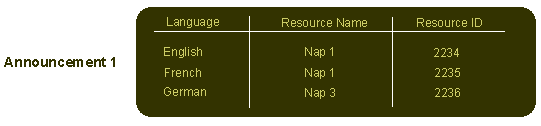
Announcement entries are contained within an announcement set. The telecommunications provider must record each announcement onto a Specialized Resource Function (SRF). This announcement must be assigned a:
- Resource Name (the name or location of the SRF on which it is stored)
- Resource ID (the identification of the audio file on the SRF that gives the exact location of the announcement)
The ACS system requires the following for each announcement entry:
- Language
- Resource Name
- Resource ID
This allows ACS to determine exactly where the announcement recording is located and the language in which it is recorded - as shown in the diagram below:
A preferred language is set for each ACS customer. This is the language in which all announcements are played in control plans for that customer. If an announcement mapping does not exist for the selected language, the system will use the announcement mapping for the system's default language for that particular instance.
The system needs an address to locate the announcement. For this reason, the Announcements screen (See example on page 2) should not be closed until at least one of the announcement mappings defined uses the default language.
When a control plan encounters this announcement, it will attempt to use the customer's preferred language. If no mapping exists for that announcement/language, then it will attempt to use the default language. If a mapping does not exist for the announcement in the default language, then the announcement cannot be played (a system error will be logged and the call will be terminated).
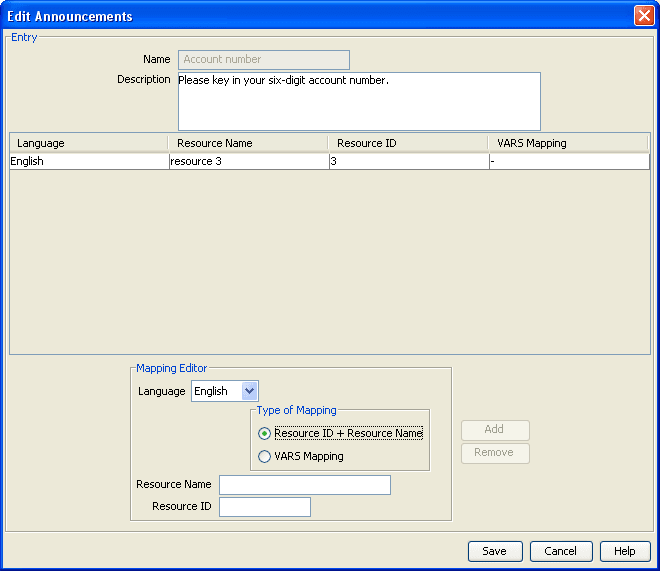
Announcement Entry Fields
This table describes the function of each field.
| Field | Description |
|---|---|
| Name |
The name of the new announcement entry. Note: This field cannot be changed after it has been saved for the first time. |
| Description | A description of the new announcement entry. |
| Language | The default language for the announcement. This field is populated by the Language tab on the ACS Tools screen. |
| Resource Name |
The name of the SRF which will play the announcement. Note: This must match the srfName parameter in the acs.conf file. See ACS Technical Guide. |
| Resource ID | The ID number of the audio file of the announcement. |
| VARS Mapping | The VARS mapping to use to construct the announcement. This field is populated by the VARS Mapping tab. |
Adding Announcement Entries
Follow these steps to add announcement entries to an existing announcement set.
-
On the Announcements tab, select the announcement set to add an announcement entry to.
-
Click New.
Tip:
The New button is located at the bottom of the screen. The new button at the top of the screen is New Set.
Result: The New Announcements screen is displayed.
For a description of each field on this screen, see Announcement Entry Fields .
-
Complete the Name and Description fields.
-
In the Mapping Editor section, add the announcement mapping. Select a language and type of mapping for the announcement entry:
- For standard announcements, select the Resource ID + Resource Name option. Go to Step 5.
- For announcements that have variable announcement rules specified, select the VARS Mapping option. Go to Step 6.
For more information, see VARS Mapping .
-
If Resource ID + Resource Name Mapping was selected in step 4:
- Configure the Resource Name and Resource ID.
- Click Add.
- Go to step 8.
Result: The language and resource mapping are added to the announcement entry.
-
If VARS Mapping was selected at step 4:
-
Select a name from the VARS Mapping drop-down list.
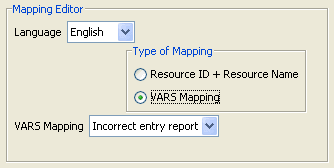
- Click Add.
Result: The language and VARS mapping are added to the announcement entry.
-
-
Click Save.
Result: The announcement entry will be added to the announcement set selected in step 1.
Note:
Adding an entry to a set that is used in compiled control plans will cause all control plans that use that set to be recompiled and will display the compiler report. The compiler report gives details of all the control plans that were affected by the change and provides a report on status of each control plan.
Editing Announcement Entries
Follow these steps to edit an existing announcement entry, or remove a language mapping.
-
On the Announcements tab, select the announcement set which contains the announcement entry to edit.
-
From the table, select the announcement entry to edit.
-
Click Edit.
Tip:
The Edit button is located at the bottom of the screen. The edit button at the top of the screen is Edit Set.
Result: You see the Edit Announcements screen.
-
If required, change the description in the Description field. For more information about the fields on this screen, see Announcement Entry Fields .
-
To change a language mapping, select the mapping to change.
Result: The mapping is displayed in the Mapping Editor area.
Update the fields and click Add.
-
To add a new mapping, enter new details in the Mapping Editor section.
Select a language and type of mapping for the announcement entry:
For standard announcements, select the Resource ID + Resource Name option. Go to Step 6.
- For announcements that have variable announcement rules specified, select the VARS Mapping option. Go to Step 7.
-
If Resource ID + Resource Name Mapping was selected in step 5:
- Configure the Resource Name and Resource ID.
- Click Add.
- Skip step 7.
Result: The language and resource mapping will be added to the announcement entry.
-
If VARS Mapping was selected at step 5:
-
Select a name from the VARS Mapping drop-down list.
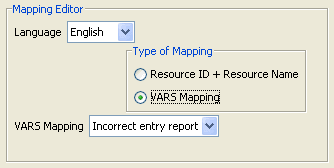
- Click Add.
Result: The language and VARS mapping will be added to the announcement entry.
-
-
To remove a mapping from the table, select it and click Remove.
-
Click Save.
Result: The announcement entry changes are saved to the database.
Note:
Editing an announcement entry will cause all compiled control plans that use that announcement set to be recompiled and will display the compiler report. The compiler report gives details of all the control plans that were affected by the change and provides a report on status of each control plan.
Deleting Announcement Entries
Follow these steps to delete an announcement entry from a selected announcement set.
-
On the Announcements tab, select the announcement set which contains the announcement entry to delete.
-
From the table, select the announcement entry to delete.
-
Click Delete.
Tip:
The Delete button is located at the bottom of the screen. The delete button at the top of the screen is Delete Set.
Result: The Confirm Delete prompt is displayed.
-
Click OK.
Result: The announcement entry is removed from announcement set in the database.
Tip:
It is not possible to delete an announcement entry that is used in a control plan. To delete this announcement entry, the control plans that use it must first be changed to use another announcement entry. Once this entry is not used by any node in any control plan, then it may be deleted.
Note:
Deleting an announcement entry will cause all compiled control plans that use that announcement set to be recompiled and will display the compiler report. The compiler report gives details of all the control plans that were affected by the change and provides a report on status of each control plan.
Variable Announcement Rule Sets
Introduction
The VARS tab is used to define the rules for a Variable Announcement Rule Set (VARS). VARS are used for announcements that vary depending on the grammatical rules of the language. Variable announcement rule sets allow these grammatical rules to be observed within the played announcement.
The VARS name (set name) is unique. It is used by the VARS Mapping tab to identify which VARS to map. Each rule is comprised of at least one or more expressions. Multiple expressions are concatenated with either a logical AND or logical OR.
Each expression conforms to the following syntax:
            variablePart
            operator1
            argument1
[operator2 argument2]
The syntax supports a maximum of five tokens. The last two tokens (operator2, argument2) are optional. These are only required depending on the operator1 operation. 'variablePart' represents one of the variable announcement parts.
A grouping policy can be optionally applied to each rule where the order of evaluation is important.
How VARS is Used in an Announcement Entry
The following example illustrates how a VARS is used in an announcement entry.
An announcement contains two placeholder parts:
"On date your balance is variable"
The variable part of the announcement will play a different audio file depending upon the number of free SMSs that the subscriber has remaining.
- 0 free SMSs (rule 1)
- 1 free SMs (rule 2)
- A pair of SMSs (rule 3)
- n free SMSs (rule 4)
The variable part is set up on the VARS tab as follows:
- Rule 1 is
IF [Part 2] = 0 - Rule 2 is
IF [Part 2] = 1 - Rule 3 is
IF [Part 2] = 2 - Rule 4 is
IF [Part 2] > 2
Using the VARS Mapping tab, each rule is mapped to the resource name (that is, SRF) and resource ID of each audio file.
Using the Announcements tab, the VARS mapping is specified for an announcement entry.
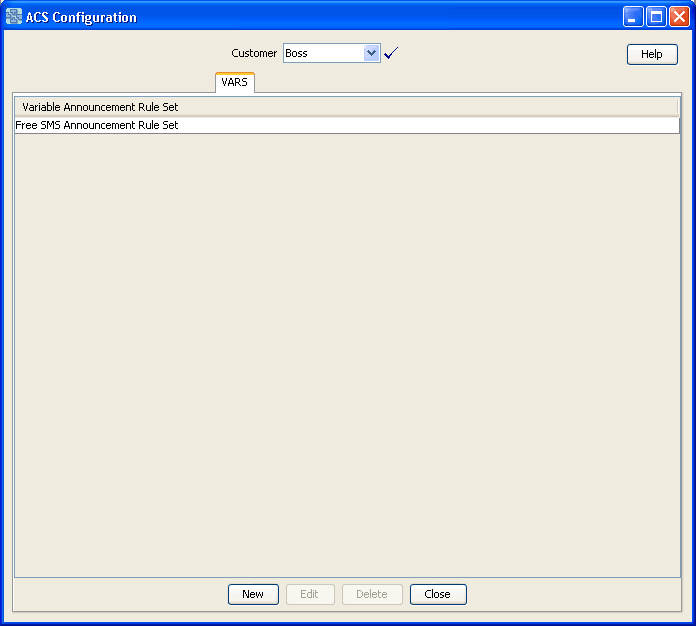
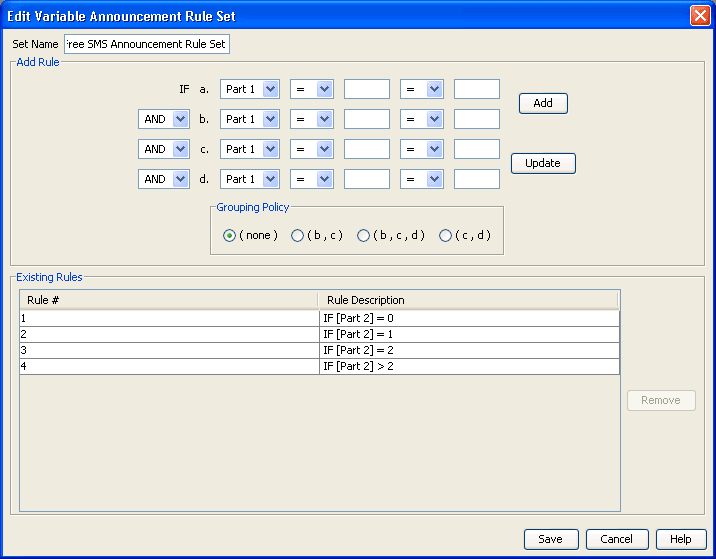
Variable Announcement Rule Set Fields
This table describes the function of each field.
| Field | Description | ||||||||||||||||||||||
|---|---|---|---|---|---|---|---|---|---|---|---|---|---|---|---|---|---|---|---|---|---|---|---|
| Add Rule | You can construct up to four parts to a rule using the operator fields. | ||||||||||||||||||||||
| Part | Select the part of the expression that the line applies to. | ||||||||||||||||||||||
| Comparison operators |
Select from:
|
||||||||||||||||||||||
| Boolean operators |
Select from:
|
||||||||||||||||||||||
| Grouping Policy | Allows you to place brackets around the selected parts of the expression where the order of evaluation is important. | ||||||||||||||||||||||
| Existing Rules | Displays each rule and its boolean expression. |
Adding a VARS
Follow these steps to add a new VARS and add rules to the rule set.
-
From the VARS tab, click New.
Result: The New Variable Announcement Rule Set screen is displayed. See Variable Announcement Rule Set Fields for a description of each field.
-
In the Set Name field, enter the VARS name.
-
In the Add Rule area, configure the new rule by constructing the boolean expression.
-
Click Add.
The new rule will be added to the VARS and will be displayed in the Existing Rules table.
-
Click Save to save the changes to the database.
Editing a VARS
Follow these steps to edit an existing VARS.
-
On the VARS tab, select the VARS to edit.
-
Click Edit.
Result: The Edit Variable Announcement Rule Set screen is displayed. See Variable Announcement Rule Set Fields for a description of each field.
-
Make the changes required.
To add a rule, follow the procedure described in Adding a VARS.
To remove a rule, select it in the Existing Rules table and click Remove.
To change a rule:
-
Select the rule in the table.
Result: The details will be displayed in the Add Rule area.
-
Change the rule details and click Update.
-
-
Click Save to save the changes to the database.
VARS Mapping
Introduction
The VARS Mapping tab on the ACS Configuration screen is used to map each rule in a VARS to a unique resource name and resource ID combination. This combination is used to determine the elementary message ID that is forwarded to the switch.
The mapping name is unique. It is used by the Announcement Entries to determine which VARS to map to.
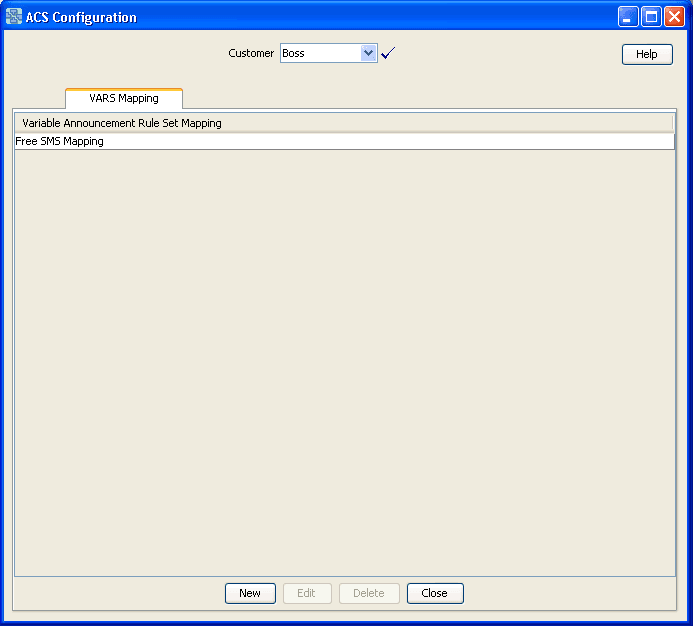
Variable Announcement Rule Set Mapping Screen
Here is an example Variable Announcement Rule Set Mapping screen.
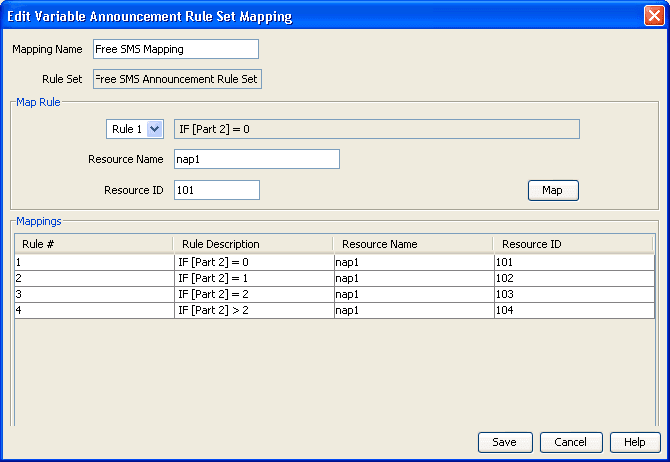
VARS Mapping Fields
This table describes the function of each field.
| Field | Description |
|---|---|
| Mapping Name | The name of the mapping. |
| Rule Set |
The name of the rule set. Note: This field cannot be changed after it has been saved for the first time. |
| Rule | List of VARS rules, with the rule description, as listed on the VARS tab. For more information, see Variable Announcement Rule Sets . |
| Resource Name |
The name of the SRF which will play the announcement.
Note: This must match the |
| Resource ID | The ID number of the audio file of the announcement. |
| Mappings | Displays the mappings for each rule against the Resource name and ID. |
Adding a VARS Mapping
Follow these steps to add a new VARS mapping.
-
On the VARS Mapping tab, click New.
Result: The New Variable Announcement Rule Set Mapping screen is displayed.
For a description of each field on this screen, see VARS Mapping Fields .
-
In the Mapping Name field, enter the name for this VARS mapping.
Tip:
The VARS mapping name must be unique for the customer, although two different customers may have the same VARS mapping name.
-
From the Rule Set drop-down list, select the VARS which contains the rule to map to a resource.
Tip:
This drop-down list only contains previously configured VARS. To add a new VARS, see Variable Announcement Rule Sets.
-
In the Map Rule section, select the rule from the top left drop-down box.
-
In the Resource Name field, enter the name of the SRF which will play the announcement.
Note:
This must match the
srfNameparameter in the acs.conf file. See ACS Technical Guide. -
In the Resource ID field, enter the ID number of the audio file which contains the announcement.
-
Click Map to process the VARS mapping rule.
Result: The mapped rule will appear in the Mappings table.
Tip:
You must enter a VARS mapping for each rule in the rule set.
-
Click Save to save the new VARS mapping to the database.
Editing VARS Mappings
Follow these steps to edit an existing VARS mapping.
-
On the VARS Mapping tab, select the VARS mapping to edit.
-
Click Edit.
Result: The Edit Variable Announcement Rule Set Mapping screen is displayed.
For a description of each field on this screen, see VARS Mapping Fields.
-
Amend the VARS mapping as required.
Tip:
To display the details of an existing mapping in the Map Rule area, select it from the Mappings table. Click Map to update the mapping's details.
-
Click Save to save the changes to the database.
Feature Sets
Introduction
Feature node sets must be set up to allow customers to use feature nodes in their control plans.
You use the Feature Sets tab to configure and maintain the ACS feature sets. A feature set is a convenient way of grouping feature nodes. Customers are generally allocated one or more feature sets. The feature nodes from those feature sets can be used in any control plan the customer creates.
When a feature set (or group of feature sets) has been configured for a customer, only the feature nodes associated with the set (or sets) will be available in the control plan feature palette. The customer will only be able to use these nodes when they are creating their control plans.
Feature sets are created and maintained by the ACS system administrator. Therefore, this screen is only available to the ACS system administrator.
Feature Sets Tab
Here is an example Feature Sets tab.
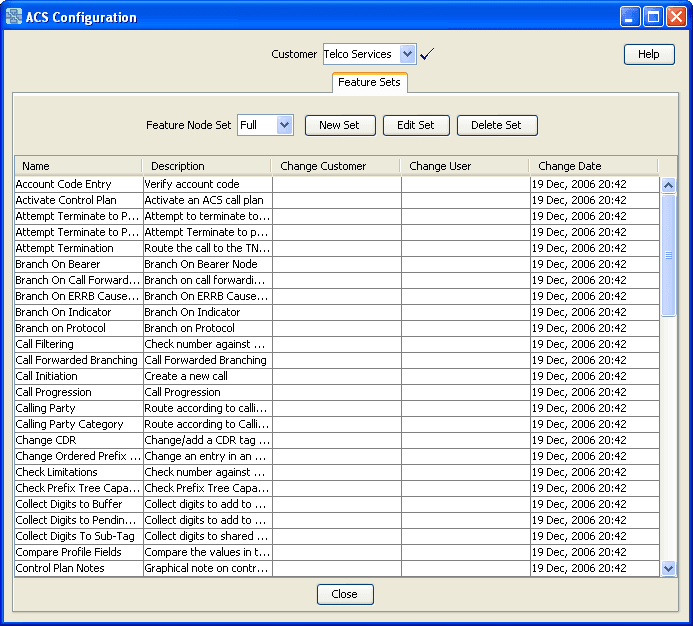
Note:
The nodes available in this screen will vary between users, depending on the applications installed.
Adding Feature Sets
Follow these steps to add a new feature node set.
-
On the Feature Sets tab, click New Set.
Result: The New Feature Node Set screen is displayed.
-
Enter the name of the new feature set in the New set name field.
-
Click Save.
Result: The new feature set is saved to the database.
Tip:
The feature node set is created with all nodes cleared. Follow the procedure below to Edit the feature node set.
Editing Feature Sets
Follow these steps to edit a feature set, and configure the feature nodes available to the selected customer.
-
On the Feature Sets tab, select the feature set you require from the feature node list.
-
Click Edit Set.
Result: The Edit Feature Node Set screen is displayed.
-
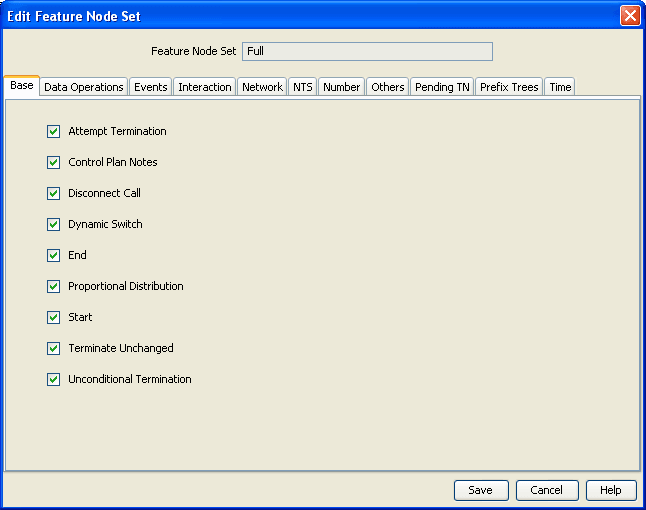
The screen contains all the available feature nodes. For ease of use, all nodes have been grouped according to use, under one of these tabs.. Navigate between the tabs and select the check boxes beside each node to select the feature nodes you require for your customer.
To make a feature node:
- Available to the customer, ensure the relevant check box is selected.
- Not available to the customer, ensure the relevant check box is not selected.
-
Click Save to save the feature set changes to the database.
Note:
When the feature set is saved, ACS will recompile any control plans that use that feature set. If feature nodes that are used in compiled control plans are removed from a feature node set, customers who use this set may no longer be able to successfully compile their control plans.
Deleting Feature Sets
Follow these steps to delete an existing feature set.
-
On the Feature Sets tab, select the feature set from the feature node set drop-down list.
-
Click Delete Set.
Result: The Confirm Delete prompt is displayed.
-
Click OK to remove the feature set from the database.
WARNING:
You cannot delete a feature set that is being used in a current customer control plan.
Profile Tag Details
Introduction
In a service application like CCS, you may want to set up subscriber profile groups. One of the fields of a subscriber profile group is the profile field. The contents of the profile field are obtained from an ACS customer profile group.
To use subscriber profiles, you must first set up customer profiles in ACS. You do this from the Profile Tag Details tab of the ACS configuration screen.
Profiles can also be established for:
- Prefix trees
- Ordered prefix trees
- Arrays
For detailed information, see the Profile Blocks and Fields topic in Feature Nodes Reference Guide.
Profile Tag Types
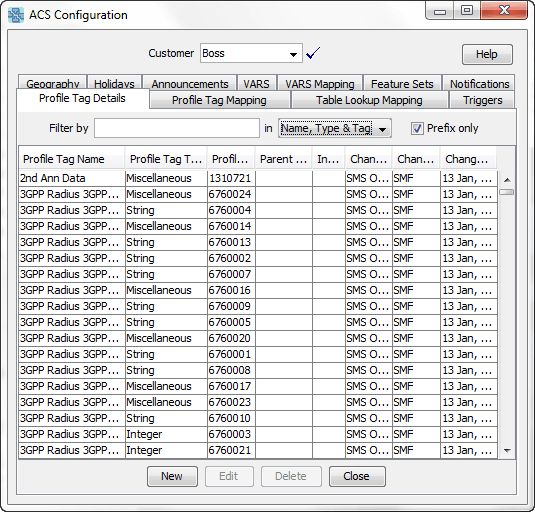
The tag names for profile fields are defined on the Profile Tag Details tab in the ACS Configuration screen.
The following hard coded profile data types are supported:
| Data Type | Description | ||||||||||||||||||||||||||||||||||||
|---|---|---|---|---|---|---|---|---|---|---|---|---|---|---|---|---|---|---|---|---|---|---|---|---|---|---|---|---|---|---|---|---|---|---|---|---|---|
| Announcement Data | (Ann Id, Lang) -> SDF Name and SDF Ann ID. Used by the Global Profile - Internal use | ||||||||||||||||||||||||||||||||||||
| Array |
An array is a series of elements of the same type placed in contiguous memory locations that can be individually referenced by adding an index to a unique identifier. Example: Tag 123456 array:
|
||||||||||||||||||||||||||||||||||||
| Boolean | true, false (1 or 0) | ||||||||||||||||||||||||||||||||||||
| Byte | A single byte integer (0 to 255). | ||||||||||||||||||||||||||||||||||||
| Date | A date, in Unix time, that is, seconds since January 1 1970 GMT. | ||||||||||||||||||||||||||||||||||||
| Discount Specification | 4 bytes for 1st discount, 4 bytes for 2nd discount, 8 bytes for maximum charge in the subunit of the currency, for example, in cents. | ||||||||||||||||||||||||||||||||||||
| Hunting Config |
An array of structure, each structure containing the details for each number in a hunting list.
|
||||||||||||||||||||||||||||||||||||
| Integer | 64-it signed or 32-bit signed integer. 32 bits will be used for values which can be represented by 32 bits. | ||||||||||||||||||||||||||||||||||||
| Limited Numeric String |
A limited numeric string. Valid characters are 0-9. Note: The limit and the value are each stored in a separate profile block, but with the same tag code:
For example, if tag 78787878 is a limited numeric string, the maximum length can be stored as an integer under tag 78787878 in the product type profile and the actual value can be stored as a string under tag 78787878 in the subscriber profile. |
||||||||||||||||||||||||||||||||||||
| Long Triple |
Consisting of 3 signed 4 byte integers (12 bytes).
Used for switch node exits in the control plan Profile. |
||||||||||||||||||||||||||||||||||||
| Limited Ordered Prefix Tree |
A limited ordered prefix tree is made up of a limited list of numbers. Note: The limit and the value are each stored in a separate profile block, but with the same tag code. These are stored in the profile blocks configured in the Check Prefix Tree Capacity feature node. |
||||||||||||||||||||||||||||||||||||
| Miscellaneous | Can contain anything | ||||||||||||||||||||||||||||||||||||
| Numeric String | A string, but can contain only numbers. Valid characters are 0-9. | ||||||||||||||||||||||||||||||||||||
| Number List | Sub-profile block containing prefix string maps. Used in the Number Lookup and Translation node. | ||||||||||||||||||||||||||||||||||||
| Ordered Prefix String | An ordered prefix tree comprising an ordered list of numbers | ||||||||||||||||||||||||||||||||||||
| Patterns | Stores patterns, in the format used by the Number Matching node | ||||||||||||||||||||||||||||||||||||
| Prefix Tree |
Mapping of digit prefixes to integer. Example: "111" maps to 10 "222" maps to 20 |
||||||||||||||||||||||||||||||||||||
| Prefix String Map |
Mapping of digit prefixes to digit string. Example: "111" maps to "234" "222" maps to "456" |
||||||||||||||||||||||||||||||||||||
| Price |
The price, without the currency symbol or decimal point. Example: "1143" for $11.43 |
||||||||||||||||||||||||||||||||||||
| Profile Block | A mapping of integer tags | ||||||||||||||||||||||||||||||||||||
| Raw Data | Arbitrary bytes of any length | ||||||||||||||||||||||||||||||||||||
| Short | Signed 16-bit integer | ||||||||||||||||||||||||||||||||||||
| String | A non limited ASCII string | ||||||||||||||||||||||||||||||||||||
| Time |
The 24 hour time, without the colon between hours and minutes. Example: "2357" for 23:57 |
||||||||||||||||||||||||||||||||||||
| Unsigned 32-bit Integer | 32-bit unsigned integer | ||||||||||||||||||||||||||||||||||||
| Unsigned 64-bit Integer | 64-bit unsigned integer | ||||||||||||||||||||||||||||||||||||
| VARS | Used in the Global Profile. Stores variable announcement rule set in the same format as that created on VARS tab of ACS Configuration screen. | ||||||||||||||||||||||||||||||||||||
| VARS Mapping | Used in the Global Profile. Stores variable announcement rule set mapping in the same format as that created on VARS Mapping tab of ACS Configuration screen. | ||||||||||||||||||||||||||||||||||||
| VXML Announcement | Voice XML announcement location. A string containing a URL. Used in the DAP Play VXML Announcement node. | ||||||||||||||||||||||||||||||||||||
| Zone |
A set of shape definitions for the area covered by the zone. Shapes may be circular or rectangular and are defined by their coordinates. Note: You can set up and populate zone tags but they may only be used if the Location Capabilities Pack (LCP) is installed. |
||||||||||||||||||||||||||||||||||||
Filtering Profile Tags
You can filter Profile tags to reduce the time it takes to locate tags in the list, allowing you to define and create services more efficiently. You can filter Profile tags by the name, type, or tag (ID) value or you can specify Name, Type & Tag to search all three columns. The procedure is the same for each option.
Follow these steps to filter Profile tags on the Profile Tag Details screen:
-
In the Filter by text-input field, enter the value that you want to match in the list. You can enter a value that matches either the entire target value, or a portion of it. For example, you might have several items in the list that have abc as part of the name and you want to select all of them.
-
Select the column you want to search from the Name, Type & Tag drop-down list. If you select the Name, Type & Tag item, ACS attempts to match the value against all three columns.
-
Select the Prefix only checkbox if you want to match your search value against only the beginning of the target value. For example, if you entered abc as your search value and you want to match only values in the Name column that begin with "abc", select the Prefix only checkbox. If, however, you want to match both abcdef and fedabc in the Name column, do not select Prefix only.
Selection occurs as soon as you enter a value in the Filter by text-input field, based on the current criteria in the Name, Type & Tag drop-down list and the Prefix only checkbox. If you change the search criteria, selection occurs again based on the new values that you specify.
Adding Profile Tags
Follow these steps to add new profile tags to the list.
-
On the Profile Node Details tab, click New.
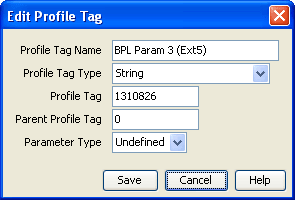
Result: The New Profile Tag screen displays.
-
In the Profile Tag Name field, enter a name to identify the tag.
-
In the Profile Tag Type drop-down list, select the required property.
-
In the Profile Tag and Parent Profile Tag fields, enter the decimal value of the tags.
Note:
These values should be within the value range allocated.
-
In the Parameter Type drop-down list, select one of the following parameter types:
- Undefined – Use this setting if you are creating the profile tag for any profile block other than Call Context. This is the default.
- Input – Used by the Call Context profile block only. When incoming profile data is mapped to the Call Context profile block, the data value is inserted in the InitialDP for the call.
- Output – Used by the Call Context profile block only. When outgoing profile data is mapped to the Call Context profile block, nothing happens.
Note:
The Call Context profile block is supported for backwards compatibility only. If you map this profile tag to a Call Context profile bock, you will see a "–" in the Profile Block Type field of the Profile Tag Mapping tab.
-
Click Save.
Result: The new profile tag appears in the list and is stored in the database.
Editing Profile Tags
To edit an existing profile tag, follow these steps.
-
On the Profile Tag Details tab, select the profile you require from the profile list.
-
Click Edit.
Result: The Edit Profile Tag screen displays.
-
Make the changes required.
WARNING:
If you change the profile tag type for a profile tag that is accessed by a feature node in your control plans, then you must perform the following steps to ensure the new data type is used by the feature node. For each affected control plan and feature node:
- Re-open and then save the feature node configuration in the control plan.
- Save and recompile the control plan.
-
Click Save.
Result: The updated profile tag row appears in the list and its details are stored in the database.
Profile Tag Mapping
Introduction
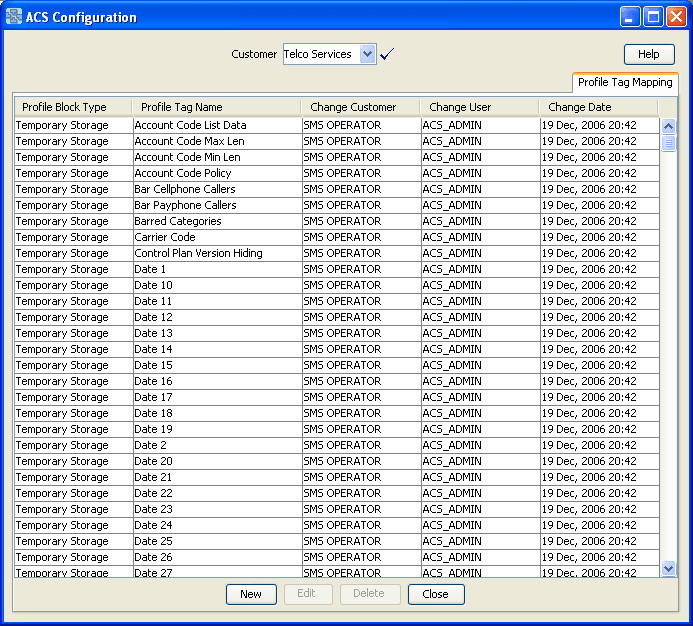
The Profile Tag Mapping tab enables you to map a profile tag to a profile block.
For more information about profiles, see CPE User's Guide.
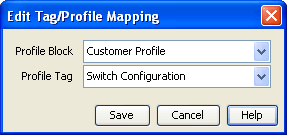
Adding Profile Tag Mappings
Follow these steps to add a new profile tag mapping.
-
On the Profile Tag Mapping tab, click New.
Result: The New Tag/Profile Mapping screen displays.
-
From the Profile Block drop-down list, select the profile block.
-
From the Profile Tag drop-down list box, select the required tag.
-
Click Save.
Result: The new profile tag mapping appears in the list and is stored in the database.
Editing Profile Tag Mapping
Follow these steps to edit an existing profile tag mapping.
-
On the Profile Tag Mapping tab, select the profile you require from the profile list.
-
Click Edit.
Result: The Edit Tag/Profile Mapping screen displays.
-
Make the changes required.
-
Click Save.
Result: The updated profile tag row appears in the list and its details are stored in the database.
Table Lookup Mapping
Introduction
The Table Lookup Mapping tab enables you to search a customer’s table lookup datasets for prefix number and code mappings.
Each available table lookup dataset contains the prefixes and code mappings for a group of related codes, for example, for a specific geographic area or suburb.
Public and Private Table Lookup Datasets
A table lookup dataset can be public or private. A privately owned table lookup dataset belongs to a specific customer. It is only available to that customer and the parent customers linked to that customer in the customer hierarchy. A publicly owned table lookup dataset is available to all customers.
Table Lookup Mapping Tab
Here is an example Table Lookup Mapping tab.
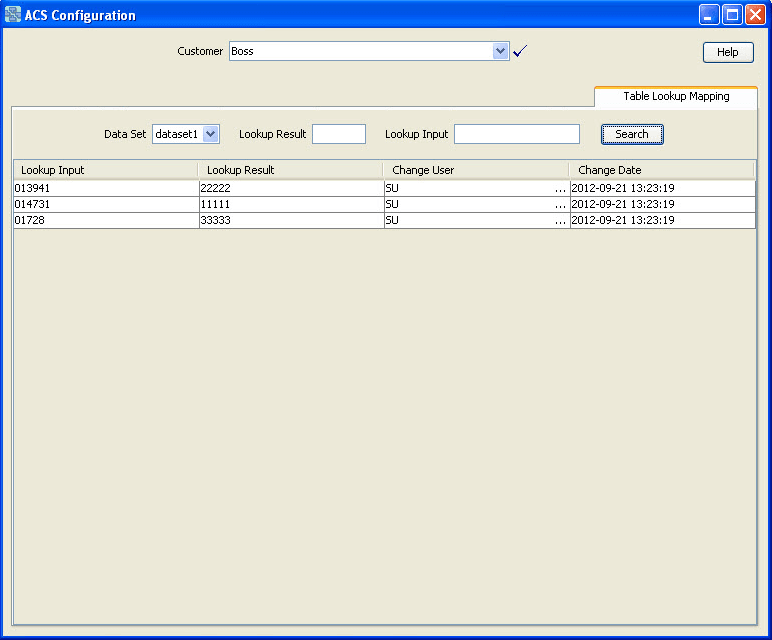
Searching a Dataset for a Prefix or a Mapping Code
To search a customer’s table lookup dataset for a prefix number or a mapping code:
-
In the ACS Configuration window, select the customer from the Customer list.
-
On the Table Lookup Mappings tab, select the required table lookup dataset from the Dataset list.
-
(Optional) To search for prefixes that are mapped to a specific code, enter the code or the initial digits of the code in the Lookup Result field.
-
(Optional) To search for the codes mapped to a specific prefix number, enter the prefix or the initial digits of the prefix in the Lookup Input field.
-
Click Search.
The table on the Table Lookup Mapping tab lists the prefixes and codes that match the criteria you entered. The prefixes are listed in the Lookup Input field and their corresponding codes are listed in the Lookup Result field.
Note:
To view all the prefixes and code mappings in a dataset leave both search fields blank.
Triggers
Introduction
Oracle Communications Billing and Revenue Management (BRM) is able to trigger end user notifications at any point during a call or session based on actual and forecast usage, to ensure the notifications are delivered at the earliest possible moment. The following real-time notification scenarios are currently possible with BRM:
- Threshold notifications (for example, low balance threshold breach)
- Subscription expiry warning notifications
- Recurring usage notifications (for example, notifications for every specified number of MB of usage)
- Tariff change notifications (for example, peak -to off-peak rate change, or free minutes exhaustion)
Note:
Tariff change notifications are not currently supported in Convergent Charging Controller.Convergent Charging Controller receives the BRM in-session notifications (embedded in authorization and reauthorization responses) through the BRM Charging Driver (BCD). The BCD actions extract any BRM notifications and stores them in specified ACS profile fields.
Each authorization or reauthorization response from BRM may contain zero or more in-session notifications. The notifications can trigger control plans at the point they are received. It is possible to deliver a notification or announcement for each in-session notification provided in each response.
You use the Triggers tab to configure control plan trigger definitions for each of your customers. A trigger specifies the control plan to use and the profile tags to pass to the triggered control plan in its incoming session data.
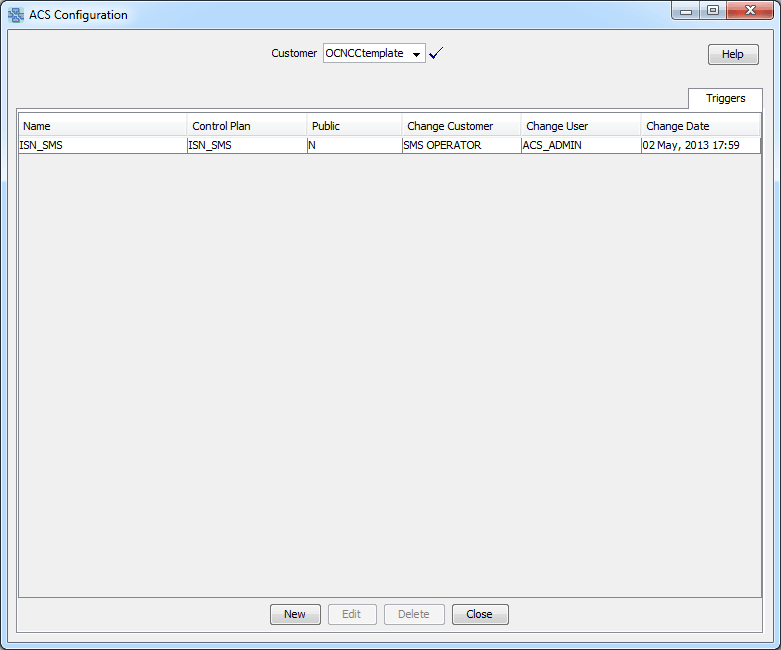
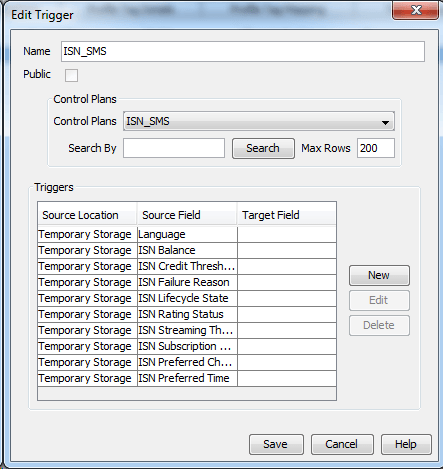
Trigger Fields
This table describes the function of each field.
| Field | Description |
|---|---|
| Name | The name of the trigger. |
| Public | A control plan trigger definition can be made public, which will make it available to any service provider, or private, which will make it available only to the owning service provider. |
| Control Plans |
The control plan invoked by this trigger definition. The control plan is run when the trigger is invoked by Convergent Charging Controller, for example; to handle BRM in-session notifications. The control plan drop-down list displays all the control plans a subscriber can use. Tip: This list can be shortened by using the Search By field and then Search. |
| Search By |
Use initial characters of the control plan name or combine with % (match on any number of characters), or _ (match on a single character). Examples: Search for Search for The list can be further restricted by entering a maximum number of names to show in the Max Rows field. |
| Profile Tags | This table displays a list of source profile tags to be copied into the Incoming Session Data of the triggered control plan. |
Adding Control Plan Triggers
Follow these steps to add a new control plan trigger.
-
On the Triggers tab, click New.
Result: The New Trigger screen displays.
-
Configure this record by entering data in the fields on this screen.
For information about the fields on this screen, see Trigger Fields .
-
Add Trigger Tags or Edit Trigger Tags , or Edit Trigger Profiles the trigger tags listed in the table.
-
Click Save.
Result: The new trigger appears in the list and is stored in the database.
Editing Control Plan Triggers
Follow these steps to edit an existing control plan trigger.
-
On the Triggers tab, select the trigger you require from the table.
-
Click Edit.
Result: The Edit Trigger screen displays.
-
Make the changes required. For information about the fields on this screen, see Trigger Fields.
-
Add Trigger Tags or Edit Trigger Tags , or Edit Trigger Profiles the trigger profiles listed in the table.
-
Click Save.
Result: The updated trigger appears in the list and its details are stored in the database.
Deleting Control Plan Triggers
Follow these steps to delete a control plan trigger.
-
On the Triggers tab, select the trigger to delete from the table.
-
Click Delete.
Result: The confirm delete dialog displays.
-
Click OK to confirm.
Adding Trigger Tags
Follow these steps to add a source profile tag to the list of tags for this trigger.
-
On the New Trigger or Edit Trigger window, click New.
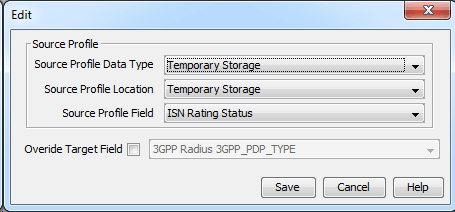
Result: The New trigger tag window is displayed. Note that the Edit trigger tag window displays the same fields.
-
Select from the Data Type, Location and Field drop-down lists the profile field containing the source tag.
The in-session notification tags are prefixed with
ISN. -
To select the override target field, select the Override Target Field check box, then select the field from the drop-down.
-
Click Save.
Editing Trigger Tags
Follow these steps to edit the source profile tag details.
-
On the New Trigger or Edit Trigger window, select the trigger tag to edit in the table.
-
Click Edit.
Result: The Edit trigger tag window is displayed.
-
Update the fields, described in Adding Trigger Tags , as required.
-
Click Save.
Notifications
Introduction
You can create templates for notification messages.
Templates are used by some ACS feature nodes. They can also be used by other applications (for example, CCS).
Examples of activities that other applications can use notification templates for are:
- Control plans
- Business process logic (BPL tasks)
- Credit transfers
- Periodic charges
- Profile updates
- Real-time notifications
- Heavy user bonuses.
Templates incorporate provision for selecting the way the notification message is transported, whether it is through Messaging Manager or a notification interface.
Notification Types
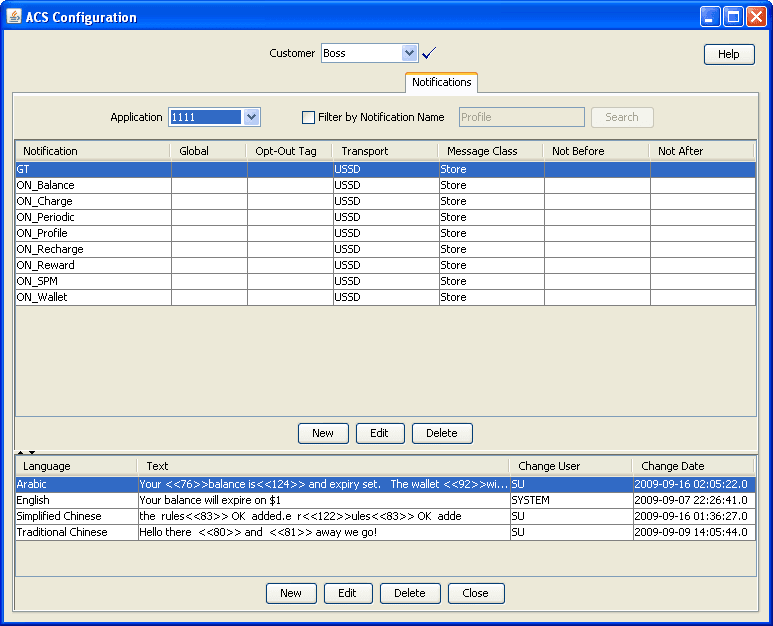
In ACS, SMS notification templates are classified and stored by application and type. A combination of application and type is called a notification type. A notification type may contain more than one notification template but each template must use a different language.
Finding Notification Type
This function is used to lessen the number of rows in the table.
Follow these steps to find an existing notification template.
-
On the Notifications tab, select the Filter by Notification Name check box.
Result: The Search button and search criteria field become available.
-
Enter the search criteria in the text field.
Note:
The search is not case sensitive, the characters must appear sequential, but start anywhere in the Notification name.For example,
ONwill return any Notification that hasONoronsomewhere in the name. -
Click Search.
Result: All matches will be listed in the tab table.
Template Matching
Template matching is based on customer ID, template ID and language ID (either the subscriber's language, or the language specified in the node dialog) in the following order:
| Customer | Template | Language |
|---|---|---|
| Control Plan | Node | Node or subscriber profile |
| Control Plan | Node | Global default |
| NULL (Global) | Node | Node or subscriber profile |
| NULL (Global) | Node | Global default |
Note:
- When the notification feature node is run it shall attempt to retrieve the template based upon the language ID, template ID and customer ID.
- If no template is found for the specified language, the node will attempt to find a template based on the customer, default language and template ID
- If no template is found for the customer and language, the node will attempt to find a global template based on language and template ID
Languages
Templates can be prepared in multiple languages. If possible, a notification is sent in the language of the receiving party. If the language of the receiving party is not on the notification template, a message in the default language is sent.
The default language is defined for the customer or service provider.
You set up other languages using the ACS Tools screen. See Language .
Adding a Notification Type
Follow these steps to a create a notification type.
-
In the upper part of the Notifications tab, click New.
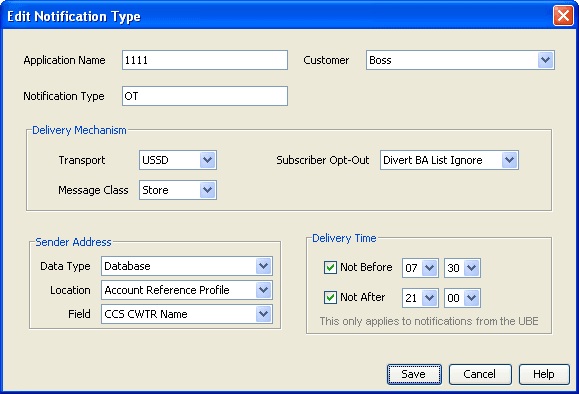
Result: The New Notification Type screen is displayed.
-
In the Customer field, select the customer specific or global option for notification delivery.
Note:
This field is only available when the user has permission to edit global notifications.
-
In the Application Name field, type a name that identifies the application to you.
Note:
- You must not leave the Application Name field blank.
- You may enter up to 16 alphabetical or numerical characters.
- The name may have to match the application that sends the notification.
For example, CCS notifications from the VWS all have application name
CCS.
-
In the Notification Type field, enter a name that identifies the type of notification to you.
Note:
- You must not leave the Notification Type field blank.
- You may type up to 32 alphabetical or numerical characters.
Result: The Save button becomes active.
-
In the Delivery Mechanism section, select the:
- Transport from the drop-down list - this is the method by which the notification is sent.
- Message Class from the drop-down list - this determines whether a SMS is stored in the phone's SIM (that is, normal behavior), or presented to the subscriber as a flash message and not stored.
- Subscriber Opt-Out from the drop-down list - this determines what notification types the subscriber can opt out from receiving.
Note:
- The message class list changes depending on the transport selected, and is used for SMS notifications only.
- Opt-Out option --Not Used-- means that subscribers cannot opt out of this notification.
-
In the Sender Address frame, perform one of the following actions:
- Select the profile location containing the sender address from the Data Type, Location and Field drop-down lists
- Enter a specific address - select Fixed Value from the Data Type drop-down list and then type the address in the Fixed Value field.
-
In the Delivery Time frame, optionally set a delivery time restriction:
- Select the Not Before check box to force delivery of the message to be after the time selected in the two drop-down lists of hours and minutes.
- Select the Not After check box to force delivery of the message to before the time selected in the two drop down lists of hours and minutes.
Note:
- The delivery time options apply to VWS notifications only.
- If the Not Before time is after the Not After time, then notifications are delivered between the not before time on one day and the not after time on the next day.
-
Click Save.
Result: The new notification type is added to the Notifications tab table.
Tip:
If the search feature has been used and the new entry is not a match against the search criteria, it will not appear in the table. Either change the search criteria or deselect the Find by check box.
Note:
The list of data types is fixed at installation time for each feature node or screen.
Further reference:
- For information about profile blocks (data type, location, and field) and how to use them, see Profile Blocks and Tags.
- The primary tag lists are configured in the SMS > Services > ACS Service > Configuration > Profile Tag Details and Profile Tag Mapping tabs (see ACS User's Guide, Profile Tag Details for more information).
Editing a Notification Type
To a edit a notification type, follow these steps.
-
On the Notifications tab, find the notification type to edit. See Finding Notification Type.
-
Select the notification type to change in the table row.
-
Click Edit.
Result: The Edit Notification Type screen is displayed.
-
Change the relevant drop-down list options as required.
-
Click Save.
Note:
The list of data types is fixed at installation time for each feature node or screen.
Further reference:
- For information about profile blocks (data type, location, and field) and how to use them, see Profile Blocks and Tags.
- The primary tag lists are configured in the SMS > Services > ACS Service > Configuration > Profile Tag Details and Profile Tag Mapping tabs (see ACS User's Guide, Profile Tag Details for more information).
Deleting a notification
To delete a notification type, follow these steps.
-
On the Notifications tab, find the notification type to delete. See Finding Notification Type.
-
Select the notification type to delete in the table row.
-
Click Delete.
Result: The Delete Notification? screen displays.
-
Click Delete.
Result: The notification type is removed from the Notifications table.
Rules for Recharge Notifications
When a user recharges the account, the system searches the database for the notification to trigger. The search is based on a search string formed by a combination of voucher name, EDR scenario, balance type, and service provider. The search string is formed in the following order and looked for in the database:
- If the voucher name exist in the database, follow this order:
- Voucher Name + EDR Scenario + Service Provider
- Voucher Name + EDR scenario + NULL
- Skip to search string 3.
- If voucher name does not exist in the database, follow this order:
- "AccountRecharge" + BalanceTypeString + Service Provider
- "AccountRecharge" + BalanceTypeString + NULL
- "AccountRecharge" + Service Provider
- "AccountRecharge" + NULL
Notification Template Editor
Introduction
Notification templates are used to create messages containing variable information embedded within them.
For example, a message might be:
Your current balance is 20 dollars.
Where the 20 dollars would be a variable part that changes every time the template is used.
Adding a Notification Template
To create a notification template, follow these steps.
-
On the Notifications tab, find the notification type to add templates to. See Finding Notification Type .
-
Select the notification type to add templates to from the table row.
-
In the lower part of the screen, click New.
Result: The New Notification Template screen is displayed.
Note:
Variable parts are only available if Open Notifications has been activated
-
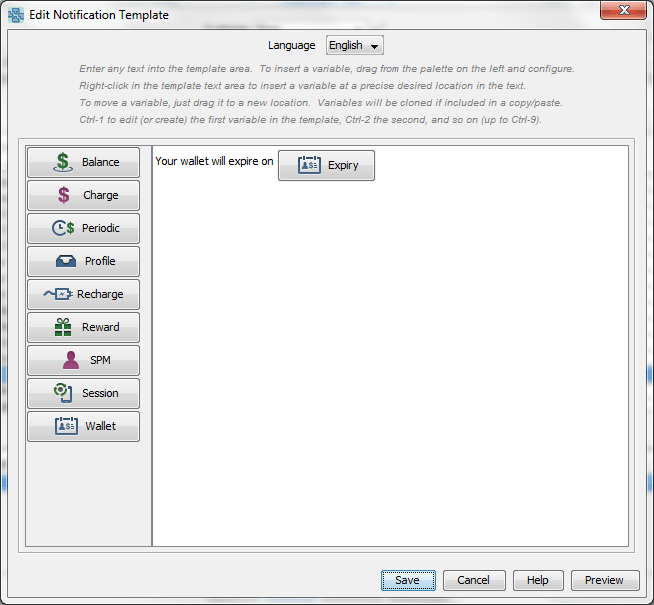
If necessary, select a language from the Language drop-down list box.
Note:
You must select a language which has not already been assigned to a notification template listed under the notification type you chose in step 1.
-
In the work area, enter the text of the message that the template will contain.
Note:
- You may enter up to 512 alphabetical or numerical characters.
- If the Arabic language was selected at step 3, you may enter Arabic characters. However whichever language is selected you can enter any Unicode characters.
- You must not leave the work area blank.
Result: The Save button becomes active.
-
If a template containing variable parts is required, use the icon list on the left side to insert the required parts. Click and drag an icon to the place in the text that it is required and release the mouse.
Result: The Notification Variable screen opens, with the variable part option selected in Source Group field matching the icon name.
Each variable part can have one of several configuration options, depending on the field/ profile tag selected as the source of the variable part. See Value Formatting Types for more information.
This is the list of variable parts avalible in the Source Group field.
- Balance - enables you to insert balance information into the template.
- Charge - enables you to insert charging information into the template.
- Periodic - enables you to insert periodic charge information into the template.
- Profile - enables you to insert subscriber information into the template.
- Recharge - enables you to insert recharge information into the template.
- Reward - enables you to insert rewards information into the template.
- SPM - enables you to insert subscriber management information into the template.
- Session - enables you to insert session information into the template.
- Wallet - enables you to insert subscriber wallet information into the template.
See Variable Part Fields for information about which variable part type is available for each source group.
-
Click Preview to review what the notification will be like.
Result: The Template Preview dialog displays the notification.
-
Click OK.
Result: The notification template is stored in the database, classified for the notification type you chose at Step 1.
Note:
When saved, each field entry used for a variable part has an associated ON profile tag defined which is used to store the value of the field when an open notification reaches the SLC.Editing a Notification Template
Follow these steps to edit a notification template.
-
On the Notifications tab, find the notification type associated with the template requiring changes. See Finding Notification Type .
-
Select the notification type to edit from the table row.
Result: All the templates for the notification are listed.
-
Select the template to change by clicking in the template table row.
-
In the lower part of the screen, perform one of the following actions:
- Click Delete to remove the template
- Click Edit to change the template
Result: If editing, the Edit Notification Template screen is displayed.
Note:
Each variable part can have one of several configuration options, depending on the field or profile tag selected as the source of the variable part. See Value Formatting Types for more information.
This is the list of variable parts.
- Balance – Enables balance information to be inserted into the template.
- Charge – Enables charging information to be inserted into the template.
- Periodic – Enables periodic charge information to be inserted into the template.
- Profile – Enables subscriber information to be inserted into the template.
- Recharge - enables recharge information to be inserted into the template.
- Reward - enables rewards information to be inserted into the template.
- SPM - enables subscriber management information to be inserted into the template.
- Session - enables session information to be inserted into the template.
- Wallet - enables subscriber wallet information to be inserted into the template.
-
If required, select a different language from the Language drop-down list.
Note:
You must not select a language already assigned to a notification template listed under the notification type you chose at step 1. If you do, an error message appears when you try to save the notification template at step 6. -
Edit the Text field as needed.
The template variable part icons can be:
- Moved to another position – Click on the icon and drag the red line to the new insertion point.
- Deleted – Click on the icon to open the Notification Variable dialog and then click Delete.
- Added – Click on the required icon and drag it to the desired location in the text.
- Edited – Click on the icon to open the Notification Variable dialog. The relevant Notification Variable screen for the variable part opens.
-
Click Preview to review what the notification will be like.
Result: The Template Preview dialog displays the notification.
-
Click OK.
Note:
When saved, each field entry used for a variable part has an associated ON profile tag defined which is used to store the value of the field when an open notification reaches the SLC.Deleting a Notification Template
Follow these steps to delete a notification template.
-
On the Notifications tab, find the notification type associated with the template requiring deletion. See Finding Notification Type.
-
Select the notification type to edit from the table row.
Result: All the templates for the notification are listed.
-
Select the template to delete, by clicking in the template table row.
-
In the lower part of the screen, click Delete.
Result: The Confirm Delete screen is displayed.
-
Click Ok.
Result: The notification template is removed from the database.
Variable Part Fields
This table lists the field drop-down list options for each variable part source and the variable part type of data.
Source Group Variable Part
| Field Option | Balance | Charge | Periodic | Recharge | Reward | Wallet | Session |
|---|---|---|---|---|---|---|---|
| Balance Expiry | Date/Time | ||||||
| Balance Expiry Set | Boolean | ||||||
| Called Party | String | ||||||
| Calling Party | String | ||||||
| Credit | Integer | ||||||
| Credit Limit | Integer | ||||||
| Date | Date/Time | ||||||
| Description | String | ||||||
| Expiry | Date/Time | Date/Time | Date/Time | ||||
| Expiry Set | Boolean | Boolean | |||||
| Grace Date | Date/Time | ||||||
| Grace State | String | ||||||
| Low Balance Threshold | Integer | ||||||
| Low Credit Threshold | String | ||||||
| Name | String | ||||||
| Paying Party | String | ||||||
| Product Type | String | ||||||
| Start | Date/Time | ||||||
| State | String | String | |||||
| Type | String | ||||||
| Unreserved Credit | Integer | ||||||
| Unreserved Value | Integer | ||||||
| Value | Integer | Integer | Integer | ||||
| Wallet Expiry | Date/Time |
Note:
- Profile variable part field options depend on the selected Data Type, Location and Field fields.
- SPM variable part field options are any defined SPM fields with Group and Field fields.
Value Formatting Types
Introduction
Any notification template can have any number of variable parts, configured using the Notification Variable screen. Each variable part can have one of several configuration options, depending on the field/ profile tag selected as the source of the variable part. See Notification Template Editor for more information about notification templates.
Notes:
- Each of the variable parts may have extra fields to choose from
in the top panel. For example, when you choose a
Balancesource group, you get a combo-box to choose which balance type you want. When you selectProfile, you get the standard combo-boxes to choose a profile tag. - Some of the variable parts let you choose Server to determine in the formatting panel. This means use the formatting specified for that type of data in another part of the system, see Defined Definitions for examples.
The available format types for variable parts are:
- Setting Boolean Configuration
- Setting DateTime Configuration
- Setting Integer Configuration
- Setting Prefix Tree Configuration
- Setting String Configuration
Defined Definitions
These are examples of definitions defined elsewhere in the system. This is not an exhaustive list, just a sample.
Definitions on the Wallet Management > Balance Type Translations tab for balance formatting:
- Balance / Value
- Charge / Value
- Recharge / Value
Definitions on the Wallet Management > Balance Type Translations tab for balance expiry formatting for:
- Balance / Expiry
- Recharge / Expiry
Definition on the Wallet Management > Wallet Name Translation tab for:
- Wallet / Expiry
Notification Variable Screen
Here are examples of the Notification Variable screen. The fields in the two frames in the screen differ depending on the source group and field selected. See Variable Part Fields for a list of which fields in the Variable Source frame will display which Value Formatting frame.
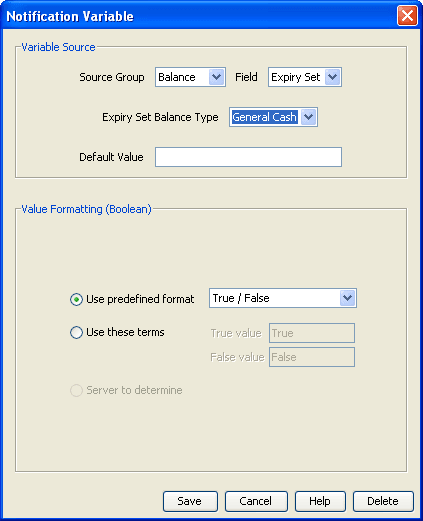
Boolean
Here is an example Notification Variable screen, displaying the Value Formatting (Boolean) fields.
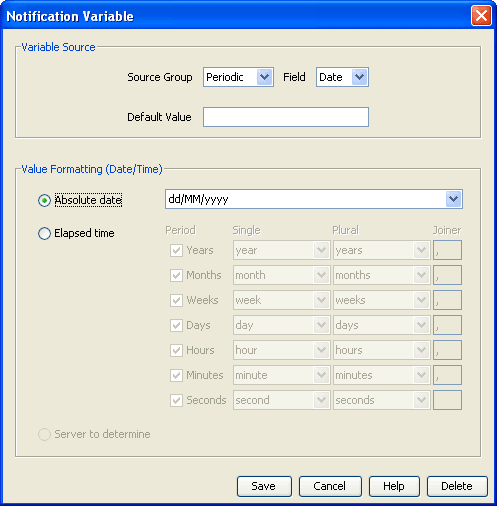
Date/Time
Here is an example Notification Variable screen, displaying the Value Formatting (Date/Time) fields.
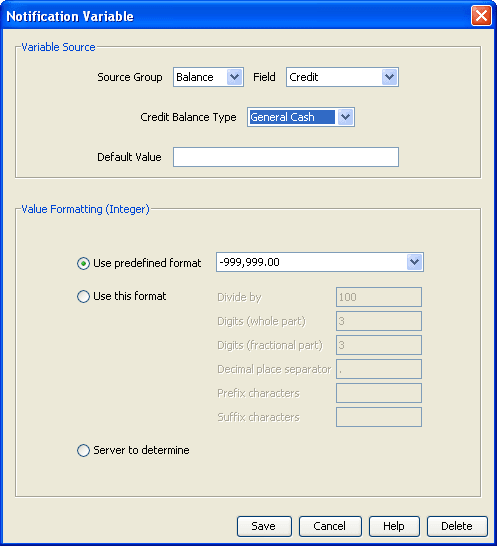
Integer
Here is an example Notification Variable screen, displaying the Value Formatting (Integer) fields.
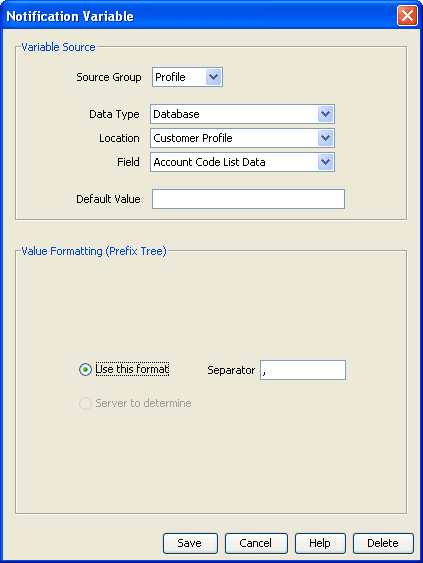
Prefix Tree
Here is an example Notification Variable screen, displaying the Value Formatting (Prefix Tree) fields.
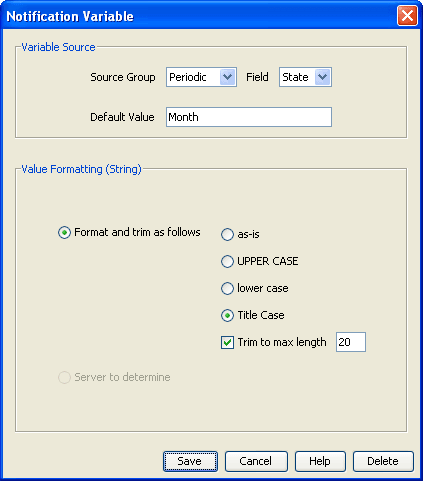
String
Here is an example Notification Variable screen, displaying the Value Formatting (String) fields.
Boolean Format Type
Follow these steps to designate location and formating for a boolean variable part.
-
In the Variable Source frame, select the variable part source from the Field drop-down list.
WARNING:
The Source Group drop-down list shows the variable part type associated with the icon selected in the Notification Template screen and should be not be changed.
-
Select the Balance Type from the drop-down list.
Note:
The field balance type matches the Field selected.
-
Enter a Default Value that is used when there is no content or problem with the source location.
-
Configure the Value Formatting (..) frame, appropriate to the variable source. See:
- Setting Boolean Configuration
- Setting DateTime Configuration
- Setting Integer Configuration
- Setting Prefix Tree Configuration
- Setting String Configuration
Date/Time Format Type
Follow these steps to designate location and formating for a date/time variable part.
-
In the Variable Source frame, select the variable part source from the Field drop-down list.
WARNING:
The Source Group drop-down list shows the variable part type associated with the icon selected in the Notification Template screen and should be not be changed.
-
Enter a Default Value that is used when there is no content or problem with the source location.
-
Configure the Value Formatting (..) frame, appropriate to the variable source. See:
- Setting Boolean Configuration
- Setting DateTime Configuration
- Setting Integer Configuration
- Setting Prefix Tree Configuration
- Setting String Configuration
Integer Format Type
Follow these steps to designate location and formatting for an integer variable part.
-
In the Variable Source frame, select the variable part source from the Field drop-down list
WARNING:
The Source Group drop-down list shows the variable part type associated with the icon selected in the Notification Template screen and should be not be changed.
-
Select the source Balance Type from the drop down list.
Note:
The field balance type matches the Field selected.
-
Enter a Default Value that is used when there is no content or problem with the source location.
-
Configure the Value Formatting (..) frame, appropriate to the variable source. See:
- Setting Boolean Configuration
- Setting DateTime Configuration
- Setting Integer Configuration
- Setting Prefix Tree Configuration
- Setting String Configuration
Prefix Tree Format Type
Follow these steps to designate profile location and formating for a variable part.
-
In the Variable Source frame, leave the Source Group and Field with their default profile and empty values.
WARNING:
The Source Group drop-down list shows the variable part type associated with the icon selected in the Notification Template screen and should be not be changed.
-
Select the source location using the Data Type, Location and Field drop-down lists.
-
Enter a Default Value that is used when there is no content or problem with the source location.
-
Configure the Value Formatting (..) frame, appropriate to the variable source. See:
- Setting Boolean Configuration
- Setting DateTime Configuration
- Setting Integer Configuration
- Setting Prefix Tree Configuration
- Setting String Configuration
Note:
The list of data types is fixed at installation time for each feature node or screen.
Further reference:
- For information about profile blocks (data type, location, and field) and how to use them, see Profile Blocks and Tags.
- The primary tag lists are configured in the SMS > Services > ACS Service > Configuration > Profile Tag Details and Profile Tag Mapping tabs (see ACS User's Guide, Profile Tag Details for more information).
String format type
Follow these steps to designate string location and formating for a variable part.
-
In the Variable Source frame, select the variable part source from the Field drop-down list.
WARNING:
The Source Group drop-down list shows the variable part type associated with the icon selected in the Notification Template screen and should be not be changed.
-
Enter a Default Value that is used when there is no content or problem with the source location.
-
Configure the Value Formatting (..) frame, appropriate to the variable source. See:
- Setting Boolean Configuration
- Setting DateTime Configuration
- Setting Integer Configuration
- Setting Prefix Tree Configuration
- Setting String Configuration
Setting Boolean Configuration
Follow these steps to set boolean formating.
-
In the Value Formatting (Boolean) section of the Notification Variable screen, select the options for setting the boolean values.
-
To use a predefined format, select Use predefined format, then select the format from the drop-down list.
-
To specify a format, select Use these terms, then enter what text will be displayed for true and false values.
-
To save the changes, click Save.
To exit without saving anything, click Cancel.
To remove the variable part from the notification, click Delete.
Setting DateTime Configuration
Follow these steps to format a date/time variable part.
-
In the Value Formatting (Date/Time) section of the Notification Variable screen, select the options for setting the date and time values.
-
To use a definite date and time, select Absolute date, then select the predefined date and time format from the drop-down list.
For date and time format descriptions see Date formats and Time formats .
-
To insert the amount of time between now and the date/time being formatted, select Elapsed time, then select the check boxes as required.
Examples:
- Select Months,and Days for "x months, y days"
- Select Weeks, Days, Hours for "x weeks, y days, z hours"
Note:
Change the joiner value to make grammatically correct messages, for example replace
,withandfor the Days row would change the example to "x weeks, y days and z hours" -
To save the changes, click Save.
To exit without saving anything, click Cancel.
To remove the variable part from the notification, click Delete.
Date Formats
This table list the date formats and their examples.
| Format | Format Example |
|---|---|
| d/MM/yyyy | 10/07/2009 |
| MM/d/yyyy | 07/10/2009 |
| dddd, d MMMM yyyy | Friday, 10 July 2009 |
| d MMMM yyyy | 10 July 2009 |
| d/MM/yy | 10/07/09 |
| MM/d/yy | 07/10/09 |
| yyyy-MM-dd | 2009-07-10 |
| d-MMM-yy | 10-Jul-09 |
| d.MM.yyyy | 10.07.2009 |
| d MMM. yy | 10 Jul. 09 |
| d MMMM yyyy | 10 July 2009 |
| MMMM yy | July 09 |
| MMM-yy | Jul-09 |
Date Format Key
This table describes the symbols used in the date formats.
| Symbol | Description |
|---|---|
| d | Day of month |
| dd | Two-digit day of month |
| dddd | Name of day of week |
| MM | Two-digit month |
| MMM | Abbreviated month name |
| MMMM | Full month name |
| yy | Two-digit year |
| yyyy | Four-digit year |
Time Formats
This table lists the time formats and their examples.
| Field | Description |
|---|---|
| h:mm am/pm | 4:03 pm |
| h:mm:ss am/pm | 4:03:54 pm |
| hh:mm am/pm | 04:03 pm |
| hh:mm:ss am/pm | 04:03:54 pm |
| HH:mm | 16:03 |
| HH:mm:ss | 16:03:54 |
Time Format Key
This table describes the symbols used in the time formats.
| Symbol | Description |
|---|---|
| h | Hour, 0-12 |
| hh | Two-digit hour, 0-12 |
| HH | Hour, 0-23 |
| mm | Two-digit minute |
| ss | Two-digit second |
| am/pm | am/pm indicator |
Setting Integer Configuration
Follow these steps to format an integer variable part.
-
In the Value Formatting (Integer) section of the Notification Variable screen, select the option for setting the integer value.
-
To use a predefined format, select Use predefined format and then select the format from the drop-down list.
-
To specify a format, select Use this format and then enter the values as relevant.
- Divide by – The number to divide by to convert the output value from small units to large units. This specifies how to interpret the number being presented.
- Digits (whole part) – The number of digits before an assumed decimal point, this is the minimum space allocated width of the whole part of the number. May cause padding to the left.
- Digits (fractional part) – The number of digits after the decimal point.
- Decimal place separator – The character that signifies the decimal point, this will be skipped if there is no fractional part.
- Prefix characters – Characters to add to the front of the number.
- Suffix characters – Characters to add after the number, this will be skipped if there is no fractional part.
For example:
Received number to be formatted: 12345
- Divide by: 100
- Digits (whole part): 4
- Digits (fractional part): 2
- Decimal place separator: ,
- Prefix characters: $
- Suffix characters: c
Output: $ 123,45c
-
To save the changes, click Save.
To exit without saving anything, click Cancel.
To remove the variable part from the notification, click Delete.
Setting Prefix Tree Configuration
Follow these steps to format a prefix tree variable part.
-
In the Value Formatting (Prefix Tree) section of the Notification Variable screen, select the option for setting the prefix tree values.
-
Enter the prefix tree field Separator to use in the notification. The prefix tree will be presented as a list of items separated by the text in this box.
-
To save the changes, click Save.
To exit without saving anything, click Cancel.
To remove the variable part from the notification, click Delete.
Note:
The list of data types is fixed at installation time for each feature node or screen.
Further reference:
- For information about profile blocks (data type, location, and field) and how to use them, see Profile Blocks and Tags.
- The primary tag lists are configured in the SMS > Services > ACS Service > Configuration > Profile Tag Details and Profile Tag Mapping tabs (see ACS User's Guide, Profile Tag Details for more information).
Setting String Configuration
Follow these steps to format a string variable part.
-
In the Value Formatting (String) section of the Notification Variable screen, select the options for setting the string values.
-
Select the Format and trim as follows option as required:
- as-is – Whatever the profile or default content is already saved as.
- UPPER CASE – Source is changed to all upper case characters.
- lower case – Source is changed to all lower case characters.
- Title Case – Source is changed to upper case characters for start of each word.
-
Optionally, select the Trim to max length check box, then entry the maximum length allowed.
Note:
The source string will be truncated to this value by removing characters from the end of the string.
-
To save the changes, click Save.
To exit without saving anything, click Cancel.
To remove the variable part from the notification, click Delete.