7 ACS Customer
ACS Customer Screen
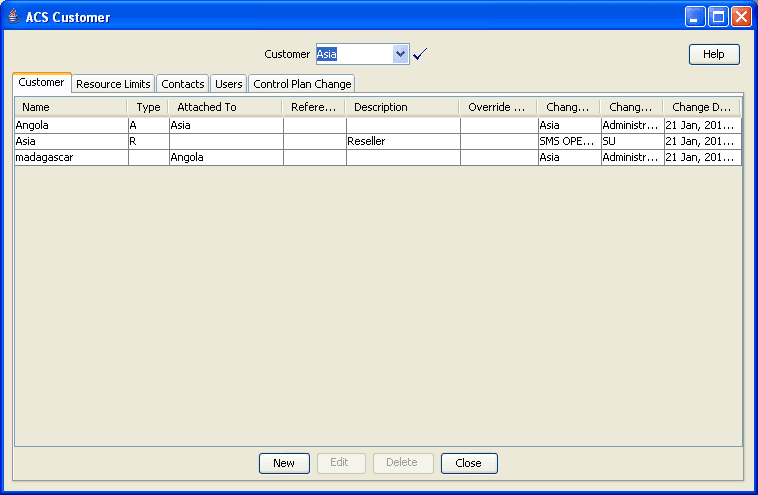
Customers
Tiered Customer Structure
ACS allows the telco to directly provision individual resource-limited customers, or alternatively to create a wholesale customer with a (larger) set of resource limits, and delegate to them the ability to create individual customers, the sum of whose resource limits must never exceed those of the wholesaler. This feature is called tiered customer management. A reseller is a wholesaler that may in turn create and manage 'normal' customers, and/or other wholesale customers (agents). Agents can only create normal customers.
The concept of telco-managed customers is unchanged by the advent of tiered customer management. Telco managed customers are simply customers that never log into ACS but are managed explicitly (and without resource limits) by the Telco.
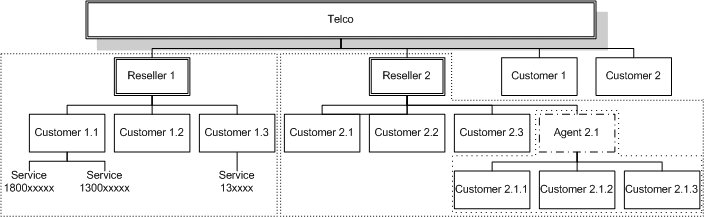
The hierarchy of customer management thus looks like this:
- Telco
- Reseller
- Agent
- Customer
Resellers and agents are both implemented as ACS customers, because they both need to have resource limits allocated to them. Resellers and agents can only set resource limits for all their customers up to a combined total value that is less than or equal to their own resource limits.
This allows them to be a kind of super-user in relation to those ACS customers attached to them, for example. those customers that directly refer to them as their parent customer, or indirectly (via one level of indirection only) as in the case of a reseller who can also see the customers attached to their agents.
Resellers and agents may select any of their attached customers in the main customer combo box at the top of various windows and ‘become’ that customer. It means the reseller/agent has the means to edit their customers' configurations as desired.
Security Rules
When a customer is created, if the Create User for Customer check box is selected, an administrator user, with level 5 permission, is also created. See Adding Customers . A reseller may choose to change the permission level of an agent, to restrict what the agent is able to do.
As well as performing all tasks defined in Security Level Permissions , a user with permission level:
- 5 or more (Reseller) can create and edit agents and customers, as long as the resource limits allocated to them do not exceed those given to the reseller by the telco. Within the tiered hierarchy , a reseller may allocate, or move to other agents, customers under them. A reseller cannot allocate customers to other resellers or their agents.
- 4 cannot create agents, but can create normal customers.
See Defining the Security Levels for details of ACS security levels.
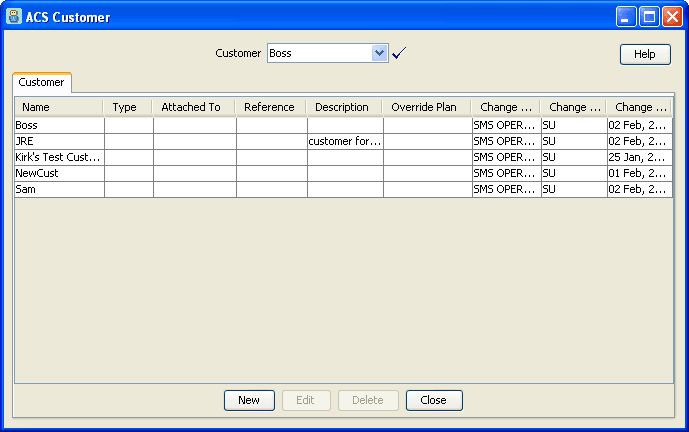
Customer Details Screen
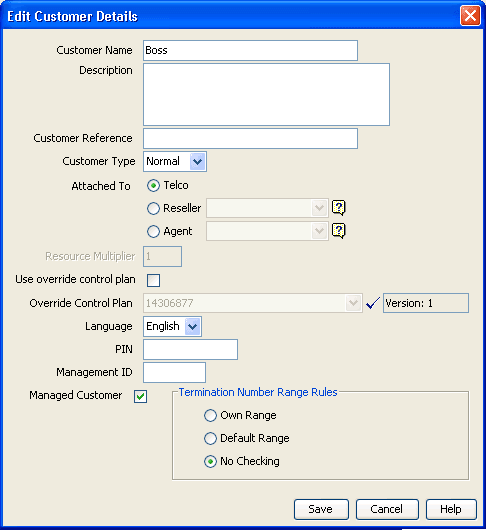
Here is an example Customer Details screen.
Note:
The New Customer screen also includes a Create User for Customer field.
Adding Customers
Follow these steps to add new a customer to the database.
-
On the Customer tab, click New.
Result: The New Customer screen is displayed.
-
In the Customer Name field, enter the name of the new customer.
-
In the Description field, enter a description of the new customer.
-
In the Customer Reference field, enter a reference number for the new customer.
Note:
This field is optional, unless the parameter shown below is present in the acsGui.bat/acsGui.sh (if you have logged on to ACS directly) or smsGui.bat/smsGui.sh (if you have logged on through the SMS application) file, in which case it becomes mandatory.
-DrequireCustomerReference="TRUE" -
Select the Customer Type from the drop-down box. This can be:
- Normal
- Reseller [R]
- Agent [A]
-
Select what customer the new customer is attached to
If type is... then you... Normal Can attach to any of the options. Reseller Are attached to telco. Agent Can attach to a reseller. Note:
Only the Telco (super-user) can see the Telco option.
-
A Resource Multiplier can be specified for a reseller or an agent.
The resource multiplier is used to scale the default resource limits that will be allocated to the new customer. See the default resource limits for details.
Default values are:
- Reseller – 10
- Agent – 5
-
If:
- All the new customers' calls for service numbers and CLIs will use an override control plan that is owned by the telco, select the Use override control plan check box and go to Step 9.
- An override control plan is not required, leave this box cleared and go directly to Step 10.
-
If you selected the Use override Control Plan check box in Step 8, select the Override Control Plan that is to be used from the list.
-
From the Language drop-down list, select the applicable language for your customer.
-
If required, enter a PIN in the PIN field.
-
If required, enter a management ID in the Management ID field.
-
If the customer is to be managed by the ACS administrator, select the Managed Customer check box. By default this is selected.
Important: This indicates that this is not a self managed customer.
-
If you want ACS to allocate a user for your new customer, select the Create User for Customer check box.
Note:
If the Create user for Customer check box is selected the user name "Administrator" and password "admin" will be allocated. It is important that the customer changes the password for this user when they use the system for the first time.
When a new customer is added, a user of privilege level 5 will be supplied by the system.
-
In the Termination Number Range Rules screen section, select:
- Own Range to use the termination ranges set up on the Termination Ranges tab of the ACS Resources screen.
- Default Range to use the default termination range set up on the Default Termination Range tab of the ACS Tools screen.
- No Checking to accept the termination numbers without validation (Default).
-
Click Save.
Result: The new customer's details are saved in the database.
To change the default resource limits, go to Customer Resource Limits for details.
Editing Customers
Follow these steps to edit customer information in the database.
-
In the table on the Customer tab, select the customer to edit.
-
Click Edit.
Result: The Edit Customer Details screen is displayed.
-
Change the customer details as required. See Adding Customers for details about the fields.
Note:
You cannot change the override control plan.
If you wish to change a reseller or agent that this customer is attached to, first clear the combo box and press Enter to display the list to pick from.
-
Click Save.
Result: The details are saved and the screen will return to the main window.
Deleting Customers
Follow these steps to delete a customer from the database.
WARNING:
Deleting a customer record will delete all other configuration used by the customer.
-
In the table on the Customer tab, select the customer to delete.
-
Click Delete.
Result: The Confirm Delete prompt is displayed.
-
Click OK.
Result: The customer is removed from the database.
Note:
You cannot delete a customer if it is:
- A reseller (Type R) with an agent or customer
- An agent (Type A) with a customer
You will see an error message. You must delete, or re-attach to other resellers or agents, all attached customers and/or agents first. See Tiered hierarchy.
Customer Resource Limits
Introduction
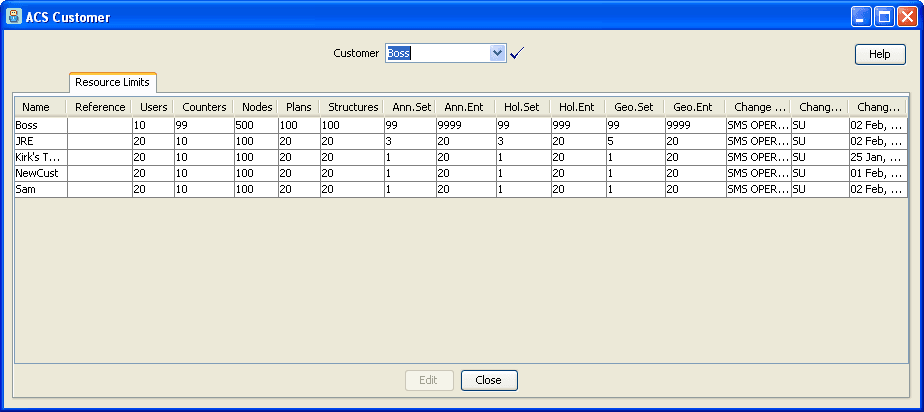
The Resource Limits tab of the ACS Customer screen is used to manage and display the resource limitations for each of your customers.
Only ACS system administrators have access to this tab. Users with privilege levels less than 6 will not see this tab.
Setting the Resource Limits
Follow these steps to set the resource limits for each of a customer.
-
On the Resource Limits tab, select the customer record to edit the resource limits for.
-
Click Edit.
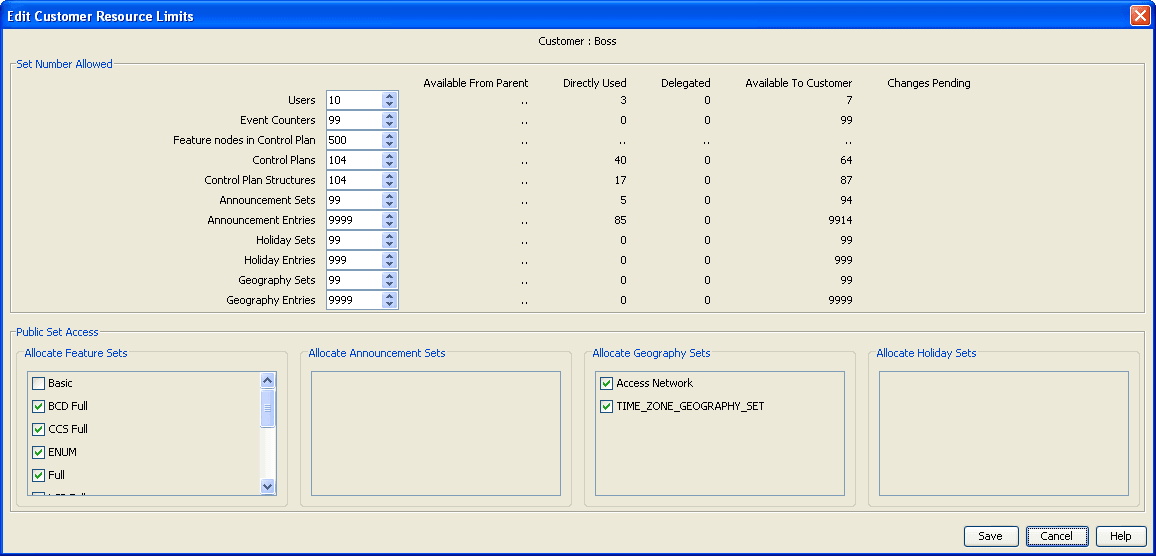
Result: The Edit Customer Resource Limits screen is displayed. The groups within the Public Set Access frame are populated with the names of sets made public on the appropriate tabs on the ACS Configuration screen.
-
Select the maximum number for each of the fields in the Set Number Allowed frame.
Refer to Set Number Allowed Fields and Set Number Allowed Columns for a description for each field.
Note:
As you change the value in a field, the Available from Parent, Available To Customer and Changes Pending fields are updated to track the change made.
-
Managed customers gain default access to all Public Set Access options.
Alternatively, select the appropriate check boxes to allocate sets for each group in the Public Set Access frame.
-
Click Save.
Result:
If there is available resource, the details are saved and the screen will return to the main window.
If you have set a number to less than the available resources (that is, the Available field displays a negative value), you will see an error. You will need to change the value before saving.
Edit Customer Resource Limits Fields
Here are the descriptions of fields and areas on the Edit Customer Resource Limits screen.
Set Number Allowed Fields
| Field | Sets the maximum number of... | Range | Default |
|---|---|---|---|
| Users | Users that the customer can configure. | 0 - 1000 | 20 |
| Event Counters | Statistics counters that the customer can configure. See Event Counters. | 0 - 100000 | 10 |
| Feature nodes in Control Plan | Feature nodes that the customer can use in a single control plan (including all sub control plans). | 0 - 2000 | 100 |
| Control Plans | Control plans that the customer can use. | 1 - 1000000 | 20 |
| Control Plan Structures |
Control plan structures that the customer may create. Control plans are made up of control plan data and a control plan structure. It is possible for many control plans to use the same structure, provided they each have their own data. |
3 - 1000000 | 20 |
| Announcement Sets |
Announcement sets that the customer can configure. See Announcements . Tip: You should set this value to 3 or more. |
0 - 1000 | 1 |
| Announcement Entries | Announcement entries that the customer can configure per announcement set. See Announcement Entries. | 0 - 100000 | 20 |
| Holiday Sets | Holiday sets that the customer can configure. See Holidays . | 0 - 1000 | 1 |
| Holiday Entries | Holiday entries that the customer can configure. See Adding Holiday Entries. | 0 - 10000 | 20 |
| Geography Sets | Geography sets that the customer can configure. See Geography Sets . | 0 - 1000 | 1 |
| Geography Entries | Geography entries that the customer can configure. See Geography Sets and Entries. | 0 - 20000 | 20 |
Set Number Allowed Columns
This table describes the function of each read-only display field to the right of the Set Number Allowed fields.
| Column | Description |
|---|---|
| Available From Parent |
Displays how many of each resource limit is available from the parent level. If the user is at the top level, this column will display two dots, meaning not applicable. |
| Directly Used | Displays how many of the allocated resources are being (directly) used by the customer. |
| Delegated | Displays how many have been delegated (as limits) to sub-customers - this will only have non-zero values for resellers and agents. These resources consume the customer's available count in the same way as direct usage. |
| Available To Customer | Displays how many of each resource limit is still available for the customer to either use or delegate. |
| Changes Pending |
The numbers in the first four columns total that in the set number allowed field for that resource. As you change the number, the Available to Customer and Changes Pending fields for that resource will change to track the difference. After you save, this field will reset to blank. |
Public Set Access
The groups of check boxes in the Public Set Access frame display all the public sets that are available to the customer. Select the check boxes to allocate the specific public sets that the customer will be allowed to access. Refer to:
- Feature Sets
- Announcements
- Geography Sets
- Holiday Sets
Tip: Only previously configured sets will appear in each list of sets.
Customer Contacts
Introduction
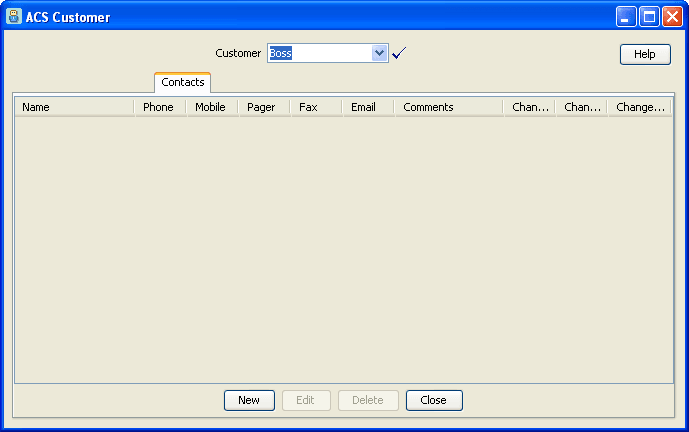
The Contacts tab of the ACS Customer screen is used to manage and display the contact information for each customer.
The customer displayed in the Customer field is the customer for which the contacts are displayed and managed.
Customer Contacts Fields
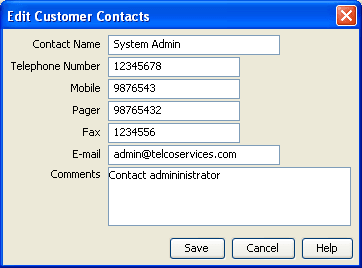
This table describes the function of each field.
| Field | Description |
|---|---|
| Contact Name | The name of this contact |
| Telephone Number |
The main telephone number for this contact Note: You can only enter digits in the number fields. |
| Mobile | The mobile telephone number for this contact |
| Pager | The pager number for this contact |
| Fax | The fax number for this contact |
| The email address for this contact | |
| Comments | Any required comments about this contact |
Adding Customer Contacts
Follow these steps to add new customer contacts for a customer.
-
On the Contacts tab, click New.
Result: The New Customer Contacts screen is displayed.
-
Enter details for the contact, as described in Customer Contacts Fields.
-
Click Save.
The new customer contact's details are saved in the database.
Editing Customer Contacts
Follow these steps to edit customer contact information for the customer.
-
From the Contacts tab, select the customer contact to edit.
-
Click Edit.
Result: The Edit Customer Contacts screen is displayed.
-
Change the contact details, as described in Customer Contacts Fields.
-
Click Save.
Result: The details are saved and the screen will return to the main window.
Users
Introduction
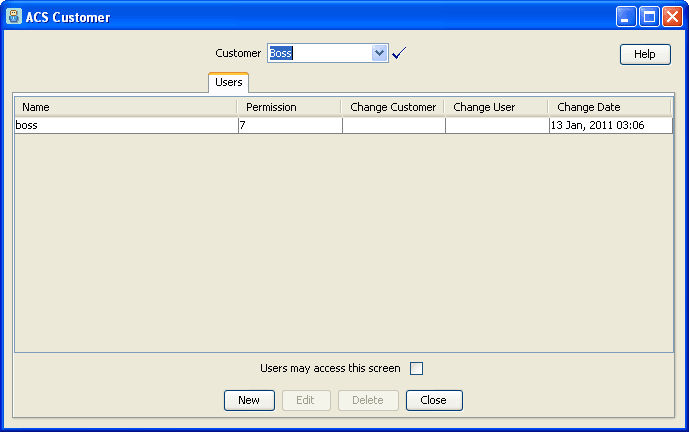
The Users tab of the ACS Customer screen is used to configure and display users for each customer.
A user is an individual who can access ACS on behalf of the customer. A customer is the person or company who purchases their telecommunication services from the telco.
Only users of privilege level 5 and above may add, edit or delete other users. Users of below level 5 privilege may be prevented from seeing this tab by leaving the Users may access this screen check box clear.
Note: This tab can only be accessed by the ACS system administrator.
Supplied User
For customers who wish to access ACS themselves, users must be set up. For customers who are to be completely managed by the telecommunications provider, the Managed Customer check box should be selected for the customer on the Edit Customer screen; this will allow the telco to skip the following set up steps:
- Set up a privilege level 5 user in the Users tab
- Add termination ranges for the customer in the Termination Ranges tab on the ACS Resources screen
- Allocate the resources that the customer can use in the Resource Limits tab
Each customer must have at least one user of privilege level 5
to enable them to effectively use the ACS service themselves. When
a new customer is added to ACS, the system assigns a level 5 user
with a user name and password of Administrator. Using
this user ID, the customer may set up other users of privilege
level 5 or below as they wish. Additional users are set up on the
Users tab of the Customer screen.
Important: For security reasons, the first time the customer uses ACS, they should change the username and password of the administrator user that the system provides for them. It is important to inform the customer of this.
Users Fields
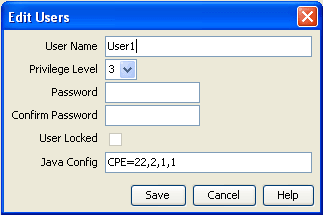
This table describes the function of each field in the ACS Users dialog.
| Field | Description |
|---|---|
| User Name | The user name must be unique for the customer, although there may be several customers with a user “Mary Smith”, there may only be one user “Mary Smith” for each customer. |
| Privilege Level |
Use the list to select the privilege level for the user. Privilege levels are described in Defining the Security Levels. When creating new users, they may be assigned a privilege level. Level 5 and 6 users may create users of privilege levels 1-5. |
| Password |
This field allows you to enter the user's password. For security reasons, this will not display the characters that are actually entered. The password will be displayed as a line of asterisks. Users are required to enter a password. |
| Confirm Password |
This field allows you to enter the user's password for a second time, to confirm that the entry of the password is correct. If the entries in both the logon Password and the Confirm Password fields are not the same, then the user cannot be saved. For security reasons, the password will be displayed as a line of asterisks. The user may not be saved until a password has been entered and confirmed correctly. |
| User Locked |
The check box indicates the lock status for the user. This check box has two functions:
A locked user may not log on, even with the correct password, until they are unlocked. This added security mechanism prevents unauthorized users from guessing at a password until they get it correct, thus gaining unauthorized access to the system. Note: You cannot manually lock a user. If necessary, to prevent a user from accessing the system, the system administrator should either delete the user or change their password. The User Locked check box is part of the ACS internal security mechanism. If ACS has been opened through the SMS, this functionality will not be available because the SMS security mechanism will be used instead. |
| Java Config | Allows you to set Java configuration parameters to customize the ACS User Interface (UI) for the user. For example, you can define initial settings for the Control Plan Editor (CPE) window by setting the CPE parameter. For more information, see the discussion on Configuring Control Plan Editor in CPE User's Guide. |
Adding Users
Follow these steps to add a new user.
-
On the Users tab, click New.
Result: The New Users screen is displayed.
-
Create the user details by filling in the fields, as described in Users Fields.
-
Click Save.
Result: The details are saved and you return to the Users tab.
-
If you wish users with privilege level 5 or less to have access this screen, select the Users may access this screen check box (in the main Users tab).
Control Plan Change
Introduction
The Control Plan Change tab allows you:
- To replace the termination number in the termination node of a control plan
- For each service number on the ACS Numbers screen, to override the scheduled control plan, with the predefined alternative control plan
Note: To override a scheduled control plan, the alternative control plan name must follow this syntax:
<ServiceNumber><alternativeCallPlanNamePostfix>
For example, if service number 0800123456 uses control plan "ABC", the alternative control plan for this service number must be named 0800123456_alternativeCallPlanNamePostfix.
Where alternativeCallPlanNamePostfix is the value
specified in the alternativeCallPlanNamePostfix
parameter of the acs.conf file. For more
information, see ACS Technical Guide.
Tab Areas
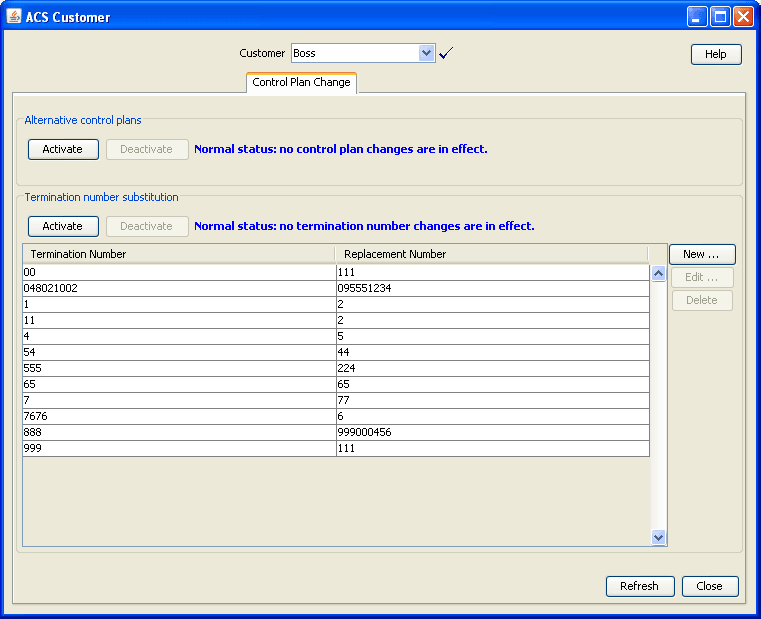
This table describes the function of each area of the tab.
| Field | Description |
|---|---|
| Alternative control plans | Allows you to activate or deactivate the alternative control plans. |
| State |
Text displays the current state of control plan activation:
|
| Termination number substitution |
Allows you to activate or deactivate the termination number substitution. You can add, edit, and delete the termination number/replacement number pair. |
| State |
Text displays the current state of number substitution:
|
Activating Alternative Control Plan Changes
Follow these steps to activate the alternative control plan changes.
-
On the Control Plan Change tab, in the Alternative control plans area, if currently deactivated, you can click Activate.
Result: The Activation Confirmation dialog appears.
-
Click Activate.
Result: Activates the control plans. The text (see Tab Areas ) at the top of the following tabs changes to display the new state of activation and substitution:
- Control Plan Change tab
- Service Numbers tab of the Numbers screen (if any are activated)
Deactivating Alternative Control Plan Changes
Follow these steps to deactivate the alternative control plan changes.
-
On the Control Plan Change tab, in the Alternative control plans area, if currently activated, you can click Deactivate.
Result: The Deactivation Confirmation dialog appears.
-
Click Deactivate.
Result: Deactivates the control plans. The text (see Tab Areas ) at the top of the following tabs changes to display the new state of activation and substitution:
- Control Plan Change tab
- Service Numbers tab of the Numbers screen (if any are activated)
Activating Termination Number Substitution
Follow these steps to activate the termination number substitution.
-
On the Control Plan Change tab, in the termination number substitution area, if currently deactivated, you can click Activate.
Result: The Activation Confirmation dialog appears.
-
Click Activate.
Result:
- The termination number substitution is activated
- The text (see Tab Areas ) changes to display the new state of activation and substitution at the top of the Control Plan Change tab and the Service Numbers tab of the Numbers screen (if any are activated)
Deactivating Termination Number Substitution
Follow these steps to deactivate the termination number substitution.
-
On the Control Plan Change tab, in the Termination number substitution area, if currently activated, you can click Deactivate.
Result: The Deactivation Confirmation dialog appears.
-
Click Deactivate.
Result: The:
- Termination number substitution is deactivated
- The text (see Tab Areas) changes to display the new state of activation and substitution at the top of the:
- Control Plan Change tab
- Service Numbers tab of the Numbers screen (if any are activated)
Adding a Termination Number Substitution
Follow these steps to add a termination number substitution.
-
On the Control Plan Change tab, click New...
Result: The New Termination Number substitution screen is displayed.
-
Enter the termination number and the replacement number.
-
Click Save.
Editing a Termination Number Substitution
Follow these steps to edit a termination number substitution.
-
On the Control Plan Change tab, select a termination number/replacement number pair from the table and click Edit...
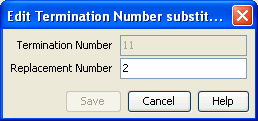
Result: The Edit Termination Number substitution screen is displayed.
-
Make changes to the termination number and the replacement number.
-
Click Save.
Deleting a Termination Number Substitution
Follow these steps to delete a termination number substitution.
-
On the Control Plan Change tab,select a termination number/replacement number from the table and click Delete.
Result: The Deletion Confirmation dialog is displayed, with a confirmation of the termination and replacement number pair.
-
Click Delete to delete the substitution.