8 ACS Numbers
Overview
Numbers Screen
Introduction
The Numbers screen enables you to manage all aspects of a service number or CLI number and the control plans that are used by those service numbers and CLI numbers.
- Service Number is the number that is dialed by other parties when they contact the customer.
- CLI Numbers are used to identify the phone number that calls originate from.
Note: In order for the functions on the CLI Numbers tab to work, a line based trigger must be defined and its respective service key developed, see ACS Technical Guide for further information.
The Numbers screen contains the following number type tabs:
- Service Numbers
- CLI Numbers
Numbers Screen Example
Here is an example of the Numbers screen, showing the different areas of the screen.
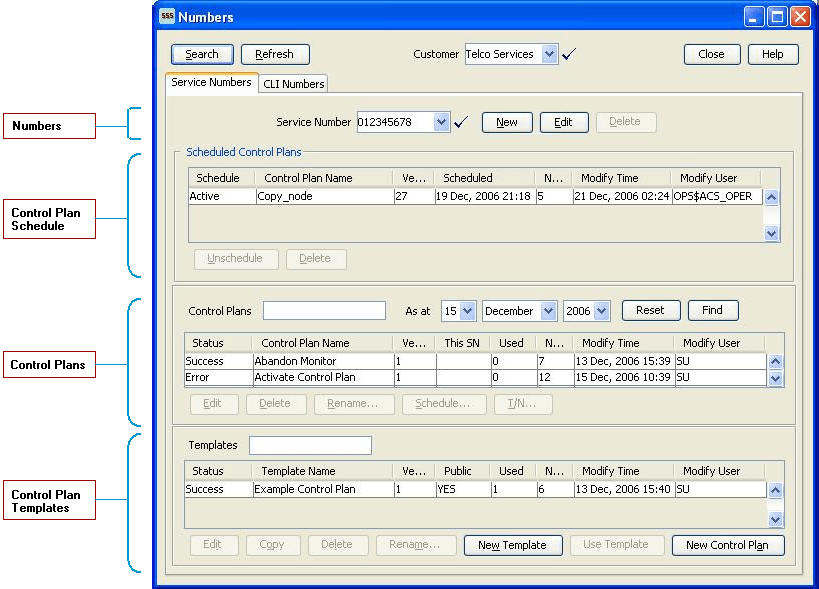
Screen areas
Both tabs on the Numbers screen allow the following functionality:
Numbers
- Create a new number
- Edit an existing number
Refer to Service Numbers and CLI Numbers for details.
Control Plan Schedule
- Schedule and un-schedule a control plan
- Delete historical control plan scheduling
Refer to Control Plan Schedule for description of how to use this area.
Control Plans
- Edit an existing control plan by launching the CPE
- Rename an existing control plan
- Edit termination numbers for a control plan that contains only one termination node
- Delete an existing control plan
- Schedule a control plan
Refer to Control Plans for a description of how to use this area.
Control Plan Templates
- Create a new control plan template by launching the CPE
- Edit an existing template by launching the CPE
- Rename an existing template within the Numbers screen
- Create a new control plan based on an existing template by launching the CPE
- Delete an existing and unattached (not used by a control plan) template
- Refer to Templates for a description of how to use this area.
Important: The Control Plan and Control Plan Template topics provide CPE overview information in direct relevance to the Numbers screen in ACS, and its functions, only. See CPE User's Guide for more information about the Control Plan Editor.
Screen Features
There are several features at the top of the Numbers screen.
| Section | Description |
|---|---|
| Search | This button activates the Search for Numbers screen. This allows you to search the database to locate a specific customer, service number, CLI number or control plan. See Search for Numbers for details on how to use this feature. |
| Refresh | This button refreshes all the data on screen from the database. |
| Customer | This field is a searchable combo allowing you to search for a specific customer. Once a customer is selected, the screen will show only data that is owned by the selected customer. |
Alt Key Navigation
This screen has Alt key navigation capability. Press the Alt key and the underlined character to activate the button, for example, pressing Alt+N invokes the New button (New Number screen appears).
Tip:
There are several buttons that have the same underlined character, for example, Search and Schedule buttons. When both buttons are available (not grayed out), pressing Alt+S will activate the first occurrence (Search button), pressing Alt+SS activates the nearest item on the Search panel matching S. You will not be able to activate a second button having the same underscore.
Service Numbers
Introduction
A service number is the number that is dialed by other parties when they contact the customer.
Note: Service numbers can only be deleted by an ACS system administrator.
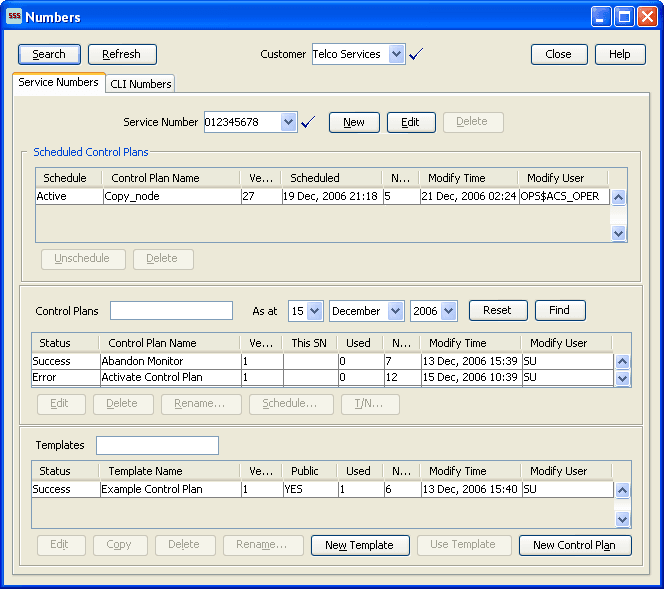
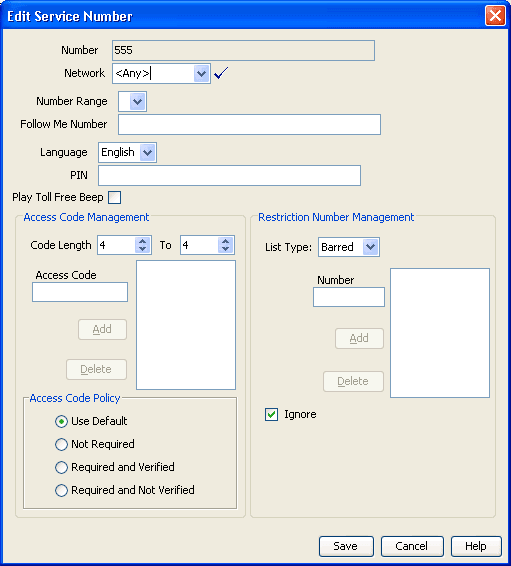
Service Number Fields
This table describes the function of each field when adding and editing a service number.
| Field | Description |
|---|---|
| Number |
Use to specify the number that will be dialed by a caller, (for example: 0800747733). The number may be up to 32 numeric characters in length (dependant on your network configuration) but may not be left blank. Warning: Each individual service number must be unique. New service numbers can only be added by the ACS administrator. |
| Allocated To |
The name of the reseller or agent this number is allocated to. Note: This field is only visible if you are a reseller, or agent, (See Tiered Customer Structure) and you have logged into ACS as a standalone application (See Accessing ACS as a Standalone Application). |
| Network |
Select the network or accept the ‘Any’ network default. Control plans are selected based on a service number and network pair. This allows users of the same service numbers on different networks to be routed to different call plans, if required. Any number of network keys may be configured as identifiers for each network. Networks are set up on the Networks of the ACS Tools screen. The system matches the set keys with the information contained in an incoming call to identify the originating network and route the call accordingly. |
| Number Range | Select an existing number range for the customer if required. This is dependant on what termination range policy is set at the customer level. This number range is used by the follow me number (described below). |
| Follow Me Number |
Used to put the follow me number into the service number profile, which is used by the Set Pending TN From Profile node. See CPE User's Guide for more information about follow me numbers. Note: This must be within the selected number range (described above) or if no number range selected, may be left blank. |
| Language | The default language for interactions (announcements and notifications) with this number. |
| PIN | Use to specify the PIN that will be put into the service number profile, which is used by PIN Authorisation node. |
| Play Toll Free Beep |
Select to play the toll free beep. The toll free beep announcement set and entries are set up on the Global Configuration tab of the ACS Tools screen. |
| Access Code Management: | |
| Code Length | Select the minimum and maximum number of digits for the access codes for the customer. |
| Access Code | Enter the access code and then click Add to send it to the list. |
| Access Code Policy: | |
| Use Default | Use the default access code policy that is set up on the Global Configuration tab of the ACS Tools screen. |
| Not Required | The user is not required to enter an access code. |
| Required and Verified | The user is required to enter an access code and the code will be verified against the above access code list. |
| Required and Not Verified | The user is required to enter an access code but the code will not be verified against the above access code list. |
| Restriction Number Management: | |
| List Type |
The service number has an incoming restriction list. The list must be classed as either "Allowed" or "Barred" but cannot be both. If list type is:
Tip: The actual filtering is implemented using the Prefix Tree Branching feature node in a control plan. |
| Number |
Use this field to add a new number to the barred/allowed numbers list. Enter the new number then click Add to send it to the list. Tip: You can enter the full number, a partial number or a prefix in this field. |
| Ignore | Select this check box if you want to ignore the barred/allowed numbers list displayed. |
Adding Service Numbers
Follow these steps to create a new service number.
-
On the Service Numbers tab, click New to the right of the Service Number field.
Result: The New Service Number screen is displayed.
-
Populate the appropriate fields with the required data, referring to Service Number Fields for detailed input descriptions.
-
Click Save.
Result: The new service number is created and you are returned to the Service Numbers tab.
Editing a Service Number
Follow these steps to edit an existing service number.
-
From the Service Numbers tab, select the number to edit from the Service Number field.
-
Click Edit.
Result: The Edit Service Number screen is displayed.
-
Populate the appropriate fields with the required data, referring to Service Number Fields for detailed input descriptions.
-
Click Save.
Result: The edited service number is saved and you are returned to the Service Numbers tab.
Deleting a Service Number
Follow these steps to delete an existing service number.
-
From the Service Numbers tab, select the number to delete from the drop-down list.
-
Click Delete.
Result: The Confirm Delete prompt is displayed.
-
Click OK to confirm the deletion of the number.
Result: The service number is deleted and you are returned to the Service Numbers tab.
Associating FCI Data with a Service Number
Follow these steps to specify the FCI data that you want to associate with a service number.
Note:
The FCI data is stored in the FCI profile fields in the service number profile block.
-
In the ACS UI, open the Numbers window and select the ACS customer from the Customer list.
-
On the Service Numbers tab, select the service number you want from the Service Number list.
-
Click Edit.
The Edit Service Number window opens.
-
In the FCI Data Management area, enable or disable FCI inap interaction by selecting or deselecting FCI On.
-
Specify the FCI service code in the FCI Service Code field. Enter an integer in the range 0 (zero) to 65535.
-
Specify the FCI country code in the FCI Country Code field. Enter a string of up to three hexadecimal digits.
-
Click Save.
The FCI data for the selected service number is saved to the FCI profile tags in the service numbers profile block.
CLI Numbers
Introduction
A calling line identifier (CLI) number is used to identify the phone number that call originates from.
Note: CLI numbers can only be deleted by an ACS system administrator.
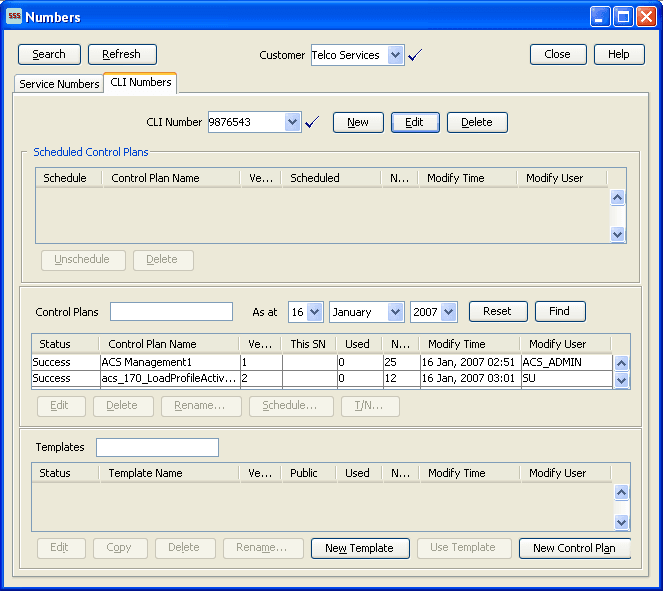
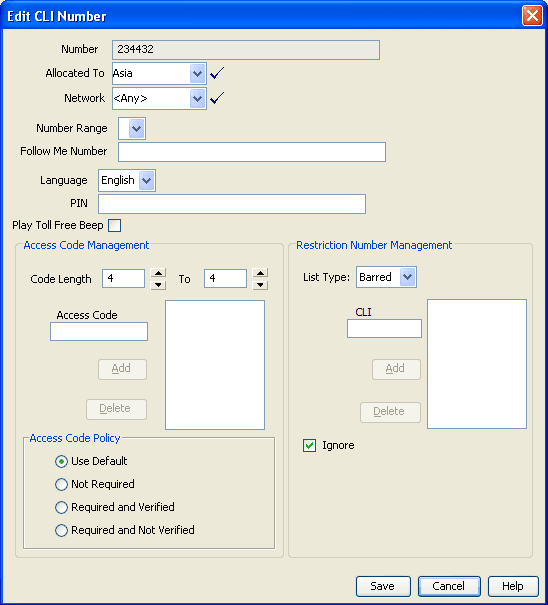
CLI Number Fields
This table describes the function of each field when adding and editing a CLI number.
| Field | Description |
|---|---|
| Number | Caller line identification (CLI). This is the telephone number of the calling party. |
| Allocated To |
The name of the reseller or agent this number is allocated to. Note: This field is only visible if you are a reseller or agent (See Tiered Customer Structure) and you have logged into ACS as a standalone application (See Accessing ACS as a Standalone Application). |
| Network |
Select the network or accept the ‘Any’ network default. Control plans are selected based on a service number and network pair. This allows users of the same service numbers on different networks to be routed to different call plans, if required. Any number of network keys may be configured as identifiers for each network. Networks are set up on the Networks tab of the ACS Tools screen. The system matches the set keys with the information contained in an incoming call to identify the originating network and route the call accordingly. |
| Number Range | Select an existing number range for the customer if required. This is dependant on what termination range policy is set at the customer level. This number range is used by the follow me number (described below). |
| Follow Me Number |
Used to put the follow me number into the CLI profile, which is used by the Set Pending TN From Profile node. See CPE User's Guide for more information about follow me numbers. Note: This must be within the selected number range (described above) or if no number range selected, may be left blank. |
| Language | The default language for interactions (announcements and notifications) with this number. |
| PIN | Use to specify the PIN that will be put into the CLI number profile, which is used by PIN Authorisation node. |
| Play Toll Free Beep |
Select to play the toll free beep. The toll free beep announcement set and entries are set up on the Global Configuration tab of the ACS Tools screen. |
| Access Code Management: | |
| Code Length | Select the minimum and maximum number of digits for the access codes for the customer. |
| Access Code | Enter the access code and then click Add to send it to the list. |
| Access Code Policy: | |
| Use Default | Use the default access code policy that is set up on the Global Configuration tab of the ACS Tools screen. |
| Not Required | The user is not required to enter an access code. |
| Required and Verified | The user is required to enter an access code and the code will be verified against the above access code list. |
| Required and Not Verified | The user is required to enter an access code but the code will not be verified against the above access code list. |
| Restriction Number Management: | |
| List Type |
The CLI number has an outgoing restriction list. The list must be classed as either "Allowed" or "Barred" but cannot be both. If list type is:
Tip: The actual filtering is implemented using the Prefix Tree Branching feature node in a control plan. |
| CLI |
Use this field to add a new number to the barred/allowed numbers list. Enter the new number then click Add to send it to the list. Tip: You can enter the full number, a partial number or a prefix in this field. |
| Ignore | Select this check box if you want to ignore the barred/allowed numbers list displayed. |
Adding CLI Numbers
Follow these steps to create a new CLI number.
-
On the CLI Numbers tab, click New to the right of the CLI Number field.
Result: The New CLI Number Screen is displayed.
-
Populate the appropriate fields with the required data, referring to CLI Number Fields for detailed input descriptions.
-
Click Save.
Result: The new CLI number is created and you are returned to the CLI Numbers tab.
Editing a CLI Number
Follow these steps to edit an existing CLI number.
-
From the CLI Numbers tab, select the number that to edit from the CLI Number field.
-
Click Edit.
Result: The Edit CLI Number Screen is displayed.
-
Populate the appropriate fields with the required data, referring to CLI Number Fields for detailed input descriptions.
-
Click Save.
Result: The edited CLI number is saved and you are returned to the CLI Numbers tab.
Deleting a CLI Number
Follow these steps to delete an existing CLI number.
-
From the CLI Numbers tab, select the number to delete from the drop-down list.
-
Click Delete.
Result: The Confirm Delete prompt is displayed.
-
Click OK to confirm the deletion of the number.
Result: The CLI number is deleted and you are returned to the CLI Numbers tab.
Control Plan Schedule
Introduction
The ACS Numbers screen enables you to perform the following control plan scheduling tasks for a service number or CLI number.
Call Schedule
- Schedule or un-schedule a control plan
- Delete historical control plan schedules
What is a Control Plan?
A control plan is similar to a flow chart. Control plans essentially define the decisions and actions that are made when a call is routed from source to destination. A control plan may consist of multiple unique decision points or actions called feature nodes. Control plans are constructed in ACS using the ACS Control Plan Editor (CPE).
Important: This topic provides CPE overview information in direct relevance to the Numbers screen in ACS and its functions only. Refer to CPE User's Guide for further information.
Control Plan Schedule
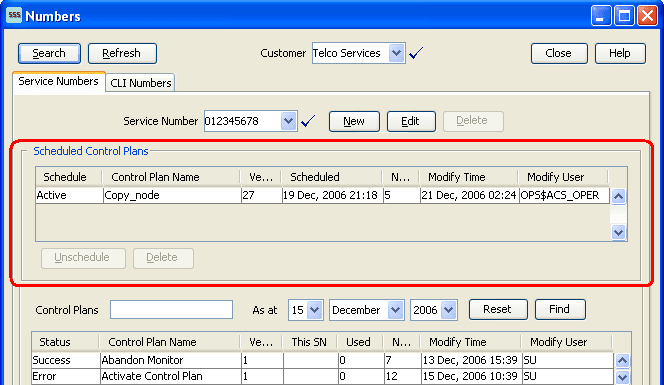
Here is an example of the Scheduled Control Plans frame of the Numbers screen.
Using Control Plan Schedules
Follow these steps to unschedule control plans for service numbers or CLI numbers from the ACS Numbers screen and to delete historical schedule entries.
The table allows many scheduling entries to be entered for the selected number, but each instance must have a different effective date. This allows a customer to schedule changes to the control plans a service number or CLI number uses.
Tip:
This topic provides CPE overview information in direct relevance to the Numbers screen in ACS, and its functions, only. You must see CPE User's Guide for further information.
-
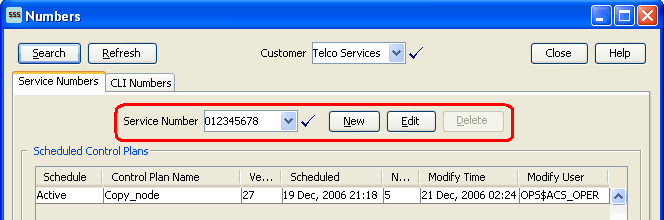
On the relevant tab of the Numbers screen, select the number that scheduling changes are required for, in the Numbers area of the screen.
-
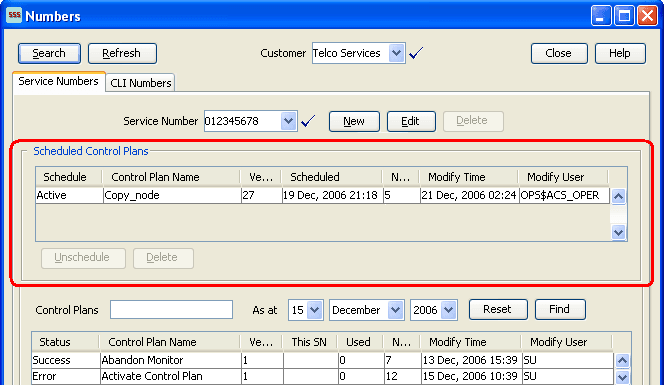
Select an existing scheduled control plan from the Scheduled Control Plans table.
Tip:
When you select a scheduled control plan, the control plan is highlighted in the Control Plans table, and the template is highlighted in the Templates table.
-
The following functions are now available to you on the Scheduled Control Plans frame of the screen, as shown on the example screen above:
- Unschedule – Go to step 4 to detach a control plan from the current service.
- Delete – Go to Step 5 to remove the selected control plan from the system.
-
Click Unschedule to detach this control plan from the current service.
Result: The control plan now displays as historical and is therefore no longer scheduled for activity within the current service.
-
With the control plan selected on the Scheduled Control Plans table, click Delete.
Tip:
Only historical control plans are able to be deleted from this table as they are no longer scheduled for activity within the current service.
WARNING:
Unscheduling all control plans for a service number or CLI number will discontinue processing of calls for that number.
Click Delete to confirm.
-
See Using Templates on the Numbers Screen for more Numbers screen information.
Control Plans
Introduction
The Control Plans frame of the ACS Numbers screen enables you to perform the following control plan functions for a service number or CLI number.
Control Plans
- Edit an existing control plan by launching the CPE
- Rename an existing control plan
- Schedule a control plan
- Edit termination numbers for a control plan that contains only one termination node
- Delete an existing control plan
Important: This topic provides ACS Control Plan Editor overview information in direct relevance to the Numbers screen in ACS and its functions only. Refer to CPE User's Guide for further information.
Control Plans on Numbers Screen Example
Here is an example of the Numbers screen showing control plans and control plan functionality.
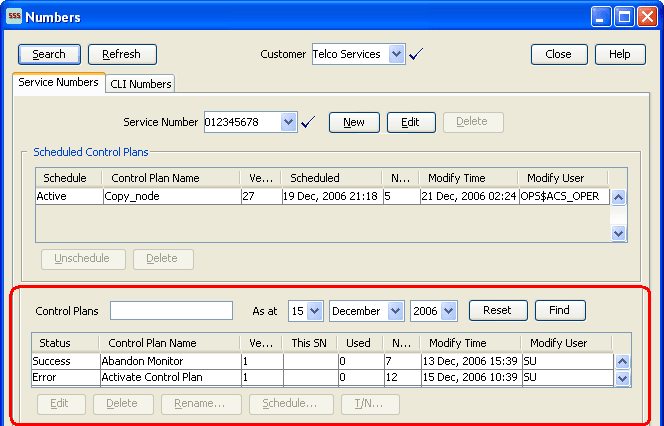
Using Control Plans on the Numbers screen
Follow these steps to manage control plans for service numbers or CLI numbers from the ACS Numbers screen.
Important: This topic provides CPE overview information in direct relevance to the Numbers screen in ACS, and its functions, only. Refer to CPE User's Guide for further information.
-
In the Control Plans frame on the Numbers screen perform one of the following actions:
- Select an existing control plan from the table
- Enter the control plan name in the Control Plans field and click Find
Note:
- The As at date fields are available to aid you in your search for the 'most recent' version(s) of a control plan.
- Click Reset to restore the date default and clear your search results from the Control Plans field.
- Press Enter to restore the full control plan list in the table, after performing a search which displays only a selection of control plans.
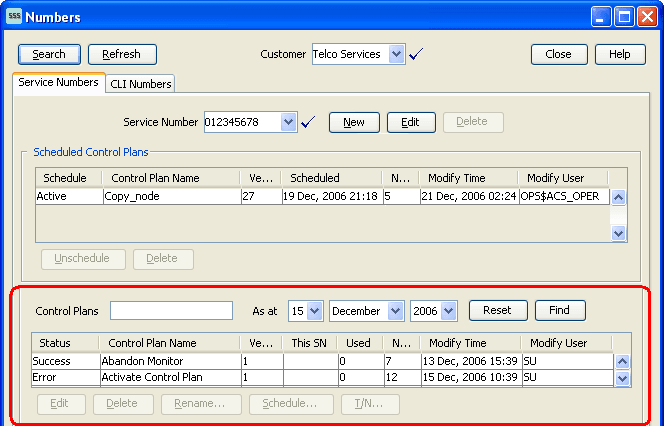
Tip:
When you select a control plan, the control plan's template is also highlighted in the Templates table below.
-
The following functions are now available to you on the Control Plans frame of the screen, as shown on the example screen above:
- Edit – See Editing a Control Plan.
- Delete – See Deleting a Control Plan.
- Rename – See Renaming a Control Plan.
- Schedule – See Scheduling a Control Plan .
- T/N – See Editing Termination Numbers.
Tip:
See Using Templates on the Numbers Screen for more ACS Numbers screen information.
To create a new control plan from this screen, you click New Control Plan in the Templates frame. See Creating a Control Plan .
Editing a Control Plan
Follow these steps to edit a control plan, using the Numbers screen.
-
Highlight the control plan to edit in the table in the control plans area of the Numbers screen, and click Edit.
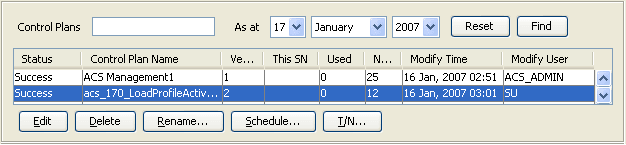
Result: The Edit Control Plan prompt appears.
-
Make your selection:
- Click Read Only to open the template (on which the control plan was created) as read only. This means that the structure cannot be changed; no nodes can be added or deleted.
- Click Writable to open the template (on which the control plan was created) in edit mode. This means that you are able to change the structure; nodes can be added and deleted.
Result: The control plan is opened in the ACS Control Plan Editor window.
-
Make your edits and Save as per the standard CPE procedure.
Result: You are returned to the ACS Numbers screen, with the updated control plan displayed in the control plan table.
Deleting a Control Plan
Follow these steps to delete a control plan, using the Numbers screen.
-
With the control plan selected in the table in the Control Plans frame of the Numbers screen, click Delete.
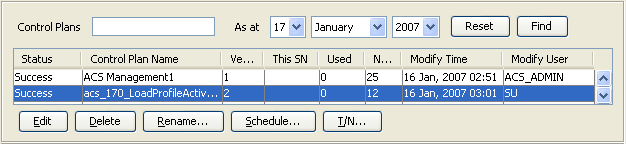
Note:
- The delete button is not enabled if a control plan is displayed on the Scheduled Control Plans table, irrespective of schedule status (Scheduled, Active or Historical).
- This action completely removes the control plan from the system, it will not be able to be reinstated. The Delete button in the Scheduled Control Plans frame above simply removes the scheduling of the control plan for use within the system at the scheduled time, and leaves the control plan within the system for future use if required.
Result: You see a delete confirmation prompt.
-
Click Delete to confirm.
Result: The control plan is deleted from the system.
Renaming a Control Plan
Follow these steps to rename a control plan, using the Numbers screen.
-
With the control plan selected in the table in the Control Plans frame of the Numbers screen, click Rename.
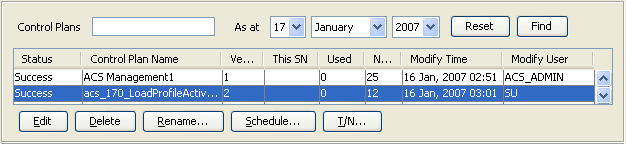
Result: The Rename Control Plan screen is displayed.
-
In the New name field, enter the new control plan name and click Save.
Result: You are returned to the Numbers screen, with the updated control plan displayed in the Control Plans table.
Scheduling a Control Plan
Follow these steps to schedule a control plan, using the Numbers screen.
-
With the control plan selected in the table in the Control Plans frame of the Numbers screen, click Schedule.
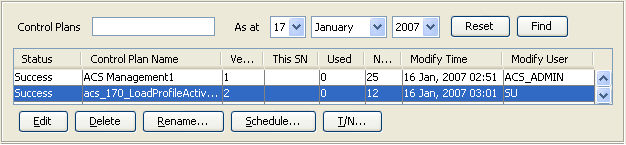
Result: The Schedule Control Plan screen is displayed.
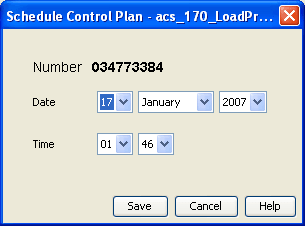
-
From the Date and Time drop down boxes, select the date and time required and click Save.
Result: You are returned to the Numbers screen, with the control plan now displaying in the Scheduled Control Plans table.
Note:
- Each control plan scheduled must have a unique date and time pair so that the system can determine which control plan to use at any given time.
- The date and time entered in this screen determine when the system is to begin using this control plan for calls made to the service number or CLI number.
Note:
This scheduling entry will be used until the next scheduling entry (in time order) becomes active; the system date is 'equal to' or 'after' the date/time pair set for this schedule entry.
Editing Termination Numbers
If a control plan contains only one termination node, follow these steps to edit the termination number, using the Numbers screen.
-
With the control plan selected in the table in the Control Plans frame of the Numbers screen, click T/N.
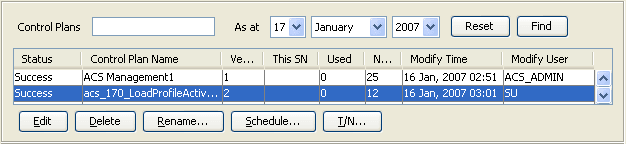
Result:
If the control plan:
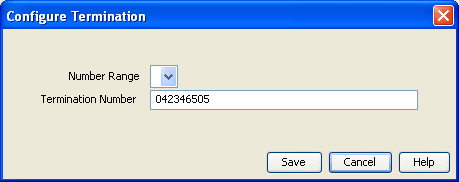
- Contains a termination node, the Configure Termination screen appears. Go to Step 2.
- Has no termination nodes, you see an error.
-
From the Number Range drop-down box, select the number range.
In the Termination Number field, enter or edit the termination number for the control plan.
Click Save.
Result: You are returned to the Numbers screen and a new instance of the control plan appears in the Control Plan table.
Note:
You are now able to schedule this control plan as required.
Templates
Introduction
The Templates frame of the ACS Numbers screen enables you to perform the following control plan template functions for a service number or CLI number.
Control plan templates:
- Create a new control plan template by launching the CPE
- Edit an existing template by launching the CPE
- Rename an existing template within the Numbers screen
- Create a new control plan based on an existing template by launching the CPE
- Delete an existing and unattached (not used by a control plan) template
Important: This topic provides ACS Control Plan Editor overview information in direct relevance to the Numbers screen in ACS and its functions only. Refer to CPE User's Guide for further information.
Templates on the Numbers Screen
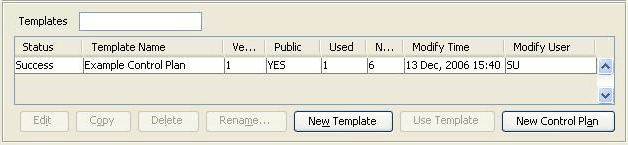
Here is an example of the Numbers screen showing control plan templates functionality.
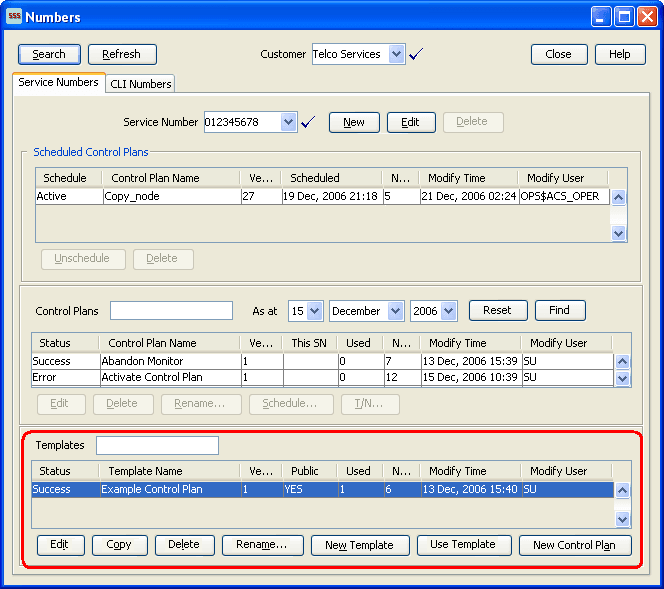
Using Templates on the Numbers Screen
Follow these steps to manage control plan templates for service numbers or CLI numbers from the Numbers screen.
Important: This topic provides CPE overview information in direct relevance to the Numbers screen in ACS, and its functions, only. Refer to CPE User's Guide for further information.
-
In the Templates frame on the Numbers screen, perform one of the following actions:
- Select an existing template from the Templates table
- Enter the template name in the Templates field and press Enter
Tip:
To clear your search results from the Templates table, delete the search data in the Templates field and press Enter. The Templates table now displays the full template list.
Tip:
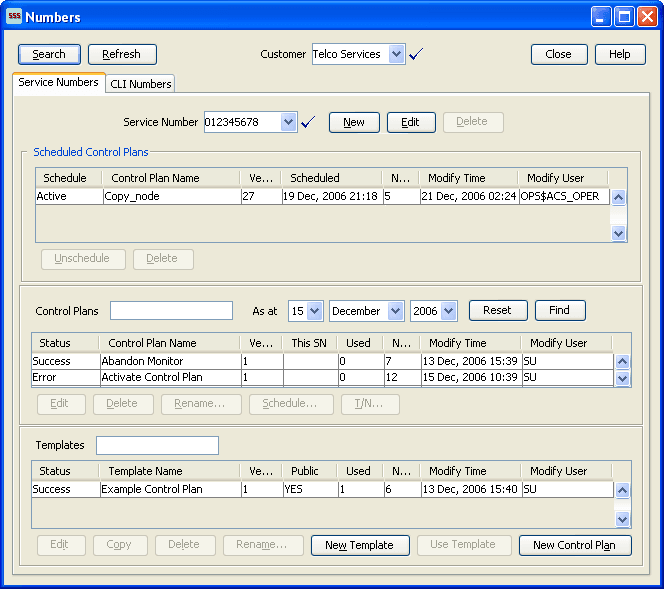
If the template selected is associated with a control plan then the control plan is also highlighted in the Control Plans table above.
-
The following functions are now available to you on the Templates frame of the screen, as shown on the example screen above:
- Edit – See Editing a Control Plan Template.
- Copy – See Copying a Control Plan Template .
- Delete – See Deleting a Control Plan Template .
- Rename – See Renaming a Control Plan Template .
- New Template – See Creating a new Control Plan Template
- Use Template – See Creating a Control Plan based on a Template
- New Control Plan – See Creating a Control Plan .
Tip:
See the Using Control Plans on the Numbers screen procedure for more Numbers screen information.
Editing a Control Plan Template
Follow these steps to edit a control plan template, using the Numbers screen.
-
Highlight the control plan template to edit in the table in the Templates frame of the Numbers screen, and click Edit.
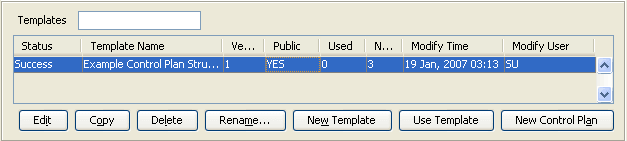
Result: The selected template is opened in the ACS Control Plan Editor window.
-
In the CPE, make your edits and Save the control plan template.
Result: You are returned to the Numbers screen in ACS, with the updated template displayed in the templates table.
Copying a Control Plan Template
Follow these steps to copy a control plan template, using the Numbers screen.
-
With the control plan template selected in the table in the Templates frame of the Numbers screen, click Copy.
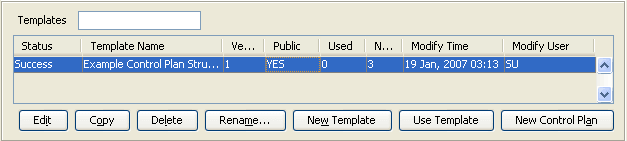
Result: The control plan template will be copied, compiled and saved; you see a screen, showing the progress of the copy procedure.
-
Click Close.
Result: You are returned to the Numbers screen, with the new control plan template, named "Copy of original control plan template name", displayed in the Control Plan Template table.
Deleting a Control Plan Template
Follow these steps to delete a control plan template, using the Numbers screen.
-
With the control plan template selected in the table in the Templates frame of the Numbers screen, click Delete.
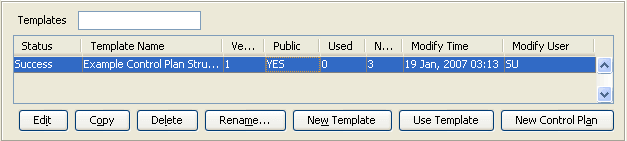
Result: The Really delete? prompt is displayed.
-
Click Delete to confirm and the template is removed from the Templates table.
Click Don't Delete to retain the template.
Result: You are returned to the ACS Numbers screen.
Renaming a Control Plan Template
Follow these steps to rename a control plan template, using the Numbers screen.
-
With the control plan template selected in the table in the Templates frame of the Numbers screen, click Rename.
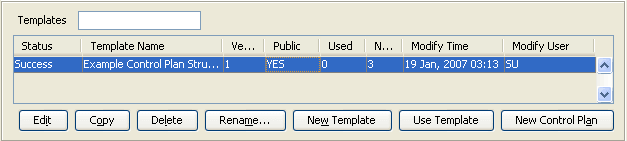
Result: The Rename Template - template name screen is displayed.
-
In the New name field, enter the new template name and click Save.
Result: You are returned to the Numbers screen, with the updated template displayed in the Templates table.
Creating a new Control Plan Template
Follow these steps to create a new template, using the Numbers screen.
-
On the Numbers screen, click New Template.
Result: The New Template prompt appears.
-
Make your selection:
- Click Control Plan and Template to create a new template and control plan.
- Click Template Only to create a new template only.
Result: The CPE is then launched displaying the new template and/or control plan, as illustrated in Editing a Control Plan Template.
-
Create your new template and/or control plan and click Save as per the standard CPE procedure.
Result: You are returned to the Numbers screen in ACS, with the new template and/or control plan displayed in the Templates table.
Creating a Control Plan based on a Template
Follow these steps to create a new control plan based on a template, using the Numbers screen.
-
With the control plan template selected in the table in the Templates frame of the Numbers screen, click Use Template to create a new control plan based on the selected template.
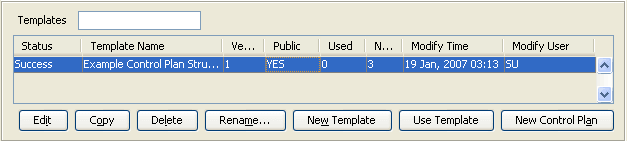
Result: The New Control Plan based on Existing Template prompt appears.
-
Make your selection:
- Click Read Only to open the template (that is to be used for the control plan) as read only. This means that the structure cannot be changed; no nodes can be added or deleted.
- Click Writable to open the template (that is to be used for the control plan) in edit mode. This means that you are able to change the structure; nodes can be added and deleted.
Result: The CPE is launched displaying the new template and/or control plan, as illustrated in Editing a Control Plan Template.
Tip:
The "Control Plan Name" will be the service number or CLI number selected.
-
Create your new control plan and click Save as per the standard CPE procedure.
Result: You are returned to the Numbers screen in ACS, with the new template and/or control plan displayed in the Templates and/or Control Plans table.
Creating a Control Plan
Follow these steps to create a control plan, using the Numbers screen.
-
With the control plan template selected in the table in the Templates frame of the Numbers screen, click New Control Plan.
Result: The CPE is then launched ready for a new template and/or control plan to be created.
Tip:
The "Control Plan Name" will be the service number or CLI number selected.
-
Create your new control plan and click Save as per the standard CPE procedure.
Result: You are returned to the Numbers screen in ACS, with the new template and/or control plan displayed in the Templates and/or Control Plans table.
Search for Numbers
Introduction
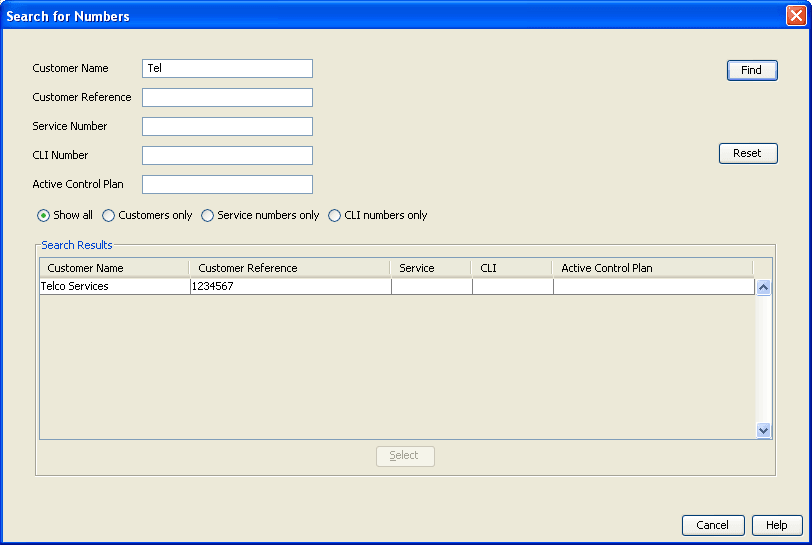
The Search for Numbers screen allows you to search the database for records that match the criteria entered into the fields on the screen. You can provide pattern criteria for the service number and CLI numbers to look for, as well as for other associated values, including customer name, customer number and active control plan.
To access the Search for Numbers screen, on the Numbers screen, click Search.
Searching for Numbers
Follow these steps to search for a specific database record, using the Search for Numbers screen.
-
Enter the search criteria into all required fields.
Tip:
Any fields left blank will show all records in the database. Blank fields do not limit the search at all.
-
Click Find to display the results in the database that match all entered fields.
-
Select the line in the Search Results table that is required.
Click Select.
Result: The Search for Numbers screen will close and the CLI Numbers or Service Numbers tab of the Numbers screen will be populated with the selected database record.
Search for Numbers Fields and Buttons
This table describes the function of each field and button.
| Field | Description |
|---|---|
| Customer Name | Allows you to specify a pattern to match customer names. The search will match any customer name starting with the provided pattern. |
| Customer Number | Allows you to specify a pattern to match customer numbers (also called customer references). The search will match any customer number starting with the provided pattern. |
| Service Number | Allows you to specify a pattern to match service numbers. The search will match any existing service number containing the pattern as a prefix. |
| CLI Number | Allows you to specify a pattern to match CLI numbers. The search will match any existing CLI containing the pattern as a prefix. |
| Active Control Plan | Allows you to specify a pattern to match existing control plans. The search will match any existing control plan containing the pattern as a sub-string (not has to be necessarily a prefix). |
| Find | Click this button to launch the search function. The button will be disabled if no pattern is provided through any of the text fields. |
| Reset | Click this button to clear the content of all text fields. |
| Search filter options |
This group of options will further restrict the entries to be displayed by the Search Results table:
|
| Search Results | This table shows the results from the search after clicking the find button. It presents five columns to show the customer name, customer number, service number, CLI number and active control plan. |
| Select | When this button is clicked after you have selected one entry from the Search Results table, the screen closes and the selected data is displayed in the corresponding Service Numbers or CLI Numbers panel in the Numbers screen. |
Search Criteria
The entries in the Search Results table will be displayed according to the following criteria:
- CLI and service numbers are searched independently and displayed together in the same table
- In order for a CLI or service number to be displayed, the customer name, customer number, service number and active control plan must be matched
- An empty pattern in a field is considered to be an automatic match for that field
- An empty pattern in the Active Control Plan field will match the active control plan for any CLI or service number including those without an active control plan
- In any case, you must fill in at least one pattern field in order to make the Find button active