9 ACS Resources
ACS Resources Screen
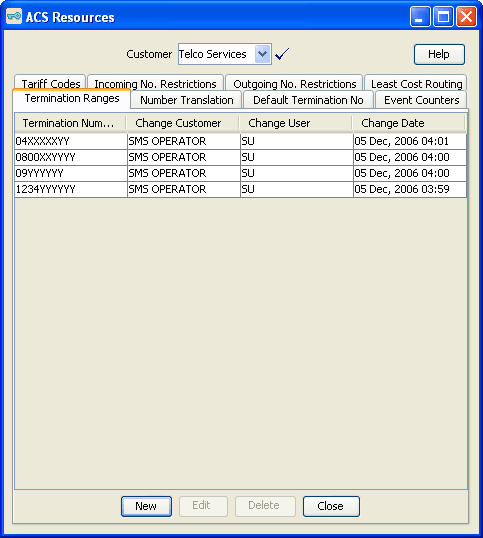
Termination Ranges
Introduction
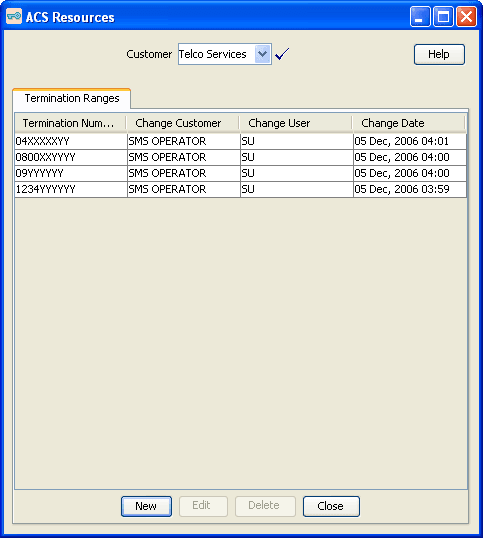
Termination number ranges are set up on the Termination Ranges tab of the ACS Resources screen.
A termination range is a mask used to validate the input of a termination number.
The ACS system administrator must assign termination number ranges for each customer. A customer may use their own termination numbers in their control plans, but they cannot edit the termination ranges that are assigned to them. Only the ACS system administrator can edit termination number ranges.
Tip: It is not necessary to set termination ranges in this screen if the customer is a managed customer (that is, the Adding customers check box on the Customer screen was selected).
Termination ranges can only be added, edited or deleted by the ACS system administrator. When editing a termination number range that is currently being used by a compiled control plan, the control plan will be recompiled and the compiler report will be displayed. There may be several control plans to be compiled, so this process may take some time.
Note: It is not possible to delete a termination range that is currently in use by a customer control plan. Editing a termination range will cause all compiled control plans that use that range to be recompiled.
Adding Termination Ranges
Follow these steps to add a new termination range.
-
On the Termination Ranges tab, click New.
Result: The New Termination Range screen is displayed.
-
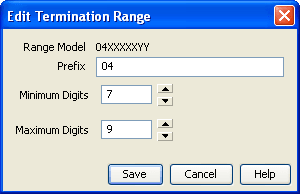
In the Range Model Prefix field, enter the prefix for the termination number, for example an area code, such as 04, restricting the number to that national area code.
-
From the Minimum Digits and Maximum Digits boxes, select the minimum and maximum length of the termination number.
-
Click Save.
Result: The details are saved and the screen returns to the main window.
If the new termination number is used in a compiled control plan, the compiler report will be displayed. The compiler report gives details of all the control plans that this change caused to be recompiled and their status.
Editing Termination Ranges
Follow these steps to edit an existing termination range.
-
On the Termination Ranges tab, select a termination range to edit.
-
Click Edit.
Result: The Edit Termination Range screen is displayed.
-
Make the required changes to the fields.
-
Click Save.
Result: The details are saved and the screen will return to the main window.
If the new record is used in a compiled control plan, the compiler report will be displayed. The compiler report gives details of all the control plans that this change caused to be recompiled and their status.
Deleting Termination Ranges
Follow these steps to delete an existing termination range.
-
From the Termination Ranges tab, select the termination range you want to delete.
-
Click Delete.
Result: The Confirm Delete prompt is displayed.
-
Click OK.
Result: The termination range is removed from the database.
Number Translations
Introduction
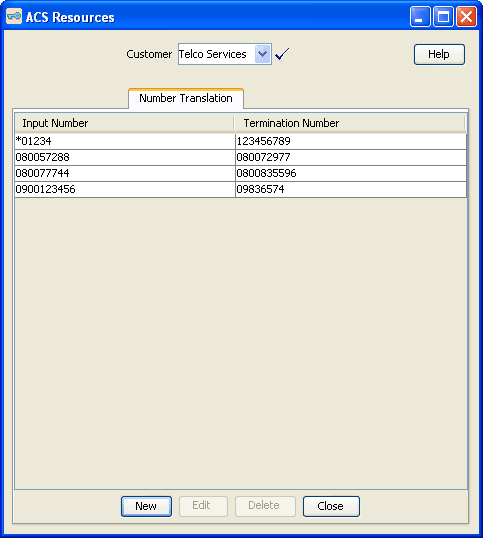
Use the Number Translations tab on the ACS Resources screen to map numbers to a termination range. Several numbers may map to the same termination range if required. Number translations are used in the Number Lookup node.
This node will look up a number that has been entered by the caller and translate it to a termination number.
The number translation mappings may be viewed by all users, but may only be added, edited, or deleted by users with permission level 4 and above.
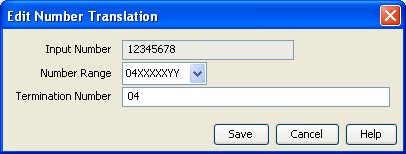
Adding Number Translations
Follow these steps to configure number translations.
-
On the Number Translation tab, click New.
Result: The New Number Translation screen is displayed.
-
In the Input Number field, enter the input number.
Note:
The input number must be unique for the customer and will accept up to 20 valid characters, where valid characters are 0-9, A-F, * and #.
-
From the Number Range drop-down list, select the termination range.
-
In the Termination Number field, enter the termination number.
-
Click Save.
Result: The details are saved and the screen returns to the main window.
Editing Number Translations
Follow these steps to edit an existing number translation.
-
On the Number Translation tab, select from the table the number translation record to edit.
-
Click Edit.
Result: The Edit Number Translation screen is displayed.
-
Change the details as required.
-
Click Save.
Result: The changes are saved to the database.
Default Termination Numbers
Introduction
You use the Default Termination No tab of the ACS Resources screen to allocate default termination numbers for your customers.
Default termination numbers are used where a search does not locate a termination number in a control plan.
A customer can only have one default termination number, and it is necessary that the termination number is within the range of termination numbers that have been allocated to that customer.
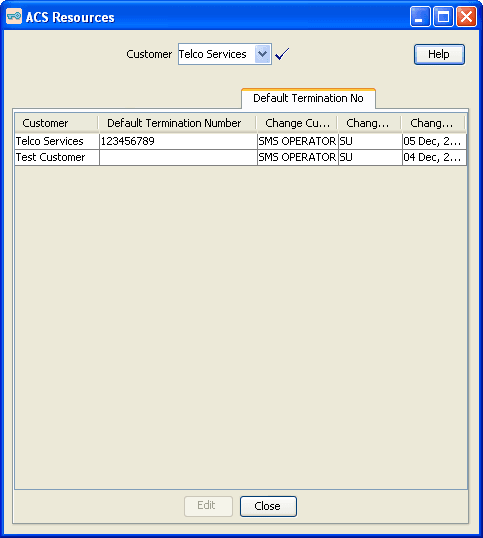
Allocating Default Termination Numbers
Follow these steps to allocate a default termination number.
-
On the Default Termination No tab, select the customer to allocate a default termination number to.
-
Click Edit.
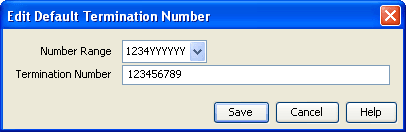
Result: The Edit Default Termination Number screen is displayed.
-
From the Number Range drop-down list, select the number range of the termination number.
-
In the Termination Number field, enter the termination number.
-
Click Save.
Result: The details are saved.
If the new record is used in a compiled control plan, the compiler report will be displayed. The compiler report gives details of all the control plans that this change caused to be recompiled and their status.
Event Counters
Introduction
The Event Counters tab of the ACS Resources screen displays the event counters for each customer. Each event counter is maintained separately.
Event counters simply count an event. They may be accessed at runtime and can be used, for example, for televoting. Counters can be queried in real-time on the Statistics Chart screen.
It is not possible to delete an event counter that is currently in use by a compiled control plan. Editing an event counter will cause all compiled control plans that use that record to be recompiled.
The ACS system administrator allocates customers a maximum number of counters on the Edit Customer Resource Limits screen. Users of sufficient privilege (level 4 and above) may add, delete, and rename their event counters within that limit.
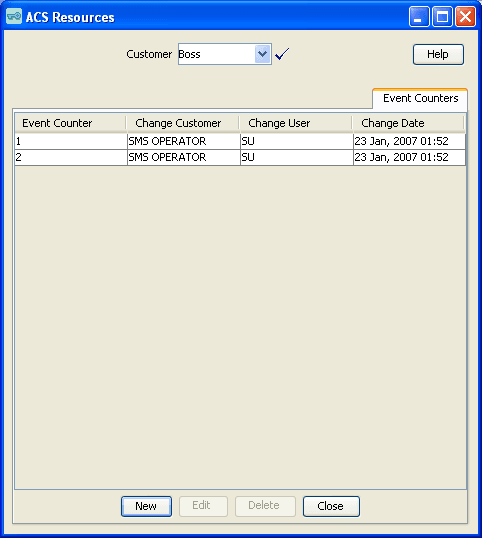
Adding Event Counters
Follow these steps to add a new event counter.
-
On the Event Counters tab, click New.
Result: The New Event Counter screen is displayed.
-
In the Counter field, enter the name of the event counter.
Note:
Event counter names must be unique for that customer, that is, two customers may have counters called 'Stats1', but a customer may not have two counters called 'Stats1'.
-
Click Save.
Result: The details are saved and you return to the Event Counters tab.
Editing Event Counters
Follow these steps to edit an existing event counter.
-
On the Event Counters tab, select from the table the event counter record to edit.
-
Click Edit.
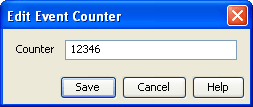
Result: The Edit Event Counter screen is displayed.
-
Change the details as required.
-
Click Save.
Result: The changes are saved to the database.
Tariff Codes
Introduction
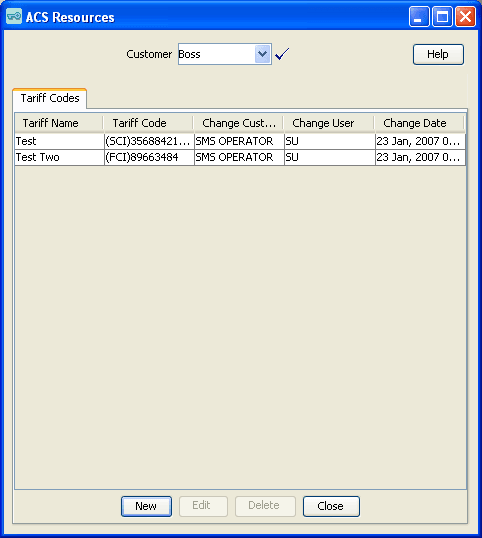
Use the Tariff Codes tab on the ACS Resources screen to add new tariff codes for your customer. Tariff codes are used to return charging information to the switch. This information can be sent either in an SCI or an FCI operation.
The component type (SCI or FCI) will determine how the tariff code is delivered to the service switching point (SSP).
If the component type is set to:
- SCI, then the tariff code will be sent to the switch in an INAP Send Charging Information operation
- FCI, then the tariff code will be sent to the switch in an INAP Furnish Charging Information operation
Tariff codes are used by the Set Tariff Code node to send charging information to the switch.
Adding Tariff Codes
Follow these steps to add a new tariff code for your customer.
-
On the Tariff Codes tab, click New.
Result: The New Tariff Code screen is displayed.
-
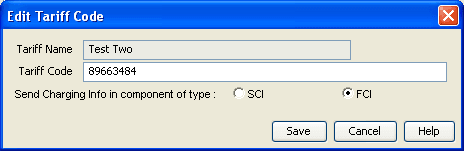
In the Tariff Name field, enter a name for the new tariff code.
-
In the Tariff Code field, enter a code for the new tariff code.
-
Select whether the tariff code should be marked to be sent in an SCI component or FCI component.
Note:
The tariff code is a hexadecimal code that is usually provided by the switch manufacturer. The tariff code can only be added by the system administrator or ACS Level 6 users.
-
Click Save.
Result: The details are saved and the screen returns to the Tariff Codes tab.
Incoming Number Restrictions
Introduction
Allowed and barred numbers in the ACS Resources screen are provisioned on a per customer basis.
Each customer has one incoming and one outgoing list. Each of these lists must be classed as either “Allowed” or “Barred”.
- Allowed numbers are allowed only if they occur in the list. If the list is empty then no numbers are allowed – everything is barred.
- Barred numbers are barred only if they occur in the list. If the list is empty then no numbers are barred – everything is allowed.
Use with Call Filtering Node
While the primary use of the lists is to allow or bar, based on service number (incoming, or CLI (outgoing) they may in fact be used to compare against any type of number available in the Call Filtering feature node in the ACS Control Plan Editor.
The lists can be applied in control plans by selecting the service number profile or CLI profile in the Call Filtering node in the CPE. As mentioned earlier, these lists may be used to match against any type of number but are labeled “Incoming” and “Outgoing” for convenience.
Examples:
- You have an INCOMING ALLOWED list containing the numbers 555-1234, 555-1235, and 555-1236. Calls to the service numbers 555-1234, 555-1235, and 555-1236 are allowed but calls to all other numbers are not allowed, so a call to 444-5555 would not be allowed.
- You have an INCOMING BARRED list containing the same numbers. Calls to the service numbers listed will not be allowed; calls to all other service numbers are allowed.
- You have an OUTGOING ALLOWED list containing the same numbers. An outgoing call to CLI 555-1234 would be allowed (as would 555-1235 and 555-1236). Outgoing calls to any other CLI would be be barred.
- You have an OUTGOING BARRED list containing the same numbers. An outgoing call to CLI 555-1234 would be barred (as would 555-1234 and 555-1236). Outgoing calls to any other CLI would be allowed.
Use with Prefix Tree Branching Node
The Prefix Tree Branching node allows you to select incoming or outgoing list data and branch on whether the number is in that list or not. Used in conjunction with other nodes, such as Profile Branching, you can determine whether it is the barred or allowed list and branch accordingly.
Number Restrictions Tab Fields
Here is a description of the fields used when setting incoming and outgoing number restrictions.
| Field | Description |
|---|---|
| Restriction List |
Displays the list of restricted numbers in the number profile. You can:
|
| List Type |
Each ACS customer has one incoming and one outgoing restriction list. The list must be classed as either "Allowed" or "Barred". If list type is:
|
| Ignore | Select this check box if you want to ignore the restricted numbers list displayed. |
| New Number |
Use this field to add a new number to the restricted numbers list. Enter the new number then click Add to send it to the list. |
Editing Incoming No. Restrictions
Follow these steps to edit numbers in an incoming number restrictions list.
Tip:
You can set number restrictions at the SN or CLI level in the Numbers screen.
-
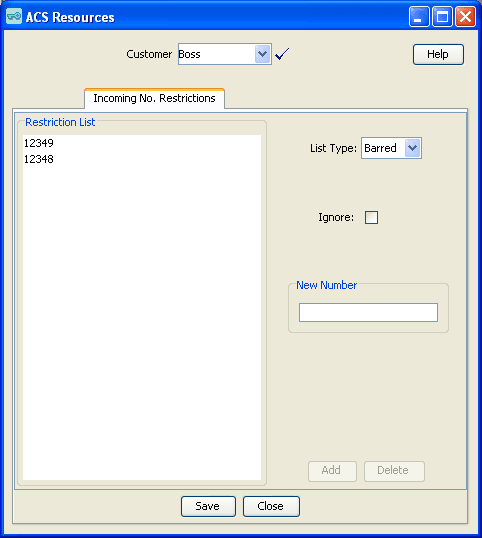
On the Incoming No. Restrictions tab, select the type of list from the List Type drop-down list. If you select
Allowed, only listed numbers will be allowed. If you selectBarred, all numbers are allowed, except for the listed numbers. -
If you want the incoming number restrictions to be ignored for this customer, select the Ignore check box.
-
In the New Number field, enter a number to add to the list and click Add.
Result: The number will be added to the restriction list.
-
From the Restriction List, select a number to remove and click Remove.
Result: The number will be removed from the restriction list.
-
Click Save.
Result: The changes will be saved to the database.
Outgoing Number Restrictions
Introduction
Allowed and barred numbers in the ACS Resources screen are provisioned on a per customer basis.
Each customer has one incoming and one outgoing list. Each of these lists must be classed as either “Allowed” or “Barred”.
- Allowed numbers are allowed only if they occur in the list. If the list is empty then no numbers are allowed – everything is barred.
- Barred numbers are barred only if they occur in the list. If the list is empty then no numbers are barred – everything is allowed.
Use with Call Filtering Node
While the primary use of the lists is to allow or bar, based on service number (incoming, or CLI (outgoing) they may in fact be used to compare against any type of number available in the Call Filtering feature node in the ACS Control Plan Editor.
The lists can be applied in control plans by selecting the service number profile or CLI profile in the Call Filtering node in the CPE. As mentioned earlier, these lists may be used to match against any type of number but are labeled “Incoming” and “Outgoing” for convenience.
Examples:
- You have an INCOMING ALLOWED list containing the numbers 555-1234, 555-1235, and 555-1236. Calls to the service numbers 555-1234, 555-1235, and 555-1236 are allowed but calls to all other numbers are not allowed, so a call to 444-5555 would not be allowed.
- You have an INCOMING BARRED list containing the same numbers. Calls to the service numbers listed will not be allowed; calls to all other service numbers are allowed.
- You have an OUTGOING ALLOWED list containing the same numbers. An outgoing call to CLI 555-1234 would be allowed (as would 555-1235 and 555-1236). Outgoing calls to any other CLI would be be barred.
- You have an OUTGOING BARRED list containing the same numbers. An outgoing call to CLI 555-1234 would be barred (as would 555-1234 and 555-1236). Outgoing calls to any other CLI would be allowed.
Use with Prefix Tree Branching Node
The Prefix Tree Branching node allows you to select incoming or outgoing list data and branch on whether the number is in that list or not. Used in conjunction with other nodes, such as Profile Branching, you can determine whether it is the barred or allowed list and branch accordingly.
Number Restrictions Tab Fields
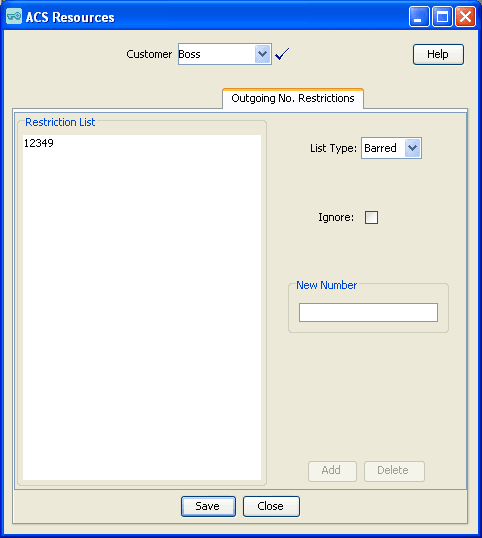
Here is a description of the fields used when setting incoming and outgoing number restrictions.
| Field | Description |
|---|---|
| Restriction List |
Displays the list of restricted numbers in the number profile. You can:
|
| List Type |
Each ACS customer has one incoming and one outgoing restriction list. The list must be classed as either "Allowed" or "Barred". If list type is:
|
| Ignore | Select this check box if you want to ignore the restricted numbers list displayed. |
| New Number |
Use this field to add a new number to the restricted numbers list. Enter the new number then click Add to send it to the list. |
Editing Outgoing No. Restrictions
Follow these steps to edit numbers in an outgoing number restrictions list.
Tip:
You can set number restrictions at the SN or CLI level in the Numbers screen.
-
On the Outgoing No. Restrictions tab, select the type of list from the List Type drop-down list. If you select
Allowed, only listed numbers will be allowed. If you selectBarred, all numbers are allowed, except for the listed numbers. -
If you want the outgoing number restrictions to be ignored for this customer, select the Ignore check box.
-
In the New Number field, enter a number to add to the list and click Add.
Result: The number will be added to the restriction list.
-
From the Restriction List, select a number to remove and click Remove.
Result: The number will be removed from the restriction list.
-
Click Save.
Result: The changes will be saved to the database.
Least Cost Routing
Introduction
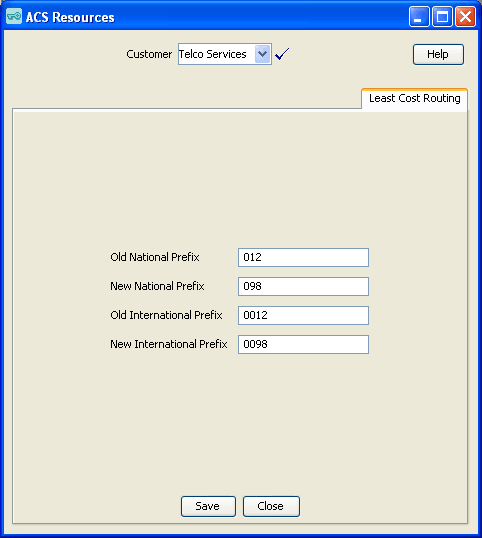
Use the Least Cost Routing tab on the ACS Resources screen to manage and maintain least cost routing configuration. Least cost routing enables calls to be routed differently by replacing prefixes to the destination address.
The tab updates the Simple LCR fields in the "Customer" profile. They are applied in control plans using any of the following feature nodes:
- Terminate to Pending TN
- Attempt Terminate to Pending TN
- Attempt Terminate to Pending TN with Duration
Using Least Cost Routing
Follow these steps to add or edit the least cost routing for the selected customer.
-
Select the customer for whom least cost routing is to be added.
-
Enter the prefixes that are to be used for least cost routing.
- Old National - The 'National' prefix that is to be matched in the normalized number for least cost routing to be applied.
- New National - The prefix that is to replace the "Old National prefix" in numbers that matched the old national prefix.
- Old International - The 'International' prefix that is to be matched in the normalized number for least cost routing to be applied.
- New International - The prefix that is to replace the "Old International prefix" in numbers that matched the old international prefix.
-
Click Save to commit the changes to the database.
Note:
This least cost routing will be applied to all calls for the selected customer.