5 ACS Tools
Tools Screen
Introduction
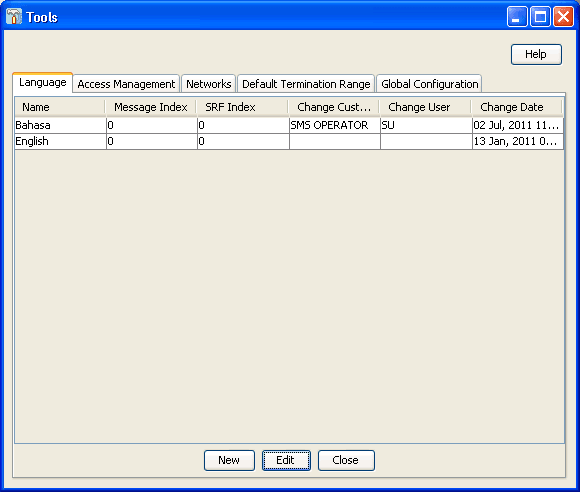
The Tools screen is used to set and maintain system-wide defaults. It contains these tabs:
- Language
- Access Management
- Networks
- Default Termination Range
- Global Configuration
Language
Introduction
You use the Language tab on the Tools screen to specify the languages that you require for ACS.
Note:
ACS has the English language set as the default option.
If you require additional languages then you must add them using the steps outlined in this section. To view the system Language options you need to click the Tools button in the ACS main screen. The Tools screen is displayed with the Language tab open by default.
Languages and Announcements
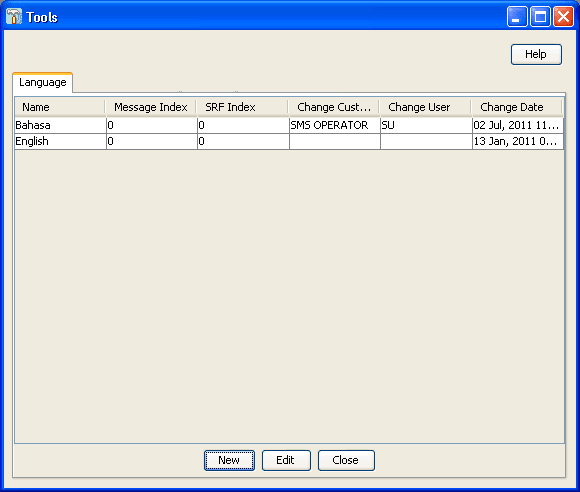
The table on the Language tab displays the languages that are currently available in the system.
Languages are used mainly by announcements. Each recording of an announcement that is entered into the system must have a language associated with it. This allows the announcements to be selected for a customer by language. It is important to define a default language for the entire system.
Note:
Languages can only be edited and maintained by the ACS system administrator. Details cannot be edited directly into the table. If you want to make any changes to the language entries, you must click Edit.
Language Fields
Here is a description of the fields used when setting a language.
| Field | Description |
|---|---|
| Name | The language currently configured for ACS. |
| Message Index | The language that will be used for customer text messaging. This index number is specified when the message is being sent and ACS applies the appropriate language. |
| SRF Index |
Some SRF (Specialized Resource Function) announcement boxes support an optional language parameter. This parameter can be used with features such as speaking account balances to ensure that the appropriate language translation algorithm is used. If you are using an SRF box that does not support this parameter, or if you are not using announcements with dynamically generated content, then this field does not need to be specified. |
| Change Customer | The customer name. |
| Changer User | The name of the user who allocated or edited the record. |
| Change Date | The date when the record was allocated or last edited. |
Setting the Language Maps
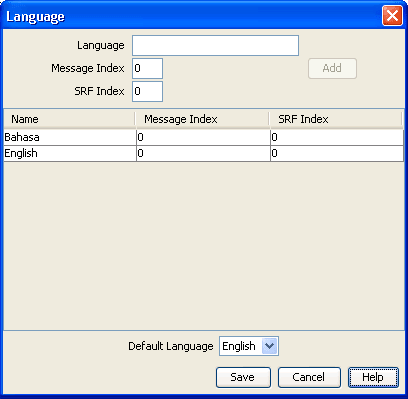
Follow these steps to configure your ACS language maps.
-
On the Language tab, click New.
Result: The Language screen displays.
See Language Fields for details.
-
In the Language field, enter the new name of the language.
-
If you are using Short Text Messaging, enter the appropriate index number in the Message Index field.
-
If you are using SRF, enter the appropriate index number in the SRF Index field.
-
Click Add.
Result: The new language map appears in the list.
-
Select the Default Language for the language mapping.
-
Click Save to save the changes to the database.
Changing Language Maps
Follow these steps to change your ACS language maps.
-
On the Language tab, click Edit.
Result: The Language screen is displayed.
See Language Fields for details.
-
Select the language from the table.
-
Change the details in the fields, as required.
-
Click Change to implement changes.
-
Click Save to record your changes.
Removing Languages
Follow these steps to remove a language from your ACS language maps.
-
On the Language tab, click Edit.
Result: The Language screen is displayed.
-
Select the language from the table and click Remove.
Result: The Confirm Language Removal prompt is displayed.
-
Click Ok.
-
Click Save to record your changes.
Access Management
Introduction
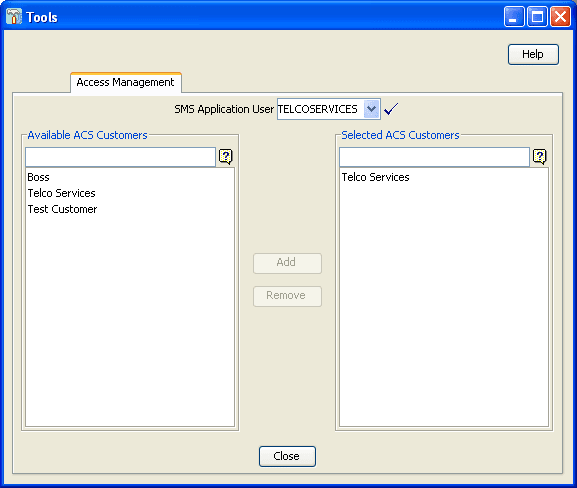
You use the Access Management tab in the Tools screen to allocate the customers that are visible to the SMS user. This screen has a limiting function as SMS users automatically have full access to all ACS customers, an SMS user's access is only limited when ACS customers are selected and placed in this list. Therefore an empty Selected ACS Customers list gives full access to all SMS users.
Access Management Fields
Here is a description of the fields used when managing access.
| Field | Description |
|---|---|
| SMS Application User |
Use this field to select the SMS application user whose ACS customers you wish to view or configure. You can search for a user on this box. Refer to Searching the database. Any records found are displayed in the area below this field. |
| Available ACS Customers |
Use this box to search for the available ACS customers that have been configured for the current SMS application user. Refer to Searching the database. Any records found are displayed in the area below this field. |
| Selected ACS Customers |
Use this field to search for the selected ACS customers that have been configured for the current SMS application user. Refer to Searching the database. Any records found will be displayed in the area below this field. |
Adding Access to an ACS Customer
Follow these steps to add access to an ACS customer.
-
From the SMS Application User drop-down list, select the user for whom the ACS customer access is to be granted.
-
Search and select the customer(s) that you wish to give the SMS application user access to in the Available ACS Customers field.
Click Add.
Result: The new customer(s) will appear in the Selected ACS Customers list.
The SMS application user will now be able view and manage data for the ACS customer(s) added to the Selected ACS Customers list only.
Removing Access to an ACS Customer
Follow these steps to remove access to an ACS customer.
-
Select the SMS application user, for whom the ACS customer access is to be granted, from the drop-down list.
-
Search and select the customer(s) that you wish to give the SMS application user access to in the Available ACS Customers field.
Click Remove.
Result: The new customer(s) will be removed from the Selected ACS Customers list.
Networks
Introduction
You use the Networks tab of the Tools screen to configure networks in ACS.
This tab displays all the networks that have been configured in the system.
Note:
Each network is maintained separately.
Only ACS users with permission level 6 or above can access this tab.
Control plans are selected based on a service number (SN) and network pair. This allows users of the same SN on different networks to be routed to different control plans, if required. Any number of network keys may be configured as identifiers for each network. The system matches the set keys with the information contained in an incoming call to identify the originating network and route the call accordingly.
It is not possible to delete a network that is currently in use by a compiled control plan. Editing a network will cause all compiled control plans that use that record to be recompiled.
Networks Tab Fields
Here is a description of the fields used when managing networks.
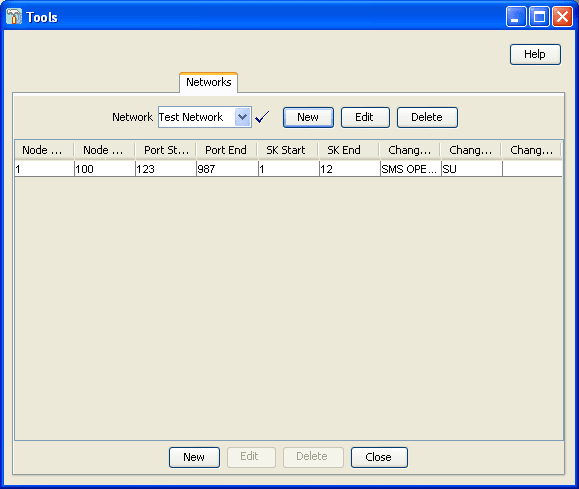
The table on the tab displays the network keys that have been configured for the selected network. Any number of network keys may be configured as identifiers for each network. The system matches the set keys with the information contained in an incoming call, to identify the originating network and route the call accordingly.
Note:
While no two network keys can be identical, it is possible for the individual node, port, or service key ranges to overlap. For example, two network keys may have overlapping node and port ranges, as long as the service key ranges do not overlap.
| Field | Description |
|---|---|
| Network | Use to navigate through the list of configured networks. |
| Node Start | The number of the first node in the range of nodes for the selected network. |
| Node End | The number of the last node in the range of nodes for this network. |
| Port Start | The number of the first port in the range of ports for this network. |
| Port End | The number of the last port in the range of ports for this network. |
| SK Start | The number of the first service key in the range of service keys for this network. |
| SK End | The number of the last service key in the range of service keys for this network. |
| Change Customer | The customer name. |
| Change User | The name of the user who allocated or edited the record. |
| Change Date | The date when the record was allocated or last edited. |
Adding Networks
Follow these steps to add a new network.
-
On the Networks tab, click New (beside the Network drop-down list).
Result: The New Network screen is displayed.
-
In the Network field, enter the name of the new network.
-
In the Description field, enter a description of the new network.
-
Click Save.
Result: The changes are saved and you return to the Networks tab.
Editing Networks
Follow these steps to edit an existing network.
-
On the Networks tab, select the network to edit from the Network table.
-
Click Edit (beside the Network drop-down list).
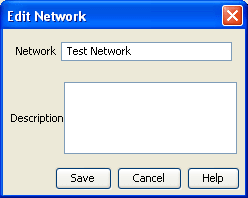
Result: The Edit Network screen is displayed.
-
Change the network name and description as required.
-
Click Save.
Result: The changes are saved and you return to the main window.
Deleting Networks
Follow these steps to remove a redundant network configuration.
-
On the Networks tab, select the Network to delete from the Network table.
-
Click Delete (beside the Network drop-down list).
Result: The Confirm Delete prompt is displayed.
-
Click OK.
Result: The network is removed from the database.
Adding Network Keys
Follow these steps to add a new network key to the selected network configuration.
-
On the Networks tab, select the network to add a key to from the Network drop-down list.
-
Click New at the bottom of the tab.
Result: The New Network Key screen is displayed.
See Networks Tab Fields for details.
Tip:
You are not required to enter ranges, but if the start of a range is entered, an end of a range must also be entered. The end of a range must be greater than or equal to the start of a range.
-
In the Node Start and Node End fields, enter the start and end of the node range. The node is the originating point code.
-
In the Port Start and Port End fields, enter the start and end of the port range. The port is the destination subsystem number.
-
In the SK Start and SK End fields, enter the start and end of the service key range.
-
Click Save.
Result: The details are saved and you return to the Networks tab.
Editing Network Keys
Follow these steps to edit network keys.
-
On the Networks tab, select the network to edit from the Network drop-down list.
-
Select the network key from the table.
-
Click Edit at the bottom of the tab.
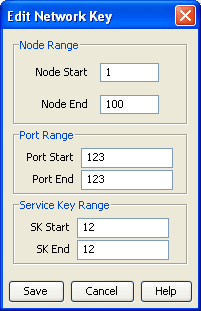
Result: The Edit Network Key screen is displayed.
-
Change the details as described in Networks Tab Fields .
-
Click Save.
Result: The changes are saved and you return to the main window.
Deleting Network Keys
Follow these steps to remove redundant network keys from the selected network.
-
On the Networks tab, select the network to edit from the Network drop-down list.
-
Select the network key from the table.
-
Click Delete at the bottom of the tab.
Result: The Confirm Delete prompt is displayed.
-
Click OK.
Result: The network key record is deleted from the database.
Default Termination Range
Introduction
The Default Termination Range tab enables you to add, edit and delete the default termination number ranges that apply to the following feature nodes:
- Unconditional Termination
- Attempt Termination
- No Lookup and Translation
- Follow Me Number
These default ranges are assigned to the customer on the New Customer dialog box of the ACS Customer Screen.
Note:
For more information about setting up individual customer termination number ranges see the Termination Ranges tab of the ACS Resources screen procedure.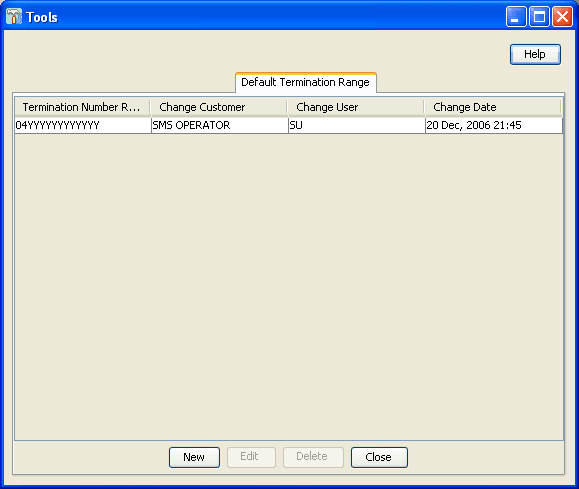
Default Termination Range fields
Here is a description of the fields used when managing default termination ranges.
| Field | Description |
|---|---|
| Termination Number Range | The default termination number ranges that are currently configured for ACS. |
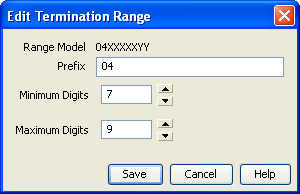
| Prefix | The prefix of the termination number. |
| Minimum Digits | The minimum number of digits permitted for the termination number. |
| Maximum Digits | The maximum number of digits permitted for the termination number. |
Adding a Default Termination Range
Follow these steps to add a new default termination range.
-
On the Default Termination Range tab, click New.
Result: The New Termination Range screen is displayed.
See Default Termination Range fields for details.
-
In the Prefix field, enter the prefix for the termination number.
-
In the Minimum Digits field, enter the minimum number of digits.
-
In the Maximum Digits field, enter the maximum number of digits.
Result: As you type, the Range Model field displays the termination range, with the minimum digits after the prefix displayed as Xs and the maximum digits displayed as Ys, for example
0800XXYYYY. -
Click Save.
Editing a Default Termination Range
Follow these steps to edit an existing default termination range.
-
On the Default Termination Range tab, select the default termination range to edit.
-
Click Edit.
Result: The Edit Termination Range screen is displayed.
-
Change the value as required. See Default Termination Range fields for details.
-
Click Save.
Global Configuration
Introduction
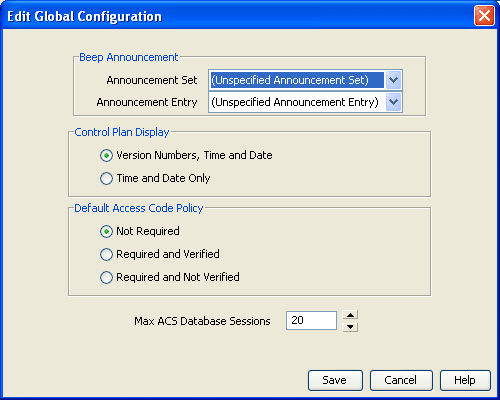
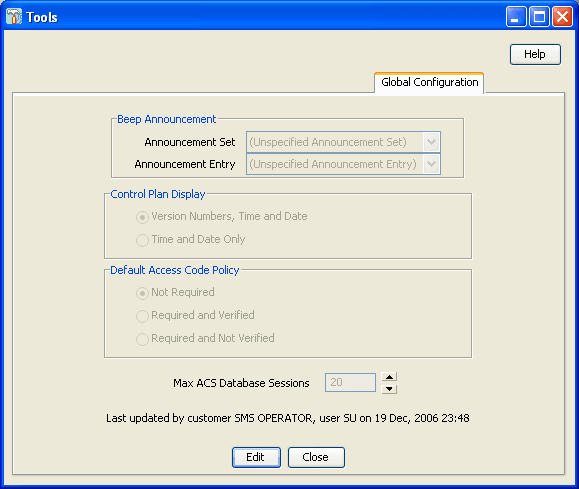
The Global Configuration tab enables you to:
-
Set the announcement set and entry to be used for the Beep announcement.
Important: These announcements must be on a CS2 INMAP capable SSP in order to work correctly. See ACS Technical Guide for more information.
- Choose to display the time, date and version numbers or just the time and date on the Control Plans table on the ACS Numbers .
- Set the default access code policy that is referenced from the Access Code List on the Service Numbers tab and CLI Numbers tab on the ACS Numbers screen.
- Increase or decrease the maximum number of ACS self management sessions allowed.
Global Configuration Fields
This table describes the function of each field on the Global Configuration tab.
| Field | Description |
|---|---|
| Announcement Set | The announcement set to be used for the Beep announcement. |
| Announcement Entry |
The announcement entry to be used for the Beep announcement. Note: See Announcements for more information about announcement entries. |
| Version Numbers, Time and Date | Select to display the version numbers on the control plan tables on the ACS Numbers screen. |
| Time and Date Only |
The time and date is always displayed. Select this option to ensure that the versions numbers are not displayed on the Control Plan tables on the ACS Numbers screen. Note: See ACS Numbers for more information about managing control plans on the ACS Numbers screen. |
| Not Required | The user is not required to enter an access code. |
| Required and Verified | The user is required to enter an access code and the code will be verified against the list in the Access Code Management frame on the Service Number screen or CLI screen. |
| Required and Not Verified |
The user is required to enter an access code but the code will not be verified. Note: See Service Numbers and CLI Numbers for more information. |
| Max ACS Database Sessions |
Increase or decrease the maximum number of ACS self management sessions allowed. Warning: Ensure that this number does not exceed the total maximum number of system sessions allowed. Contact your system administrator for more information. |
Editing the Global Configuration Settings
Follow these steps to edit the Global Configuration settings.
Note:
There is only one set of Global Configuration settings within the system.
-
On the Global Configuration tab click Edit.
Result: The Edit Global Configuration screen appears.
See the Global Configuration Fields for this screen for more information.
-
In the Beep Announcement frame, for the Beep announcement, from the drop-down lists, select the appropriate:
- Announcement set
- Announcement entry
-
In the Control Plan Display frame, select the option you wish to have displayed on the control plan. The options are:
- Version Numbers, Time and Date
- Time and Date Only
-
In the Default Access Code Policy frame, select the option for the appropriate default access code policy. The options are:
- Not Required
- Required and Verified
- Required and Not Verified
-
In the Max ACS Database Sessions field, enter or select the required maximum number of database sessions that can exist at the same time.
-
Click Save to save the new settings.
Result: The screen will return to the Global Configuration tab; note that this will now display the most recent setting update information above the buttons at the bottom of the screen.