2 Getting Started
Signing on to CCS
Accessing the application
To access the CCS application, click a desktop icon for:
- SMS
- CCS
Note: The CCS product works in conjunction with ACS. If CCS is accessed through a standalone icon, you must start the CCS application as well.
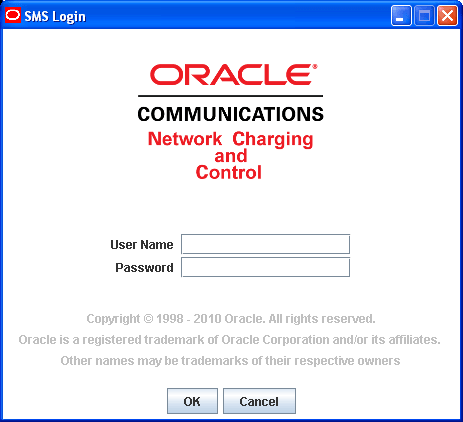
Logging into SMS
Follow these steps to log into SMS.
| Step | Action |
|---|---|
| 1 | In the User Name field, type your username. |
| 2 |
In the Password field, type your password. Notes:
|
| 3 |
Click OK. Result: You see the Service Management System main screen. |
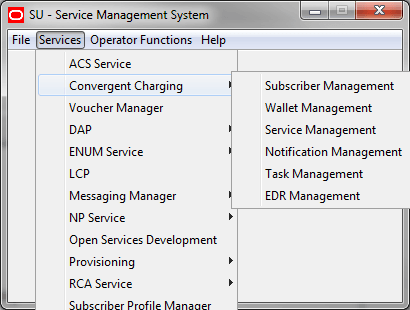
Services Menu
Convergent Charging menu options
This table describes the menu options accessible from the Convergent Charging menu.
| Menu | Description |
|---|---|
| Subscriber Management |
Accesses the screens to create and maintain subscribers. For more information, see Subscriber Management . |
| Wallet Management |
Accesses the screens to create and maintain wallets. For more information, see Wallet Management . |
| Service Management |
Accesses the configuration screens to create and maintain services: For more information, see Service Management . |
| Notification Management |
Accesses the screens to create and maintain profile notifications. For more information, see Notifications Management . |
| Task Management |
Accesses the screens to create and maintain business processes and tasks. For more information, see Task Management . |
| EDR Management |
Accesses the screens to create and maintain EDRs. For more information, see EDR Management . |