3 CCS Charging Feature Nodes
Available Feature Nodes
CCS Charging feature nodes list
This table lists the feature nodes available from the CCS Charging palette group in the ACS Control Plan Editor.
| Node Name | Node description |
|---|---|
| Balance Cascade Override | The Balance Cascade Override node is used to specify a balance cascade to override the balance cascade that otherwise would have been used for the next charging action. Note: This feature node has now been deprecated and should no longer be used. This feature node will still function in existing control plans. |
| Business Prefix Branch | The Business Prefix Branch node checks to see if the caller has dialed the business prefix as part of their number. |
| Call Information SMS | The Call Information SMS node is used after a uATB node to send an SMS notification to the user with regards to the duration and cost of the call, using templates defined for each language. |
| Cost Call Duration Branching | Allows for balance type and cost threshold branching, or call duration branching, on the values returned for the last charged call. |
| Credit Wallet Transfer |
The Credit Wallet Transfer node allows cash credit to be converted into an alternative balance type for a subscriber’s own account or the account of an alternate subscriber. Note: This feature node has now been deprecated and should no longer be used. This feature node will still function in existing control plans. |
| Declined Billing Cause | The Declined Billing Cause node sends the cause of a billing failure to the subscriber. |
| Direct Unit Charge Request |
The Direct Unit Charge Request node retrieves wallet information and sends it to the billing engine. Note: This feature node has now been deprecated and should no longer be used. This feature node will still function in existing control plans. |
| Named Event | The Named Event feature node is used to bill the caller for a defined number of named events with a defined discount. |
| Get CUG Details |
The Get CUG Details node analyzes the calling and called party numbers to determine whether they are part of a closed user group (CUG). Note: This feature node has now been deprecated and should no longer be used. This feature node will still function in existing control plans. |
| Play Tariff Plan Announcement |
The Play Tariff Plan Announcement node plays the announcement associated with the selected tariff plan. Note: This feature node has now been deprecated and should no longer be used. This feature node will still function in existing control plans. |
| Set Active Domain |
The Set Active Domain node allows the selection of a billing domain for use by the current top-up/voucher redeem activity for the following management types:
|
| Set BE EDR | The Set BE EDR node alters and adds EDR tags in EDRs generated by slee_acs during call flow. The EDR tag must be specified. The value can be static or populated from a profile field. |
| Set Discount |
The Set Discount node retrieves discount information from the specified location and uses that information for any subsequent billing requests. Note: This feature node has now been deprecated and should no longer be used. This feature node will still function in existing control plans. |
| Set Tariff Plan Rule |
Specifies the tariff plan to be used for combinations of network access type and bearer capability. Note: This feature node has now been deprecated and should no longer be used. This feature node will still function in existing control plans. |
| Set Wallet Type | The Set Wallet Type node specifies the wallet type to use in the call context. |
| Tariff Plan Override |
The Tariff Plan Override node overrides the configured tariff plan with the tariff plan specified in the node. Note: This feature node has now been deprecated and should no longer be used. This feature node will still function in existing control plans. |
| Universal ATB | The Universal Attempt Termination with Billing (UATB) node is used to bill subscribers for calls that they make or receive. |
| Variable Amount Recharge | The Variable Amount Recharge node will attempt a standard recharge for the specified wallet based on the voucher and wallet data derived from profile fields. |
| Voice Call Cost | The Voice Call Cost node plays the cost of the last call within the current control plan. |
Balance Cascade Override
Warning: This feature node has now been deprecated and should no longer be used. This feature node will still function in existing control plans.
Node description
The Balance Cascade Override node is used to specify a balance cascade to override the balance cascade that otherwise would have been used for the next charging action.
The balance cascade can be specified in the node or defined in a profile field.
Node icon

If the CPE has been configured to use the static panel CPE palette style, the CPE displays the icon shown below to represent the feature node.

Restrictions
This node may be used any number of times within a control plan.
The balance cascades available to this node are limited to those available for the Service Provider of the screens user.
Warning: This feature node is unusable when the account details are held on a BRM. That is, when the charging domain of the subscriber is of type BCD. See Charging Control Services User's Guide for further details on charging domains.
Node exits
This node has one entry and two exits. The number of exits cannot be changed.
| Exit | Cause | Description |
| 1 | Unsupported | Either error / failure or that the Domain being used does not support this feature node. |
| 2 | Success | The balance cascade has been overridden. |
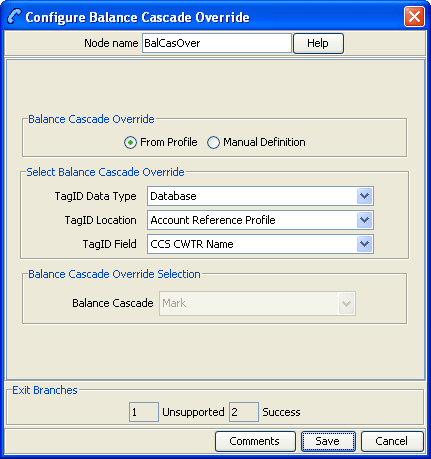
Configuration fields
This table describes the function of each field.
| Field | Description |
|---|---|
| From Profile | If selected then the Select Balance Cascade Override frame become enabled. |
| Manual Definition | If selected then the Balance Cascade Override Selection frame becomes enabled. |
| TagID Data Type |
Specifies the data type to use when From Profile is selected. Note: This affects the profile location list. |
| TagID Location | Specifies the profile to use when From Profile is selected. |
| TagID Field | The profile field containing the balance cascade to use instead of the one currently configured for the next node in the control plan, that has a balance type cascade associated with it. |
| Balance Cascade | When Manual Definition is selected, this defines the override balance type cascade for the next node in the control plan that has a balance type cascade associated with it, such as an ATB or Named Event node. |
Configuring the node
Follow these steps to configure the node.
| Step | Action |
|---|---|
| 1 |
In the Balance Cascade Override area select either:
Result: The relevant Balance Cascade Override fields are made available. |
| 2 |
Select the Balance Cascade to override the balance cascade defined for the next charging action. If you selected:
|
| 3 | Click Save. |
Note: The list of data types is fixed at installation time for each feature node or screen.
Further reference:
- For information about profile blocks (data type, location, and field) and how to use them, see Profile Blocks and Tags .
- The primary tag lists are configured in the SMS > Services > ACS Service > Configuration > Profile Tag Details and Profile Tag Mapping tabs (see ACS User's Guide, Profile Tag Details for more information).
Billable Event
Node description
Warning: This feature node has now been deprecated and should no longer be used. This feature node will still function in existing control plans. For new control plans please use the Named Event feature node.
The Billable Event feature node is used to bill the caller for a defined number of billable events with a defined discount.
The action is one of:
- Billing the caller wallet
- Reserving the event cost
- Confirming the cost can be billed
- Canceling the reserved event cost
- Retrieving the cost of the event
The number of events is either configured in the node, or stored at a selected location.
Node icon

If the CPE has been configured to use the static panel CPE palette style, the CPE displays the icon shown below to represent the feature node.

Restrictions
This node may be used any number of times within a control plan.
This node deals only with the wallet type currently set in the call context. If a different wallet is required, a Set Wallet Type node must be invoked before this node.
For more information, see Set Wallet Type.
Node exits
This node has one entry and four exits. The number of exits cannot be changed.
Note: These exit descriptions are specific to the responses received from an Oracle Voucher and Wallet Server billing engine. For specific information about how responses from other billing engines map to these exits, see the technical guide for the interface for billing engine being used.
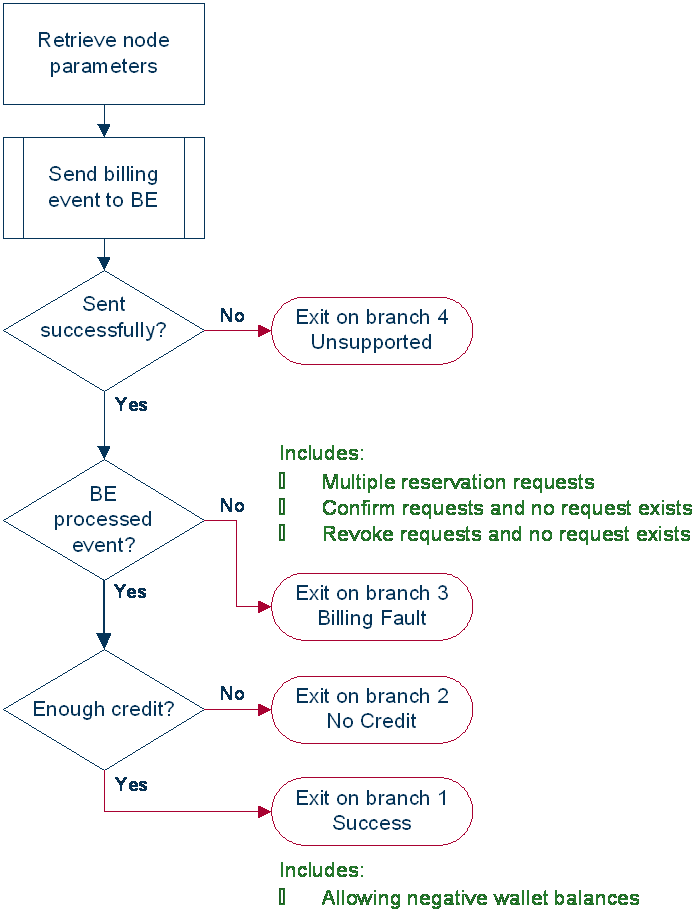
| Exit | Cause | Description |
| 1 | Success |
The caller has successfully exited the node with the billing event successfully completed. Note: This includes:
|
| 2 | No Credit | The caller has no credit and the allow negative balance option is off. |
| 3 | Billing Fault |
An error has occurred within the billing function. Possible faults are:
|
| 4 | Unsupported | Either error / failure or that the Domain being used does not support this feature node. |
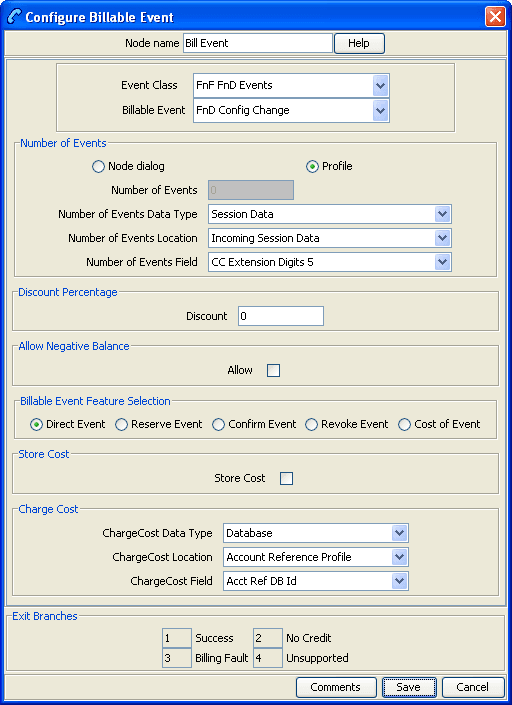
Configuration fields
This table describes the function of each field.
| Field | Description |
|---|---|
| Event Class | List of event types that can be billed. |
| Billable Event | List of events for the Event Class selected. |
| Number of Events |
The number of events to bill the subscriber. This value can be obtained from:
Note: The number of events value is hexadecimal, for example: 10 in the Number of Events field is actually 16 events. |
| Discount Percentage | The percentage discount to apply to the billable event cost. |
| Allow Negative Balance | Indicates if the caller wallet balance is allowed to become negative as a result of this event billing (includes an already negative wallet balance before this billable event). |
| Billable Event Feature Selection |
This node has five modes of operation:
Note: The option selected here will affect the list of available items to select in the Event Class and Billable Event. |
| Store Cost | Indicates if the billed cost is to be saved in the Charge Cost location. |
| Charge Cost | Location to save the billed cost into for later use. |
Configuring the node
Follow these steps to configure the node.
Warning: If using Diameter, refer to Diameter Control Agent Technical Guide before configuring this node.
| Step | Action |
|---|---|
| 1 |
Select the mode of operation for this instance of the node:
Note: This affects content for Event Class and Billable Event lists. |
| 2 | From the Event Class drop down list, select the class of this billable event. |
| 3 | From the Billable Event drop down list, select the event to bill. |
| 4 |
In the Number of Events section, select the option to use to obtain the number of events to bill. Either select:
Result: The relevant Number of Events fields are made available. |
| 5 |
Warning: The number of events value in either field is a hexadecimal number, for example 10 entered is actually 16 events. |
| 6 | In the Discount field, type the discount percentage to apply to the billed event cost. |
| 7 | To permit a negative wallet balance when reserving or billing, select the Allow check box. |
| 8 |
If the mode of operation is:
and the cost is to be saved, select the Store Cost check box. |
| 9 | If the Store Cost check box has been selected, select the ChargeCost Data Type, Location and Field from the drop down lists. |
| 10 | Click Save. |
Note: The list of data types is fixed at installation time for each feature node or screen.
Further reference:
- For information about profile blocks (data type, location, and field) and how to use them, see Profile Blocks and Tags .
- The primary tag lists are configured in the SMS > Services > ACS Service > Configuration > Profile Tag Details and Profile Tag Mapping tabs (see ACS User's Guide, Profile Tag Details for more information).
Business Prefix Branch
Node description
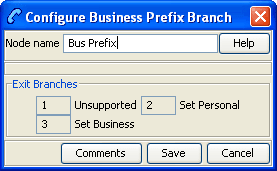
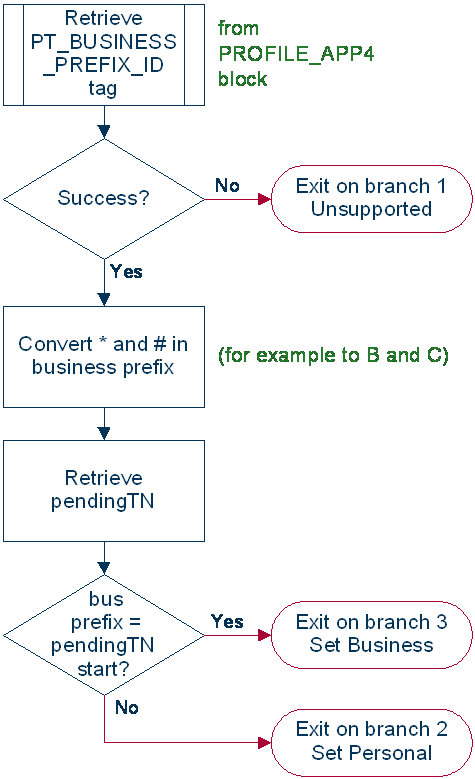
The Business Prefix Branch node checks to see if the caller has dialed the business prefix as part of their number. If so, the node strips the prefix from the dialed number and routes accordingly.
The Business Prefix is configured in the Resource Limits tab on the Resources screen within CCS.
Node icon

If the CPE has been configured to use the static panel CPE palette style, the CPE displays the icon shown below to represent the feature node.

Node exits
This node has one entry and three exits. The number of exits cannot be changed.
| Exit | Cause | Description |
| 1 | Unsupported | Either error / failure or that the Domain being used does not support this feature node. |
| 2 | Set Personal | The caller has not dialed the Business Prefix. |
| 3 | Set Business | The caller has dialed the Business Prefix. |
Call Information SMS
Node description
The Call Information SMS node is used after a uATB node to send an SMS notification to the user with regards to the duration and cost of the call, using templates defined for each language. The user can also configure the following items in the node:
- The template to use to send the message (configured through the ACS > Configuration > Notification screens)
- The currency in which to display the cost of the call
The following parameters (some use strings configured in CCS, see CCS User's Guide, can be included in the messages:
- Duration - hours/minutes/seconds (available only after a call)
- Call cost (available only after a call)
- Wallet type
- Wallet expiry
- Balances
- Balance expiry
Notes:
The node will filter out all Expenditure Balance Types and not include them in the SMS notification message. See CCS User's Guide - Balance Types topic.
Node icon

If the CPE has been configured to use the static panel CPE palette style, the CPE displays the icon shown below to represent the feature node.

Restrictions
This node may be used any number of times within a control plan.
This node requires an existing short message service.
This node deals only with the wallet type currently set in the call context. If a different wallet is required, a Set Wallet Type node must be invoked before the uATB node in the control plan.
For more information, see Set Wallet Type.
Node exits
This node has one entry and two exits. The number of exits cannot be changed.
| Exit | Cause | Description |
| 1 | Unsupported | Either error / failure or that the Domain being used does not support this feature node, a text message has not been sent. |
| 2 | Success | A text message has been successfully sent to the short message service. |
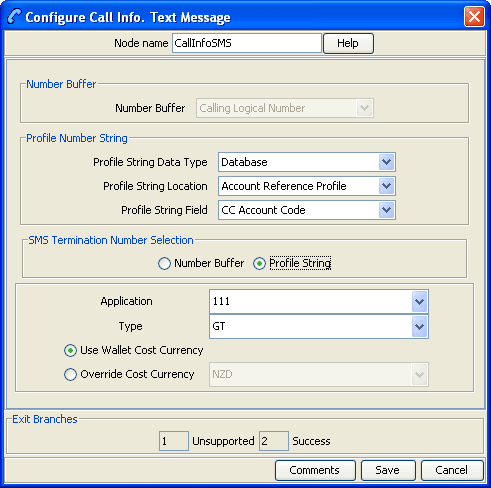
Configuring the node
Follow these steps to configure the node.
| Step | Action |
|---|---|
| 1 |
In the SMS Termination Number Selection panel, select the location of the number to which the SMS will be sent. Select either:
Result: The relevant fields are made available. |
| 2 |
|
| 3 |
Select the Application where the notification template is defined from the drop down list. Note: ACS will be used by default. |
| 4 |
Select the notification Type from the drop down list. Defaults to CallInfoDurationCost for application ACS. |
| 5 |
|
| 6 | Click Save. |
Note: The list of data types is fixed at installation time for each feature node or screen.
Further reference:
- For information about profile blocks (data type, location, and field) and how to use them, see Profile Blocks and Tags .
- The primary tag lists are configured in the SMS > Services > ACS Service > Configuration > Profile Tag Details and Profile Tag Mapping tabs (see ACS User's Guide, Profile Tag Details for more information).
Message parameters
Message parameters included in the notification template message text are searched for and replaced with an appropriate value.
Here is a list of available parameters.
| Parameter | Description | ||||||||||||
|---|---|---|---|---|---|---|---|---|---|---|---|---|---|
| $1 | Call length hours (not zero padded). | ||||||||||||
| $2 | Call length minutes (not zero padded). | ||||||||||||
| $3 |
Call length seconds (not zero padded). Examples.
|
||||||||||||
| $4 |
The Balance Types details of the Wallet. Details include:
Note: The balance details string is configured on the Balance Type Translations tab in the Wallet Management screen in CCS. You must configure an entry for all languages used for sending notifications. See CCS User's Guide for details. |
||||||||||||
| $5 |
The wallet expiry details. One of the following:
Note: The wallet expiry date text is configured on the Wallet Name Translations tab in the Wallet Management screen in CCS. See CCS User's Guide for details. |
||||||||||||
| $6 |
The cost details including the currency and amount. Note: The cost string is configured on the Balance Type Translations tab in the Wallet Management screen in CCS. See CCS User's Guide for details. |
||||||||||||
| $7 |
The wallet description. Note: The wallet description is configured on the Wallet Name Translations tab in the Wallet Management screen in CCS. You must configure an entry for all languages used for sending notifications. See CCS User's Guide for details. |
||||||||||||
| $8 |
The total call length in hours, minutes and seconds. Example: 1:16:51. |
||||||||||||
| $9 |
The total call length in minutes and seconds. Example: 76:51 Note: Use parameters $8 or $9 instead of using parameters $1, $2 and $3. |
Message example
Here are some example templates and the corresponding messages generated by the Call Information SMS node.
Example 1
A template of:
Call Dur: $1 hr $2 min $3 secs - call cost $6 - a/c type $7 -
exp details $5- bal $4
will send the message:
"Call Dur: 0 hr 7 min 42 secs – call cost Gen Bal
AED7.68 – a/c type Eng Private - exp details no expiry
– bal Eng Gen Bal AED7287.21-no expiry"
Example 2
A template of:
Call Dur: $9 minutes - call cost $6 - a/c type $7 - exp
details $5- bal $4
will send the message:
"Call Dur: 7:42 minutes – call cost Gen Bal AED7.68
– a/c type Eng Private - exp details no expiry – bal
Eng Gen Bal AED7287.21-no expiry"
Cost Call Duration Branching
Node description
Allows for balance type and cost threshold branching, or call duration branching, on the values returned for the last charged call.
This feature node when combined with the Store Profile Field and Retrieve Profile Field feature nodes will allow a service to be defined in a control plan where a configured number of the free daily connections of less than a configured number of seconds can be allocated to a group of specified numbers.
This feature node is used for one of:
- Call cost branching
- Call duration branching
Depending on the mode, either the balance type and cost threshold (call cost branching) or just the duration threshold (call duration branching) will be configured on the feature node, making these parameters instance specific within the control plan. Optionally, the cost per duration may be stored in a selected profile field.
This feature node when used for call cost branching will limit the balance types that can be selected by the operator to only those that are used as chargeable balance types; hence this does not include ‘Expenditure’ balance types.
Node icon
If the CPE has been configured to use the static panel CPE palette style, the CPE displays the icon shown below to represent the feature node.

Node exits
This node has one entry and five exits. The number of exits cannot be changed.
Note: The reason an exit is taken depends on the mode in use (cost or call duration).
| Exit | Cause | Description |
|---|---|---|
| 1 | > |
The wallet balance or call duration is greater than the configured threshold. Telephony actions are allowed after this branch. |
| 2 | < |
The wallet balance or call duration is less than the configured threshold. Telephony actions are allowed after this branch. |
| 3 | = |
The wallet balance or call duration is the same as the configured threshold. Telephony actions are allowed after this branch. |
| 4 | No Balance Found |
The specified balance type was not found in the subscriber’s wallet, or the current domain does not support the required actions. Telephony actions are allowed after this branch. |
| 5 | Unsupported | Any error/failure encountered. |
Note: A zero wallet balance could potentially use either exit 2 or exit 3 depending on the threshold value.
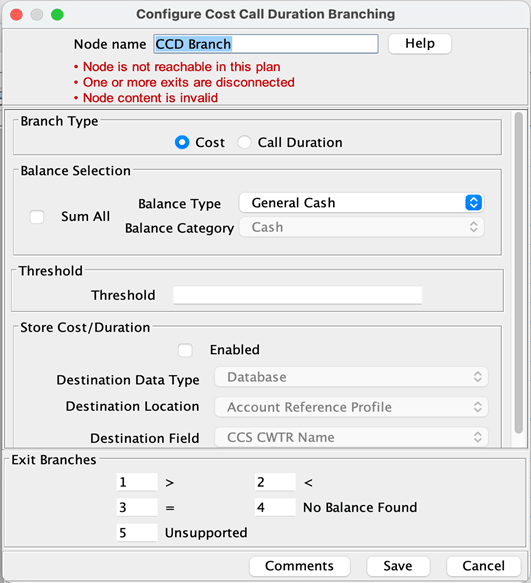
Configuring the node
Follow these steps to edit the node configuration.
| Step | Action | |
|---|---|---|
| 1 |
Select the Branch Type to use. Either:
Result: The relevant fields are made unavailable. |
|
| Cost | ||
| 2 |
Select which balance type(s) to use. Either:
Note: The Balance Type drop down list shows all Cash, Data, and Time chargeable balance types for the current ACS customer that can be used for charging. This excludes all Expenditure balances. |
|
| Cost and Call Duration | ||
| 3 | Type the comparison balance or duration threshold to use in the Threshold field. | |
| 4 | To store the call cost or duration tick the Enabled check box in the Store Cost/Duration area. Then, select the Destination profile from the Data Type, Location and Field drop down lists. | |
| 5 | Click Save. | |
- Note: The list of data types is fixed at installation time for each feature node or screen.
- Further reference:
- For information about profile blocks (data type, location, and field) and how to use them, see Profile Blocks and Tags.
- The primary tag lists are configured in the SMS > Services > ACS Service > Configuration > Profile Tag Details and Profile Tag Mapping tabs (see ACS User's Guide, Profile Tag Details for more information).
Credit Wallet Transfer
Warning: This feature node has now been deprecated and should no longer be used. This feature node will still function in existing control plans.
Node description
The Credit Wallet Transfer node allows cash credit to be converted into an alternative balance type for a subscriber’s own account or the account of an alternate subscriber.
Credit transfers only apply to peer-to-peer and service bundle transfer definitions. See CCS User's Guide for further information.
Node icon
If the CPE has been configured to use the static panel CPE palette style, the CPE displays the icon shown below to represent the feature node.

Node exits
This node has one entry and six exits. The number of exits cannot be changed.
| Exit | Cause | Description |
|---|---|---|
| 1 | Unsupported | The current charging domain does not support all the required services needed by the feature node. |
| 2 | Success | Credit transfer completed successfully. |
| 3 | Unauthorised | The product type of the purchaser was not found in the limited product type list associated with this credit transfer. |
| 4 | Bad PIN |
The PIN of the purchaser failed to validate. This may be due to the:
|
| 5 | Invalid Transfer | The credit transfer short name specified was invalid. |
| 6 | Error |
Various general errors which may, amongst others, be:
|
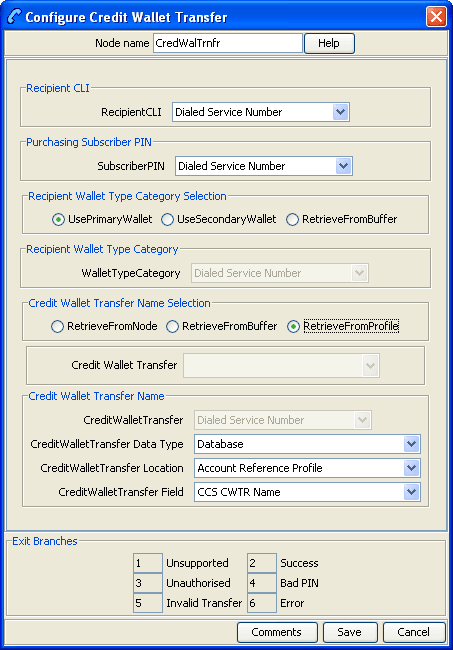
Configuration fields
This table describes the function of each field.
| Field | Description |
|---|---|
| Recipient CLI |
The phone number of the credit transfer recipient, found in one of the ACS phone-number buffers. Note: Location Area Code and Cell Identity buffers are not available for use; all remaining phone-number buffer types are valid. |
| Purchasing Subscriber PIN |
The PIN number for the purchasing subscribers wallet the credit is coming from, found in one of the ACS phone-number buffers. Note: Location Area Code and Cell Identity buffers are not available for use; all remaining phone-number buffer types are valid. |
| Recipient Wallet Type Category |
The destination wallet for the credit transfer. Can be one of:
Notes:
|
| Credit Wallet Transfer Name Selection |
Select the Credit Transfer short name (this list is configured in the CCS Transfer Management screen. Can be one of:
Note: Location Area Code and Cell Identity buffers are not available for use; all remaining phone-number buffer types are valid. |
| Credit Wallet Transfer |
Select the Credit Wallet Transfer to use in the feature node. This is configured in the CCS Transfer Management screen. This option is enabled when the Credit Wallet Transfer Name Selection is set to RetrieveFromNode: |
| Credit Wallet Transfer Name |
This field is enabled when the Credit Wallet Transfer Name Selection is set to RetrieveFromBuffer:
These fields are enabled when the Credit Wallet Transfer Name Selection is set to RetrieveFromProfile:
|
Configuring the node
Follow these steps to configure the node.
| Step | Action |
|---|---|
| 1 | From the Recipient CLI drop down list, select the buffer containing the phone number of the credit transfer recipient. |
| 2 | From the Purchaser PIN drop down list, select the buffer containing the purchaser wallet PIN. |
| 3 |
From the Recipient Wallet Type Category Selection options, select the wallet to use or the location of the wallet to use. Note: If the buffer option is selected, from the Wallet Type Category drop down list also select the buffer containing the wallet type. |
| 4 |
From the Credit Wallet Transfer Selection options, select the location of the credit transfer details. Note: The following fields require completion depending on the option selected. |
| 5 |
If Feature Node option selected:
or If Buffer option selected:
or If Profile option selected:
Note: The short name in a buffer or profile field must match a name configured in the Transfer Management screen. |
| 6 |
Click Save. Result: The purchaser and recipient may receive SMS notifications, depending on the setting of the notification opt out flag and the result of the transfer. See CCS User's Guide, Adding Subscribers for configuration instructions and SMS notifications for messages and their content. |
Note: The list of data types is fixed at installation time for each feature node or screen.
Further reference:
- For information about profile blocks (data type, location, and field) and how to use them, see Profile Blocks and Tags .
- The primary tag lists are configured in the SMS > Services > ACS Service > Configuration > Profile Tag Details and Profile Tag Mapping tabs (see ACS User's Guide, Profile Tag Details for more information).
SMS notification
This table describes the SMS notifications and the conditions enabling them to be sent.
| Message to | MSISDN | Transfer status | Message content |
|---|---|---|---|
| Purchaser | Differs from recipient | Success | Cost of the transfer plus the recipient MSISDN |
| NA | Failure | Alternative failure message. | |
| NA | Same as recipient | Success | Cost of the transfer plus credits received. |
| NA | NA | Failure | Alternative failure message. |
| Recipient | Differs from purchaser | Success | Credits received plus the purchaser MSISDN. |
Declined Billing Cause
Node description
The Declined Billing Cause node sends the cause of a billing failure to the subscriber.
This feature node provides additional functionality for the UATB feature node when placed after the "declined (no funds)" branch of the UATB feature node.
Node icon
If the CPE has been configured to use the static panel CPE palette style, the CPE displays the icon shown below to represent the feature node.

Restrictions
This node may be used any number of times within a control plan. However, it must be placed after a UATB node - declined (no funds) branch.
Node exits
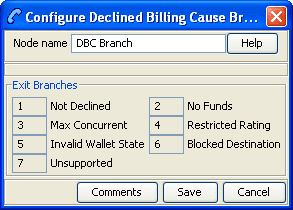
This node has one entry and seven exits. The number of exits cannot be changed.
| Exit | Cause | Description |
|---|---|---|
| 1 | Not Declined | The billing was not declined. |
| 2 | No Funds | The billing was declined due to lack of funds. |
| 3 | Max Concurrent | Number of concurrent users for this wallet has been exceeded. |
| 4 | Restricted Rating | Rating/ tariff for this call destination has not been established. |
| 5 | Invalid Wallet State | Wallet is frozen. |
| 6 | Blocked Destination | The billing was declined due to the destination being barred. |
| 7 | Unsupported | Either error / failure or that the Domain being used does not support this feature node. |
Direct Unit Charge Request
Warning: This feature node has now been deprecated and should no longer be used. This feature node will still function in existing control plans.
Node description
The Direct Unit Charge Request node retrieves wallet information and sends it to the billing engine.
Node icon

If the CPE has been configured to use the static panel CPE palette style, the CPE displays the icon shown below to represent the feature node.

Node exits
This node has one entry and four exits. The number of exits cannot be changed.
| Exit | Cause | Description |
|---|---|---|
| 1 | Success | The request has been successfully applied to the BE. |
| 2 | Not Enough Info | No call information was found. |
| 3 | Billing Fault | Any BE error (such as insufficient credit or timeout). |
| 4 | Unsupported | Either error / failure or that the Domain being used does not support this feature node. |
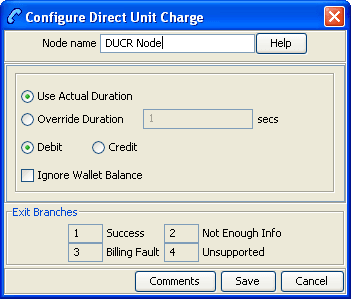
Configuration fields
This table describes the function of each field.
| Field | Description |
|---|---|
| Use Actual Duration | Uses the actual call duration for billing. |
| Override Duration | Uses the specified duration time for billing. You must enter a value in the Duration Time field. |
| Duration Time | Time, in seconds, to use for billing. A value of 0 or greater is accepted. |
| Debit | Allow the request to perform a debit instead of a credit. |
| Credit | Allow the request to perform a credit instead of a debit. |
| Ignore Wallet Balance | Allows the wallet balance to go negative instead of being rejected (used only when the account reference is configured to do so.) |
Configuring the node
Follow these steps to configure the node.
| Step | Action |
|---|---|
| 1 |
Select the duration to use for billing:
|
| 2 | Select either the Debit or Credit options. |
| 3 | Select the Ignore Wallet Balance check box to allow the wallet balance to go negative. |
| 4 | Click Save. |
Get CUG Details
Warning: This feature node has now been deprecated and should no longer be used. This feature node will still function in existing control plans.
Node description
The Get CUG Details node analyzes the calling and called party numbers to determine whether they are part of a closed user group (CUG). If they belong to the same CUG, then the tariff plan used by the next UATB node is overridden by the tariff plan specified for the CUG in the Resources screens.
Note: If both parties belong to more than one CUG, then the tariff plan from the first CUG to be returned, is normally used.
Node icon
If the CPE has been configured to use the static panel CPE palette style, the CPE displays the icon shown below to represent the feature node.

Restrictions
This node may be used any number of times within a control plan.
Warning: This feature node is unusable when the account details are held on a BRM. That is, when the charging domain of the subscriber is of type BCD. See Charging Control Services User's Guide for further details on charging domains.
Node exits
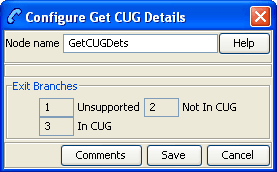
This node has one entry and three exits. The number of exits cannot be changed.
| Exit | Cause | Description |
|---|---|---|
| 1 | Unsupported | Either error / failure or that the Domain being used does not support this feature node. |
| 2 | Not In CUG | Either the Calling Party or the Called Party are not in a Closed User Group (CUG), or they are not in the same one. |
| 3 | In CUG | Both the Calling Party and the Called Party are in the same CUG, and the current tariff plan has been successfully overridden. |
Named Event
Node description
The Named Event feature node is used to bill the caller for a defined number of named events with a defined discount.
The action is one of:
- Billing the caller wallet
- Reserving the event cost
- Confirming the cost can be billed
- Canceling the reserved event cost
- Retrieving the cost of the event
The number of events is either configured in the feature node or stored at a selected location.

Restrictions
This node may be used any number of times within a control plan.
This node deals only with the wallet type currently set in the call context. If a different wallet is required, a Set Wallet Type node must be invoked before this node.
For more information, see Set Wallet Type.
Node exits
This node has one entry and four exits. The number of exits cannot be changed.
Note: These exit descriptions are specific to the responses received from an Oracle Voucher and Wallet Server billing engine. For specific information about how responses from other billing engines map to these exits, see the technical guide for the interface for billing engine being used.
| Exit | Cause | Description |
| 1 | Success |
The caller has successfully exited the node with the billing event successfully completed. Note: This includes:
|
| 2 | No Credit | The caller has no credit and the allow negative balance option is off. |
| 3 | Billing Fault |
An error has occurred within the billing function. Possible faults are:
|
| 4 | Unsupported | Either error / failure or that the Domain being used does not support this feature node. |
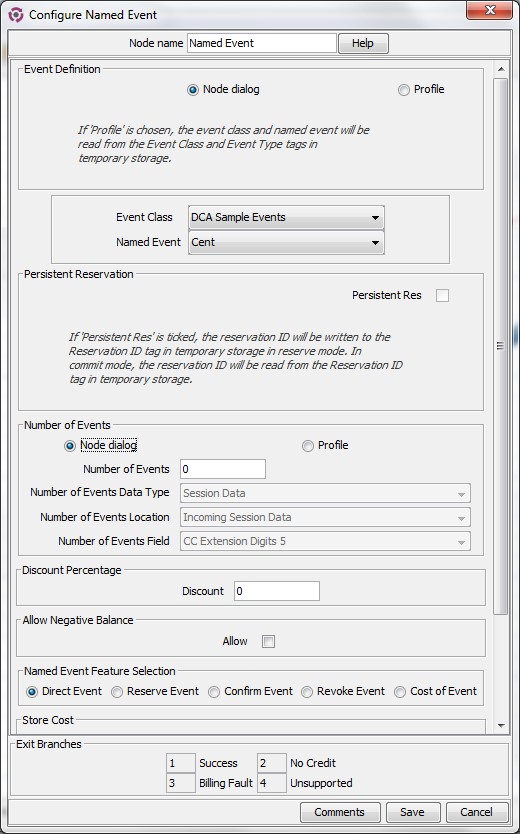
Configuring the node
Follow these steps to configure the Named Event feature node.
Note: If using Diameter, see Diameter Control Agent Technical Guide before configuring this feature node.
| Step | Action |
|---|---|
| 1 |
From the Event Definition section, select the option to define how the event class and name will be specified. Select one of:
|
| 2 |
If Node dialog: From the Event Class list, select the class of this named event. Note: This list is configured in the Named Event tab (see CCS User's Guide for more information). From the Named Event list, select the event to bill. Note: This list is configured in the Named Event tab (see CCS User's Guide for more information). |
| 3 |
If required, select the Persistent Reservation check box to write the reservation ID to the Reservation ID tag in temporary storage in reserve mode. In commit mode, the reservation ID will be read from the Reservation ID tag in temporary storage. This can be used to pass the reservation ID in an OSD SOAP request, for example.
Note: If you select to use this feature, set
the If you configure the Named Event feature node for Diameter, and if the Persistent Reservation check box is enabled, the feature node requires a value in the Number Of Events Used profile tag when in commit mode. To populate that profile tag, precede the Named Event feature node with a node that can set profile data, such as the Set or Extract Content feature nodes. The Extract Content feature node can be configured to read the number of events that were used from incoming data and store that amount in the Number Of Events Used profile tag. If the profile tag is empty, the session takes the Unsupported exit from the Named Event feature node. |
| 4 |
In the Number of Events section, select the option to use to obtain the number of events to bill. Select one of:
|
| 5 |
If Node dialog: In the Number of Events field, type the number of events to bill. If Profile: Select the Number of Events Data Type, Location and Field from the drop down lists. Note: The number of events value in the Node Dialog is a decimal number, but the value from the Profile field depends on the type of the profile:
|
| 6 | In the Discount Percentage field, type the discount percentage to apply to the billed event cost. |
| 7 | To permit a negative wallet balance when reserving or billing, select the Allow check box. |
| 8 |
Select the mode of operation for this instance of the node:
Note: This affects content for event class and named event lists. |
| 9 |
If the mode of operation is:
and the cost is to be saved, select the Store Cost check box. |
| 10 | If the Store Cost check box has been selected, select the ChargeCost Data Type, Location and Field from the drop down lists. |
| 11 | Click Save. |
Note: The list of data types is fixed at installation time for each feature node or screen.
Further reference:
- For information about profile blocks (data type, location, and field) and how to use them, see Profile Blocks and Tags .
- The primary tag lists are configured in the SMS > Services > ACS Service > Configuration > Profile Tag Details and Profile Tag Mapping tabs (see ACS User's Guide, Profile Tag Details for more information).
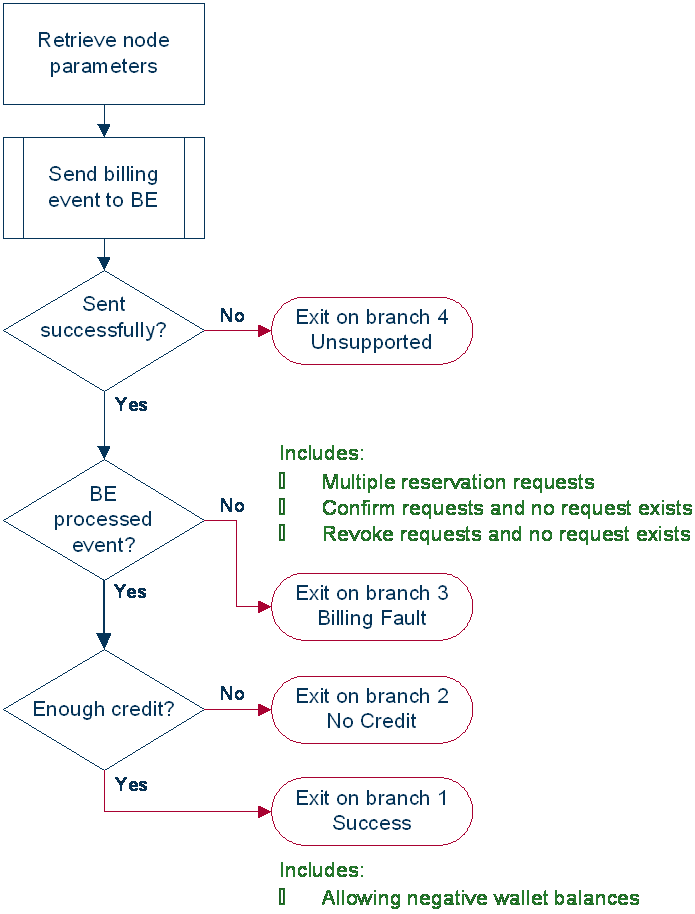
Play Tariff Plan Announcement
Warning: This feature node has now been deprecated and should no longer be used. This feature node will still function in existing control plans.
Node description
The Play Tariff Plan Announcement node plays the announcement associated with the selected tariff plan.
The tariff plan can be selected in the node or specified in a profile tag field.
Node icon
If the CPE has been configured to use the static panel CPE palette style, the CPE displays the icon shown below to represent the feature node.

Restrictions
A control plan may contain as many Play Tariff Plan Announcement nodes as required.
Warning: This feature node is unusable when the account details are held on a BRM. That is, when the charging domain of the subscriber is of type BCD. See Charging Control Services User's Guide for further details on charging domains.
Node exits
This node has one entry and 2 exits. The number of exits cannot be changed.
| Exit | Cause | Description |
|---|---|---|
| 1 | Success | The node successfully found the selected tariff plan and played the associated announcement. |
| 2 | Error | An error/failure occurred finding the selected tariff plan or when loading and playing the announcement. |
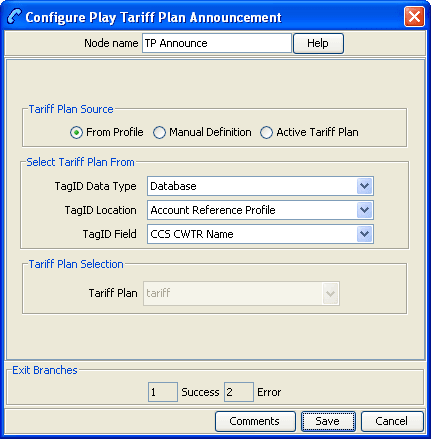
Configuring the node
Follow these steps to configure the node.
| Step | Action |
| 1 |
In the Tariff Plan Source area select:
|
| 2 |
If From Profile: Select the Data Type, Location and Field drop down lists containing the required tariff plan. If Manual Definition: Select the Tariff Plan from the drop down list. If Active Tariff Plan: Then the currently active tariff plan will be used. |
| 3 | Click Save. |
Note: The list of data types is fixed at installation time for each feature node or screen.
Further reference:
- For information about profile blocks (data type, location, and field) and how to use them, see Profile Blocks and Tags .
- The primary tag lists are configured in the SMS > Services > ACS Service > Configuration > Profile Tag Details and Profile Tag Mapping tabs (see ACS User's Guide, Profile Tag Details for more information).
Set Active Domain
Node description
- The Set Active Domain node allows the selection of a billing domain for use by the current top-up/voucher redeem activity for the following management types:
- Wallet
- Voucher
- Subscriber
- Service
This node also allows changing the domain type at any point within a control plan.
For example, if TUS is installed (using the default VoucherDomainType from eserv.config for TUS) then the domain can be changed mid call to UBE and vice versa with the Set Active Domain node.
Node icon

If the CPE has been configured to use the static panel CPE palette style, the CPE displays the icon shown below to represent the feature node.

Node exits
This node has one entry and two exits. The number of exits cannot be changed.
| Exit | Cause | Description |
|---|---|---|
| 1 | Success | The billing domain to use was set successfully. |
| 2 | Error | A system error of some kind occurred. The billing domain to use has not set. |
Configuration fields
This table describes the function of each field.
| Field | Description |
|---|---|
| Domain options | The domain to set can be either the name of a domain or a type of domain. The drop down list available will depend on the option selected here. |
| Name | A drop down list of all the valid domain names. The domain names are maintained in the Service Management > Domain tab screens. |
| Type | A drop down list of all the valid domain types. The domain types are maintained in the Service Management > Domain tab screens. |
| Management check boxes |
These are the chassis actions to apply to the selected domain. The availability of check boxes for selection is maintained with the domain in the Service Management > Domain tab screens. |
| Service | Sets service chassis action. |
| Subscriber | Sets the subscriber chassis action. |
| Voucher | Sets the voucher chassis action. |
| Wallet | Sets the wallet chassis action. |
Configuring the node
Follow these steps to configure the node.
| Step | Action |
|---|---|
| 1 |
Select the option to use to identify the domain:
|
| 2 |
From the Name or Type drop down lists, select the domain name or type. Notes:
|
| 3 |
Optionally select the Management check boxes allowed to set the required chassis action for the domain:
Notes:
|
| 5 | Click Save. |
Note: The optional check boxes are available for use once they have been selected in the Service Management > Domain tab screens.
Example use of node
The following is an example of how this node can be used under the existing available features.
| Example | Description |
|---|---|
| Scenario | A system is setup to redeem UBE vouchers, but this control plan requires the redemption of a voucher. |
| Solution | Select a domain type of TUS, then select the
voucher check box.
|
| Result | All subsequent voucher requests will be made to the TUS servers instead of the UBE. |
Set BE EDR
Node description
The Set BE EDR node alters and adds EDR tags in EDRs generated by slee_acs during call flow. The EDR tag must be specified. The value can be static or populated from a profile field. If the tag already exists on the EDR, the value of the tag is overridden.
Node icon

If the CPE has been configured to use the static panel CPE palette style, the CPE displays the icon shown below to represent the feature node.

Node exits
This node has one entry and two exits. The number of exits cannot be changed.
| Exit | Cause | Description |
|---|---|---|
| 1 | Success | Existing BE EDR tag details successfully overridden, new tag appended. |
| 2 | Unsupported | Either error / failure or the Domain being used does not support this feature node. |
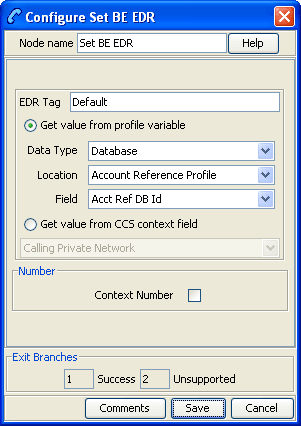
Configuration screen
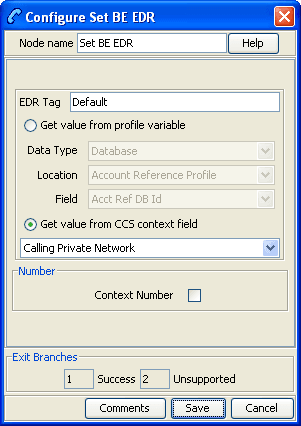
Here is an example Configure Set BE EDR node screen when using a CCS context value.
Configuration fields
This table describes the function of each field.
Note: Location/Field are mutually exclusive from Fixed Value.
| Field | Description |
|---|---|
| EDR Tag |
The tag to set the value to. One of:
This field must be between 1 and 50 characters long. This field is required. Warning: The only characters which can be used in this field are 0-9, a-z, A-Z, -_ and spaces. |
| Data Type, Location, Field | The type, location and field of the profile block that contains the required field. |
| Field | The profile field that contains the value to use for the EDR Tag. |
| Context Field |
The call context field to use for the EDR Tag. For more information about call context fields, see ACS User's Guide. Note: The entries in this field are a sub-set of the fully available set of call context fields. |
| Fixed Value |
Select the Data Type of Fixed Value to see this field. Value to use for the EDR Tag This field must be between 1 and 50 characters long. Warning: The only characters which can be used in this field are 0-9, a-z, A-Z, -_ and spaces. |
| Context Number | When selected, normalization occurs on fields selected from the Context Field based upon capability and rules. |
Configuring the node
Follow these steps to configure the node.
| Step | Action | |
|---|---|---|
| 1 | In the EDR Tag field, enter the string you want to use as the EDR field label. | |
| 2 |
To set the EDR Tag value or source:
|
|
| From a profile field | ||
| 3 | Select the field from the Data Type, Location and Field drop down lists. | |
| 4 | Click Save. | |
| From a fixed value | ||
| 3 |
Select the Data Type field. Result: The screen changes, the Fixed Value field replaces the Location and Field list boxes.
|
|
| 4 |
Type the value in the Fixed Value field. Note: To revert to a profile field selection, select an entry from the Data Type drop down list. |
|
| 5 | Click Save. | |
| From a CCS context field | ||
| 3 | Select the field from the drop down list. | |
| 4 |
Select the Context Number check box to have the CCS context field value normalised. Un-select to use the CCS context field value as stored. |
|
| 5 | Click Save. | |
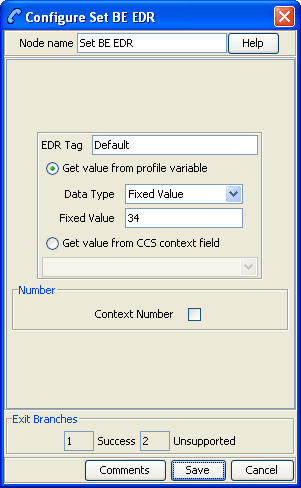
For more information about the fields this node uses, see Configuration fields.
Set Discount
Warning: This feature node has now been deprecated and should no longer be used. This feature node will still function in existing control plans.
Node description
The Set Discount node retrieves discount information from the specified location and uses that information for any subsequent billing requests. The discount information collected by this node overrides the last set discount node encountered while traversing a Control Plan.
Note: The discounts provided by the node are applied in addition to any existing discounts.
Node icon

If the CPE has been configured to use the static panel CPE palette style, the CPE displays the icon shown below to represent the feature node.

Restrictions
The Set Discount node may be used any number of times within a control plan.
Warning: This feature node is unusable when the account details are held on a BRM. That is, when the charging domain of the subscriber is of type BCD. See Charging Control Services User's Guide for further details on charging domains.
Node exits
This node has one entry and two exits. The number of exits cannot be changed.
| Exit | Cause | Description |
|---|---|---|
| 1 | Success | Discount information retrieved successfully. |
| 2 | Unsupported |
Either:
|
Configuration screen
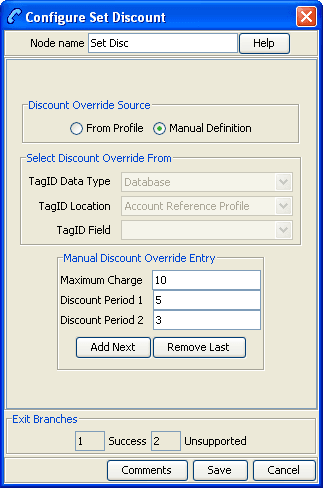
Here is an example Configure Set Discount node screen.
Note: Discount Period fields will only be visible in the screen if a manual discount override entry has been configured and Add Next has been used to add percentage discount override values.
Configuration fields
This table describes the function of each field.
| Field | Description |
|---|---|
| Discount Override Source |
Takes the discount from either:
|
| Select Discount Override From |
The profile Data Type, Location and Field (in decimal) for the discount information. Available when From Profile option is selected. |
| Maximum Charge | The maximum charge allowed for the call. |
| Discount Period n |
Allows up to ten discounts. Each discount is configured as a percentage. This will be applied to the corresponding period for the rate in the tariff plan used for the charge. Negative percentages may be specified, allowing the cost to be increased instead of decreased. The number of Discount Periods is maintained through Add Next (to add a new entry) or Remove Last (remove the most recently added entry). |
Configuring the node
Follow these steps to configure the node
| Step | Action | |
|---|---|---|
| 1 |
Select the source for the discount from the Discount Override Source options. Either:
|
|
| If From Profile option used. | ||
| 2 | From the drop down lists in the Select Discount Override From area, select the profile data type, location and field where the discount is stored. | |
| 3 | Click Save to complete this procedure. | |
| If Manual Definition used. | ||
| 4 | Type the maximum charge allowed for the call in the Maximum Charge field. | |
| 5 |
Click Add Next to display the Discount Period 1 field, and type in the discount percentage for this period. Note: When editing, all the discount percentages currently configured in the node will be shown. |
|
| 6 | To add a discount percentage for the next period, repeat step 5 (you may specify discount percentages for up to ten periods). | |
| 7 | To remove the discount percentage for the most recent discount period, click Remove Last. | |
| 8 | Click Save to complete this procedure. | |
Note: The list of data types is fixed at installation time for each feature node or screen.
Further reference:
- For information about profile blocks (data type, location, and field) and how to use them, see Profile Blocks and Tags.
- The primary tag lists are configured in the SMS > Services > ACS Service > Configuration > Profile Tag Details and Profile Tag Mapping tabs (see ACS User's Guide, Profile Tag Details for more information).
Set Tariff Plan Rule
Warning: This feature node has now been deprecated and should no longer be used. This feature node will still function in existing control plans.
Node description
Specifies the tariff plan to be used for combinations of network access type and bearer capability.
When the Set Tariff Plan Rule node is activated during a call, the settings configured in the node are retrieved from the call plan data. When the call passes through the next UATB node, these settings are used to determine which tariff plan should be used for the caller's current network access type and bearer capability. If the tariff plan changes, then the notification configured in the node for network access type and bearer capability combination will be sent.
Node icon

If the CPE has been configured to use the static panel CPE palette style, the CPE displays the icon shown below to represent the feature node.

Restrictions
This node may be used any number of times within a control plan.
To function correctly this node should be placed in front of the UATB node. The rules defined in the last Set Tariff Plan Rule node before the UATB node will be used.
If a Tariff Plan Override node is placed after the Set Tariff Plan Rule node in a call plan, then the charging defined in the TPO node will be used instead. Otherwise the charging defined in the Set Tariff Plan Rule node will be used.
Warning: This feature node is unusable when the account details are held on a BRM. That is, when the charging domain of the subscriber is of type BCD. See Charging Control Services User's Guide for further details on charging domains.
Node exits
This node has one entry and two exits. The number of exits cannot be changed.
| Exit | Cause | Description |
| 1 | Unsupported | Either error / failure, or the domain being used does not support this feature node. |
| 2 | Success | The product type tariff plan has been successfully overridden by the one specified in the node. |
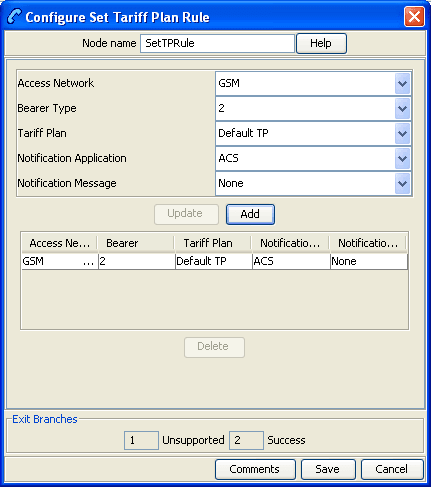
Configuration fields
This table describes the function of each field.
| Field | Description |
|---|---|
| Access Network |
List of available access network types. These are defined in Access Network geography set in ACS. Note: The "None" value is used for rules where the access network type is not relevant. |
| Bearer Type |
List of available bearer types. Valid values are 1 to 255 and "None". Note: The "None" value is used for rules where the bearer type is not relevant. |
| Tariff Plan | Sets the tariff plan for the selected access network type and bearer type combination. |
| Notification Application | List of applications defined in ACS under which the available notification messages are grouped. |
| Notification Message | Lists the available notification messages for the selected notification application. |
For more information about the notifications and geography sets configured in ACS, see ACS User's Guide.
Configuring the node
Follow these steps to configure the node.
| Step | Action |
|---|---|
| 1 | From the Access Network drop down list, select the access network for the rule you are adding. |
| 2 | From the Bearer Type drop down list, select the bearer type for the rule. |
| 3 | From the Tariff Plan drop down list, select the tariff plan to use for this combination of access network type and bearer type. |
| 4 | From the Notification App drop down list, select the application for which the notification message you want to use has been configured in ACS. |
| 5 | From the Notification Message drop down list, select the message to output for this rule. |
| 6 |
Click Add. Result: The rule is added to the grid. |
| 7 | Repeat step 1 to 6 for all the combinations of access network type and bearer type you require. |
|
Modify any existing rules as required. To
|
|
| 8 | Click Save. |
Set Wallet Type
Node description
The Set Wallet Type node specifies the wallet type to use in the call context. Currently, one of:
- Primary
- Secondary
Node exits
This node has one entry point and two exits that are set by the system. The number of exits is not changeable by the user.
| Exit | Cause | Description |
| 1 | Success | The caller has successfully exited the node and the desired wallet type has been set. |
| 2 | Unsupported |
One of the following:
|
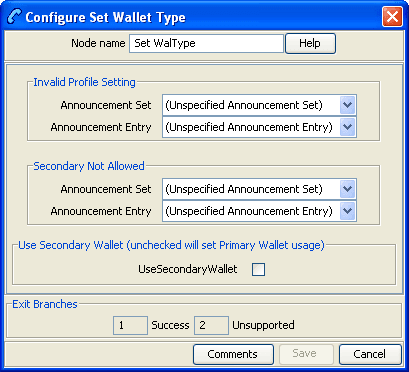
Configuration fields
This table describes the function of each field.
| Field | Description |
|---|---|
| Announcement Set | List of all the available Announcement Sets. |
| Announcement Entry | List of all the announcements belonging to the selected Announcement Set. |
| UseSecondaryWallet | Select this check box to use the secondary wallet for billing. |
Configuring the node
Follow these steps to configure the node.
| Step | Action |
|---|---|
| 1 |
For each relevant announcement, use the drop down lists to select the pre-recorded announcements that are to be played as prompts to the caller. Select the specific Announcement Set to which the Announcement Entry belongs. Only valid announcements are available from the lists. |
| 2 | Select the UseSecondaryWallet check box to use the secondary wallet. |
| 3 |
Click Save. Note: This will be grayed out until all the announcement sets have been selected. |
Tariff Plan Override
Warning: This feature node has now been deprecated and should no longer be used. This feature node will still function in existing control plans.
Node description
The Tariff Plan Override node overrides the configured tariff plan with the tariff plan specified in the node. Optionally the tariff plan can be selected from a profile field.
The override only applies to the next UATB node in the control plan.
Node icon

If the CPE has been configured to use the static panel CPE palette style, the CPE displays the icon shown below to represent the feature node.

Node exits
This node has one entry and two exits. The number of exits cannot be changed.
| Exit | Cause | Description |
|---|---|---|
| 1 | Unsupported | Either error / failure or that the domain being used does not support this feature node. |
| 2 | Success | The product type tariff plan has been successfully overridden by the one specified in the node. |
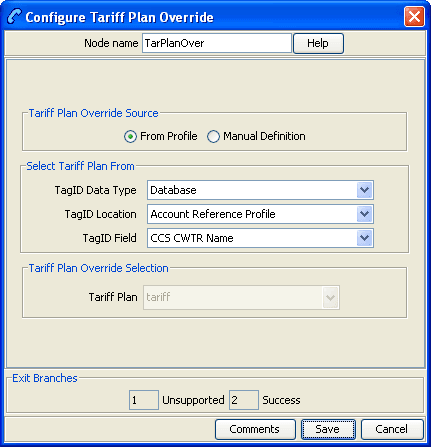
Configuring the node
Follow these steps to configure the node.
| Step | Action |
|---|---|
| 1 |
In the Tariff Plan Override Source area select one of the following:
|
| 2 |
Select the tariff plan to use instead of the one configured for the product type, for the next IRR or CRR action. If you selected:
|
| 3 | Click Save. |
Note: The list of data types is fixed at installation time for each feature node or screen.
Further reference:
- For information about profile blocks (data type, location, and field) and how to use them, see Profile Blocks and Tags .
- The primary tag lists are configured in the SMS > Services > ACS Service > Configuration > Profile Tag Details and Profile Tag Mapping tabs (see ACS User's Guide, Profile Tag Details for more information).
Universal ATB
Node description
The Universal Attempt Termination with Billing (UATB) node is used to bill subscribers for calls that they make or receive.
The UATB node can be used in either an originating or a terminating control plan with one of the following switch types:
- CS1 switch (the VSSP is required to translate from CS1 to CAMEL for UATB to operate)
- Nokia switch
- CAMEL Phase 2 switch
- CAMEL Phase 3 switch
The switch type is determined by extracting the ‘Application Context’ parameter from the TCAP primitive and will follow the correct charging flow accordingly.
A pre-call announcement may be played by setting the
PreCallAnnouncementId parameter (in
eserv.config file) to a valid announcement ID. For
more information about this parameter, see CCS Technical
Guide topic ccsSvcLibrary.
The UATB feature node checks if a control plan trigger has been armed after each billing engine action is performed. If a control plan trigger has been armed the UATB feature node will fetch the required trigger details for the call capability/product type and invoke the new control plan trigger chassis action, passing in the trigger detail.
The duration of a call can be limited by determining a value for the Maximum Permitted Call Duration profile tag. If a value is included in the Max Permitted Call Duration profile tag, that value will determine the maximum duration of a call, and will be used to overwrite the corresponding value in the InitialTimeReservationResponse.
Note: If a Max Permitted Call Duration value is not set in the profile tag, no limit on call duration will occur.
Note: The Max Permitted Call Duration profile can be set using the Set feature node prior to the UATB feature node in your control plan.
A grace period can be used to configure whether a call is allowed to continue for the specified number of seconds on communication or system errors for subsequent reservations. If a value is included in the GracePeriodLength profile tag, that value will determine the grace period of a call. If the GracePeriodLength profile tag is set, its value will be used to overwrite the value set the BFTGracePeriodLength parameter in the ccsMacroNodes section in eserv.config. It can also be set using the Set feature node prior to the UATB node.
Node icon
If the CPE has been configured to use the static panel CPE palette style, the CPE displays the icon shown below to represent the feature node.
Node exits
This node has one entry and 14 exits. The number of exits cannot be changed.
Note: These exit descriptions are specific to the responses received from an Oracle VWS Voucher and Wallet Server. For specific information about how responses from other Voucher and Wallet Servers map to these exits, see the technical guide for the interface for Voucher and Wallet Server being used.
| Exit | Cause | Description |
|---|---|---|
| 1 | Declined (No Funds) |
Exit taken for one of the following:
|
| 2 | BFT |
Exit taken for one of the following:
|
| 3 | BFT (Released) |
Exit taken for one of the following:
Call will be released and call processing will no longer be permitted. |
| 4 | BFT (Disconnected) |
Exit taken for one of the following:
Called number (leg 2) will be disconnected and call processing will still be possible. Warning: Not supported for the Nokia switch. |
| 5 | NSF (Released) | Exit taken when calling number has run out of funds during the call. Call will be released and call processing will no longer be permitted. |
| 6 | NSF (Disconnected) |
Exit taken when calling number has run out of funds during the call. Called number (leg 2) will be disconnected and call processing will still be possible. Warning: Not supported for the Nokia switch. |
| 7 | Free Call (Released) |
Exit taken when:
Call will immediately be released when the Apply Charging Report is received. Warning: Not supported for the Nokia switch. |
| 8 | Abort |
Exit taken when:
|
| 9 | Route Select Failure |
TCAP Route Select Failure as indicated in the event type in the Event Report BCSM returned from the switch. Warning: Not supported for the Nokia switch. |
| 10 | Busy | Called number is busy as indicated in the event type in the Event Report BCSM returned from the switch. |
| 11 | No Answer | Called party failed to answer as indicated in the event type in the Event Report BCSM returned from the switch. |
| 12 | Disconnect (Calling) | Calling party has disconnected as indicated in the event type in the Event Report BCSM returned from the switch. |
| 13 | Disconnect (Called) |
Called party has disconnected as indicated in the event type in the Event Report BCSM returned from the switch. Warning: Not supported for the Nokia switch. |
| 14 | Unsupported |
Either:
|
| 15 | NSF | When Subscriber's wallet does not have enough credit to support a subsequent reservation and the VWS rejects the reservation request with NSF (Not Sufficient Funds). Call can be routed to another node e.g. SET Node where a redirection address can be set before returning to UATB node to continue call processing. |
| 16 | Continue | Successful reservation, but allows additional call processing by another node whilst call is running. Call is then returned to UATB node to continue call processing |
Note: These exit descriptions pertain to the Oracle VWS. When used with other Voucher and Wallet Servers the exit causes may differ. See the relevant technical guide for the Voucher and Wallet Server being used.
Call end reasons
This feature node provides ACS callEndReasons on issuing a FinaliseCall action, prior to taking one of the exits. This table lists the callEndReasons.
| callEndReasons | Value | Description |
|---|---|---|
| reasonNotSet | 0 | Not set (default) |
| precallAnnouncementFailure | 1 | Issued when a precall announcement cannot be played, whether due to abandonment, or other error conditions. |
| firstEventACRAbort | 2 | Issued when an abort occurs when ACR is received before event report. |
| firstEventATAbort | 3 |
Issued when an abort occurs due to an AT (Attempt Terminate)
which is caused by sending either a Note: This value is currently not set, and is reserved for future use. |
| secondEventACRAbort | 4 | Issued when an abort occurs following receipt of an event report (waiting for the apply charging report). |
| secondEventATAbort | 5 | Is set (for CS1 / Nokia switches) when ACS is attempting
termination and waiting for a BCSM Event Report. For
CAMEL, it is set where an abort is received in the
ERBCSM.
|
| abortWaitingForBEResponse | 6 | Issued when an abort occurs on the main dialog while waiting for a response to the extend time reservation action. |
| releasedOnTCPExpiry | 7 | Issued when the switch releases the call on timer expiry (noted in the apply charging report). |
| releasedNoFunds | 8 | Issued where the UATB issues a release on failure to secure further funds for the call. |
| disconnectedLegBNoFunds | 9 | Issued where the UATB issues a B leg disconnect on failure to secure further funds for the call. |
| calledPartyBusy | 10 | Issued on busy. |
| routeSelectFailure | 11 | Issued on route select failure. |
| callingPartyAbandon | 12 | Issued on abandon. |
| noAnswer | 13 | Issued on no answer. |
| callingPartyDisconnected | 14 | Issued on calling party disconnected. |
| calledPartyDisconnected | 15 | Issued on called party disconnected. |
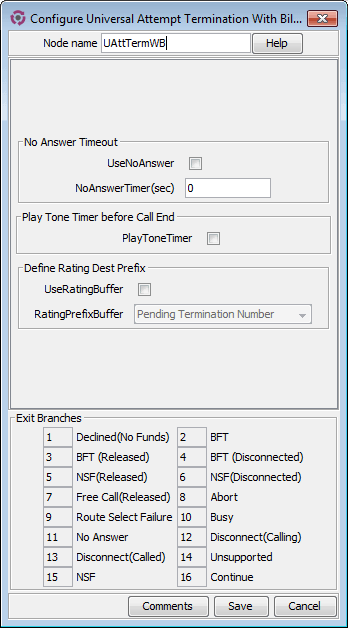
Configuration screen
Here is an example Configure Universal Attempt Termination With Billing node screen.
Configuration fields
This table describes the function of each field.
| Field | Description |
|---|---|
| UseNoAnswer | Select this check box to use the No Answer Timer value. |
| NoAnswerTimer | This option provides a value for the No Answer Timer that is sent with a Connect message. This option is supported for all switch types. |
| PlayToneTimer | This option is only available for the CAMEL charging flow. When selected, a tone will be played before the caller runs out of funds. |
Configuring the node
Follow these steps to configure the node.
| Step | Action |
|---|---|
| 1 | If required select the UseNoAnswer check box and then enter a value, in seconds, in the NoAnswerTimer(sec) field. |
| 2 | If required select the PlayToneTimer check box. |
| 4 | Click Save. |
Note: Additional configuration is available in
eserv.config. For more information, see CCS
Technical Guide, ccsSvcLibrary and
ccsMacroNodes.
Variable Amount Recharge
Node description
The Variable Amount Recharge node will attempt a standard recharge for the specified wallet based on the voucher and wallet data derived from profile fields.
The feature node will combine the following recharge details and invoke the WalletDelegation chassis action:
- Recharge entries (containing balance, recharge amount information)
- Wallet expiry extension policy
- Wallet expiry extension period
- Voucher specified by the voucher type name (if supplied and configured)
Node icon
If the CPE has been configured to use the static panel CPE palette style, the CPE displays the icon shown below to represent the feature node.

Node exits
This node has one entry and eight exits. The number of exits cannot be changed.
| Exit | Cause | Description |
|---|---|---|
| 1 | Success | The variable recharge data was found and applied successfully. |
| 2 | No Balances | No balance information is specified in Recharge List. Recharge action is skipped. |
| 3 | Invalid Wallet Type | Specified wallet type is invalid/ not recognized by the billing engine. |
| 4 | Wallet Not Found | The wallet does not exist upon the charging domain. |
| 5 | Wallet Non-rchrgble | The wallet cannot be recharged as it is in an inappropriate state (for example: pre-use, frozen, suspended or terminated), or a balance is not rechargeable (for example: single use balance type). |
| 6 | Invalid Recharge Val | Recharge attempt was unsuccessful due to Bad PIN. |
| 7 | System Error | A general system error occurred. |
| 8 | Communicate Error | A communication error occurred (usually meaning unable to communicate with the billing engine). |
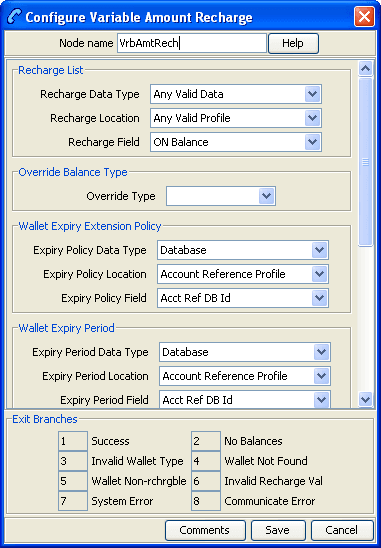
Configuring the node
Follow these steps to configure the node.
| Step | Action |
|---|---|
| 1 |
In the Recharge List area, select a profile location from the Recharge Data Type, Recharge Location and Recharge Field drop down lists. The Recharge List profile field stores a list of recharge entries, each containing the following sub profile fields and tags:
|
| 2 | Optionally, select the balance type override from the Override Type drop down list to overwrite the balance specified in the Recharge List. |
| 3 |
Select the Wallet Expiry Extension Policy profile from the Expiry Policy Data Type, Expiry Policy Location and Expiry Policy Field drop down lists. This profile indicates the policy used in determining the expiry date for the wallet. |
| 4 |
Select the Wallet Expiry Period profile from the Expiry Period Data Type, Expiry Period Location and Expiry Period Field drop down lists. This profile indicates the period used to determine the new expiry date for the wallet. |
| 5 |
In the Select Voucher Type area, choose the source of voucher information as either:
|
| 6 |
Depending on the above selection, appropriate fields are enabled in the Voucher Type area.
|
| 7 |
Select the Wallet Type profile from the Wallet Type Name Data Type, Wallet Type Name Location and Wallet Type Name Field drop down lists. This profile contains the wallet that will be recharged at the end of the transaction. |
Note: The items in the drop down lists are all managed via the SMS > ACS Service > Configuration > Profile Tag Details and Profile Tag Mapping tabs.
Voice Call Cost
Node description
The Voice Call Cost node plays the cost of the last call within the current control plan.
Node icon
If the CPE has been configured to use the static panel CPE palette style, the CPE displays the icon shown below to represent the feature node.

Node exits
This node has one entry point and three exits. The number of exits cannot be changed.
| Exit | Cause | Description |
|---|---|---|
| 1 | Success | All information has been played successfully. |
| 2 | Abandon | The caller has abandoned the call. |
| 3 | Unsupported | Either error / failure or that the Domain being used does not support this feature node. |
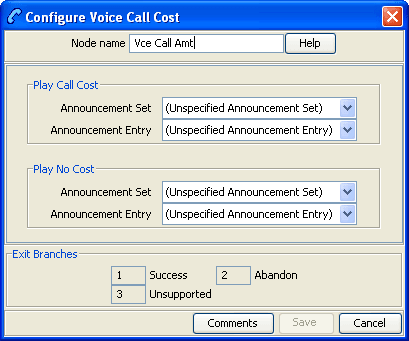
Configuration fields
This table describes the function of each field.
| Field | Description |
|---|---|
| Announcement Set | List of all the available Announcement Sets. |
| Announcement Entry | List of all the announcements belonging to the selected Announcement Set. |
Configuring the node
Follow these steps to configure the node
| Step | Action |
|---|---|
| 1 |
For each relevant announcement, use the drop down lists to select the pre-recorded announcements that are to be played as prompts to the caller. Select the specific Announcement Set to which the Announcement Entry belongs. Only valid announcements are available from the lists. |
| 2 |
Click Save. Note: This will be grayed out until all the announcement sets have been selected. |