18 Others Feature Nodes
Available Feature Nodes
Others Feature Nodes List
This table lists the feature nodes available from the Others palette group and the fast key for each feature node in the list. You can use fast keys to search for feature nodes in the palette or the canvas.
| Node name | Node description |
|---|---|
| Call Initiation |
Enables a call attempt to be initiated from within the control plan. The node simulates an Initiate Call Attempt (ICA) to an IN switch to create a call that can be processed by ACS as if it had been a standard dialed call. Fast key: CI |
| Change CDR |
Allows control plan designers to alter and add CDR tags to ACS CDRs during call flow. Fast key: CCDR |
| Copy Hunting List |
Prompts the user for a hunting list and copies the hunting list contents to the Pending TN and Additional Pending TNs buffers. Fast key: ACHL |
| Get Hunting List |
Reads hunting list from subscriber's profile, and copies hunting list contents to the additional pending TN buffers. Fast key: AGHL |
| Loop Limit |
The Loop Limit feature node allows ACS to traverse an instance of the node up to a specified number of times during the control plan processing. Fast key: LLIM |
| Service Handover |
Allows the call to be passed to another service that runs a control plan as if it were a new call. Fast key: SHO |
| Set Carrier Code |
Allows the user to set a carrier code for a control plan that can run an Attempt Terminate node. The carrier code is a string of digits, which is used to determine the carrier for the call. Fast key: SCC |
| Set Tariff Code |
Sets the tariff code for the current call, to set the billing information that is sent to the switch. Fast key: STC |
| Statistic Increment |
Increments the value of a specified statistic. Fast key: STIN |
| Sub Control Plan |
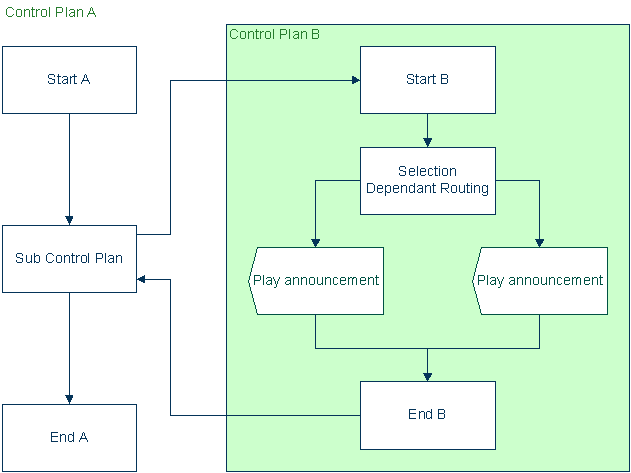
Merges another compiled control plan into this control plan. The number of exits from this node match the End nodes from the merging control plan. Fast key: SCPN |
Call Initiation
Node description
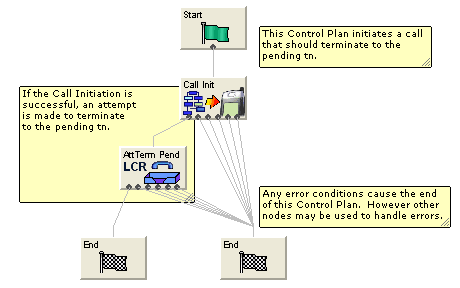
The Call Initiation feature node enables a call attempt to be initiated from within the control plan. The feature node initiates a call attempt (ICA) to an IN switch to create a call that can be processed by ACS as if it had been a standard dialed call.
Note: The Call Initiation feature node will work with CS1 and CAP4 protocols.
When the response (answered, noAnswer, busy, or Route Selection Failure) to the call is received, the feature node performs both the following actions:
- Process the current control plan as normal by taking the appropriate exit
- Transfer the new dialog (on which the ICA was sent) back into ACS as an IDP. The new call is processed in the normal way, running a new control plan based on the standard service loading rules.
If the customer has a restricted termination range policy, the available termination ranges will be displayed in the top left hand corner of the configuration screen.
Notes:
- The IDP is constructed from information supplied in the Configure Call Initiation screen, the standard control plan number buffers and the call information from the initiating call.
- The available network switches are defined in acs.conf and made available to this feature node (Switch Name list) through the acsGui.bat/acsGui.sh or smsGui.bat/smsGui.sh files (ssfs parameter). See ACS Technical Guide, topic Customizing the screens for details.
- The destination for the ICA is configurable within the feature node. The SLEE interface for the ICA network is configurable in acs.conf. See ACS Technical Guide for details.
- This feature node may not be available, depending on the license agreement with Oracle.
Node icon
If the CPE has been configured to use the static panel CPE palette style, the CPE displays the icon shown below to represent the feature node.

Node exits
This node has one entry and six exits. The number of exits cannot be changed.
| Exit | Cause | Description |
|---|---|---|
| 1 | Success | The response the ICA received was 'Answer'. |
| 2 | Busy | The response the ICA received was 'Busy'. |
| 3 | No Answer | The response the ICA received was 'No Answer'. |
| 4 | Route Select Failure | The response the ICA received was 'Route Select Failure'. |
| 5 | Transient Failure | Either the node cannot find the network entity for the specified name, or it cannot find the service interface. |
| 6 | Permanent Failure | No response was received for the ICA. |
Configuration screen
Here is an example Configure Call Initiation screen.
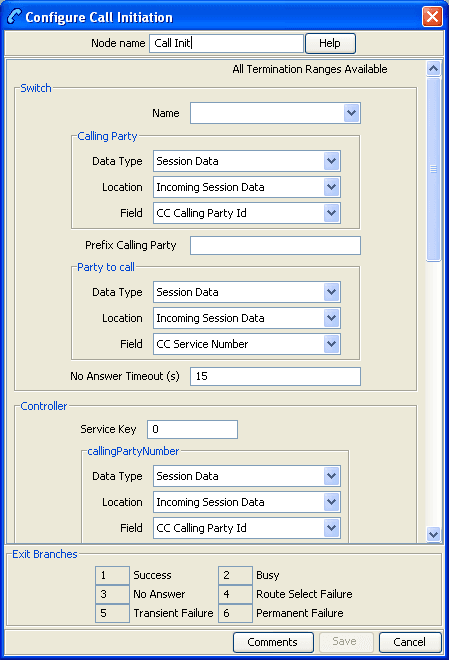
Note: There is a brief explanation of how to use the node at the bottom of the fields. You may need to scroll to view it.
Specifying values in profile selection fields
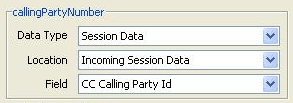
For each combo box combination on this screen, there are two methods of entering a value:
- Use the drop down lists in the Data Type, Location and Field boxes, as in this example, to select the relevant values:
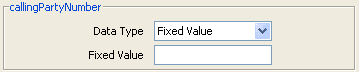
- Select Fixed Value in the Data Type box.
Result: The fields will change, as in this example, and you can type the required value in the Fixed Value field.
Configuring the node
Follow these steps to edit the node configuration.
| Step | Action |
|---|---|
| 1 | In the Switch area, select the Name of the network entity for the ICA destination from the drop down list . |
| 2 | (Optional) In the Calling Party frame, specify the value for the Calling Party ICA. Specify either an ACS termination number or an ACS buffer. |
| 3 | (Optional) In the Prefix Calling Party field, type a prefix for the calling party. This could be used, for example, so that the switch will not be re-triggered on the terminating leg. |
| 4 | (Required) In the Party to call frame, specify the value for the Called Party ICA. Specify either an ACS termination number or an ACS buffer. |
| 5 |
In the No Answer Timeout field, type the number of seconds the switch should wait for the called party to accept the connection before assuming there was no answer. The No Answer Timeout value must be greater than zero. Note: The wait time is automatically increased by a configurable amount defined in acs.conf. See ACS Technical Guide for details. |
| 6 | (Optional) In the Controller area, enter the Service Key for the IDP. |
| 7 |
For each IDP, specify the values for the following optional fields:
|
| 8 | Click Save. |
Note: The list of data types is fixed at installation time for each feature node or screen.
Further reference:
- For information about profile blocks (data type, location, and field) and how to use them, see Profile Blocks and Tags.
- The primary tag lists are configured in the SMS > Services > ACS Service > Configuration > Profile Tag Details and Profile Tag Mapping tabs (see ACS User's Guide, Profile Tag Details for more information).
Change CDR
Node description
The Change CDR node allows control plan designers to alter and add EDR tags to ACS EDRs during call flow. The EDR tag and value can be defined as whatever the designer requires within the rules listed in the Configuring the node procedure.
Note: The Change CDR node alters the EDR at the point in the control plan where it is placed, future events may further alter the EDR, either through external events (such as, the end of a call) or through other Change CDR nodes.
System generated EDR tags
This is a list of the system generated tags. These may be used in the Change CDR node, but their values will not be changed, a new tag of the same name will be added to the end of the EDR instead.
CID, OA, OTI, CUST, SN, TN, CGN, CLI, SK, TCS, TCE, LPN, LAC, CS, CPC, CC, CPNI, PCNA, TPNI, PTNA, CGNA, TGNA, TFN, LGID, CPN, CAET, CCET, CA, RELC, OCPI, CPNN, CGNN, CPPI, NOAT, CBAT, FATS, CCTS, HTS, AIDL, EXTn
Node icon

If the CPE has been configured to use the static panel CPE palette style, the CPE displays the icon shown below to represent the feature node.

Node exits
This node has one entry and two exits. The number of exits cannot be changed.
| Exit | Cause | Description |
|---|---|---|
| 1 | Success | The EDR has been successfully updated with the details specified for the CDR tag and new CDR value. |
| 2 | Error |
This branch is taken only in the event that node configuration is incorrect. Technical limitations limit the validation done on the node configuration at compile time, and therefore must be done at run time. The following situations will cause the Error branch to be taken:
|
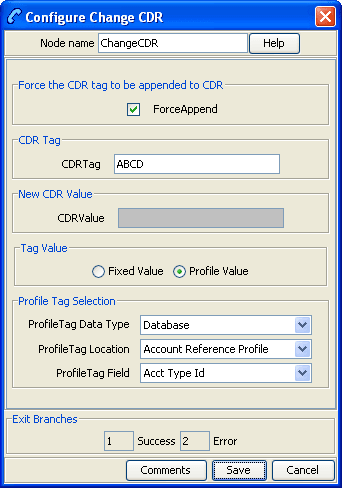
Configuring the node
Follow these steps to edit the node configuration.
| Step | Action |
|---|---|
| 1 |
Select the ForceAppend check box to force the specified EDR tag to be appended to the EDR. If the tag already exists in the EDR, it will not be altered and the EDR will end up with the same tag in multiple places. The tag values in this case will not necessarily be the same. If this box is not selected and the EDR already includes the tag configured in the node, then the tag in the EDR is modified to have the value defined in the node. If the tag does not exist in the EDR, then the tag/value pair is added to the EDR. This means the tag defined in the node is always included in the EDR.. |
| 2 |
The value in the CDRTag field must be between 1 - 50 characters long. It defines the EDR tag to modify or add to the EDR. Any character may be used in this field, however the following rules apply:
Warning: The use of any of the system generated tags causes the original to remain unchanged and a second tag added to the end of the EDR, as if ForceAppend had been selected. |
| 3 |
Select the Tag Value source, Options are:
|
| 4 |
If Fixed Value selected, enter the CDRValue field, this must be between 1 - 50 characters long. It specifies the EDR value for the defined EDR tag. You may use any character in this field, except the characters | and =. Note: If the profile value is selected, this field is grayed out. |
| 5 |
If Profile Value selected, select the location from the Data Type, Location and Field drop down lists. Note: If the fixed value is selected, these fields are grayed out. |
| 6 | Click Save. |
Copy Hunting List
Node description
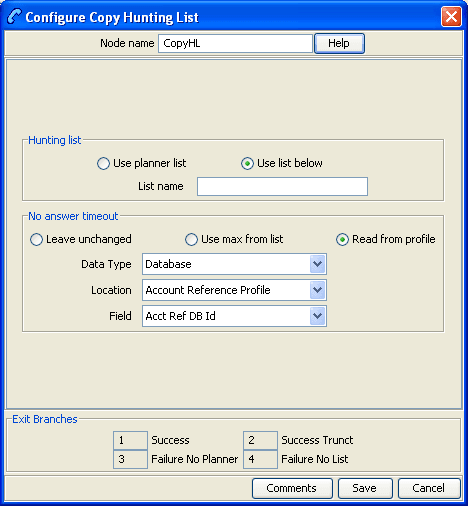
This node prompts the user for a hunting list and copies the hunting list contents to the pending TN buffers. The hunting list can be one of:
- Identified by name
- The hunting list selected by the hunting planner
Only the first ten numbers in the list are used. The first number in the list is copied to the pending TN and the next nine numbers are copied to the additional pending TNs. Any further numbers are discarded.
Note: To use this node either VPN or FMC must be activated on your system. If you are using this node with VPN then the hunting lists and hunting planner must be formatted according to the format used by the VPN product and must be located within the VPN_PT_HUNTING_CONFIG profile tag. See VPN Technical Guide for more details.
The node also gives the user the option to override the no answer timer with one of:
- A fixed value held in a user defined profile field
- The highest timer found within the hunting list
Node icon

If the CPE has been configured to use the static panel CPE palette style, the CPE displays the icon shown below to represent the feature node.

Node exits
This node has one entry and four exits. The number of exits cannot be changed.
| Exit | Cause | Description |
|---|---|---|
| 1 | Success | The hunting list numbers have been successfully copied. |
| 2 | Success Trunct | The hunting list contains more than ten numbers. Only the first ten numbers have been copied. |
| 3 | Failure No Planner | The node has been configured to copy the list selected by the hunting planner but no hunting planner was defined. |
| 4 | Failure No List | The specified list name does not match an existing hunting list. |
Configuring the node
Follow these steps to configure the node.
| Step | Action |
|---|---|
| 1 |
In the Hunting list panel set the hunting list to be copied, to copy:
|
| 2 |
If required, set the override for the No answer timeout. To use:
Note: If you selected Read from profile and the node cannot find the specified profile field, then the No Answer Timeout will not be overridden. |
| 3 | Click Save. |
Note: The list of data types is fixed at installation time for each feature node or screen.
Further reference:
- For information about profile blocks (data type, location, and field) and how to use them, see Profile Blocks and Tags.
The primary tag lists are configured in the SMS > Services > ACS Service > Configuration > Profile Tag Details and Profile Tag Mapping tabs (see ACS User's Guide, Profile Tag Details for more information).
Get Hunting List
Node description
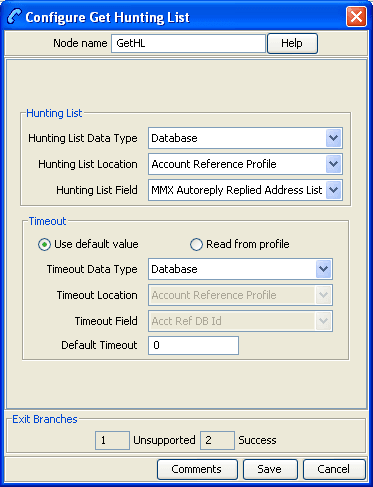
Reads hunting list from subscriber's profile, and copies hunting list contents to the additional pending TN buffers.
Node icon

If the CPE has been configured to use the static panel CPE palette style, the CPE displays the icon shown below to represent the feature node.

Node exits
This node has one entry and two exits. The number of exits cannot be changed.
| Exit | Cause | Description |
|---|---|---|
| 1 | Unsupported |
Any outcome other than success, for instance:
|
| 2 | Success | The hunting list numbers were retrieved and passed to the ACS Context. |
Configuring the node
Follow these steps to configure the node.
| Step | Action |
|---|---|
| 1 | In the Hunting list area set the hunting list to use from the Hunting List Data Type, Location and Field drop down lists. |
| 2 |
Set the Timeout. To use:
Note: If you selected Read from profile and the node cannot find the specified profile field, then the No Answer Timeout will not be overridden. |
| 3 | Click Save. |
Note: The drop down lists display Limited Order Prefix Tree profiles.
For more information on profile blocks and tags, see ACS User's Guide.
Loop Limit
Node Description
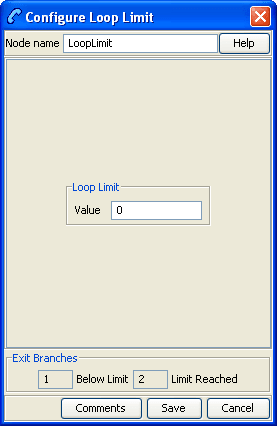
The Loop Limit feature node allows ACS to traverse an instance of the node up to a specified number of times during the control plan processing.
This node can be used in the control plan to create loops composed of other nodes not using telephony.
Node icon

If the CPE has been configured to use the static panel CPE palette style, the CPE displays the icon shown below to represent the feature node.

NP Destination Selection
Node description
The NP Destination Selection node determines the owner of the called number (that is, is the number ported or non ported?). Based on the porting status and whether the number is owned by the operator (internal) or owned by another operator (external), it can be configured how the call number is modified.
Optionally, the NP Least Cost Routing node can be used after the NP Destination Selection node to select the most appropriate route towards the operator that owns the number based on rules configured in nodes within the control plan. If the control plan has been triggered by receiving a MAP message, then the NP MTA node must follow the NP DS node (or NP LCR node if used). However it is possible to have non telephony in between.
Node icon
If the CPE has been configured to use the static panel CPE palette style, the CPE displays the icon shown below to represent the feature node.

Node exits
This node has one entry and 11 exits. The number of exits cannot be changed.
| Exit | Cause | Description |
|---|---|---|
| 1 | DN Number Violation | The Destination Number is not valid. |
| 2 | No Destination Found | There is no matching Routing Destination for the called party number. |
| 3 | Internal Not Ported F | The node has successfully selected an internal destination on your network where the Routing Number (for a fixed destination call) matches an operator entry in NP_DN_RANGES or a PQYZ entry (depending on the runtime configuration). |
| 4 | External Not Ported F | The node has successfully selected an external destination (one that belongs to another operator) where the Routing Number (for a fixed destination call) matches an operator entry in NP_DN_RANGES or a PQYZ entry (depending on the runtime configuration). |
| 5 | Internal Ported In F | The Routing Number (for a fixed destination call) has been ported in to your network from another operator and has an associated subscriber match within the NP_DN_RANGES table. |
| 6 | External Ported Out F | The Routing Number (for a fixed destination call) has an associated subscriber match within the NP_DN_RANGES table and has been ported out from your network to another operator. |
| 7 | Internal Not Ported M | The node has successfully selected an internal destination on your network where the Routing Number (for a mobile destination call) matches an operator entry in NP_DN_RANGES or a PQYZ entry (depending on the runtime configuration). |
| 8 | External Not Ported M | The node has successfully selected an external destination (one that belongs to another operator) where the Routing Number (for a mobile destination call) matches an operator entry in NP_DN_RANGES or a PQYZ entry (depending on the runtime configuration). |
| 9 | Internal Ported In M | The Routing Number (for a mobile destination call) has been ported in to your network from another operator and has an associated subscriber match within the NP_DN_RANGES table. |
| 10 | External Ported Out M | The Routing Number (for a mobile destination call) has an associated subscriber match within the NP_DN_RANGES table and has been ported out from your network to another operator. |
| 11 | Processing Error | An internal error has occurred. |
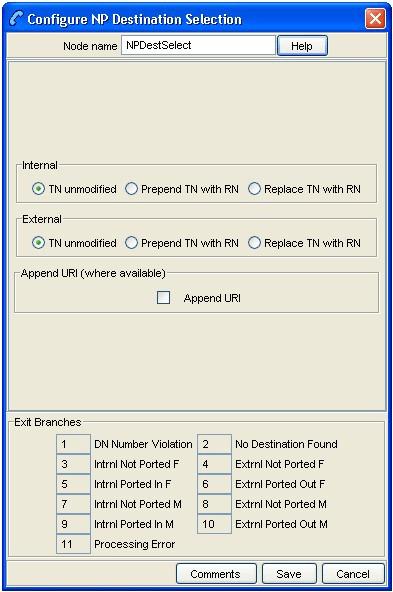
Configuration fields
This table describes the function of each field.
| Field | Description |
|---|---|
| TN unmodified (Internal or External) | Do not change the pending Termination Number. |
|
Prepend TN with RN (Internal or External) |
Prefix the pending Termination Number with the Additional Routing Number. If this is not available use the Routing Number. |
|
Replace TN with RN (Internal or External) |
Replace the pending Termination Number with the Additional Routing Number. If this is not available use the Routing Number. |
| Append URI | Include the URI associated with the Called Party Number in an Extension field that will be sent in the INAP CONNECT operation to the client interface. |
NP Home Routing
Node description
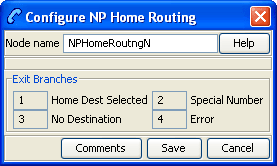
The NP Home Routing node is used to determine the routing destination for a call within the network.
The node looks up the called number in the subscriber list. If the called number is:
- A regular subscriber, then the node retrieves the destination from the DN range that matches the called number. Least cost routing can then be used to select an appropriate carrier for the call.
- A special number, then no routing destination is set and the Special Number node exit is used
Otherwise the No Destination exit is used.
Node icon

If the CPE has been configured to use the static panel CPE palette style, the CPE displays the icon shown below to represent the feature node.

Node exits
This node has one entry and four exits. The number of exits cannot be changed.
| Exit | Cause | Description |
|---|---|---|
| 1 | Home Dest Selected | The node has successfully matched the called number to a home routing number. |
| 2 | Special Number | The node has successfully matched the called number to a special number. |
| 3 | No Destination | The called number is not your subscriber. The destination could not be found. |
| 4 | Error | An internal error has occurred. |
NP Least Cost Routing
Node description
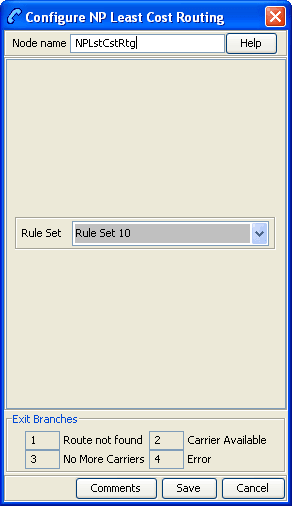
The NP Least Cost Routing node is used to determine which carrier to use during call processing based on least cost rules.
The routing destination set by the Destination Selection node or the Home Routing node determines which list of carriers to try from the rule set. An attempt is made to connect the call to the carriers in sequence until one of:
- The call is successfully connected
- No more carriers are available
Prior to each connection attempt, the pending calling and called numbers of the call will be modified in accordance with the preferred number format of the carrier, their country code, optional override NOA and called party prefix.
Note: Standard ACS feature nodes, such as the Time of Day, or Day of Week routing nodes may be used to select different rule sets for different scenarios.
Node icon

If the CPE has been configured to use the static panel CPE palette style, the CPE displays the icon shown below to represent the feature node.

Restrictions
This node is expected to be used in conjunction with an Attempt Termination node and after the Destination Selection or the Home Routing node. However, if the control plan was triggered using MAP through the MTA, then this node should be followed by the MTA node and then an unconditional termination type node.
This node may be used any number of times within a call plan to facilitate the use of different rule sets depending on circumstances.
Node exits
This node has one entry and four exits. The number of exits cannot be changed.
| Exit | Cause | Description |
|---|---|---|
| 1 | Route not found | The node could not find the route specified for the carrier. |
| 2 | Carrier Available | The call has been successfully connected to the selected carrier. |
| 3 | No More Carriers | Attempts to connect to each carrier in the Rule Set were unsuccessful. |
| 4 | Error | An internal error has occurred |
NP Map Trigger
Node description
The NP Map Trigger node is used to determine the appropriate response to the Map message that triggered the IN service.
For example, in an MNP environment the MAP message can be one of:
- Acknowledged with the MAP response message
- Acknowledged with the MAP error message (TCAP_ERROR message being returned)
- Aborted at the TCAP level (TCAP_U_ABORT message being returned)
- Relayed at the SCCP level to the appropriate HLR for processing
Node icon

If the CPE has been configured to use the static panel CPE palette style, the CPE displays the icon shown below to represent the feature node.

Restrictions
This node may be used any number of times within a control plan.
This node must be placed after the NP Destination Selection node (or LCR node if used) in the control plan. The control plan must end with an Unconditional Termination node.
Node exits
This node has one entry and two exits. The number of exits cannot be changed.
| Exit | Cause | Description |
|---|---|---|
| 1 | Config Applied | SCI successfully configured. |
| 2 | Processing Error | Unable to apply configuration. |
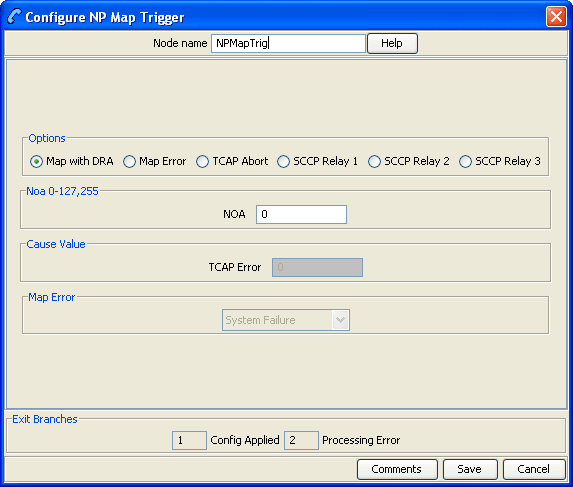
Configuration fields
This table describes the function of each field.
Note: The DRA is the
destinationRoutingAddress field in the INAP CONNECT
and is derived from the pendingTN buffer.
| Field | Description |
|---|---|
| Map with DRA | Sends MAP response and puts the Destination Routing Address (DRA) in the configured MAP field (NOA value for configured MAP field). |
| Map Error | Sends MAP Error where the error cause is set to the MAP Error field value. |
| TCAP Abort | Sends TCAP_ABORT - U_ABORT with the cause value set to the TCAP Error field value. (Cause value mapped to appropriate alarm by MAP trigger application). |
| SCCP Relay 1 | Updates the SCCP called Global Title (GT) with the DRA, performs GT Translation on the DRA, and sets Routing Information = route on PC (NOA value for the SCCP called GT NOA). |
| SCCP Relay 2 | Updates the SCCP called GT with the DRA, does not perform GT Translation on the DRA, and Routing Information = route on GT (NOA value for the SCCP called GT NOA). |
| SCCP Relay 3 | No change to SCCP called GT digits, performs GT Translation on the DRA, and Routing Information = route on Point Code (NOA value for the SCCP called GT NOA). |
| NOA |
Sets the Nature of Address value for one of these options:
Valid values are in the range 0-127, and 255. |
| TCAP Error | Sets the TCAP Error cause value for the TCAP Abort option. |
| Map Error | Sets the Map Error value for the Map Error option. |
Configuring the node
Follow these steps to configure the node.
| Step | Action |
|---|---|
| 1 | Select the required option. |
| 2 |
If you selected one of these options:
then in the NOA field, set the NOA. |
| 3 | If you selected the MAP Error option then select the map error message to use from the Map Error drop down list. |
| 4 | If you selected the TCAP Abort option then in the TCAP Error field, type the cause value. |
| 5 | Click Save. |
Service Handover
Node description
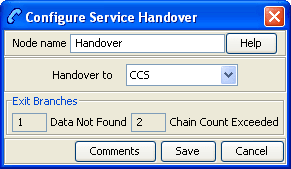
The Service Handover feature node allows the call to be passed to another service that runs a control plan as if it were a new call.
Node icon

If the CPE has been configured to use the static panel CPE palette style, the CPE displays the icon shown below to represent the feature node.

Node exits
This node has one entry and two exits. The number of exits cannot be changed. Since this node passes the call to another control plan, a Success exit is not required.
| Exit | Cause | Description |
|---|---|---|
| 1 | Data Not Found | The control plan selected for handover is not found. |
| 2 | Chain Count Exceeded |
The chain count limit has been exceeded, and the call may not be passed to another control plan. Note: The chain count limit is set in the acsChassis section of the acs.conf - refer to ACS Technical Guide. |
Set Carrier Code
Node description
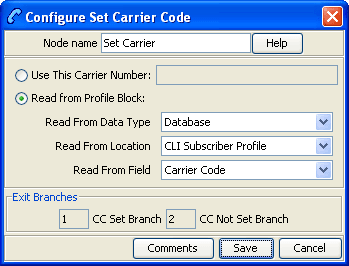
This node sets the identity of the carrier for the call. The carrier code is a string of digits that are prefixed onto the Destination Routing Address (DRA) of the connect sent by following Termination feature nodes.
The carrier code can be set in any of the available profile blocks (for example, the Service Number Profile).
Note: This node has no effect if the CarrierCodeDisposal parameter in acs.conf is set to 1. For more information, see ACS Technical Guide.
Node icon

If the CPE has been configured to use the static panel CPE palette style, the CPE displays the icon shown below to represent the feature node.

Restrictions
A control plan may contain as many Set Carrier Code nodes as required.
This node is only meaningful when used in a control plan containing a termination node, for example, the Attempt Terminate node.
Node exits
This node has one entry and two exits. The number of exits cannot be changed.
| Exit | Cause | Description |
|---|---|---|
| 1 | CC Set Branch | Used when the data is found and the carrier code is set. |
| 2 | CC Not Set Branch | Used when profile-based data is not found. Is also used if the length of the number string in the profile field specified for the carrier code is greater than the allowable length of the carrier code. |
Configuring the node
Follow these steps to configure the Set Carrier Code node.
| Step | Action |
|---|---|
| 1 |
Select the option of:
The fields relating to the non-selected option are disabled and cannot be edited. |
| 2 |
Where the following option is selected:
Note: If this option is selected and the text field is empty, then the carrier code field will be cleared when this node is triggered. Use to clear a carrier code set by an earlier Set Carrier Code node.
Note: If the length of the number string in the profile field specified for the carrier code is greater than the allowable length of the carrier code, an alarm is raised and the “CC Not Set Branch” is taken. |
| 3 |
Click Save. Note: Save is not available until all the required information has been selected or entered. |
Note: If you import a previously exported control plan which contains Set Carrier Code nodes prior to the profile block functionality being introduced, then you will need to re-save in order to allow the control plan to recompile.
Note: The list of data types is fixed at installation time for each feature node or screen.
Further reference:
- For information about profile blocks (data type, location, and field) and how to use them, see Profile Blocks and Tags.
The primary tag lists are configured in the SMS > Services > ACS Service > Configuration > Profile Tag Details and Profile Tag Mapping tabs (see ACS User's Guide, Profile Tag Details for more information).
Set Tariff Code
Node description
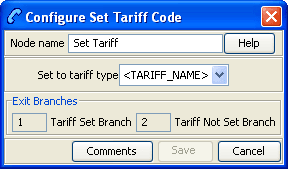
This feature node sets the billing information that is sent to the switch. This may be a Furnish Charging Information (FCI) request or a Send Charging Information (SCI) request.
Note: The SCI operation may contain a tariff code.
It is used in conjunction with the optional Tariff Codes tab of the ACS Resources screen. Where the Tariff Code tab has not been purchased as part of ACS, this node is not available for use within a control plan. For more information about configuring tariffs, see ACS User's Guide.
Node icon

If the CPE has been configured to use the static panel CPE palette style, the CPE displays the icon shown below to represent the feature node.

Restrictions
The node must be placed before a terminating node for an FCI to be sent. A control plan may contain as many Set Tariff Code nodes as required.
Node exits
This node has one entry and two exits. The number of exits cannot be changed.
| Exit | Cause | Description |
|---|---|---|
| 1 | Tariff Set | A failure has occurred and a text message has not been sent. |
| 2 | Tariff Not Set | A text message has been successfully sent. |
Configuring the node
Follow these steps to set the tariff code.
| Step | Action |
|---|---|
| 1 | Use the drop-down list to select the type tariff applied to the current call. The tariff code names available in the list are set on the Tariff Codes tab of the ACS Resources screen. |
| 2 |
Click Save. Note: Save is not available until all the required information has been selected or entered. |
Sleep
Node description
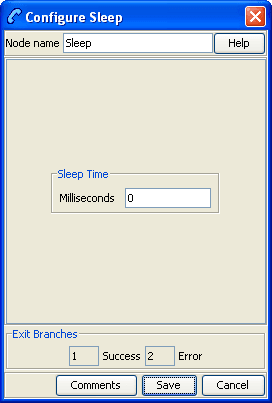
The Sleep node allows time for background tasks to complete before proceeding to the next step in the control plan.
The value used should be large enough for the background task to finish, but short enough to avoid holding up the Control Plan unnecessarily.
Node icon

If the CPE has been configured to use the static panel CPE palette style, the CPE displays the icon shown below to represent the feature node.

Restrictions
There are no restriction on this node's usage. A control plan may contain as many of these nodes as required.
Statistic Increment
Node description
This node allows you to use statistics that you wish to track for a specific application or statistic within an application.
Node icon

If the CPE has been configured to use the static panel CPE palette style, the CPE displays the icon shown below to represent the feature node.

Node exits
This node has one entry and two exits. The number of exits cannot be changed.
| Exit | Cause | Description |
|---|---|---|
| 1 | Success | Statistic was successfully incremented. |
| 2 | Node Error | General case for an un-handled state in this node. |
Configuring the node
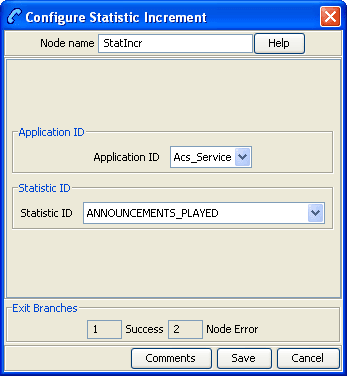
Follow these steps to configure the Statistic Increment node.
| Step | Action |
|---|---|
| 1 | (Required) Select the Application ID using the Application ID field drop down list. |
| 2 |
(Required) Select the Statistic ID using the Statistic ID field drop down list. Note: This list is populated from entries made in the Statistic Management screens. See SMS User's Guide for more information. |
You can produce reports on the statistic from the Service Management System Operator Functions, Report Functions menu option. See SMS User's Guide for more information.
Sub Control Plan
Node description
The Load Sub Control Plan node runs a successfully compiled control plan.
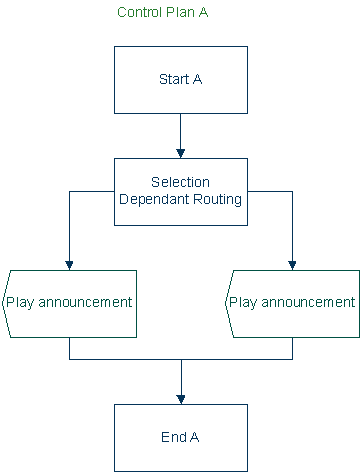
When this control plan is compiled, this node is effectively replaced by the other plan to create a single run time control plan. In the CPE this plan shows the Load Sub Control Plan node with the relevant exits that apply for the other plan.
Node icon

If the CPE has been configured to use the static panel CPE palette style, the CPE displays the icon shown below to represent the feature node.

Restrictions
A control plan may contain a maximum of 127 sub control plan nodes.
These are the other restrictions:
- The Sub Control Plan node can only access successfully-compiled control plans.
- The Sub Control Plan node cannot access a control plan that has more than 20 End nodes. If you try to access such a control plan, the control plan editor displays a Control Plan Validation Failure dialog box.
- A Sub Control Plan node cannot access itself; that is, sub control plans cannot be used recursively.
Warning: The maximum number of nodes allocated to any customer's control plan is calculated across all control plans. You cannot exceed the allocation by the use of sub control plans. The maximum number of nodes is set in the ACS Customer screen, the absolute maximum is 2000 nodes. Refer to the Customer Resource Limits section of ACS User's Guide.
Node exits
This node has one entry and a varying number of exits that are set as a result of the sub control plan. A user cannot change the number of exits.
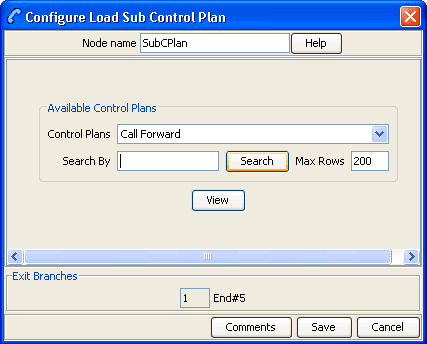
Configuring the node
Follow these steps to edit the node configuration.
| Step | Action |
|---|---|
| 1 |
(Optional) In the Search By field enter the control plan name prefix to use to filter the list of available control plans. You can enter the following wildcards in the search string:
Tip: You can limit the number of control plans found by entering a value in Max Rows. |
| 2 | From the Control Plans list, select the control plan to load into the main control plan as a sub-control plan. |
| 3 |
(Optional) To view the selected control plan, click View. The selected control plan opens in a new Control Plan Editor window. The control plan structure will be read-only, but you will be able to edit the control plan data, and save it to a new version of the control plan, if required. |
|
|
| 4 | Click Save. |