19 Pending TN Feature Nodes
Available Feature Nodes
Pending TN Feature Nodes List
This table lists the feature nodes available from the Pending TN feature group and the fast key for each feature node in the list. You can use fast keys to search for feature nodes in the palette or the canvas.
| Node name | Node description |
|---|---|
| Attempt Terminate to Pending TN |
Attempts to terminate to the number currently held in the Pending TN buffer. Fast key: ATTP Shortcut keys: Alt+Shift+A |
| Attempt Terminate to Pending TN with Duration |
Connects the call up to a maximum duration without charging the caller, for example connecting to a customer services representative. Fast key: ATPD |
| Collect Digits to Pending TN |
Prompts the user to enter digits and will then store the entered digits in the Pending TN buffer from where they may be later used in the Control Plan. Fast key: CDPT |
| Get Hunting Number |
Used to search a list of termination numbers and timeout pairs within any available profiles. Fast key: AGHN |
| Set Pending TN from Profile |
Takes a number from the profile and places it in the Pending TN Buffer. This node can also be used to set the NoAnswer timeout. Fast key: SEPP |
| Terminate to Pending TN |
Terminates unconditionally to the number currently held in the Pending TN Buffer. May also be known as Unconditional Terminate to pending TN. Fast key: UTTP Shortcut keys: Alt+Shift+U |
| Test Pending TN Type |
Looks at the pending TN Type variable and routes the call depending on the type of number that is in the buffer. Fast key: TPTT |
Attempt Terminate to Pending TN
Node description
The Attempt Terminate to Pending TN node attempts to terminate to the number currently held in the PendingTN variable.
For information about the PendingTN variable, see Pending termination number variables.
Node icon
If the CPE has been configured to use the static panel CPE palette style, the CPE displays the icon shown below to represent the feature node.

Node exits
This node has one entry and six exits. The number of exits cannot be changed.
Some nodes require telephony (that is, Play Announcement, Unconditional Termination, Disconnect, Attempt Termination, Selection Dependant Routing, Unconditional Terminate to Pending TN). Such nodes may follow Exits 2 and 3 of the Attempt Terminate to Pending TN node. They may not follow exits 1, 4, 5 and 6.
| Exit | Cause | Description |
|---|---|---|
| 1 | Success | The call was successfully connected to the specified termination number. |
| 2 | Busy | The Termination Number held in the Pending TN Buffer was busy (that is, in use), so the call was routed to Exit 2. |
| 3 | No Answer | The call was routed to the Termination Number specified in the Pending TN Buffer and that phone rang for the specified Timeout time and then was routed down Exit 3. |
| 4 | Abandoned | The person placing the disconnected the call up, so the call was routed to Exit 4. |
| 5 | Abort | The call will be sent to this exit in the case of network failure. |
| 6 | Routing Failure | Due to congestion, the call was forwarded to this exit. |
Configuring the node
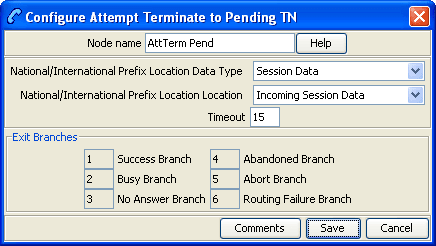
Follow these steps to configure the Attempt Terminate to Pending TN node.
| Step | Action |
|---|---|
| 1 |
From the National/International Prefix Location drop down lists, select the profile Data Type and Location to read Least Cost Routing configuration from. The location list displays all available fields for the data type selected. For more information about profile blocks, see Profile Blocks and Tags. If you do not want to use Least Cost Routing on this destination
number, select |
| For more information about Least Cost Routing, see the ACS User Guide. | |
| 2 | You must set the Timeout value for the node. This is the number of seconds that is allowed to pass before the call is routed down the No Answer branch. The Timeout value may be between 0 and 180 seconds. |
| 3 | Click Save. |
Attempt Terminate to Pending TN with Duration
Node description
This node is used to connect the call up to a maximum duration and without charging the caller, for example connecting to a subscription weather service announcement.
Node icon
If the CPE has been configured to use the static panel CPE palette style, the CPE displays the icon shown below to represent the feature node.

Restrictions
A control plan may contain as many Attempt Terminate to Pending TN with Duration nodes as required.
Node exits
This node has one entry and eight exits. The number of exits cannot be changed.
Note: These exit descriptions are specific to the responses received from an Oracle VWS billing engine. For specific information about how responses from other billing engines map to these exits, see the technical guide for the interface for billing engine being used.
| Exit | Cause | Description |
|---|---|---|
| 1 | Busy | The Destination Party was busy and the call could not be connected. |
| 2 | No Answer | Destination Party did not answer. |
| 3 | RS Failure | Route Select Failure. The network could not connect the Caller to the Destination Party. |
| 4 | Disconnect A-Party | The Caller hangs up to end the call. |
| 5 | Disconnect B-Party | The Destination Party hangs up to end the call. |
| 6 | Abort | The call was aborted at some time during the processing of this node. |
| 7 | Abandon | The call was abandoned. |
| 8 | Node Error | General case for an un-handled state in this node. |
Configuration screen
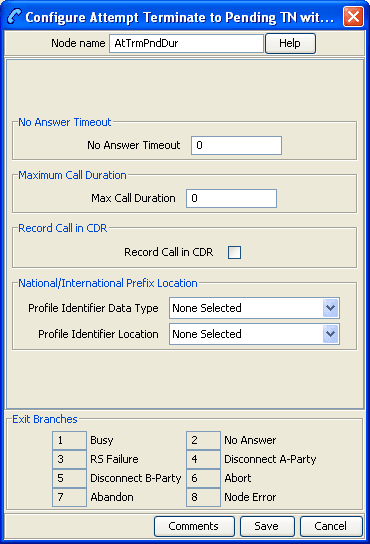
Here is an example Configure Attempt Terminate to Pending TN with Duration screen.
Configuring the node
Follow these steps to configure the node.
| Step | Action |
|---|---|
| 1 | In the No Answer Timeout field, specify the number of seconds the switch should wait for the called party to accept the connection before assuming there was no answer. Value range: 0-2047 |
| 2 | In the Maximum Call Duration field, specify the maximum number of 'deci-seconds' before the call is disconnected. |
| 3 |
Tick Record Call in CDR if you wish to generate a 'Call Information' report at the end of the call. This call information can then be used in the EDR. Note: Selecting this option may impact other nodes within this control plan. If the Record Call in CDR check box is ticked, all subsequent attempt termination nodes will request a CIR. |
| 4 |
From the Profile Identifier Data Type and Location drop down lists, select the profile to read Least Cost Routing configuration from. The location list displays all available fields for the data type selected. For more information about profile blocks, see Profile Blocks and Tags. If you do not want to use Least Cost Routing on this destination
number, select |
| For more information about Least Cost Routing, see the ACS User Guide. | |
| 5 | Click Save. |
Collect Digits to Pending TN
Node description
This node prompts the caller to enter digits which it then stores in a buffer (the Pending TN Buffer). The digits may be retrieved later and used in the control plan. The nodes that read from this buffer are:
- Terminate to Pending TN
- Attempt Terminate to Pending TN
Node icon
If the CPE has been configured to use the static panel CPE palette style, the CPE displays the icon shown below to represent the feature node.

Node exits
This node has one entry and three exits. The number of exits cannot be changed.
| Exit | Cause | Description |
| 1 | Success | The correct number of digits was collected successfully. |
| 2 | Not Updated | The correct number of digits was not collected after the specified number of retries. |
| 3 | Abandoned | The caller abandoned the call. |
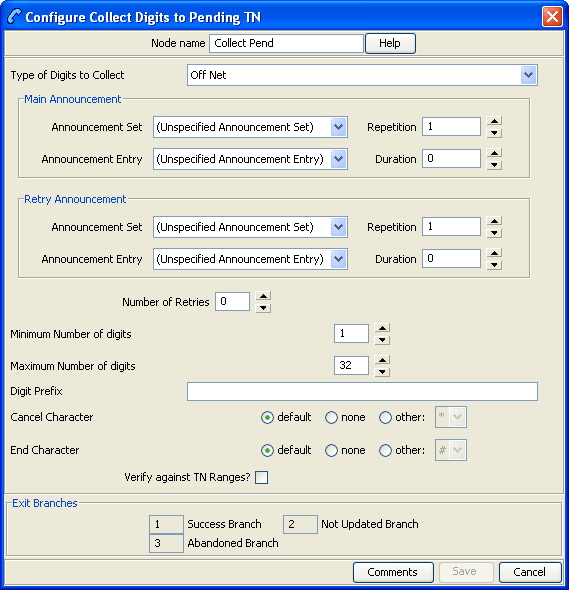
Configuring the node
Follow these steps to edit the feature node.
| Step | Action | |
|---|---|---|
| 1 |
Select the Type of Digits to Collect from the drop-down list. The type may be:
|
|
| 2 |
From the Main Announcement frame, select the Announcement Set that contains the main announcement you want to play to the caller. Result: The Announcement Entry drop-down box will become available. |
|
| 3 | From the Announcement Entry drop-down list, select the main announcement you want to play to the caller. | |
| 4 | Set the Repetition field to the number of times to repeat the main announcement while the system waits for the caller to take an action. If set to zero, the announcement will be repeated for the length of the duration set. | |
| 5 | Set the Duration field to the length of time in seconds that the announcement is to be played. If set to zero, the announcement will be played for its full length. | |
| 6 |
The retry announcement contains the announcement you want to play to the caller if the number of digits collected is not within the range specified. In the Retry Announcement frame, select the:
as described in steps 2 - 5. |
|
| 7 | In the Number of Retries field, set the number of times that the node will retry collecting data from the caller (after an initial failure), before routing the call to the Not Updated branch. This value may be between 0 and 10. | |
| 8 |
In the Minimum Number of digits field, set the minimum number of digits that must be collected. This box accepts values between 1 and 32. The minimum number of digits must be less than, or equal to, the maximum number of digits. |
|
| 9 | In the Maximum Number of digits field, set the maximum number of digits that must be collected. This box accepts values between 1 and 32. The maximum number of digits must be greater than, or equal to, the minimum number of digits. | |
| 10 |
If a prefix is to be included before the digits collected, enter this in the Digit Prefix field. The prefix may be up to 32 valid characters. Valid characters include 0-9, A-F. |
|
| 11 |
From the Cancel Character options, select the character which the caller can use to cancel the digit collection. The default option will use the switch on the answering device. Notes:
|
|
| 12 |
From the End Character options, select the character which the caller can use to indicate the end of the digit collection. The default option will use the switch on the answering device. |
|
| 13 |
If you want to check that the collected digits are within the TN ranges for this client, tick the Verify Against TN Ranges? check box. This will check the Termination Number Range Rules set up for this customer (via the New/Edit Customer screen in ACS) and verify according to the setting. For more information, refer to Adding customers in the ACS User Guide. |
|
| 14 |
Click Save. Note: Save is not available until all the required information has been selected or entered. Result: The node data will be saved. |
|
Note: The announcement set and announcement entry lists are populated with data that is specified using the Announcements tab of the ACS Configuration screen.
For more information about configuring announcement sets and announcement entries, see the Announcements topic in ACS User's Guide.
Get Hunting Number
Node description
The Get Hunting Number node is used to search a list of termination numbers and timeout pairs within any available profiles.
On each iteration the node sets the PendingTN and timeout using the next number on the list until no numbers remain.
Notes:
- There are no data provisioning screens in ACS for this node. Provisioning the data required by this node requires a custom product like VPN.
- The information for the node is stored in a profile, with the node searching all the profiles it has, in turn, until it finds the hunting information.
Node icon

If the CPE has been configured to use the static panel CPE palette style, the CPE displays the icon shown below to represent the feature node.

Node exits
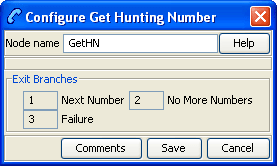
This node has one entry and three exits. The number of exits cannot be changed.
| Exit | Cause | Description |
|---|---|---|
| 1 | Next Number | A number is found |
| 2 | No More Numbers | No numbers remain |
| 3 | Failure | General failure |
Configuring the node
This node requires no configuration data. You may change the Node name, if required.
Example
As an example, assuming that the following hunting configuration data has been placed in a profile block:
0x030020 Hunting Config
SubTags (2):
0x000001 356    Hunting Lists (tag 1):
Hunting List ID 1 (name = 'Hunting List 1'):
Rank 1 termination number:
Digits: 04111222
On network ID: 5
Timeout: 10
Rank 2 termination number:
Digits: 1234
Off network number
Timeout: 20
Hunting List ID 2 (name = 'Hunting list 2'):
Rank 1 termination number:
Digits: 04333444
On network ID: 5
Timeout: 30
Rank 2 termination number:
Digits: 4321
Off network number
Timeout: 40
0x000002 380    Hunting Planner (tag 2):
Time Data 0:
Location pattern: ^7777
CLI pattern: ^77777
Time of Day
Start Time: 04:15
End Time: 08:17
Hunting List ID: 1
Time Data 1:
Location pattern: ^6666
CLI pattern: ^76666
Day of Week and Time of Day
Start Time: Sunday 05:00
End Time: Monday 06:00
Hunting List ID: 2
Time Data 2:
Location pattern: ^5555
CLI pattern: ^75555
Day of Year and Time of Day
Start Time: 28 December 01:12
End Time: 29 December 02:15
Hunting List ID: 1
Default Hunting List ID: 1
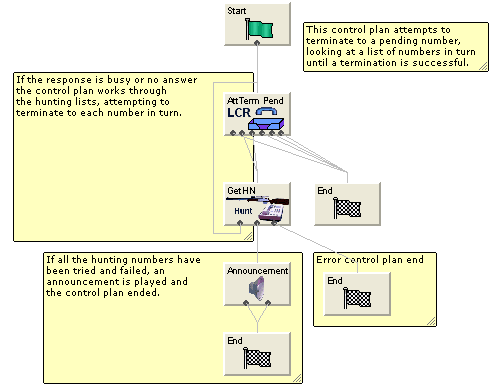
When the node is used for the first time in a call, it works out which hunting list to use from the hunting planner information, based on time of day, and other factors. The hunting list is an ordered list of termination numbers to try, and a no answer timeout. So, the first list in the example above says try private number 04111222 on network 5 for 10 seconds. The second list says try public number 1234 for 20 seconds.
Each time the get hunting number node is run, it puts a new number from the list in the pending termination number buffer and the corresponding timeout value in the no answer timer variable in call context. If the end of the list is reached, the get hunting number node exits down branch 2.
The idea is that there is a loop back from the no answer branch of an attempt terminate to pending TN node to a Get Hunting Number node.
Set Pending TN from Profile
Node description
The Set Pending TN from Profile feature node takes a number from the profile and places it in the pending termination number buffer.
This node can also be used to set the NoAnswer timeout.
Node icon

If the CPE has been configured to use the static panel CPE palette style, the CPE displays the icon shown below to represent the feature node.

Node exits
This node has one entry and two exits. The number of exits cannot be changed.
| Exit | Cause | Description |
|---|---|---|
| 1 | Success | The number has been placed in the Pending TN buffer. |
| 2 | Data Not Found | The number has not been placed in the Pending TN buffer. |
Configuring the node
Follow these steps to configure the Set Pending TN from Profile node.
| Step | Action |
|---|---|
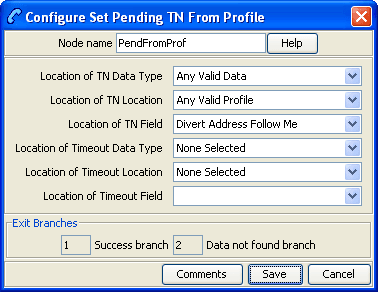
| 1 | Using the drop down lists in the Location of TN Data Type, Location and Field boxes, select where the number is to be read from. |
|
Notes:
|
|
| 2 | Using the drop down lists in the Location of Timeout Data Type, Location and Field fields, select where the timeout period is to be read from. |
| 3 |
Click Save. Note: Save is not available until all the required information has been selected or entered. |
Note: The list of data types is fixed at installation time for each feature node or screen.
Further reference:
- For information about profile blocks (data type, location, and field) and how to use them, see Profile Blocks and Tags.
- The primary tag lists are configured in the SMS > Services > ACS Service > Configuration > Profile Tag Details and Profile Tag Mapping tabs (see ACS User's Guide, Profile Tag Details for more information).
Terminate to Pending TN
Node description
The Terminate to Pending TN node terminates unconditionally to the number assigned to the PendingTN variable. For information about the PendingTN variable, see Pending termination number variables.
This node is sometimes called Unconditional Terminate to Pending TN.
Node icon
If the CPE has been configured to use the static panel CPE palette style, the CPE displays the icon shown below to represent the feature node.

Restrictions
A control plan may contain as many Terminate to Pending TN nodes as required.
The Terminate to Pending TN node may not be followed by any node that requires telephony (that is, Play Announcement, Unconditional Termination, Disconnect, Attempt Termination, Selection Dependant Routing, Attempt Terminate to Pending TN).
Configuring the node
Follow these steps to configure the Terminate to Pending TN node.
| Step | Action |
|---|---|
| 1 |
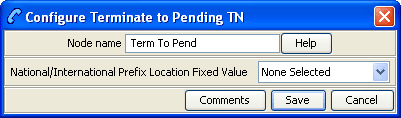
From the National/International Prefix Location Fixed Value drop down list, select the profile to read least cost routing configuration from. The list displays a list of all profiles which can be read from. For more information about profile blocks, see Profile Blocks and Tags. If you do not want to use least cost routing on this destination
number, select |
| For more information about Least Cost Routing, see ACS User's Guide. | |
| 2 | Click Save. |
Test Pending TN Type
Node description
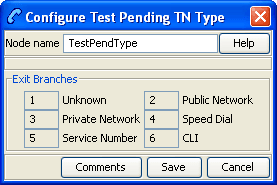
The Test Pending TN Type node branches in one of six ways depending on the value assigned to the PendingTNType variable.
The PendingTNType variable classifies an associated termination number as any one of:
- A number of an unknown type
- A number that accesses the PSTN directly (sometimes called an Off-Net number)
- A number that passes through a private network on its way to the PSTN (sometimes called an On-Net number)
- A speed-dial number
- A service number
- A calling line identification (CLI)
For more information about the PendingTNType variable, see Pending termination number variables .
Node icon
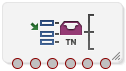
If the CPE has been configured to use the static panel CPE palette style, the CPE displays the icon shown below to represent the feature node.

Node exits
This node has one entry and six exits. The number of exits cannot be changed.
| Exit | Cause | Description |
|---|---|---|
| 1 | Unknown | Number type is unknown. |
| 2 | Public Network | Number type is public network. |
| 3 | Private Network | Number type is private network. |
| 4 | Speed Dial | Number type is speed dial. |
| 5 | Service Number | Number type is service number. |
| 6 | CLI | Number type is CLI. |