20 Prefix Trees Feature Nodes
Available Feature Nodes
Prefix Trees Feature Nodes List
This table lists the feature nodes available from the Prefix Trees palette group and the fast key for each feature node in the list. You can use fast keys to search for feature nodes in the palette or the canvas.
| Node name | Node description |
|---|---|
| Change Ordered Prefix Tree Entry |
Changes a single entry within an ordered prefix tree. Fast key: OP1 |
| Check Limitations |
Compares the contents of a number profile block against the limitations for a specified limited type. Fast key: LOP3 |
| Check Prefix Tree Capacity |
Checks the capacity of a prefix tree for a selected capacity type:
Fast key: LOP1 |
| Create Prefix Tree |
The Create Prefix Tree node creates a prefix tree from a delimited input string. Fast key: CPTS |
| Play Ordered Prefix Tree Entry |
Plays a single selected entry in an ordered prefix tree to the caller. Fast key: LOP2 |
| Prefix Tree Entry Extraction |
The Prefix Tree Entry Extraction feature node enables one or more entries in a profile prefix tree to be extracted and stored in other profile fields. Fast key: LOP4 |
About Prefix Tree Feature Nodes
Introduction
Prefix tree feature nodes enable you to maintain prefix trees and numeric strings stored in subscriber profiles, such as the prefix tree used to store a subscriber's list of friends and family numbers.
Processing limited types
When processing of limitations is mentioned, the following behavior occurs.
The limitations are sourced from the same tag as the actual limited profile field, the limitation tag will be either from the product type or the service provider profile.
Limitation source
Limitation values are configured through the CCS product type configuration screens. See CCS User's Guide, Subscriber Management - Product Type topic.
The limitations will be sourced as follows:
| Profile | Source |
|---|---|
| Product Type | The CCS service library makes this available in Application Specific Profile 2 (Product Type). |
| Service Provider | The CCS service library makes this available as the ACS Customer Profile. |
The product type limitations generally take precedence over the service provider limitations.
Limitations
The limitations are stored in a profile block at the same tag as the associated limited profile field.
This table describes the limitations.
| Limitation | Description | Tag | Profile Field Types |
|---|---|---|---|
| Ignore Limitations |
If set, all limitations for this profile field in the applicable profile (either product type or service provider) will be ignored. Possible values are:
Note: If the ignore flag is set for the product type, the service provider limitations will be used. |
0x1 | LOPREFIX, LNSTRING |
| Maximum Number of Entries | The maximum number of entries that may be placed in a limited prefix tree. | 0x2 | LOPREFIX |
| Minimum Number Length | The minimum length a string must be to be stored in a limited profile field. | 0x3 | LOPREFIX, LNSTRING |
| Maximum Number Length | The maximum length a string may be to be stored in a limited profile field. | 0x4 | LOPREFIX, LNSTRING |
| Limitation Prefix Tree Type |
The type of the limitation prefix tree used to filter values that may be stored in a limited profile field. Possible values are:
|
0x5 | LOPREFIX, LNSTRING |
| Limitation Prefix Tree | A prefix tree used to filter values that may be stored in a limited profile field. | 0x6 | LOPREFIX, LNSTRING |
When are limitation defaults used
The default values for product type limitations are used in the following circumstances:
- The limitations profile field is missing from a profile (either service provider, product type or both)
- No limitations are present in either profile
- Both profiles have the ignore flag set to true
Limitation default values
This table describes the limitation function defaults.
| Limitation | Default |
|---|---|
| Ignore Limitations |
Ignore. This will force all other limitations to be ignored for this profile. Note: If the product type is missing the ignore flag, the service provider limitations will be used (if they exist). |
| Maximum Number of Entries | 100 |
| Minimum Number Length | 0 |
| Maximum Number Length | 255 |
| Limitation Prefix Tree Type | Barred List |
| Limitation Prefix Tree | Empty Tree |
Ordered prefix trees
Prefix trees have an order value associated with each entry that is used for maintaining the prefix tree sequence. This value starts at zero for the first entry.
New entries are added to the end of a prefix tree, being assigned an order value equal to the size of the tree before the addition. Similarly, a deleted entry will cause all entries with a higher order value to have their order values reduced by one.
When maintaining ordered tree entries (select/ change/ delete) the order value should be used to locate the right entry.
Change Ordered Prefix Tree Entry
Node description
The Change Ordered Prefix Tree Entry node changes the contents of an ordered prefix tree.
This table describes the valid actions.
| Action | Description |
|---|---|
| Add a new entry |
This will add the contents of an ACS number buffer to the end of an ordered prefix tree. Note: If the prefix tree is missing a profile field will be created as a prefix tree with the new entry in it. |
| Change an existing entry | The feature node will replace the specified entry in the tree with the contents of an ACS number buffer. |
| Delete an existing entry | The specified entry will be removed from the tree. |
Note: All of these operations will maintain the ordering of the tree entries (see Ordered prefix trees ).
Node icon

If the CPE has been configured to use the static panel CPE palette style, the CPE displays the icon shown below to represent the feature node.

Node exits
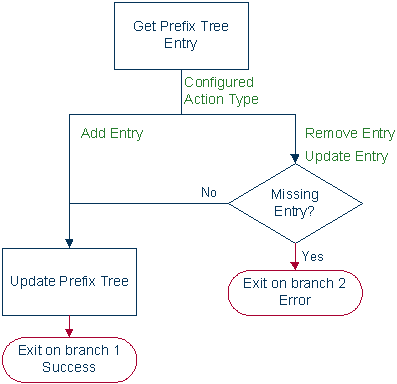
This node has one entry and two exits. The number of exits cannot be changed.
| Exit | Cause | Description |
|---|---|---|
| 1 | Success | The change was successful. |
| 2 | Error |
The change failed, due to one of:
|
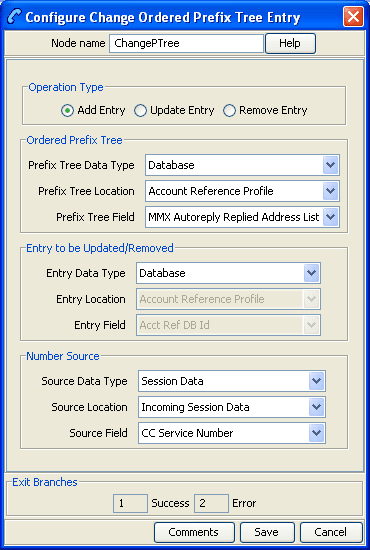
Configuring the node
Follow these steps to edit the node configuration.
| Step | Action | ||
|---|---|---|---|
| 1 |
Select the Operation Type option:
Result: The field availability changes as listed: |
||
| Add | Update | Remove | |
| Ordered Prefix Tree fields | Ordered Prefix Tree fields | Ordered Prefix Tree fields | |
| Number Source fields | Entry to be Updated/Removed fields | Entry to be Updated/Removed fields | |
| Number Source fields | |||
| 2 | In the Ordered Prefix Tree area, using the drop down lists, select the Prefix Tree. | ||
| 3 | For Update or Remove options, in the Entry to be Updated/Removed area, using the drop down lists, select the required Prefix Tree entry. | ||
| 4 | For Add or Update options, in the Number Source area, using the drop down lists, select the entry value to use. | ||
| 5 | Click Save. | ||
Note: The list of data types is fixed at installation time for each feature node or screen.
Further reference:
- For information about profile blocks (data type, location, and field) and how to use them, see Profile Blocks and Tags.
The primary tag lists are configured in the SMS > Services > ACS Service > Configuration > Profile Tag Details and Profile Tag Mapping tabs (see ACS User's Guide, Profile Tag Details for more information).
Check Limitations
Node description
The Check Limitations node compares the contents of a number profile block against the limitations for a specified limited type. See About Prefix Tree Feature Nodes for information on limitations.
Node icon
If the CPE has been configured to use the static panel CPE palette style, the CPE displays the icon shown below to represent the feature node.

Node exits
This node has one entry and five exits. The number of exits cannot be changed.
Exits 2 through 4 are all types of "Error".
| Exit | Cause | Description |
|---|---|---|
| 1 | Number Allowed | The number meets all criteria for acceptance. |
| 2 | Number Barred | The entered number was either included in the barred list, or excluded from the allowed list, depending on the limitation prefix tree type. |
| 3 | Number Too Short | The entered number was not long enough for the given profile field. |
| 4 | Number Too Long | The entered number was too long for the given profile field. |
| 5 | Error | General Error. |
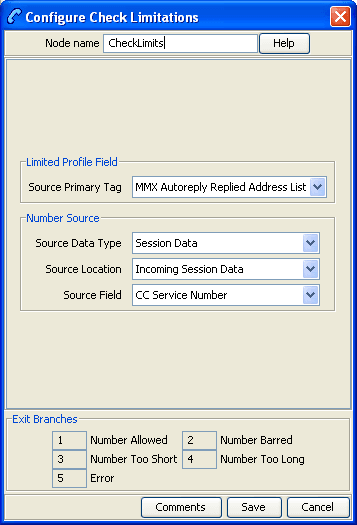
Configuring the node
Follow these steps to edit the node configuration.
| Step | Action |
|---|---|
| 1 |
From the Source Primary Tag drop down list, select the limitation to use. Note: The available limitation types for this feature node are:
|
| 2 | From the drop down lists in the Number Source area, select the Source Data Type, Location and Field containing the number to compare against the selected limitation type. |
| 3 | Click Save. |
Note: The list of data types is fixed at installation time for each feature node or screen.
Further reference:
- For information about profile blocks (data type, location, and field) and how to use them, see Profile Blocks and Tags.
The primary tag lists are configured in the SMS > Services > ACS Service > Configuration > Profile Tag Details and Profile Tag Mapping tabs (see ACS User's Guide, Profile Tag Details for more information).
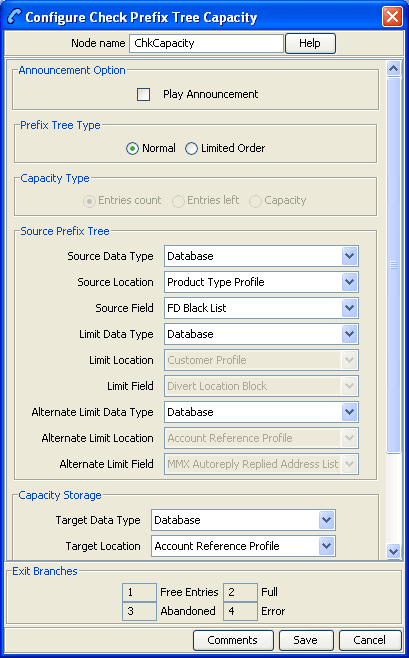
Check Prefix Tree Capacity
Node description
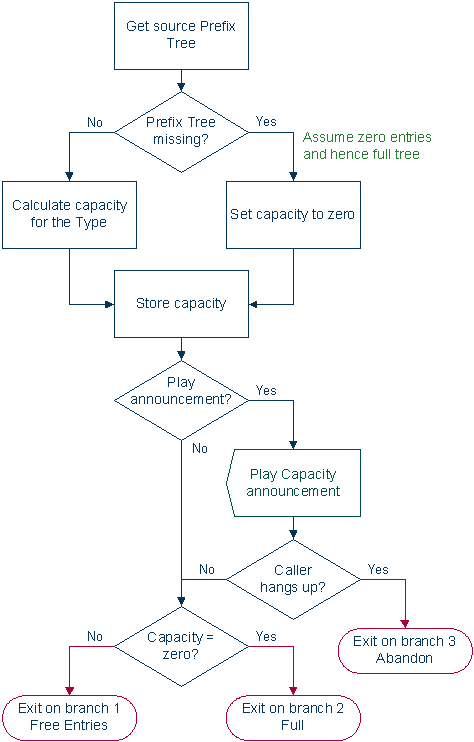
The Check Prefix Tree Capacity node enables you to:
- Check how many entries there are in a prefix tree
- Optionally, for a limited ordered prefix tree, play the configured capacity type value (if played, the value is stored in the profile field configured in the node)
The capacity type value which can be played is one of the following:
- The number of entries available (only for limited ordered)
- The number of entries used (all types)
- The maximum number of entries for the tree (only for limited ordered)
If the prefix tree profile field is missing from the profile, the node assumes it is a tree with zero entries.
Node icon

If the CPE has been configured to use the static panel CPE palette style, the CPE displays the icon shown below to represent the feature node.

Node exits
This node has one entry and four exits. The number of exits cannot be changed.
| Exit | Cause | Description |
|---|---|---|
| 1 | Free Entries | The prefix tree is not full. |
| 2 | Full | The prefix tree is full. |
| 3 | Abandon | The user disconnected the call during the announcement. |
| 4 | Error | General error handling |
Configuring the node
Follow these steps to edit the node configuration.
| Step | Action |
|---|---|
| 1 |
Select the Play Announcement check box to play the capacity result. Result: The Play Capacity Announcement Set and Announcement Entry fields become available and the Save button becomes unavailable. |
| 2 |
Select the Prefix Tree Type. Result: If you selected:
|
| 3 |
Select the Capacity Type option to use for capacity calculations:
|
| 4 | In the Source Prefix Tree area select the source limited ordered prefix tree to query using the Source drop down lists. |
| 5 |
If you selected Limited Order:
|
| 6 | In the Capacity Storage area, using the drop down lists, select the capacity store target. |
| 7 |
In the Play Capacity area, select the announcement to play for the selected capacity type. Result: The Save button becomes available. |
| 8 | Click Save. |
Note: The list of data types is fixed at installation time for each feature node or screen.
Further reference:
- For information about profile blocks (data type, location, and field) and how to use them, see Profile Blocks and Tags.
- The primary tag lists are configured in the SMS > Services > ACS Service > Configuration > Profile Tag Details and Profile Tag Mapping tabs (see ACS User's Guide, Profile Tag Details for more information).
Create Prefix Tree
Node description
The Create Prefix Tree node creates a prefix tree from a delimited input string. Each entry in the input string is checked against the limitation profile tag field specified in the node. This checks whether the entry is one of:
- Allowed
- Barred
- Too long
- Too short
Delimiters
This table lists the delimiters allowed between entries in the input string.
| Delimiter | Description |
| " " | Space |
| "," | Comma |
| ":" | Colon |
| "|" | Pipe |
Note: Delimiter characters may be combined, for example, so that spaces and commas can be used between entries.
Node icon

If the CPE has been configured to use the static panel CPE palette style, the CPE displays the icon shown below to represent the feature node.

Node exits
This node has one entry and three exits. The number of exits cannot be changed.
| Exit | Cause | Description |
|---|---|---|
| 1 | Success | The node has successfully inserted all the entries from the source string into the selected prefix tree. |
| 2 | Entries Limited | The limitations set in the node prevented one or more source entries from being inserted into the selected prefix tree. |
| 3 | Error | Indicates none of the source entries were inserted into the selected prefix tree or an error/failure occurred. |
Configuring the node
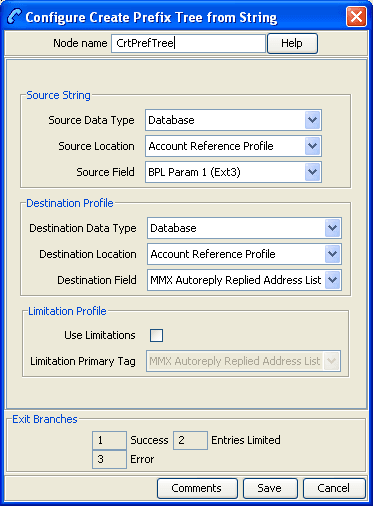
Follow these steps to configure the node.
| Step | Action |
|---|---|
| 1 | From the drop down lists in the Source String area, select the profile tag field containing the string you want to use to create the prefix tree. |
| 2 | From the drop down lists in the Destination Profile area, select the profile tag field where the prefix tree will be stored. |
| 3 |
To limit the allowable entries in the source string, tick the Use Limitations check box. Then, from the Limitation Primary Tag drop down list, select the profile tag field to use. Note: The Product Type profile will be used if available, otherwise the Service Provider profile will be used. |
| 4 | Click Save. |
Note: The list of data types is fixed at installation time for each feature node or screen.
Further reference:
- For information about profile blocks (data type, location, and field) and how to use them, see Profile Blocks and Tags.
The primary tag lists are configured in the SMS > Services > ACS Service > Configuration > Profile Tag Details and Profile Tag Mapping tabs (see ACS User's Guide, Profile Tag Details for more information).
Play Ordered Prefix Tree Entry
Node description
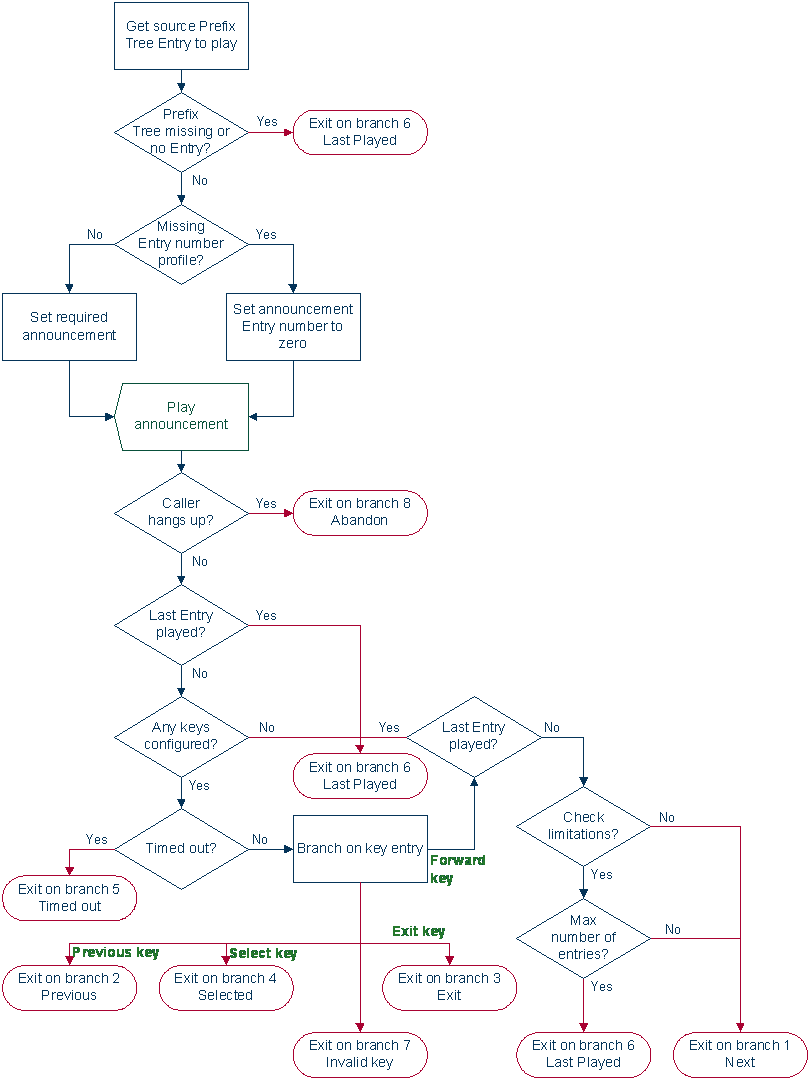
The Play Ordered Prefix Tree Entry node plays a single selected entry from an ordered prefix tree to the caller.
If the entry number profile field is not present, the first prefix tree entry (entry number zero) is used in the announcement.
Node icon
If the CPE has been configured to use the static panel CPE palette style, the CPE displays the icon shown below to represent the feature node.

Selection keys
Selection keys (digits 0 to 9) to cater for “Forward”, “Backward”, “Select”, and “Exit” operations can be optionally configured to enable scrolling through a prefix tree.
When configured, the announcement is played as a prompt and collect operation. If an incorrect digit is collected, the Invalid Key error branch is taken.
When not configured, the announcement is played as a variable announcement with two parts in the following order:
- Entry Number
- Prefix Tree Entry
Restrictions
A control plan may contain as many Play Ordered Prefix Tree Entry nodes as required.
For the Next and Previous operations to work correctly, these exits should go to a node that can increment/ decrement the field entry value, i.e. a Profile Counter node.
Node exits
This node has one entry and nine exits. The number of exits cannot be changed.
Exits 1 through 5 are optional and therefore available only when configured.
| Exit | Cause | Description |
|---|---|---|
| 1 | Next |
The caller entered the “Next” key (digit 0 to 9). Note: Checks (listed under exit 6 below) are made before branching which could result in exit 6 being taken instead, see exit 6 below. |
| 2 | Previous | The caller entered the “Previous” key (digit 0 to 9). |
| 3 | Exit | The caller entered the “Exit” key (digit 0 to 9). |
| 4 | Selected | The caller entered the “Select” key (digit 0 to 9). |
| 5 | Timed Out | The user did not enter a digit within the configured menu timeout period. |
| 6 | Last Played |
One of the following occurred.
|
| 7 | Invalid Key | The caller entered an invalid key. |
| 8 | Abandoned | The caller disconnected the call during the announcement. |
| 9 | Error | General Error Handling. |
Configuration fields
This table describes the function of each field.
| Field | Description |
|---|---|
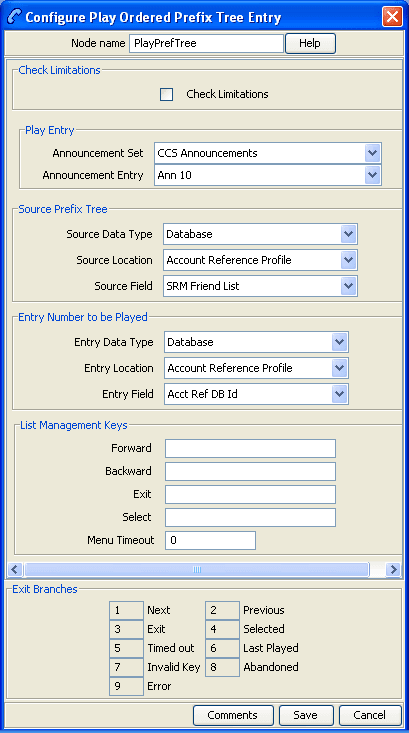
| Check Limitations | When selected, restricts the maximum number of entries that may be played to the maximum number of entries for the source prefix tree. |
| Announcement Set | List of all the announcement sets (configured in the ACS Configuration screen in ACS). |
| Announcement Entry | List of all the announcements belonging to the selected announcement set. |
| Source Data Type | The source data type for the prefix tree. |
| Source Location | The profile block containing the prefix tree location. |
| Source Field |
The prefix tree location field within the profile block. The available field types listed are:
|
| Entry Data Type | The data type of the prefix tree entry number to play. |
| Entry Location | Profile block that contains the prefix tree entry number to play. |
| Entry Field | Profile field containing the entry number to play. |
| Forward | Sets the key for "Next" operation. This is optional, and if not set, no next option will be available to the caller. Single 0 to 9 digit not configured else where. |
| Backward | Sets the key for "Previous" operation. This is optional, and if not set, no previous option will be available to the caller. Single 0 to 9 digit not configured else where. |
| Exit | Sets the key for "Exit" operation. This is optional, and if not set, no exit option will be available to the caller. Single 0 to 9 digit not configured else where. |
| Select | Sets the key for "Selected" operation. This is optional, and if not set, no selected option will be available to the caller. Single 0 to 9 digit not configured else where. |
| Menu Timeout |
Seconds to wait for a key entry (when selection keys are configured) before branching "Timed out". Range is 0 to 99 seconds. Note: The lower this value is the more likely a timeout is going to occur (that is, 0 would result in 100% certain timeout). |
Configuring the node
Follow these steps to edit the node configuration.
| Step | Action |
|---|---|
| 1 |
Tick the Check limitations check box to restrict the maximum number of entries to play to the source prefix tree maximum number of entries. Non-selection will allow all the available entries to be played. |
| 2 | In the Play Entry area, using the drop down boxes, select the Announcement Set and Announcement Entry for the prefix tree entry announcement to play. |
| 3 | In the source Prefix Tree area, using the drop down boxes, select the prefix tree. |
| 4 | In the Entry Number to be Played area, using the drop down boxes, select the prefix tree number to play. |
| 5 | In the Forward field, enter the unique digit (0 to 9) the caller must enter to use the forward function. This is optional. |
| 6 | In the Backward field, enter the unique digit (0 to 9) the caller must enter to use the backward function. This is optional. |
| 7 | In the Exit field, enter the unique digit (0 to 9) the caller must enter to use the exit function. This is optional. |
| 8 | In the Select field, enter the unique digit (0 to 9) the caller must enter to use the select function. This is optional. |
| 9 |
In the Menu Timeout field, optionally enter a number of seconds (0 to 99). This is the amount of time to wait for a response from the caller before taking the Timed out exit. Note: The lower this value is, the more likely a timeout is going to occur. 0 results in 100% certain timeout. |
| 10 | Click Save. |
Note: In steps 5 to 8, the digit must be unique for this configuration. Any conflicts will be reported and must be resolved before saving.
Note: The list of data types is fixed at installation time for each feature node or screen.
Further reference:
- For information about profile blocks (data type, location, and field) and how to use them, see Profile Blocks and Tags.
The primary tag lists are configured in the SMS > Services > ACS Service > Configuration > Profile Tag Details and Profile Tag Mapping tabs (see ACS User's Guide, Profile Tag Details for more information).
Prefix Tree Entry Extraction
Node description
The Prefix Tree Entry Extraction feature node enables one or more entries in a profile prefix tree to be extracted and stored in other profile fields.
Node icon

If the CPE has been configured to use the static panel CPE palette style, the CPE displays the icon shown below to represent the feature node.

Looping
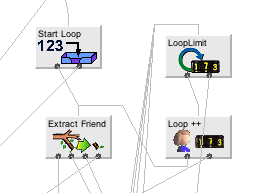
If there is more than one entry in the prefix tree that requires processing then the Prefix Tree Entry Extraction node should be set up in a loop in the control plan. If no external data will be supplied to the Prefix Tree Entry Extraction node, then the following additional nodes will be required in the control plan:
- Set feature node
- Loop Limit feature node
- Profile Counting feature node
Loop process
This process describes how a loop can be used to process multiple entries from the prefix tree specified in the Prefix Tree Entry Extraction (PTEE) node in the control plan.
- The Set node is used to initialize the first entry position for the PTEE node. This means it must be placed in the control plan before the PTEE node.
- The PTEE node will extract the initial entry and follow the More Entries path (if more entries exist).
- Following any required processing, the Loop Limit node will be checked to ensure the maximum number of iterations has not been reached and its counter will be incremented.
- The Profile Counting node must be placed after the Loop Limit node in the control plan. It will increment the entry position to be used by the PTEE node.
- The PTEE node will extract the entry indicated by the Profile Counting node and if more entries exist it will exit through the More Entries path.
- This processing will continue until there are no more entries in the prefix tree or the loop limit is reached. The loop will then be exited following any required processing.
Node exits
This node has one entry and four exits. The number of exits cannot be changed.
| Exit | Cause | Description |
|---|---|---|
| 1 | More Entries | There are some more entries to extract. |
| 2 | No More Entries | The entry position is pointing to the last entry indicating that there are no more entries to extract. |
| 3 | Invalid Position | The entry position is either 0 or greater than the limit. |
| 4 | Error | The specified profile does not exist. |
Configuration fields
This table describes the function of each field.
| Field | Description |
|---|---|
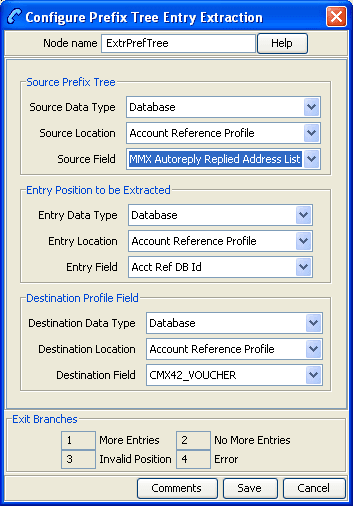
| Source Data Type | The data type of the source profile block. |
| Source Location | The profile block containing the prefix tree. |
| Source Field |
The prefix tree field within the profile block. The available field types listed are:
|
| Entry Data Type | The data type of the entry profile block. |
| Entry Location | The profile block that contains the prefix tree entry number to extract. |
| Entry Field | The profile field containing the entry number to extract. This will be an integer field. |
| Destination Data Type | The data type of the profile to use to store the extracted data. |
| Destination Location | The profile block location for the extracted data. |
| Destination Field | The profile field where the extracted data will be stored. This will be an integer field. |
Configuring the node
Follow these steps to configure the node.
| Step | Action |
|---|---|
| 1 | From the Source Prefix Tree area, using the drop down boxes, select the prefix tree. |
| 2 | From the Entry Position to be Extracted area, using the drop down boxes, select the prefix tree number to extract. |
| 3 | From the Destination Profile Field area, using the drop down boxes, select the destination profile field for the extracted data. |
| 4 | Click Save. |
For more information about profile blocks (data type, location, and field) and how to use them, see Profile Blocks and Fields.
For more information about profile field configuration, see the discussion on profile tag configuration in Convergent Charging Controller Advanced Control Services User's Guide.