21 Presence Feature Nodes
Available Feature Nodes
Presence Feature Nodes List
This table lists the feature nodes available from the Presence palette group in the ACS Control Plan Editor.
| Node name | Node description |
|---|---|
| Presence Branching | Prompts the user to select the location to check for the presence and availability of the entity referenced in either a specified ACS buffer or profile tag, and then branches accordingly. |
| Set Presence | Sends a request to the presence server to set the availability at a selected location of a specified subscriber or presence entity. |
Presence Branching
Node description
This node sends a request via ACS to a third party presence server to query a selected location for the presence and availability of a specified subscriber or presence entity. It then branches accordingly.
Note: The node relies on a protocol specific presence querying chassis action to process the request. The library used is delivered separately by another package, such as scaScp.
This table lists the standard set of locations and availabilities, delivered at installation, that may be queried.
| Standard Locations | Standard Availabilities |
|
|
Node icon

If the CPE has been configured to use the static panel CPE palette style, the CPE displays the icon shown below to represent the feature node.

Restrictions
A control plan may contain as many Presence Branching nodes as required.
This node can only be used if a library for the presence querying chassis action has been installed.
Node exits
This node has one entry and up to eight exits depending on which availabilities the user configures for the selected query location.
Exits 1 through 4 are determined by the system and cannot be changed.
| Exit | Cause | Description |
|---|---|---|
| 1 | No presence entity | The specified presence entity could not be found. |
| 2 | No presence domain | The presence domain profile tag does not exist and no default presence domain has been configured. |
| 3 | No match | The availability retrieved by the presence server does not match any of the configured availabilities. |
| 4 | Error | The presence server has reported an error. |
| 5 | Available |
At the configured location the presence entity is:
|
| 6 | Away |
|
| 7 | Busy |
|
| 8 | N/A |
|
Note: Exits 5 through 8 will be in the order configured, and therefore not necessarily in the order shown here.
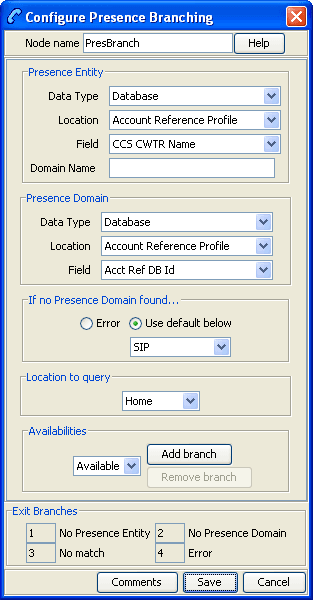
Configuring the node
Follow these steps to edit the node configuration.
| Step | Action |
|---|---|
| 1 |
From the drop down lists in the Presence Entity panel, select the Data Type, Location and Field where the presence entity name or number is held. Note: The selected Field must be of type STRING. |
| 2 |
If required, set the Domain Name field to the name of the domain to append to the presence entity name or number. Note: The domain will not be appended to the presence entity if it is already present in the Field selected in the Presence Entity panel. |
| 3 |
From the drop down lists in the Presence Domain panel, select the Data Type, Location and Field that identifies the presence query chassis action protocol. The selected Field must be of type INTEGER. Note: Currently only the SIP protocol is supported. |
| 4 |
Set the action to be taken if the presence domain cannot be found. Select:
|
| 5 | Set the Location to query for the presence entity. |
| 6 |
Set the Availabilities to query for the selected location.
Note: Each time you add or remove an availability, an exit is either added or removed from the node. |
| 7 | Click Save. |
Set Presence
Node description
This node sends a request through ACS to a third party presence server to set the availability at a selected location of a specified subscriber or presence entity.
Before sending the request, the node prompts the user to select the following:
- The number and domain name for the presence entity to set
- An availability and location
- The implementation of the presence setting chassis action to invoke. Currently only SIP is supported.
The presence entity number can be specified using fields which may contain (for example) the:
- Called number
- Calling party number
- Subscriber phone number
- Subscriber name
Notes:
The node relies on a protocol specific presence setting chassis action to process the request. The library for the presence setting chassis action is delivered separately by another package, such as scaScp.
Only one availability per location may be set for a presence entity. Each time you specify a new availability for a particular location, the previous one is overwritten.
This table lists the standard set of locations and availabilities that are delivered at installation and that may be set for a presence entity.
| Standard Locations | Standard Availabilities |
|
|
Node icon

If the CPE has been configured to use the static panel CPE palette style, the CPE displays the icon shown below to represent the feature node.

Restrictions
A control plan may contain as many Set Presence nodes as required.
This node may only be used if a library for the presence setting chassis action has been installed.
Node exits
This node has one entry and four exits. The number of exits cannot be changed.
| Exit | Cause | Description |
|---|---|---|
| 1 | No presence entity | The specified presence entity could not be found. |
| 2 | No presence domain | The presence domain does not exist and no default presence domain has been configured. |
| 3 | Error | The presence server has reported an error. |
| 4 | Success | The presence entity was successfully set to the configured location and availability. |
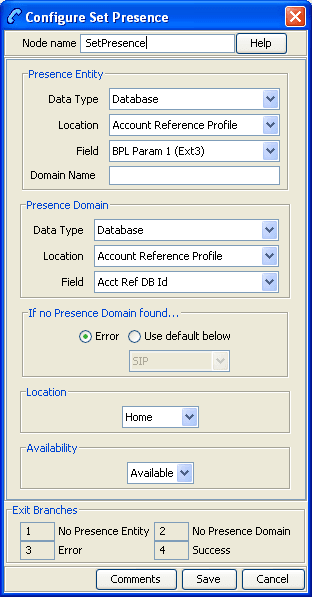
Configuring the node
Follow these steps to edit the node configuration.
| Step | Action |
|---|---|
| 1 | From the drop down lists in the Presence Entity panel, select the Data Type. Location and Field where the presence entity name or number is held. |
| 2 |
If required, set the Domain Name field to the name of the domain to append to the presence entity name or number. Note: The domain will not be appended to the presence entity if it is already present in the Field selected in the Presence Entity panel. |
| 3 |
From the drop down lists in the Presence domain panel, select the Data Type, Location and Field where the presence setting chassis action information is held. Note: Currently only SIP presence setting is supported. |
| 4 |
Set the action to be taken if the presence domain cannot be found. Select:
|
| 5 | Set the Location for the presence entity. |
| 6 | Select the Availability that will be set by the node for the selected location. |
| 7 | Click Save. |