4 Messaging Manager Configuration Screen
Messaging Manager Configuration Screen
Introduction
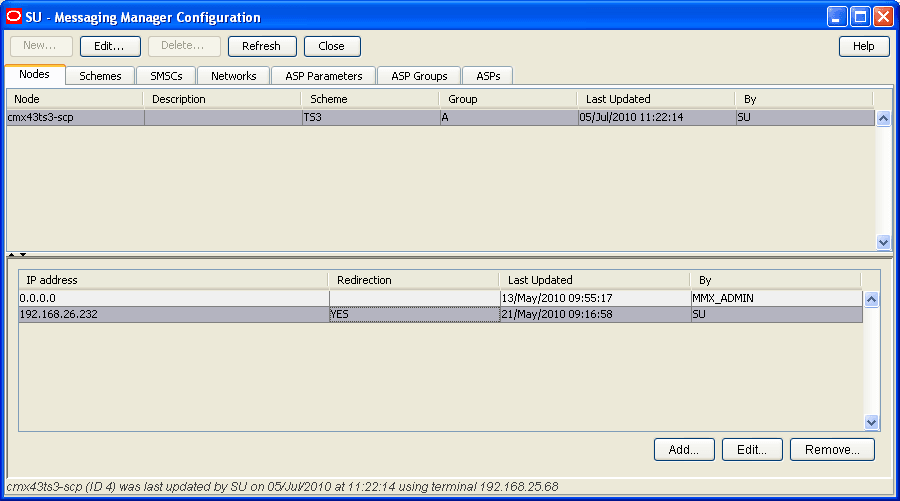
The Messaging Manager Configuration screen enables you to configure resources used by MM. It contains these tabs:
- Schemes
- Nodes
- Networks
- SMSCs
- ASP Parameters
- ASP Groups
- ASPs
Accessing the Configuration screen
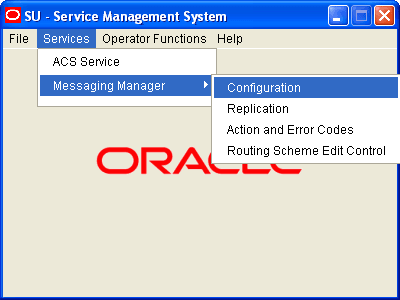
Follow these steps to open the Configuration screen.
| Step | Action |
|---|---|
| 1 |
Select the Services menu from the SMS main screen.
|
| 2 | Select Messaging Manager. |
| 3 |
Select Configuration. Result: You see the Messaging Manager Configuration screen. |
For more information about:
- The screen's content and how to enter configuration information, see the other topics in this chapter.
- How all the information works together to create the Messaging Manager configuration, see Configuration Scenarios .
- Logging into the Service Management System screen, see SMS User's Guide.
Naming conventions
As part of the configuration process, names for items such as paths and connections are required.
To make maintaining a large number of configuration items easier, a naming convention should be used, such as basing path names on the destination.
Example: For incoming MAP protocol based messages, paths are automatically generated using path names similar to:
- MAP_MC_Adapter_Name
- MAP_SME_Adapter_Name
Nodes
Introduction
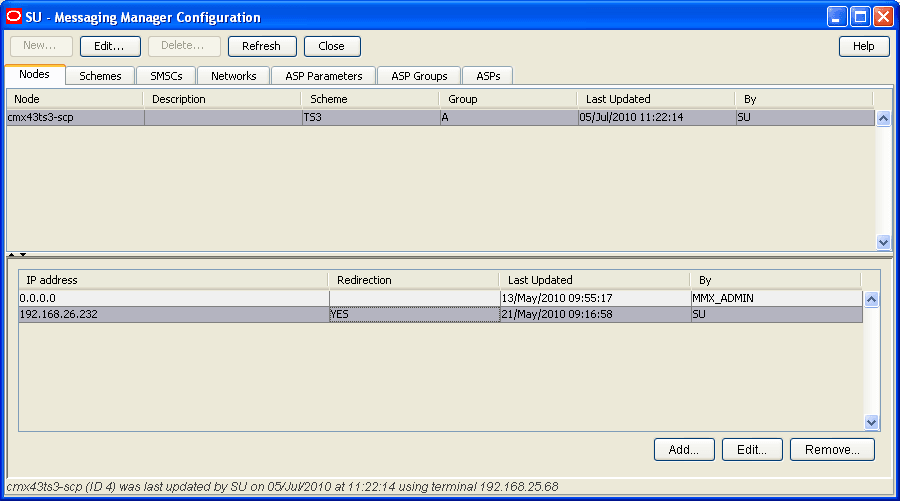
The Nodes tab allows you to add and change the values for the nodes. The nodes for Messaging Manager to load are established at installation time, and can be the SLC name (default) or any other name entered at that time. The node definition is created with default values that may then be changed through the node configuration screens.
To concatenate user messages, MM needs to be able to process all network packets that are part of a user message on a single MM node. This node is selected based on the B-party address, which will be the same for all message segments.
This is achieved by using a directory function that can map each destination number to a particular processing node.
This makes it necessary for all the MM nodes to be aware of each other and be able to pass a message on to any other node. This is done with a minimum amount of configuration required by the user by putting node data into the existing replicated node table as part of the install of each SLC instance.
Nodes fields
This table describes the function of each field.
| Field | Description |
|---|---|
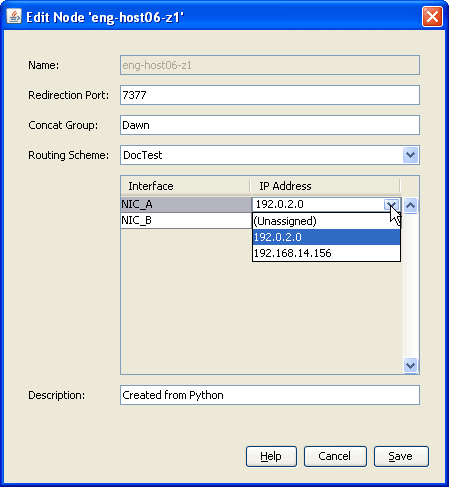
| Name | A unique identifier of the MM instance. Set during the SLC node installation. |
| Redirection Port |
The listening port on the node being configured. Other nodes will connect to it using this as the destination port. Note: Default value requested by the install process. The IP address used by the MM instance for communicating with other MM instances. Note: Default value requested by the install process. |
| Concat Group |
Defines a set of processing nodes that work together to join concatenated messages. This node does not redirect concatenated messages to other SLCs if the group is NULL. Note: Default value is NULL. |
| Routing Scheme |
The scheme name to associate with this node. This can be any of the configured Scheme names. See Schemes . Note: Default value is (Unspecified). |
| Interface |
Interface record used by this node. These values are configured in the scheme which is assigned in the Routing Scheme field. |
| IP Address |
IP address of network adapter used for the interface in the corresponding Interface column. Note: This field can be changed by clicking in the cell. |
| Description | An optional description of the node. |
IP address fields
This table describes the function of each field.
| Field | Description |
|---|---|
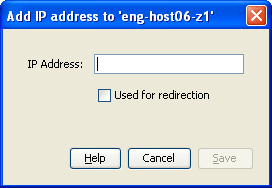
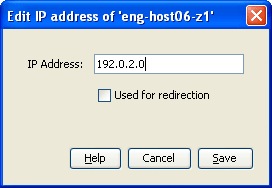
| IP Address | IP addresses which either are or are not available to be assigned to an interface in this node. |
| Used for redirection |
Whether or not this IP address can be used for redirection. Only one of a node's IP addresses can be used for redirection. |
Adding IP addresses
Follow these steps to add a new IP address.
| Step | Action |
|---|---|
| 1 | In the Nodes tab, select the node to add an IP address to. |
| 2 |
Click Add.... Result: The Add IP Address to 'node' screen appears.
|
| 3 |
Enter data in the fields to configure this record. For more information about the fields on this screen, see IP address fields . |
| 4 | Click Save. |
Editing IP addresses
Follow these steps to edit the details of ip address records.
| Step | Action |
|---|---|
| 1 |
On the Nodes tab, select the node which is associated with the IP address to edit. Result: The IP addresses available to the selected node will appear in the bottom panel. |
| 2 |
Select the IP address record to change and, and click Edit.... Result: The Edit IP Address from 'node' screen appears.
|
| 3 |
Edit the fields with the changes to make. For more information about the fields on this screen, IP address fields . |
| 4 | Click Save. |
Removing IP addresses
Follow these steps to remove an IP address record from a node.
| Step | Action |
|---|---|
| 1 |
On the Nodes tab, select the node to remove an IP address record from. Result: The IP addresses available to the selected node will appear in the bottom panel. |
| 2 |
Select the IP address record to remove, and click Remove.... Result: The Remove IP address 'ip' prompt appears. |
| 3 |
Click Remove. Result: The IP address is removed from the database. |
Adding nodes
Nodes cannot be added using the configuration screens.
Nodes can only be added at installation time for the SLC being installed, using the host name as the node name. See Installation Guide.
Editing nodes
Follow these steps to edit an existing node record.
| Step | Action |
|---|---|
| 1 | From the table on the Nodes tab, select the node to edit. |
| 2 |
Click Edit or double-click the record. Result: The Edit Node 'Node_Name' screen appears.
|
| 3 |
Edit the fields with the changes to make. For more information about the fields on this screen, see Nodes fields . Notes:
|
| 4 | Click Save to save the updated Node record in the configuration database. |
Schemes
Introduction
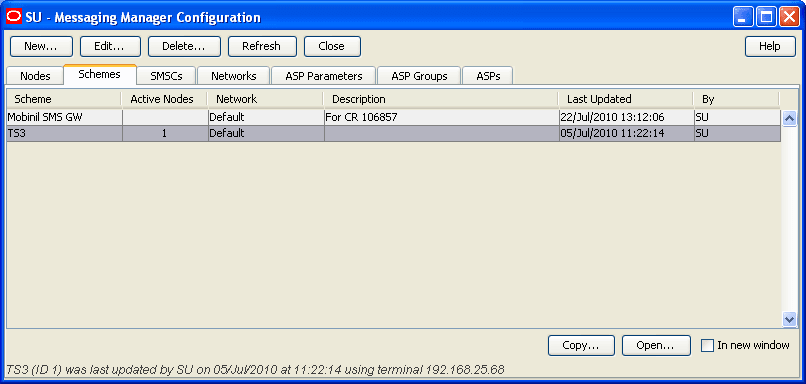
The Schemes tab allows you to manage all the routing definitions for the Messaging Manager configuration.
From this tab you can add or edit schemes, specifying the name and description. You can also edit the scheme configuration by opening the Schemes screen. This is documented in the chapter - Messaging Manager Schemes .
Note: Schemes are assigned to nodes in the node configuration on the Nodes tab.
A scheme is a set of rules for how to treat and route messages.
These rules define, for multiple protocols, what:
- Paths to use
- Connections to use
- Billing domain to use
- Filtering to use
- Actions to take
Note: Only one scheme may be used by each instance of Messaging Manager. However, where several instances of MM are running, each may use a different scheme.
Configuration options
This table shows the functions to be configured for a scheme.
| Function | Description | More information |
| Adapters | Configure protocol adapters. | Adapters |
| Interfaces | Configure network interfaces. | Interfaces |
| Paths | Configure the paths associated with adapters. | Paths |
| Connections | Configure connections used by paths. | Path Connections |
| Screening rules | Configuring screening and anti-spam rules. | Screening |
| Addressing rules | Configure address categorization rules. | Addressing (see " Address Domains ") |
| Throttling rules | Configure throttling rules. | Throttling |
| Triggering rules | Configure triggering rules. | Triggering |
| Routing rules | Configure outbound routing rules. | Routing |
For more information about how these functions are configured together in a scheme (including the order in which rules are applied), see MM User's Guide, Message Routing and Processing topic.
Schemes columns
This table describes the content of each column.
| Column | Description |
|---|---|
| Scheme | Name of the routing scheme. |
| Active Nodes | Number of nodes using this routing scheme. |
| Network |
The network which this scheme will use unless overridden by other configuration. This column is populated by the Default Network field. |
| Description | Meaningful description of this routing scheme. |
| Last Updated | Date and time when this routing scheme was last updated. |
| By | User ID of last update for this routing scheme. |
Schemes buttons
This table describes the function of buttons specific to the Schemes tab.
Note: Some buttons are only available for some routing schemes.
| Button | Description |
|---|---|

|
Copies the currently selected scheme and all associated data to a new scheme. See Copying schemes . |

|
Displays the selected scheme details for editing. See Opening schemes . |
Opening schemes
To view and manage a scheme configuration, it must be opened.
Follow these steps to open a scheme:
| Step | Action | |
|---|---|---|
| 1 | In the table on the Schemes tab, select the record to open. | |
| 2 |
If one or more schemes are already open, perform one of the following actions:
|
|
| 3 |
Perform one of the following actions:
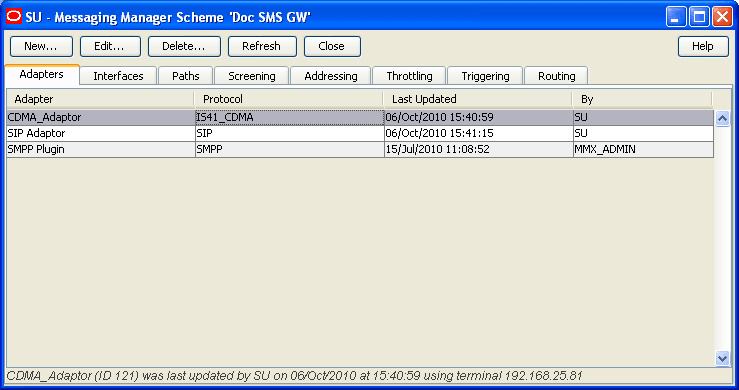
Result: The Messaging Manager Scheme 'scheme_name' screen appears. |
|
|
||
| For details on using this screen, see Messaging Manager Schemes . | ||
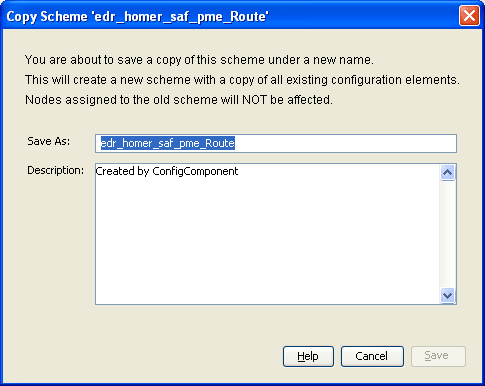
Copying schemes
A new scheme can be added from scratch or based on an existing scheme.
Follow these steps to create a new scheme from an existing scheme.
Note: All nodes, adapters and scheme details are copied from the existing scheme and attached to the new scheme.
| Step | Action |
|---|---|
| 1 | In the table on the Schemes tab, select the record to copy. |
| 2 |
Click Copy. Result: The Copy Scheme 'Scheme_Name' screen appears.
|
| 3 | In the Save As field, enter the name of the new scheme. |
| 4 |
In the Description field, enter a description of the new scheme. Result: The Save button becomes available. |
| 5 |
Click one of:
Note: Copying a scheme will copy all the existing configuration elements of the original scheme to the new scheme. |
Scheme fields
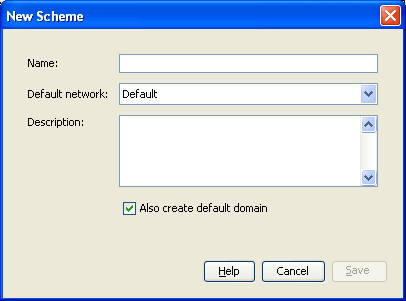
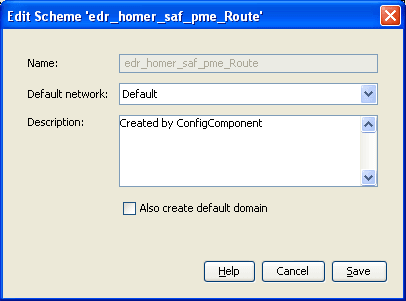
This table describes the function of each field on the New Scheme and Edit Scheme screen.
| Field | Description |
|---|---|
| Name |
The scheme name. Note: This field cannot be changed after it is first saved. |
| Default Network |
The network to use unless overridden by other configuration. The values configured in this field are displayed in the network column. |
| Description | Free text description for this scheme. |
| Also create default domain | A check box on the new scheme. Select to auto generate a default domain. |
Adding schemes
Follow these steps to add a new scheme to the configuration database.
| Step | Action |
|---|---|
| 1 |
From the Schemes tab screen, click New... Result: The New Scheme screen opens.
|
| 2 | In the Name field, enter the name of the new scheme. |
| 3 | In the Description field, enter a description of the new scheme. |
| 4 |
If you wish this scheme to:
Result: The Save button becomes available. |
| 5 | Click Save to save the new scheme record in the configuration database. |
Note: When a scheme is created, a set of default paths will be created that cannot be changed by the user. These paths are created as follows:
- For each MAP adapter record these predefined paths will be created:
- MAP_SME_Adapter_Name
- MAP_MC_Adapter_Name
- For each IS41_CDMA adapter record these predefined paths will be created:
- IS41_CDMA_SME_Adapter_Name
- IS41_CDMA_MC_Adapter_Name
- For each IS41_TDMA adapter record this predefined path will be created:
- IS41_TDMA_SME_Adapter_Name
- For each Internal adapter record this predefined path will be created:
- INTERNAL_SME_Adapter_Name
Editing schemes
Follow these steps to edit an existing scheme record.
| Step | Action |
|---|---|
| 1 | In the table on the Schemes tab, select the scheme to edit. |
| 2 |
Click Edit or double-click the record. Result: The Edit Scheme 'Scheme_Name' screen opens.
|
| 3 |
Configure this record by entering data in the fields on this screen. For more information about the fields on this screen, see Scheme fields . |
| 4 | Click Save to save the updated scheme record in the configuration database. |
Deleting schemes
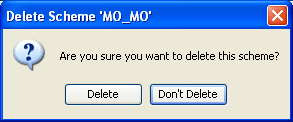
Follow these steps to delete an existing Scheme record.
| Step | Action |
|---|---|
| 1 | In the table on the Schemes tab, select the record to delete. |
| 2 |
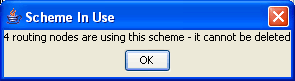
Click Delete. Result: One of the following dialogs appears:
|
| 3 |
If the scheme can be deleted, click one of the following:
|
Networks
Introduction
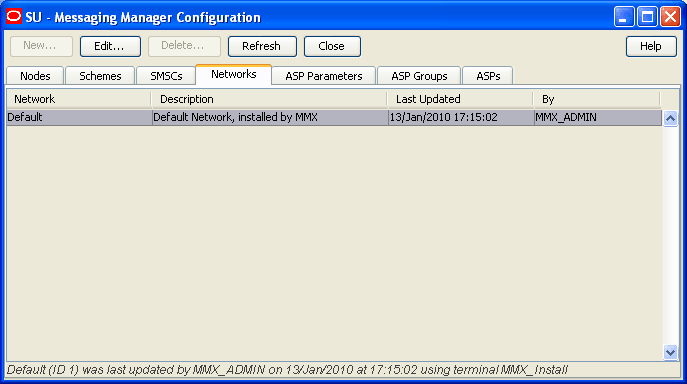
The Networks tab allows you to define the global (outside routing schemes) parameters to achieve the desired flexibility of the foreign subscriber gateway.
Networks columns
This table describes the content of each column.
| Column | Description |
|---|---|
| Network | Name of the network. |
| Description | Meaningful description of this network. |
| Last Updated | Date and time when this network was last updated. |
| By | User ID of last update for this network. |
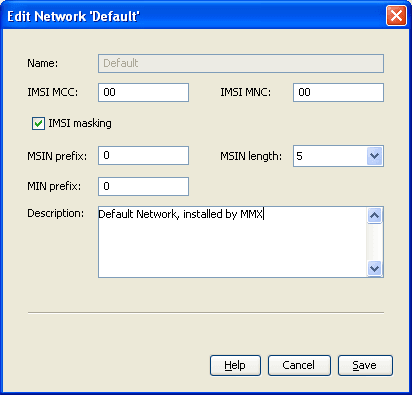
Networks fields
This table describes the function of each field.
| Field | Description |
|---|---|
| IMSI Masking |
|
| IMSI MCC | Country code to use when building temporary IMSIs. |
| IMSI MNC | Network code to use when building temporary IMSIs. |
| MSIN prefix | Fixed initial digits of the MSIN part of the IMSI when building temporary IMSIs. |
| MSIN length | <= 15 Number of digits to use for the remaining part of the MSIN when building temporary IMSIs. |
| MIN prefix | Up to 10 fixed initial digits to use when building a temporary MIN. |
Editing networks
Follow these steps to edit an existing network.
| Step | Action |
|---|---|
| 1 | From the table on the Networks tab, select the network to edit. |
| 2 |
Perform one of the following actions:
Result: The Edit Network 'Network_Name' screen appears.
|
| 3 |
To generate temporary MSIDs (for IMSIs or MINs), select the IMSI masking check box. Note: Leaving the IMSI masking check box deselected makes all but the Description field unused for all except RouteInfo actions. Masking takes place regardless, using the values from this configuration screen when Accept trigger rules for a RouteInfo action are encountered. |
| 4 | When generating temporary MSIDs for IMSIs, enter the country code to use in the IMSI MCC field. |
| 5 | When generating temporary MSIDs for IMSIs, enter the network code to use in the IMSI MNC field. |
| 6 | When generating temporary MSIDs for IMSIs, enter the fixed initial digits part of the MSIN in the MSIN prefix field. |
| 7 | When generating temporary MSIDs for IMSIs, enter the number of remaining digits to use (up to 15) for the MSIN in the MSIN length field. |
| 8 |
When generating temporary MSIDs for MINs, enter the fixed initial digits to use (up to 10) in the MIN prefix field. Note: A MIN is exactly 10 digits in length, hence the number of digits to use for the remaining part of a temporary MIN is determined by the length of the MIN prefix. |
| 9 | Enter the network description in the Description field. |
| 10 | Click Save to save the updated network record in the configuration database. |
SMSCs
Introduction
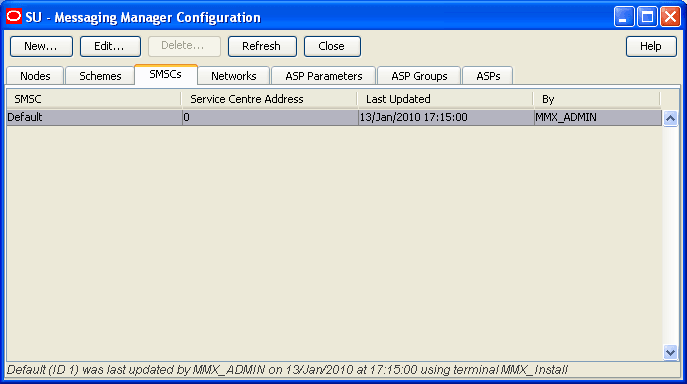
The SMSCs tab allows you to map a message center to a Service Center Address (SCA). If required, the SCA may be entered as a Global Title.
You can associate a SMSC with a path if it is used to receive messages from ASPs or handsets, but not if it is used to receive messages from a SMSC.
An SMSC can be associated with a path, meaning that a message received on that path will also be associated with that SMSC. Also, the SMSC assigned to a message plays a part in routing of the message if the message is a ‘Submit’ type message.
SMSCs fields
This table describes the function of each field.
| Field | Description |
|---|---|
| SMSC name |
The name of the SMSC. This field is required. |
| Service Centre Address |
The Service Center Address for the SMSC. This field is required. |
Adding SMSCs
Follow these steps to add an SMSC to the database.
| Step | Action |
|---|---|
| 1 |
From the SMSCs tab screen, click New. Result: The New SMSC screen appears.
|
| 2 |
In the SMSC name field, enter name of the new SMSC. For more information about the fields on this screen, see SMSCs fields . Result: The Save button becomes available. |
| 3 | In the Service centre address field, enter the service center address for the SMSC. |
| 4 | Click Save to save the new SMSC in the configuration database. |
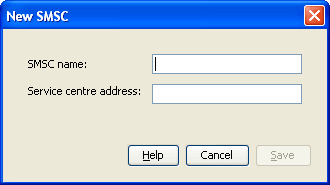
Note: When MM is installed, a default SMSC is created. The initial SCA value of this default SMSC is set to 0. This should be change to a valid value when the initial configuration of MM is done.
Editing SMSCs
Follow these steps to edit an existing SMSC.
| Step | Action |
|---|---|
| 1 | From the table on the SMSCs tab, select the record you want to edit. |
| 2 |
Perform one of the following actions:
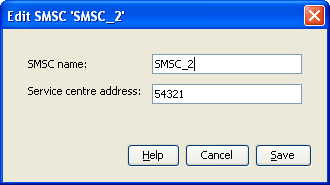
Result: The Edit SMSC screen appears.
|
| 3 | You can change the Service centre address for the SMSC, as required. |
| 4 | Click Save. |
Deleting SMSCs
Follow these steps to delete an existing SMSC record.
| Step | Action |
|---|---|
| 1 |
From the table on the SMSCs tab, select the record to delete. Note: You cannot delete the default SMSC. |
| 2 |
Click Delete. Result: The Delete SMSC confirmation prompt opens. |
| 3 | To delete the SMSC record from the configuration database, click Delete. |
ASP Parameters
Introduction
The ASP Parameters tab allows you to configure the elements which appear on the ASP screen, which is used by ACS customers to manage their ASP account.
The GUI will refer to the list of constants from this group whenever it needs to present the configurable ASP group, template or account parameters (that is, in the New or Edit dialog box for each type of object).
For more information about ASP accounts and groups, see ASP Groups and Parameters .
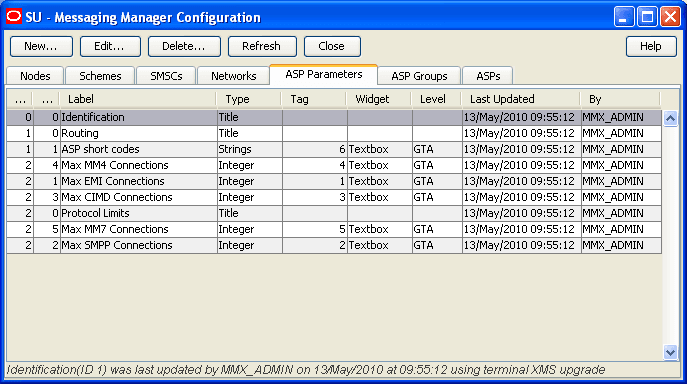
ASP parameters fields
This table describes the function of each field.
| Field | Description | ||||
|---|---|---|---|---|---|
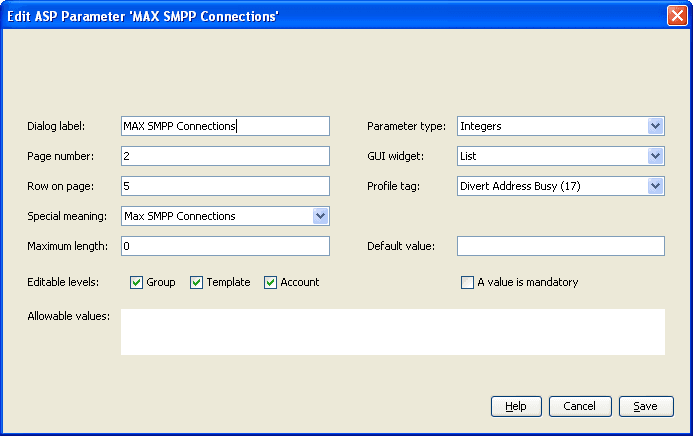
| Dialog label |
Label as presented in the Create and the Edit ASP accounts screens. Required. |
||||
| Parameter type |
Data type (integer, boolean or string) to be used when storing values for this parameter in the ACS Customer profile block. Title defines a page title of the configuration wizard. This enables you to group related parameters. Required. |
||||
| Page number | The panel on the Create and the Edit ASP account screen that this parameter will appear on. Required. | ||||
| GUI widget |
Presentation widget to use on the Create and the Edit ASP account screens for this ASP parameter. Required (unless Parameter type is set to title). |
||||
| Row on page | Where on the Create and the Edit ASP account screen this parameter should appear. (The page is set by the Page number field). | ||||
| Profile tag |
The profile field to store the value of this ASP parameter to, if the value is set at the ASP account level (the value is not stored in the profile if it is set by a default, or is a null value). This drop down list is populated by the profile fields associated with the ACS Customer profile block on the ACS Configuration screen. For more information about profiles, see ACS User's Guide. |
||||
| Special meaning |
Whether this ASP parameter is part of a specific set of ASP parameters which have a specific purpose in MM.
Optional. |
||||
| Maximum length |
Max number of characters allowed for the value of this ASP parameter. For both integer and string this will constrain the length of the associated text box (if any). Note: Only applies to parameters where Parameter type is set to integer or string. |
||||
| Default value |
Value the ASP parameter will default to. Optional. Note: A default value may be also set at the ASP Group level. |
||||
| Editable level |
These check boxes define which levels the widget can be edited at:
For more information about how these levels work to set defaults, see ASP groups and parameter defaults . |
||||
| A value is mandatory |
If this checkbox is ticked, the ASP account will not be saved unless this ASP parameter has one of:
|
||||
| Allowable values |
The values that this ASP parameter can have. Can be expressed as a range, or a list. A variable can be defined with a single allowable value. If this field is empty, then all values for the given data type will be allowed. For strings, you can specify a regex value to be used for validation. |
Note: To create a list with a restricted set of options, you must:
- make the widget type = list, and
- code the allowable values as a comma separated list in
Allowable values (for example, a list with names would be entered
as:
1:One,2:Two,3:Three,4:Four
Title
Titles are used to provide the labels for the ASP configuration screens (Create and Edit ASP Groups, Create and Edit ASP Template and Create and Edit ASP Accounts).
Notes:
- Only one title can be defined for each page.
- The title will be displayed at the top of the page only, regardless of any value in the Row field.
Adding ASP parameters
Follow these steps to add a new ASP parameter to the configuration database.
| Step | Action |
|---|---|
| 1 |
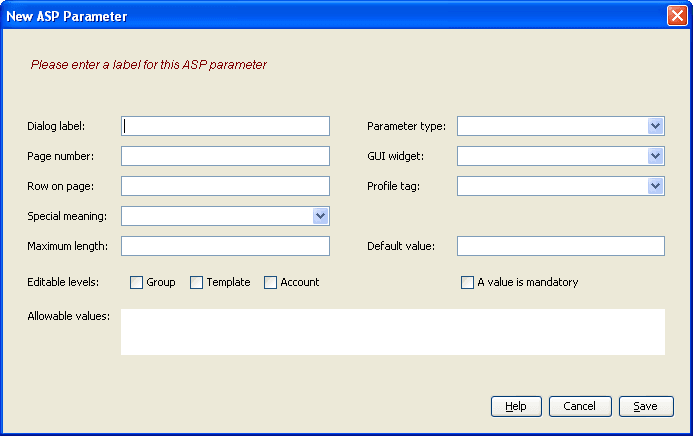
From the ASP Parameters tab, click New... Result: The New ASP Parameter screen opens. This screen enables you to create new ASP parameters which will then be available for use in the ASP account screens. |
|
|
| 2 |
Enter data in the fields to configure this record. Note: If you do not set a value for maximum length, it will default to 0. This will mean this ASP parameter cannot have a value entered for it in the Create and the Edit ASP account screens. For more information about:
|
| 3 | Click Save to save the new ASP parameter in the configuration database. |
Editing ASP parameters
Follow these steps to edit an existing ASP parameter.
| Step | Action |
|---|---|
| 1 | In the table on the ASP Parameters tab, select the parameter to edit. |
| 2 |
Click Edit.... Result: The Edit ASP Parameters 'asp_Parameter_Name' screen opens. This screen enables you to edit existing ASP parameters used in the ASP account screens. For more information about ASP accounts, see ASP Groups and Parameters . |
|
|
| 3 |
Edit the fields with the changes to make. Note: If you do not set a value for maximum length, it will default to 0. This will mean this ASP parameter cannot have a value entered for it in the Create and the Edit ASP account screens. For more information about the fields in this screen, see ASP parameters fields . |
| 4 | Click Save to save the updated scheme record in the configuration database. |
Deleting ASP Parameters
Follow these steps to delete an existing ASP parameter record.
Warning: If you delete an ASP parameter, it will delete all the values for that parameter in all the ASP accounts and ASP groups.
| Step | Action |
|---|---|
| 1 | In the table on the ASP Parameters tab, select the record to delete. |
| 2 |
Click Delete.... Result: The Delete ASP Parameter confirmation prompt appears. This prompt enables you to delete an existing ASP parameter. For more information about ASP parameters, see ASP Groups and Parameters . |
| 3 |
Click one of:
|
ASP Groups
Introduction
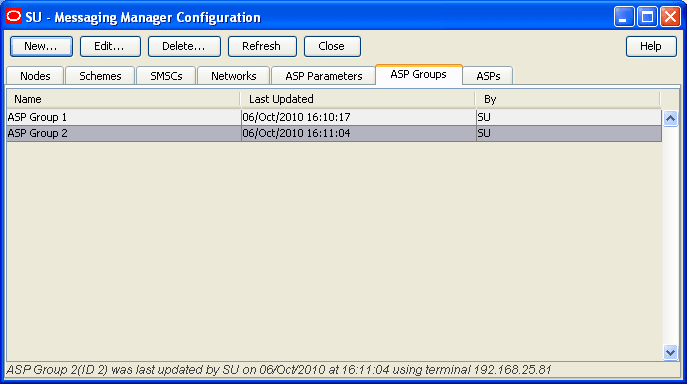
The ASP Groups tab allows you to define groups of ASP accounts.
ASP Groups should be configured before ASPs are configured.
For more information about ASP accounts and groups, see ASP Groups and Parameters .
ASP groups fields
This table describes the function of each field.
| Field | Description |
|---|---|
| Name | Customer allocated name for customer group. |
| Other fields |
The other fields in this screen are configured in the ASP Parameters tab. The panels in this screen are configured by the Title objects in the ASP Parameters tab. For more information about configuring the fields which appear on this screen, see ASP Parameters . |
Adding ASP groups
Follow these steps to add a new ASP group.
| Step | Action |
|---|---|
| 1 |
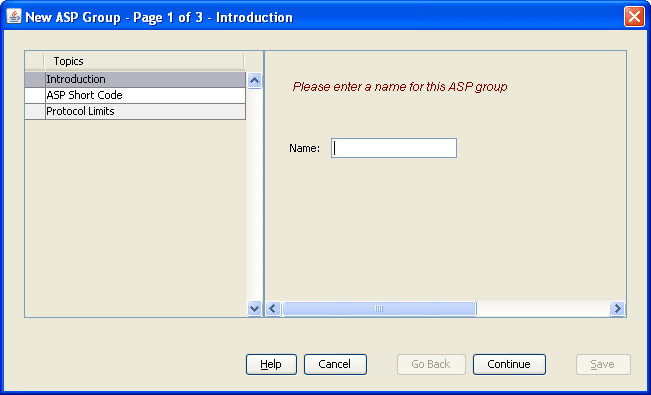
From the ASP Groups tab, click New... Result: The New ASP Group screen opens. This screen enables you to add new ASP groups. For more information about address rules, see ASP Groups and Parameters . |
|
|
| 2 |
Enter data in the fields to configure this record. Notes:
|
| 3 | Click Save to save the new ASP group in the configuration database. |
Editing ASP groups
Follow these steps to edit an existing ASP group.
| Step | Action |
|---|---|
| 1 | In the table on the ASP Groups tab, select the group to edit. |
| 2 |
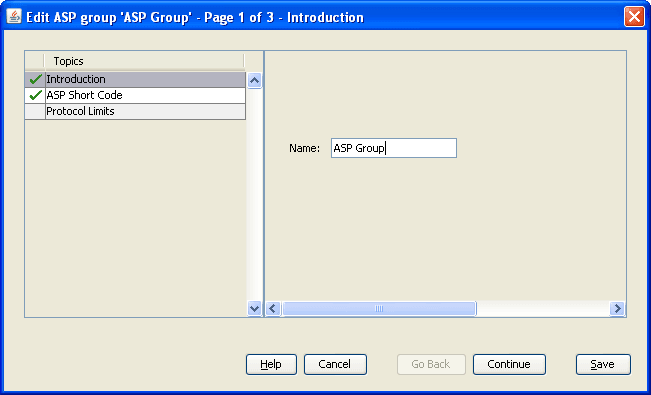
Click Edit.... Result: The Edit ASP Groups 'asp_Parameter_Name' screen opens. This screen enables you to edit existing ASP groups. For more information about ASP groups, see ASP Groups and Parameters . |
|
|
| 3 |
Edit the fields with the changes to make. Notes:
|
| 4 | Click Save to save the updated Scheme record in the configuration database. |
Deleting ASP groups
Follow these steps to delete an existing ASP group record.
Warning: Do not delete an ASP group which is being used by one or more ASP accounts. You will not be able to edit those ASP accounts after the ASP Group has been deleted.
| Step | Action |
|---|---|
| 1 | In the table on the ASP Groups tab, select the group to delete. |
| 2 |
Click Delete.... Result: The Delete ASP Group confirmation prompt appears. This prompt enables you to delete an existing ASP group. For more information about ASP groups, see ASP Groups and Parameters . |
| 3 | Click Delete to delete the ASP group from the configuration database. |
ASPs
Introduction
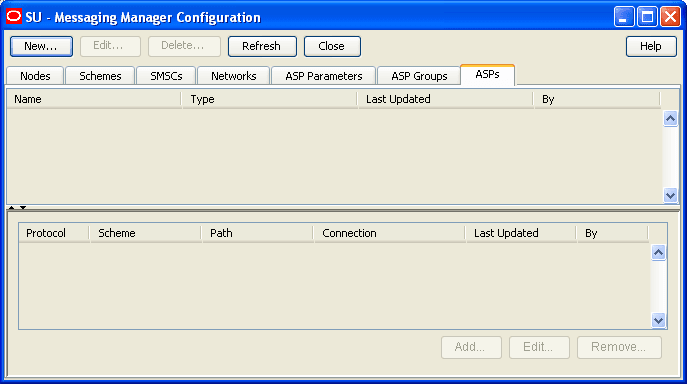
The ASPs tab allows you to define ASP accounts and provides a convenient way to rapidly allocate ASP paths and connections.
ASPs fields
This table describes the function of each field.
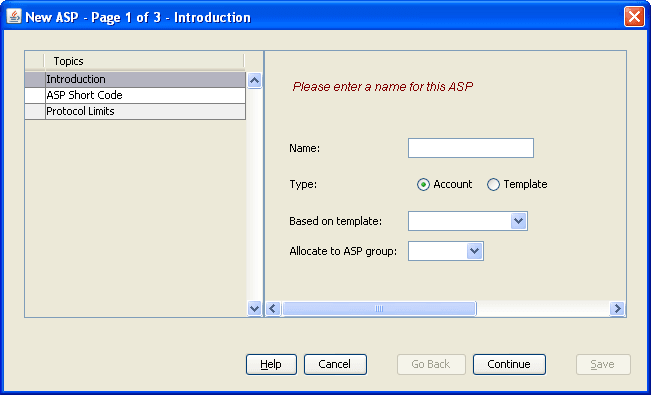
| Field | Description |
|---|---|
| Name | The unique name of this ASP account or template. |
| Type | Defines whether this record is an ASP template or an ASP account. |
| Based on template |
The template to base this ASP account on. Notes:
|
| Allocate to ASP group |
The ASP group this ASP account belongs to. This field is populated by the records on the ASP Groups tab. This field is required. |
Note: This screen will have other configuration on later panels. This configuration is defined in the ASP Parameters tab. The specific configuration which appears here will be the configuration which is defined for the ASP group specified in the Allocate to ASP group field.
Adding ASP accounts or templates
Follow these steps to add a new ASP account or ASP account template.
| Step | Action |
|---|---|
| 1 |
From the ASP tab screen, click New... Result: The New ASP screen opens. This screen enables you to add new ASP accounts and account templates. For more information about ASPs, see ASP Groups and Parameters . |
|
|
| 2 |
Enter data in the fields to configure this record. Notes:
|
| 3 | Click Save to save the new ASP account or template. |
Editing ASP accounts and templates
Follow these steps to edit an existing ASP account or ASP account template.
| Step | Action |
|---|---|
| 1 | In the table on the ASPs tab, select the record to edit. |
| 2 |
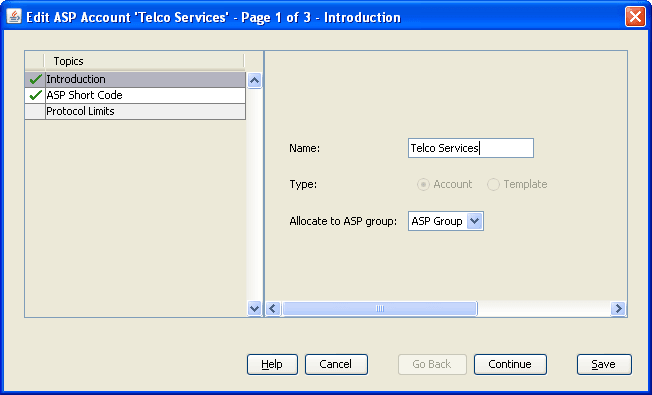
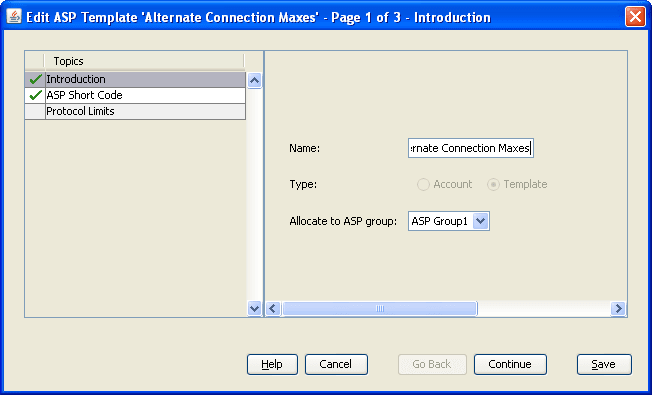
Click Edit.... Results:
These screens enable you to edit existing ASP accounts and ASP account templates. For more information about ASP accounts and templates, see ASP Groups and Parameters . |
|
|
| 3 |
Edit the fields with the changes to make. Notes:
|
| 4 | Click Save to save the updated ASP account or template in the configuration database. |
Deleting ASP accounts and templates
Follow these steps to delete an existing ASP account or ASP account template.
Note: Deleting ASP account templates will not affect the ASP accounts which were based on that template.
| Step | Action |
|---|---|
| 1 | In the table on the ASPs tab, select the record to delete. |
| 2 |
Click Delete.... Result: The Delete ASP confirmation prompt appears. This prompt enables you to delete an existing ASP account or ASP account template. For more information about ASP groups, see ASP Groups and Parameters . |
| 3 | Click Delete to delete the ASP account or template from the configuration database. |
IP connections
The bottom panel on the ASPs tab contains a list of IP connections currently associated with the ASP account selected in the top panel. It contains all paths and connections owned by the adapter instances in all routing schemes that have been associated with that ASP account.
Note: This panel is only displayed when an ASP Account is selected in the top panel.
IP connection fields - ASPs tab
This table describes the function of each field.
| Field | Description |
|---|---|
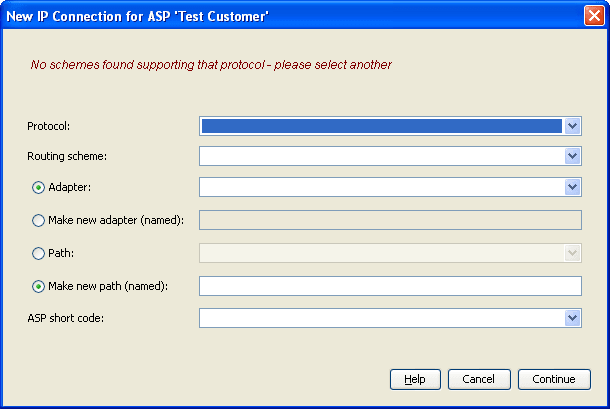
| Protocol |
Protocol this IP connection will use. Desired protocol (restricted to this ASP's supported protocols). |
| Routing scheme |
The routing scheme this IP connection will be part of. Note: This field is populated by the Schemes tab, with schemes which can support the protocol selected in the protocol field. |
| Adapter |
The adapter this IP connection should use. Note: This field is populated by the Adapters option in the Schemes detail. |
| Make new adapter (named) |
Create a new adapter with the name entered in this field. Optional. This adapter will be added to the scheme specified in the Routing scheme field. |
| Path |
Paths in the selected scheme supporting that protocol and already associated with the ASP. Alternatively a text box can be completed, to name the new path that should be created to hold the new connection. In this case the validation, and the database updates, are performed in a single unit of work so the dialog will either display an error message objecting to the path or connection fields, or it will create the path and connection together in one transaction.
|
| Make new path (named) |
Create a new path with the name entered in this field. Optional. This path will be added to the scheme specified in the Routing scheme field. |
| ASP short code | ASP short code for the service which will use this connection. Optional. |
| Failover check box |
If another connection in the path disconnects, then MM will attempt to open paths with this check box selected. Can be toggled on the tab for immediate database update. |
| Enabled check box |
Enable and disable connections as can be done in the Connections list inside a routing scheme. Can be toggled on the tab for immediate database update. |
Adding IP connections in ASPs
Follow these steps to add a new IP connection to the ASP account selected in the top panel.
| Step | Action |
|---|---|
| 1 |
From the ASPs tab, click Add.... Result: The New connection for ASP Account screen opens.
This screen enables you to create and edit connections belonging to an ASP without leaving the ASPs tab. For more information about connections, see Paths and Connections . |
| 2 |
Enter data in the fields to configure this record. This screen creates a connection in the selected routing scheme, and will create a new path if necessary. The fields in this screen generally must be completed in a top-down order. For specific information about the details required for this protocol, see Path Connections . |
| 3 |
Click Save. Result: The details are saved, and the New 'protocol' connection screen opens. For more information about filling out this screen, see Path Connections . |
Editing IP connections in ASPs
Follow these steps to edit an existing IP connection from the ASPs tab.
| Step | Action |
|---|---|
| 1 | In the table on the ASPs tab, select the record to edit. |
| 2 |
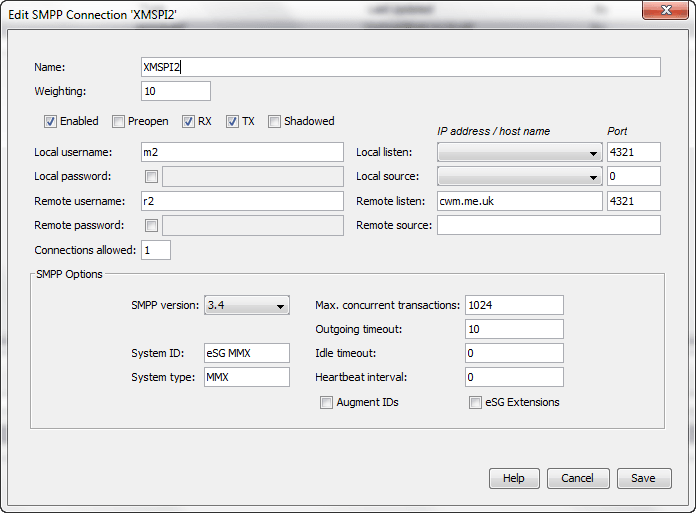
Click Edit.... The Edit protocol Connection 'Connection_Name' dialog for the selected IP connection opens. The edit connection dialog includes all the connection configuration fields relevant to the type of protocol. These fields are not visible when you open the New IP Connection for ASP dialog. Note: You can also edit connections from the Paths tab by selecting and opening the associated scheme on the Schemes tab. |
| 3 |
Update the fields as required. See:
|
| 4 | Click Save to save the updated IP connection in the configuration database. |
Example Edit SMPP Connection dialog
Here is an example edit connection dialog for the SMPP protocol. In this example, the name of the connection is XMSP12.
Deleting IP connection in ASPs
Follow these steps to delete an existing IP connection from an ASP account.
| Step | Action |
|---|---|
| 1 | In the table on the ASPs tab, select the record to delete. |
| 2 |
Click Delete.... Result: The Delete IP connection confirmation prompt appears. This prompt enables you to delete an IP connection associated with the ASP selected in the top panel. For more information about connections, see Paths and Connections . Note: This prompt is the same as the delete connection screens which are accessible from the Paths & Connections option in the Schemes tab. |
| 3 | Click Delete to delete the IP connection from the configuration database. |