Configure RAID on Oracle Storage 12 Gb SAS PCIe RAID Host Bus Adapter, Internal 16 Port

Some devices, including Oracle Storage 12 Gb SAS PCIe RAID Host Bus Adapter, Internal 16 Port, must include a RAID volume before they can present a valid target for operating system installation programs.

The server is shipped with Oracle Storage 12 Gb SAS PCIe RAID Host Bus Adapter, Internal 16 Port configured as RAID 0 volumes, meaning that each volume includes a single disk drive. Other volumes combine multiple disks into arrays, which can increase performance and provide redundancy.

Oracle Storage 12 Gb SAS PCIe RAID Host Bus Adapter, Internal 16 Port manages the HDDs and SSDs in your system. When the system is shipped, the HDD and SSD drives are configured into RAID 0 volumes. Use this procedure to reconfigure these drives into RAID volumes according to your performance and redundancy needs.

  1. Back up any data on the drives.

    Create the volume before installing an operating system on a drive.

    Altering RAID configuration might destroy any data or OS image on the affected drive.

  2. Configure the server for a one-time boot to BIOS.
    1. Access the Oracle ILOM web interface.
    2. Navigate to Host Management → Host Control.
    3. Select BIOS from the drop-down list, and select Save.

      This causes the server to boot to BIOS on the next boot.

  3. Access a system console.
  4. Power on or reset the server.

    For example, to reset the server:

    • From Oracle ILOM CLI, type: reset /System.

    • From Oracle ILOM web interface, select Host Management → Power Control, and in the Select Action list box, select Power On, Reset, or Graceful Reset. Click Save, and then click OK.

    • From the local server, press the On/Standby button on the front panel of the server for approximately 1 second to power off the server, and then press the On/Standby button again to power on the server.

    For more details, see Controlling System Power.

    The system boots to the BIOS Setup Utility.

    Note:

    The steps and screens in this procedure are examples. What you actually see might differ depending on your system's equipment and configuration.

  5. On the BIOS Setup Utility screen, select the Advanced tab, select Broadcom MegaRAID Configuration Utility, and press Enter.
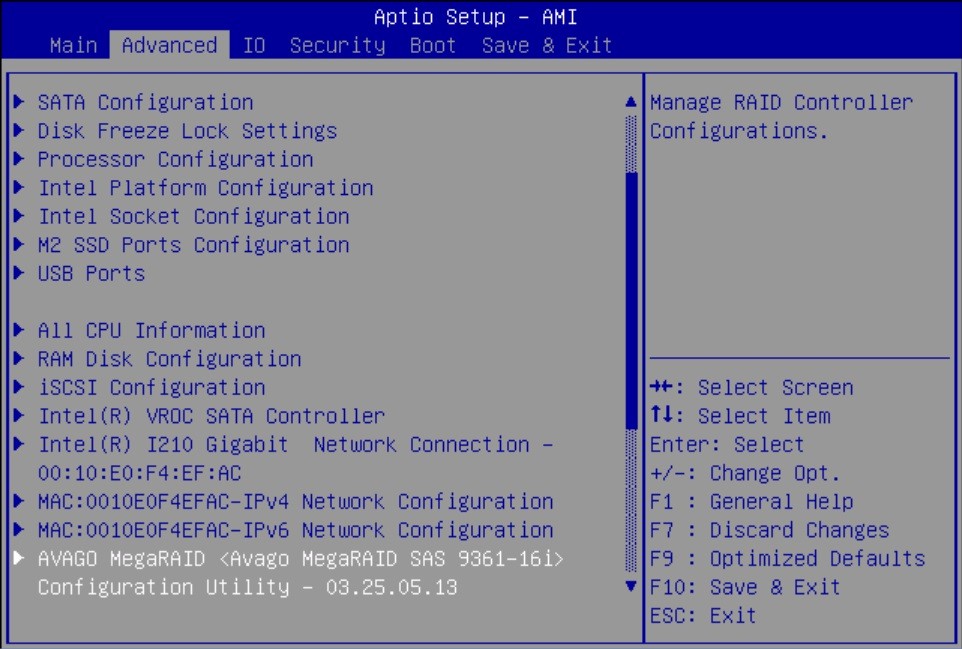
    Image showing the Advanced menu with MegaRAID Configuration Utility selected.

  6. From the ACTIONS menu, select Configure and press Enter.
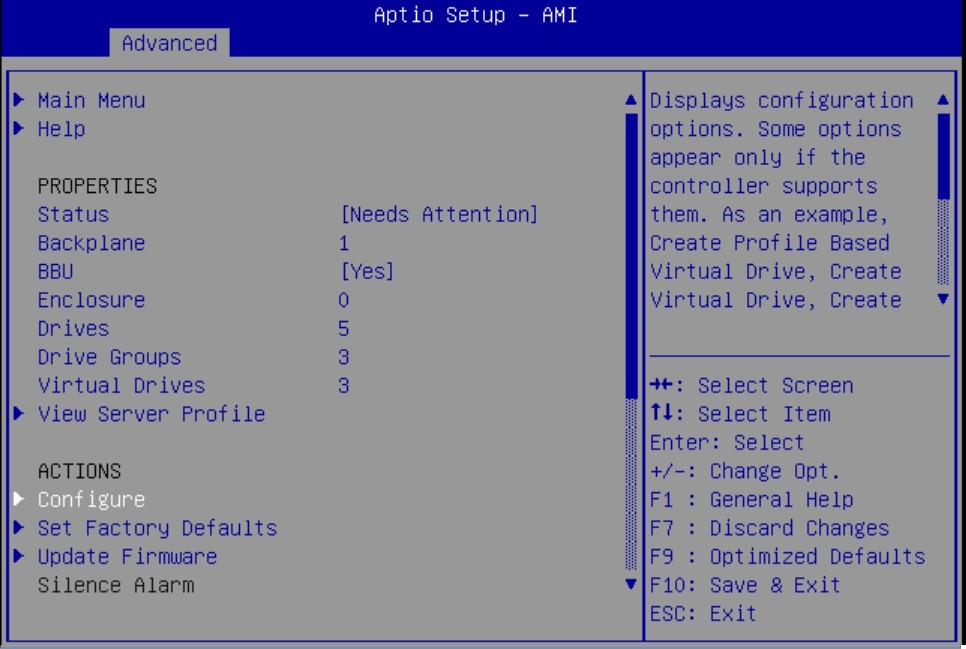
    Image showing the Advanced menu with Configure selected.

  7. Select Create Virtual Drive and press Enter.
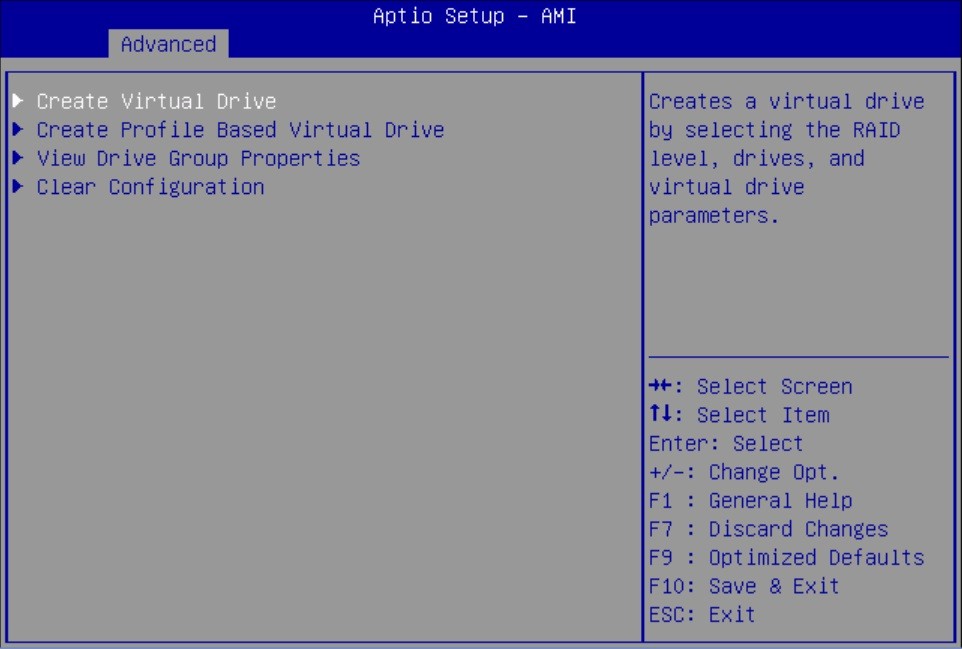
    Image showing the Advanced menu with Create Virtual Drive option selected.

    The Create Virtual Drive menu appears.

  8. Set the RAID level.

    Choose Select RAID level, specify the supported RAID level, and press Enter.
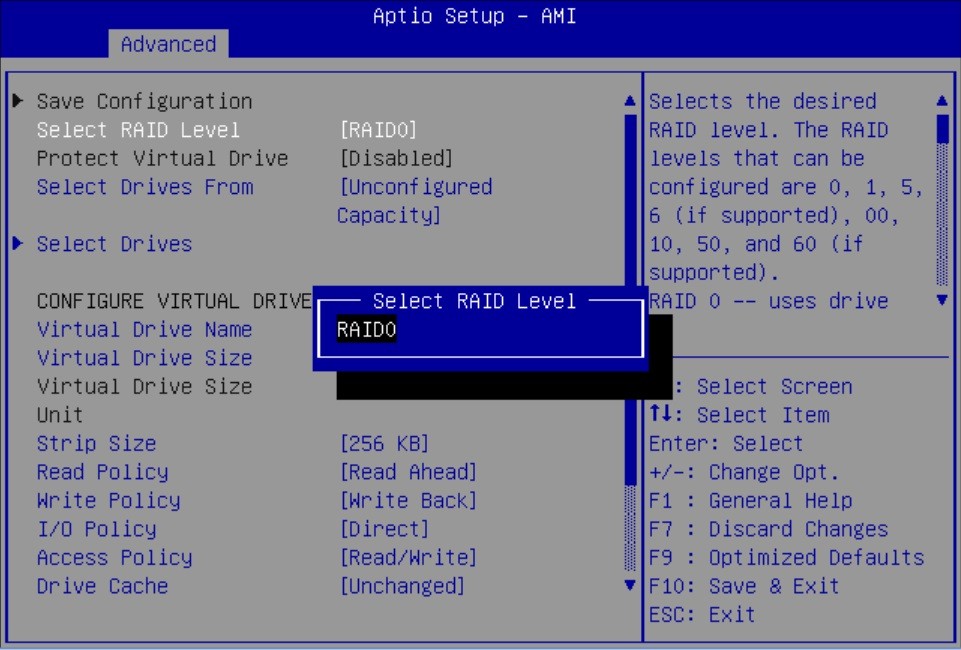

    Image showing the Virtual Drive Management menu options with RAID level pop up.

  9. Navigate to Select Drives and press Enter.
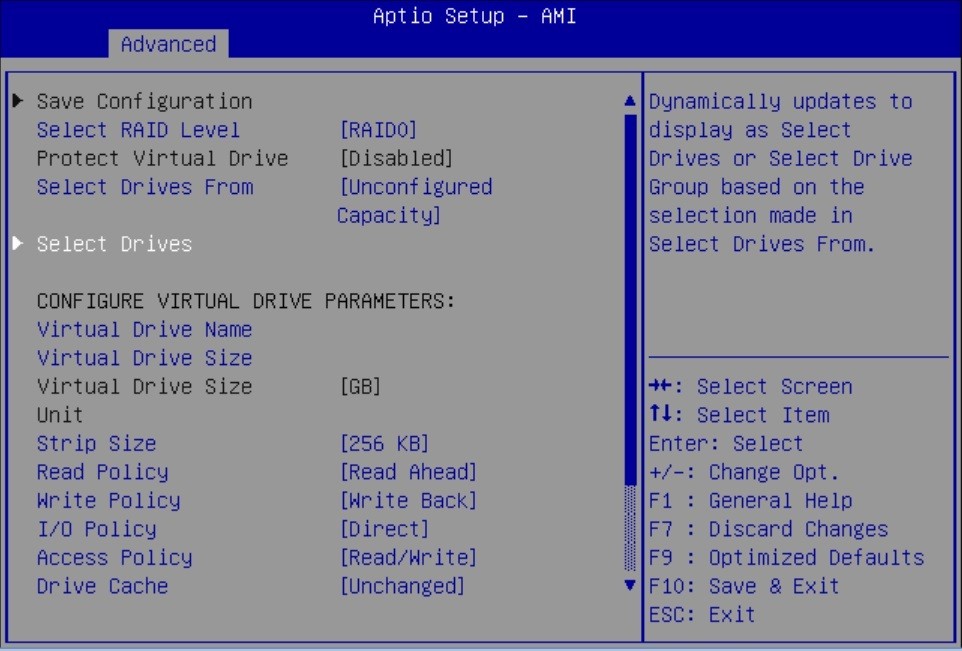
    Image showing the Virtual Drive Management menu options with Select Drives highlighted.

  10. For each drive that you want to include in the RAID volume, do the following:
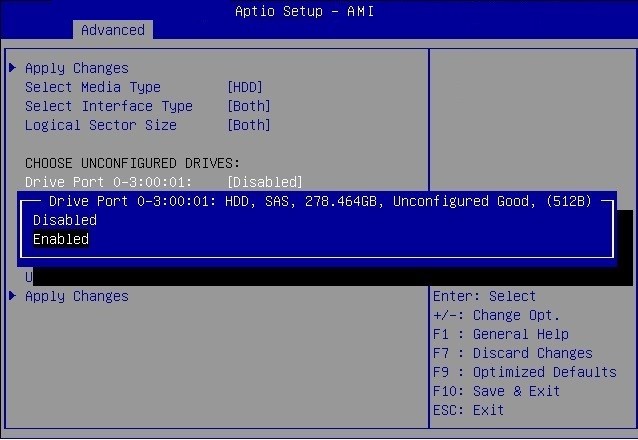
    1. Use the arrow keys to navigate to the drive.
    2. Use the arrow keys to navigate to the Enabled or Disabled field associated with the drive, and press Enter.
    3. In the pop-up window, select Enabled, and press Enter.

      The drive is now listed as Enabled.

    4. Press ESC to close the pop up.

    Image showing RAID Enable Drive pop up.

  11. Select Apply Changes, and press Enter.

    The RAID volume is created with the drives you specified, and the Confirmation page is displayed.

    For more information on performing this procedure, refer to ID SAS Software User Guide at https://docs.broadcom.com/docs/pub-005110.

  12. To return to the Create Virtual Drive Advanced menu, press ESC.
  13. Select Save Configuration.
  14. Select Confirm, select Enabled, and press Enter.
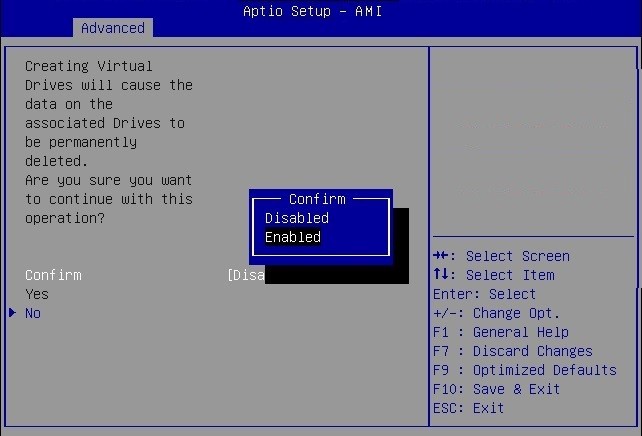
    Image showing the Enable Confirm pop up.

  15. To save your new boot configuration, select Yes.
  16. To verify that the RAID volume was created:
    1. Press ESC to exit from the Broadcom MegaRAID Configuration Utility and to return to the Configuration Utility menu.
    2. Navigate to the View Drive Group Properties menu, and press Enter.
    3. Review the logical drive information on the page that is displayed.
    4. Press ESC to return to the Main menu of the BIOS Setup Utility.
    5. Navigate to the Save & Exit menu, select Save Changes and Exit, and press Enter.

    This completes the RAID configuration. You can now install an OS on the logical drive. See Installing an Operating System.