Configure SATA RAID Using VROC

This procedure configures a RAID volume so that you can install an operating system. You can create and manage RAID arrays on Oracle Communications Server E6-2L SATA M.2 SSDs using Intel Virtual RAID On CPU (VROC), which provides the following benefits:

  • Use SATA drives to their full potential

  • Fewer hardware queues

  • Bootable RAID

  • Hot Insert/Surprise removal

Note:

This procedure applies only to Oracle Communications Server E6-2L with Oracle Linux and installed SATA M.2 SSD boot devices.

Intel VROC (SATA RAID) provides an enterprise RAID solution for SATA devices connected to the Intel Platform Control Hub (PCH) configured for RAID mode. Virtual RAID on CPU (Intel VROC) is an enterprise, hybrid RAID solution, specifically designed for SATA SSDs connected directly to the CPU. Intel VROC is made possible by the new CPU feature Intel Volume Management Device, Intel VMD, a new hardware architecture on Intel Xeon Scalable Processors.

  1. Access the host console locally or through Oracle ILOM.

    For instructions, see Accessing Oracle ILOM.

  2. Reset or power on the server.

    For example, to reset the server:

    • From Oracle ILOM CLI, type: reset /System.

    • From Oracle ILOM web interface, select Host Management → Power Control, and in the Select Action list box, select Graceful Reset, Reset, or Power On. Click Save, and then click OK.

    • From the local server, press the On/Standby button on the front panel of the server for approximately 1 second to power off the server, and then press the On/Standby button again to power on the server.

    For more details, see Controlling System Power.

    The power-on self-test (POST) sequence begins. The system boots to the BIOS Setup Utility.

  3. When prompted in the BIOS screen, press F2 (Ctrl+E from a serial connection) to launch the BIOS Setup Utility.

    Note:

    The steps and screens in this procedure are examples. What you actually see might differ depending on your system equipment and configuration.

  4. On the BIOS Setup Utility screen, select the Advanced tab, select Intel Platform Configuration, and press Enter.
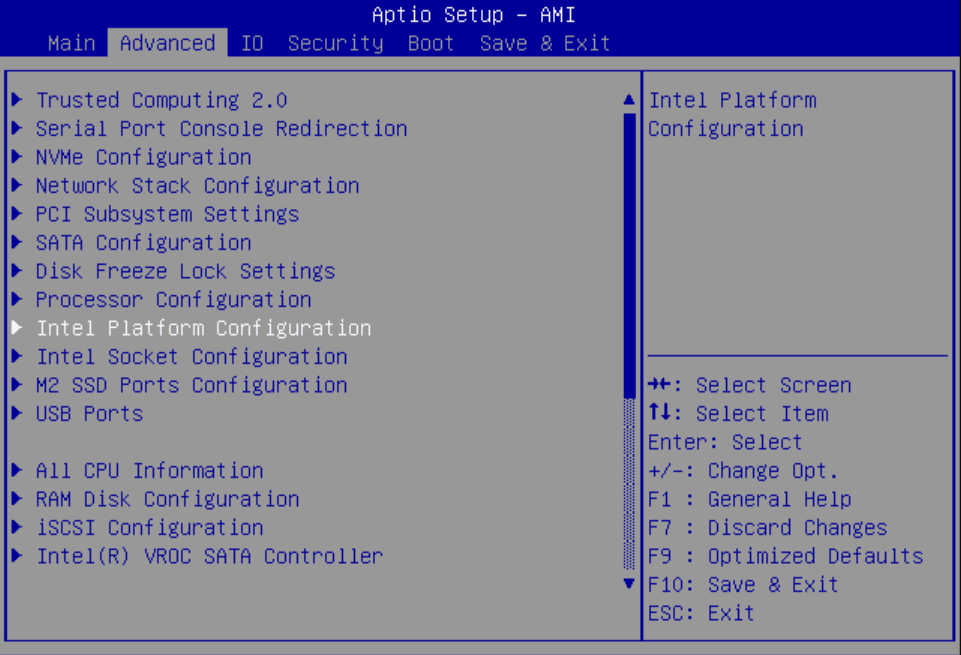
    Image showing the Intel Platform Configuration SATA configuration selected on Advanced tab.

  5. On the PCH (Platform Control Hub) Configuration screen, select Configure SATA as.
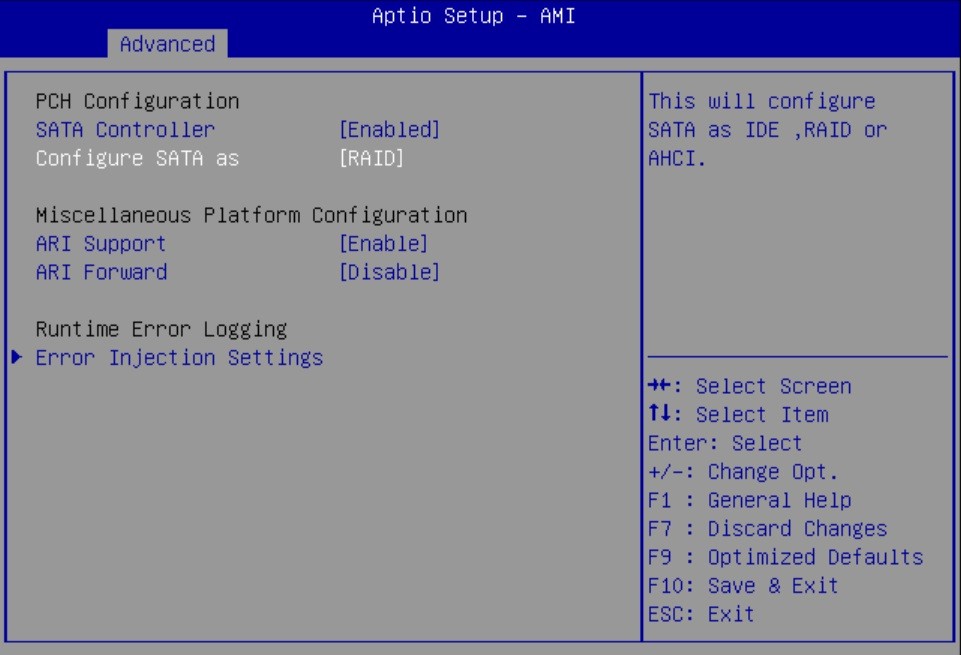
    Image showing "Configure SATA as" selected on Advanced tab.

  6. In the Configure SATA as pop up, select RAID and press Enter.
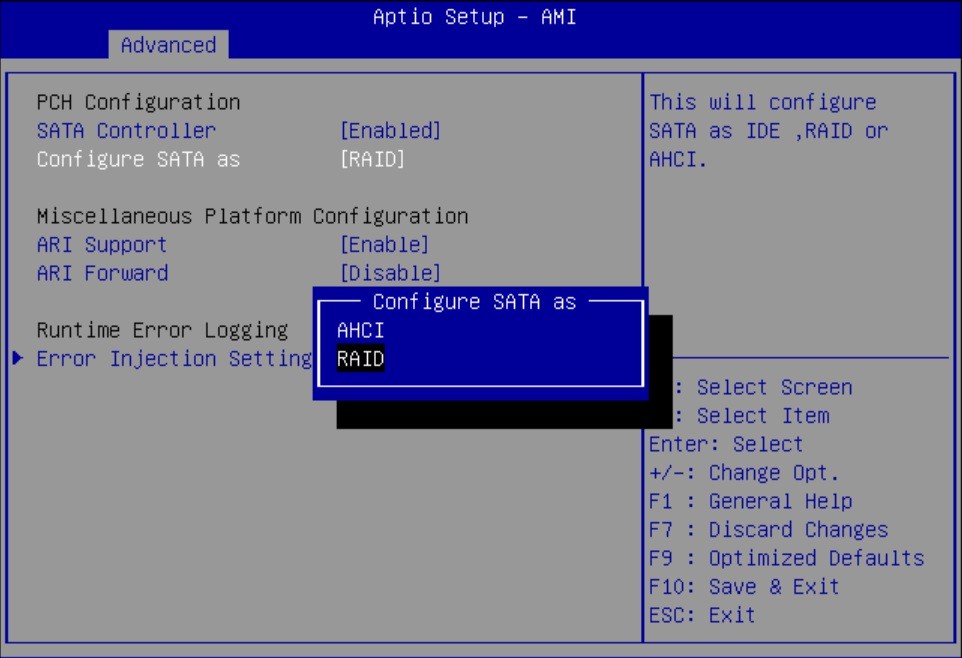
    Image showing the Configure SATA as RAID pop up on Advanced tab.

  7. In the Save & Exit menu, select Save Changes and Exit and press Enter.
  8. Reset or power on the server.

    For example, to reset the server:

    • From Oracle ILOM CLI, type: reset /System.

    • From Oracle ILOM web interface, select Host Management → Power Control, and in the Select Action list box, select Graceful Reset, Reset, or Power On. Click Save, and then click OK.

    • From the local server, press the On/Standby button on the front panel of the server for approximately 1 second to power off the server, and then press the On/Standby button again to power on the server.

    For more details, see Controlling System Power.

  9. When prompted in the BIOS screen, press F2 (Ctrl+E from a serial connection) to launch the BIOS Setup Utility.

    Note:

    The steps and screens in this procedure are examples. What you actually see might differ depending on your system equipment and configuration.

    The power-on self-test (POST) sequence begins. The system boots to the BIOS Setup Utility.

  10. Return to the Advanced menu and press Enter to select the Intel VROC SATA Controller option.
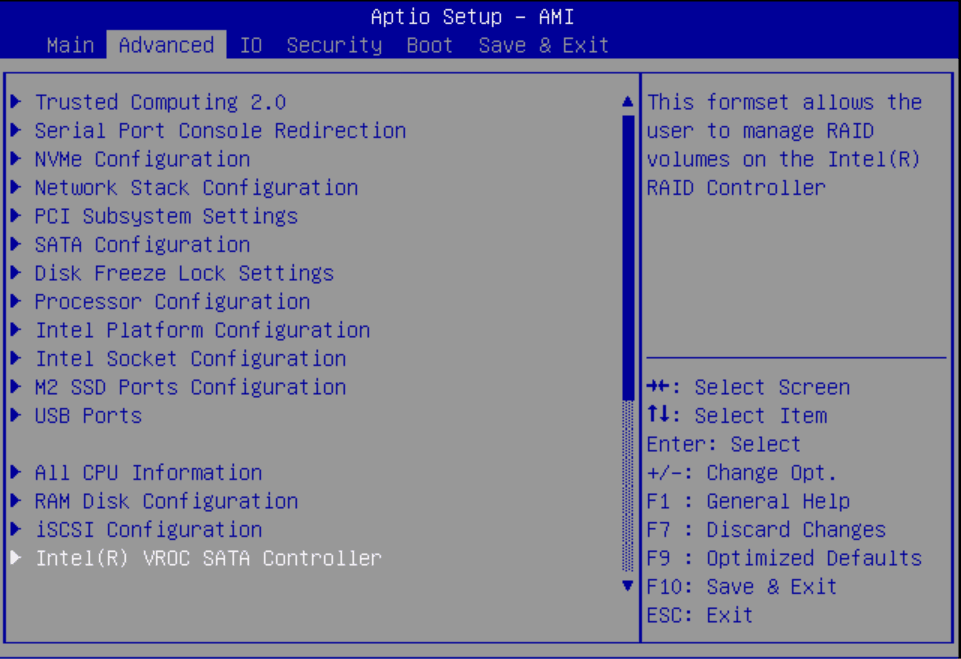
    Image showing the Advanced tab with Intel VROC SATA Controller selected.

  11. Select Create RAID Volume and press Enter.
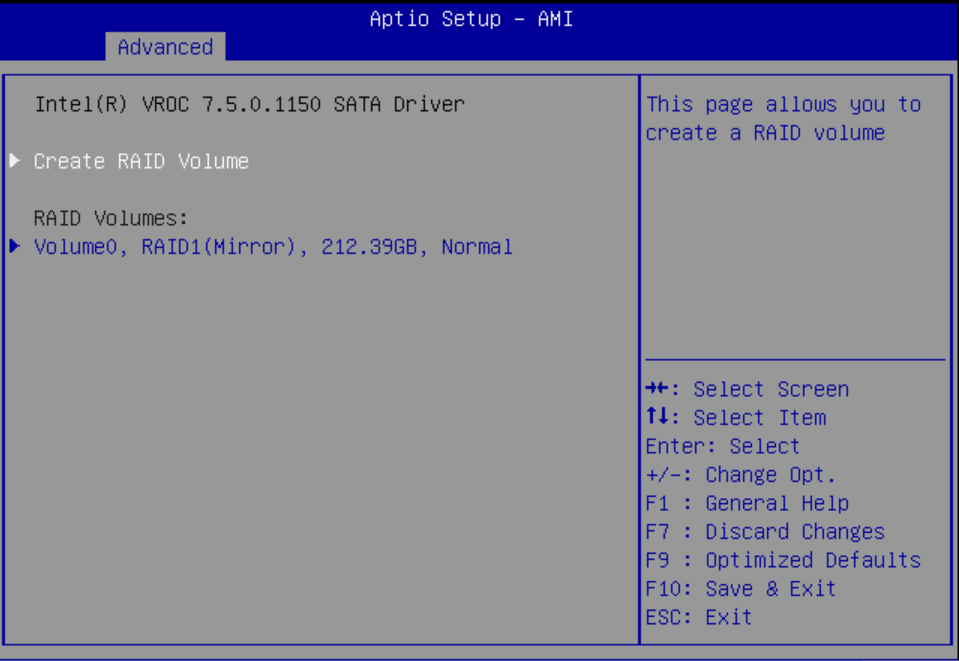
    Image showing the VROC Create RAID Volume selection.

  12. On the Create RAID Volume Screen, select Name, and press Enter.

    You can assign an optional name to the RAID volume.
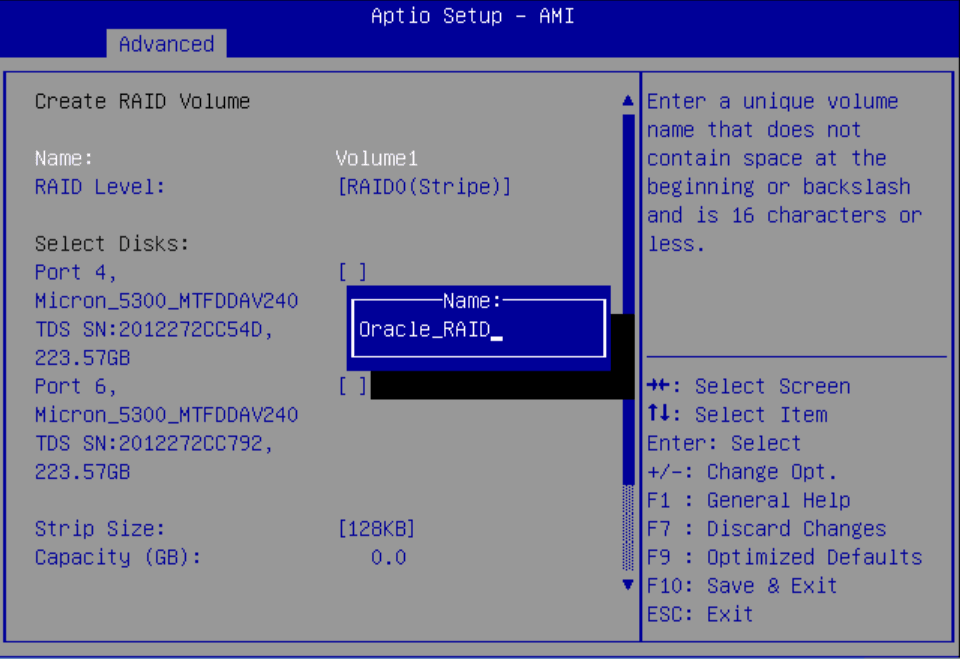

    Image showing the VROC RAID Volume Name pop up, with an example name provided.

  13. Select RAID Level and press Enter to set the RAID level.
    '
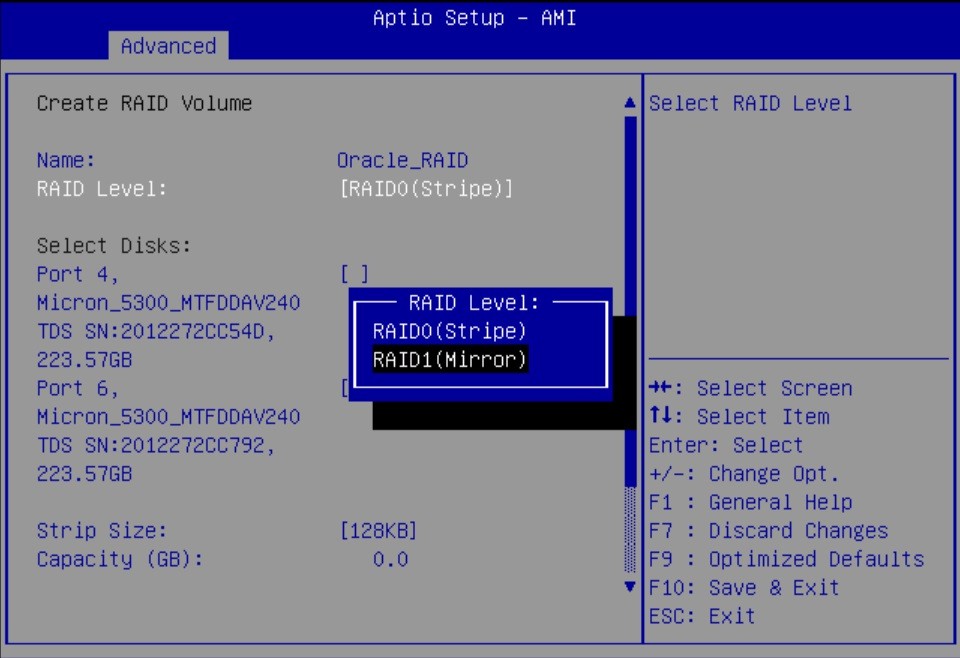
    Image showing the RAID1(Mirror) selected.

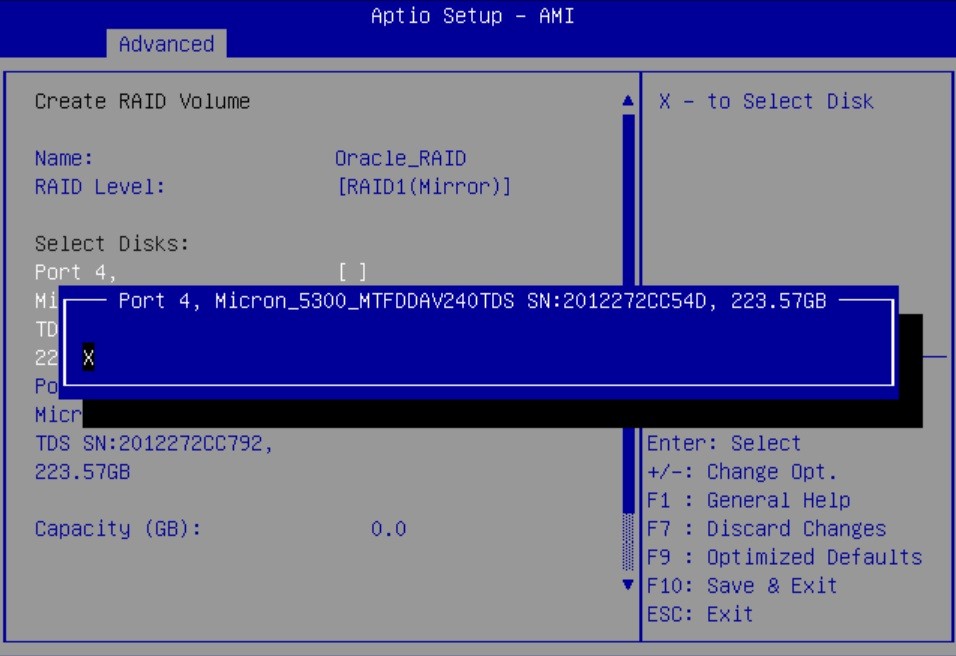
  14. Select the drive you are configuring for RAID.

    Select the SATA M.2 devices. For each drive that you want to include in the RAID volume, do the following:

    1. Use the arrow keys to navigate to the drive, and press Enter.
    2. In the pop-up window, add an X to select the drives, and press Enter.
    3. Press ESC to close the pop up.

    Image showing the selected disk being configured for RAID.

  15. Scroll to the bottom of the Create RAID Volume screen and select Create Volume. Press Enter.
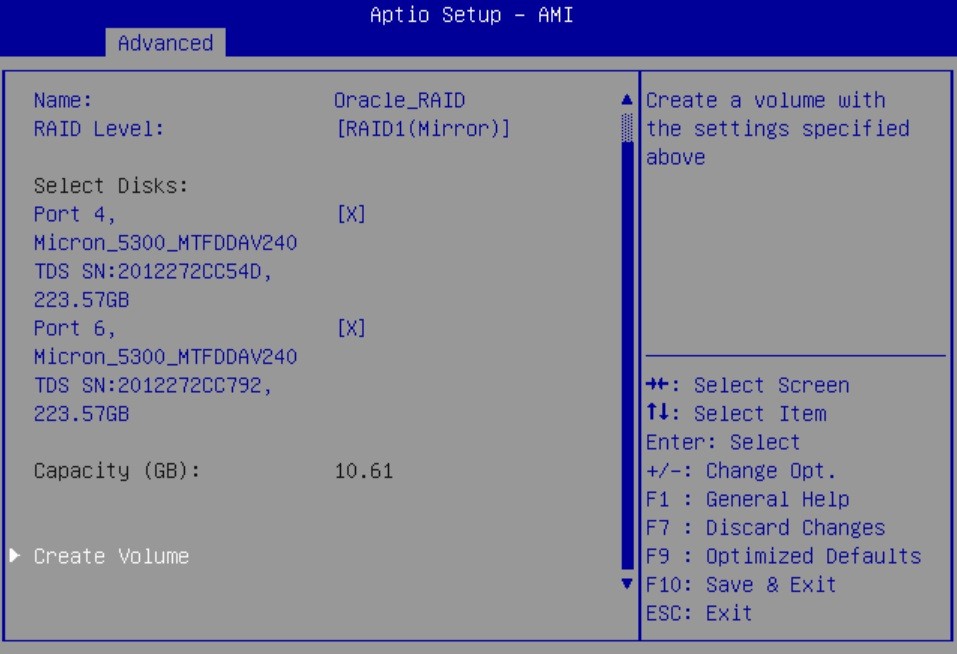
    Image showing the Create RAID Volume screen with Create Volume highlighted.

  16. The volume appears under RAID volumes.
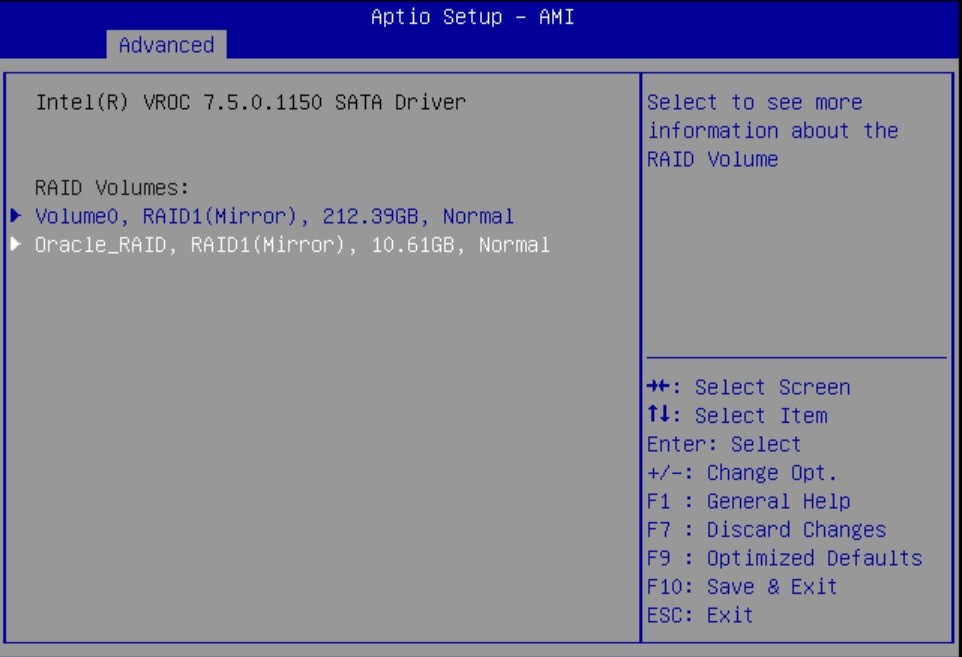
    Image of volume appearing under RAID volumes.

    Press ESC to return to the BIOS Setup Utility Main menu.

  17. In the Save & Exit menu, select Save Changes and Exit and press Enter.
  18. Reset or power on the server.

    For example, to reset the server:

    • From Oracle ILOM CLI, type: reset /System.

    • From Oracle ILOM web interface, select Host Management → Power Control, and in the Select Action list box, select Graceful Reset, Reset, or Power On. Click Save, and then click OK.

    • From the local server, press the On/Standby button on the front panel of the server for approximately 1 second to power off the server, and then press the On/Standby button again to power on the server.

    For more details, see Controlling System Power.

    The power-on self-test (POST) sequence begins.

  19. This completes the RAID configuration.

    You can now install an operating system on the volume that you created. See Installing an Operating System.