The Devices Inventory Page
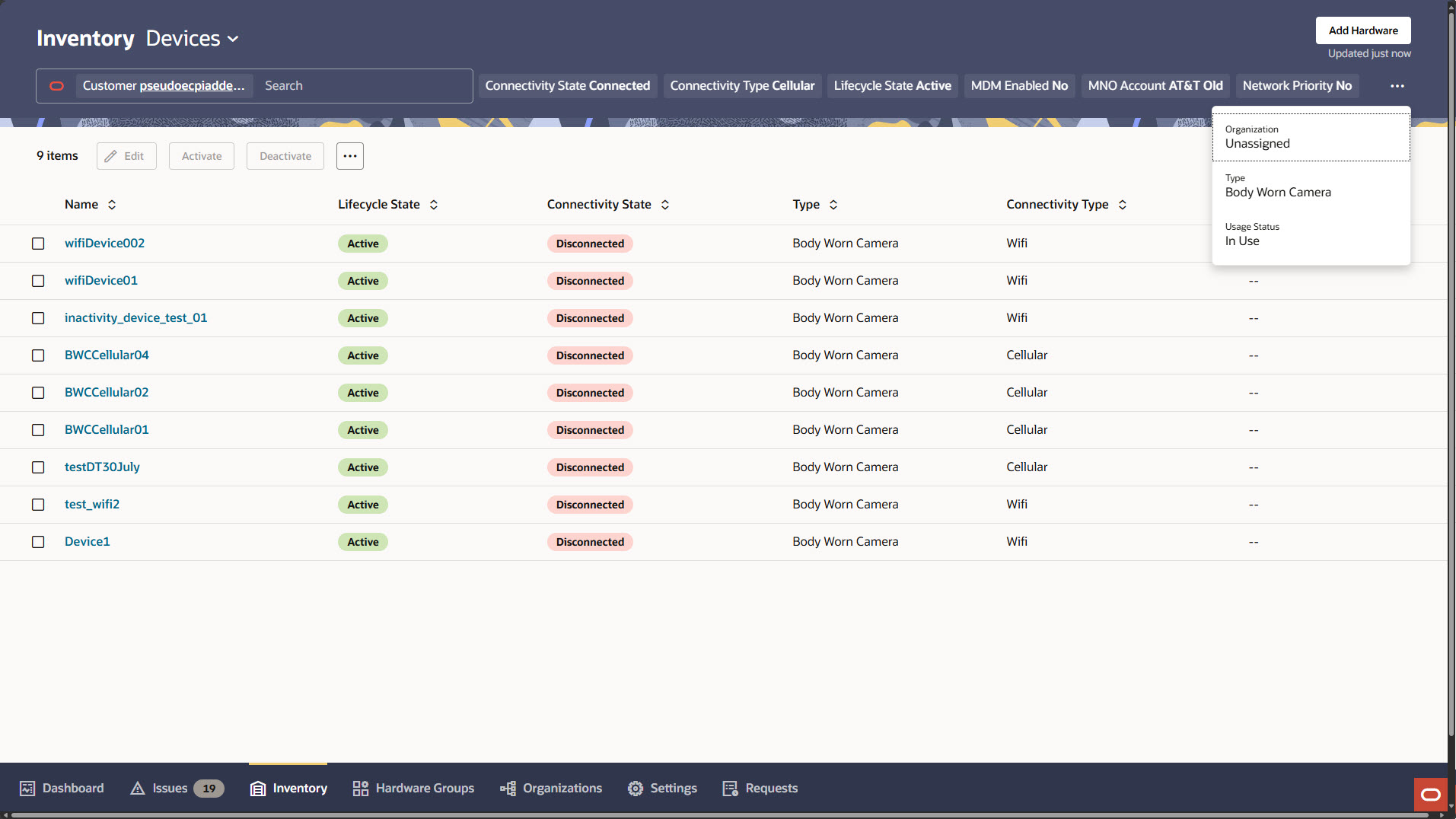
The Devices Inventory page displays a table with column headings that show information about the devices you use with Oracle Enterprise Communications Platform (Oracle ECP). The page includes a search field and a row of default filter chips at the top. Some filter chips are visible, and additional filters can be accessed through the "more options" menu (ellipsis) next to the visible filter chips. Actions such as Edit, Activate, and Deactivate appear as buttons above the table, with more actions available under the "more options" menu (ellipsis). You can select a device name to view more details, and use the tabs at the bottom of the page to navigate to other sections.
The following screen capture shows the Devices Inventory page with the default filter chips, default column headings, sample data, and the Actions buttons above the table.
Devices Inventory Page Column Headers
You can customize the Oracle Enterprise Communications Platform (Oracle ECP) Device Inventory page by choosing which column headers to display. Certain column headers are visible by default when you open the Inventory tab. To tailor the information displayed, click the Columns button in the top corner of the Inventory tab and select or deselect the column headers you want to show or hide.
Devices Inventory Page Column Headers
- * — Default header
- ** — Sort and filter functions unavailable
| Column Header Name | Description |
|---|---|
| Name* | The name specified during onboarding for the device. |
| Lifecycle State* | The state of the device regarding being in service with Oracle ECP: Active | Inactive | Onboarded. |
| Connectivity State* | The ability of the device to communicate with Oracle ECP: Connected | Disconnected. |
| Type* | A user-defined category that indicates the kind of device. For example, USB Video Camera could be listed as a device type. |
| Connectivity Type* | Indicates Customer Managed Connectivity. The specified connection type: Wi-Fi | Cellular | Edge Node | Ethernet. |
| Organization | The name of the Organization using the device. |
| Customer | The name of customer tenant where device is onboarded. |
| Serial Number | The serial number of the device. |
| Make | The brand or manufacturer of the device. |
| Model | The model of the device as specified by the manufacturer. |
| Deployment AddressDeployment Address | The address where the device is installed. Registration address is not displayed in the inventory table. |
| MNO (SIM 1) | The name of the Mobile Network Operator providing connectivity for a cellular device. (For SIM 1 of 1 or 1 of 2) |
| MNO (SIM 2) | The name of the second Mobile Network Operator providing connectivity for a cellular device when you use two MNOs. (For SIM 2 of 2) |
| MNO Account (SIM 1) | The name of the associated MNO Account that defines connectivity service use for an MNO. (For SIM 1 of 1 or 1 of 2) |
| MNO Account (SIM 2) | The name of the associated MNO Account that defines connectivity service use for a second MNO. (For SIM 2 of 2) |
| APN (SIM 1) | The name of the gateway between the mobile network and another computer network. (For SIM 1 of 1 or 1 of 2) |
| APN (SIM 2) | The name of the gateway between the mobile network and second computer network. (For SIM 2 of 2) |
| ICCID (SIM 1) | The Integrated Circuit Card Identification number for a SIM card. (For SIM 1 of 1 or 1 of 2) |
| ICCID (SIM 2) | The Integrated Circuit Card Identification number for a second SIM card. (For SIM 2 of 2) |
| IMEI (SIM 1) | The unique International Mobile Equipment Identity number for the device. Required only for SIM 1. |
| IMEI (SIM 2) | The unique International Mobile Equipment Identity number for the device. |
| Edge Name | Indirectly Connected devices specify the name of the Cloud Connector that serves as the gateway into ECP Cloud. |
| Last Seen Timestamp | The date and time Oracle ECP last detected the device. |
| Authentication Method | The method the device uses to authenticate to Oracle ECP: No Authentication | Client Secret. |
| Usage Status** | Indicates whether or not the device is in use: In Use | Not In Use. |
| Network Priority (SIM 1)** | Indicates whether or not an device with a SIM card from an MNO with support for network priority gets priority treatment, for example, in a high-demand scenario: Yes | No. (For SIM 1 of 1 or 1 of 2) |
| Network Priority (SIM2)** | Indicates whether or not an device with a SIM card from an MNO with support for network priority gets priority treatment, for example, in a high-demand scenario: Yes | No. (For SIM 2 of 2) |
| Data Plan (SIM 1)** | The amount of data usage allocated for the device (usually monthly). The data plan usage amount displays only for an device using a SIM card managed by an MNO with support for data plan changes. An device with a SIM card from an MNO with no support for data plan changes, displays "- - " in the Data Plan column because data plan changes are not applicable. (For SIM 1 of 1 or 1 of 2) |
| Data Plan (SIM 2)** | The amount of data usage allocated for the device (usually monthly). The data plan usage amount displays only for an device using a SIM card managed by an MNO with support for data plan changes. An device with a SIM card from an MNO with no support for data plan changes, displays "- - " in the Data Plan column because data plan changes are not applicable. (For SIM 2 of 2) |
| MDM Enabled | Indicates whether or not an device is MDM-enabled and is onboarded to Oracle ECP for operation with the Ivanti Neurons for Mobile Device Management Solution: Yes | No. |
Actions on the Devices Inventory Page
Oracle Enterprise Communications Platform (Oracle ECP) provides a number of actions that you can use to help manage your devices. The Lifecycle State and Connectivity State affect which actions are available for use at any particular time.
On the Device Inventory page, you must select one or more devices in the table before Oracle ECP can perform an action. The action applies only to the selected devices, except for the inventory report. The inventory report includes inventory information for all Devices in the table. Oracle ECP can perform the following actions on one or more selected devices, except Update APN, from the Devices Inventory page.
Actions
| Action | Description |
|---|---|
| Edit | Use to change the information about the device in the Edit Device form. Use to toggle "Device will be moving" on and off, as well. |
| Activate Device | Use to put a device added to the inventory into service with Oracle ECP. |
| Message Device | Displays the history of messages to and from the device. Allows you send messages or commands to the device. |
| Update APN | Use to update the SIM card in one or more selected devices to use a different Access Point Name to access the Mobile Network Operator. |
| Deactivate Device | Use to temporarily remove a device from service with Oracle ECP. |
| Decommission | Use to remove the selected device from service. The inventory does not list decommissioned devices. |
| Download Inventory Report (Icon in the upper right corner of the page.) | Use to download a .csv file of the entire
inventory.
Note: Some spreadsheet applications automatically change long numbers in the cells of a Comma-Separated Value file (.csv to exponential notation format. For long fields such as the ICCID identifier, be sure to change the cell format (for example, from General to Number) to see the value as originally specified. You will have to repeat the format change to see the original value for long fields in future sessions when the file is saved in .csv format. |
About Device Filter Chips
To refine the data displayed on the Oracle Enterprise Communications Platform (Oracle ECP) Devices Inventory page, you can narrow a search by using the default filter chips, typing the name of a column header, or typing other text in the Search field.
Default Device Filter Chips
Oracle ECP displays the Search field empty by default. The available filter chips, located below the Search field, are based on a subset of the column headings available for the page.
When you click a filter chip, Oracle ECP moves it into the Search field. You can add multiple filter chips to the Search field and you can combine them with custom filter chips.
When a filter chip is in the Search field, click it to see the list of additional filter values available for that filter type. For example, the Lifecycle filter chip offers Active, Inactive, and Onboarded as additional filters. After selecting a filter value, click outside the filter chip panel to update the table.
- Filter Chip: Displays the name of the filter chip.
- All Filters: Lists all the values available for the filter chip type.
| Filter Chip | All Filters |
|---|---|
| Customer | Current selection |
| Connectivity State | Connected | Disconnected |
| Connectivity Type | Indicates Customer Managed Connectivity. Cellular | Ethernet | Wi-Fi | Edge Node. |
| Life Cycle | Active | Inactive | Onboarded |
| MDM Enabled | Yes | No. Yes indicates that an device is MDM-enabled and is onboarded to ECP for operation through the Ivanti Neurons for Mobile Device Management Solution. |
| MNO Account | Requires at least one cellular device to exist in the tenant. The values displayed depend on the MNO account used for onboarding the cellular devices. |
| Network Priority | Yes | No |
| Organization | The organization in the hierarchy this device belongs to. |
| Type | All types of Devices in use |
| Usage Status | In Use | Not In Use |
| Live Location | Shows only MDM-enabled devices with GPS location reporting enabled and available GPS coordinates. |
Custom Filtering
When you want to search the Devices Inventory Page Column Headers that are not represented by a default filter chip, you can type arbitrary text of your choice into the Search field. For example, suppose you want to see results for Serial Number. Type some or all of the number and press Enter. Oracle ECP searches the Serial Number column and displays results for Serial Number. Oracle ECP limits the number of custom filters to three.
Note:
When you download the inventory report for an device, the report shows only the data that corresponds to the filters you selected.