The Issues Page Display and Operations
The Oracle Enterprise Communications Platform (Oracle ECP) Issues page provides controls for searching, viewing, and managing issues the system detects.
Unique Display Elements
The Issues page displays the common Oracle ECP User Interface Elements and Operations, as well as the following unique ones.
Export—Click Export and Oracle ECP downloads a report containing details about the issues on the list.
Change Status—Click the specific issue, and then click the Change Status to change the status of an issue. Values: Start | Resolve | Withdraw.
- Incidents―Incidents require your action and do not go away by themselves. Status choices include: Work In Progress, Resolved, and Withdrawn.
- Warnings―Warnings come and go, and do not require your direct action. You cannot perform any status choices except for Delete.
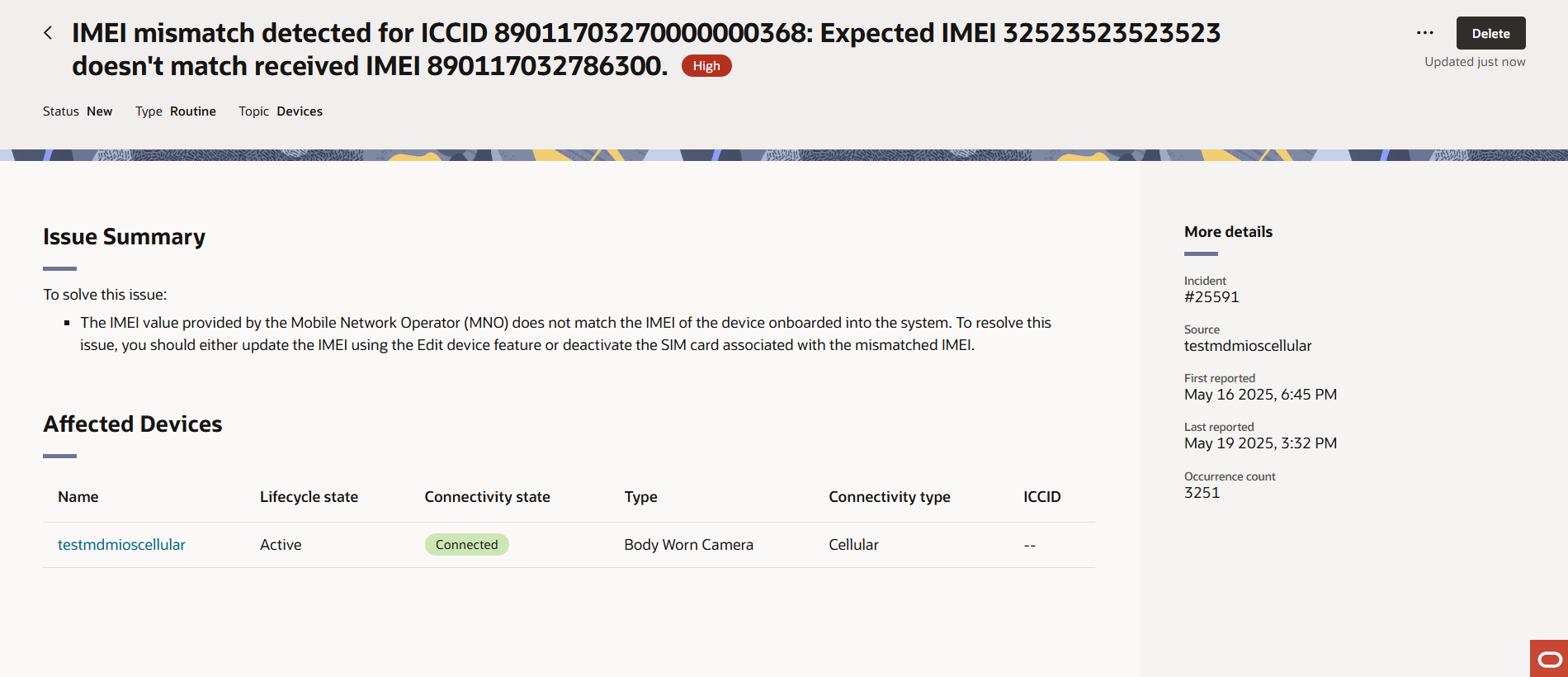
Each row on the Issues page displays a summary for the corresponding issue or warning. If comprehensive details are available for an incident or warning, the summary text displays as a clickable link. When you move the cursor over such a summary, a hand cursor appears, indicating that you can access additional details. Clicking a link in the Summary column takes you to the corresponding summary or details page, where you can view occurrence data, affected devices, and recommended solutions. If an incident or warning does not have a details or summary page, the summary appears as unlinked text, and the cursor remains an arrow. In this case, the item is not clickable and does not display a hand cursor, indicating that no further information is available for that row. If you interact with an event that does not provide additional details, Oracle ECP may display a notification informing you that further information is not available.
Delete: Click on the specific issue, and then click the Delete icon next to the Change Status function to delete the issue from the list.
View Notifications—To view recent notifications for incidents and warnings, click the Oracle icon (shown as an oval-shaped O) at the lower right-hand corner of the page to open the notifications panel. Bell icon notifications for issues and warnings appear at the bottom right of the interface. Clicking the bell icon navigates directly to the notifications list on the Ask Oracle page, where you can review all incident and warning notifications in a single location.
Notifications Panel
Oracle ECP notifies you of incidents, warnings, and alerts. Incidents and warnings are displayed on the Issues page and the notifications panel. Alerts are displayed only on the notifications panel, but you are notified of any new alerts with toast messages at the bottom right corner of your screen.
To see alerts, warnings, and incidents, click the Ask Oracle icon in the lower right corner of the Issues page. Oracle ECP displays the notifications panel, which displays a scrollable list of notifications.
When the notifications panel contains notifications, the Ask Oracle icon on the Issues page displays a counter that indicates the number of new or unread notifications. When all the notifications have been read or dismissed, the counter displays 0 until new notifications occur.
Note:
Clicking a warning notification in the notifications panel redirects you to the warning’s issue overview page.
You can dismiss notifications you no longer need. When you close the notifications panel ECP returns the Issues page.Oracle ECP purges notifications after 90 days.
Note:
Oracle ECP does not support filtering or sorting notifications at this time.About Issues Filter Chips
To refine the data displayed on the Oracle Enterprise Communications Platform (Oracle ECP) Issues page, you can narrow a search by using the default filter chips, typing the name of a column header, or typing other text in the Search field.
Oracle Enterprise Communications Platform (Oracle ECP) provides a set of permanent filter chips based on a sub-set of the column headers. After you move a filter chip into the Search field you can further refine your search by left-clicking the filter chip to see a list of additional choices for the filter type. You can add multiple filter chips to Search and you can select multiple parameters per chip type. You can also add additional, temporary filter chips. Oracle ECP provides the following filter chips and parameters:
Default Filter Chips
| Filter Chip | Filter Definition | All Filters |
|---|---|---|
| Severity | Search for issues by relative severity or impact. Default: Low | High | Medium | Low |
| Issue | Search for issues by the type of issue. Default: Incident |
|
| Status | Search for issues by State. Default: New |
|
| First Reported | Period when Issue/Warning was first reported. Default: Last 30 Minutes | Last 30 Minutes | Last Hour | Last 12 Hours | Last 24 Hours | Last 7 Days. Days |
| Last Reported | Period when Issue/Warning was last reported. Default: Last 30 Minutes | Last 30 Minutes | Last Hour | Last 12 Hours | Last 24 Hours | Last 7 Days |
| Topic | Issues by notification topic. You can subscribe for notifications for the topics that interest you. Default: Edge Nodes |
|
| Type | Issues by type. Default: Routine | Maintenance | Outage | Routine |
Additional Filter Chips
Note:
Temporary filter chips do not display any additional parameters.