Oracle ECP User Interface Elements and Operations
The Oracle Enterprise Communications Platform (Oracle ECP) User Interface displays elements, information, and operations to help you manage your inventory. Some elements and operations are common to multiple pages, while others are unique to a page.
Note:
See the Dashboard, Issues, Inventory, and Settings page documentation for information about the elements and operations that are unique to those pages.| Elements on the User Interface | Functionality | Page Found On |
|---|---|---|
| Navigation Tabs The Inventory page displays tabs at the bottom that lead to other pages. Some of the other pages display sub-tabs for more granular operations.
|
The page navigation links display at the bottom of the page. Click a link to navigate to the corresponding page. The horizontal bar above the page name indicates the current page. |
|
| Search Field Some pages display an Ask Oracle Search field where you can insert filter chips or type text.
Note: In the Search box, instead of pressing Enter after you enter your text or filter chips, click outside the Search panel to update the search.
|
Use the following methods to conduct a search.
Notes:
|
|
|
Inventory Context Drop-Down List The Inventory page displays a drop down list of contexts, according to your role. For example, the context list for the Customer and GBU Admins includes only Devices and Edge Nodes and the ECP Admin context list includes Devices, Edge Nodes, and Assigned SIM Cards, Unassigned SIM Card and Satellite Terminals. 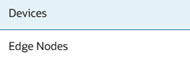 |
Click Devices (the default) to see all the types of inventory tables you can work with, depending on your role.
For example, the Customer Admin and GBU Admin can see only Devices and Edge Nodes while the ECP Admin role can also see Assigned SIM Cards, Unassigned SIM Cards, Satellite Terminals and MNO.. Click to see a list of data types to display on the Edge Nodes Applications tab. Click to manually refresh the page. |
|
| User Menu Oracle ECP displays a tinted square in the upper right hand corner of the Ask Oracle page with your initials. When you click the square, Oracle ECP displays the name of the user, the role, and an actions menu. 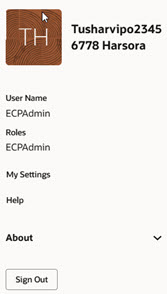 User Name —Displays your user name. Roles —Displays your role or persona. My Settings—Click to go to the Settings page, where you can edit your profile, set the automatic update frequency, and specify how you want to receive notifications. Help—Click to reach the My Oracle Support page. About—Click to see the software version number and Privacy Policy. Sign Out—Click to exit Oracle ECP. |
Click your initials on the Ask Oracle page to display the User menu, which includes links to helpful information and lets you sign out:
|
|
| Add Hardware Button Oracle ECP displays the Add Hardware button at the upper right hand corner of the Inventory page. The button launches the Add Hardware work flow.
|
Click to launch the add hardware wizard. |
|
| Hide or Show Columns Selector
Oracle ECP displays the following icon at the upper right corner of the Inventory table. Use it to hide or show the columns in the Inventory table.
|
Click to see the list of columns you can show or hide. |
|
| Show or Mask Secret String
By default, Oracle ECP displays a string you type as dots to provide security. Click the eye icon to toggle the display of the string between the text version and dot-obscured version.
|
Click the eye icon to change the secure display of a string you type from dots to text. |
|
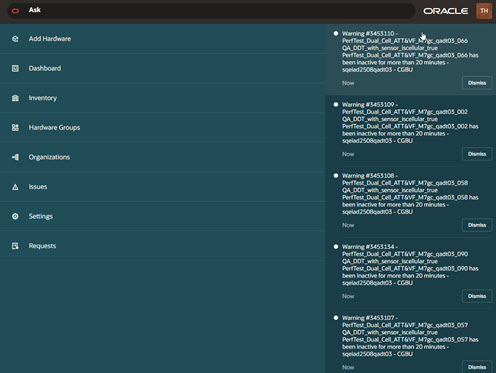
| The Ask Oracle Icon Oracle ECP displays the O-tag in the bottom right corner of the Dashboard, Issues, Inventory, and Settings pages. Click it to go to the Ask Oracle page where you can navigate to other pages and find a list of notifications.
The following screen capture shows an example of the Ask Oracle page with navigation links on the left and notifications on the right. Click the notifications to view the details. Notifications about Usage Reports include the name of the user who initiated creating the report. Note: Usage reports expire after the specified end date. When the report expires, Oracle ECP no longer displays the download icon.
|
Click to go to the Oracle ECP Home page. The Ask Oracle button displays a counter (the small, black square) to indicate the number of notifications. Click the icon to go to the Ask Oracle page that includes the notifications panel and navigation links to Oracle ECP pages. |
|
| Download Report Button The Download Report Button appears as an upward down arrow icon in the upper right corner of the Issues and Inventory page. Use the Download Report button to generate a spreadsheet report of issues. Generating a report of all issues, can take some time. Use the search filter to narrow your query, which can decrease the amount of time Oracle ECP needs to generate the report.
|
Click to download a report of all the issues displayed on the issues page. |
|