Review Onboarding Requests
Oracle Enterprise Communications Platform (Oracle ECP) Requests page summarizes the progress of the requests that administrators submit when onboarding hardware.
The Requests page shows a count of request items with each request state. You can view more details when you click on the specific request.
Requests Status States
After submitting an onboarding request or decomissioning an Cloud Connector or Device, Oracle ECP reports the state of that request on the Requests screen.
Table 4-1 Request States and Status
| Request Status | Definition |
|---|---|
| Completed | Indicates that Oracle ECP
has successfully completed the onboarding or offboarding request.
If onboarding is requested for multiple hardware items at once, the onboarding request state is Completed only if onboarding is successful for all. |
| Failed | Indicates that Oracle ECP
was unable to complete all or part of the onboarding or decomissioning
actions. Failed requests require you to take actions to verify and
remediate problems such as an internal system error.
For an onboarding request, a SIM allocation request rejection can cause the Failed state. If onboarding is requested for multiple devices at once and one or more fail, the request state is Failed. You must view all associated information and repeat actions for the equipment that fails to onboard successfully. |
| Initiated | Indicates that Oracle ECP
has confirmed that downstream systems have accepted the information
specified during onboarding for processing.
Note: Intiated state is not applicable for offboarding. |
| Pending | Indicates that Oracle ECP has successfully added all validated data for the record in Inventory and that the hardware is ready for physical installation on the network when received. |
| Partial | Indicates partial completion of onboarding or offboarding
request for Cloud Connectors.
Note: This state is applicable only for Cloud Connectors. |
Onboarding Request Details Page
Oracle Enterprise Communications Platform (Oracle ECP) provides the Onboarding Request Details page to let you check the progress of onboarded devices. Since each onboarding request can contain one or many Devices and Cloud Connectors, the page includes a list of all equipment and the relevent data and states in the request.
The Onboarding Request Details page is divided into two sections, and you can click the Back arrow to return to the Requests page to review more onboarding summary information.
Onboarding Request Details Overview
The Onboarding Request Details page includes a list at the top of the page of high-level information about a request for each Device or Cloud Connector. On the right side of the page, there is a panel with the count of SIM cards, MDM Devices, Decommissioned Devices provided and the count of equipment in each of the Requests Status States.
This page is where you find QR codes used to enroll certain Devices into
the MDM platform when applicable. For each MDM-enabled onboarding request with the
checked MDM box, the three dots on the top-right corner of the screen displays a
drop-down that lets you download a QR code or enrollment token that can be used to
enroll this devices on the MDM platform. For each MDM device, the right panel also
indicates the OS Type.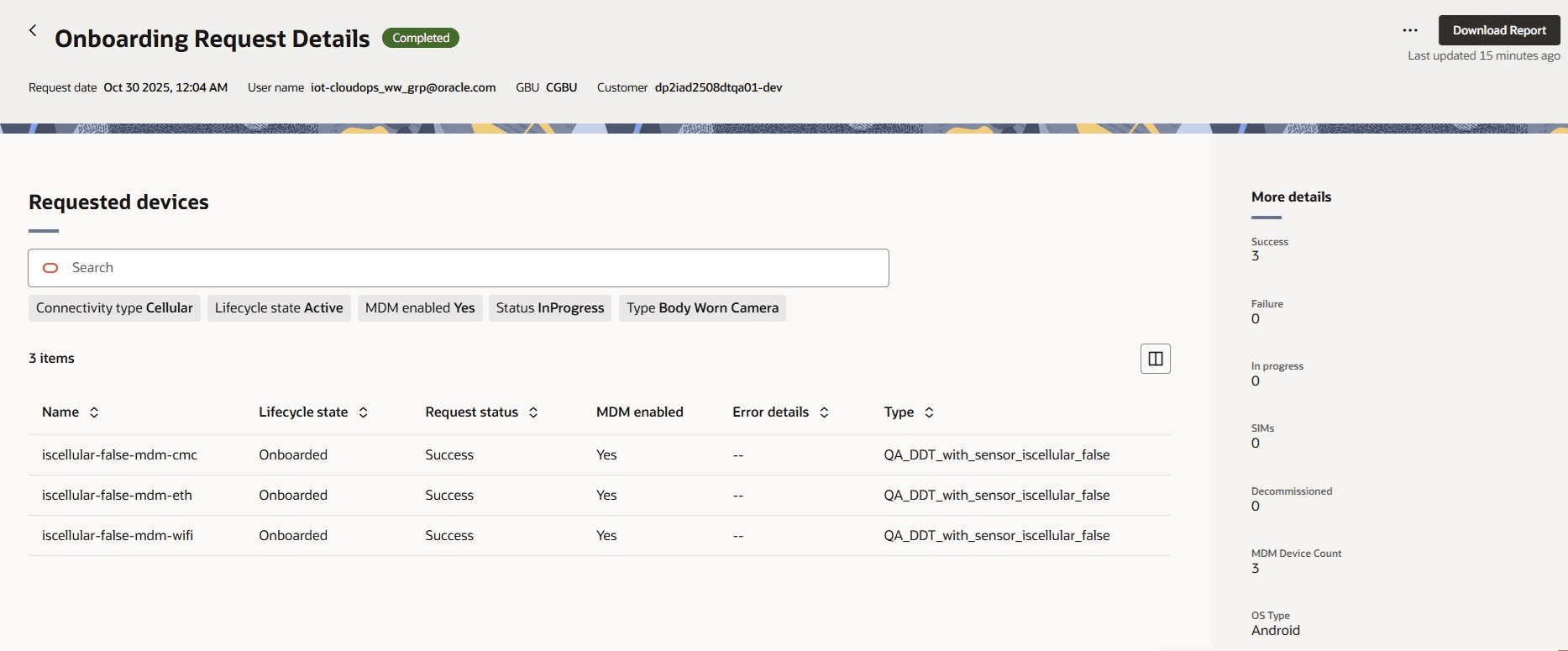
Onboarding Request Details Table
- Lifecycle state
- Status
- Connectivity Type
- MDM Enabled
- Type
- Lifecycle state
- Status
Cloud Connectors or Devices listed in the table are all part of a single Onboarding Request. The attributes that display depend on whether the Onboarding request was for Devices or Cloud Connectors and you will recognize values that relate to the onboarded equipment. Some column headers are hidden, and you can click the Columns control to remove and add column headers to the table.
Note:
If the Device or Cloud Connector has already been offboarded, the Requests devices panel on the page displays the message, "All entities have been removed." in the Onboarding Requests panel.
Be sure to review the Error Details column that provides more information when Oracle ECP encounters problems with an individual Device or Cloud Connector.
Download an Onboarding Request Record
You can download a file of each request to serve as a record or
informational resource. Click Download Report at the top of
the page to download a comma-separated value (CSV) file
(OnboardingRequest-device-MM-DD-YYYYHHMMSS.CSV) to the
default location for downloads.