Number Blocks Page Display and Operations
The Number Blocks page displays a table listing all your number blocks along with search filters, the Add Number Blocks button, and links to the Number Blocks, Sites, and Services pages. You can also perform actions on the number blocks, depending on their status.
The following screen capture shows an example of the Number Blocks page.
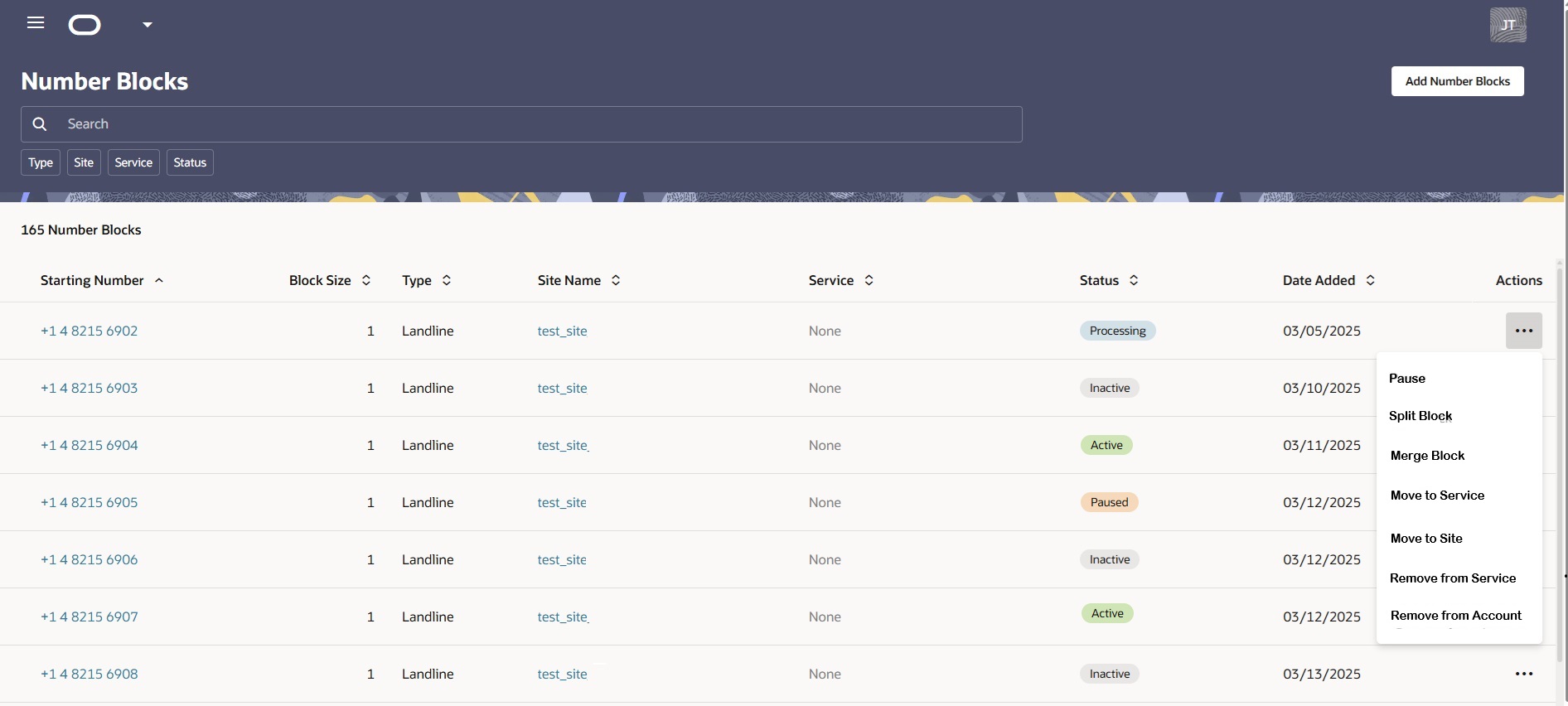
- Menu Icon—Click to display the navigation menu for the other pages. Click the X to close the menu.
- Add Number Blocks—The Add Number Blocks button initiates a three-step guided process. Click Continue to step through the process, which concludes with clicking the Submit on the last step. You can also step through the guided process by clicking the list steps listed in the right pane. You can proceed to the next step only when you satisfy the requirements of the active step.
Filter Chips for Search
To refine the information displayed on the Number Blocks page, use the filter chips located below the Search field to narrow your search. You can use the displayed filter chips or type a site name or service name in the Search field. Click a default filter chip to move it into the Search field and see the options for further refinement. When you type in the Search field, the resulting filter custom filter chip does not offer any further options when you right-click. You can add multiple filter chips to the Search field, including combining the default chips with custom chips.
| Filter Name | Description |
|---|---|
| Type | Supported phone types: Landline | Mobile |
| Site | A list of all of your sites by name. Includes the default Inventory site for unassigned number blocks. |
| Service | A list of all your services by name. |
| Status | The status of each number block: Active | Inactive | Processing | Paused. |
Column Descriptions
| Column Name | Description |
|---|---|
| Starting Number | The first phone number in the number block. Click the number to open the Number Block drawer where you can view all the numbers in the block and their status. |
| Block Size | The number of phone numbers in the number block. For Mobile phone numbers, the only block size is 1. For Landlines, block sizes include 1, 10, and 100. |
| Type | The type of telephone connection, either Mobile or Landline. |
| Site Name | The name of the site hosting the number block. Click the site name to launch the Site Details page, where you can edit the site attributes and perform actions on the number blocks. |
| Service | The name of the service hosting the site. Click the Service name to launch the Service Details page, where you can work with number blocks, link to other sites, and perform actions on number blocks. |
| Status | The life cycle state of the number block. Active | Inactive | Paused | Processing |
| Date Added | The month, day, and year the number block was added. |
| Actions | The actions available for the number block. Actions in black are available for the number block. Actions in gray are not. Available actions depend on the status. Actions: Pause | Split Block | Merge Block | Move to Service | Move to Site | Remove from Service | Remove from Account. |
Number Blocks Status Descriptions
| Status | Description |
|---|---|
| Inactive | The number has been configured, but is not yet assigned or associated with a service. You cannot set an INACTIVE number to ACTIVE until you assign it to a service. You can assign an INACTIVE number to any site, including Inventory. You can remove an INACTIVE number from an account. |
| Processing | The system is in the process of making a change to the number. Allow a few moments after you make a change for the Number Blocks page to display the new status. You cannot PAUSE, move, or remove a number that is PROCESSING from a service or an account. |
| Active | The number is assigned to a service that is running. You can PAUSE an ACTIVE number that is assigned to an ACTIVE service. You cannot PAUSE an ACTIVE number when the service it is assigned to is PAUSED. You cannot remove an ACTIVE number from an account. |
| Paused | The number is temporarily prevented from receiving or routing calls until you set it to ACTIVE. You cannot move a PAUSED number to a service or remove a PAUSED number from service. You can move a PAUSED number to any existing site. |
Add Number Blocks Button
Add Number Blocks—Click to launch the Add Number Blocks drawer, where you can, Add Number Blocks Manually.
Actions on the Number Blocks Page
To help you manage your number blocks, Oracle® Intelligent Communications Orchestration Network cloud service provides the following actions on the menu displayed when you click the ellipses at the end of each row on the Number Blocks page.
Pause—Use to temporarily stop a number from receiving and routing calls. You can select PAUSE only when the number block is ACTIVE. When you pause the number, its status changes from ACTIVE to PAUSED on the Number Blocks page. When PAUSED, the number remains provisioned and you can reset it to ACTIVE any time.
Set to Active—Use to reactivate a PAUSED number. When you reactivate a number, Oracle® Intelligent Communications Orchestration Network cloud service changes its status from PAUSED to ACTIVE on the Number Blocks page. Note: You cannot set a PAUSED number block to ACTIVE when the associated service is PAUSED.
Split Block—Use to split a number block into two sub-blocks. You can only split a number block when the block size is larger than 1.You can only split a number block into two sub-blocks, but the sub-blocks can be different sizes. The total size of both sub-blocks must equal the size of the parent block. Each sub-block must be 1 or greater (Oracle® Intelligent Communications Orchestration Network cloud service does not support a sub-block size of zero). You can further divide sub-blocks.
Merge Block—Use to merge an ACTIVE or INACTIVE number block with another number block from the same parent number block. You cannot merge number blocks from different parent number blocks. Merge Block is only available when the target number block was previously split from a larger number block.
Move to Service—Use to move an unassigned (INACTIVE) number block to a service that uses the same hosting carrier. You cannot move a number block to a PAUSED service.
Remove from Service—Use to remove a number block assigned to a service. You can keep the number block in the existing site or move it to the Inventory site. You cannot remove the last number from an active service. You can optionally add a new number to the service. You cannot remove the number assigned as the CLI Default Identifier (which is defined in the service configuration) from the service, but you can edit the service configuration.
Move to Site—Use to assign a number block to an existing site. You cannot move an ACTIVE number block to the Inventory site. You can move an INACTIVE number block to any site.
Remove from Account—Use to remove INACTIVE number blocks from an account.