6 Using Control Structures in Steps
Learn to use different control structures in steps for Oracle Communications Solution Test Automation Platform (STAP).
Overview
You can use control structures such as if, for, and while for steps in the Behavior-Driven Development (BDD) language. They are the building blocks within each test case and determine the flow of execution for each step based on specific conditions. Steps dictate the flow within test cases, while scenario execution flow governs the execution of the entire test scenario.
Scenario Execution Flow
The Scenario Execution Flow relies on the outcomes of the steps in the scenario. If a step within a test case fails, it impacts the flow by skipping remaining steps and potentially other test cases within the scenario.
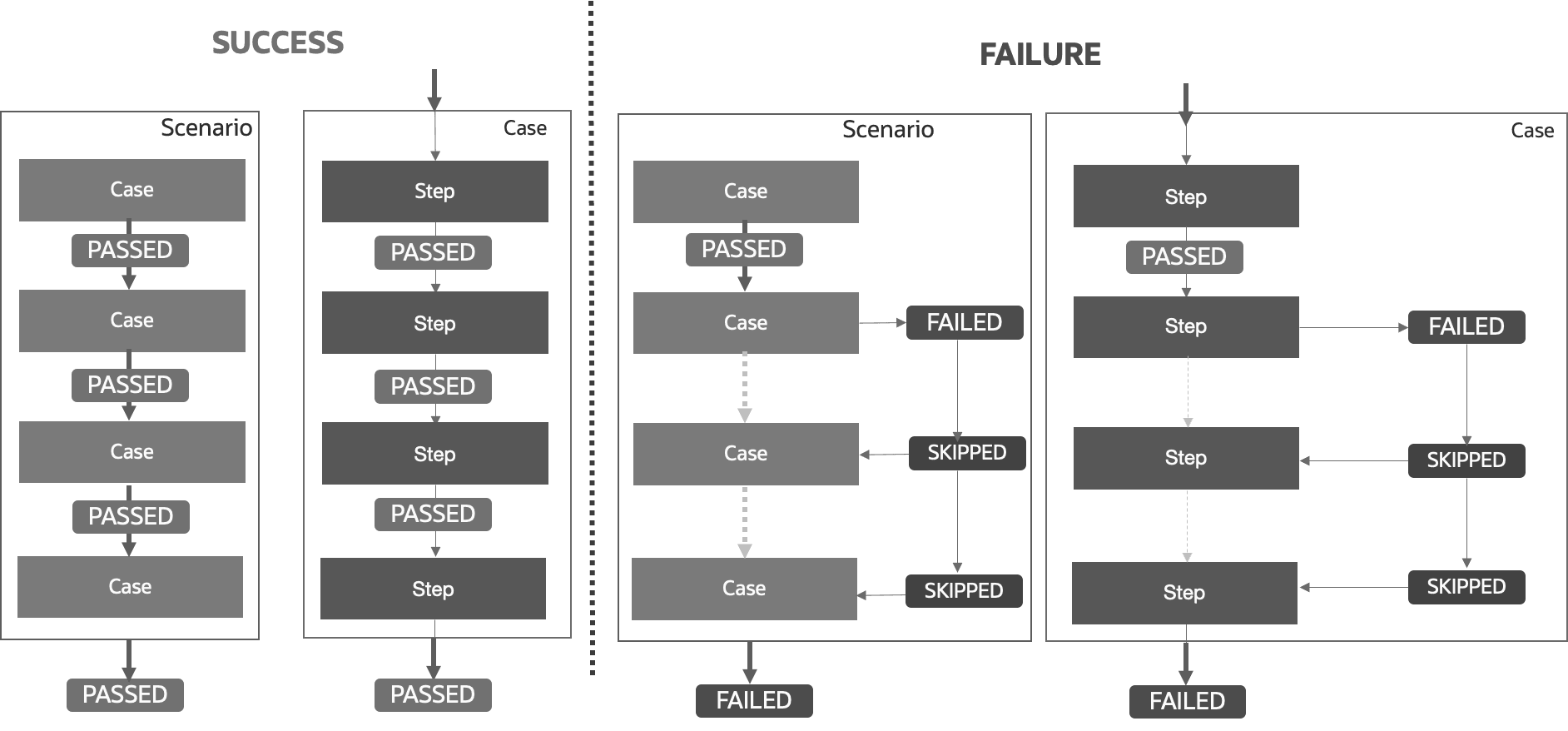
If the scenario execution is successful:
- Test Scenario Execution: If all the test cases within a scenario are run successfully, the entire scenario is considered passed.
- Test Case Execution: When all test steps within a test case are run without any errors, the test case is considered passed.
If the scenario execution fails:
- Test Scenario Execution: If a test case within a scenario fails, all subsequent test cases in that scenario are skipped, and the entire scenario is marked as failed.
- Test Case Execution: If any test step within a test case fails, the remaining test steps in that test case are skipped, and the test case is marked as failed.
This detailed flow ensures that the execution process is efficient and that any failures are quickly identified and addressed, preventing unnecessary execution of subsequent steps or cases.
Action Execution
- Static Action (Default)
- Controlled Step
Static Action (Default)
Performs the action once (in sequence).
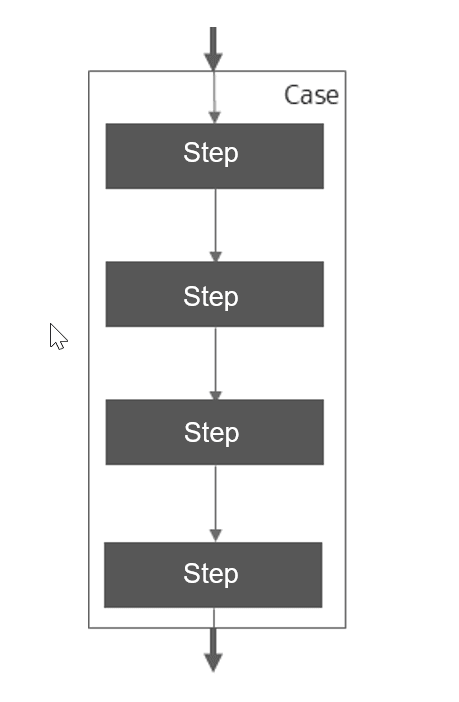
Controlled Step: Dynamic Action
Controlled execution of Step
- Condition: Conditional Execution (IF)
- Perform action when the condition is PASSED.
- repeatTimes (FOR)
- Repeat number of times.
- repeatUntil (UNTIL)
- Repeat until the condition is PASSED.
- repeatWhile (WHILE)
- Repeat while the condition is true.
Conditional Execution
- Perform Action when the condition is successful.
- Supports multiple conditions using 'Condition'.
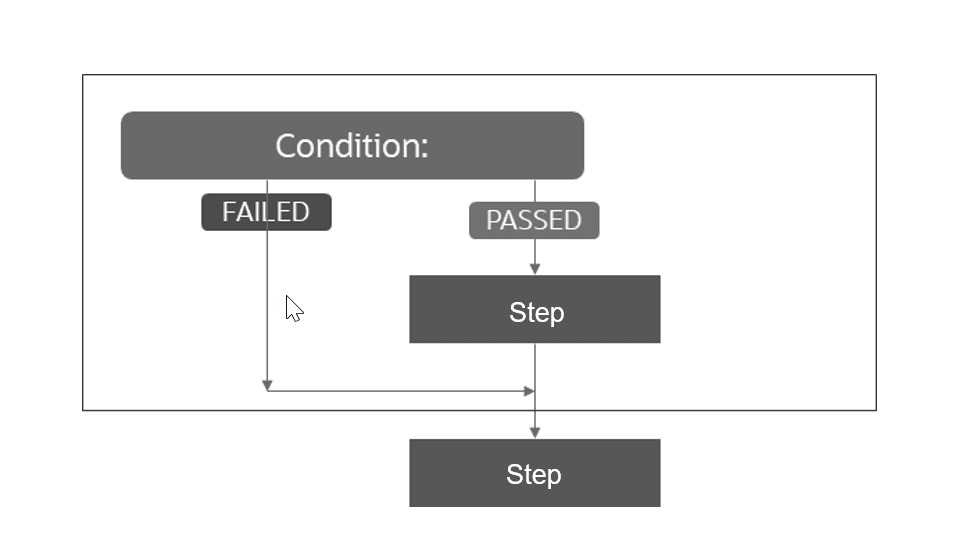
For example,
# This block of code checks if the category is Platinum, if yes, then it changes to Gold through the action file request
When change category, for changing customer category
Condition:
| ${category} | Platinum |
Validate:
| $status | 201 |
| category | Gold |
Save:
| name | name |
| category | category |
RepeatTimes
Repeat Times
Repeatedly perform the action given number of times.
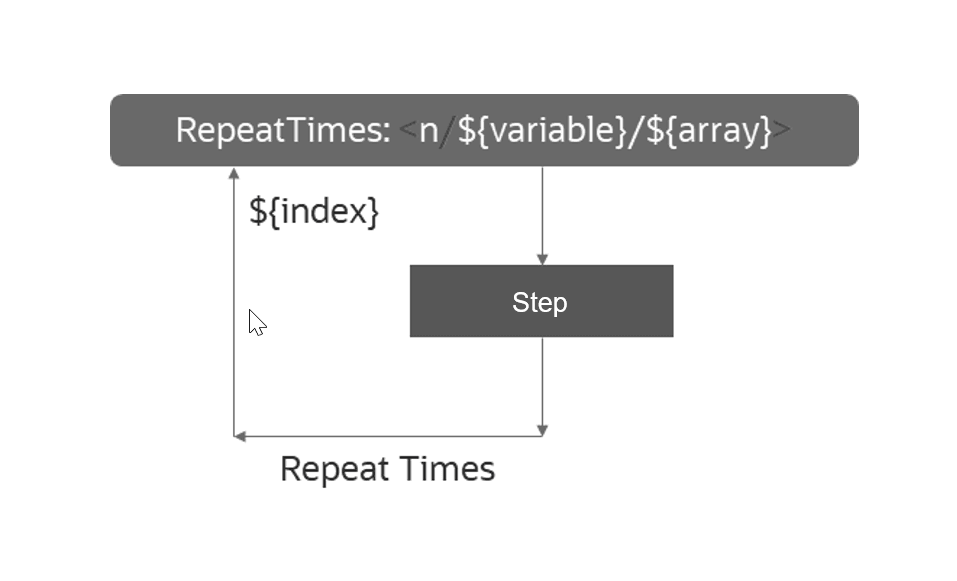
The success of the step depends on the outcome of each action. If any iteration fails, the step is marked as failed but continues to run.
- n : integer: number of times
- ${variable}: integer variable of times
- ${array}: array of integers. Action is repeated for array length number of times
- ${index}: index value of iteration. Values: 1-n
- ${nextValue} gives next array value.
- $breakOnFailure: YES breaks the loop, Default: NO
Example
Case: RepeatTimesAction
When set variable, create bills list
Save:
| $ARRAY{bills} | 25.213 |
| $ARRAY{bills} | 30.456 |
Then get mock response, repeatedly to send payment reminders of bills
# executes this block for variable times - size of array
RepeatTimes:
| $times | $ARRAY{bills} |
Data:
| id | getdata |
| index | ${nextValue} |
Validate:
| $status | 200 |
| bills[${index}] | $ARRAY{bills[${index}]} |
Then get mock response, repeatedly to send payment reminders of bills
#executes this block of code for predefined number of times
RepeatTimes:
| $times | 2 |
Data:
| id | getdata |
| index | ${nextValue} |
Validate:
| $status | 200 |
| bills[${index}] | $ARRAY{bills[${index}]} |
RepeatUntil
Repeat Until
- Repeatedly perform the action until the given condition is true.
- At least one Condition is mandatory. (?)
- $breakOnFailure : YES breaks the loop on action validation failure. Default: NO.
When set variable, create bills list
Save:
| $ARRAY{bills} | 25.213 |
| $ARRAY{bills} | 30.456 |
| $ARRAY{bills} | 28.712 |
| $ARRAY{bills} | 26.389 |
| $ARRAY{bills} | 31.243 |
# executes this block of code until all the conditions are true
Then get mock response, sending notifications until customer bill equals a value
RepeatUntil:
| $ARRAY{bills[${index}]} | 30.456 |
Data:
| id | getdata |
| index | ${nextValue} |
Validate:
| $status | 200 |
Repeat Until with time durations and frequency interval
Repeat Until with Time Durations and Frequency Interval
Figure 6-5 Repeat Until with Time Durations and Frequency Interval
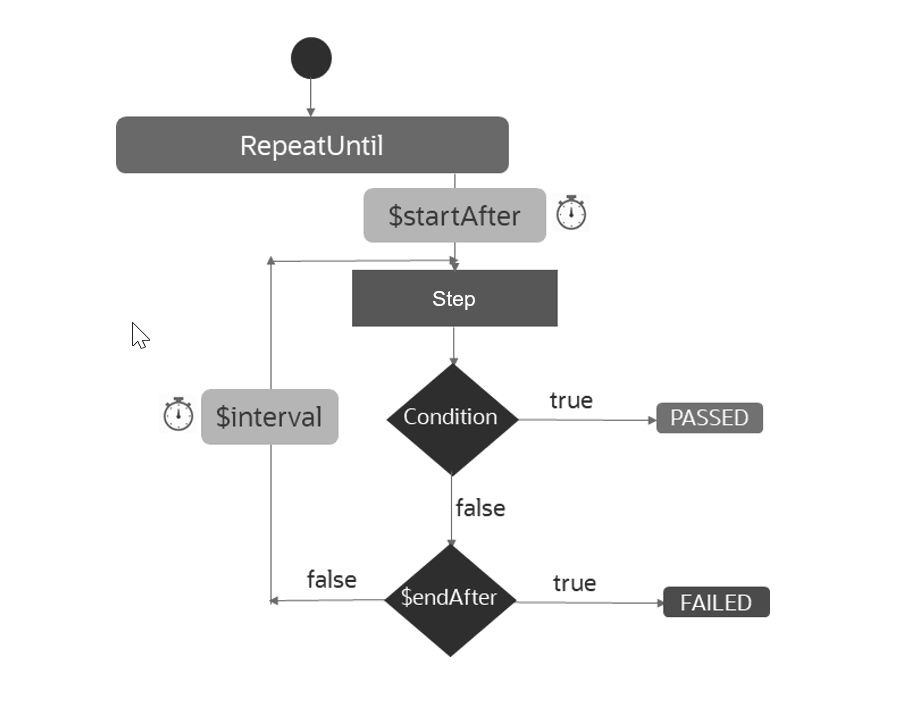
$startAfter : Optional. Start executing action after this duration of time. By default, starts immediately.The duration is in seconds.
$endAfter : Mandatory. Break after the completion of this time duration.
$interval: Optional. interval duration to run the action. By default, executes continuously.
Specify duration in Seconds.
Breaks if the condition is true even before $endAfter.
$breakOnFailure : YES will breaks loop on action validation failure, Default: NO.example
Case: RepeatUntilAction
When set variable, create bills list
Save:
| $ARRAY{bills} | 25.213 |
| $ARRAY{bills} | 30.456 |
| $ARRAY{bills} | 28.712 |
| $ARRAY{bills} | 26.389 |
| $ARRAY{bills} | 31.243 |
# executes this block of code until all the conditions are true
Then get mock response, sending notifications until customer bill equals a value
RepeatUntil:
| $ARRAY{bills[${index}]} | 30.456 |
# start execution after 1 second
| $startAfter | 1 |
# 1 second interval for every execution
| $interval  | 1 |
# stop execution after 5 seconds
| $endAfter | 5 |
Data:
| id | getdata |
| index | ${nextValue} |
Validate:
| $status | 200 |
RepeatWhile
When set variable, setting customer bill Amount
Save:
| billAmount | 30 |
# All the conditions must hold true -> While executes the condition first
Then get mock response, sending notifications of pending bills while amount is under a threshold
RepeatWhile:
# The variable used here must be defined already
| ${billAmount} | %GREATER_THAN(25) |
Data:
| id | getcust |
| index | ${nextValue} |
Validate:
| $status | 200 |
| extractedNotice | 'Your subscription is expiring soon' |
RepeatWhile with time durations and interval- Repeatedly perform the action while the given condition is true.
- $breakOnFailure: YES will break loop on action validation failure, Default: NO.
Figure 6-6 shows the flow of 1st iteration.
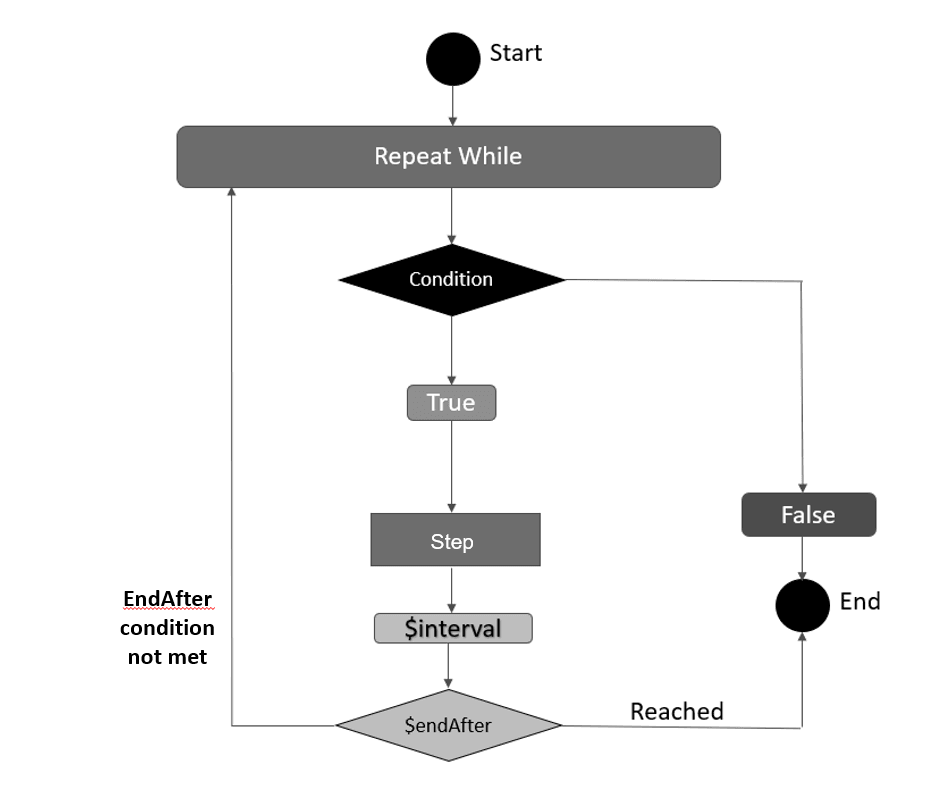
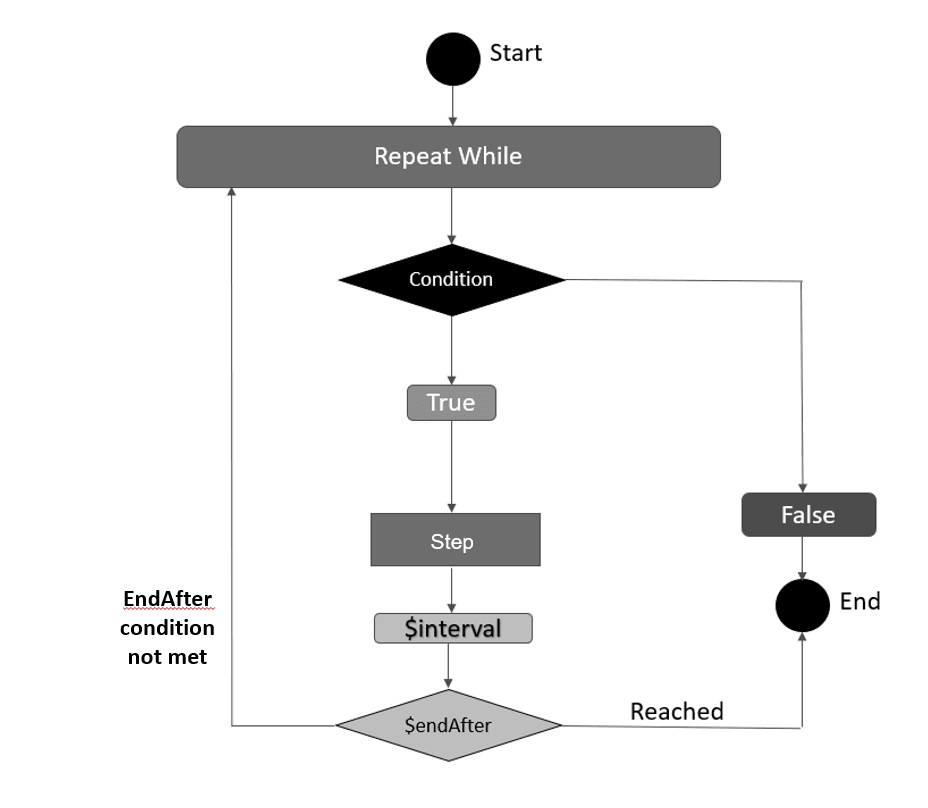
Figure 6-7 shows the flow of other iterations.
Case: RepeatWhileAction
When set variable, setting customer bill Amount
Save:
| billAmount | 30 |
# All the conditions must hold true -> While executes the condition first
Then get mock response, sending notifications of pending bills while amount is under a threshold
RepeatWhile:
# The variable used here must be defined already
| ${billAmount} | %GREATER_THAN(25) |
# starts execution after 1 second
| $startAfter | 1 |
# 1 second interval for every execution
| $interval  | 1 |
# stop execution after 5 seconds
| $endAfter | 5 |
Data:
| id | getcust |
| index | ${nextValue} |
Validate:
| $status | 200 |
| extractedNotice | 'Your subscription is expiring soon' |
Repeat While: Examples of Time Durations and Interval
$startAfter : Optional. Start executing action after this duration of time. By default, starts immediately.
$endAfter : Mandatory. Break after the completion of this time duration.
$interval: Optional. interval duration to run the action. By default, executes continuously.
Specify duration in Seconds.
Breaks if the condition is true even before $endAfter.
$breakOnFailure : YES breaks a loop on action validation failure. Default: NO.
Case: RepeatWhileAction
When set variable, setting customer bill Amount
Save:
| billAmount | 30 |
# All the conditions must hold true -> While executes the condition first
Then get mock response, sending notifications of pending bills while amount is under a threshold
RepeatWhile:
# The variable used here must be defined already
| ${billAmount} | %GREATER_THAN(25) |
# starts execution after 1 second
| $startAfter | 1 |
# 1 second interval for every execution
| $interval | 1 |
# stop execution after 5 seconds
| $endAfter | 5 |
Data:
| id | getcust |
| index | ${nextValue} |
Validate:
| $status | 200 |
| extractedNotice | 'Your subscription is expiring soon' |
Repeat Case
- Repeatedly run the case until the validation passes
- Ensure that at least one condition is met.
For example,
$endAfter : Optional. Break after the completion of this time duration.
$interval: Optional. interval duration to run the Step. By default, executes continuously.
Specify interval duration in Seconds.
$times: Optional. Number of times the case can be repeated.
Note:
If both $times and $endAfter are provided, the case will repeat up to $times within the specified duration.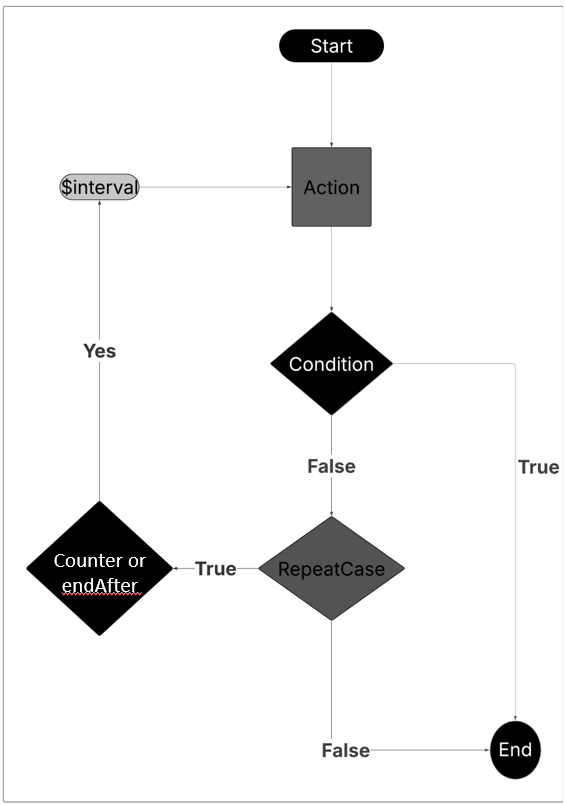
Case: Import and Publish Mobile Product Model
Given create an import job

Data:
| $formData.name | primaryFile |
| $formData.file | $FILE(DBE_PI2_Mobile_Model_PSP.json) |

Validate:
| $status | 201 |
| status | NOT_STARTED |

Save:
| importJobId | id |


Then verify the import job status by id
Data:
| id | ${importJobId}
Validate:
| ${jobstatus} | SUCCEEDED |
RepeatCase:
| $interval | 5 |
| $times | 2 |
| $endAfter | 6 |
Using multiple test data files in control actions
Action using multiple data
When create product offering, with multiple data sets
repeatTimes: 2
Data:
| $request | $FILE(productOffering_${index}.json) |
(data/product Offering_0.json
data/productOffering_1.json)
| variable | I Value${index}-${UlD} |
Validate:
| statusCode | 201 |
Save :
| $ARRAY{productOfferingId} | id |
(data/productOffering_O.json
data/productOffering_1.json
productQtferingJd Array)
Action using multiple data sets
When Dummy, save some values
Save:
| $ARRAY{poNames} | VoicePO |
| $ARRAY{poNames} | SMSPO |
| $ARRAY{poNames} I VolPPO |
When create product offering, with multiple data sets
Repeat Times:
| $times | $ARRAY{poNames} I
Data:
| $request |$FILE(productOffering_${nextValue}.json |
(data/productOffering_VoicePO.json
data/productPffering_SMSPO.json
data/productOffering_VolPPO.json)
| variable | Values${nectValue}-${index}-${UID} |
Validate:
| statusCode | 201 |
Save :
| $Array{productOfferinfId} | id |
Using Conditional Cases
Note:
- You mention the conditions after the case name within curly brackets, separated by a comma. For example, sampleCase {condition1, condition2}.
- If the condition value or condition variable is from a saved variable in any of the previous cases run, they are to be specified within ${ }.
- Only = or Equals to operation is supported for condition evaluation.
The following are the configurations to set to run conditional cases.
Header.info
Data.case
MockAction.case
MockAction.case{${executeMockAction}=${value}}
#MockAction.case{${executeMockAction}=true}
MockAction.case{${executeMockAction}=true,${day}=wednesday}Case: Data creation for conditional execution
When dummy
Save:
| value | true |
| executeMockAction | true |
| day | wednesday |Case: Mock action test
When execute mock action, creating a task
Data:
| id | WeekdayTask-${UID} |
| name | WeekdayTask-${UID} |
Save:
| taskId | id |
| taskName | name |
When execute mock action, reading the task
Data:
| $requestString | {"id":"id"} |
| id | ${taskId} |Reusable Artifacts
STAP uses artifacts to organize and structure automation assets for reuse and scalability. Artifacts include cases, steps, and files. You define these artifacts independently, so they can be shared across different scenarios. STAP separates each core artifact definition from its usage. This approach increases reusability, simplifies maintenance, and improves test execution.
Types of Artifact Definitions
- Cases: Defined in case.casref files
- Steps: Defined in step.stepref files
- Files: Placed in common folder
Assign a unique reference ID to each case and step within these files. These reference IDs can then be used in scenarios (.scenario file) and cases (.case file) to build and test flows. This way, you reference the predefined artifacts instead of duplicating logic.
Benefits of Artifact-Based Design
- Promotes consistent behaviour across different workspaces
- Minimizes duplication of test logic
- Enables centralized updates and easier maintenance
- Optimizes execution by reusing tested artifacts
This artifact-driven structure enables modular, extensible, and efficient automation processes in STAP.
Using Reference Cases
If you want to test the same case across different scenarios, you can define the case once as a reference case and reuse the case file across scenarios.
Reference cases let you define a case once and reference it in other locations, instead of defining the same case file again. Updates to the original case appear everywhere it is used.
referenceCaseHome
referenceCases.home=${WORKSPACE}/referenceCaseLibrary- referenceCaseHome is the title of the folder where you want to store reference cases.
- workspace is your STAP workspace directory.
To run a scenario using the .caseref file, create and define it under the referenceCaseLibrary.
The following is an example for a reference case .caseref file:
Case: case title
Description: case description
tag: tag1, tag2
ReferenceCaseId: caseTitle

When...,to...
Data:

Then..., in the ...
Data:

Validate:
| $status | status code |

Save:
| _subscription.id | id |Case: caseName
ReferenceCaseId: referenceCaseIDCase: Test Case
Description: Test description
tag: test
ReferenceCaseId: SetVariable
When set variable, for default values
Save:
| subscriber.name | John Doe |
| subscriber.category | PLATINUM |
| subscriber.type | RESIDENTIAL |
| subscriber.age | 30 |
| subscriber.address | 123 California Street |
| subscriber.state | CA |
| subscriber.city | Mountain View |
| subscriber.country | USA |
| subscriber.code | 12345 |
| subscriber.emailId | john.doe@oracle.com |
| subscriber.mobile | 1234567890 |
Then create a new subscription, in the billing system
Data:
| name | ${subscriber.name} |
| category | ${subscriber.category} |
| type | ${subscriber.type} |
| age | ${subscriber.age} |
| address | ${subscriber.address} |
| state | ${subscriber.state} |
| city | ${subscriber.city} |
| country | ${subscriber.country} |
| code | ${subscriber.code} |
| emailId | ${subscriber.emailId} |
| mobile | ${subscriber.mobile} |
Validate:
| $status | 201 |
Save:
| _subscription.id | id |Using Reference Step
Reference steps enable you to define a step once and reuse it across multiple locations, promoting modular design and simplifying updates. Use reference steps when the same step logic is needed in different cases or scenarios.
Configuration
- Open your
config.propertiesfile. - Add or update the following property to define the home directory for reference steps:
referenceSteps.home=${WORKSPACE}/referenceStepLibraryreferenceSteps.home: Directory path for storing reference step definitions.${WORKSPACE}: Path to your STAP workspace. Use directly in commands and configurations rather than hard coding the path.
Defining Reference Steps
- Define each reference step in a
.stepref fileunder the directory set byreferenceSteps.home. - Assign a unique
ReferenceStepIdfor each step.
When read subscription
ReferenceStepId: readSubscription
Data:
| id | ${_subscription.id} |
Validate:
| $status | 200 |
| name | ${subscriber.name} |
|	category | ${subscriber.category}	|
|	type	| ${subscriber.type}	|
|	age	|	${subscriber.age} |
|	address	| ${subscriber.address}	|
|	state	| ${subscriber.state}	|
|	city	| ${subscriber.city} |
|	country	| ${subscriber.country}	|
|	code	| ${subscriber.code}	|
|	emailId	| ${subscriber.emailId} |
|	mobile	| ${subscriber.mobile} |
Save:
| name | name |
Usage
- In your
.case file, refer to a predefined reference step by itsReferenceStepId. - Prefix the usage with the relevant keyword (
Then, When, or And) based on the case flow.
Example .case file usage:
Case: Create a new subscription in the billing system and validate the creation
When create a new subscription, in the billing system
Data:
| name | ${subscriber.name} |
|	category | ${subscriber.category}	|
|	type	| ${subscriber.type}	|
|	age	|	${subscriber.age} |
|	address	| ${subscriber.address}	|
|	state	| ${subscriber.state}	|
|	city	| ${subscriber.city} |
|	country	| ${subscriber.country}	|
|	code	| ${subscriber.code}	|
|	emailId	| ${subscriber.emailId} |
|	mobile	| ${subscriber.mobile} |
Validate:
| $status | 201 |

Save:
| _subscription.id   | id |


#Keyword(Then, When, And)
Then referenceStepId: readSubscription
Data:
| overrideParam | overrideValue |
| additionalParam | additionalValue |

Validate:
| overrideCondtion | overrideValue |
| additionalCondition | additionalValue |

Save:
| overrideSave | overrideValue |
| additionalSave | additionalValue |
Run-Time Output
When the test executes, the reference step is expanded. The system injects the referenced step’s content at the appropriate keyword and merges any overridden or additional parameters. For example:
Case: Create a new subscription in the billing system and validate the creation
When create a new subscription, in the billing system
Data:
| name | ${subscriber.name} |
|	category | ${subscriber.category}	|
|	type	| ${subscriber.type}	|
|	age	|	${subscriber.age} |
|	address	| ${subscriber.address}	|
|	state	| ${subscriber.state}	|
|	city	| ${subscriber.city} |
|	country	| ${subscriber.country}	|
|	code	| ${subscriber.code}	|
|	emailId	| ${subscriber.emailId} |
|	mobile	| ${subscriber.mobile} |
Validate:
| $status | 201 |

Save:
| _subscription.id   | id |


#the key word will be picked from the usage step, not from the referenced one i.e 'Then' keyword is picked up instead of 'When'
Then read subscription
ReferenceStepId: readSubscription
Data:
| id | ${_subscription.id} |
| overrideParam | overrideValue |
| additionalParam | additionalValue |
Validate:
| $status | 200 |
| name | ${subscriber.name} |
|	category | ${subscriber.category}	|
|	type	| ${subscriber.type}	|
|	age	|	${subscriber.age} |
|	address	| ${subscriber.address}	|
|	state	| ${subscriber.state}	|
|	city	| ${subscriber.city} |
|	country	| ${subscriber.country}	|
|	code	| ${subscriber.code}	|
|	emailId	| ${subscriber.emailId} |
|	mobile	| ${subscriber.mobile} |
| overrideCondtion | overrideValue |
| additionalCondition | additionalValue |

Save:
| name | name |
| overrideSave | overrideValue |
| additionalSave | additionalValue |
Using ForEach in a Test Case
ForEach enables data-driven execution of a Case by running the same set of test steps multiple times, once per row of input data. This is useful when you want to validate the same workflow with different users, roles, categories, products, or any other test data variations without duplicating test logic.
With ForEach, you define the Case once, and provide a CSV file that contains multiple data sets. The framework iterates through the CSV rows and runs the Case repeatedly using the values from each row. If the data has a Comma (,) in the CSV file, then the data should be wrapped in double quotes.
For example, CA, NewYork -> "CA, NewYork"
When you add ForEach: $filename.csv to a Case:
- The system loads the CSV file from the scenario data folder.
- The header row defines the parameter or variable names.
- Each subsequent row is treated as a single iteration (one data set).
- The Case is executed once per row (n times, where n = number of data rows).
If the CSV contains two rows:
- Iteration 1 uses: (user1, Platinum)
- Iteration 2 uses: (user2, Silver)
Rules and Requirements
CSV location
The CSV file referenced in ForEach must be present under the scenario data folder.
Header names must match variables in the Case
The variable names used inside the Case must match the CSV headers exactly.
For example, if the CSV header is:
username,categoryThen the Case should reference those parameters as:
${&username}${&category}
This ensures correct mapping of values during each iteration.
One row = one execution
Each row in the CSV represents one complete execution of the Case, running all steps in the Case using that row’s values.
Syntax
Case file (example: customer.case)
Case: Create a customer profile and view details
ForEach: $filename.csv  # expected to be present under scenario data folder

When add category, for posting customer details
Data:
| name     | ${&username} |
| category | ${&category} |
Validate:
| $status  | 201 |
Save:
| name     | name |
| category | category |

Then read user category, for posting customer details
Data:
| $urlSuffix | ${&username} |
Validate:
| $status    | 201 |
| category   | ${&category} |
CSV file format (example: test.csv)
username,category
user1,Platinum
user2,Silver
Note:
- The first row is the header (parameter names).
- Each following row is a data set used for one iteration.
Common Data Files
Common data files provide a centralized method to store and reuse data files (such as payloads, scripts, or configuration files) across different STAP scenarios. This reduces file duplication and simplifies file maintenance.
Configuration
- Open your config.properties file.
- Add or update the following property:
referenceFiles.home=${WORKSPACE}/files/
- This configuration property defines the base directory where all common reference files are stored.
- Any file referenced using
$FILEREF()will be resolved relative to this directory. - This allows a single file to be shared and reused across multiple scenarios.
Syntax
- Reference a common data file using the following syntax:
$FILEREF(<filename>)<filename>: The relative path to the file underreferenceFiles.home. - At runtime,
$FILEREF(<filename>)is replaced with the original file content by the automation engine.
Usage Examples:
Upload a file in a test step:
 Then execute SSH command, upload file
 Data:
 | $command | $sftp:UPLOAD_FILE |
 | $environment | ssh-test |
 | $source | $FILEREF(test/test-file.txt) |
 | $target | /home/ops/test-stap |
 Validate:
 | $status | 0 |
Use a file as a request payload:
Data:
| $request | $FILEREF(request.json) |
This approach allows the same file to be reused in multiple scenarios, improving efficiency and consistency.