7 STAP Action Plug-ins
Learn about different Oracle Communications Solution Test Automation Platform (STAP) Action Plug-ins and their functions.
Introduction to STAP Action Plug-ins
STAP Action plug-ins enable automation to interact seamlessly with various product interfaces, such as REST and SOAP. These plug-ins enable developers and testers to automate tasks, ensure consistency, and improve efficiency in managing interactions with diverse systems. Automation plug-ins significantly enhance productivity by eliminating manual interventions.
Adding tools like Seagull process execution plug-ins further broadens the scope of automation, making it easier to manage diverse and complex workflows. Selecting the right plug-in depends on factors such as the complexity of the task, integration requirements, and the technology stack in use.
The available automation plug-ins are:
REST Plug-in
Representational State Transfer (REST) is a widely used interface for web services due to its simplicity and scalability. The REST plug-in facilitates tasks such as making requests, handling JSON requests/payloads, and validating status and response data.
The key features of the REST plug-in are:
-
Payload Management: Simplifies sending and receiving JSON or XML data.
-
Request Handling: Includes constructing the payload along with the REST methods such as GET, POST, PUT, DELETE, and other HTTP methods.
-
Authentication Support: Handles OAuth, API keys, and Basic Authentication.
-
Response Validation: Supports assertions on HTTP status codes, headers, and body content.
The Rest plug-in is used to automate the execution of REST API endpoints and to validate the response.
REST Connection
To use the REST interface, you must first set up the connection environment. An environment is a setup where applications or integrated solutions operate. A connection serves as an interface to the application running in the environment, allowing communication with the application.
Environment configuration includes the settings for these connections. Each STAP plug-in has its own environment connection configuration, and some plug-ins can have multiple environment configuration files for different products tested using various scenarios. For more information, see Setting Up The STAP Environment
You can combine REST and SOAP in a single environment, but other types of interfaces need to have their own environment:
- Multiple: This includes REST, SOAP
- Single: This includes SSH, KAFKA, URL_VALIDATION, SEAGULL
- Basic
- OAuth
Basic Authentication is a straightforward authentication method where the client provides credentials (username and password).
Following is a sample of an environment.properties file for basic authentication.
# Environment name
name=todo
type=REST

hostname=hostname
url=url

#==============================================================================
# Authorization Configuration
# Values = YES : Use authorization NO : No authorization required.
#==============================================================================
authorization=YES
# oauth2/basic
authorization.type=basic

#- BASIC Authorization
basic.username=
basic.password=
OAuth2 Authentication
OAuth2 supports client_credentials and password_credentials grant types.
Following is a sample of an environment.properties file for a client_credentials grant using OAuth authentication.
#---------------------------------------------------------
# Environment name.
#---------------------------------------------------------
name=care
#---------------------------------------------------------
# Type of the connection.
#---------------------------------------------------------
type=REST

#---------------------------------------------------------
# REST Configuration
#---------------------------------------------------------
#Hostname
hostname=hostname
#---------------------------------------------------------
#Base URL
#---------------------------------------------------------
url=url
#---------------------------------------------------------
#==============================================================================
# Authorization Configuration
#==============================================================================
authorization=YES
#---------------------------------------------------------
# Authorization Type
# One of oauth2/basic
#---------------------------------------------------------
authorization.type=oauth2
#---------------------------------------------------------
# OAUTH2 - IDCS Configuration
#---------------------------------------------------------
oauth2.grantType=client_credentials
oauth2.clientId=*****************************
oauth2.clientSecret=*****************************
oauth2.tokenUrl=*****************************
oauth2.scope=****************
Following is a sample of an environment.properties file for a password_credentials grant using OAuth authentication.
#---------------------------------------------------------
# Environment name.
#---------------------------------------------------------
name=care
#---------------------------------------------------------
# Type of the connection.
# One of api.rest, api.soap or ssh
#---------------------------------------------------------
type=REST

#---------------------------------------------------------
# REST Configuration
#---------------------------------------------------------
#Hostname
hostname=hostname
#---------------------------------------------------------
#Base URL
#---------------------------------------------------------
url=url
#---------------------------------------------------------

#==============================================================================
# Authorization Configuration
#==============================================================================
authorization=YES
#---------------------------------------------------------
# Authorization Type
# One of oauth2/basic
#---------------------------------------------------------
authorization.type=oauth2
#---------------------------------------------------------
# OAUTH2 - IDCS Configuration
#---------------------------------------------------------
oauth2.grantType=password_credentials
oauth2.clientId=*****************************
oauth2.clientSecret=*****************************
oauth2.tokenUrl=*****************************
oauth2.scope=****************
oauth2.authorization=YES
oauth2.authorization.username=************
oauth2.authorization.password=************
Retry Count
The retryCount property determines the number of times the REST Plug-in automatically attempts to retry a failed REST API call when the failure results from a server-side error (HTTP 5xx).
Example:
# Environment name
name=todo
type=REST

#REST Configuration
#Hostname
hostname=hostname
#Base URL
url=url

#==============================================================================
# Authorization Configuration
# Values = YES : Use authorization NO : No authorization required.
#==============================================================================
authorization=YES
# oauth2/basic
authorization.type=basic

#- BASIC Authorization
basic.username=
basic.password=

#Retry Count
retryCount=
Gateway types
The REST plug-in supports two gateway types for constructing URLs dynamically:
default : Resource mentioned in the action file is added to the base URL to construct the final URL.
fabric : When the base URL remains the same but different resource endpoints need to be tested during execution, connection URLs can be used.
Configuration key: connection.uri.resourceName
URL is constructed by joining the base url, value of the connection uri for the resource mentioned in action file, and the resource in the action file.
For example,
#---------------------------------------------------------
# Environment name. Ref. Supported list above.
#---------------------------------------------------------
name=care
#---------------------------------------------------------
# Type of the connection.
# One of api.rest, api.soap or ssh
#---------------------------------------------------------
type=REST
#---------------------------------------------------------
# REST Configuration
#---------------------------------------------------------
#Hostname
#---------------------------------------------------------
#Hostname
hostname=hostname
#---------------------------------------------------------
#Base URL
#---------------------------------------------------------
url=url
#---------------------------------------------------------
# Connection Type : Direct or through Fabric
# connectionType=fabric/default
#---------------------------------------------------------
connection.type=fabric
connection.uri.customerBill=customerBillManagement/v4
connection.uri.customerBillOnDemand=customerBillManagement/v4
connection.uri.payment=payment/v4
connection.uri.paymentAllocation=payment/v4
connection.uri.adjustBalance=prepayBalanceManagement/v4
connection.uri.usage=usageManagement/v2
connection.uri.appliedCustomerBillingRate=customerBillManagement/v4
connection.uri.disputeBalance=prepayBalanceManagement/v4
#==============================================================================
# Authorization Configuration
# Values = YES : Use authorization NO : No authorization required.
#==============================================================================
authorization=NO
#---------------------------------------------------------
Action Files in the REST Plug-in
Action files define how API requests are constructed and executed within the REST plug-in.
For example, in the following JSON file:
{
"path":"care/customerBill/read-customerBill/read-customerBill-by-id",
"name":"Read customer bill by id",
"bdd":"read customer bill by id",
"description":"Read customer bill by id",
"product":"care",
 "actionType":"REST",
"tags":["customer","bill"],
"resource":"customerBill",
"method":"GET",
"expectedStatusCode":200
}
The final URL for the example is constructed by combining the following elements:
resource : customerBill
Value of connection uri for the resource in action file: customerBillManagement/v4
- GET
- POST
- PUT
- PATCH
- DELETE
Method: GET
read-todo-task.action.json
{
"path":"/category/getcategory",
"name":"Read all categories",
"bdd":"read all categories",
"description":"Reading all categories of customer",
"product":"mockserver",
 "actionType":"REST",
"tags":["category","read","all"],
"resource":"getcategory",
"method":"GET",
 "expectedStatusCode":200
}
Method: POST
mockpost.action.json
{
    "path":"/category/postdetails/",
    "name":"add category",
    "bdd":"add category",
    "description":"Adding category",
    "product":"mockserver",
     "actionType":"REST",
    "tags":["add","category"],
    "resource":"mock/postcust",
    "method":"POST",
    "requestType":"FILE",
    "request":"mockpost.request.json",
     "expectedStatusCode":201
    }
Request Json :
add-todo-task.request.json
{
    "name":"John Doe",
    "category":"Platinum",
}
Method: PUT
mockput.action.json
{
    "path":"/category/changedetails/",
    "name":"change details",
    "bdd":"change details",
    "description":"Changing customer details",
    "product":"mockserver",
     "actionType":"REST",
    "tags":["change","details"],
    "resource":"mock/patchcust",
    "method":"PATCH",
    "requestType":"FILE",
    "request":"mockpatch.request.json",
     "expectedStatusCode":200
    }
Request Json :
put-todo-task.request.json
{
    "name" : "John Doe",
    "category" : "Gold"
}
Method: PATCH
mockpatch.action.json
{
    "path":"/category/changedetails/",
    "name":"change details",
    "bdd":"change details",
    "description":"Changing customer details",
    "product":"mockserver",
     "actionType":"REST",
    "tags":["change","details"],
    "resource":"mock/patchcust",
    "method":"PATCH",
    "requestType":"FILE",
    "request":"mockpatch.request.json",
     "expectedStatusCode":200
    }
Request Json :
mockpatch.request.json
{
    "name":"Sam Curran",
    "category":"Platinum"
    }
Method: DELETE
mockdelete.action.json
{
"path":"category/deletecategory",
"name":"Delete category",
"bdd":"delete category",
"description":"Delete category of customer",
"product":"mockserver",
 "actionType":"REST",
"tags":["category","delete"],
"resource":"deletecategory",
"method":"DELETE",
 "expectedStatusCode":202
}
Dynamic Request JSON
Creating a dynamic request JSON file enhances flexibility in API automation by allowing dynamic data injection at runtime instead of relying on predefined request structures.
To use a dynamic request JSON file instead of the request JSON file mentioned in the action file:
- Create a folder named 'data' under the folder for scenario.
- Create a dynamic request JSON file with the name in the following format: actualName.dynamicName.request.json, where actualName is the name of the request file up to the first period, and dynamicName is a one-word name for the dynamic request, followed by the one word name for dynamic request and ending with .request.json.
- In the test step's data section, use $request for the variable name to access the information, and use dynamicName as the value.
If the ordinary request file is named update-one-todo-task.UpdateStatus.request.json, and you name the dynamic file update-one-todo-task.UpdateTodo.request.json, you access the data this way:
Data:
| $request  | $UpdateTodo |
| id | ${id} |
| description | Arrange meeting for service updates |
Validate:
| $status | 202 |
Query parameters in REST are key-value pairs added to the URL after a ? (question mark). They are used to filter, sort, or modify a request without changing the resource path.
Query parameters to the endpoint can be configured in the test step using $query for GET and POST methods.
The following BDD example provides query parameter account.id value in the url to read the payment details:
# Provide direct value in the query parameter value
Then read payment, Retrieve the Payment details
Data:
| $query | account.id=abcde |

#Using saved context variable in query parameter value
Then read payment, Retrieve the Payment details
Data:
| $query | account.id=${accountPoid} |

# multiple query parameters
Then read payment, Retrieve the Payment details
Data:
| $query | account.id=${accountPoid}&limit=1 |
Note:
For Patch method use $urlSuffix to send query parameters as part of url.Using Variables in Query Parameters (Release 1.25.1.1.0 or later)
Query parameters in REST calls can include variables, which are dynamically substituted with runtime values. For example,
https://api.example.com/resource?searchspec=([Name]="${accountName}")
In this case, ${accountName} will be replaced with its runtime value before the request is sent.
Refer to the following BDD example:
Scenario: Query Param processor for Variable substitution
Tags: Test, E2E, QueryParamProcessing

Case: Process query params

Given set variable, to set name
Save:
| accountName | Marlan Brando  |

Then get query param response, to search for given name
Data:
| id | param |
| $query | searchspec=([Name]="${accountName}") |
Validate:
| $status | 200 |
Save:
| resp | $data |- To provide a custom value to a request header parameter, prefix the header key with " $header_ ".
- Custom values for header parameter can be either a string or a variable saved in any of the previous steps.
- Passing Authorization header :
- If other custom headers are present, but not an authorization header, then a new access token will be generated depending on the authorization type configured in the corresponding environment.properties file and will be passed in the authorization header while executing the step.
- If there is an access token already available, to pass it in the step, use the custom value $header_Authorization for the access token to be passed with appropriate prefix (Example: Basic/ Bearer) depending on the authorization type being used.
For example,
When add category, for verifying customer details
Data:
| $header_Date | Wed, 17 April 2024 04:51:36 -0700 |
| name | John Doe |
| category | Platinum |

# Authorization header : Bearer token
When add category, for verifying customer details
Data:
| $header_Authorization | Bearer abcedeeeeeeeee |
| name | John Doe |
| category | Platinum |

# Authorization header : Basictoken
When add category, for verifying customer details
Data:
| $header_Authorization | Basic abcedeeeeeeeee |
| name | John Doe |
| category | Platinum |

# Using saved context variables in the header value
When add category, for verifying customer details
Data:
| $header_Date | ${Date} |
| $header_Authorization | %CONCAT(Bearer, ,${Token}) |
| name | John Doe |
| category | Platinum |
URL Suffix:
Suffixes to an actual url can be added dynamically using $urlSuffix variable.
Actual url : http://localhost/todoApp/todo
Data:
| $urlSuffix | /purge |
URL used during execution will be http://localhost/todoApp/todo/purge
# Using saved context variable in url suffix
Given set variable, dummy step
Save:
| param | /paramValue |

Given post step test, URL Suffix is a saved variable
Data:
| $urlSuffix | ${param}     |
Validate:
| $status | 404 |


#
Case: URL Params URL Suffix and URL Id test
Given put step test, test post
Data:
| $urlSuffix | /$urlId/checkin  |
| $urlId     | MyURLID400       |
Validate:
| $status | 404 |- Actual url: http://localhost/todoApp/todo
- Required url: http://localhost/todoApp/todo/{{id}}/checkin
- Final url: http://localhost/todoApp/todo/MyURLID400/checkin
For example,
Given put step test, test post
Data:
| $urlSuffix | /$urlId/checkin  |
| $urlId     | MyURLID400       |
Validate:
| $status | 404 |

#using saved context variable in urlId
Given put step test, test post
Data:
| $urlSuffix | /$urlId/checkin  |
| $urlId     | ${accountId} |
Validate:
| $status | 404 |
URL ID with URL suffix incase of multiple dynamic parameters
- Endpoint: http://localhost/todoApp/apilayer/v1/
- Required url: http://localhost/todoApp/apilayer/v1/subscriptions/{{identifier}}/bundles/{{
basebundle}} - Final url: http://localhost/todoApp/apilayer/v1/subscriptions/2025092405/bundles/NOMT-123
For example,
When set variable, to concat url
Save:| suffix | %CONCAT(${serviceIdentifier},/bundles/,${baseBundle} ) |  #serviceIdentifier and baseBundle are dynamic


When Get bundle API, Get bundle via API
Data:
| $urlSuffix | /$urlId/bundles/$urlAdd  |
| $urlId     | ${serviceIdentifier}  |
| $urlAdd     | ${baseBundle}  |
| $header_countryCode | NO  |
| $header_orderId | 123456  |
Note:
In case you do not have set variable action, use the following action.{
"path":"set/setVariable",
"name":"set variable",
"bdd":"set variable",
"description":"set variable values in Save",
"product":"system",
"actionType":"REST",
"tags":["set","variabhle"],
"resource":"NO_RESOURCE",
"method":"GET",
"expectedStatusCode":0
}Scenario Example :
TodoAppScenario.json
Scenario: RestAPI Scenarios
Description: Scenario for validating all the RestAPI plugin calls

Tags: RestAPI, Category, Customer

Case: Create a customer profile and view

When add category, for verifying customer details
Data:
| name | John Doe |
| category | Platinum |
Validate:
| $status | 200 |
Save:
| firstUser.id   | id |
| firstUser.name | name |
| firstUser.category | category |

Then read category, by id
Data:
| id | ${firstUser.id} |
Validate:
| $status | 200 |
| name | ${firstUser.name} |
| category | ${firstUser.category} |

When add category, for buying gold subscription
Data:
| name | John Doe |
| category | Gold |
Validate:
| $status | 200 |

Then read all todo tasks, that are created above.
Validate:
| [0].id | 1 |
| [0].name | John Doe |
| [0].category | Platinum |
| [1].id | 2 |
| [1].name | John Doe |
| [1].category | Gold |
Save:
| variable1 | %ARRAY_VALUE([?(@.category == 'Platinum')].name) |
SOAP Plug-in
The Simple Object Access Protocol (SOAP) plug-in is used to automate the execution of SOAP API endpoints and to validate their responses. Automation plug-ins for SOAP focus on handling XML-based payloads and ensuring Web Services (WS-*) standard compliance.
The following are the key features of SOAP:
- Message Customization: Support for modifying SOAP body.
- Security: Handle WS-Security, SSL, and SAML token integration.
- Assertions: Validate SOAP responses against schemas and expected values.
- Basic
- OAuth2
Refer to the following example for a Basic Authorization.
soap-environment.properties
#==============================================================================
# BRM SOAP Environment Configuration
#==============================================================================
name=brm
type=SOAP

#SOAP BASE URL
url=url

#==============================================================================
# Authorization Configuration
# Values = YES : Use authorization NO : No authorization required.
#==============================================================================
authorization=NO


#- BASIC Authorization
basic.username=
basic.password=

connection.uri.read_services_uri=BrmWebServices/BRMReadServices_v2?WSDL
connection.uri.cust_services_uri=BrmWebServices/BRMCustServices_v2?WSDL
connection.uri.payment_services.uri=BrmWebServices/BRMPymtServices_v2?WSDL
Refer to the following example for a Oauth2Authorization.
soap-environment.properties
#==============================================================================
# BRM SOAP Environment Configuration
#==============================================================================
name=brm
type=SOAP

#SOAP BASE URL
url=url

connection.uri.read_services_uri=BrmWebServices/BRMReadServices_v2?WSDL
connection.uri.cust_services_uri=BrmWebServices/BRMCustServices_v2?WSDL
connection.uri.payment_services.uri=BrmWebServices/BRMPymtServices_v2?WSDL

#==============================================================================
# Authorization Configuration
# Values = YES : Use authorization NO : No authorization required.
#==============================================================================
authorization=YES
authorization.type=oauth2

# OAUTH2 - IDCS Configuration
#oauth2.grantType= password_credentials OR client_credentials

oauth2.grantType=client_credentials
oauth2.clientId=
oauth2.clientSecret=
oauth2.tokenUrl=
oauth2.scope=
#username and password in case of password_credentials grant type
oauth2.authorization.username=
oauth2.authorization.password=
Action Configuration:
Action Configuration involves making SOAP API calls to perform operations such as creating a customer, updating information, or retrieving data.
Refer to the following example for creating a customer (create-customer.action.json).
{
 "path":"soap/brm/customer/create-customer",
 "name":"create customer",
 "description":"Create customer",
 "product":"brm",
 "actionType":"SOAP",
 "serviceURI":"${cust_services_uri}",
 "bdd":"create customer",
 "tags":["create","account"],
 "requestType":"FILE",
 "request":"create-customer.request.xml",
 "expectedStatusCode":200
}
Custom Headers
In Custom Headers, parameters can be passed in the test step.
Note:
- Prefix the header key with "$header_" to provide a custom value.
- The custom value can be a string or a variable saved in previous steps.
Refer to the following example.
Then search plan,  Search the Plan Poid by Giving the plan name in BRM
Data:
| $header_Date | Wed, 17 April 2024 04:51:36 -0700 |
| planName | ${VistaOfferSalePOName} |
Validate:
| $status | 200     |
Save:
| timoDealPoid  | //DEALS/DEAL_OBJ/text()|
| timoPlanPoid  | //RESULTS/POID/text()  |
Scenario Example :
brm-soap.scenario
Scenario: BRM Scenario steps to create customer for E2E Scenario POC
Description: BRM Scenario steps to create customer for E2E Scenario POC

Case: Creating customer
Then search plan,  Search the Plan Poid by Giving the plan name in BRM
Data:
| planName | ${VistaOfferSalePOName} |
Validate:
| $status | 200     |
Save:
| timoDealPoid  | //DEALS/DEAL_OBJ/text()|
| timoPlanPoid  | //RESULTS/POID/text()  |

Then search deal,  Search the Deal Poid by Giving the Deal name in BRM
Data:
| dealName | ${VistaOfferSalePOName} |
Validate:
| $status | 200     |
Save:
| timoProductPoid  |  //PRODUCT_OBJ/text()  |

When create customer, Create a subscription account in BRM with the same account no as Fusion
Data:
| productPoid | ${timoProductPoid} |
| dealPoid | ${timoDealPoid} |
| planPoid | ${timoPlanPoid} |
| serviceName | telco/gsm/telephony |
| accountNo | ${subscrAccountNumber} |
| qty | 1 |
| firstName | Tony |
| lastName | Stark |
| email | no-reply@oracle.com |
| address | 123 Main St |
| city | San Jose |
| state | CA |
| country | US |
| zip | 95110 |
| login | ts${UID} |
Validate:
| $status | 201 |
Save:
| accountPoid  |  //ACCOUNT_OBJ/text()      |
| billingInfoPoid  |  //BILLINFO_OBJ/text() |
Query Parameters
Query parameters in the SOAP plugin can be defined using $query variable
in Data. Only one $query should be defined and it is sent as part of URL with
?$query after processing any variable in the value.
Refer to this example where the url is appended with
'?version=1' as the query parameter.
When soap mock action with query param,
Data:
| $query | version=1 |
# | $query | version=1&name= |  #for multiple query params
Validate:
| $status | 200 |
XML API: Support for Sending Body in x-www-form-urlencoded
x-www-form-urlencoded.
Note:
The 'Login to XML API' step is required to obtain the JSession ID from a successful login response. This ID must be included in the request headers of subsequent calls as a cookie to maintain the session.The following are the contents of a case file that contains an XML API test:
Case: XML API Test with URL Encoding Content Type


Given login to XML API, using basic auth credentials

Validate:
| statusCode | 200 |
Save:
| JSESSIONID | %RESPONSE_HEADER(Set-Cookie)  |

Given external reference id for getting order id
Data:
| $header_Cookie | ${JSESSIONID} |
| $contentType | URL_ENCODED |
| key_xmlDoc | <Query.Request xmlns="urn:com:metasolv:oms:xmlapi:1"><Reference>465-119337432</Reference><OrderType>PO_OrderFulfillment</OrderType><OrderSource>PO_OrderFulfillment</OrderSource><SingleRow>true</SingleRow></Query.Request> |
Validate:
| statusCode | 200 |
Save:
| order_id | //Orderdata/_order_seq_id/text() |
The following are the contents of an action file that contains an XML API:
login.action.json
{
 "path":"soap/xmlAPI/login",
 "name":"login",
 "description":"login",
 "product":"xmlAPI",
 "actionType":"API",
 "apiActionType":"SOAP",
 "serviceURI":"${xmlapi.login}",
 "bdd":"login to XML API",
 "tags":["login","XML API"],
 "expectedStatusCode":200
}
order.action.json
{
 "path":"soap/xmlAPI/xmlAPI",
 "name":"order",
 "description":"order",
 "product":"xmlAPI",
 "actionType":"API",
 "apiActionType":"SOAP",
 "serviceURI":"${xmlapi.order}",
 "bdd":"external reference id for getting order id",
 "tags":["order","reference"],
 "expectedStatusCode":200
}
The following are the contents of properties file that contains an XML API:
#==============================================================================
# BRM SOAP Environment Configuration
#==============================================================================
name=xmlAPI
type=api.soap
#*********************************************************************s*********
# Pre Defined Environment Properties
#******************************************************************************
\u200B
#SOAP BASE URL
#url= example.com
url= example.com
#==============================================================================
# Authorization Configuration
# Values = YES : Use authorization NO : No authorization required.
#==============================================================================
authorization=YES
authorization.type=BASIC
\u200B
#- BASIC Authorization
basic.username=omsadmin
basic.password=********
#******************************************************************************
# Custom Environment Properties
#******************************************************************************
#custom.read_services_uri=BrmWebServices/BRMWSReadServices_V2.wsdl
\u200B
connection.uri.xmlapi.login=login
connection.uri.xmlapi.order=XMLAPI
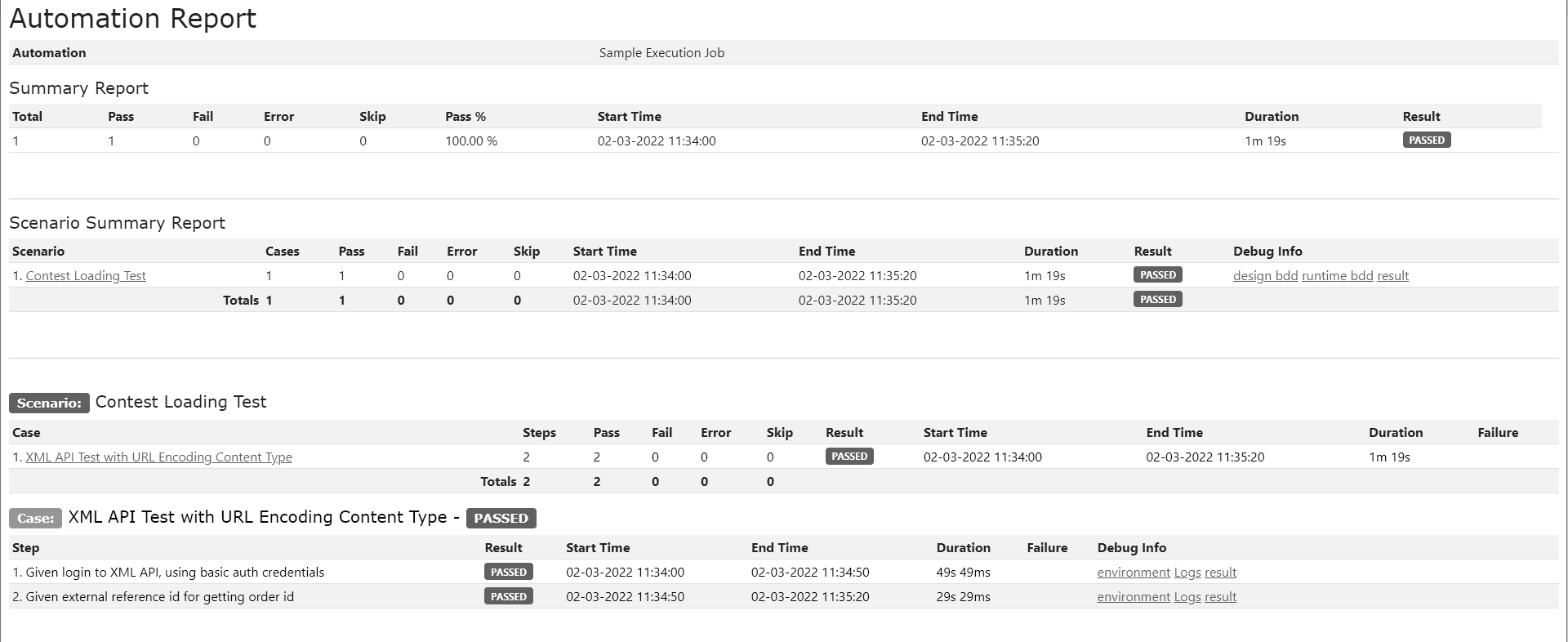
Figure 7-1 shows a sample of the automation report.
SSH SFTP Plug-in
The Secure Shell (SSH) Plug-in is used to run shell commands and SFTP is used to transfer files. They automate interactions with remote servers, making them invaluable for configuration management, server monitoring, and deploying applications.
The following are the key features of the SSH SFTP Plug-in:
- Command Execution: Automate execution of shell commands on remote servers.
- File Transfers: Transfer files securely using SCP or SFTP protocols.
- Session Management: Handle multiple sessions with session reusability.
Environment Connection Configuration
- Basic
- Key (Public/Private)
Basic Authorization
Basic Authentication supports a straightforward authentication method where the client provides credentials (username and password).
Refer to the following example for basic authorization.
# Environment name
name=tasstest-ssh
type=SSH

#Configuration
hostname=hostname.oracle.com
port=22
#---------------------------------------------------------
# Authorization
#---------------------------------------------------------
authorization=YES
authorization.type=basic
username=
password=
Private Key Authorization
Supports only RSA private key.
Note:
The key.file has to be present in the user's local system from where the scenario is performed.#------------------------------------------------------------------------------------
# SSH Command Sample Environment Connection Configuration
# Using Authentication KEY
#------------------------------------------------------------------------------------
name=dx4c-ssh
type=SSH
#Configuration
hostname=123.456.78.9
port=22
#---------------------------------------------------------
# Authorization
#---------------------------------------------------------
authorization=YES
authorization.type=KEY
key.file=C:/Users/MSHAIK/.ssh/id_rsa
key.user=opcAction Configuration:
The following are the contents of an action file that contains SSH commands:
{
"path":"SSHCommand/run-ssh-command",
"name":"run SSH command",
"bdd":"run SSH command",
"description":"run SSH command",
"tags":["ssh"],
"product":"ssh-test",
 "actionType":"SSH",
 "subType":"SSHCommandAction",
 "expectedStatusCode":0
}
TestStep
Step: run SSH command
Data parameter: SSH command, environment name
Validation parameters:
- SSH Command exit code using $status
- Response string : Using validation variable : $data
- Error response: Using validation variable : $error
Save parameters:
- Use save variable with value '$data' to save the command response.
- If the command is known to return an error, use $error to save the error response.
Scenario Example :
Then run SSH command, to check the current directory
Data:
| $command | pwd |
| $environment | tasstest-ssh |
Validate:
| $status | 0 |
| $data | %CONTAINS(tenant1) |
Save:
| currentDir | $data |
| homeDir | %SUBSTRING(${currentDir},0,5) |

Then run SSH command, to check the current directory and to check the user
Data:
| $command | pwd;whoami |
| $environment | tasstest-ssh |
Validate:
| $status | 0 |
| $data | %CONTAINS(tenant1) |

#command that generates both response and error
Then run SSH command, command generating both response and error
Data:
| $command | pwd;ls -lrt dummy.txt |
| $environment | ssh-test |
Validate:
| $status | 2 |
| $error | %CONTAINS(No such file or directory) |
Save:
| response | $data |
| errorResponse | $error |
Replacing Special Characters
If the SSH Command has any of the following special characters, they should be replaced with keywords, otherwise publish scenario scripts might fail.
Table 7-1 Replacing Special Characters
| Character | Description | Replace with |
|---|---|---|
| ' | Single Quote | %{SQUOTE} |
| " | Double Quote | %{DQUOTE} |
| \ | Backslash | %{BACKSLASH} |
| , | Comma | %{COMMA} |
For example,
Then run SSH command, update the subscriberIdentifier in the scenario_params_tmp.csv file
 Data:
 | $command | cd $HOME/enablement/seagull ; awk 'NR==2 {$2="\"${login_details}\""} 1' FS=";" OFS=";" scenario_params_tmp.csv > temp && mv temp #scenario_params_tmp.csv |
 | $environment | pdc-ssh |
 Validate:
 | $status | 0 |
SSH command in the example above should be provided as follows.
Then run SSH command, update the subscriberIdentifier in the scenario_params_tmp.csv file
 Data:
 | $command | cd $HOME/enablement/seagull ; awk %{SQUOTE}NR==2 {$2=%{DQUOTE}%{DQUOTE}${login_details}%{DQUOTE}%{DQUOTE}} 1%{SQUOTE} FS=%{DQUOTE};%{DQUOTE} OFS=%{DQUOTE};%{DQUOTE} scenario_params_tmp.csv > temp && mv temp scenario_params_tmp.csv |
 | $environment | pdc-ssh |
 Validate:
 | $status | 0 |
ExitCondition
Commands that do not exit on their own or take a long time to complete can be assigned an exit condition.
$exitCondition: A predefined response from the SSH command can be used as an exit condition. If the SSH command freezes during execution or fails to return control, the response is checked for this exit condition. If it is detected, the SSH channel is closed by STAP.
$endAfter: When an exit condition is present, it is mandatory to provide the end after time, to avoid an indefinite wait time. While checking for the exit condition in the SSH response, if it is not found even after the end after duration elapses, STAP forcefully closes the SSH channel. $endAfter is mentioned in seconds.
Note:
The exit status of the SSH command in the above case is set to -1 to indicate forceful termination.For example,
#command that does not exit by itself
Then run SSH command, echo command, usage of expected response
Data:
| $command | sleep 5;echo done;sleep 20 |
| $exitCondition | %CONTAINS(done) |
| $endAfter | 15 |
| $environment | ssh-test |
Validate:
| $status | -1 |
Note:
- Only the SSH command can be passed as a data parameter to "the run SSH command" step.
- More than one command can be passed in a single step, by separating the commands using semicolons(;).
- Supported validations are:
- Exit code of the command using the validation property $status.
- %CONTAINS checks for any string that may be a part of the command response or error.
- In response validation, a single string can be passed to the %CONTAINS operator.
- the save variable with value '$data' should be used to save the command response. If the command generates any errors, it can be saved in $error. Functions can be operated on these saved variables.
- Both $data and $error can be used in single step. For instance, it is possible that a command generates some response but there is also an error in response, in which case both $data and $error can be used to validate and save the response accordingly.
- Each SSH Step opens a new ssh session with the remote server and hence any prerequisites needed for the command such as environment variables should also be set in the command.
- Exitcode 0: Command successfully performed
- Exitcode 1: Catchall for general errors
- Exitcode 99: Problem in the context of the specific program
- Exitcode 126: A command is found but is not executable
- Exitcode 127: Command not found
SFTP Commands
SSH File Transfer Protocol commands for uploading and downloading files are supported as shown below.
For example,
Then run SSH command, upload file
 Data:
 | $command | $sftp:UPLOAD_FILE |
 | $environment | brm-ssh |
 | $source | $FILE(usageFile.csv) |
 | $target | /scratch/ri-user-1/dummy/sample.csv |
 Validate:
 | $status | 0 |


Then run SSH command, download file
 Data:
 | $command | $sftp:DOWNLOAD_FILE |
 | $environment | brm-ssh |
 | $source | /scratch/ri-user-1/dummy/sample.csv |
 | $target | $FILE(usageFile1.csv) |
 Validate:
 | $status | 0 |
Step: run SSH command
Data parameters: SFTP command, environment name, source and target paths for file transfer.
Validation parameters: SFTP Command exit code.
Commands:
-
$sftp:UPLOAD_FILE: Used to transfer file from local system to remote server.
Parameters:
- Source: Name of the local file to be transferred to remote server, where the file name should be specified as $FILE(filename) and it should be present inside "data" folder.
- Target: The absolute path of the file destination on remote server.
- $sftp:DOWNLOAD_FILE: Used to transfer file from remote server to
local system. Parameters:
- Source: The absolute path of the source file on remote server.
- Target: Name of the local file to which the remote file should be copied, where the file name should be specified as $FILE(filename).
Note:
- Both the source and target paths are mandatory for file transfer.
- File names should be specified with extension.
SSH Private Key
STAP SSH Command supports only RSA private key.
If you see this error in STAP.
**********-------------------------------------------------------------------------------------
Running...SSH Command Action
Server : ssh
Action : run SSH command
Error : Failed to run command. Error : invalid privatekey: [B@222a59e6
**********-------------------------------------------------------------------------------------
If your private key appears similar to the example below when viewed in a text editor, you should convert it to an RSA private key.
-----BEGIN OPENSSH PRIVATE KEY-----
b3BlbnNzaC...
...
...
...MAECAwQF
-----END OPENSSH PRIVATE KEY-----
Use ssh-keygen to convert your private key to RSA private key
ssh-keygen -p -f ~/.ssh/id_rsa -m pemNote:
Replace the location of private key ~/.ssh/id_rsa-----BEGIN RSA PRIVATE KEY-----
MIIG4wIBAAK...
...
...
...E428GBDI4
-----END RSA PRIVATE KEY-----Troubleshooting
If the command is a script execution, ensure any prerequisites needed for it are also set in the command.
For example,
Then run SSH command and the script for modifying the account's profile (it calls PCM_OP_CUST_MODIFY_PROFILE internally)
Data:
| $command | sh associateFFmember.sh ${profileObj} |
| $environment | pdc-ssh |
Validate:
| $status | 0 |
Generates an error:
testnap: error while loading shared libraries: libportal.so: cannot open shared
                object file: No such file or directory
Here command contains execution of a script associateFFmember.sh that internally runs a command that needs the proper path set on $LD_LIBRARY_PATH. Since each STAP ssh step opens a new ssh connection, it is important to make sure path is set properly.
Resolution:
Then run SSH command, run the script for modifying the account's profile (it calls PCM_OP_CUST_MODIFY_PROFILE internally)
Data:
| $command | export LD_LIBRARY_PATH=$LD_LIBRARY_PATH:/scratch/ri-user-1/opt/portal/BRM/lib64:/scratch/ri-user-1/opt/portal/BRM/lib;echo $LD_LIBRARY_PATH;sh associateFFmember.sh ${profileObj} |
| $environment | pdc-ssh |
Validate:
| $status | 0 |
Process Plug-in
The STAP process plug-in is used to run the shell commands locally using java.lang.process.
Action
The command to be run using the process plug-in is mentioned in the action.json's field 'command'.
Supported Types of commands :
- Simple shell command
- Command with variables
- Command with parameters
1. Simple command:
Example: To run a shell command to fetch th current directory :
run-pwd.action.json
{
"path":"process/run-command",
"name":"run pwd command",
"bdd":"run pwd command",
"description":"run pwd command",
"product":"process",
 "actionType":"PROCESS",
"tags":["custom","process"],
 "expectedExitCode":0,
"command":"sh,-c,pwd"
}
Example: To launch Notepad.exe
launch-notepad.action.json example
{
"path":"process/run-command",
"name":"launch notepad",
"bdd":"launch notepad",
"description":"launch notepad",
"product":"process",
"actionType":"PROCESS",
"tags":["custom","process"],
 "expectedExitCode":0,
"command":"notepad.exe"
}
2.Command with variables
A command can contain the variables whose value is updated from the context during runtime.
Syntax : ${ VariableName }
Note:
The variable name should have been saved in any of the steps that are performed before the step (action) which has that variable name in the action's command.For example, in the following action.json, command has a variable : ${messageScript} that indicates the location of the script file to be run.
process-action.json example
{
"path":"process/run-command",
"name":"run message script",
"bdd":"run message script",
"description":"run message script",
"product":"process",
 "actionType":"PROCESS",
"tags":["custom","process"],
 "expectedExitCode":0,
"command":"sh,-c,sh ${messageScript}"
}
In the following scenario, the value for variable messageScript is saved in the step: 'set variable' before the step 'run message script'
So that updated command during execution will be : "sh,-c,sh ProcessPlugin/Message.sh"
message.scenario
#saving scripts paths
When set variable,
Save:
| messageScript | $FILE(Message.sh) |

When execute message script,
Validate:
| $status | 0 |
3.Command with parameters
Parameters/arguments in the command can be mentioned in format : %{ ParameterName : ParameterValue }
'ParameterValue' is the default value to be used. ParameterName is used just to check if value for it is passed from the Test Step's 'Data' section.
If yes, then the data variable's value overrides the default 'ParameterValue' . The final value of the parameter replaces %{ ParameterName : ParameterValue } in the command.
For example, in the following action.json, the command has two parameters : %{FirstName:John} and %{SecondName:Tribbiani}.
If custom value for parameters FirstName and SecondName are specified from the test steps's Data section, then those values override the default values John and Tribbiani respectively.
process-action.json example
{
"path":"process/run-command",
"name":"run test script",
"bdd":"run test script",
"description":"run test script",
"product":"process",
 "actionType":"PROCESS",
"tags":["custom","process"],
"expectedExitCode":0,
"command":"sh,-c,sh ${testScript} %{FirstName:John} %{SecondName:Tribbiani}"
}
In the following scenario, a custom value is provided for parameter 'FirstName' only. Parameter 'SecondName' takes the default value.
So that updated command during execution will be : "sh,-c,sh ProcessPlugin/test.sh Joey Tribbiani"
test.scenario
When set variable,
Save:
| testScript | ProcessPlugin/test.sh |

When run test script
Data:
#passing custom value for the parameter 'FirstName'
| FirstName | Joey |
Validate:
| $status | 0 |
Test Step:
Data:
 a) Parameters/Arguments for the command to be run.
 b) waitAfter : By default stap process plugin waits for 2 seconds for the command to finish execution. If a command is known to take more than 2 seconds, then user must specify custom wait time in the Test Step using data variable  'waitAfter'

Validation:
 a) $status : Expected exit code for the process executing the command. Multiple comma separated exit codes can be specified.
 b) $data : String to be validated against the entire Response of the process executing the command.

Save:
a) $data :  Entire Response of the process executing the command
Validation:
- If Validation for the exit code is not explicitly given in the Test Step ( that is $status), then the expectedExitCode mentioned in the action.json is used to validate if the execution is successful or not.
-
The only Validation properties supported in Process plug-in are $status and $data. Functions and operators are supported on the $data as shown in below example.
exampleWhen run test script Data: | UserName | Joey | Validate: | $status | 0 | | $data | %CONTAINS(Joey) |
Save:
The only Save property supported in Process plug-in is $data. Once $data is saved in a variable, Functions and operators are supported on that variable as shown in below example.
example
When run test script
Data:
| UserName | Joey |
Save:
| scriptResponse | $data |
| scriptResponse2 | %UPPERCASE(${scriptResponse}) |
| scriptResponse3 | %SUBSTRING(${scriptResponse},0,4) |
Scenario Example:
process.scenario
Scenario: Process Plugin Automation Scenario
Description: Process Plugin Automation Scenario

Tags: Test, Process

Case: Process action test

When launch notepad
Validate:
| $status | 1 |

When execute pwd command
Validate:
| $status | 0 |

#Multiple exit codes in validation
When execute pwd command, multple validation codes
Validate:
| $status | 0,1,2 |

#saving scripts paths
When set variable,
Save:
| messageScript | $FILE(Message.sh) |
| testScript | $FILE(processPluginTest.sh) |

#variables to be updated in action file's command
When execute test script, sending variables to be updated in action file's command
Data:
| UserName | Joey |
| FullName | Joey_Tribbiani |
| Age | 30 |
Validate:
| $status | 0 |
| $data | %CONTAINS(Joey) |
#Saving response and operations on response and validation
Save:
| scriptResponse | $data |
| scriptResponse2 | %UPPERCASE(${scriptResponse}) |

#specifying waitAfter time
When execute message script,
Data:
| message | Hello_Good_morning |
| waitAfter | 2 |
Validate:
| $status | 0 |
Seagull
Seagull is an open-source tool for testing and simulating network protocols. The STAP Seagull plug-in is used to run the seagull test scenarios. It can be used to generate the diameter traffic, provided the scenario and the required configuration files are present.
Key Features:
- Protocol Simulation: Simulate protocols like SIP, Diameter, and HTTP.
- Traffic Generation: Generate high volumes of traffic for stress testing.
- Custom Scenarios: Define custom test scenarios with dynamic parameters.
- Performance Analysis: Measure response times and system behavior under load.
Seagull Connection:
seagull-environment.properties
#==============================================================================
# Seagull Connection Configuration
#==============================================================================
#Fixed fields of seagull connection,do not modify.
name=seagull
type=SEAGULL

# User modifiable fields of seagull connection.
#Absolute path of seagull installation directory.
seagull.installationDirectory =
#seagull supported log levels
seagull.logLevel = ETMA
#Absolute path to store seagull execution logs.
seagull.logDirectory =
Action:
- Creating seagull instance (Fixed action)
- Running seagull scenario
Create seagull instance
The following action.json is used to create seagull instance. The field 'instanceName' is the default name used to create the instance. This is the fixed action to create the seagull instance and should not be modified. Multiple seagull instances (that is, having different config files and dictionary files) can be created by reusing this same action and saving the instance with a different name using the $name save variable in the test step.
create-seagull-instance.action.json
{
"path":"CustomAction/seagull-action",
"name":"Create seagull instance",
"bdd":"create seagull instance",
"description":"create seagull instance",
"product":"seagull",
 "actionType":"SEAGULL",
 "subType":"CREATE_INSTANCE",
"tags":["custom","process"],
"instanceName":"seagull"
}
Running seagull scenario
Depending on the scenario to run, any number of action.jsons can be created.
The name of the scenario to be performed is specified using the field 'scenario'.
client-scenario-sar.action.json
{
"path":"CustomAction/seagull-action",
"name":"Run client scenario",
"bdd":"run client scenario sar",
"description":"run client scenario",
"product":"seagull",
 "actionType":"SEAGULL",
 "subType":"RUN_SCENARIO",
"tags":["custom","process"],
"scenario":"sar-saa.client.xml"
}
Test Step:
Creating a seagull instance:
Data:
a) $configFile : Name of the config file to be used for creating seagull instance.
b) $dictionaryFile : Name of the dictionary file to be used for creating seagull instance.

Save :
a)$name : Custom name for the seagull instance. This name overrides the instanceName given in action.json.
For example,
create-seagull.case
When create seagull instance,
Data:
| $configFile | conf.client.xml |
| $dictionaryFile | base_cx.xml |
Save:
#
| seagull1 | $name |
Running seagull scenario
Data:

a) $name : Name of the seagull instance to be used for running the scenario. An instance of this name should have been created before using 'create seagull instance' step, otherwise execution will result in failure.
b) $externalDataFile : Name of the external data file ( CSV format ). This data file is used to change content of the message in seagull scenario before sending.
c) $params : To send the dynamic values for one or more fields, using these values, the external data file is updated.

   Syntax : Data types of the field separated by comma ;Values of the fields separated by comma.
   Example:
    | $params | number;16 |
For example,
create-seagull.case
When run client scenario sar,
Data:
| $name | seagull1 |
| $externalDataFile | external_client_data.csv |
| $params | number;16 |
Note:
If the $externalDataFile is specified and $params is not specified, then the external data file is used as it is during scenario execution. If $params is present, then contents of external data file is overridden with the value of $params.
You must carefully supply data types and values depending on the seagull scenario to be run.
Test Step Data:
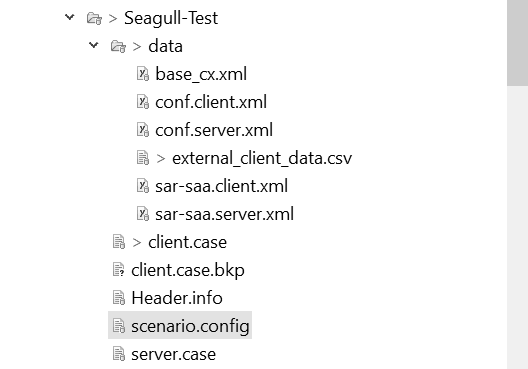
You should create a folder named 'data' under the same folder where the STAP scenario to run seagull is created. The data files for creating seagull instance such as config.xml and dictionary.xml , Seagull scenario file scenario.xml and the external data file should be copied to this 'data' folder.
Figure 7-2 displays the Seagull folder structure:
Note:
- In STAP, Seagull is launched in the background mode because otherwise it expects keyboard input.
- If there are any errors found in the seagull log file, then an error is thrown and STAP execution fails. User needs to have the knowledge of the seagull configurations ( config.xml, dictionary.xml ) and the seagull scenarios and should put these appropriate files under the 'data' folder in order to ensure successful execution of the STAP scenario.
Scenario Example:
seagullServer.case
Case: Seagull test-Server instance

#instance creation using default name
When create seagull instance,
Data:
| $configFile | conf.server.xml |
| $dictionaryFile | base_cx.xml |


When run server scenario sar,
Data:
| $name | seagull |
seagullClient.case
Case: Seagull client test

When create seagull instance,
Data:
| $configFile | conf.client.xml |
| $dictionaryFile | base_cx.xml |
Save:
| seagull1 | $name |


#scenario execution with external data file
When run client scenario sar,
Data:
| $name | seagull1 |
| $externalDataFile | external_client_data.csv |
| $params | number;16 |
Report
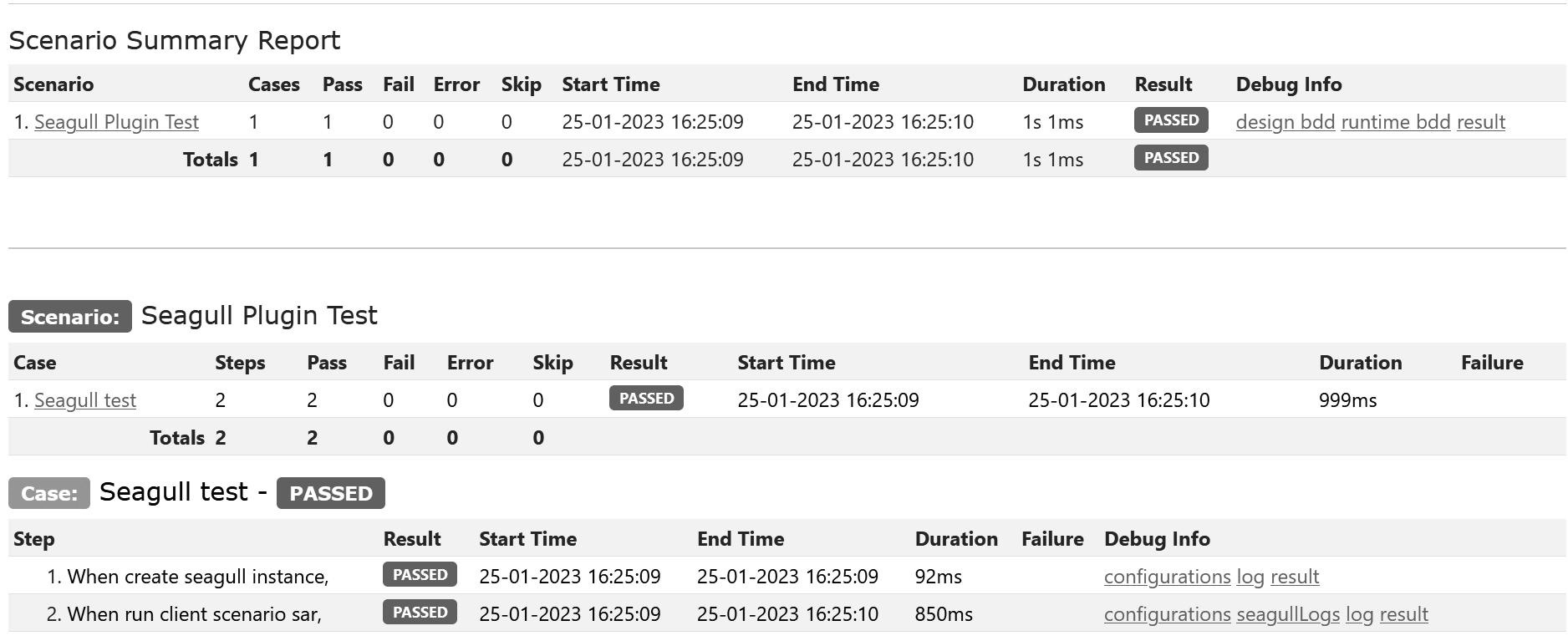
- configurations hyperlink in the report shows the seagull instance created and used for the scenario execution.
- seagullLogs hyperlink shows the logs generated by the seagull scenario execution.
Figure 7-3 displays an example Seagull Plug-in Test Scenario Summary Report:
Figure 7-3 Seagull Plug-in Test Scenario Summary Report
JMX
JMX plugins are used for monitoring and managing Java applications and their resources.
JMX Connection:
Supported Authorization types:
- Basic
- No Authorization
Basic Authorization
Example:
ece-jmx-environment.properties
name=Test-JMX
type=JMX

hostname=hostname
port=1234

#==============================================================================
# Authorization Configuration
# Values = YES : Use authorization NO : No authorization required.
#==============================================================================
authorization=YES

authorization.type=basic

#- BASIC Authorization
basic.username=
basic.password=
No Authorization
Example:
ece-jmx-environment.properties
name=Test-JMX
type=JMX

hostname=hostname
port=1234

#==============================================================================
# Authorization Configuration
# Values = YES : Use authorization NO : No authorization required.
#==============================================================================
authorization=NO

#authorization.type=basic

#- BASIC Authorization
#basic.username=
#basic.password=
Supported Actions:
- Get Attribute
- Set Attribute
- Set Attributes
- Get Bean Info
- Get Bean Config Info
- Invoke Operation Get
- Invoke Operation Set
Get Attribute
To fetch the value of the attribute of an Mbean on the JMX server provided in the Scenario file.
The beanName and the attributeName should be provided in the scenario file.
Action.json
get_attribute_value.action.json
{
"path":"CustomAction/brm-action",
"name":"get attribute",
"bdd":"get attribute",
"description":"get attribute",
"product":"ECE",
 "actionType":"JMX",
 "subType":"GET_ATTRIBUTE",
"tags":["custom","jmx"]
 }
Data needed:
Data
Data:
$beanName - beanName of the attribute
$attributeName - name of the attribute

Validate:
$data : fetched value to be validated against the expected value
Case:
Example
When get attribute, display the value of the attribute

Data:
| $beanName | Users:type=UserDatabase,database=UserDatabase |
| $attributeName | pathname |
Validate:
| $status | SUCCESS    |
| $data | %CONTAINS(testing)|
Set Attribute
To update value of the attribute of a mBean provided in the scenario file.
The beanName, attributeName, attributeValue and the attribute datatype should be provided in the scenario file.
The supported values for attributeType are: string, long, integer, and boolean
set_attribute_value.action.json
{
"path":"CustomAction/brm-action",
"name":"set attribute",
"bdd":"set attribute",
"description":"set attribute",
"product":"ECE",
 "actionType":"JMX",
 "subType":"SET_ATTRIBUTE",
"tags":["custom","jmx"]

 }
Data
Data:
$beanName - beanName of the attribute
$attributeName - name of the attribute
$attributeValue - the new value to be updated
$attributeType - the datatype of the attribute. (string | long | integer | boolean)

Validate:
$status: successful update of the attribute value
Example
When set attribute, set the value of the attribute

Data:
| $beanName | Users:type=UserDatabase,database=UserDatabase |
| $attributeName | pathname |
| $attributeValue | testing |
| $attributeType | string |
Validate:
| $status | SUCCESS    |
Set Attributes
To update multiple attributes under a single mBean.
The attributes and the values are specified in a separate json file.
set_multiple_attributes_value.action.json
{
"path":"JMX",
"name":"set attributes",
"bdd":"set attributes",
"description":"set attributes",
"product":"ECE",
 "actionType":"JMX",
 "subType":"SET_ATTRIBUTES",
"tags":["custom","jmx"],
"attributesType": "FILE"

 }
Data
Data:
$beanName - beanName of the attribute
$request - filename with the attributes data JSON
For example,
When set attributes, set the value of the attributes

Data:

| $beanName | Users:type=UserDatabase,database=UserDatabase |
| $request | $dynamic |
Validate:
| $status | SUCCESS    |
Attributes data JSON:
JMX.dynamic.request.json
{
"attributes": [
        {
            "name": "pathname",
            "value": "testing",
            "attributeType":"string"
        },
        {
            "name": "pathname",
            "value": "testing",
            "attributeType":"string"
        },
        {
            "name": "pathname",
            "value": "testing",
            "attributeType":"string"
        }
    ]
}
Get Bean Info
To display the mBeanInfo for the mBean name mentioned in the scenario file
The beanName should be provided in the scenario file.
displayMbean.action.json
{
"path":"CustomAction/brm-action",
"name":"display mBean Info",
"bdd":"display mBean Info",
"description":"display mBean Info",
"product":"ECE",
 "actionType":"JMX",
 "subType":"GET_BEAN_INFO",
"tags":["custom","jmx"]

 }
Data
Data:
$beanName - beanName of the attribute

Validate:
$status: successful display of the mBeanInfo

Save:
beanInfo:  Bean Info of the mBean
For example,
Step
When display mBean Info, display the bean info
Data:
| $beanName | Users:type=UserDatabase,database=UserDatabase |
Validate:
| $status | SUCCESS    |
Save:
| beanInfo | $data|
Get Bean Config Info
To display the Config info for the mBean name mentioned in the scenario file
The beanName should be provided in the scenario file.
get_config.action.json
{
"path":"CustomAction/brm-action",
"name":"get config",
"bdd":"get config",
"description":"get configuration",
"product":"ECE",
 "actionType":"JMX",
 "subType":"GET_CONFIG",
"tags":["custom","jmx"]
 }
For example,
When get config, get the value of configuration

Data:

| $beanName | ${beanName} |

Validate:
| name | Users:type=UserDatabase,database=UserDatabase |
| children[0].name | UserDatabase,database=UserDatabase |
Save:
| beanName | name |
| child | children[0].name |
| descriptor | children[0].info[0] |
| mBeanInfo | children[0].info[1] |
| attribute | children[0].attributes[0].name |
| attributeInfo | children[0].attributes[0].info[0] |
Invoke Operation Get
To invoke JMX operations that return data from the JMX server.
The returned data can be saved and validated.
This case requires a bean name, an operation name, and a JSON containing the parameters.
invoke_get_operation.action.json
{
"path":"JMX",
"name":"invoke get operation",
"bdd":"invoke get operation",
"description":"invoke get operation",
"product":"ECE",
 "actionType":"JMX",
 "subType":"INVOKE_OPERATION_GET",
"tags":["custom","jmx"]

 }
For example,
Example
When invoke get operation, invokes the JMX operation

Data:
| $beanName | ${beanName} |
| $operationName | findGroup |
| $params | $dynamicGetParams |

Validate:
| $status | SUCCESS    |
| $data | %CONTAINS(Users:type=Group,groupname="johndoe",database=UserDatabase)|

Save:
| groupName | data |
Parameter JSON:
The order of parameters should be as mentioned in the JMX API documentation for the operation.
JMX.dynamicGetParams.request.json
{

"params": [
        {
            "name": "groupname",
            "value": "johndoe",
            "attributeType":"string"
        }
    ]

}
Invoke Operation Set
To invoke JMX operations that sets attributes or performs operations on the JMX server. There is no data returned from the JMX server when this operation is invoked.
This case requires a bean name, an operation name, and a JSON containing the parameters.
invoke_set_operation.action.json
{
"path":"JMX",
"name":"invoke set operation",
"bdd":"invoke set operation",
"description":"invoke set operation",
"product":"ECE",
 "actionType":"JMX",
 "subType":"INVOKE_OPERATION_SET",
"tags":["custom","jmx"],
"paramType":"FILE",
"paramFile":"invoke_set_operation.param.json"

 }
Param.json
The order of parameters should be as mentioned in the JMX API documentation for the operation.
invoke_set_operation.param.json
{

"params": [
        {
            "name": "groupname",
            "value": "johndoe",
            "attributeType":"string"
        },
        {
            "name": "description",
            "value": "johndoe group",
            "attributeType":"string"
        }
    ]

}
For example,
When invoke set operation, invokes the JMX operation

Data:
| $beanName | ${beanName} |
| $operationName | createGroup |

Validate:
| $status | SUCCESS    |
Kafka
STAP Kafka is a component used within the Kafka Connect framework to integrate Apache Kafka with various data systems.
Message Queue Interface for Kafka
Automation plug-ins for message queues enable efficient testing and monitoring of message-driven systems.
Key Features:
- Message Publishing: Automate sending messages to queues.
- Consumption: Automate message retrieval and processing.
- Serialization Support: Handle Text, JSON and XML formats.
Kafka Connection
#---------------------------------------------------------------------------------------
# Environment name
#---------------------------------------------------------------------------------------
name=test
type=Kafka

#---------------------------------------------------------------------------------------
# Bootstrap Servers
# List of comma separated bootstrap servers
#---------------------------------------------------------------------------------------
servers=servername

#---------------------------------------------------------------------------------------
# Authorization
# -- Not used in this version --
#---------------------------------------------------------------------------------------
authorization=NO
Kafka Connection supports two types of authentications:
- Basic
- OAuth2
Refer to the following example for a Basic Authorization.
#---------------------------------------------------------------------------------------
# Environment name
#---------------------------------------------------------------------------------------
name=test
type=Kafka

#---------------------------------------------------------------------------------------
# Bootstrap Servers
# List of comma separated boot strap servers
#---------------------------------------------------------------------------------------
servers=<servername>

#---------------------------------------------------------------------------------------
# Authorization
# Supported Basic Auth (Since 1.26.1.0.0)
#---------------------------------------------------------------------------------------
authorization = YES
authorization.type = basic

basic.username = <user-name>
basic.password = <password>
Refer to the following example for a Oauth2Authorization.
#==============================================================================
# KAFKA Environment Configuration with IDCS OAuth2
# This follows the same pattern as brm-rest-environment.properties
#==============================================================================
# Environment name
name=test
type=Kafka

#==============================================================================
# Bootstrap Servers (SSL port)
# List of comma separated bootstrap servers
#==============================================================================
servers=<server1, server2, ...>

#==============================================================================
# Authorization Configuration
# Values = YES : Use authorization NO : No authorization required.
#==============================================================================
authorization=YES

#==============================================================================
# authorization.type can be: oauth2 or basic
#==============================================================================
authorization.type=oauth2

#==============================================================================
# OAuth2 - IDCS Configuration (same properties as REST plugin)
#==============================================================================
oauth2.grantType=client_credentials
oauth2.clientId=<clientid>
oauth2.clientSecret=<client_secret>
oauth2.tokenUrl=https://idcs-<tenantid>.identity.oraclecloud.com/oauth2/v1/token
oauth2.scope=http://localhost:9092/dbe

#==============================================================================
# SSL Configuration
# ssl=YES will use SASL_SSL, ssl=NO will use SASL_PLAINTEXT
#==============================================================================
ssl=YES
ssl.truststore.location=C:/<ssltruststore_path>
ssl.truststore.password=*******
ssl.endpoint.identification.algorithm=

#==============================================================================
# Optional: For password_credentials grant type (uncomment if needed)
#==============================================================================
#oauth2.grantType=password_credentials
#oauth2.authorization.username=your-username
#oauth2.authorization.password=your-password

#==============================================================================
# Optional: Connection Timeouts
#==============================================================================
maxIdle=10000
requestTimeout=5000
Action
The following table lists the action properties:
Table 7-2 Action Properties
| Property | Mandatory | Description | Default Value | Allowed Values |
|---|---|---|---|---|
| actionType | Yes | Kafka Plug-in Type | Kafka | Kafka |
| subType | Yes | Kafka action sub types | N/A | GET_TOPIC_LATEST_MESSAGE, PING_SERVER, SEND_TOPIC_MESSAGE, GET_MESSAGE_COUNT, DELETE_TOPIC_MESSAGES |
| topic | Yes | Topic name | N/A | N/A |
| commit | No | Commit message read | false | true, false |
Supported Action Types:
- Get Topic Last Message
- Ping Server
- Send Topic Message
- Get Message Count
Get Topic Last Message
{
"path":"Kafka",
"name":"Get Topic Last Message",
"bdd":"get topic last message",
"description":"get topic last message",
"tags":["Kafka,get,topic,message"],
"product":"test",
 "actionType":"Kafka",
 "subType":"GET_TOPIC_LATEST_MESSAGE",
 "topic":"test-topic",
 "groupId":"test-consumer-group",
 "commit": false
}
Ping Server
{
"path":"Kafka",
"name":"Ping Server",
"bdd":"ping server",
"description":"ping server",
"tags":["Kafka,ping,server,test"],
"product":"test",
 "actionType":"Kafka",
 "subType":"PING_SERVER",
 "topic":"test-topic",
 "commit": false
}
Send Topic Message
{
"path":"Kafka",
"name":"Send Topic Message",
"bdd":"send topic message",
"description":"Send Topic Message",
"tags":["Kafka,send,message"],
"product":"test",
 "actionType":"Kafka",
 "subType":"SEND_TOPIC_MESSAGE",
 "topic":"test-topic",
 "groupId":"test-consumer-group",
 "commit": false
}
Get Message Count
{
"path":"Kafka",
"name":"Get Message Count",
"bdd":"get message count",
"description":"get number of messages",
"tags":["Kafka,get,message,count"],
"product":"test",
 "actionType":"Kafka",
 "subType":"GET_MESSAGE_COUNT",
 "topic":"test-topic",
 "groupId":"test-consumer-group",
 "commit": false
}
Scenario Examples
Read last JSON message
When set variable,
Save:
| name | USER |

When get topic last message, for validating account creation message
Data:
| $messageType | JSON |
Validate:
| $status | SUCCESS    |
| name | stap user |
| %SUBSTRING($name,5)  | user |
| %SUBSTRING($name,5)  | %LOWERCASE(${name}) |
| address.residenceNo | 100001 |
Save:
| id | id |
| name | %SUBSTRING($name,5) |
| pin | address.pin |
Runtime Scenario
# Auto-generated by stap-BDD Formatter Version 1.0
Scenario: Kafka Automation Scenarios
Description: Kafka Automation Scenarios
#Tags:


#Persona:
Case: Kafka test

When set variable,
Save:
#|  Property  |  Value  |  Runtime Value  |
 |  name      |  USER   |  USER           |

When get topic last message, for validating account creation message
Data:
#|  Property      |  Value  |  Runtime Value  |
 |  $messageType  |  JSON   |  null           |
Validate:
#|  Property             |  Value                |  Property Value  |  Runtime Value       |  Result  |
 |  $status              |  SUCCESS              |  SUCCESS         |  SUCCESS             |  PASSED  |
 |  name                 |  stap user            |  stap user       |  stap user           |  PASSED  |
 |  %SUBSTRING($name,5)  |  user                 |  user            |  user                |  PASSED  |
 |  %SUBSTRING($name,5)  |  %LOWERCASE(${name})  |  user            |  CONDITION: SUCCESS  |  PASSED  |
 |  address.residenceNo  |  100001               |  100001          |  100001              |  PASSED  |
Save:
#|  Property  |  Value                |  Runtime Value          |
 |  id        |  id                   |  532457234857234879594  |
 |  name      |  %SUBSTRING($name,5)  |  user                   |
 |  pin       |  address.pin          |  560001                 |
Read Last XML Message
When set variable,
Save:
| name | USER |

When get topic last message, for validating account creation message
Data:
| $messageType | XML |
Validate:
| $status | SUCCESS      |
| //name | stap user |
| //address/city | Bangalore |
| %SUBSTRING($//name,5)  | user |
| %SUBSTRING($//name,5)  | %LOWERCASE(${name}) |
| %SUBSTRING(${name},1)  | SER |
Save:
| id | //id |
| name | %SUBSTRING($//name,5) |
| pin | //address/pin |
Runtime Scenario
# Auto-generated by stap-BDD Formatter Version 1.0
Scenario: Kafka Automation Scenarios
Description: Kafka Automation Scenarios
#Tags:


#Persona:
Case: Kafka test

When set variable,
Save:
#|  Property  |  Value  |  Runtime Value  |
 |  name      |  USER   |  USER           |

When get topic last message, for validating account creation message
Data:
#|  Property      |  Value  |  Runtime Value  |
 |  $messageType  |  XML    |  null           |
Validate:
#|  Property               |  Value                |  Property Value  |  Runtime Value       |  Result  |
 |  $status                |  SUCCESS              |  SUCCESS         |  SUCCESS             |  PASSED  |
 |  //name                 |  stap user            |  stap user       |  stap user           |  PASSED  |
 |  //address/city         |  Bangalore            |  Bangalore       |  Bangalore           |  PASSED  |
 |  %SUBSTRING($//name,5)  |  user                 |  user            |  user                |  PASSED  |
 |  %SUBSTRING($//name,5)  |  %LOWERCASE(${name})  |  user            |  CONDITION: SUCCESS  |  PASSED  |
 |  %SUBSTRING(${name},1)  |  SER                  |  SER             |  SER                 |  PASSED  |
Save:
#|  Property  |  Value                  |  Runtime Value          |
 |  id        |  //id                   |  532457234857234879594  |
 |  name      |  %SUBSTRING($//name,5)  |  user                   |
 |  pin       |  //address/pin          |  560001                 |
Runtime Scenario with all cases:
Scenario: Kafka Automation Scenarios
Description: Kafka Automation Scenarios

Case: Kafka test

When set variable,
Save:
#|  Property  |  Value  |  Runtime Value  |
 |  name      |  USER   |  USER           |

When ping server, checking if kafka is available
Validate:
| $status | SUCCESS |

When send topic message, sending message for a topic
Validate:
| $status | SUCCESS |

When get message count, getting number of messages
Validate:
| $status | SUCCESS |

When get topic last message,
Data:
| $messageType | JSON |
Validate:
| $status | SUCCESS    |
| name | stap user |
| %SUBSTRING($name,5)  | user |
| address.residenceNo | 100001 |
Save:
| id | id |
| name | %SUBSTRING($name,5) |
| pin | address.pin |

When get message count, getting number of messages
Validate:
| $status | SUCCESS |
Runtime Scenario with oauth cases:
OAuth2Test.case
Case: OAuth2 Authentication Test
Tags: OAuth2, Kafka, IDCS

When send topic message, with OAuth2 authentication
Data:
| $message | {"test": "oauth2 integration", "timestamp": "2026-02-03"} |
| $messageType | JSON |
Validate:
| $status | SUCCESS |

When get topic last message, with OAuth2
Data:
| $messageType | JSON |
Validate:
| $status | SUCCESS |
| test | oauth2 integration |
UI Automation Plug-in
The STAP UI Automation Plug-in delivers reliable, low-code browser automation within the STAP ecosystem, streamlining UI testing with intelligent waits, self-healing selectors, and a consistent action interface.
The STAP UI Automation Plug-in extends the STAP Action Plug-in Framework to automate and validate interactions with web user interfaces. It abstracts Selenium-based browser automation behind a consistent action interface to enable low-code, browser-independent, and maintainable tests. To reduce flakiness and improve robustness, the plug-in includes intelligent selectors, dynamic wait strategies, automatic retry logic, DOM stabilization detection, and self-healing selectors. Future releases will add AI-assisted element identification, wait management, and failure recovery.
Key capabilities:
- Low-code, browser-agnostic UI automation integrated with the STAP execution lifecycle.
- Intelligent waits, retries, and self-healing selectors to stabilize tests across UI changes.
- Consistent interface across automation types (REST, SOAP, SSH, UI).
The next section explains UI Actions, which the UI Automation Plug-in uses to perform specific tasks and build complete automated UI workflows.
Supported UI Actions
Supported UI actions are modular, scriptable commands in the UI Plug-in that automate interactions with web application interfaces. Each of the supported UI action represents a single user operation, such as clicking a button, entering text in an input field, selecting a value from a drop-down list, validating the page title or URL, or uploading a file. These actions convert complex Selenium WebDriver logic into concise, reusable steps.
In the UI plug-in, you define the supported UI actions in test scripts or BDD scenarios so you can build end-to-end UI workflows in a clear, data-driven format. The plug-in converts each supported UI Action into the required automation code, resolves dynamic variables, locators, and data, and then runs the action in the browser. This process enables fast, reliable, and maintainable automation of functional UI testing across different web applications.
Browser Actions
Browser actions control browser navigation and behavior during UI automation in STAP. The browser action in the UI Plug-in provides a single interface to manage navigation, handle dynamic or static URLs, and perform common browser operations.
It supports expression-based navigation, fixed or mapped paths, and standard browser controls such as back, forward, refresh, alerts, and wait operations.
Table 7-3 Browser Actions
| Action | Description | Arguments | Example |
|---|---|---|---|
|
open |
The |
|
Dynamic: Data:
Ensures dynamic navigation by concatenating base URLs, paths, and parameters and appending them to the base URL defined in the environment. Fixed: Data:
Looks up the URI in the Literal/Static: Data:
|
|
back |
Goes back to the previous webpage from the current page. |
|
Data:
|
|
forward |
Goes forward to the next webpage from the current page. |
|
Data:
|
|
refresh |
Refreshes the current webpage. |
|
Data:
|
|
alert |
Accepts an alert. |
|
Data:
|
|
waitFor |
Waits for a specified time in milliseconds. |
|
Data:
|
Form Actions
Form actions perform interactions with form fields and page elements during UI automation. The form actions toolkit in the UI Plug-in supports standard input operations as well as advanced interactions such as scrolling, keyboard actions, and file uploads. It also supports dynamic parameters and provides diagnostics to help ensure reliable execution.
Table 7-4 Form Actions
| Action | Description | Arguments | Example | Notes |
|---|---|---|---|---|
|
input |
Enters a value in an input field. |
Xpath, Input string |
|
|
|
copyAndPasteInput |
Copies a value from a source input field and pastes it into a destination input field. |
Source Xpath, Destination Xpath |
|
|
|
selectFromDropdown |
Selects a particular field from a drop-down list. |
Input Xpath, value to select, keys |
|
|
|
click |
Clicks a web element. |
Xpath of the web element |
|
|
|
doubleClick |
Performs a double-click on a specified element (button, row, div, and so on). |
Xpath of the web element |
|
|
|
save |
Simulates the Ctrl+S key combination and waits for the operation to complete. |
|
|
$save is the method and uri is the URL.
|
|
pressKeysSequentially |
Presses keyboard keys one after another in sequence. |
|
|
|
|
pressKeysTogether |
Presses a combination of keyboard keys at the same time. |
|
|
|
|
scrollVertical |
Scrolls the page vertically by pixels or to a position (top or bottom). |
Direct value such as |
|
Valid parameters:
|
|
scrollHorizontal |
Scrolls the page horizontally (X axis). For example, wide tables or sections. |
Direct value such as Specials such as |
|
Valid parameters:
|
|
scrollToElement |
Scrolls the page to bring a specific UI element into view and optionally aligns it to the top or bottom of the viewport. |
Option1: Xpath only Option2: Xpath, Input string with alignment. |
|
Valid Parameters:
Variable: Only |
|
infiniteScroll |
Scrolls the page repeatedly to simulate infinite scrolling or page loading. |
input value, input value, input value |
|
Direct format: Valid parameters:
|
|
uploadFile |
Uploads a file to a specified input field (for example, |
|
|
|
Save Actions
The UI Plug-in provides save actions that help manage test state and retrieve values from the UI. These patterns support both explicit value assignment and value capture from UI elements, which improves test flexibility, reduces failures caused by changes, and supports reliable validation.
Context Save
Use the Context Save action to store values directly in the test context so that subsequent steps can reference them during execution.
Table 7-5 Save Actions
| Action | Description | Arguments | Example | Notes |
|---|---|---|---|---|
|
save |
Saves a value in the context as a key-value pair. |
|
|
Saves the value |
Save from UI
Use the Save from UI action to capture a value directly from a UI element and store it in the test context for reuse in later steps.
Table 7-6 Save from UI
| Action | Description | Arguments | Example | Notes |
|---|---|---|---|---|
|
save |
Captures a value from a UI element and stores it in a specified variable using the element’s locator (for example, XPath). |
|
|
|
Validation Actions
Validation actions verify key browser and element states during UI tests to ensure the application behaves as expected and meets user requirements.
Table 7-7 Validation Actions
| Action | Description | Arguments | Example | Notes |
|---|---|---|---|---|
|
url |
Validates the expected URL of the webpage against the actual URL. |
Expected URL |
|
This action validates the current URL of the webpage. |
|
title |
Validates the expected title of the webpage against the actual title. |
Expected title |
|
This action validates the title of the webpage. |
|
visible |
Validates whether a particular web element is visible. |
Locator (Xpath) of the web element |
|
|
UI Plug-in Testing
Use the UI Automation Plug-in to validate end-to-end user journeys, confirm UI behavior, and capture visual evidence as part of continuous testing. The plug-in operates as an action handler within the platform, parsing UI actions, resolving elements, interacting with the browser driver, and returning structured results to the core engine.
With the testing approach in mind, let’s walk through the required setup and execution steps.
Prerequisites
- Installed browser and matching WebDriver (ChromeDriver or GeckoDriver (for Firefox) or msEdgeDriver).
- Access to the AUT, including network routes, credentials, and test data.
- STAP Engine and STAP platform - access and permissions.
- Java runtime (if required by your environment) with adequate heap for UI tests.
- File system access for WebDriver and download directories.
- Stable test URLs and dedicated test accounts.
Steps to Run UI Test Automation Using UI Plug-in
1. Configure the UI Plug-in Environment
To configure the UI-plug-in, create a uiPlugin-environment.properties file with the following properties.
uiPlugin-environment.properties
#Name of the application
name=STAP

#Type Of application
type=UI

#Base url of application
url=

#short description of application
description=stap-ui platform

#browser on which automation will be performed.
# Supported browsers : FIREFOX, CHROME
browser=firefox
# UI Automation Configuration
# Environment based automation-configuration allowing users to customize the behavior of the plugin through a properties file at runtime.
# The following properties control the behavior of the UI automation framework.# Maximum time in milliseconds to wait for an element to be available.
# DefaultValue:5000
element.wait.maxTimeout=

# Maximum time in milliseconds to wait for a page to load.
# DefaultValue:90000
page.load.maxTimeout=

# Minimum time in milliseconds to wait between actions to confirm if the previous action completes or not.
# DefaultValue:500
action.min.wait=

# The maximum time in milliseconds the framework will wait for an element to be available.
# DefaultValue:15000
action.max.wait=

# Time in milliseconds to pause between actions.
# DefaultValue:400
action.delay.wait=

# Maximum number of retries for a failed action.
# DefaultValue:5
max.retries=

# Time in milliseconds to wait before retrying a failed action.
# DefaultValue:2000
retry.delay=

# Training model to be used for UI automation. Can be either 'DEFAULT' or 'LLM'.
# DefaultValue:Default
training.model=
File location: $testWS/config/environments/uiPlugin-environment.properties
2. UI-Product and Browser Configuration
The next step is to configure the browser. This is done by creating a browser-specific properties file (for example, chrome.properties, firefox.properties) with settings for the browser.
The driver.path property is mandatory and should be set to the location of the webdriver file.
The other properties in the browser properties file have default values that can be used or modified as needed.
chrome.properties
#browser-driver path (Mandatory)
driver.path=

# Launch browser in headless mode, i.e (no browser window will appear, Browser operations run in the background).
headless=false

# Set window size
window.size=1920,1080

# Open browser in incognito
incognito=false

# Disable extensions
disable.extensions=true

# Disable pop-up blocking
# TRUE: Allows pop-ups to open, which may be necessary for certain web application tests involving pop-ups or new windows.
disable.popup.blocking=true

# Custom user agent (leave blank to use default; Websites can detect the browser and platform from the User-Agent. Customizing it is useful for simulating different devices or browsers or bypassing certain restrictions.)
user.agent=CustomUserAgent

# Download directory (use absolute path)
download.directory=

# Disable GPU
disable.gpu=true

# Disable notifications (Stops "Allow/block notification" prompts from appearing, reducing flakiness in automated tests.)
disable.notifications=true

# --- PROXY CONFIG (recommended, simple) ---

# Main proxy setting: protocol://host:port (e.g. http://proxyhost:8080, socks5://socksproxy:1080)
proxy.server=

# Proxy protocol type: http, socks5, socks4, ftp, ssl, direct, or system
proxy.type=

# Comma-separated hosts to bypass the proxy (NO_PROXY equivalent)
proxy.bypass=

# For most uses, simply set proxy.server and proxy.type. Example:
#   proxy.server=http://proxyhost:8080
#   proxy.type=http

# Advanced: Separate proxies per protocol (If multiple proxies required, but supported for rare cases):
#   proxy.http.host=
#   proxy.ssl.host=
#   proxy.ftp.host=
#   proxy.socks.host=

# Normally, DO NOT use the above advanced keys unless your network requires it!
File Location: $testWS.config.plugins.ui.browsers
Note:
The UI Automation Plug-in loads a browser driver during execution that could introduce performance overheads.3. Create Scenario Files
The scenario files define the test cases for UI testing. A scenario file typically includes:
- Scenario: The name of the scenario.
- Description: A brief description of the scenario.
- Tags: Relevant tags for the scenario.
- Case: The specific case being tested.
- When statements: The steps to be performed during the test.
For more information see, "Creating Scenarios".
Scenarios-Library.scenario
Scenario: Scenarios library functionality
Description: Actions library functionality
Tags: STAP, Selenium, Scenarios

Case: Scenarios Library Page

When on STAP UI login page, provide login details and submit
Data:
| $open | @uri |
| $input | $username,tesuser |
| $input | $password,****** |
| $pressKeysSequentially | $mockLocator,ENTER |

When on STAP UI scenarios page, selecting scenarios and displaying the steps
Data:
| $click | $menu |
| $click | $scenarios |
| $click | $firstScenario |
| $click | $collapseAllCases |
| $click | $expandAllCases |
| $click | $collapseAllScenarios |
| $click | $expandAllScenarios |
Organizing Scenario Files
To maintain consistency and simplify test case management, scenario files should follow a structured folder hierarchy as outlined below.
Scenario File Location Convention
Scenario files should be placed under:
$testWS/scenarios/{ProductName}/{productPage}/{functionality.scenario}- $testWS: Your test workspace root directory
- ProductName: The product/component being tested (for example, STAP)
- productPage: The specific UI page or module under test (for example, actions)
- functionality.scenario: The scenario file for a specific feature or test case (for example, actions_library_functionality.scenario)
Example:
$testWS/
└── scenarios/
    └── {ProductName}/
        └── {productPage}/
            └── {functionality}.scenario
Scenarios_Library.scenario
$testWS/
└── scenarios/
    └── STAP/
        └── Scenarios-Library/
            └── Scenarios-Library.scenario
4. Create Action Files and Page Properties Files
After creating the scenario file, create the corresponding action files and page properties files.
Action files define the metadata for a specific action. An action file typically includes:
- path: The path to the action.
- name: The name of the action.
- description: A brief description of the action.
- actionType: The type of action (UI), same as mentioned in uiPlugin-environment.properties.
- product: The product name, same as mentioned in uiPlugin-environment.properties (case-sensitive)
- pageElementConfig: The configuration for the page elements.
- tags: Relevant tags for the action.
Example
stap.scenarios.action.json
{
    "path":"Stap/scenarios",
    "name":"on STAP UI scenarios page",
    "bdd":"on STAP UI scenarios page",
    "description":"on STAP UI scenarios page",
    "actionType":"UI",
    "product":"STAP",
    "pageElementConfig":"scenarios",
    "tags":["selenium","stap-ui"]
}
Page properties files define the locators for the page elements. The file name should be in the format <pageElementConfig>.page.properties, where <pageElementConfig> is the value of the pageElementConfig property in the action file.
Example (actions.page.properties):
scenarios.page.properties
page.wait=2000,5000
page.next=history_page

uri = /

menu=xpath://*[@id="drawerToggleButton"]/button
menu.wait=2000,4000

scenarios=xpath://*[@id="ScenarioLibrary"]/a
scenarios.wait=2000,4000

searchScenarios=xpath://input[@placeholder='search...' and contains(@class, 'oj-text-field-input')]
searchScenarios.wait=2000,4000

mockLocator=/
mockLocator.wait=2000,4000

expandAllScenarios=xpath://oj-button[.//span[text()='Expand all']]//button
expandAllScenarios.wait=2000,4000

collapseAllScenarios=xpath://oj-taas-libraries-oj-taas-scenario-library//oj-button//span[text()='Collapse all']
collapseAllScenarios.wait=2000,4000

expandAllCases=xpath://oj-taas-libraries-oj-taas-scenario-library//oj-button//span[text()='Expand cases']
expandAllCases.wait=2000,4000

collapseAllCases=xpath://oj-taas-libraries-oj-taas-scenario-library//oj-button//span[text()='Collapse cases']
collapseAllCases.wait=2000,4000

firstScenario=xpath://ul[contains(@class, 'oj-listview-element')]/li[1]
firstScenario.wait=2000,4000
Organizing Action and Page Properties Files
To ensure a clean and maintainable project structure, action and page properties files should be organized in a standardized folder hierarchy. This enables easy navigation and scalability as your UI automation project grows.
- Create a folder named after your product inside the main actions directory.
- Within the product folder, create a subfolder named UI.
- Inside the UI folder, create a folder for each specific page (use the page’s name).
- Place both the action file (for example, xyz.action.json) and the page properties file (for example, abc.page.properties) inside the respective page folder.
Example
actions/
└── <productName>/
    └── UI/
        └── <pageName>/
            ├── <productName>.<pageElementConfig>.action.json
            └── <pageElementConfig>.page.properties
Example folder structure:
actions/
└── STAP/
    └── UI/
        └── scenarios/
            ├── scenarios.page.properties
            └── stap.scenarios.action.json
Example execution.config.json:
{
  "name": "Stap E2E Tests",
  "mode": "training",
  "group": [
    {
      "name": "UI-Plugin testing",
      "scenarios": [
        "uiMock/dropdown"
      ]
    }
  ]
}
For subsequent runs, you can change the mode value back to default in execution.config.json to resume the standard UI automation flow. The system attempts the primary locator first; if it fails, it cycles through the stored alternative locators and uses the recorded statistics to enable auto-healing via a fallback mechanism, helping prevent test failures. When a working locator is found, it is promoted to the top of the list to optimize future executions.
Note:
This feature is currently supported only for STAP-DE executions and is not available when running from the Microservice.Tiered Configuration System for UI Plugin
The UI Plugin uses a tiered configuration approach to control automation settings, such as timeouts, retries, and delays. Configuration is managed through dedicated property files and code defaults.
- uiPlugin-environment.properties
- plugin-global.properties
Location:
config/plugins/ui/plugin-global.properties
Tiered Override Logic: Config lookup now follows this order: environment properties → global properties → code defaults. If a value is missing, blank, or invalid at a higher tier, it is ignored and the next tier is used automatically.
Common Configuration Settings
These properties determine UI automation framework behavior.
Table 7-8 Common Configuration Settings
| Property Name | Description | Default Value |
|---|---|---|
| element.wait.maxTimeout | Maximum time in milliseconds to wait for an element to become available. | 5000 |
| page.load.maxTimeout | Maximum time in milliseconds to wait for a page to finish loading. | 90000 |
| action.min.wait | Minimum time in milliseconds to wait between actions to confirm previous completion. | 1000 |
| action.max.wait | Maximum time in milliseconds to wait for an action to complete. | 12000 |
| action.delay.wait | Time in milliseconds to pause between actions. | 5000 |
| max.retries | Maximum number of retries for a failed action. | 3 |
| retry.delay | Time in milliseconds to wait before retrying a failed action. | 3000 |
| training.model | Specifies training model for UI automation. Use 'DEFAULT' or 'LLM'. | DEFAULT |
Configuration Override Order
- Environment Properties: If set and non-blank in the environment-specific config (uiPlugin-environment.properties), this value is used.
- Global Property File: If not set in the environment config, the system uses the non-blank value from plugin-global.properties.
- Code Defaults: If neither configuration file provides a non-blank value, the system applies the safe, hard-coded default from UIPluginConfigImpl.
- If a property key is present but blank (for example,
element.wait.maxTimeout=), the system treats it as not set and applies the next configuration tier. - If a property key is missing, the behavior is the same as blank.
All fallback or code defaults are defined and maintained in UIPluginConfigImpl, ensuring a single source of truth and centralized documentation for built-in values.
element.wait.maxTimeout: 5000page.load.maxTimeout: 90000action.min.wait: 1000action.max.wait: 12000action.delay.wait: 5000max.retries: 3retry.delay: 3000
Troubleshooting and Best Practices
For uninterrupted UI tests, follow these best practices:
- The folder containing the action.json file should have the same name as the product name (case-sensitive).
- All file names should be in lowercase.
- The product name is case-sensitive inside the action.json file and in uiPlugin-environment.properties.
- The action.json file naming convention is product_name.page_element_config.action.json (in lowercase).
- The page properties file naming convention is page_element_config.page.properties (in lowercase).
Run UI Tests
To run the UI tests, ensure that the scenarios are added in the execution.config.json file under scenarios section.
testWS/
└── config/
    └── execution/
        └── execution.config.json
Running UI Automation with the TES Microservice
Use the STAP UI Automation Plug-in with the TES microservice to run browser-based UI tests as STAP jobs. The TES microservice orchestrates execution and must have access to the UI automation assets (scenarios, actions, page properties) and the required browser runtime dependencies.
About UI Automation Dependencies
- Automation scripts: .scenario and .case files.
- Environment configuration: uiPlugin-environment.properties and related environment files.
- UI automation resources: UI action JSON files and page properties files (locators).
- Browser dependencies: a supported browser binary and a matching WebDriver binary.
The STAP UI Automation Plug-in requires an installed browser and matching WebDriver, network access to the application under test, and file system access for WebDriver and downloads.
Required Assets
UI Automation Assets for TES Execution
Table 7-9 Required Assets
| Asset Type | Purpose | Examples |
|---|---|---|
| Automation scripts | Define test flows | *.scenario, *.case |
| Environment configuration | Defines base URL, browser, and timeouts | uiPlugin-environment.properties |
| UI automation resources | Defines UI actions and locators | *.action.json, *.page.properties |
| Browser dependencies | Runs and controls the browser | Browser binary, geckodriver, chromedriver |
Set Up TES for UI Automation
Prerequisites
- TES microservice is deployed and can access the Persistent Volume (PV) used for automation assets.
- A supported browser and matching WebDriver are available to the TES runtime.
- Network connectivity from the TES runtime to the application under test (including any required proxy configuration).
Step 1: Service and TES Pod Setup
- Deploy all required services, including TES.
- Install browser dependencies in the TES runtime (TES pod) for UI automation. The browser must be available in the same container image (or runtime) that executes TES jobs; otherwise, UI jobs will not be able to launch a browser.
- Install one browser per TES image, unless the deployment team has validated storage and performance for multiple browsers.
- Ensure all required OS libraries for the selected browser (Firefox/Chrome) are installed.
Note:
Any third-party browser installation method must align with Oracle security and compliance requirements for your environment.- Store UI automation resources in a PV location that TES can read.
- Ensure the PV includes:
- UI action definition files (for example, *.action.json).
- Page properties files (for example, *.page.properties) that define locators
- Use a consistent folder structure for UI actions and page properties files (product folder → UI → page folder → files)
- Create (or update) uiPlugin-environment.properties for the UI target. At minimum, set:
- name (application name)
- type=UI
- url (base URL)
- browser (supported values include Firefox and Chrome)
- If needed, set UI automation timeout and retry properties (for example, element wait and page load timeouts). These properties can be controlled through the environment file and global UI plug-in properties.
- Place the WebDriver binary (for example, geckodriver for Firefox or chromedriver for Chrome) in a TES-accessible path (for example, on the PV).
- Create or update the browser-specific properties file (for example, firefox.properties or chrome.properties).
- Set the mandatory property:
- driver.path=<absolute path to the driver>
- If the environment requires a proxy or proxy bypass configuration, set it in the browser properties file so the browser can reach the application under test
- Ensure TES can load the UI plug-in configuration files, including:
- plugin-global.properties (global UI plug-in settings)
- Browser properties files (for example, chrome.properties, firefox.properties)
- Verify the UI plug-in tiered override behavior (environment properties → global properties → code defaults) to avoid unexpected timeout or retry behavior.
- Ensure the UI scenarios are included in the execution configuration used by TES (for example, execution.config.json)
- Run the job through the TES execution flow that your deployment uses for STAP job execution.
- Review job results and logs in the configured results location.
| Symptom | Likely Cause | Corrective Action |
|---|---|---|
| UI automation cannot launch a browser | Browser binary is not available in the TES runtime | Install the browser in the TES container image or runtime environment (not only on the host). |
| WebDriver fails to start | driver.path is missing or incorrect
|
Set driver.path in the browser properties file and confirm the binary is executable and reachable.
|
| Actions or locators not found | UI action JSON or page properties files are missing or not loaded | Confirm the Persistent Volume (PV) contains the correct *.action.json and *.page.properties files and that the folder structure matches the UI plug-in conventions.
|
| UI is unreachable from TES runtime | Proxy configuration is missing or incorrect | Update proxy and proxy bypass settings in the browser properties file so the browser can access the UI endpoints. |
Best Practices
- Match browser and WebDriver versions and validate compatibility in the TES runtime environment.
- Keep UI automation files lowercase and follow naming conventions for UI action files and page properties files to reduce failures.
- Use PV-backed paths for shared automation resources to simplify updates across deployments.
- Limit access to automation PVs and configuration files based on least privilege, and do not store credentials in plain text.
FAQ
Q: What if we already have existing TES deployment without the browser and we need to install browser for UI Automations?
- If browser needs to be installed in an already existing TES pod, a new image can be created from the existing TES image. Once the file is updated, build a new image and update the override-values.yaml with the new image name and tag -> setup the TES pod with helm upgrade.
- Edit the tes dockerfile to download the gtk3 support and Firefox browser while building the tes image. Run the below steps when the user is set as ROOT, ideally after the proxies have been set.
RUN dnf -y install firefox gtk3 \ && dnf clean all \ && rm -rf /var/cache/dnf - Chrome can be installed with the below commands. It is recommended to install only 1 browser at a time as exclusive impact testing has not been done with two or more browsers being installed and the impact on storage and performance have not been evaluated.
#Chrome installation steps

dnf -y install google-chrome-stable gtk3 \
 && dnf clean all \
 && rm -rf /var/cache/dnf
To avoid any failures during UI testing with the STAP Engine, follow these steps and best practices:
- Configure UI-Plugin:
- Create a uiPlugin-environment.properties file with the required properties.
- Ensure the product name is case-sensitive.
- Configure Browser:
- Update browser-specific properties file (for example, chrome.properties, firefox.properties).
- Set the driver.path property to the location of the webdriver file.
- Create Scenario Files:
- Define the test cases for UI testing.
- Use the correct syntax and formatting.
- Create Action Files and Page Properties Files:
- Create action files with the correct metadata.
- Create page properties files with the correct locators.
- Follow the naming conventions:
- action.json file: product_name.page_element_config.action.json (in lowercase).
- Page properties file: page_element_config.page.properties (in lowercase).
URL Access Validation
Accessibility of URLs can be verified from automation using URL Validation actions.
Environment connection:
URLs are specified with prefix "url." and request headers are specified with prefix "header." in the environment.properties file.
The value given for step's data variable: "url" should match with one of the url names mentioned in environment.properties file.
ui-environment.properties
name=test-ui
type=URL_VALIDATION

#UI Urls
url.launch=https://example.oracle.com/
url.care = https://example.oracle.com/
url.billingcare=http://example.oraclecloud.com/
url.pdc=http://example.oraclecloud.com/
url.osm_task=http://example.osm.org/
url.osm_orchestration=http://example.osm.org/
url.siebel=https://example.oracle.com/enu
url.siebel2=https://example.oracle.com/

#Request header configurations
header.Host = example.oraclecloud.com
header.Accept = text/html,application/xhtml+xml,application/xml;q=0.9,image/webp,*/*;q=0.8
header.Accept-Encoding = gzip, deflate
header.Accept-Language = en-US,en;q=0.5
header.Upgrade-Insecure-Requests = 1
#header.User-Agent = Mozilla/5.0 (Windows NT 10.0; Win64; x64; rv:91.0) Gecko/20100101 Firefox/91.0
Action:
Action file structure
{
"path":"CustomAction/url-action",
"name":"Validate URL",
"bdd":"validate URL",
"description":"run URL validation",
"tags":["custom","URL"],
"product":"test-ui",
 "actionType":"URL_VALIDATION",
 "expectedStatusCode":200
}
Request json
{
  "url":"url"
}
Scenario Example :
Case file
Case: Check accessibility of the DX4C UI Urls

Given validate URL, Launch UI
Data:
| url | launch |
Validate:
| $status | 200 |

Given validate URL, Care UI
Data:
| url | care |
Validate:
| $status | 200 |

Given validate URL, Billing care UI
Data:
| url | billingcare |
Validate:
| $status | 200 |

Given validate URL, PDC UI
Data:
| url | pdc |
Validate:
| $status | 200 |

Given validate URL, osm_task UI
Data:
| url | osm_task |
Validate:
| $status | 200 |

Given validate URL, osm_orchestration UI
Data:
| url | osm_orchestration |
Validate:
| $status | 200 |

Given validate URL, Siebel UI
Data:
| url | siebel |
Validate:
| $status | 200 |

Given validate URL, Siebel UI
Data:
| url | siebel2 |
Validate:
| $status | 200 |
Report:
Note:
The Response section in step result shows the static web page of the URL specified, if the URL returns HTML content.Custom Actions
Following custom actions can be used to generate pass, validation error and general error cases from the scenarios.
Action
Action file structure
{
"path":"CustomAction/run-custom-action",
"name":"run custom action",
"bdd":"run custom action",
"description":"run custom action",
"tags":"custom",
"product":"custom",
 "actionType":"CUSTOM",
 "customActionType":"CustomTestAction",
 "expectedStatusCode":0
}
Test Step
Data parameters
a) type : Custom action type ( PASS / THROW_ERROR / THROW_VALIDATION_ERROR )
b) duration : Duration in milliseconds for which the execution should be paused.
c) error_message : Meaningful error message  in case the type passed is THROW_ERROR / THROW_VALIDATION_ERROR
Scenario Example
Examples
When run custom action, pass case
Data:
| type | PASS |
| duration | 2000 |

When run custom action, validation error case
Data:
| type | THROW_ERROR |
| duration | 2000 |
| error_message | Error occurred, please try again |

When run custom action, validation error case
Data:
| type | THROW_VALIDATION_ERROR |
| duration | 2000 |
| error_message | Validation error occurred |
Mock Custom Action
Mock actions are the custom actions mainly used for testing. Test steps using mock actions , update the request with dynamic values and context values if present, and return it as response.
Action
Action file structure
{
"path":"CustomAction/mock-action",
"name":"run mock action",
"bdd":"run mock action",
"description":"run mock action",
"product":"custom",
 "actionType":"CUSTOM",
 "subType":"MockTestAction",
"tags":["custom","mock"],
"requestType":"FILE",
"request":"run-mock-action.request.json",
 "expectedStatusCode":200
}
Request json:
mock-action.request.json
{
    "id": "1",
    "name": "Buy 2L Milk",
    "description": "Buy 2L milk from nandini booth",
    "status": "CREATED"
}
data/tasks/mock-action.request.json
{
"id":"$ReferenceTask[0]",
"description":"$ReferenceTask[0]"
}
Scenario Example
Case file
Case: Mock action test

When run mock action, creating a task
Data:
| id | WeekdayTask-${UID} |
| name | WeekdayTask-${UID} |
Save:
| taskId | id |
| taskName | name |

#Updating request field id with saved taskId
When run mock action, reading the task
Data:
| $requestString | {"id":"id"} |
| id | ${taskId} |

#Saving data in reference object
When run mock action, creating a task
Data:
| id | WeekEndTask-${UID} |
| name | WeekEndTask-${UID} |
| description | Take a walk in the park |
Save:
| $REFERENCE{ReferenceTask} | id |
| $REFERENCE{ReferenceTask} | name |
| $REFERENCE{ReferenceTask} | description |

When run mock action, creating a task
Data:
| id | WeekEndTask2-${UID} |
| name | WeekEndTask2-${UID} |
| description | Do yoga and meditation |
Save:
| $REFERENCE{ReferenceTask} | id |
| $REFERENCE{ReferenceTask} | name |
| $REFERENCE{ReferenceTask} | description |

#Using control structure on mock action
When run mock action, reading the task
RepeatTimes:
| $times | 2 |
Data:
| $requestString | {"id":"id","description":"description"} |
#| id | %CONCAT(${taskId},"-",tuesday) |
| id | $REFERENCE{ReferenceTask:WeekEndTask} |
| description | $REFERENCE{ReferenceTask:WeekEndTask} |

#Reference data passed in both request json and Data section of the step.
When run mock action, reading the task
Reference:
| $referenceData | tasks |
| ReferenceTask | WeekEndTask |
Data:
| id | $REFERENCE{ReferenceTask:WeekEndTask2} |
#| description | $REFERENCE{ReferenceTask:WeekEndTask2} |
Runtime Scenario
run-mock-action.runtime.scenario
# Auto-generated by stap-BDD Formatter Version 1.0
Scenario: Contest Loading Test
Description:  Test to validate the context loading
#Tags:


#Persona:
Case: Mock action test

When run mock action, creating a task
Data:
#|  Property  |  Value               |  Runtime Value               |
 |  id        |  WeekdayTask-${UID}  |  WeekdayTask-mphAhXsyVrnjuA  |
 |  name      |  WeekdayTask-${UID}  |  WeekdayTask-mphAhXsyVrnjuA  |
Save:
#|  Property  |  Value  |  Runtime Value               |
 |  taskId    |  id     |  WeekdayTask-mphAhXsyVrnjuA  |
 |  taskName  |  name   |  WeekdayTask-mphAhXsyVrnjuA  |

When run mock action, reading the task
Data:
#|  Property        |  Value        |  Runtime Value               |
 |  $requestString  |  {"id":"id"}  |  {"id":"id"}                 |
 |  id              |  ${taskId}    |  WeekdayTask-mphAhXsyVrnjuA  |

When run mock action, creating a task
Data:
#|  Property     |  Value                    |  Runtime Value               |
 |  id           |  WeekEndTask-${UID}       |  WeekEndTask-mphAhXsyVrnjuA  |
 |  name         |  WeekEndTask-${UID}       |  WeekEndTask-mphAhXsyVrnjuA  |
 |  description  |  Take a walk in the park  |  Take a walk in the park     |
Save:
#|  Property                   |  Value        |  Runtime Value               |
 |  $REFERENCE{ReferenceTask}  |  id           |  WeekEndTask-mphAhXsyVrnjuA  |
 |  $REFERENCE{ReferenceTask}  |  name         |  WeekEndTask-mphAhXsyVrnjuA  |
 |  $REFERENCE{ReferenceTask}  |  description  |  Take a walk in the park     |

When run mock action, creating a task
Data:
#|  Property     |  Value                   |  Runtime Value                |
 |  id           |  WeekEndTask2-${UID}     |  WeekEndTask2-mphAhXsyVrnjuA  |
 |  name         |  WeekEndTask2-${UID}     |  WeekEndTask2-mphAhXsyVrnjuA  |
 |  description  |  Do yoga and meditation  |  Do yoga and meditation       |
Save:
#|  Property                   |  Value        |  Runtime Value                |
 |  $REFERENCE{ReferenceTask}  |  id           |  WeekEndTask2-mphAhXsyVrnjuA  |
 |  $REFERENCE{ReferenceTask}  |  name         |  WeekEndTask2-mphAhXsyVrnjuA  |
 |  $REFERENCE{ReferenceTask}  |  description  |  Do yoga and meditation       |

When run mock action, reading the task
Data:
#|  Property        |  Value                                    |  Runtime Value                            |
 |  $requestString  |  {"id":"id","description":"description"}  |  {"id":"id","description":"description"}  |
 |  id              |  $REFERENCE{ReferenceTask:WeekEndTask}    |  WeekEndTask-mphAhXsyVrnjuA               |
 |  description     |  $REFERENCE{ReferenceTask:WeekEndTask}    |  Take a walk in the park                  |

When run mock action, reading the task
Data:
#|  Property        |  Value                       |  Runtime Value           |
 |  id              |  $REFERENCE{ReferenceTask:WeekEndTask2}   |  WeekEndTask2-mphAhXsyVrnjuA    |
 |  $requestString  |  {"id":"$ReferenceTask[0]","description":"$ReferenceTask[0]"} |  {"id":"$ReferenceTask[0]","description":"$ReferenceTask[0]"}  |