Install Database Component
Note:
The tasks below must be followed in sequential order.Prerequisites
Before installing the OUAW Database component, verify the following:
- Ensure Oracle Autonomous AI Database is provisioned.
- Ensure Java 17 and Oracle Database Client are installed on the Linux virtual machine on your local computer which should have access to the provisioned Oracle Autonomous AI Database.
See Perform Pre-Installation Steps for OUAW for more information.
Access Oracle Autonomous AI Database from SQL*Plus
Access Oracle Autonomous AI Database
-
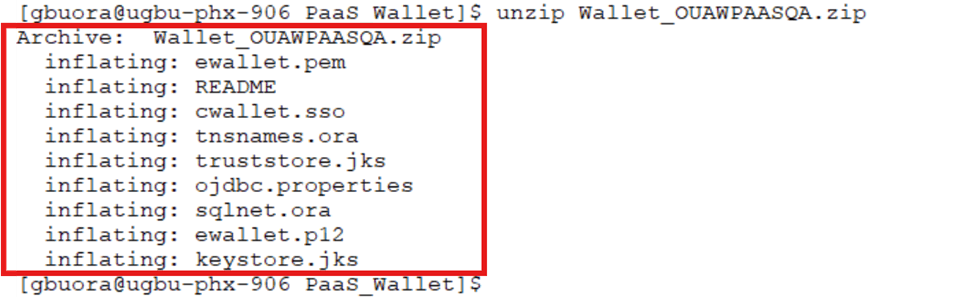
Download ADB Wallet from OCI Console and extract the wallet to a location in the virtual machine.
-
Edit the sqlnet.ora file. Replace
"?/network/admin"with the downloaded wallet location. The file should look like this:WALLET_LOCATION = (SOURCE = (METHOD = file) (METHOD_DATA = (DIRECTORY=/pathtoWallet))) SSL_SERVER_DN_MATCH=yesExample:
WALLET_LOCATION = (SOURCE = (METHOD = file) (METHOD_DATA = (DIRECTORY=/scratch/ouaw_paas/PaaS_Wallet))) SSL_SERVER_DN_MATCH=yes -
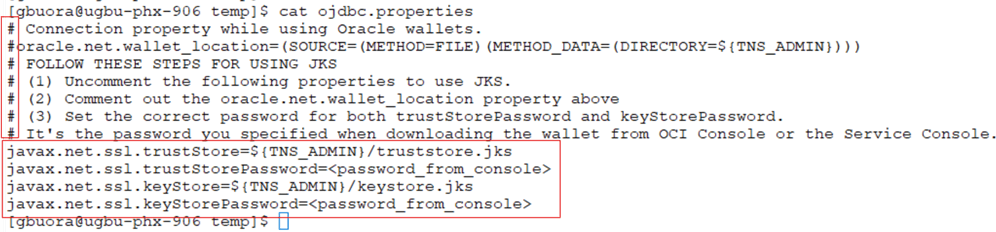
Edit the ojdbc.properties file from the wallet folder. Comment and un-comment the parameters and the file should look like as shown below after changes.
-
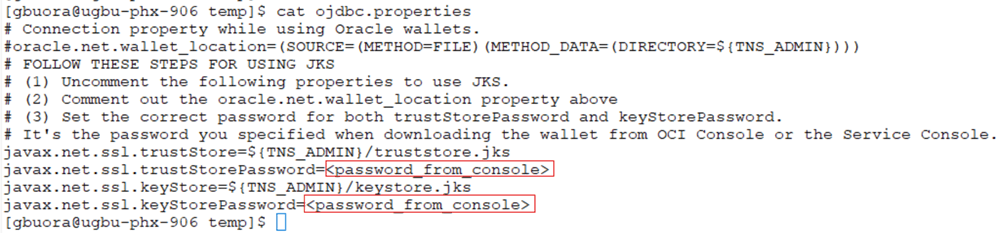
Update password_from_console to ADB wallet password.
-
Export TNS_ADMIN to ADB Wallet location.
export TNS_ADMIN=<Wallet Location>Example:
export TNS_ADMIN=/scratch/ouaw_paas/PaaS_Wallet -
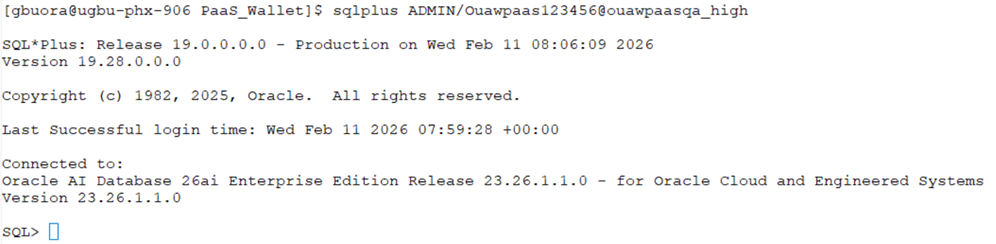
Test Connection to ADB with ADB TNS Service Name from wallet tnsnames.ora.
sqlplus ADMIN/<ADB ADMIN Password>@<ADB TNS Service Name>Example
Create Users and Tablespaces
-
The default name of the application tablespace is DATA in ADB. Assign the tablespaces created in this step as the default tablespaces while creating the users mentioned in next step.
- Create users in the database with the names below (without giving specific roles):
- DWADM: Contains star schema objects (such as facts and dimensions) containing the data of the data warehouse.
- DWUSER: User with read/write access to objects in DWADM schema.
- DWREAD: User with read only access to objects in DWADM schema.
- MDADM: A metadata schema consisting of database objects used for storing the Oracle Utilities Analytics metadata.
- RELADM: A metadata schema consisting of database objects used to store the product version and component installation information.
- OUA_MASTER: ODI Master repository schema.
- OUA_WORK: ODI Work repository schema.
- DWSTAGE: The staging schema of the data warehouse.
- Create roles with the following names:
- DW_USER: Assigned to DWUSER. This contains all grants for READ/WRITE access to objects in the DWADM schema.
- DW_READ: Assigned to DWREAD. This contains all grants for read-only access to objects in the DWADM schema.
- DW_PRIVS_ROLE: Assigned to MDADM. This contains the privileges necessary for the proper functioning of Oracle Utilities Analytics.
- DW_REPLICATE: Assigned to various replication users that get created automatically during the source configuration. The privileges necessary for this role are automatically assigned by Oracle Utilities Analytics.
-
Connect to the autonomous database with ADMIN user.
sqlplus ADMIN/<ADB ADMIN Password>@<ADB TNS Service Name> -
Run the SQL below to enable the CHAR Semantic mode.
@ouaw_set_char_semantic.sql in <TEMPDIR>/BI251000/Scripts/ouaw_set_char_semantic.sql -
Run this SQL to grant the required permission to the previously created users.
@UsersgrantsPaaS.sql
in <TEMPDIR>/BI251000/Scripts/UsersgrantsPaaS.sql
Install RELADM Schema
- Log in to the above virtual machine or your local computer.
-
Navigate to the temporary directory where the Oracle Utilities Analytics Warehouse v25.10.0.0 Oracle Database Multiplatform.zip file is unzipped.
cd <TEMPDIR>/BI251000/RELADM/Install-Upgrade -
3. Edit the Storage.xml file and update the tablespace name from CISTS_01 to DATA. You can use sed (stream editor) command to replace CISTS_01 to DATA in Linux.
sed -i 's/CISTS_01/DATA/g' Storage.xml -
Add JAVA_HOME/bin to the PATH variable.
export JAVA_HOME= "/path/to/java/home" export PATH=$JAVA_HOME/bin:$PATH -
Set CLASSPATH pointing to the location where OraDBI.jar and all dependency jars exist.
export CLASSPATH=<TEMPDIR>/BI251000/RELADM/Jarfiles/* -
Export the TNS_ADMIN to the ADB Wallet location.
export TNS_ADMIN=<Wallet location>Example:
export TNS_ADMIN=/scratch/ouaw_paas/PaaS_Wallet -
Execute the RELADM installation command below. When it is completed, the utility creates the RELADM schema and system data definitions. If an error occurs while executing a SQL or another utility, it logs and displays the error message and allows you to re-execute the current step.
java com.oracle.ouaf.oem.install.OraDBI -d jdbc:oracle:thin:@<ADB TNS Service NAME_high>?TNS_ADMIN=<WALLET DIR>,RELADM,<Password of RELADM User>,,,,,RELADM -l 1,2 -o -q trueExample:java com.oracle.ouaf.oem.install.OraDBI -d jdbc:oracle:thin:@ouawpaasqa_high?TNS_ADMIN=/scratch/ouaw_paas/PaaS_Wallet,RELADM,Ouawpass1,,,,,RELADM -l 1,2 -o -q true
Install MDADM Schema
-
Log in to the above virtual machine or your local computer.
-
Navigate to the temporary directory where Oracle Utilities Analytics Warehouse v25.10.0.0 Oracle Database Multiplatform.zip file is unzipped.
cd <TEMPDIR>/BI251000/MDADM/Install-Upgrade -
3. Edit the Storage.xml file and update the tablespace name from CISTS_01 to DATA. You can use sed (stream editor) command to replace CISTS_01 to DATA in Linux.
sed -i 's/CISTS_01/DATA/g' Storage.xml -
Add JAVA_HOME/bin to the PATH variable.
export JAVA_HOME= "/path/to/java/home" export PATH=$JAVA_HOME/bin:$PATH -
Set CLASSPATH pointing to the location where OraDBI.jar and all dependency jars exist.
export CLASSPATH=<TEMPDIR>/BI251000/MDADM/Jarfiles/* -
Export the TNS_ADMIN to the ADB Wallet location.
export TNS_ADMIN=<Wallet location>Example:
export TNS_ADMIN=/scratch/ouaw_paas/PaaS_Wallet -
Execute the MDADM installation command below. When it is completed, the utility creates the MDADM schema and system data definitions. If an error occurs while executing a SQL or another utility, it logs and displays the error message and allows you to re-execute the current step.
java com.oracle.ouaf.oem.install.OraDBI -d jdbc:oracle:thin:@<ADB TNS Service NAME_high >?TNS_ADMIN=<WALLET DIR>,MDADM,<Password of MDADM User>,,,,,MDADM -l 1,2 -o -q trueExample:java com.oracle.ouaf.oem.install.OraDBI -d jdbc:oracle:thin:@ouawpaasqa_high?TNS_ADMIN=/scratch/ouaw_paas/PaaS_Wallet,MDADM,Ouawpass1,,,,,MDADM -l 1,2 -o -q true
Install DWADM Schema
-
Log in to the above virtual machine or your local computer.
-
Navigate to the temporary directory where Oracle Utilities Analytics Warehouse v25.10.0.0 Oracle Database Multiplatform.zip file is unzipped.
cd database/BI251000/DWADM/Install-Upgrade -
3. Edit the Storage.xml file and update the tablespace name from CISTS_01 to DATA. You can use sed (stream editor) command to replace CISTS_01 to DATA in Linux.
sed -i 's/CISTS_01/DATA/g' Storage.xml -
Add JAVA_HOME/bin to the PATH variable.
export JAVA_HOME= "/path/to/java/home" export PATH=$JAVA_HOME/bin:$PATH -
Set CLASSPATH pointing to the location where OraDBI.jar and all dependency jars exist.
export CLASSPATH=<TEMPDIR>/BI251000/DWADM/Jarfiles/* -
Export the TNS_ADMIN to the ADB Wallet location.
export TNS_ADMIN=<Wallet location>Example:
export TNS_ADMIN=/scratch/ouaw_paas/PaaS_Wallet -
Execute DWADM installation command below. When it is completed, the utility creates the DWADM schema and system data definitions. If an error occurs while executing a SQL or another utility, it logs and displays the error message and allows you to re-execute the current step.
java com.oracle.ouaf.oem.install.OraDBI -d jdbc:oracle:thin:@< ADB TNS Service NAME_high>?TNS_ADMIN=<WALLET DIR>,DWADM,<Password of DWADM
User>,DWUSER,DWREAD,DW_USER,DW_READ,DWADM -p <Password of
DWUSER>,<Password of DWREAD> -l 1,2 -o -q true
Example:
java com.oracle.ouaf.oem.install.OraDBI -d jdbc:oracle:thin:@ouawpaasqa_high?TNS_ADMIN=/scratch/ouaw_paas/PaaS_Wallet,DWADM,Ouawpass1,DWUSER,DWREAD,DW_USER,DW_READ,DWADM -p Ouawrelpass1,Ouawrelpass1 -l 1,2 -o -q true