Install Dashboards Component
This page describes the installation process for the Oracle Utilities Analytics Warehouse (OUAW) Dashboards component.
Prerequisites
Before you begin installing the OUAW Dashboards component, verify the following:
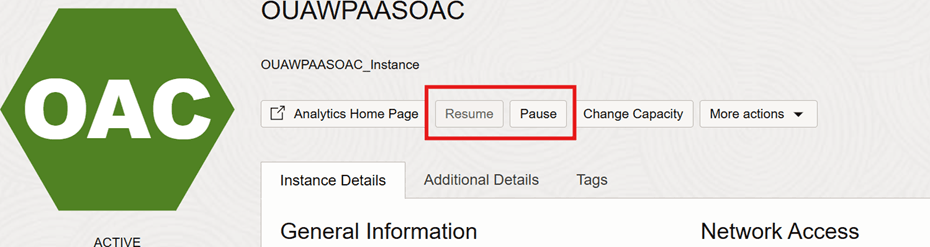
- Ensure that the Oracle Analytics Cloud (OAC) is provisioned and running.
See Perform Pre-Installation Steps for OUAW for more information.
Download OUAW ETL Component
-
Download Oracle Utilities Analytics Warehouse v25.10.0.0 PaaS Multiplatform zip from edelivery to your local system from where you can access OAC Analytics URL.
-
After unzipping the package, you will get these folders:
- ETL Component
- AdminTool Component
- Dashboard Component
The Dashboard Component folder contains all the Dashboard Installation files and these folders:- catalog
- rpd
- WriteBackTemplates
Deploy the Web Catalog
-
Log in to the Oracle Analytics Cloud Analytics URL:
https://<OAC URL>/ui/analytics. -
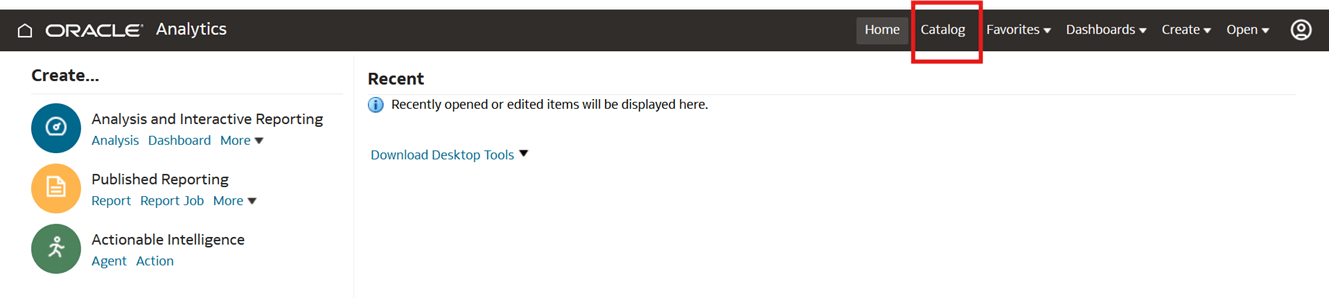
Click Catalog.
-
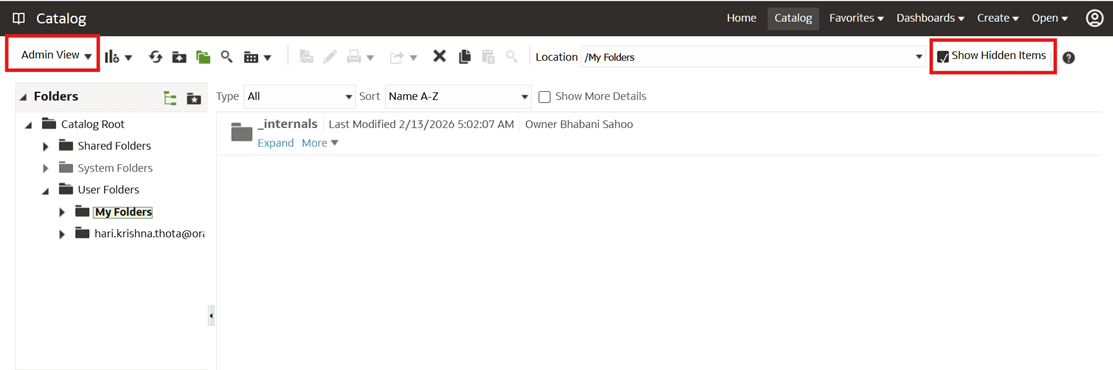
Select Admin View and select the Show Hidden Items checkbox.
-
Under the Catalog Root folder, select Shared Folders and navigate to Unarchive.
Click Browse, search for Catalog File and click OK.

Note:
Repeat the steps for each Catalog file except for Spatial Metadata.Catalog. -
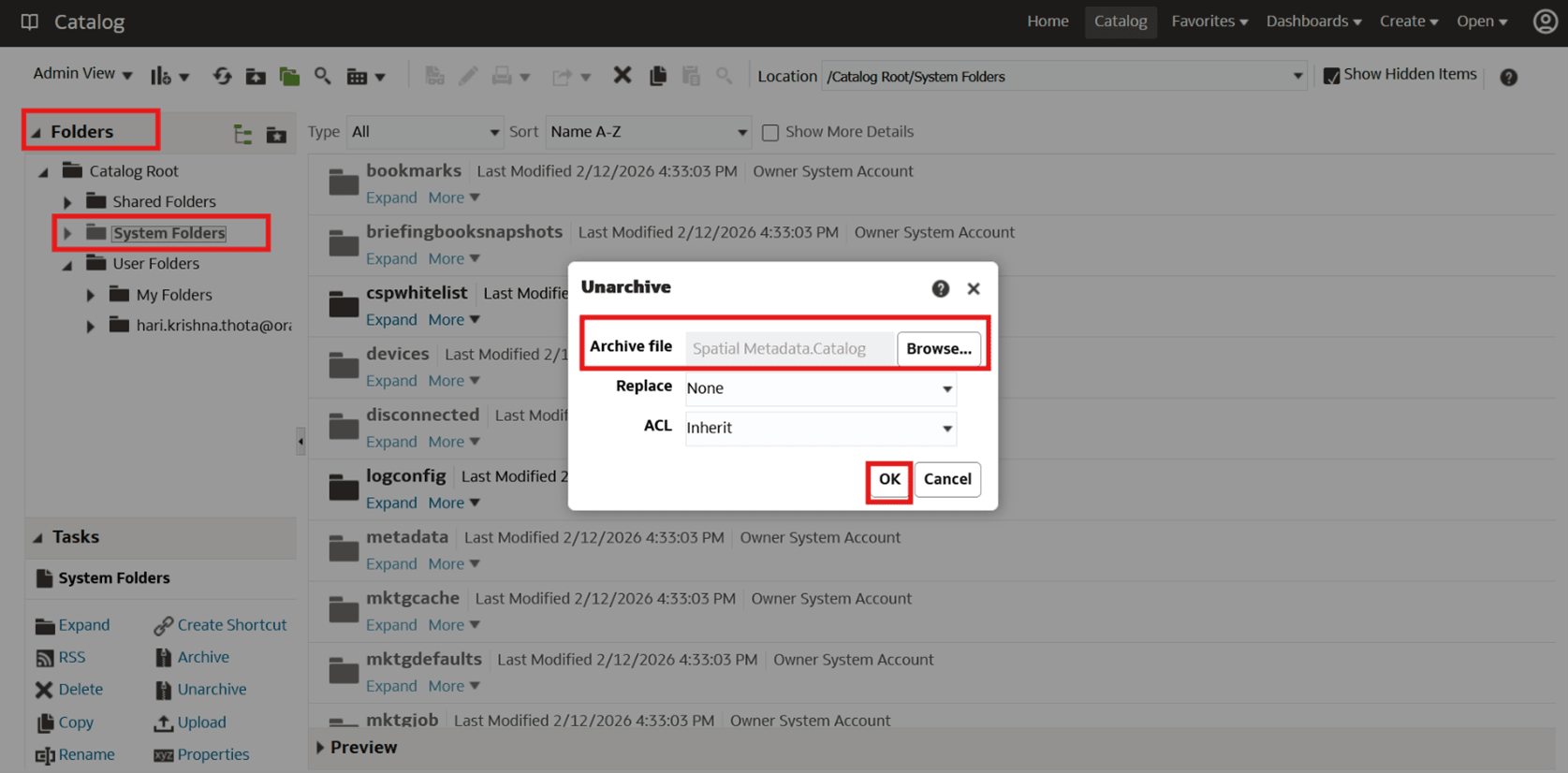
To deploy Spatial Metadata.Catalog, select System Folders and navigate to Unarchive.
Click Browse, search for Catalog File and click OK.
-
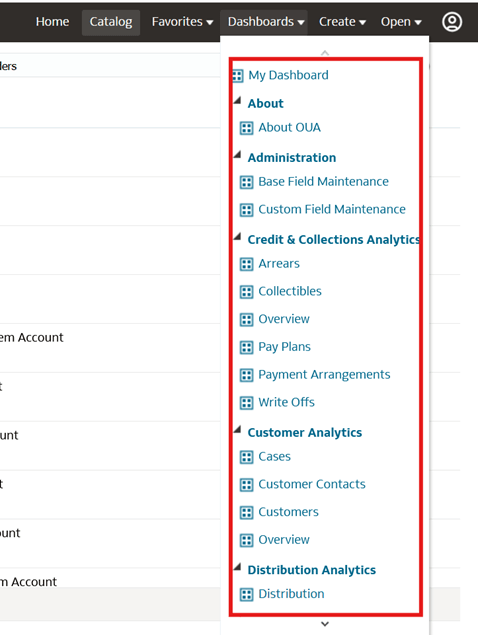
Verify all the deployed catalogs in the Dashboard tab.
Apply Dashboard Single Fix
-
Download OUAW 25.10.0.0.0 PaaS Single Fix (Patch 38976085) from My Oracle Support and unzip it.
-
Copy the Dashboard Component folder to your system. You will get four catalogs in the Catalog folder.
- Credit & Collections Analytics.Catalog
- Customer Analytics.Catalog
- Meter Data Analytics.Catalog
- Revenue Analytics.Catalog
-
Log in Oracle Analytics Cloud Analytics and navigate to Catalog.
-
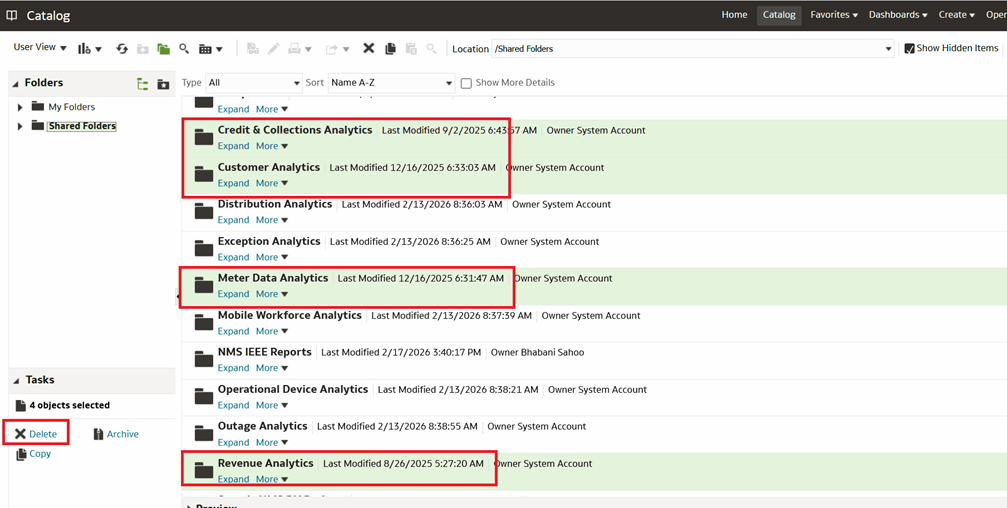
Select the existing uploaded Credit & Collections Analytics, Customer Analytics, Meter Data Analytics, and Revenue Analytics catalogs and click Delete.
-
Click OK to confirm deletion of the selected catalogs.
-
Deploy the Single Fix catalogs by performing the steps from Deploy the Web Catalog.
Deploy the Repository (RPD) File
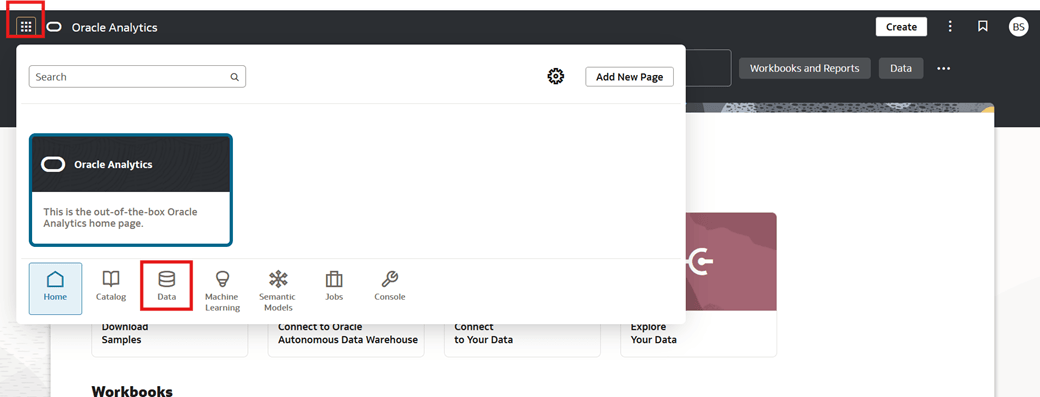
Create Connections in OAC
- Log in to the Oracle Analytics Cloud Data Visualization URL:
https://<OAC URL>/ui/dv. -
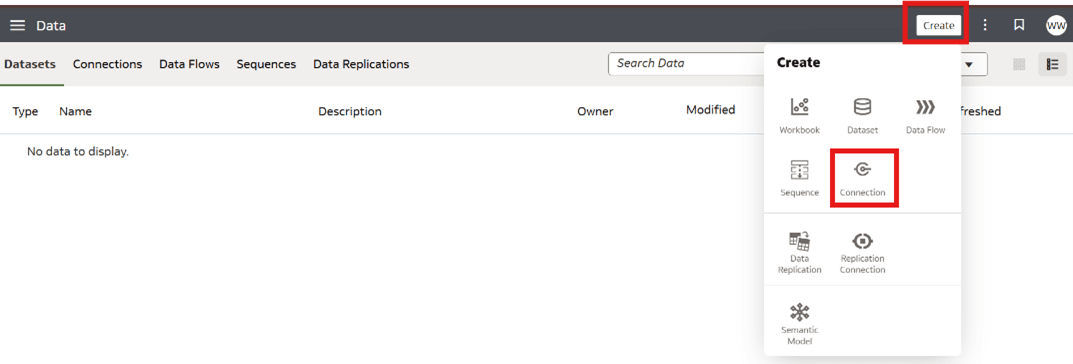
Click Create then Connection.
-
Set the Select Connection Type.
Field Name and Description Value Oracle Autonomous Data Warehouse
For ADB (Target database)
Oracle Database For Source database -
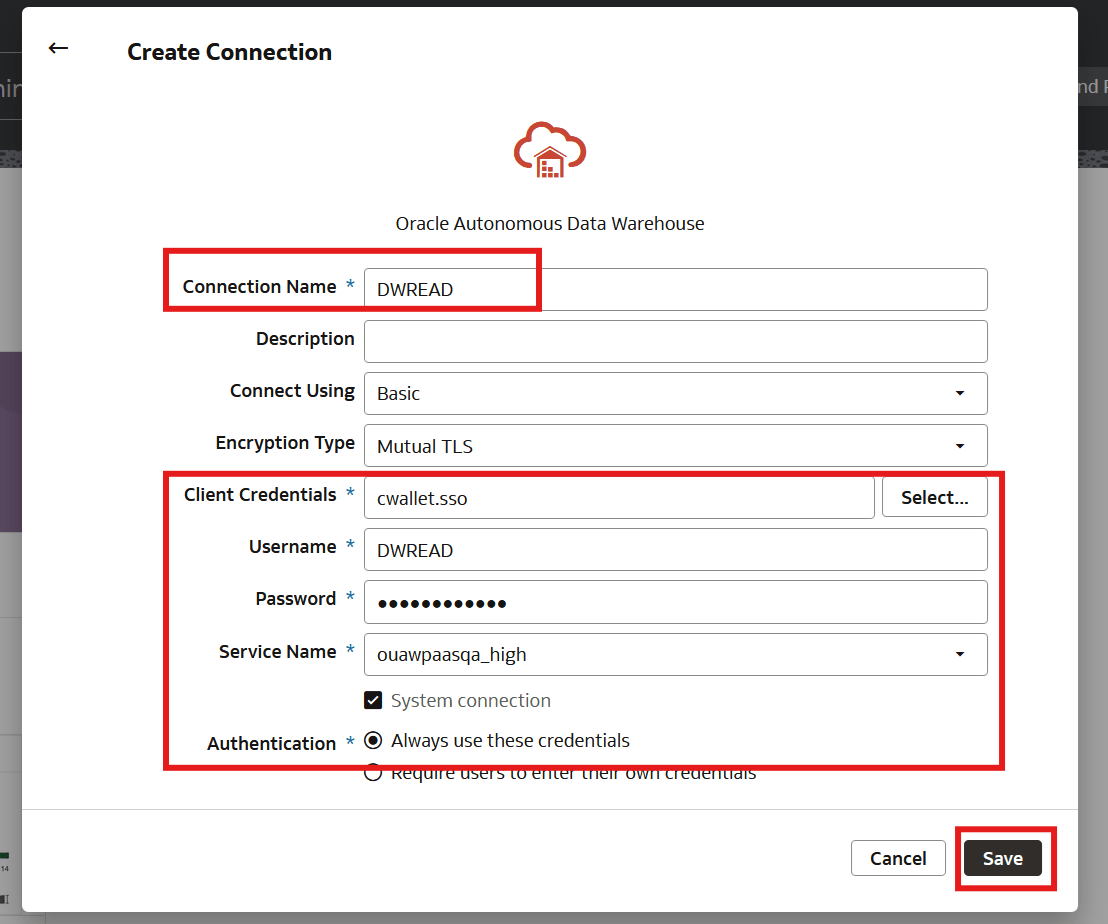
Provide the Connection details to create the DWREAD user then click Save.
Field Name and Description Value Connection Name
DWREAD
Connect Using Basic Encryption Type Mutual TLS Client Credentials Select ADB Wallet zip file from your local system Username DWREAD Password <DWREAD Password> Service Name Select ADB service name System Connection Select this checkbox Authentication Select "Always use these credentials" Example
-
Provide the Connection details to create the DWUSER user then click Save.
Field Name and Description Value Connection Name
DWUSER
Connect Using Basic Encryption Type Mutual TLS Client Credentials Select ADB Wallet zip file from your local system Username DWUSER Password <DWUSER Password> Service Name Select ADB service name System Connection Select this checkbox Authentication Select "Always use these credentials" Note:
Create connection for CISUSER user for MDM Source with connection type Oracle Database. -
Select the Connections tab to view all the created connections.
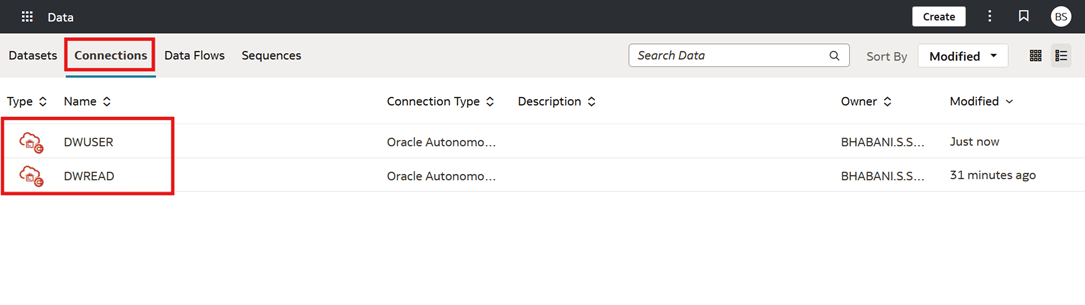
-
Find the Object IDs for each connection by navigating to OAC DV Console > DATA > Connections > Select the Connection > inspect and right click Object ID then click Copy.
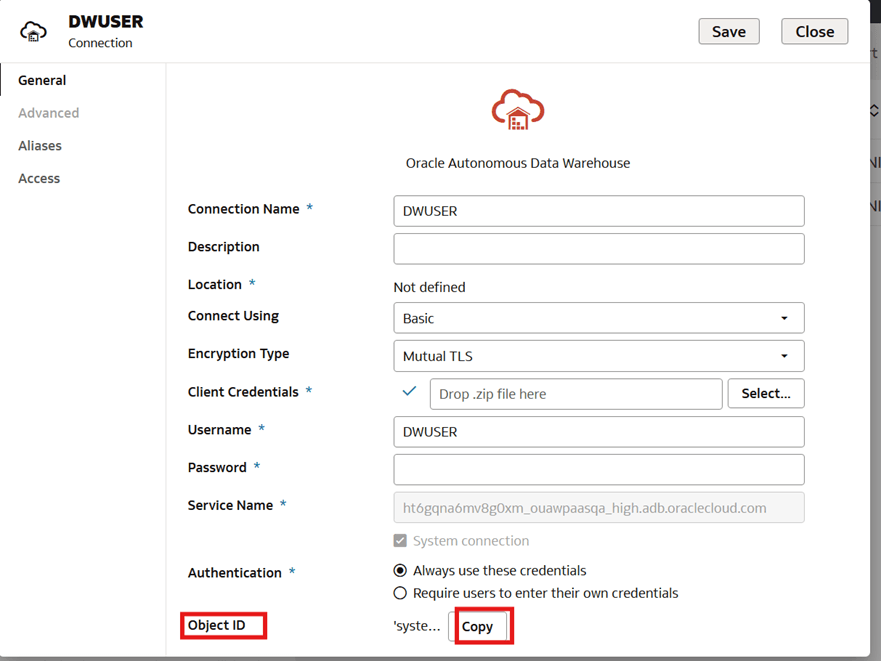
Deploy RPD
-
Take the Utilities Business Analytics RPD file (UtilitiesBusinessAnalytics.rpd) backup from the OUAW PaaS Dashboards component, rpd folder.
- Install the latest Oracle Analytics Client Tools from Oracle Technology Network and install it on the Windows machine.
-
Click Start > Programs > Oracle Analytics Client Tools > Model Administration Tool.
-
Click File > Open > Offline... to open the RPD in offline mode.
-
Provide the RPD password. The default password is “oracle123”.
- In the Oracle BI Administration Tool, go to the Physical pane and expand the tree.
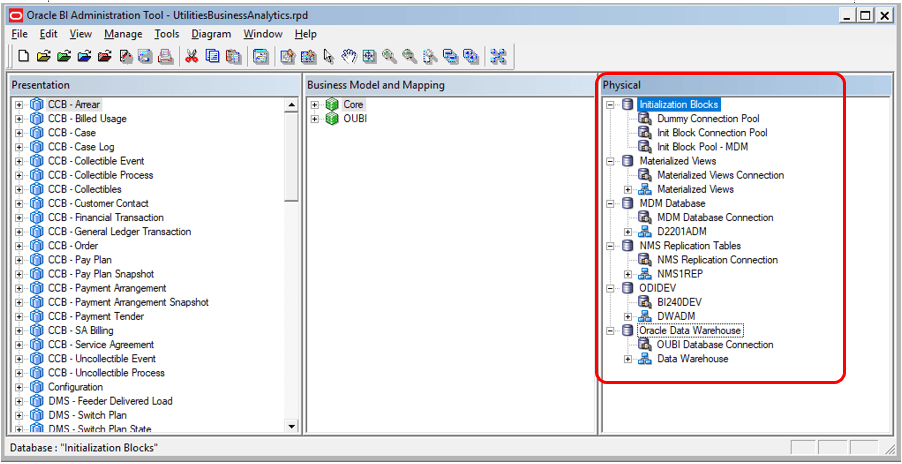
-
Double-click Init Block Connection Pool and enter the following:
Field Name and Description Value Data source name
Give any name
Username DWREAD Password DWREAD User password Use Data Connection Select this checkbox Object ID 'system'.'DWREAD' 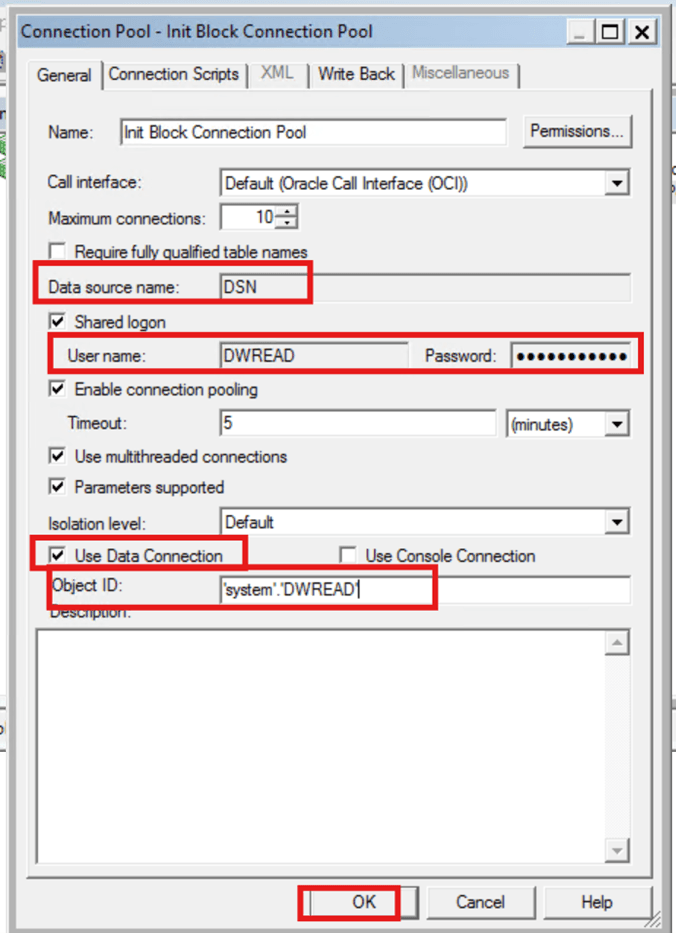
-
Double-click Init Block Pool - MDM and enter the following (only for Oracle Utilities Meter Data Management):
Field Name and Description Value Data source name
MDM database name
Username CISUSER Password CISUSER User password Use Data Connection Select this checkbox Object ID 'system'.'CISUSER' -
Double-click Materialized Views Connection and enter the following:
Field Name and Description Value Data source name
Give any name
Username DWREAD Password DWREAD User password Use Data Connection Select this checkbox Object ID 'system'.'DWREAD' -
Double-click MDM Database Connection and enter the following (only for Oracle Utilities Meter Data Management):
Field Name and Description Value Data source name
Give any name
Username CISUSER Password CISUSER User password Use Data Connection Select this checkbox Object ID 'system'.'CISUSER' -
Double-click NMS Replication Tables and enter the following (only for Oracle Utilities Network Management System):
Field Name and Description Value Data source name
Give any name
Username DWREAD Password DWREAD User password Use Data Connection Select this checkbox Object ID 'system'.'DWREAD' Note:
If the replication schema name is different, then rename it to the actual value.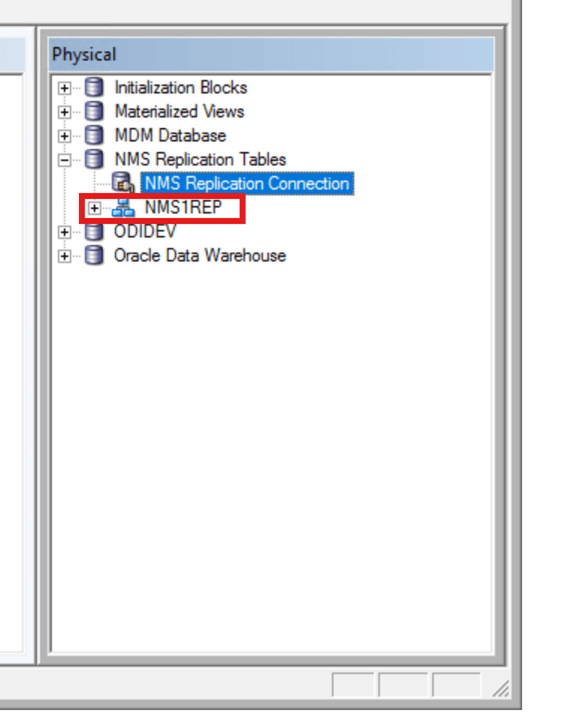
-
Double-click ODIDEV Connection and enter the following:
Field Name and Description Value Data source name
Give any name
Username DWREAD Password DWREAD User password Use Data Connection Select this checkbox Object ID 'system'.'DWUSER' -
Double-click Oracle Data Warehouse OUBI Database Connection and enter the following:
Field Name and Description Value Data source name
Give any name
Username DWREAD Password DWREAD User password Use Data Connection Select this checkbox Object ID 'system'.'DWREAD' - Click File and then click Save the changes. Click Yes when you see the prompt "Do you wish to check global consistency?" Ignore any warnings that appear after the consistency check is complete.
-
Log in to Oracle Analytics Cloud Data Visualization URL and navigate to Console > Snapshots.
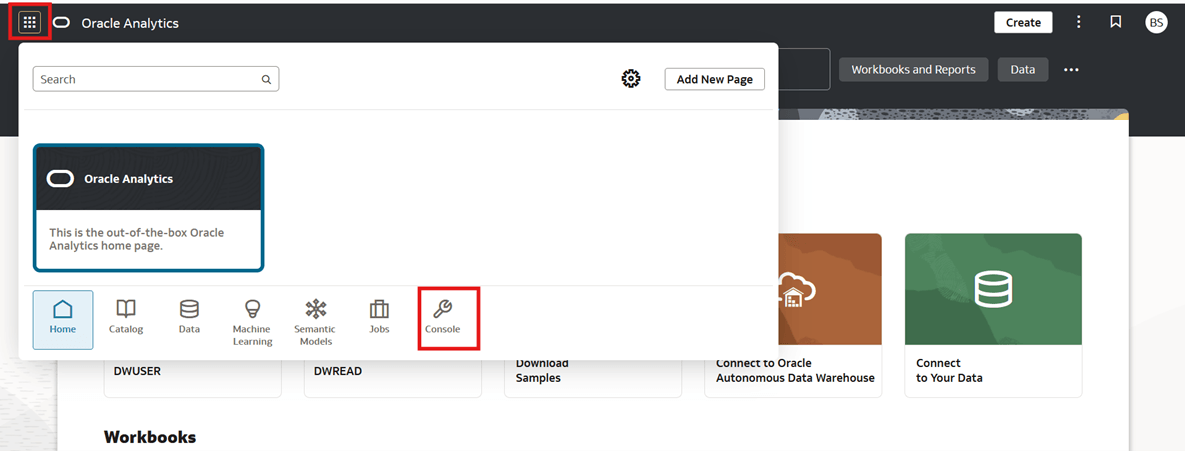
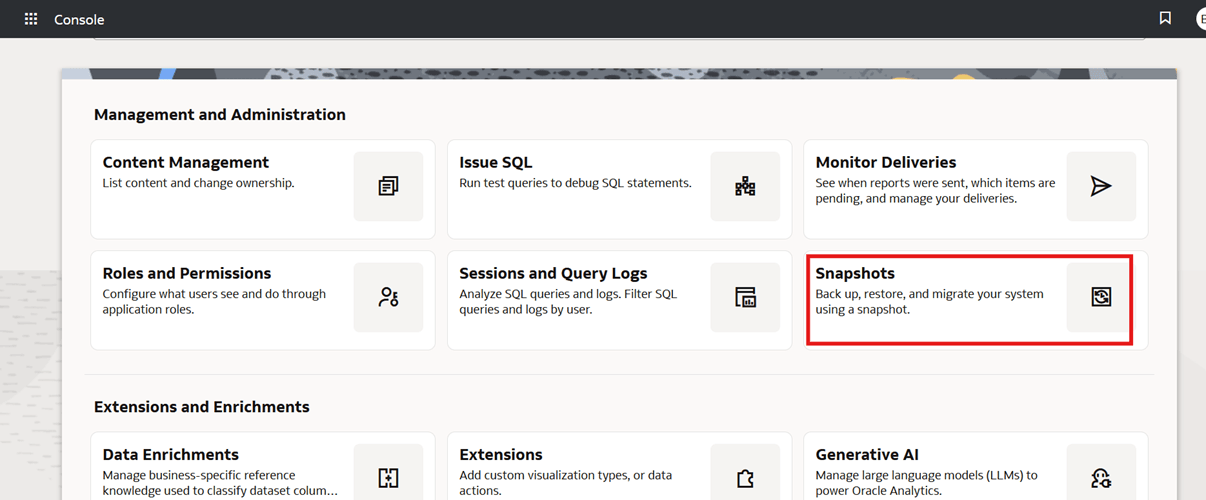
-
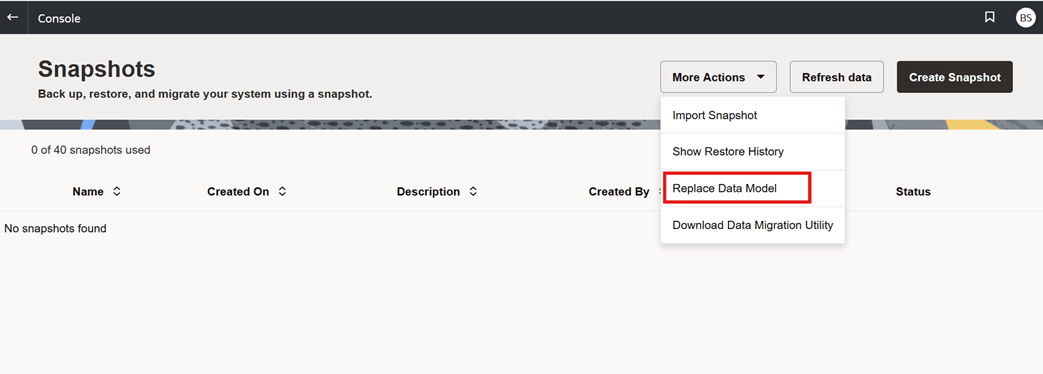
Under More Actions, select Replace Data Model.
-
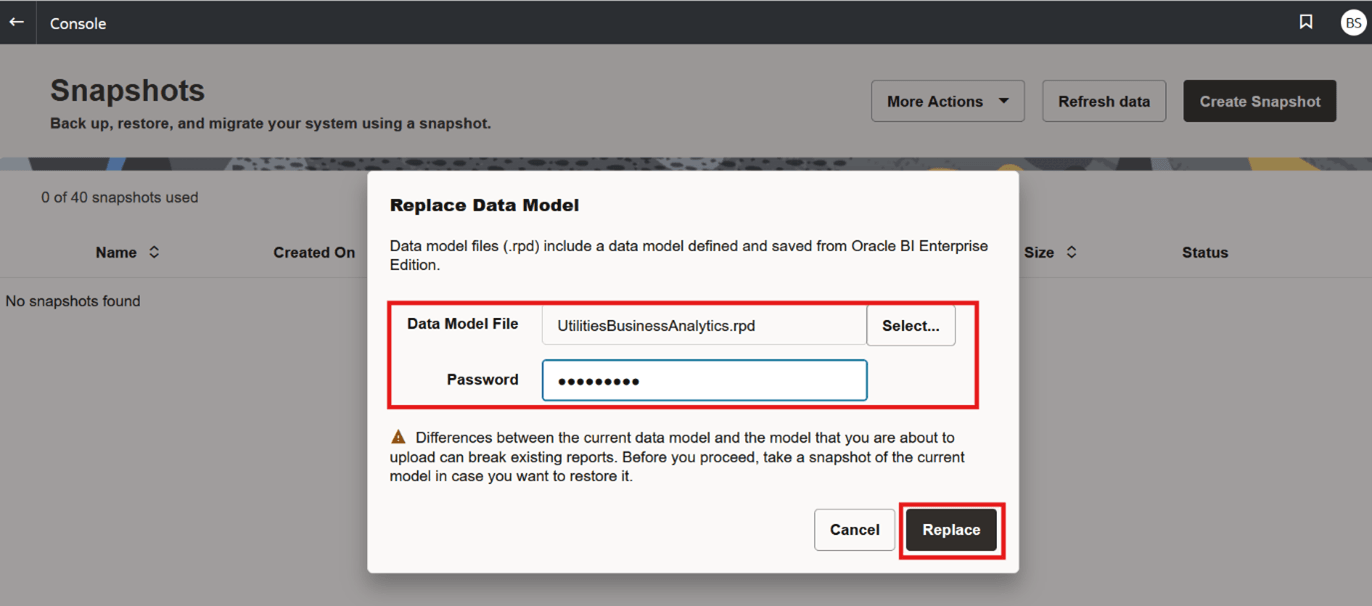
Upload the RPD file, provide "oracle123" as the password and click Replace then OK.
Deploy Writeback Templates
- Log in to OCI Oracle Analytics Cloud Data Visualization URL :
https://<OAC URL>/ui/dv. -
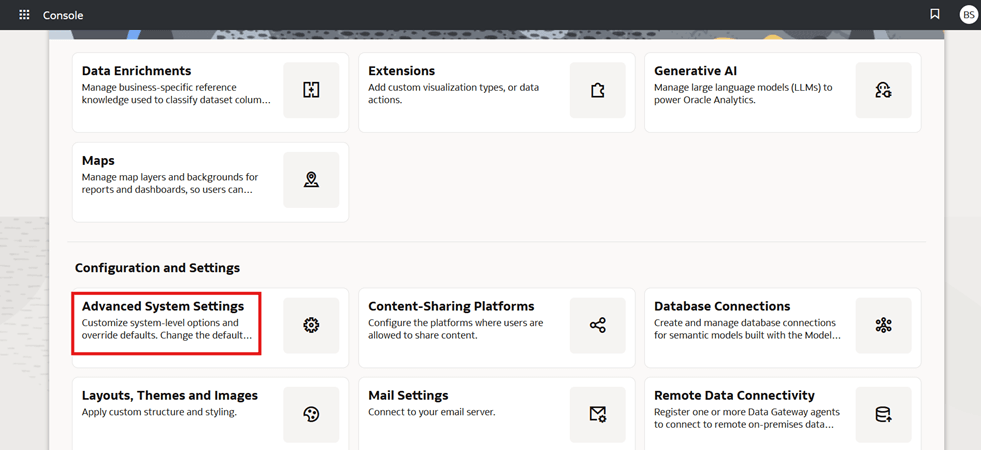
Navigate to Console and select Advanced System Settings.
-
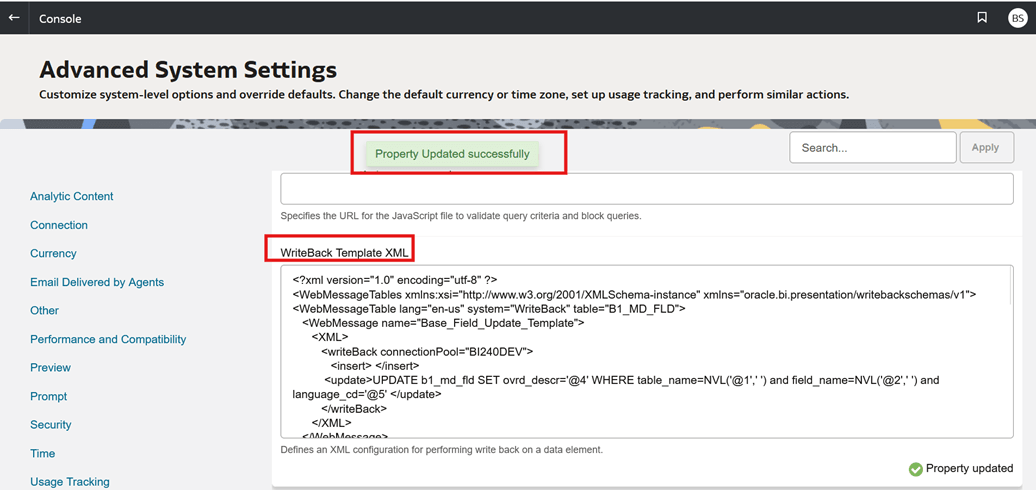
Add the contents of Writeback_Templates.xml found under the WriteBackTemplates folder which is unzipped from Oracle Utilities Analytics Warehouse v25.10.0.0 PaaS Multiplatform zip to the Writeback Template XML block and wait for few second and Property will be updated automatically.
Note:
- The writeback feature is applicable only for Base Field Maintenance & Custom Field Maintenance dashboards which updates/inserts/deletes the records from DWADM.B1_MD_FLD table.
- Any updates which are to be performed from Configuration Dashboard, that is to update the data in DWADM.B1_CONFIGURATION table could be performed directly from database.
Enable the Autocomplete Feature in Oracle Analytics Cloud
-
Log in to the Oracle Analytics Cloud Analytics URL:
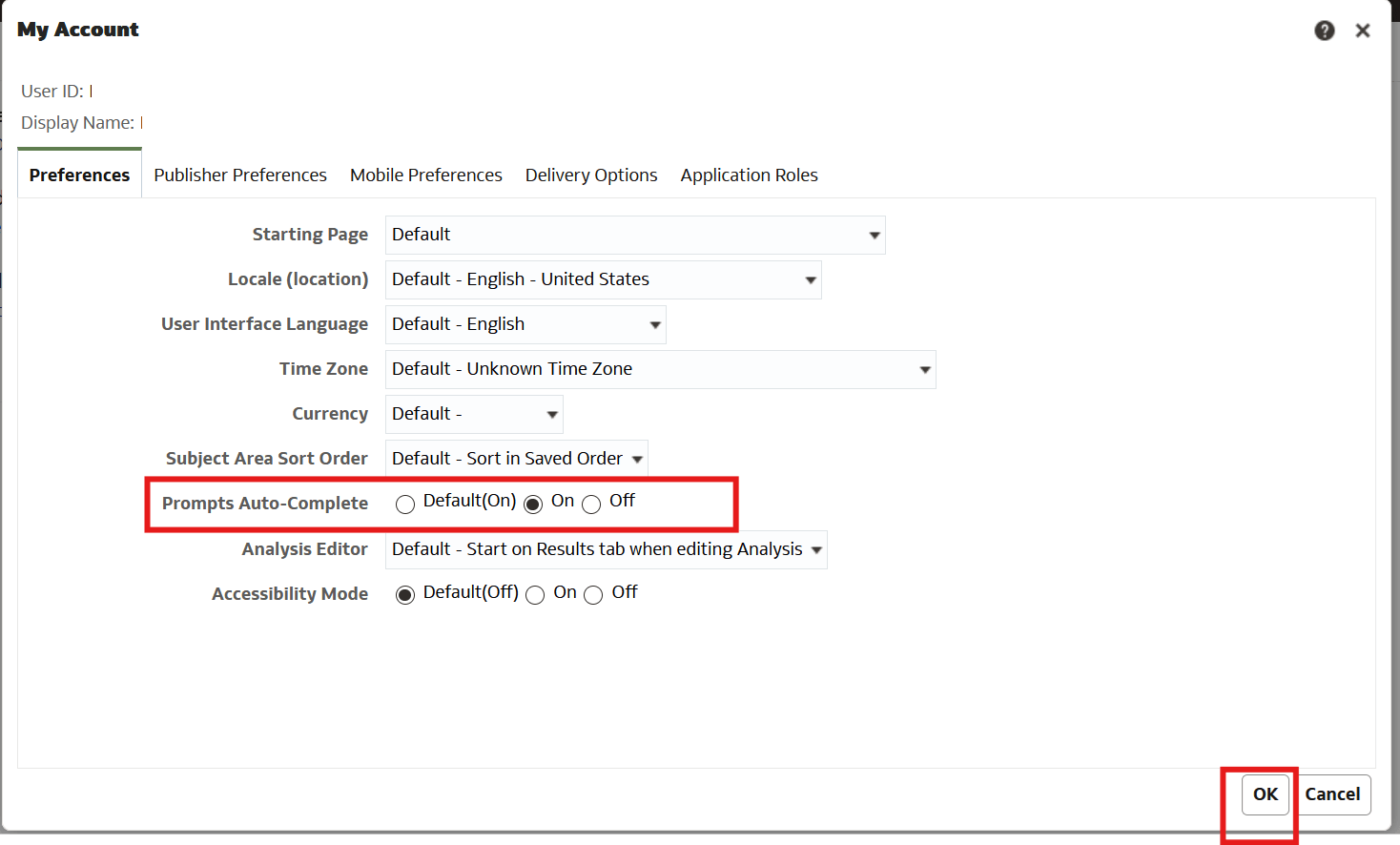
https://<OAC URL>/ui/analytics. - Click the User profile icon in the top right section of the page.
- From the drop-down menu, select My Account.
-
On the Preferences tab, set Prompt AutoComplete to ON.
- Click OK.
Enable WriteBack
-
Log in to the Oracle Analytics Cloud Analytics URL:
https://<OAC URL>/ui/analytics. -
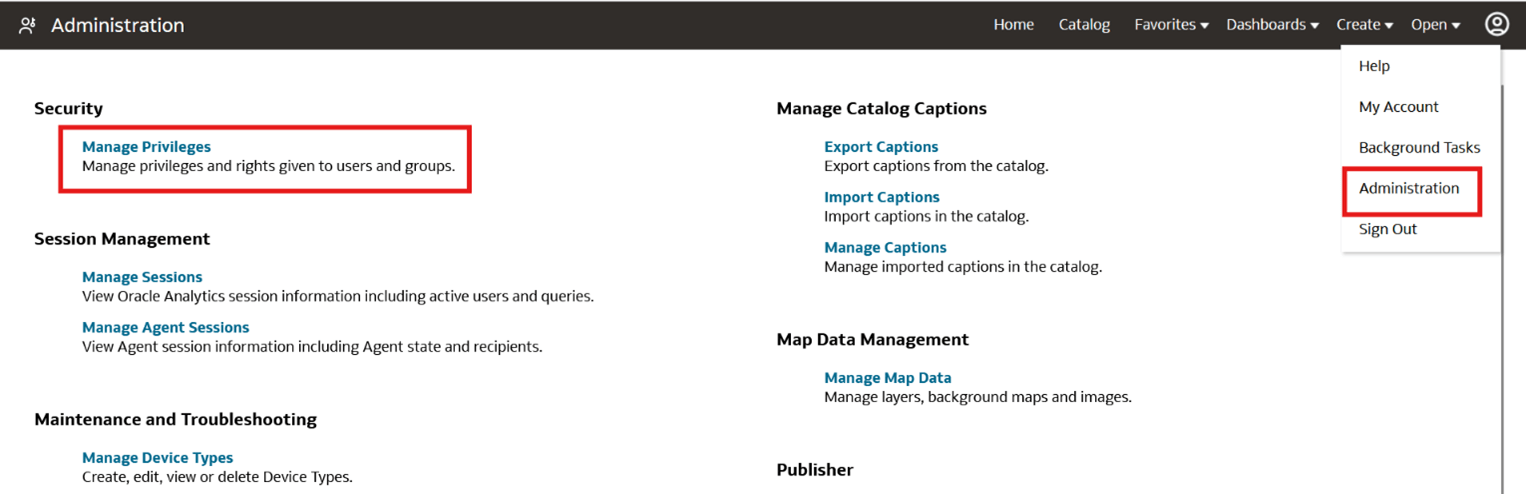
Click the Profile icon in the top right corner of the screen and click Administration then Manage Privileges.
-
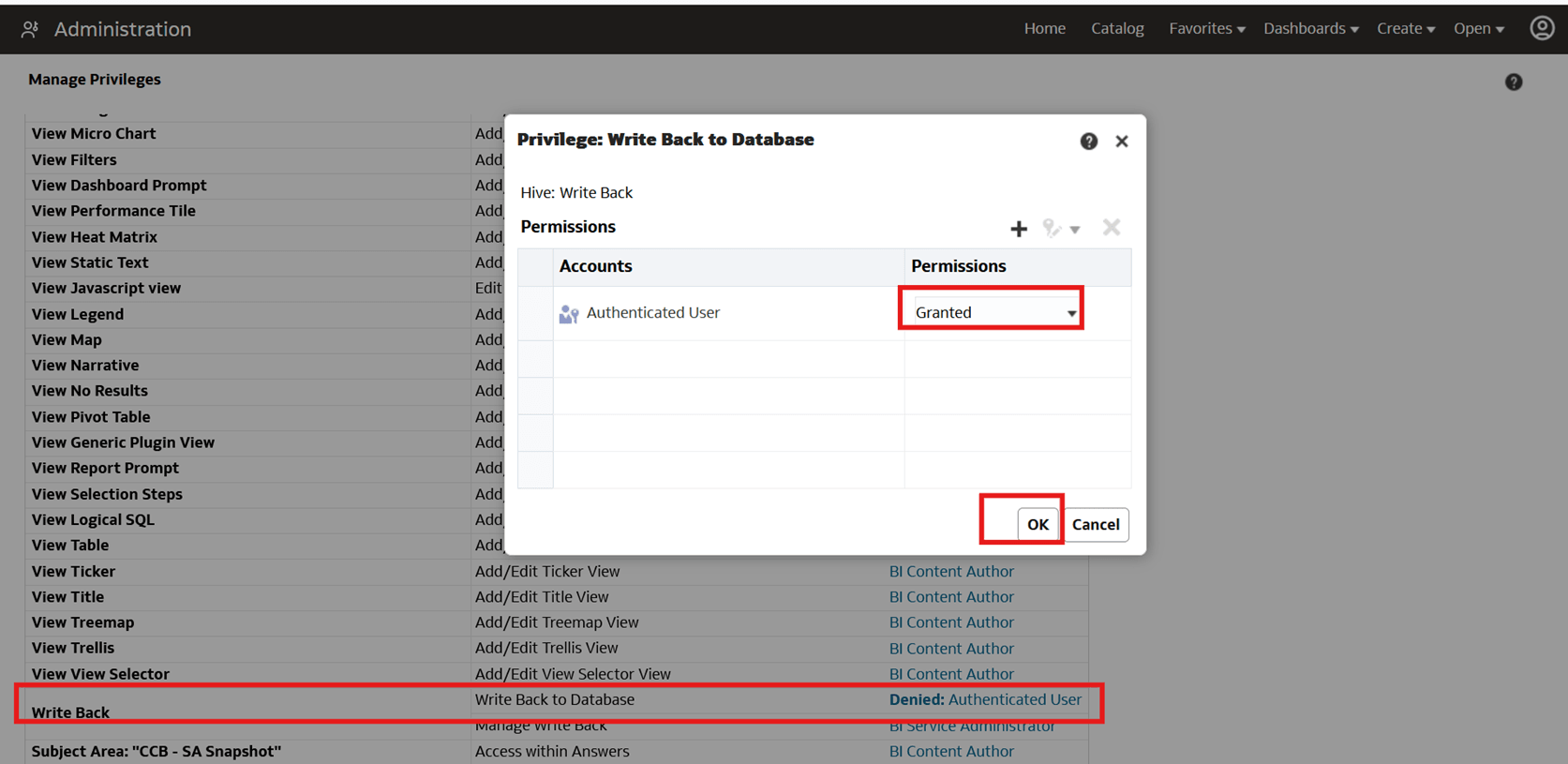
In the Manage Privileges area, in the Write Back > Write Back to Database row, click Authenticated User. In the dialog box that displays, click the menu in the Permissions column and select Granted from the drop-down menu then click OK.
-
Restart OAC from the OCI Console.