Install ETL Component
Note:
All the tasks below need to be followed in sequential order.Prerequisites
Before installing the OUAW ETL component, verify the following:
-
Ensure OCI GoldenGate is provisioned.
-
Ensure Target (ADB) GoldenGate connection is created, tested and assigned to provisioned GoldenGate Deployment.
-
Ensure Oracle Data Integrator: Classic (14.1.2.0) is provisioned from OCI Marketplace.
See Perform Pre-Installation Steps for OUAW for more information.
Create Repositories
This section details the process to create the ODI MASTER and WORK repositories.
Create Master Repository
-
Log in to ODI VNC and navigate to the /u01/oracle/mwh/odi/studio/bin directory.
cd /u01/oracle/mwh/odi/studio/bin -
Open ODI Studio.
./odi -
Navigate to New > Create a New Master Repository and click OK.
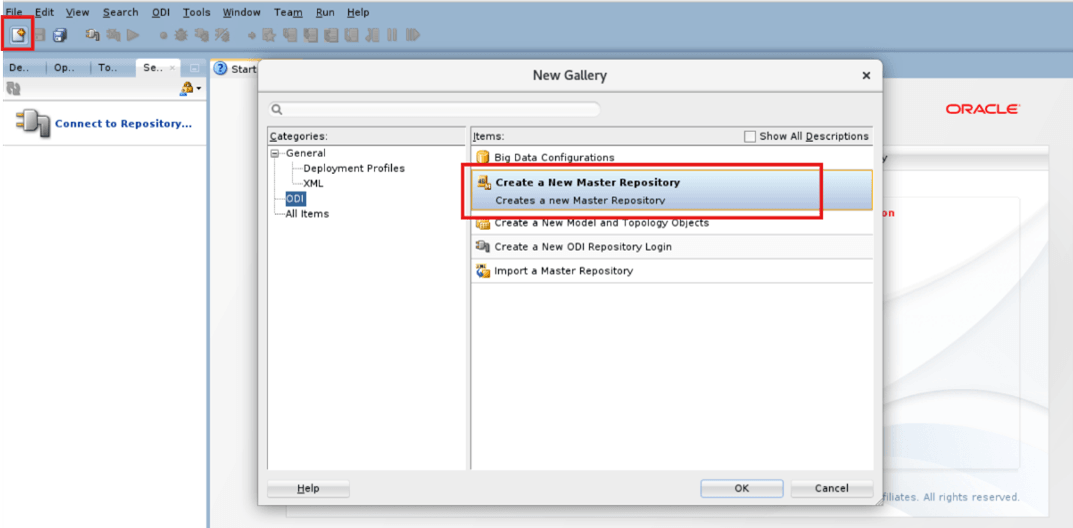
-
In Database Connection, provide the ADB details.
Field Name and Description Value Credential File
Location of ADB wallet zip
Connection Details ADB Service NameNote:
Select _highUser OUA_MASTER Password OUA_MASTER Password DBA User ADB ADMIN User DBA Password ADMIN Password 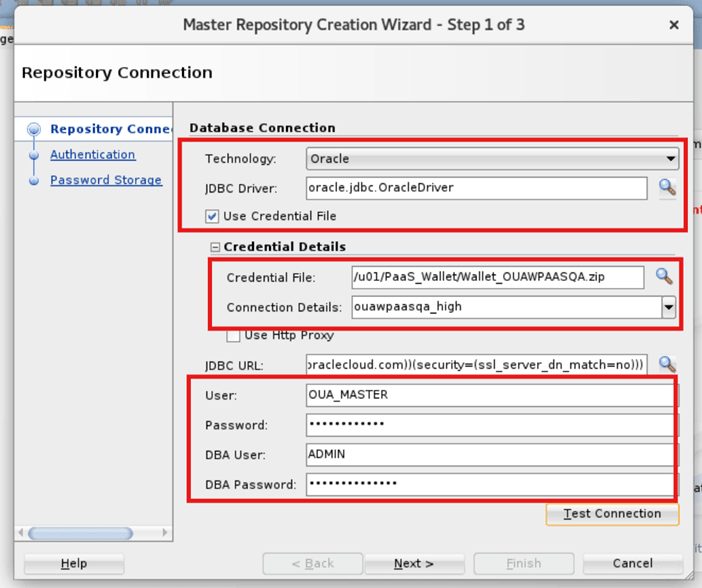
-
Click Test Connection and click OK then click Next.
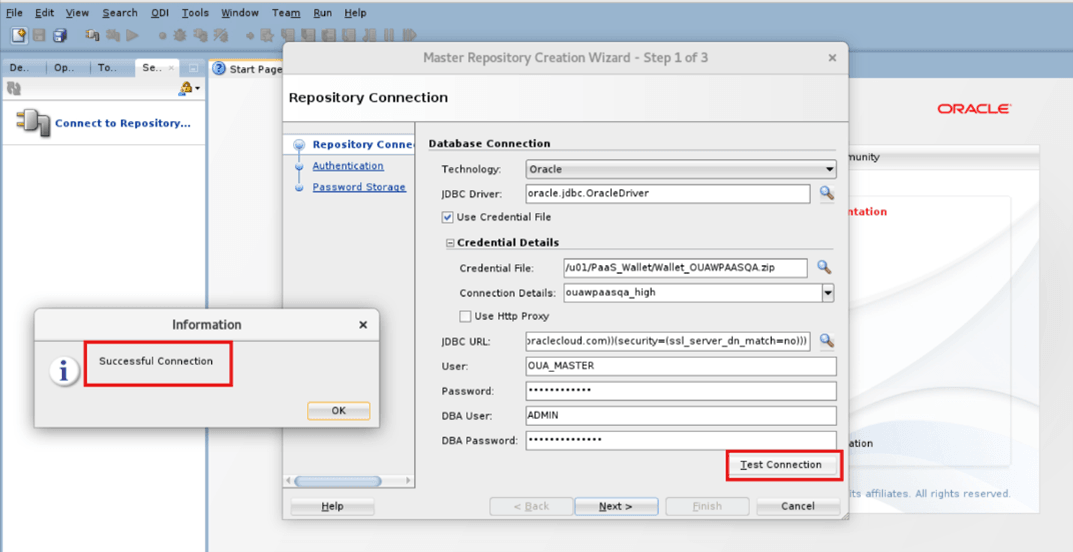
-
Enter the Supervisor Password. and click Next.
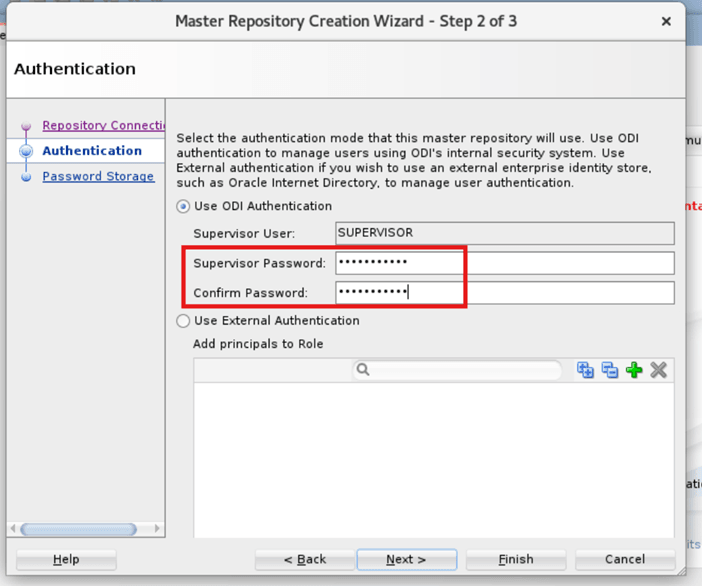
-
Select Internal Password Storage as the password storage and click Finish.
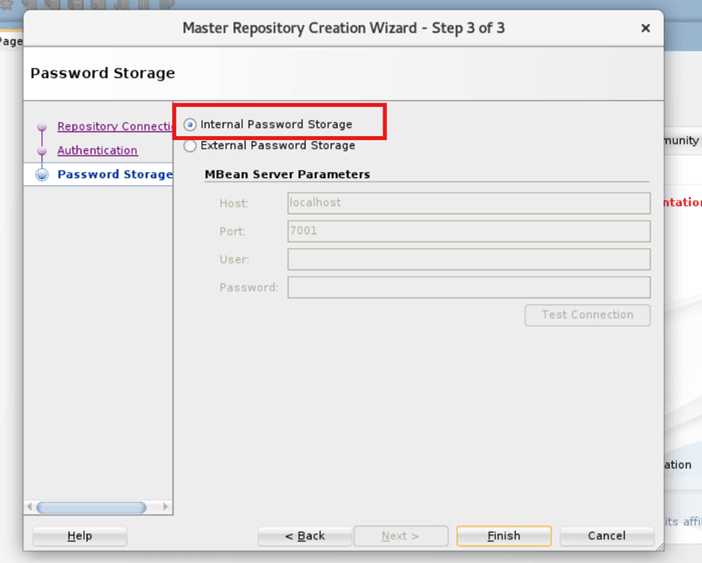
-
The application creates the Master Repository.
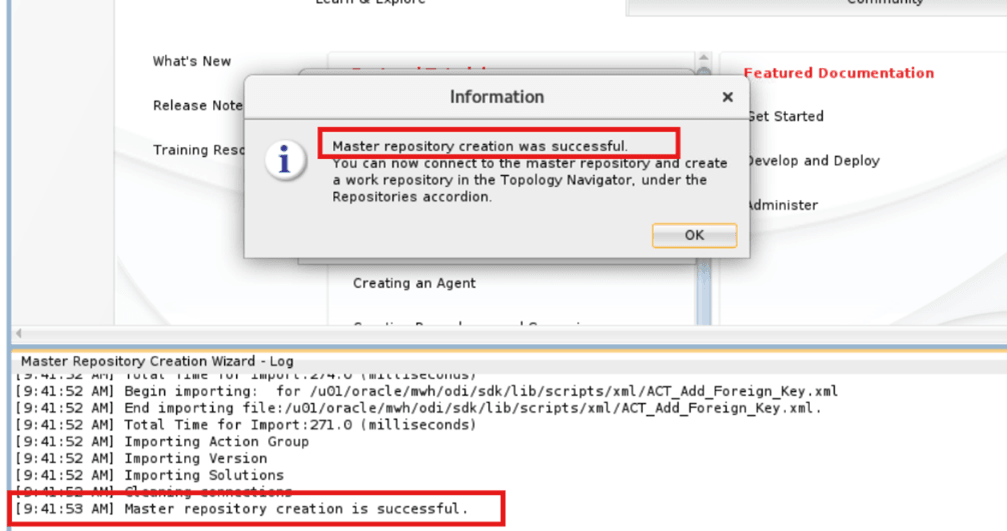
Create Work Repository
Note:
Delete the existing connection which is created automatically during ODI Provisioning. New Master and Work connections will be created later.- Open ODI Studio in VNC.
-
Create a Master Repository connection by navigating to Connect to Repository > +.
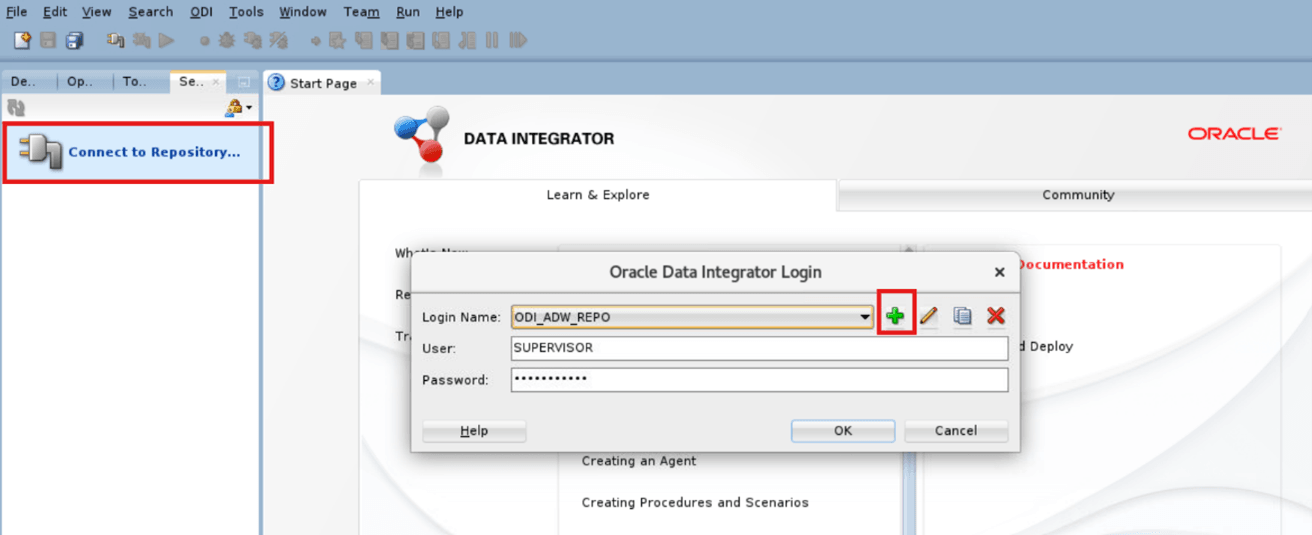
-
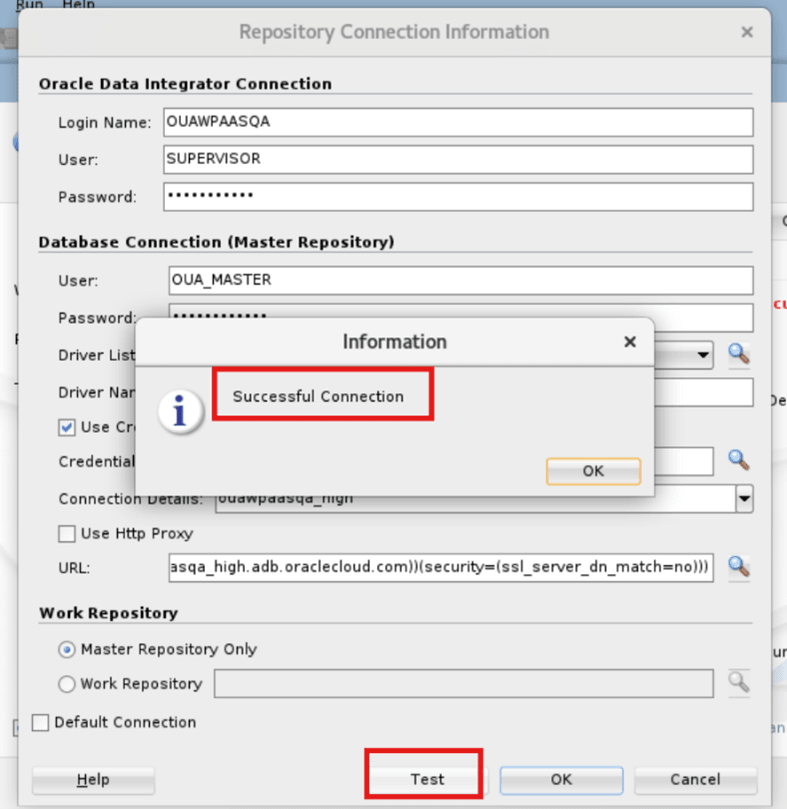
Enter the Supervisor login details in Oracle Data Integrator Connection.
Enter the OUA Master and ADB details in Database Connection (Master Repository).
Select Master Repository Only from Work Repository.
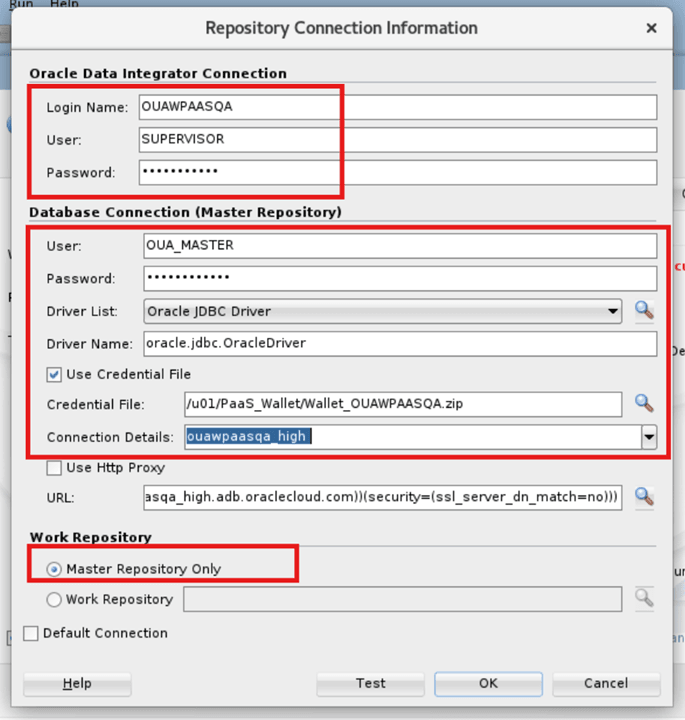
-
Click Test Connection then click OK.
-
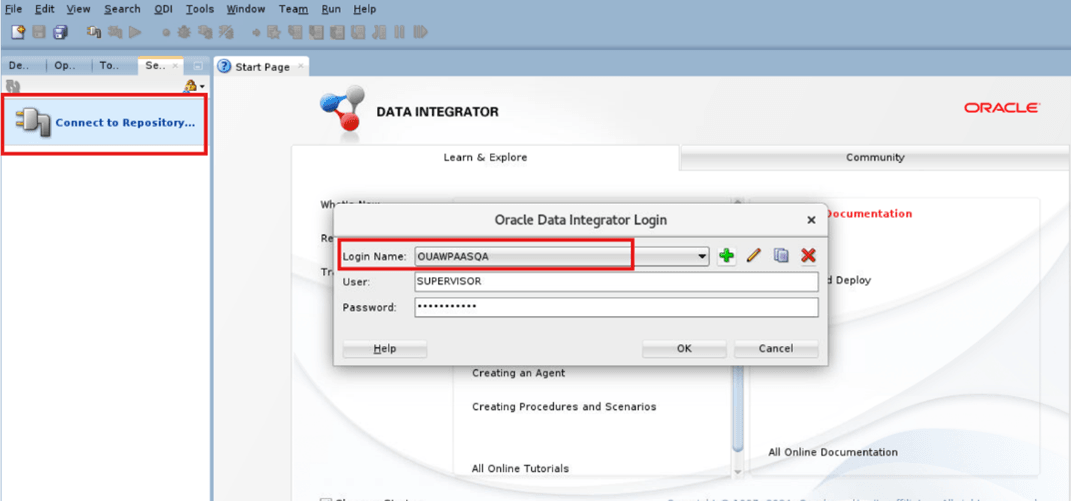
Log in to Master Repository using the created connection.
-
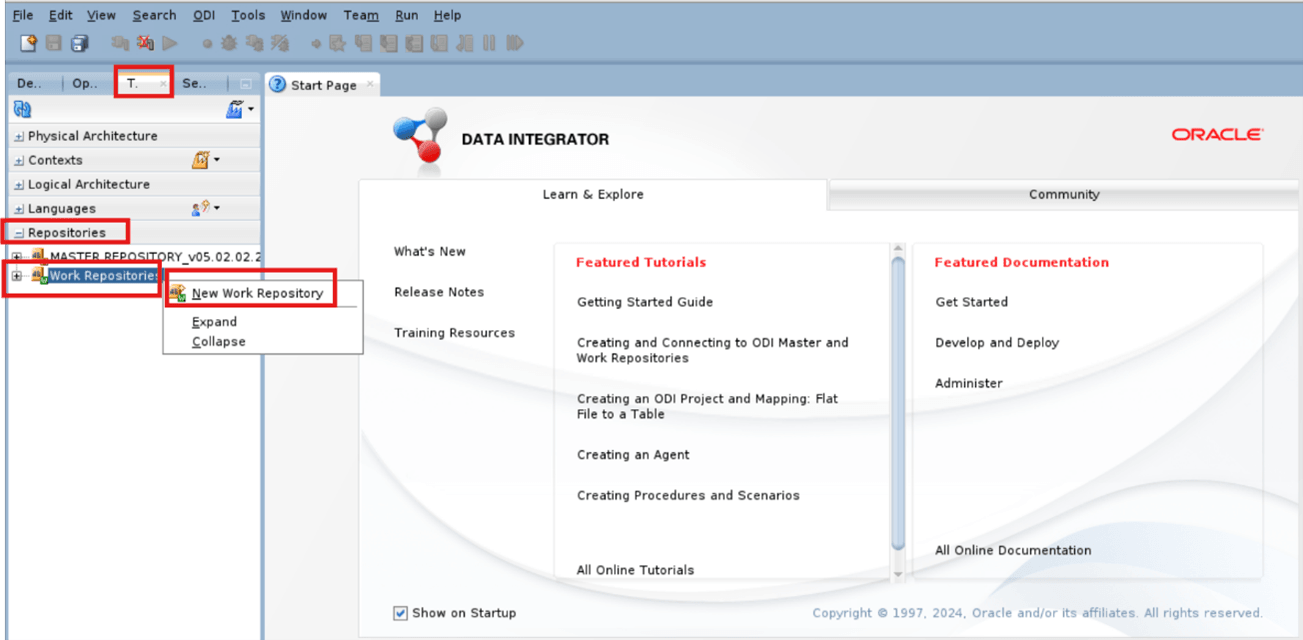
Navigate to Topology > Repositories and right click Work Repositories then click New Work Repository.
-
Enter the following ADB and OUA_WORK details.
Field Name and Description Value Credential File
Location of ADB wallet zip
Connection Details ADB Service NameNote:
Select _highUser OUA_WORK Password OUA_WORK Password 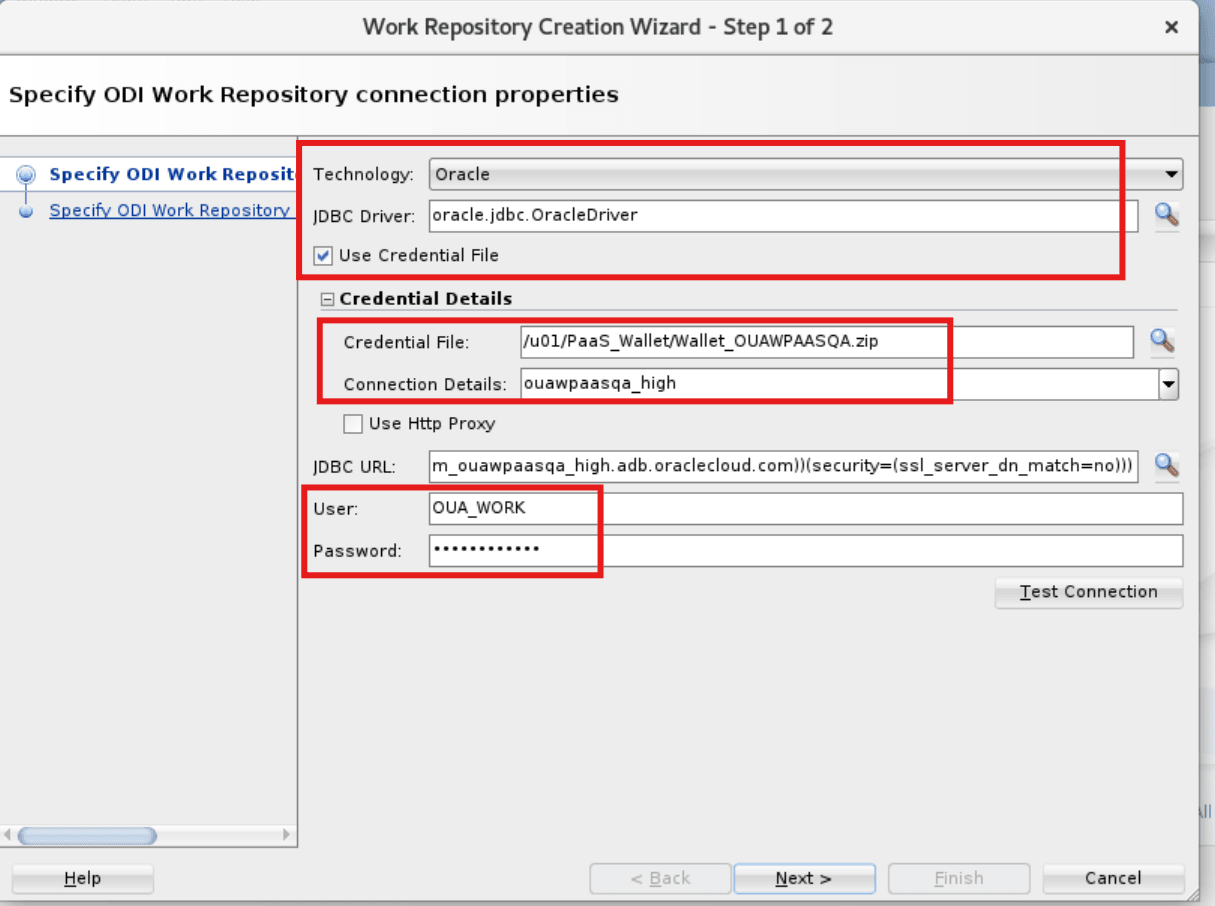
-
Click Test Connection then OK.
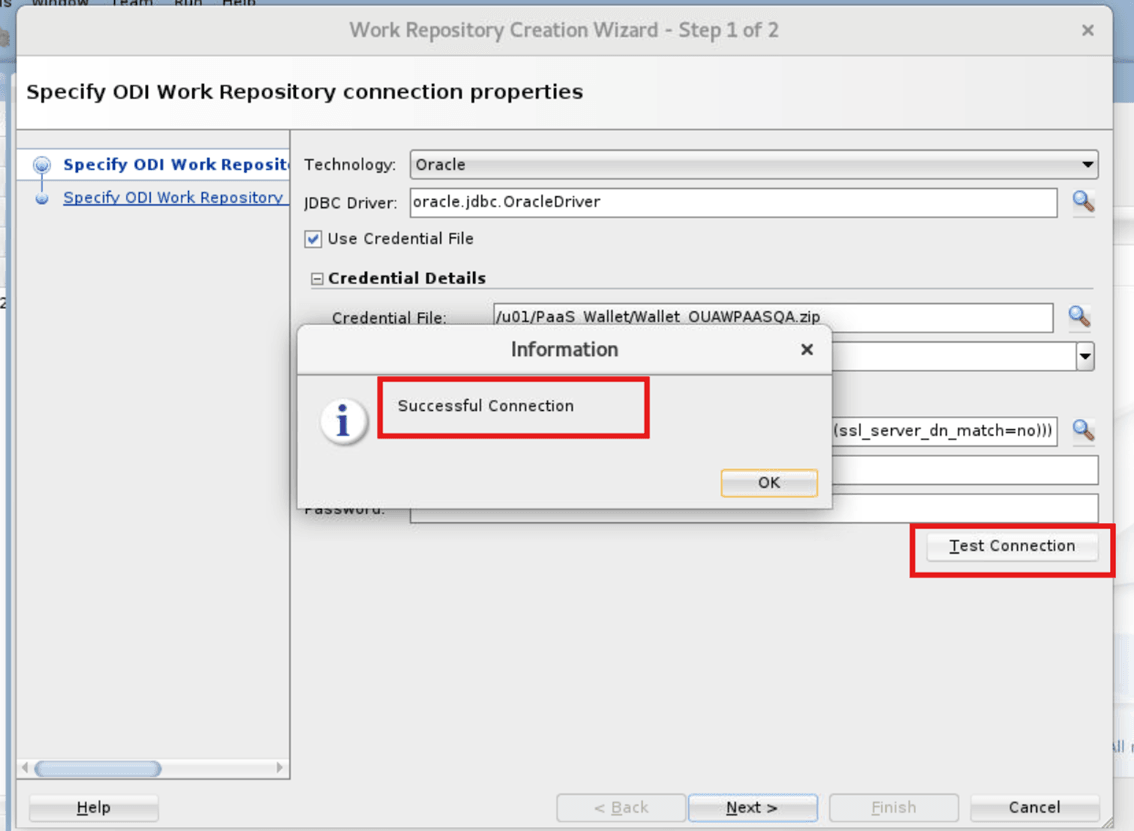
-
Enter the following ODI Work Repository details.
Field Name and Description Value Name
OBIU
Password Keep blank
Work Repository Type Development 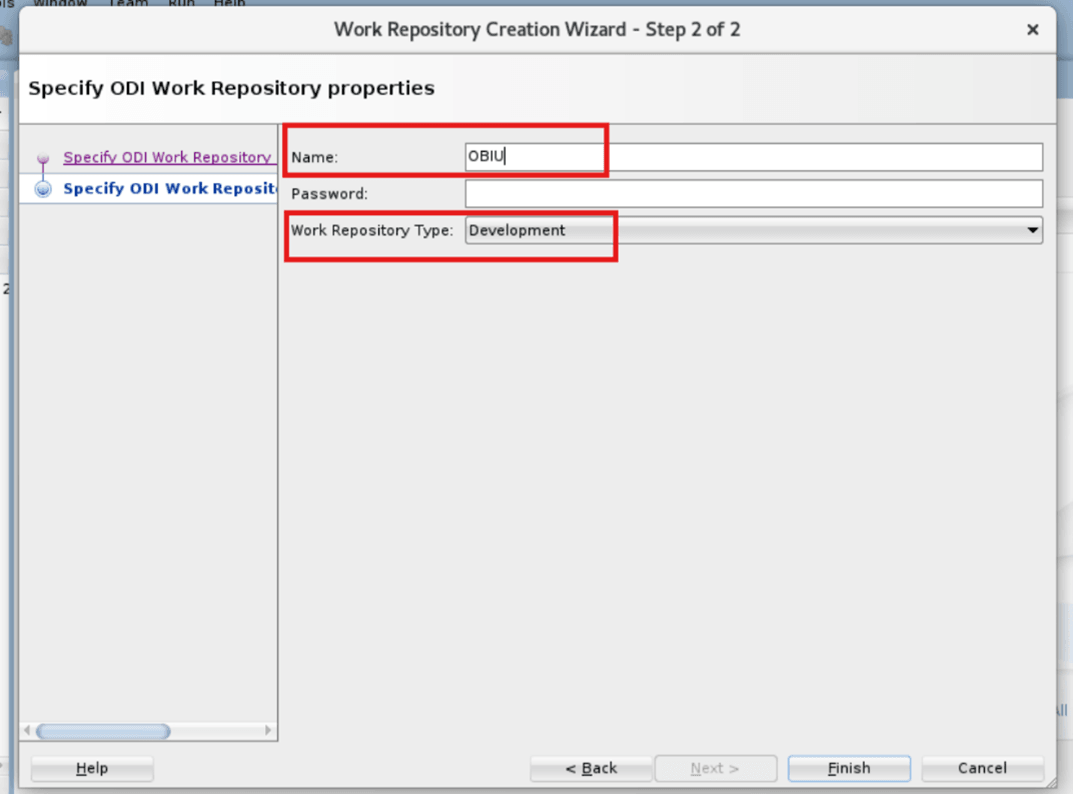
-
Click Finish then No.
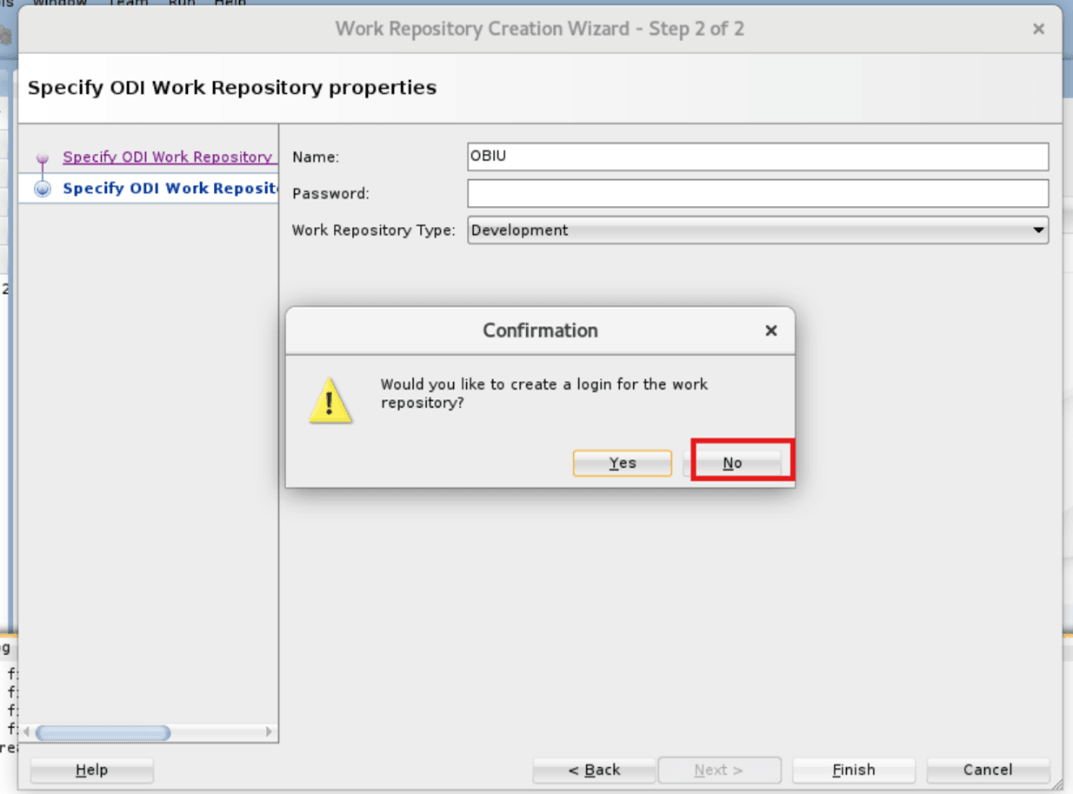
The application creates the Work Repository.
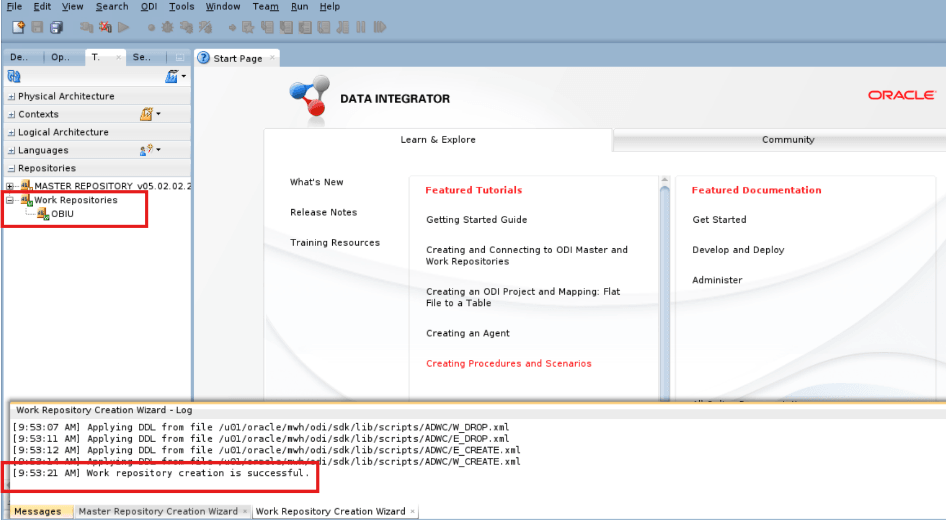
Create Work Repository Connection
- Log in to ODI Studio in VNC.
-
Create a Work Repository connection by navigating to Connect to Repository > +.
-
Enter the Supervisor details in Oracle Data Integrator Connection.
Field Name and Description Value Login Name
SUPERVISOR Name
User SUPERVISOR
Password SUPERVISOR Password 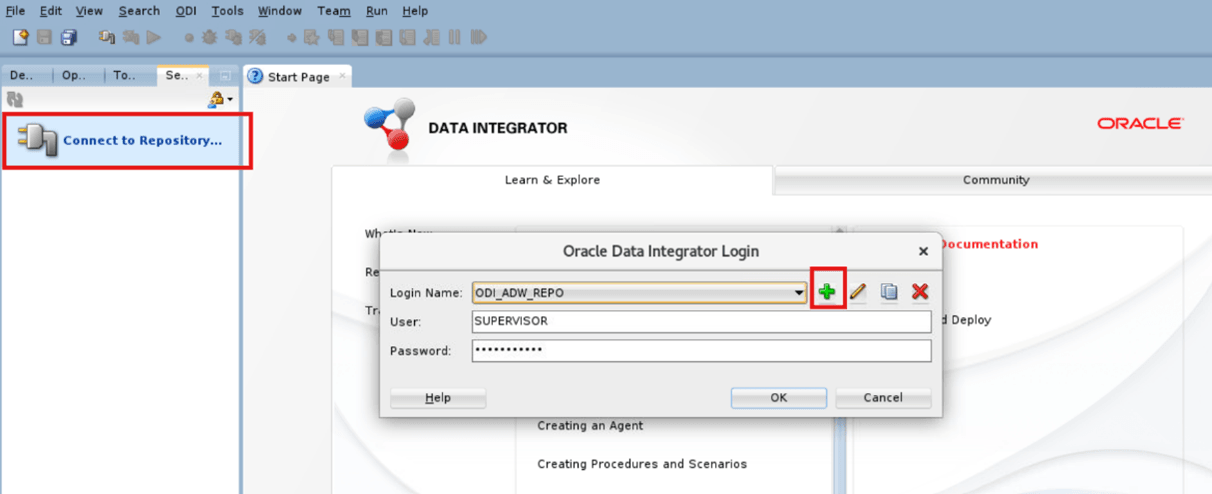
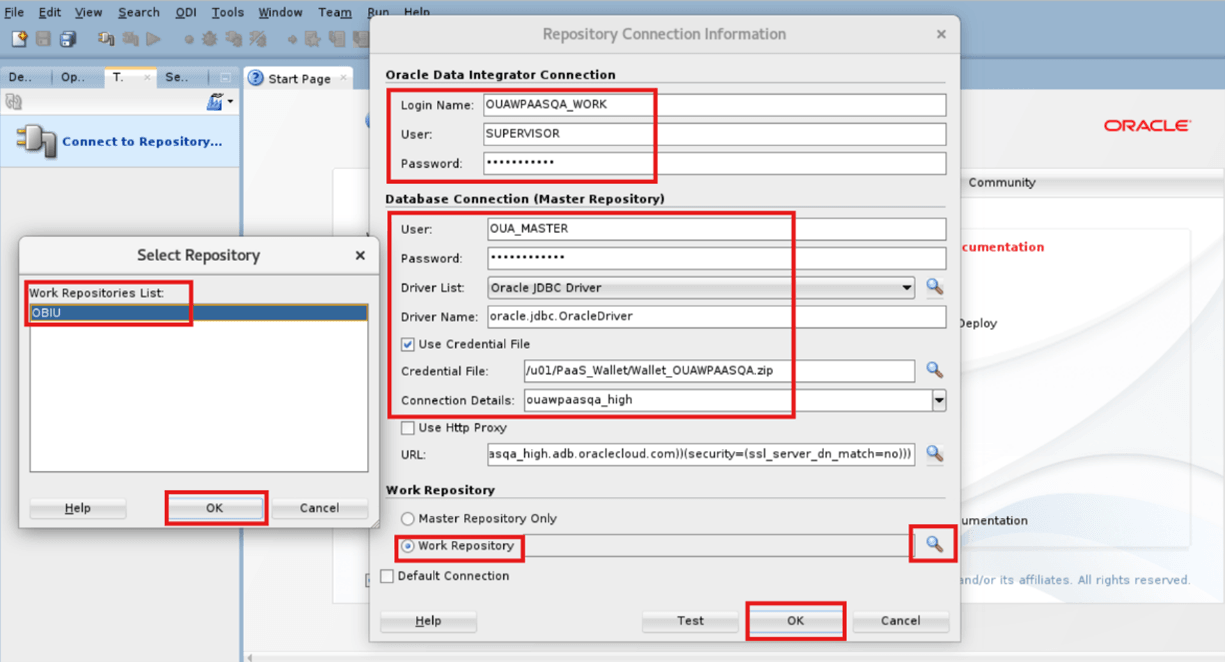
Enter the OUA Master and ADB details in Database Connection (Master Repository).
Field Name and Description Value User
OUA_MASTER
Password OUA_MASTER Password
Driver List Oracle JDBC Driver Driver Name oracle.jdbc.OracleDriver Credential File Select ADB Wallet zip Connection Details Select ADB Service. For example, ADB_Service_high From Work Repository, select Work Repository (OBIU) and click OK.
-
Click Test then click OK.
- Click OK.
Download OUAW ETL Component
-
Download Oracle Utilities Analytics Warehouse v25.10.0.0 PaaS Multiplatform zip from edelivery, copy to the ODI Instance virtual machine, and unzip to a dedicated folder.
-
After unzipping the package, you will get these folders:
- AdminTool Component
- Dashboard Component
- ETL Component
The ETL Component folder contains all the ETL Installation file and folders.

Note:
Ensure to note the relative directory path of all folders in the ETL Component folder which will be used later.
Configure Physical and Logical Architecture for Target in ODI
Note:
All Physical Data Server and Physical/Logical schemas and ODI Studio activity should be performed by logging in to Work Repository.Physical Data Servers (Oracle)
- Log in to Work Repository with the created Work Connection.
-
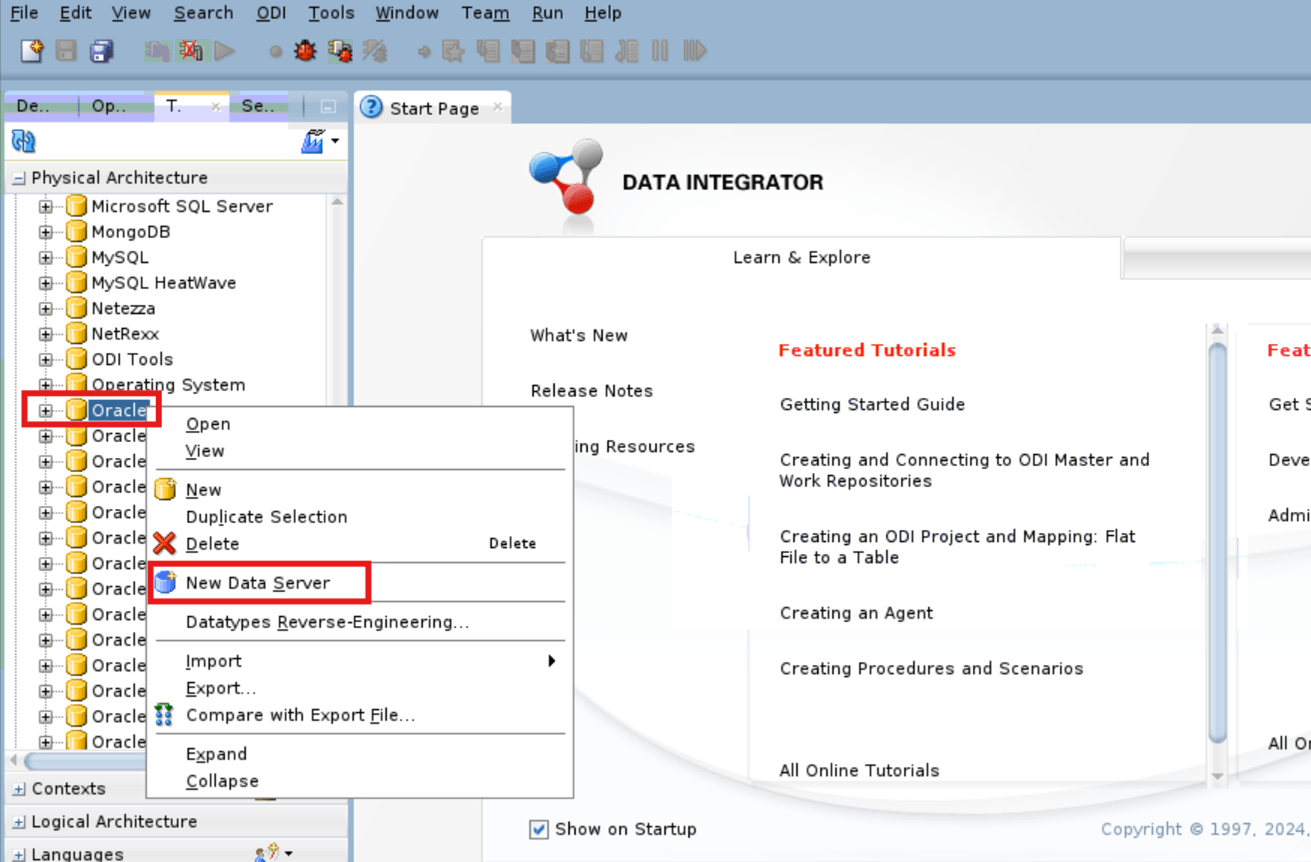
Navigate to Topology > Physical Architecture > Technologies and right click Oracle then select New Data Server.
-
Enter the Data Server details and click Save then click OK.
Field Name and Description Value Name
B1
User MDADM
Password MDADM Password Credential File Location of ADB Wallet zip Connection Details ADB Service Name 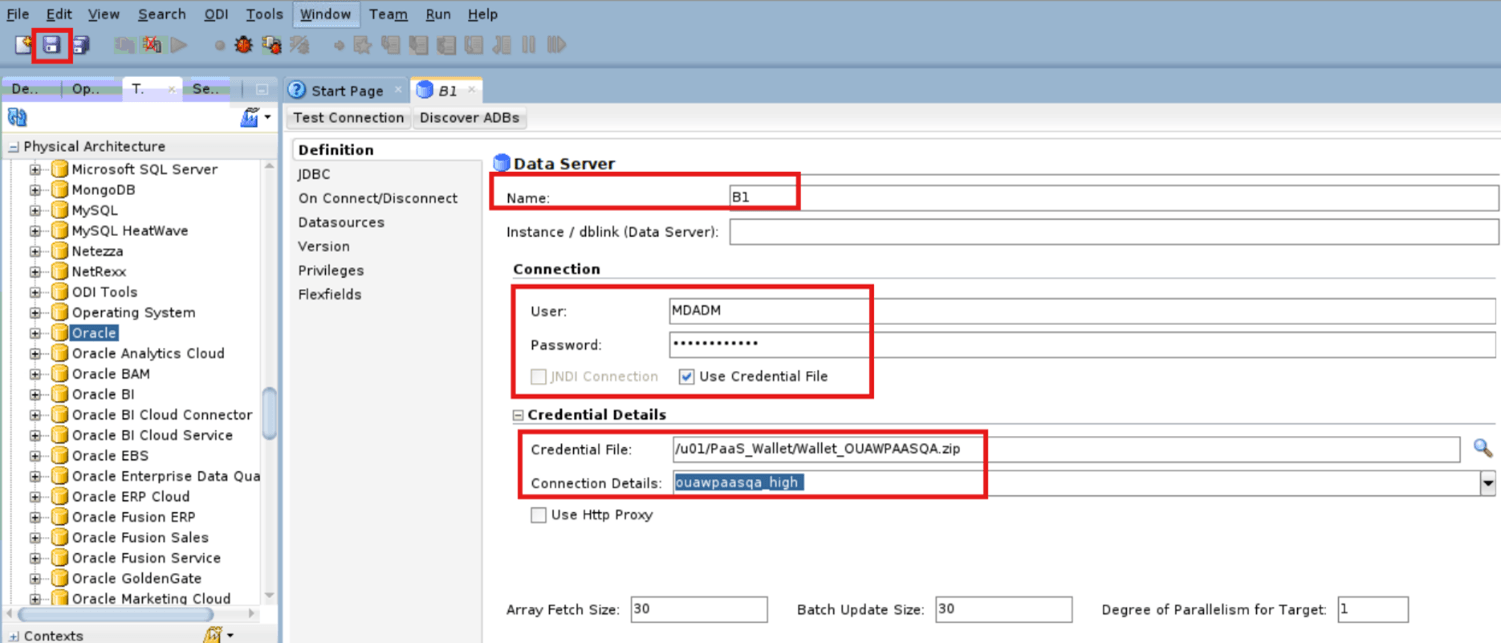
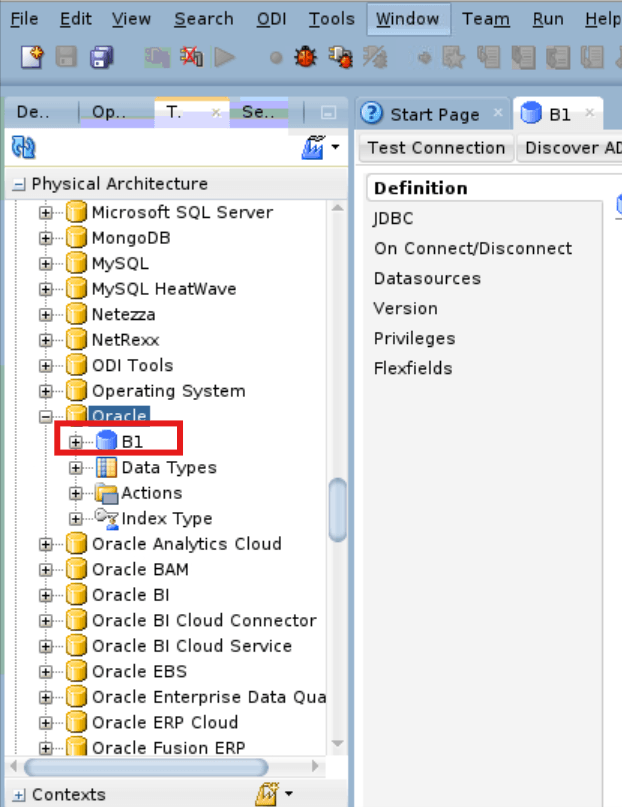
Once Physical Data Server (Oracle) - B1 creation is completed. You can find it under the Physical Architecture > Oracle tab.
Physical Schema
-
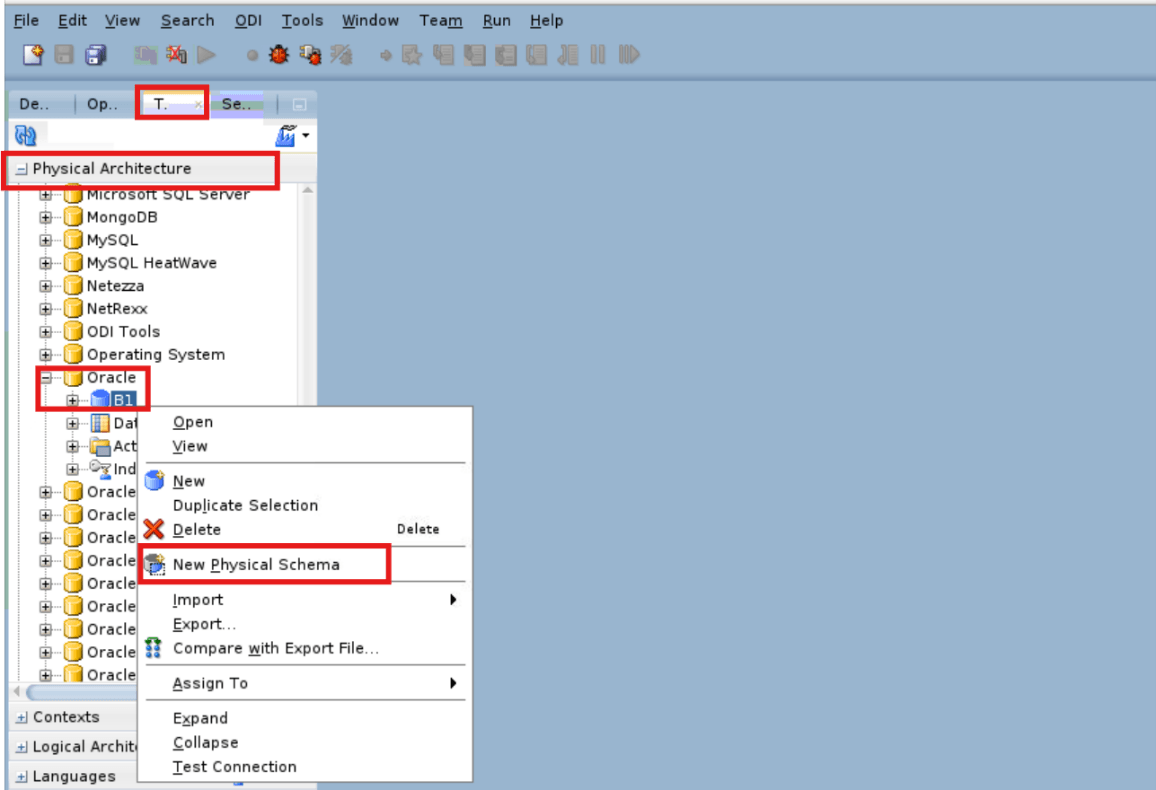
Navigate to Topology > Physical Architecture > Technologies > Oracle and right click Oracle Physical Data Server (B1) then select New Physical Schema.
-
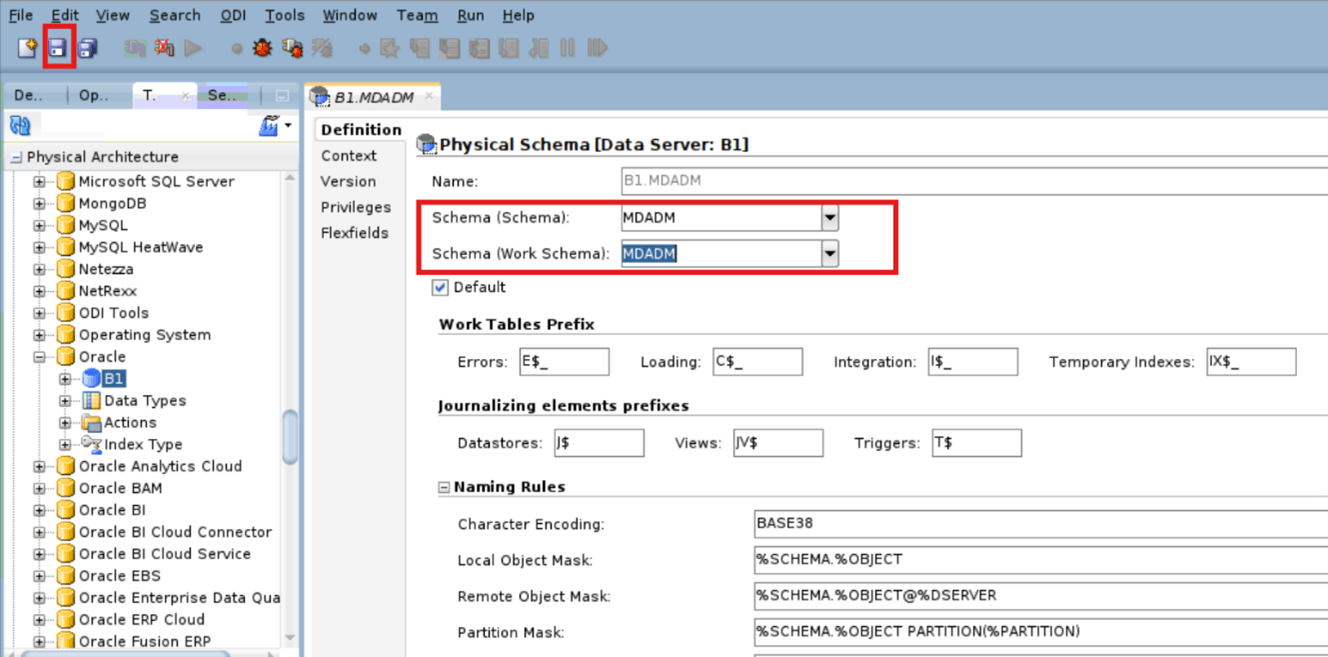
Enter the Physical Schema details (for example, MDADM) and click Save then OK (information for an unspecified context for schema).
Field Name and Description Value Schema (Schema)
Select Schema as per Physical Schema Name for example, MDADM
Schema (Schema Work) Select Schema as per Physical Schema Name for example, MDADM
-
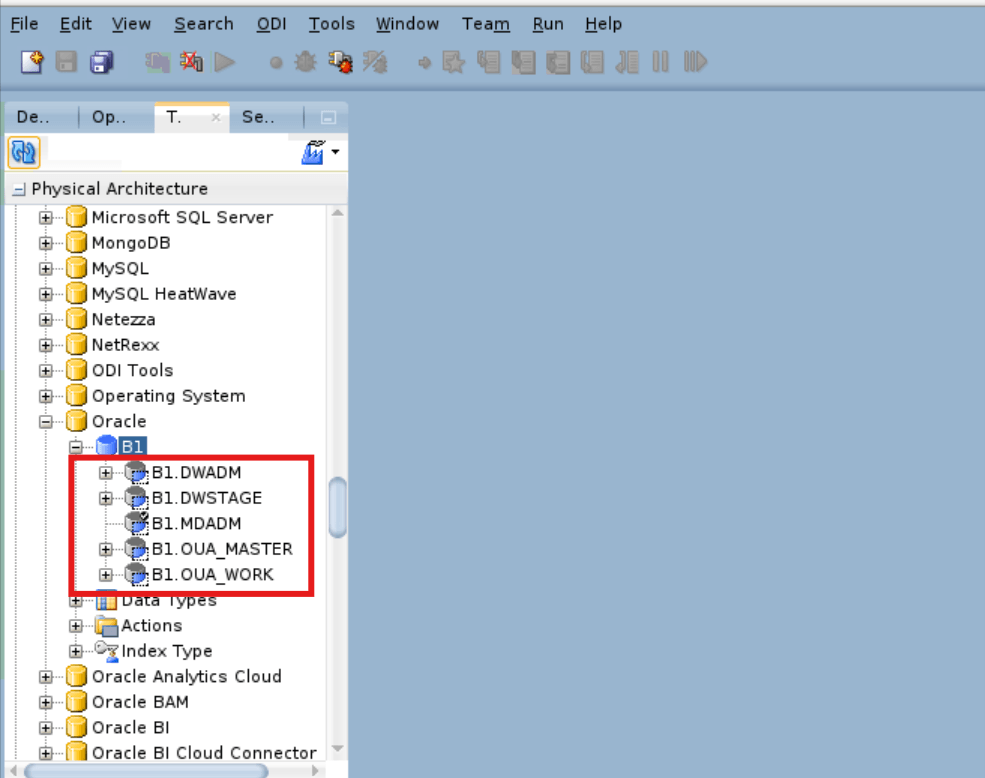
Repeat steps 1 - 2 to enter the Physical Schema for DWADM, DWSTAGE, OUA_MASTER, and OUA_WORK.
-
After all the above physical schemas are created, you will find these schemas under Oracle Physical Data Server > B1.
Physical Data Servers (Oracle GoldenGate)
-
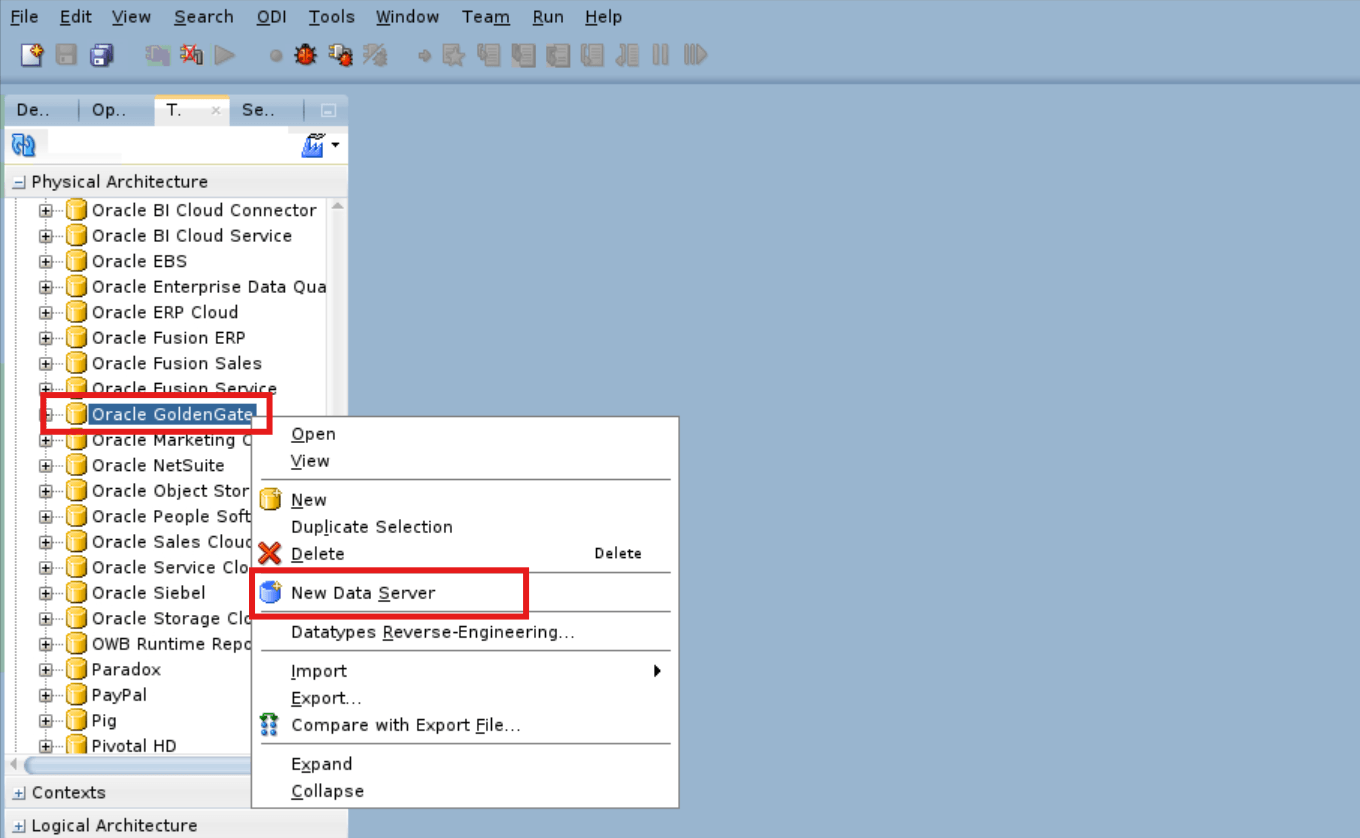
Navigate to Topology > Physical Architecture > Technologies and right click Oracle GoldenGate then select New Data Server.
-
Enter the JAgent details and click Save then OK (information to register at least one physical schema for the data server).
Field Name and Description Value Name
JAgent Name
Host **** (provide asterisk, this a dummy value)
JMX Port -1 Manager Port -1 JMX User **** (provide a dummy value) Password **** (provide a dummy value) Installation Path **** (provide a dummy value) 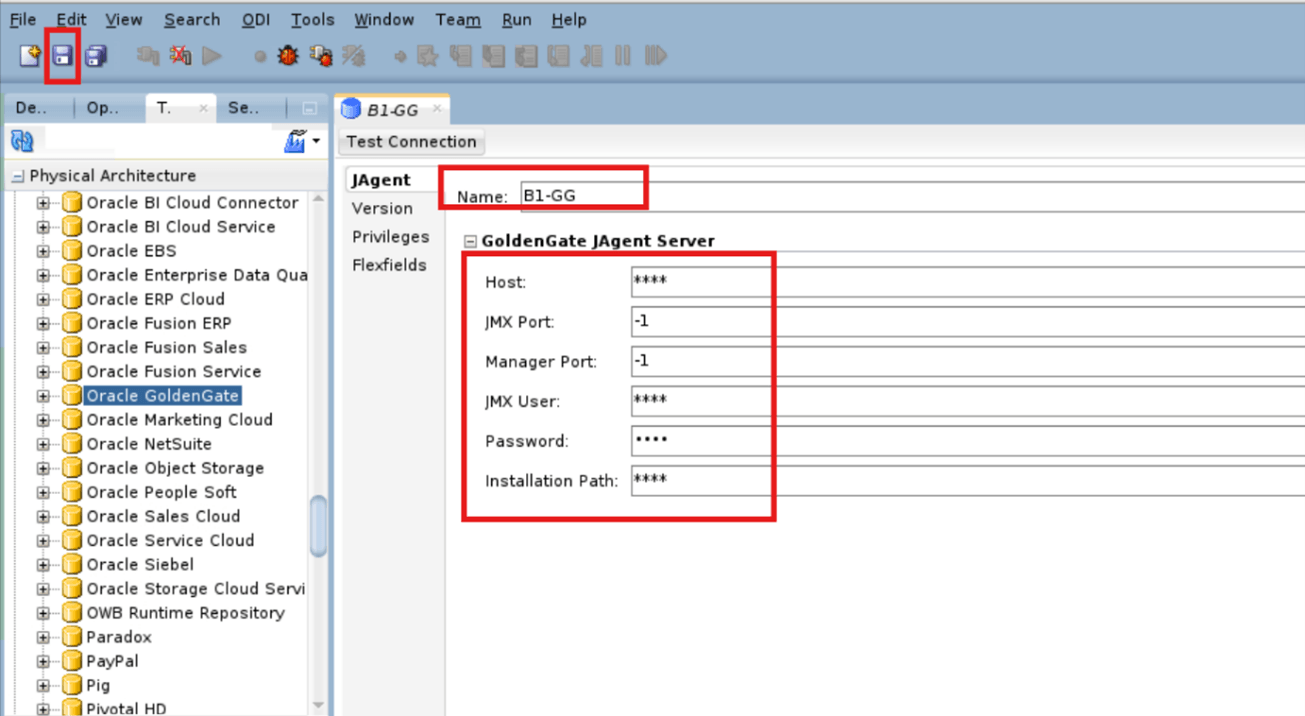
-
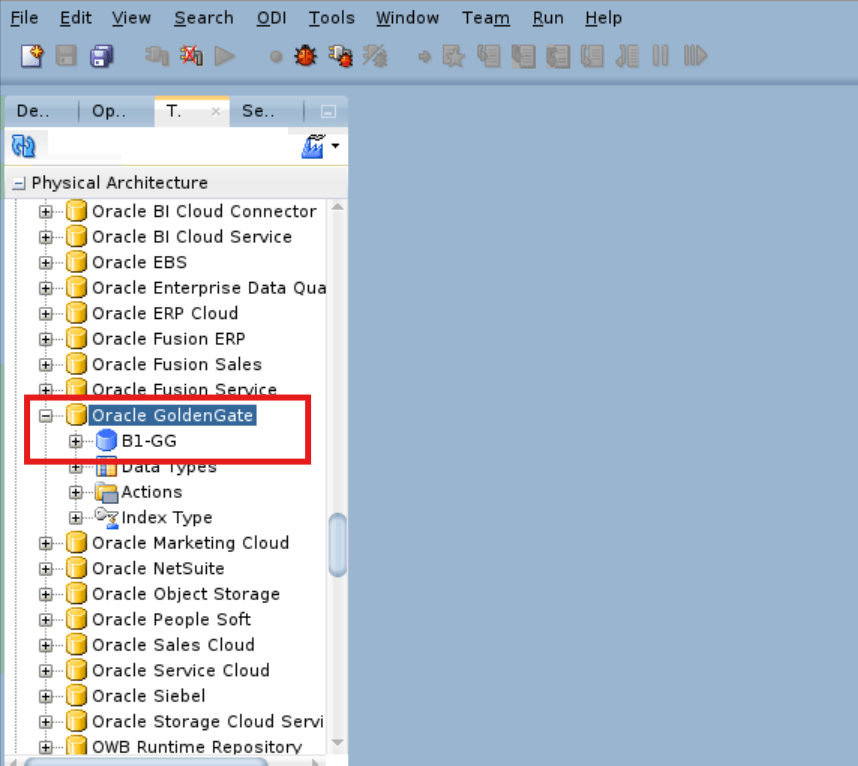
After Physical Data Server (Oracle GoldenGate) > B1-GG is created, you will find this under Physical Architecture > Oracle GoldenGate.
Physical Schema (File)
Note:
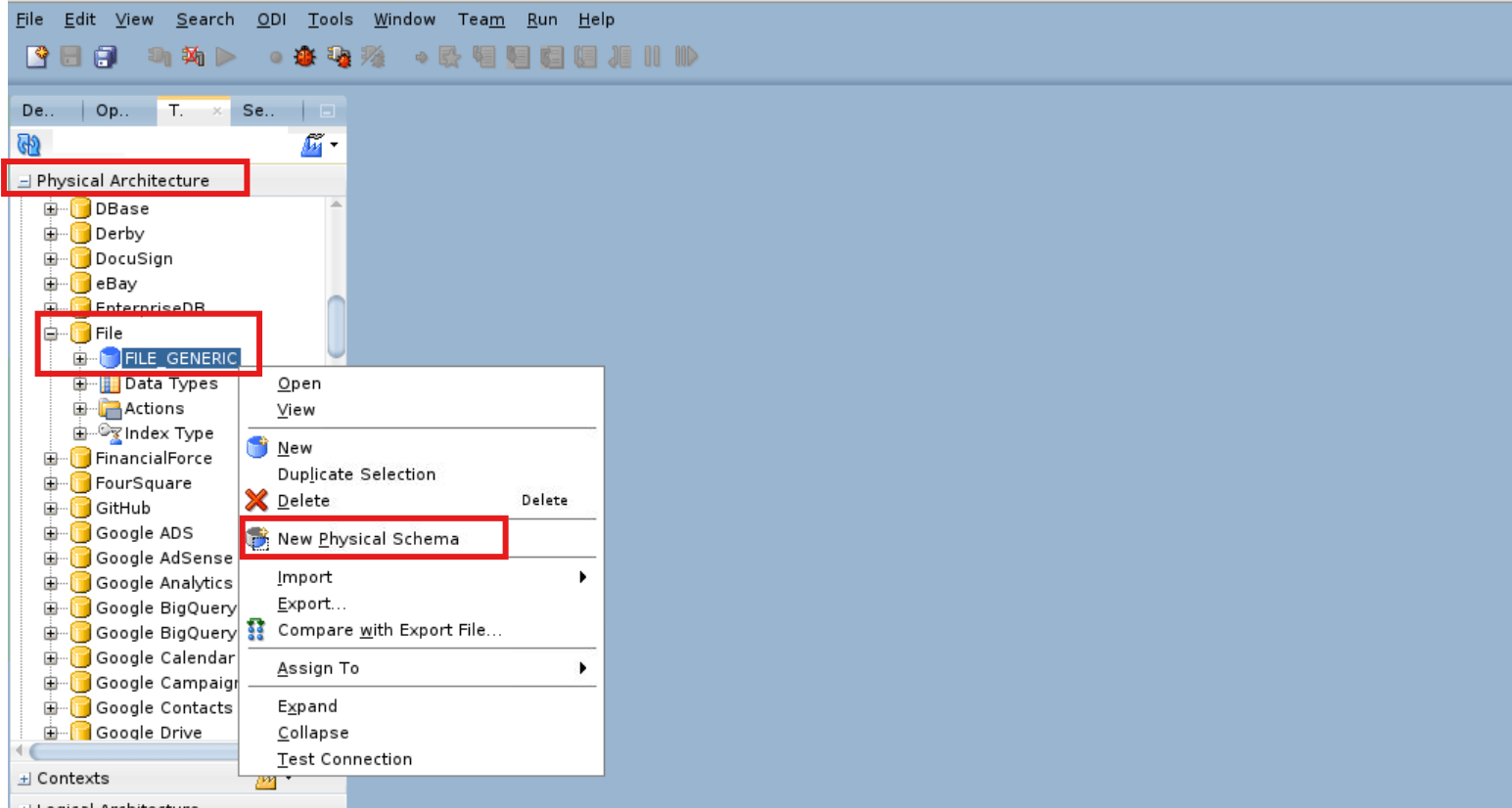
This section provides the steps to create a physical schema under Physical Data Server (File) – FILE-GENERIC.-
Navigate to Topology > Physical Architecture > Technologies > File and right click File Generic then select New Physical Schema.
-
Enter the Physical Schema (File) details and click Save then OK (information for an unspecified context for schema).
Field Name and Description Value Directory (Schema)
Update the Seeded-Metadata folder location for example,
< /u01/OUAW_Deployment/ETL Component/BI_V2510000_39/Seeded-Metadata>Directory (Work Schema) Update the Seeded-Metadata folder location for example,
< /u01/OUAW_Deployment/ETL Component/BI_V2510000_39/Seeded-Metadata>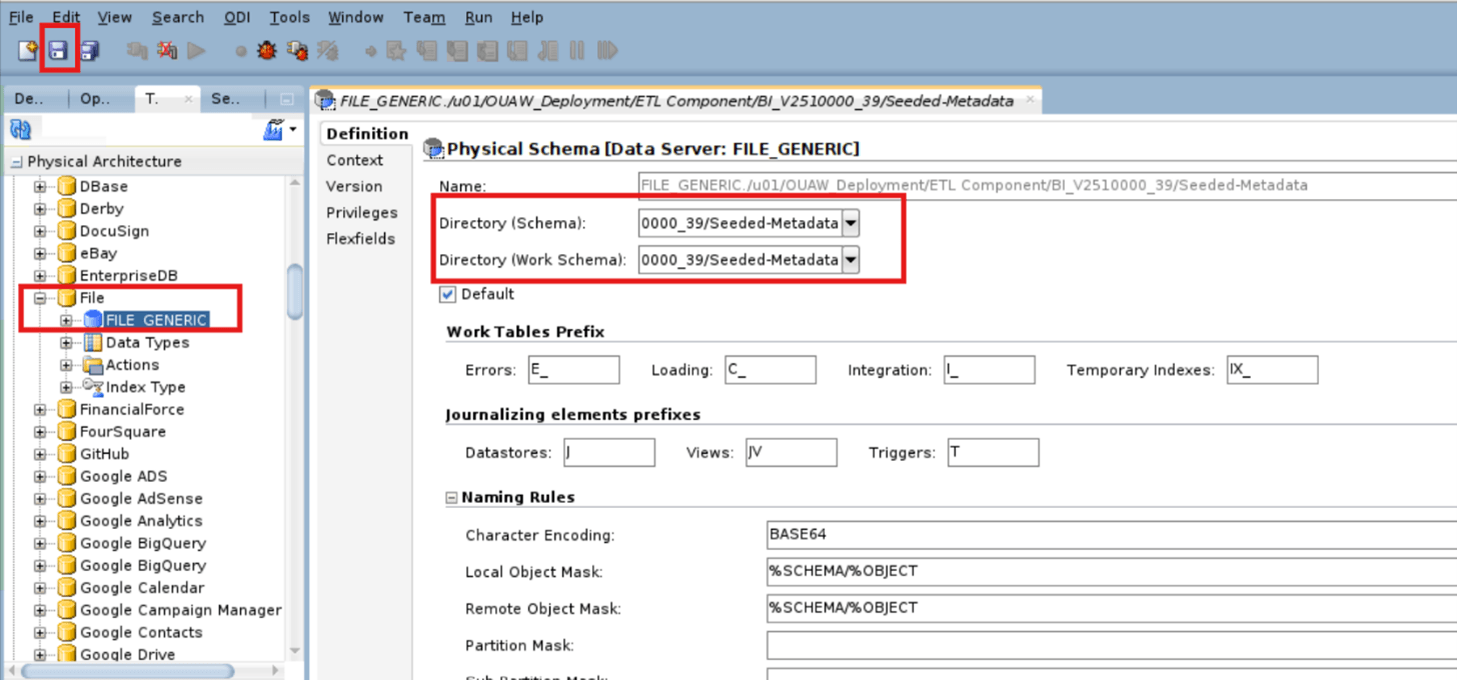
Logical Schema (Oracle)
-
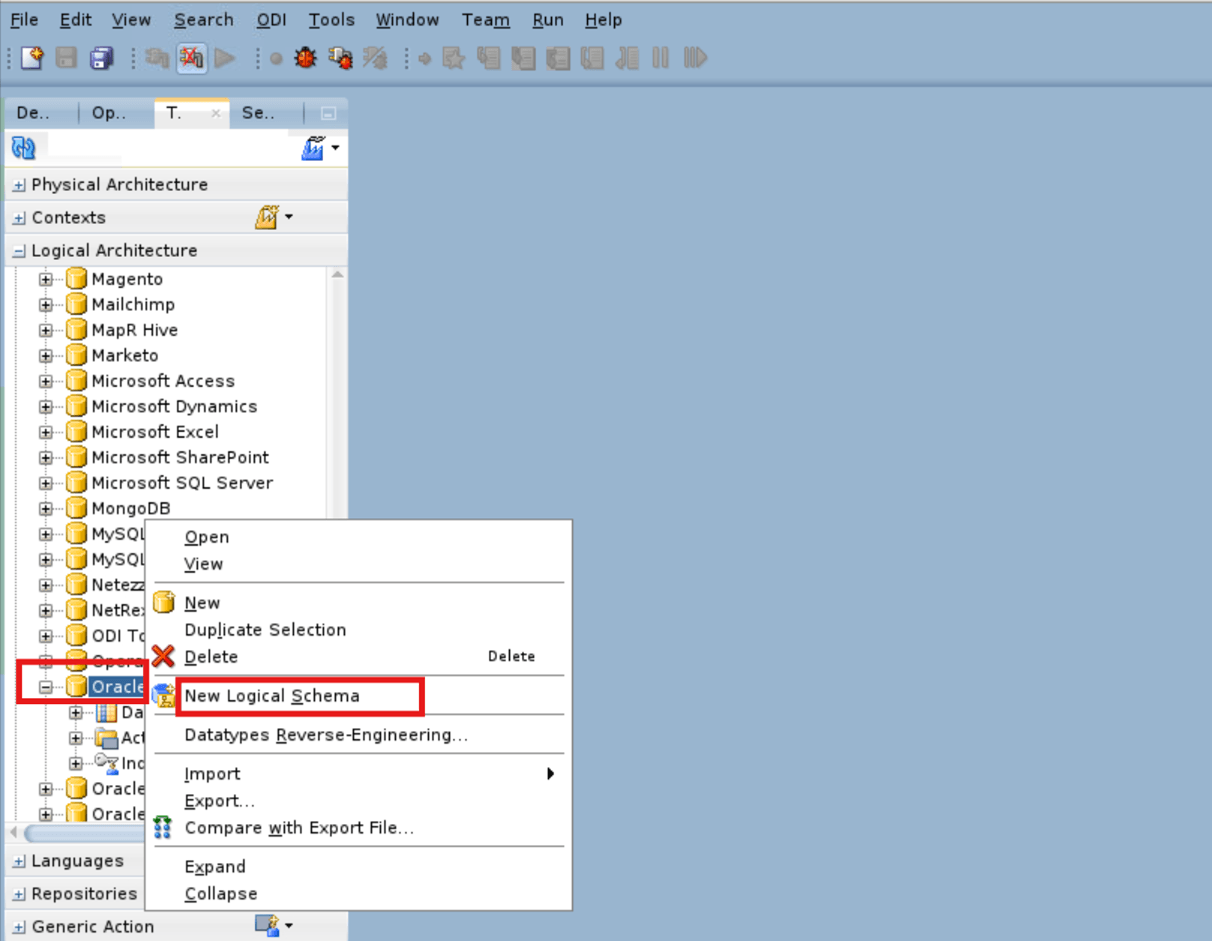
Navigate to Topology > Logical Architecture > Technologies and right click Oracle then select New Logical Schema.
-
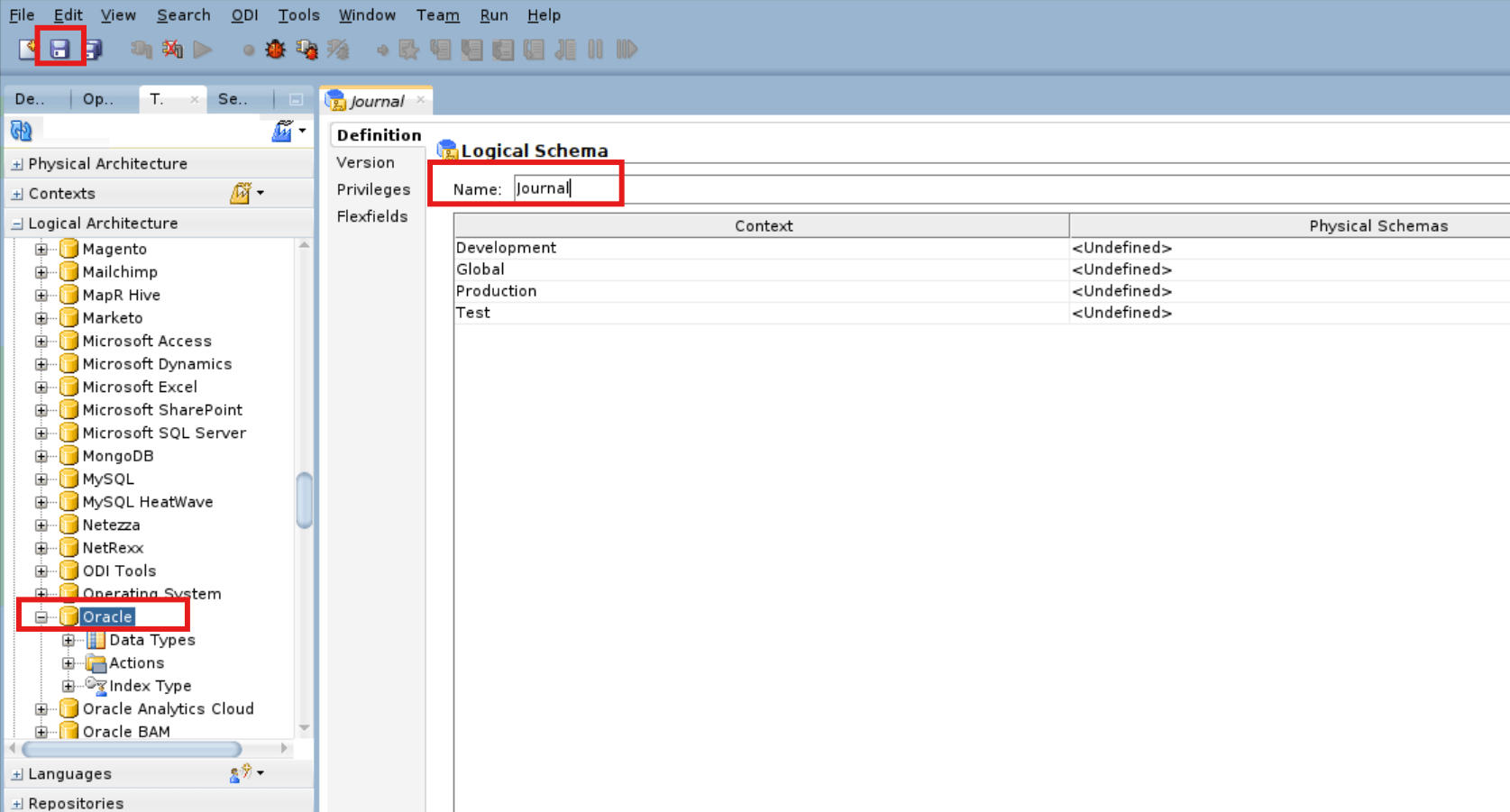
Enter the Logical Schema (for example, Journal) details and click Save.
Field Name and Description Value Name
Logical Schema Name
-
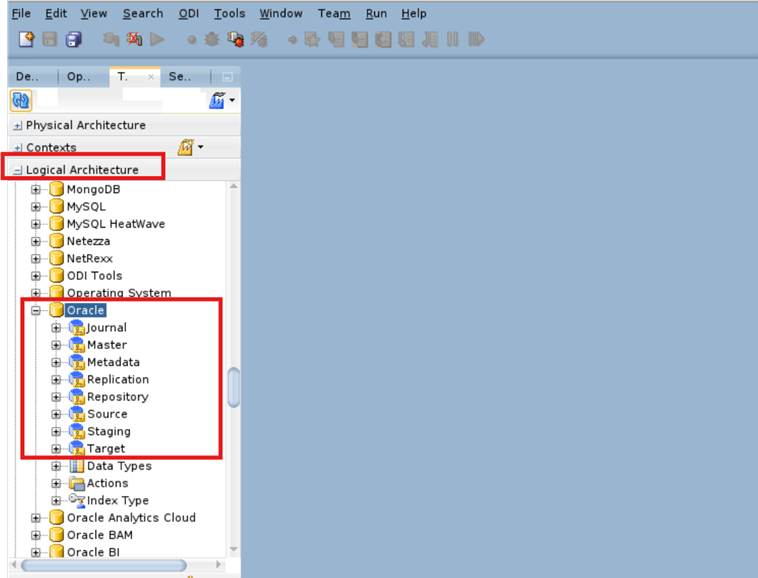
Repeat step 1- 2 to create the logical schema for Metadata, Replication, Repository, Source, Staging, and Target.
Logical Schema (Oracle GoldenGate)
-
Navigate to Topology > Logical Architecture > Technologies and right click Oracle GoldenGate then select New Logical Schema.
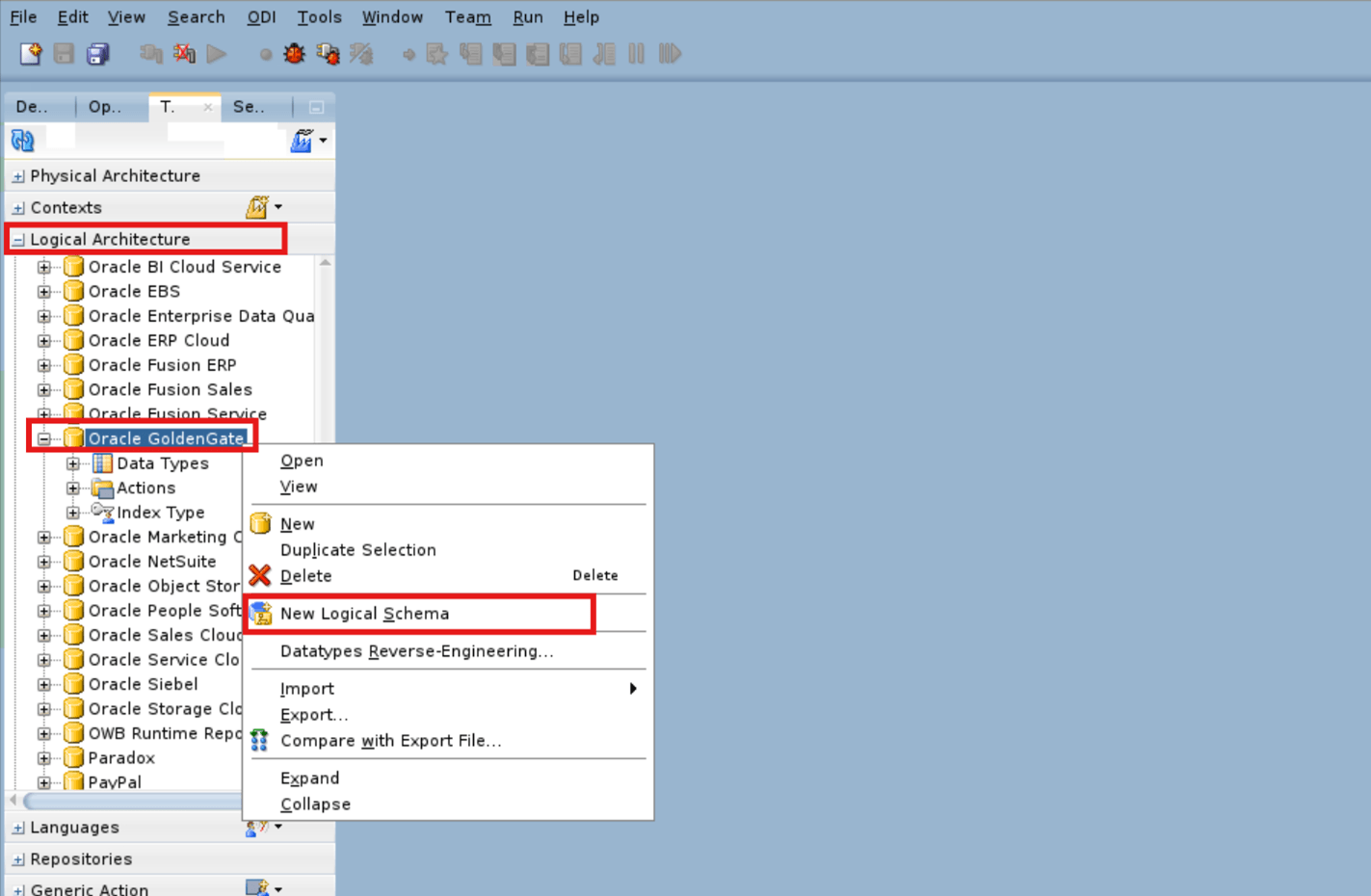
-
Enter the Logical Schema details for OGG Source and click Save.
Field Name and Description Value Name
OGG Source
Process Type Capture 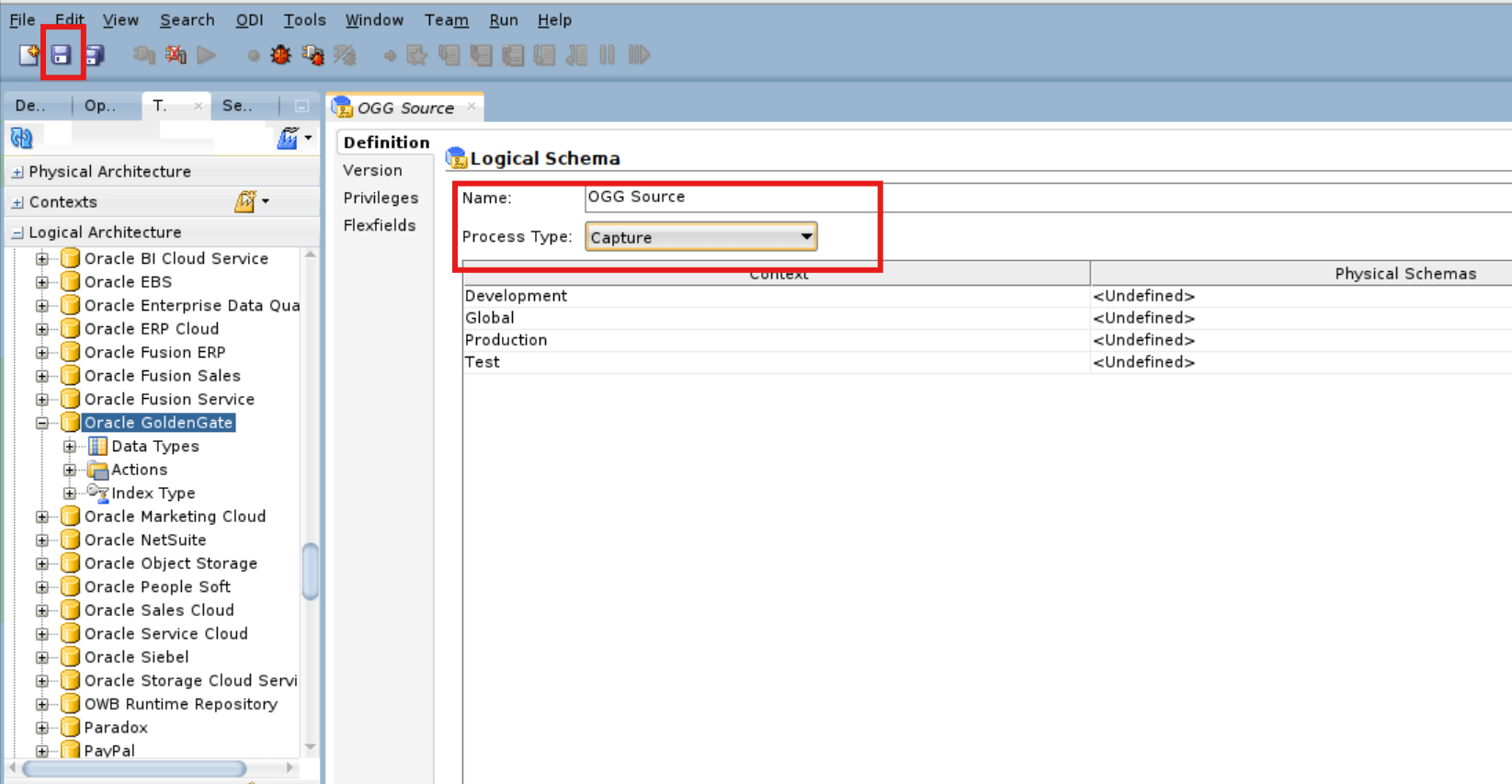
-
Right click Oracle GoldenGate and select New Logical Schema then enter the Logical Schema details for OGG Target and click Save.
Field Name and Description Value Name
OGG Target
Process Type Delivery Target DB Logical Schema Replication 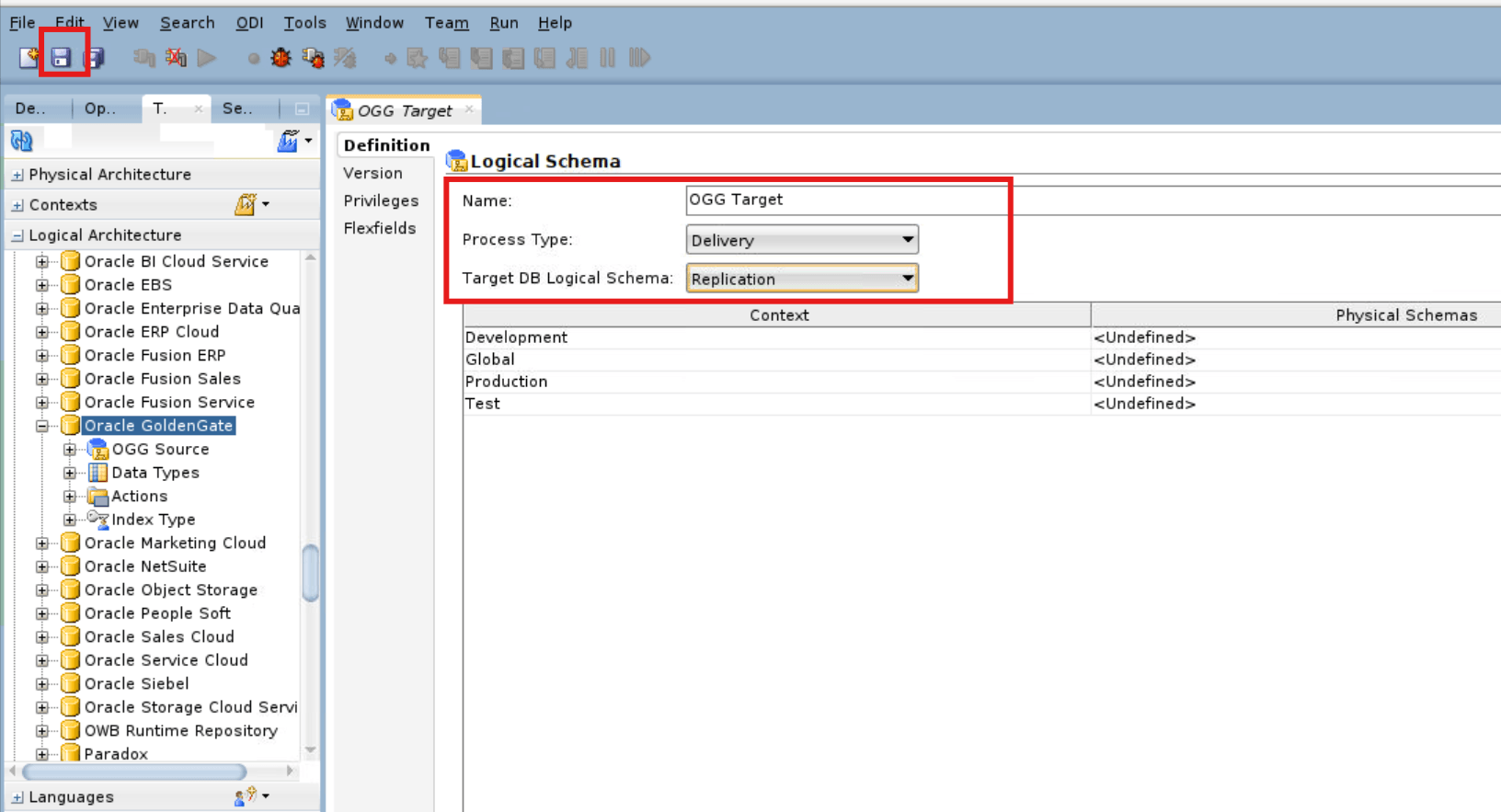
-
The application creates the OGG Source and OGG Target logical schemas.
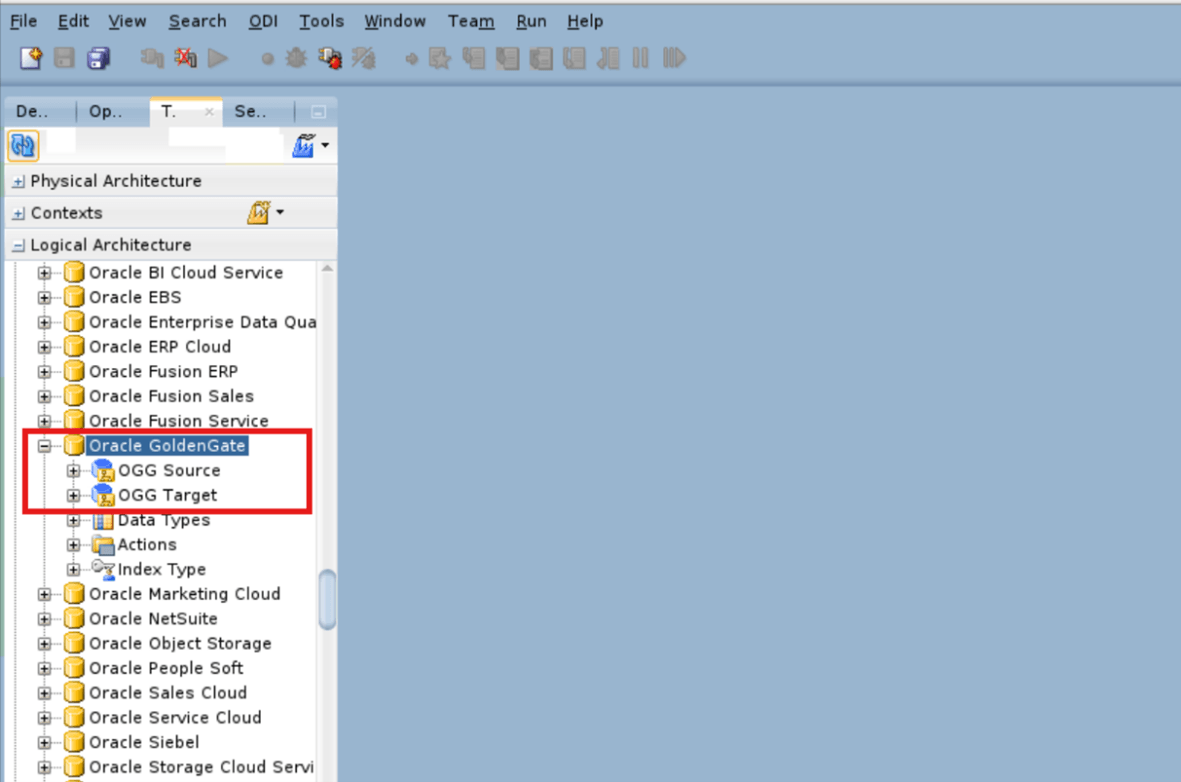
Logical Schema (File)
-
Navigate to Topology > Logical Architecture > Technologies and right click File then select New Logical Schema.
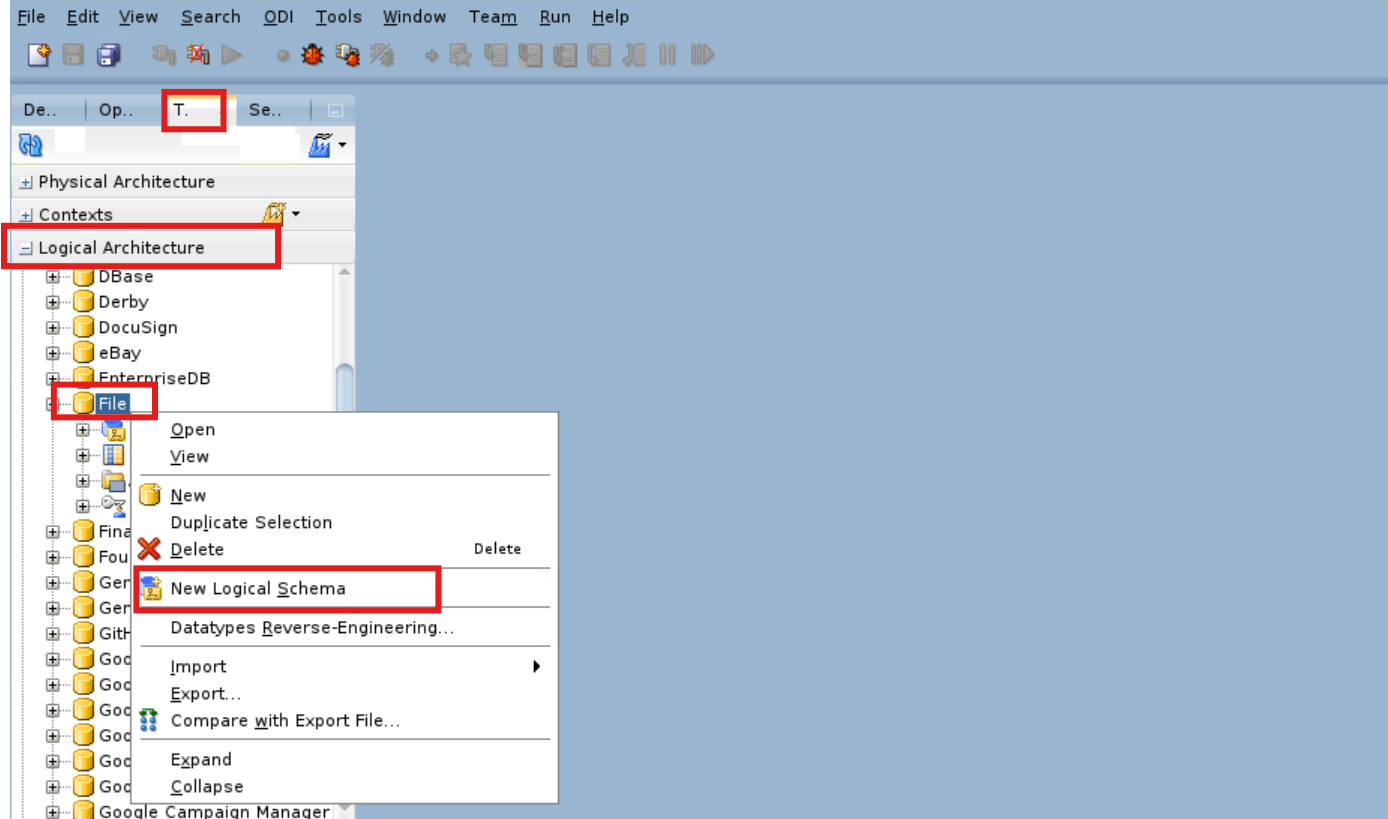
-
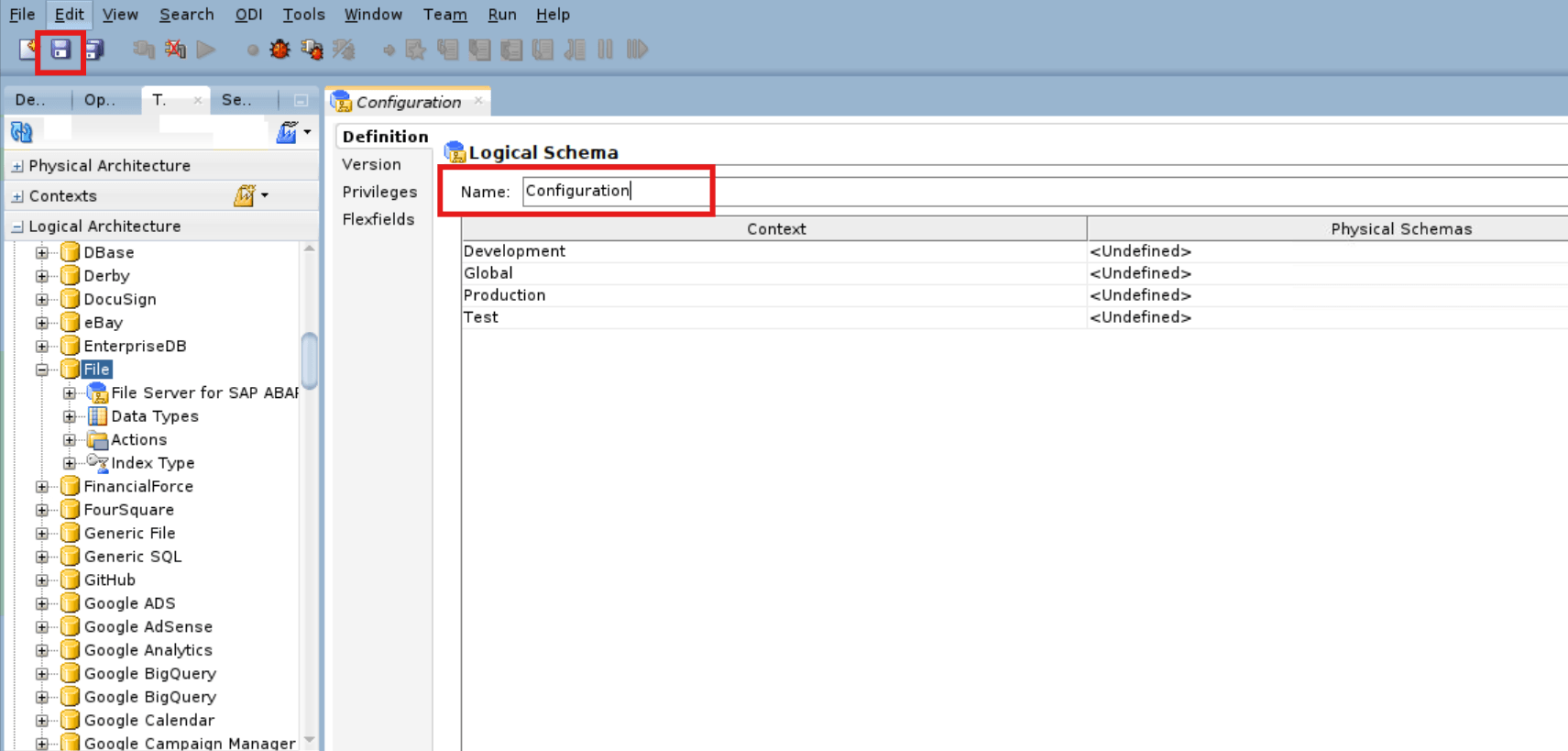
Enter the Logical Schema details and click Save.
Field Name and Description Value Name
Configuration
Map Physical and Logical Schemas
-
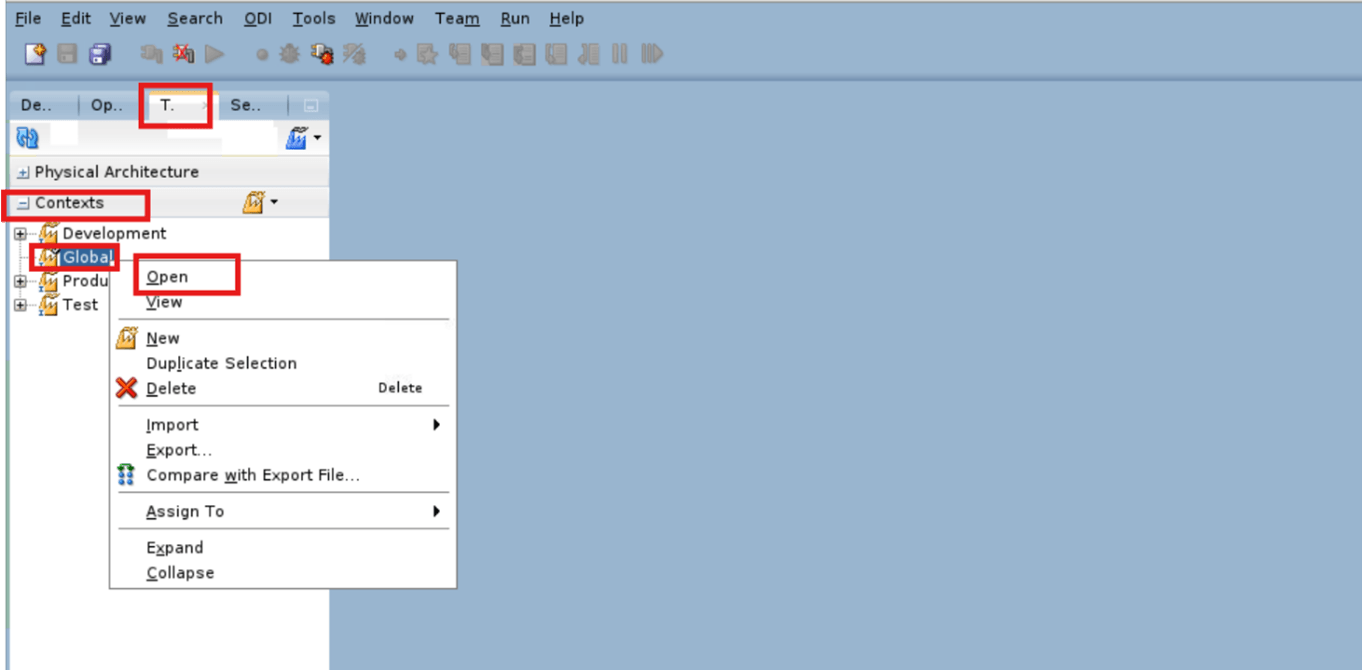
Navigate to Topology > Contexts and right click Global then select Open.
-
Enter the mapping details and click Save.
Field Name and Description Value Configuration
Select Seeded-Metadata Location from drop-down
Master B1.OUA_MASTER Metadata B1.MDADM Repository B1.OUA_WORK Staging B1.DWSTAGE Target B1.DWADM 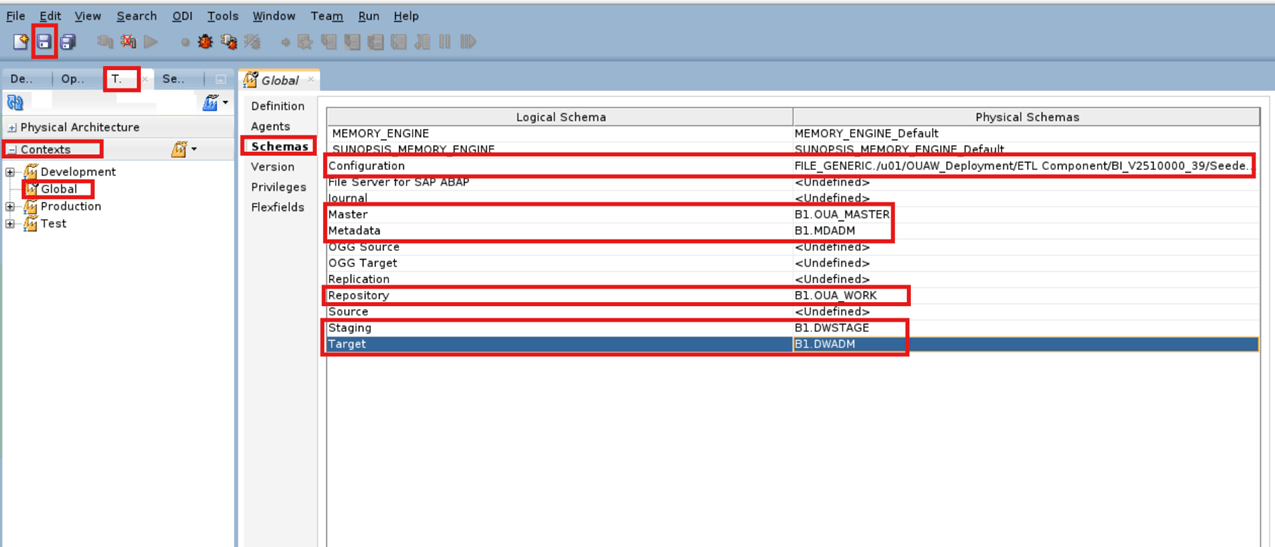
Flex Fields Configuration
-
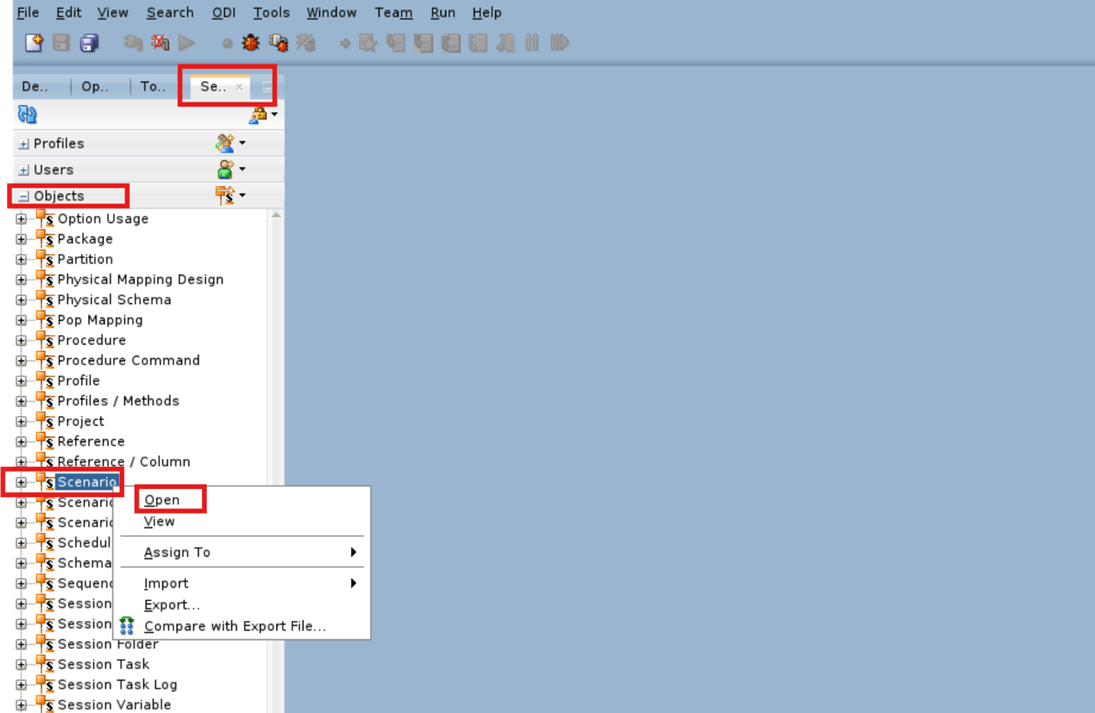
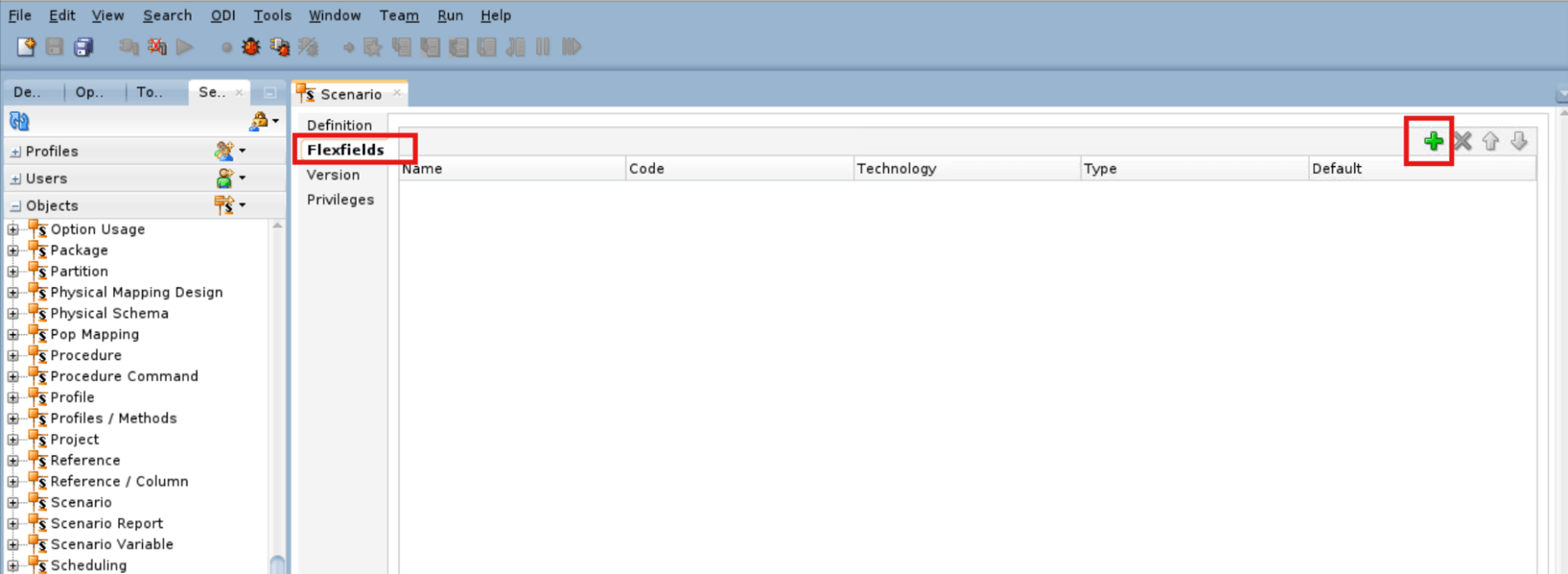
Navigate to Security > Objects and right click Scenario then select Open.
-
Enter the Scenario Flex Fields details and click Save.
Field Name and Description Value Name
B1_NMS_SCEN_NAME
Code B1_NMS_SCEN_NAME Technology All Type String 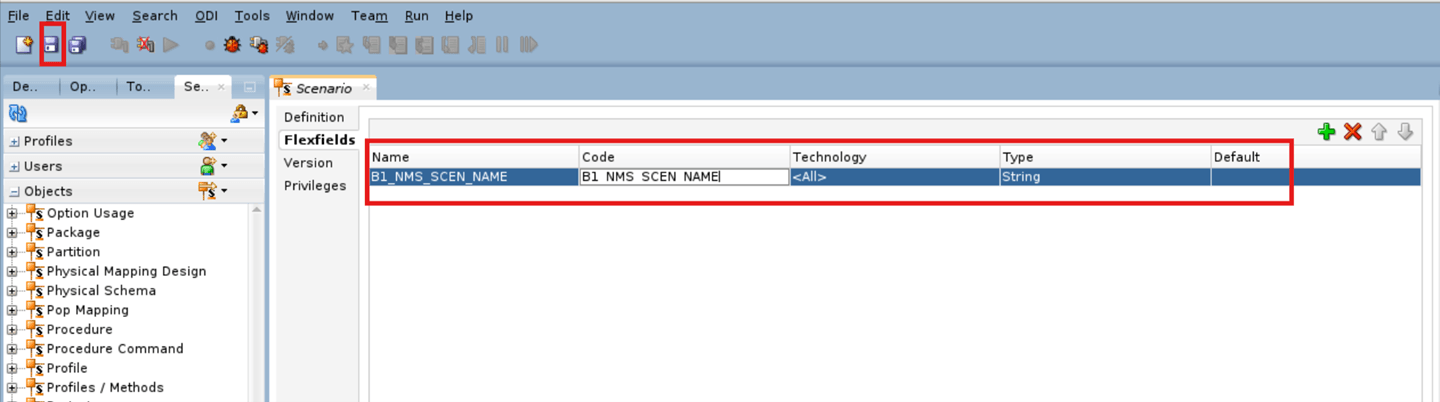
Flex Fields on the Datastore
-
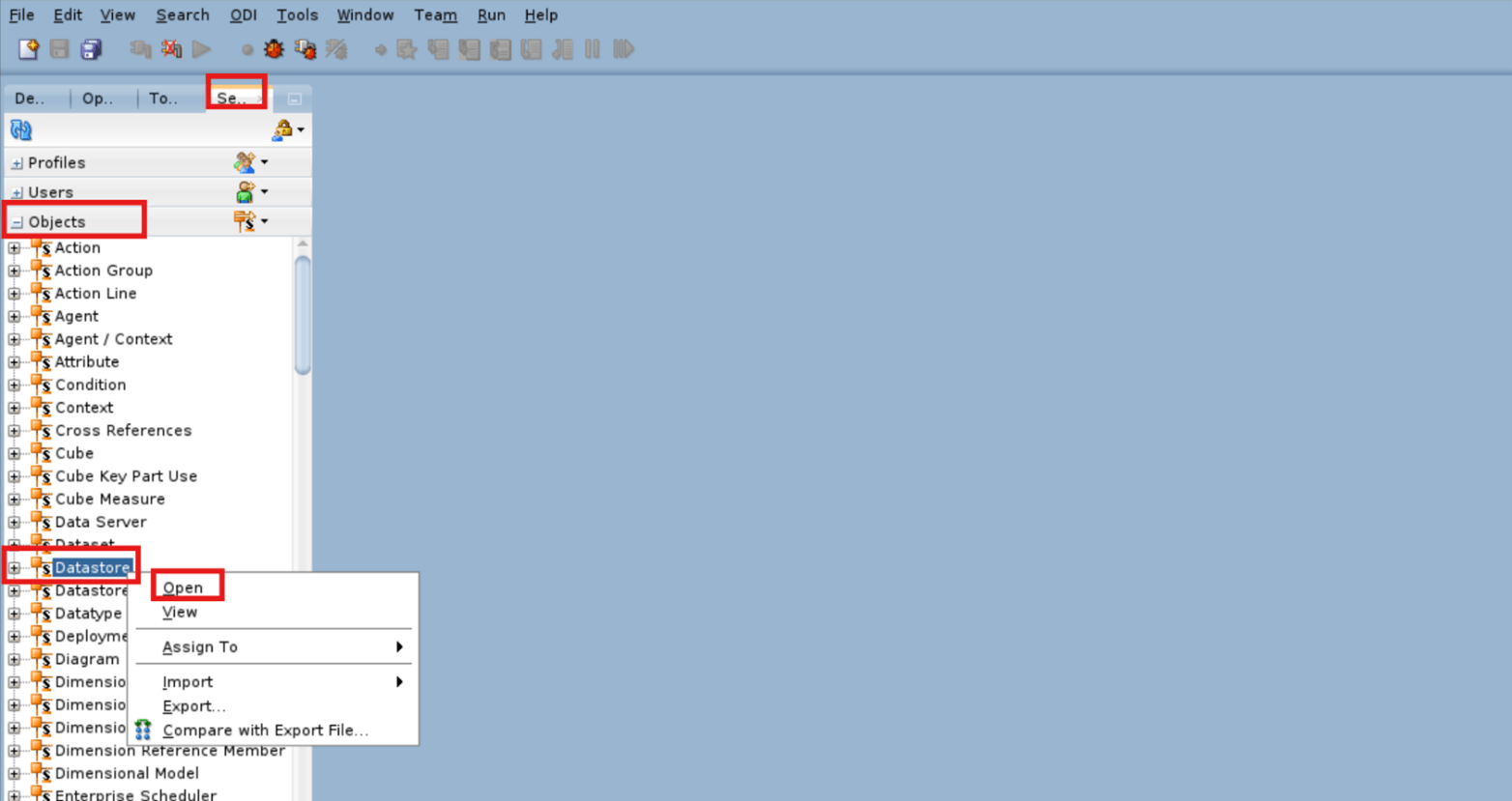
Navigate to Security > Objects and right click Datastore then select Open.
-
Enter the Datastore Flex Fields details and click Save.
Field Name and Description Value Name
B1_OBJECT_TYPE
Code B1_OBJECT_TYPE Technology Oracle Type String Field Name and Description Value Name
B1_TARGET_ENTITY_NAME
Code B1_TARGET_ENTITY_NAME Technology Oracle Type String 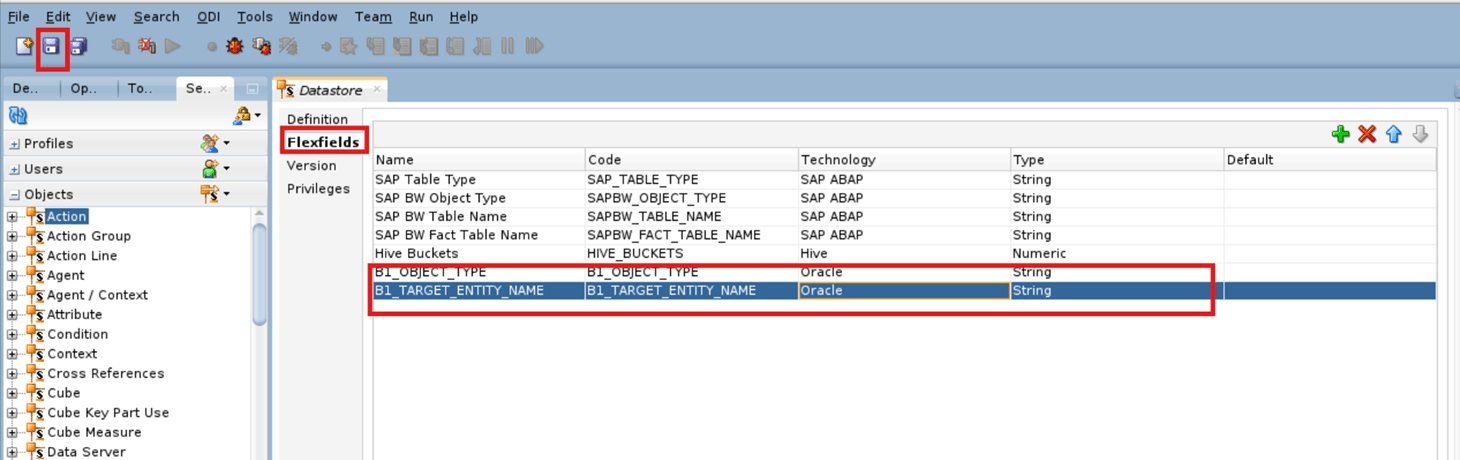
Flex Fields on the Attribute
-
Navigate to Security > Objects and right click Attribute then select Open.
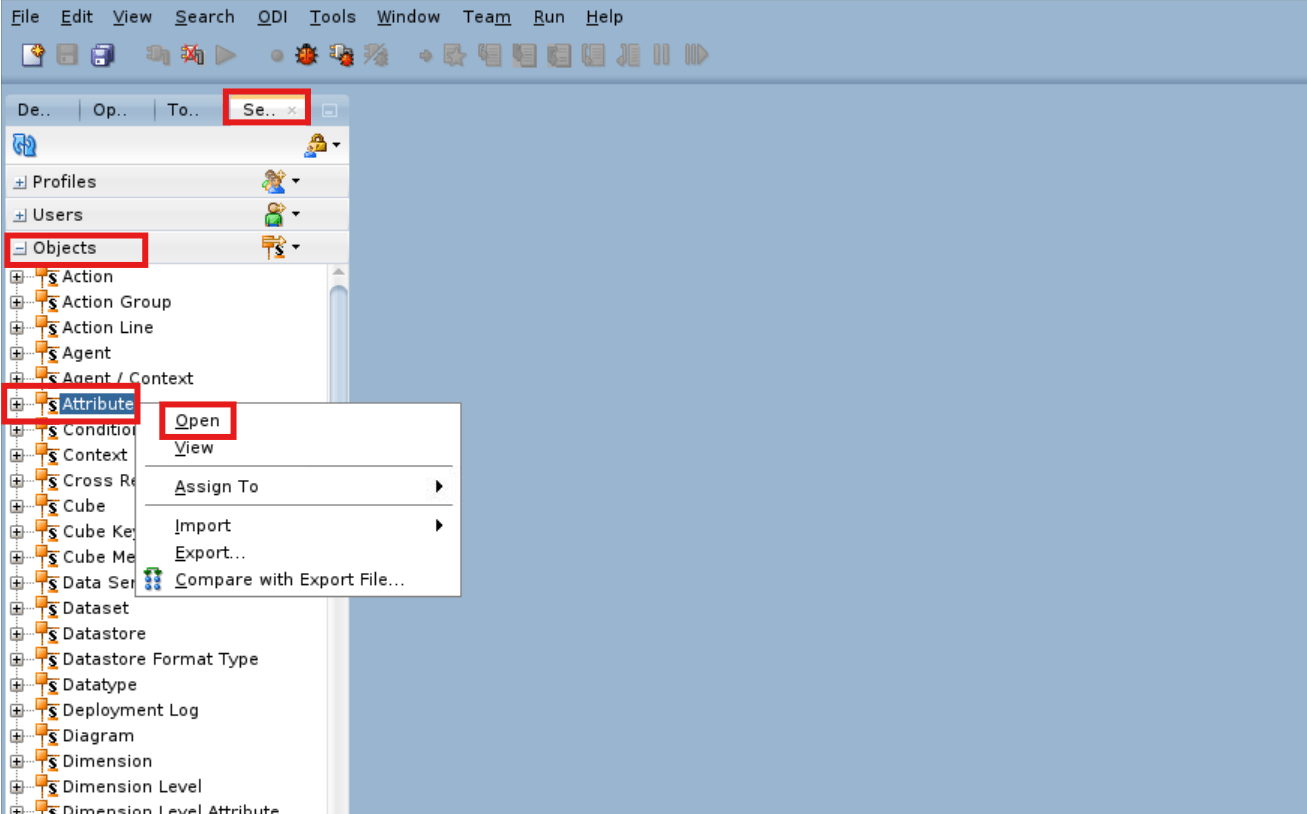
-
Enter the Attribute Flex Fields details and click Save.
Field Name and Description Value Name
B1_USE_FETCH_COLS
Code B1_USE_FETCH_COLS Technology Oracle Type String Default N 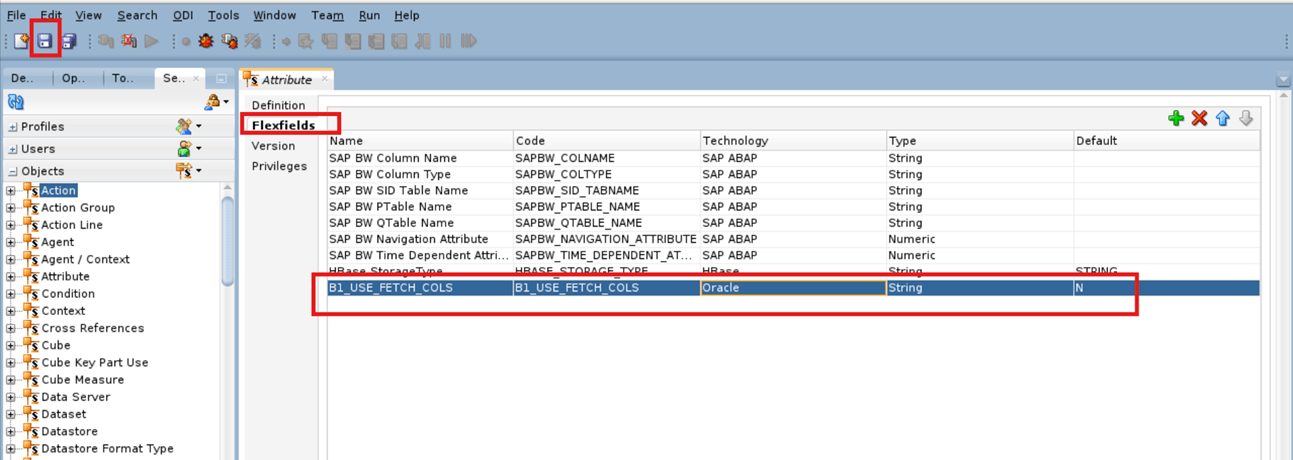
Import ODI Objects
Note:
Ensure all ODI import jobs should be executed by login Work Repository via ODI Studio.-
Ensure you have the ODI Import Objects folder on the ODI Instance which is extracted from Oracle Utilities Analytics Warehouse v25.10.0.0 PaaS Multiplatform zip. See Download OUAW ETL Component for more information.

- Execute these additional SQL grants in ADB.
-
Login to ADB with ADMIN user.
sqlplus ADMIN/'<ADMIN Password>'@<ADB Service Name> -
Execute these grants.
GRANT ALTER ANY TRIGGER TO MDADM;GRANT DROP ANY TRIGGER TO MDADM;
-
-
Navigate to Designer and right click Load Plans then select Import Scenario.
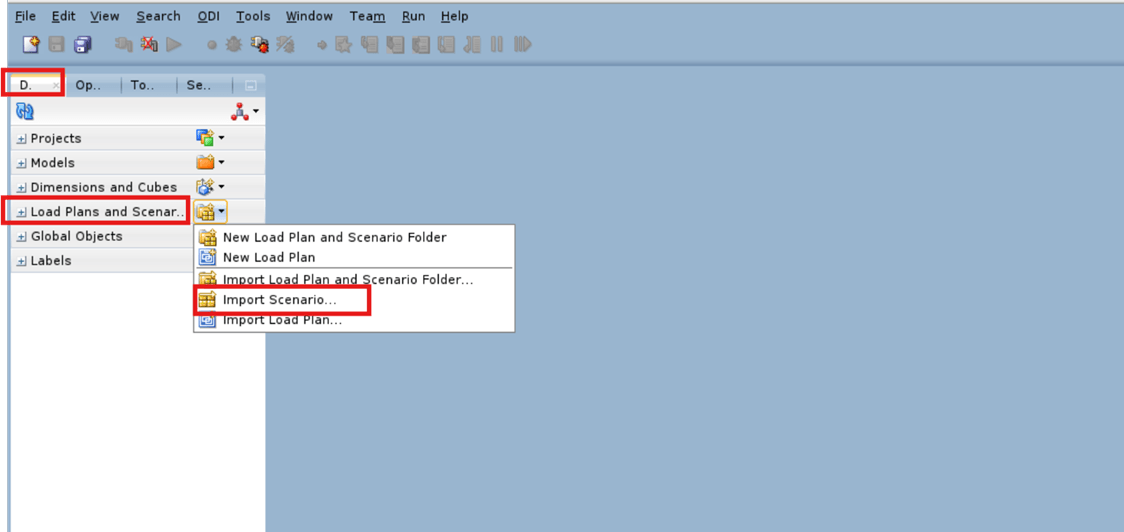
-
Enter the Import Scenario details.
Field Name and Description Value Import Type
Synonym Mode INSERT_UPDATE
File import directory Location of the ODI Import Objects folder. See Download OUAW ETL Component for more information.
Select the following scenarios to import and click OK then Yes to confirm the import scenario details.- B1_IMPORT_OBJECTS_Version_001
- B1_IMPORT_ODI_OBJECTS_Version_001
- B1_IMPORT_ODI_VAR_OBJECTS_Version_001
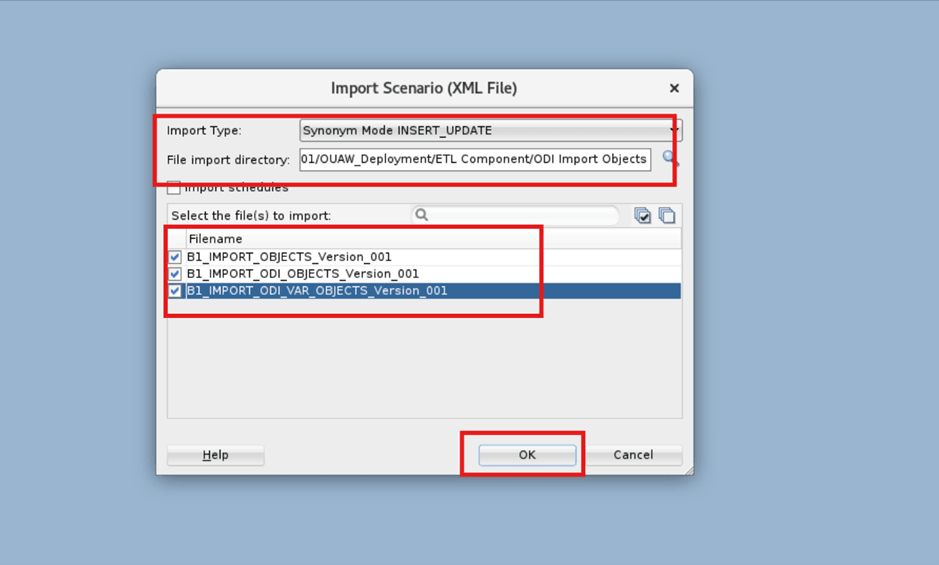
-
The application displays the imported scenarios under Designer > Load Plans and Scenarios.
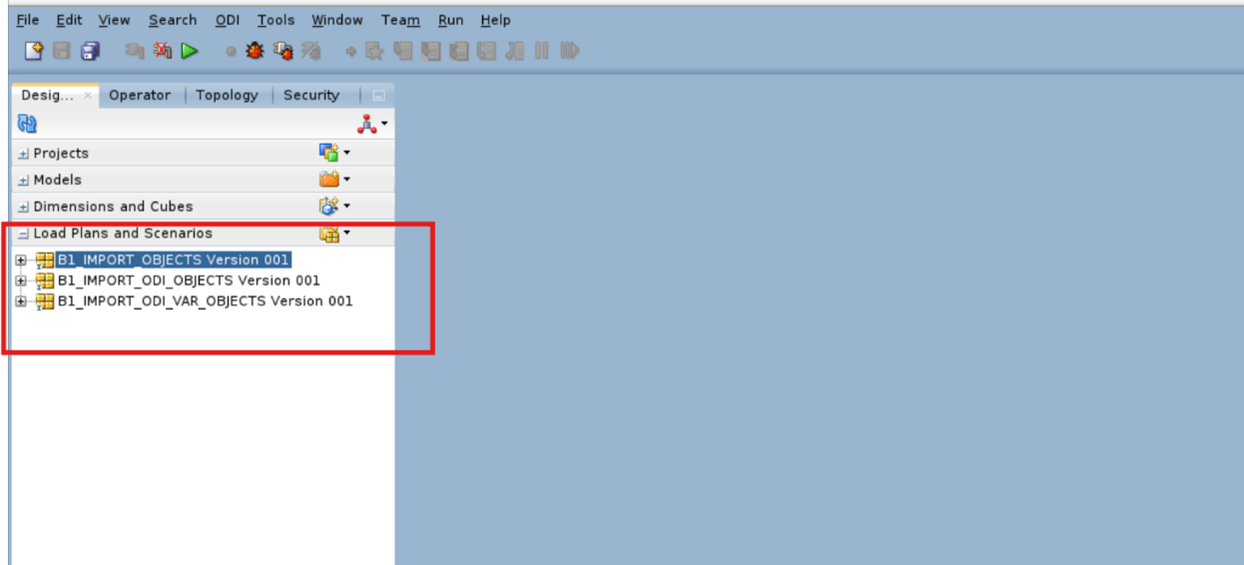
-
Execute these SQLs to insert data into the B1_PATCH, B1_PATCH_OBJECT, and B1_PATCH_OBJECT_TYPE tables.
-
Log in to ADB with MDADM user.
sqlplus MDADM/'<MDADM Password>'@<ADB Service Name> -
Run the SQL B1_PATCH.sql (SQL script is inside the ETL Component folder from Oracle Utilities Analytics Warehouse v25.10.0.0 PaaS Multiplatform Package).
@B1_PATCH.sql
-
-
Log in to ODI Studio and run each imported scenario by performing the following steps.
Note:
Run below scenarios in sequential order.B1_IMPORT_ODI_VAR_OBJECTS Version 001-
Navigate to Designer > Load Plans and Scenarios and right click B1_IMPORT_ODI_VAR_OBJECTS Version 001 then select Run.
Enter the Run details and click OK.
Field Name and Description Value Context
Global Logical Agent Local
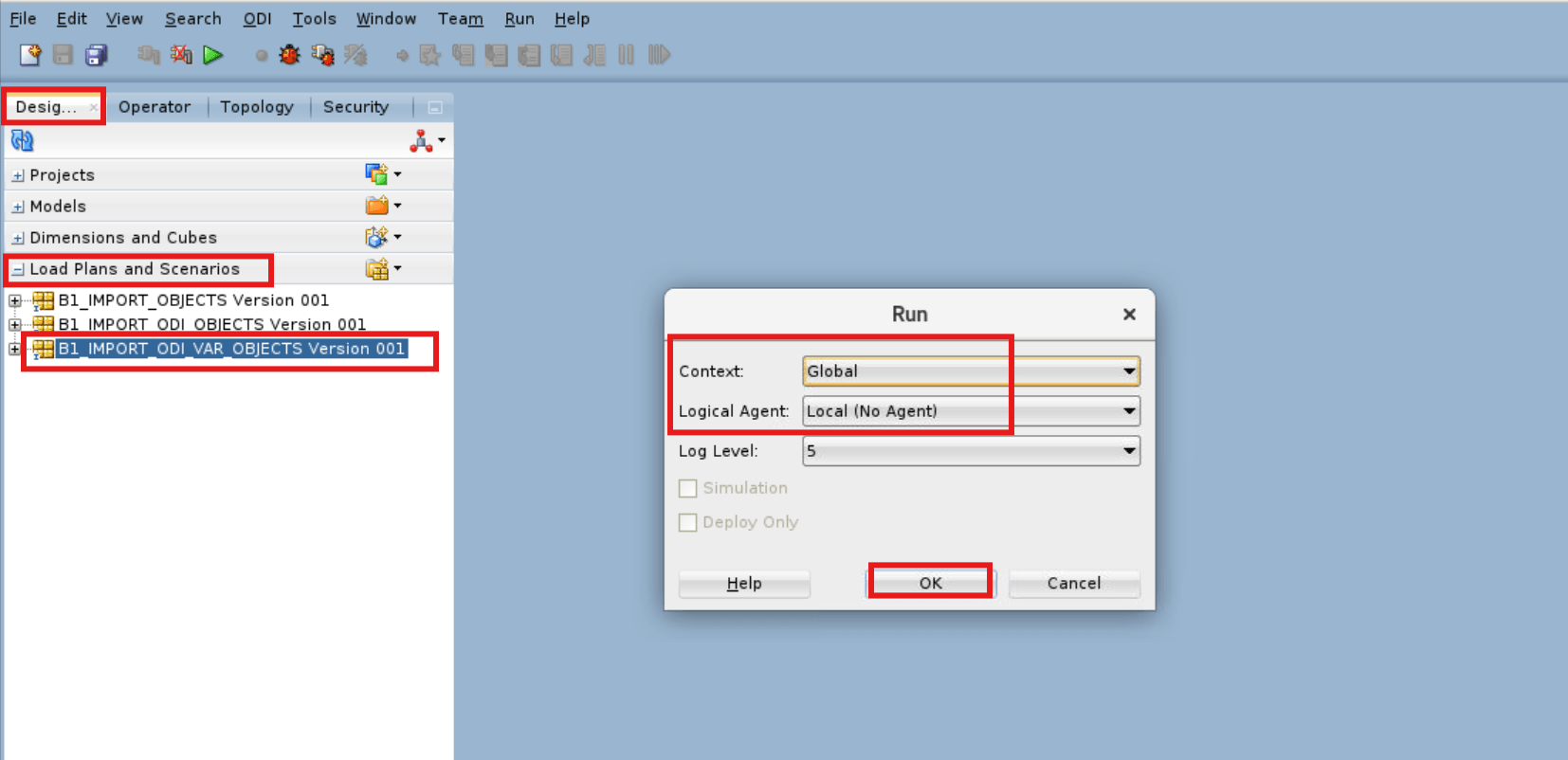
-
Set the Session Variables (Variable values) and click OK.
Field Name and Description Value Name
GLOBAL.B1_OBJECTS_DIR Latest Value Uncheck the box
Value Location of BI_V<OUAW Version>_<Build Number> Directory.
Example:
< /u01/OUAW_Deployment/ETL Component/BI_V2510000_39/ >Note:
Ensure to put “/” at the end of directory.Note:
Select the other three Latest Value checkboxes as per the image below.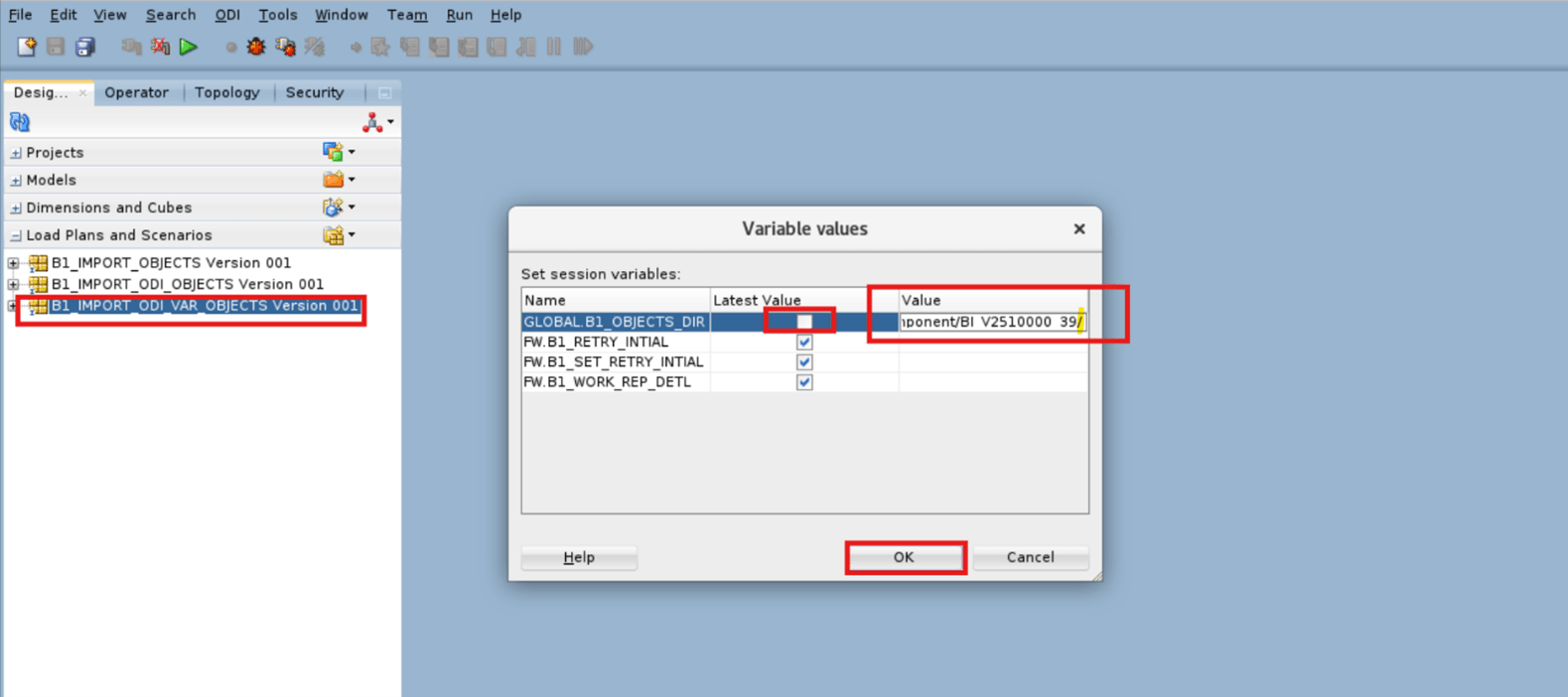
-
In the Operator tab, check the status of the job for its completion.
Example:
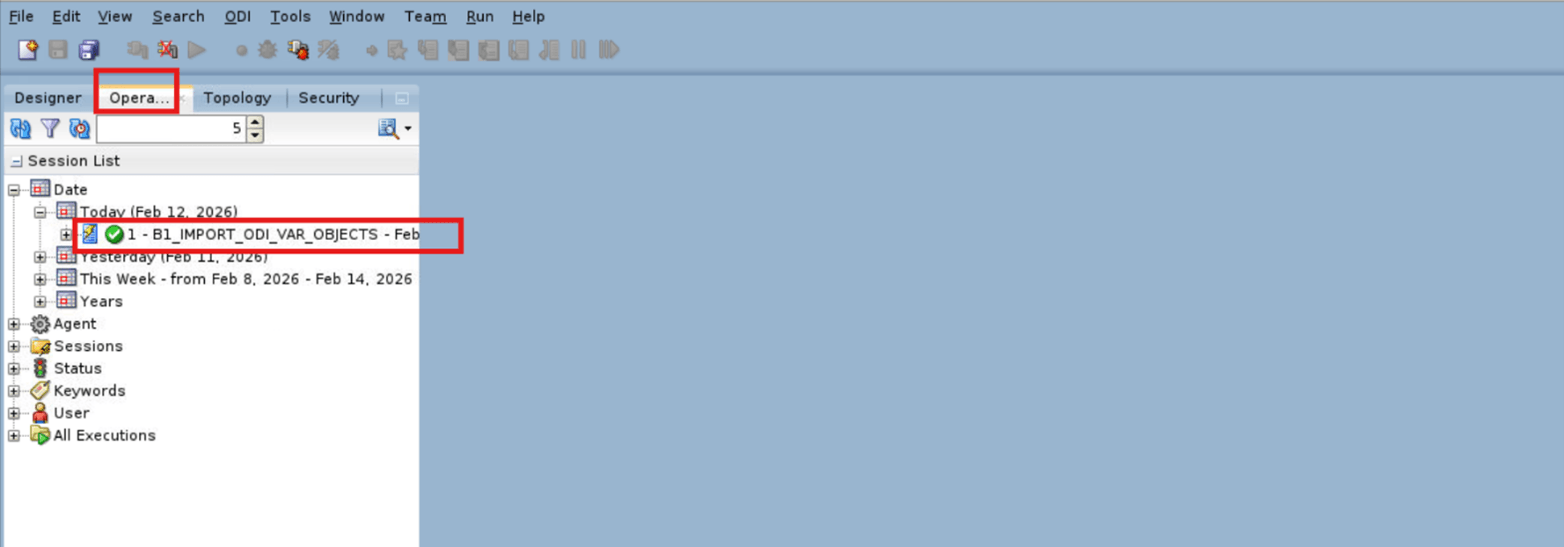
B1_IMPORT_OBJECTS Version 001-
Navigate to Designer > Load Plans and Scenarios and right click B1_IMPORT_OBJECTS Version 001 then select Run.
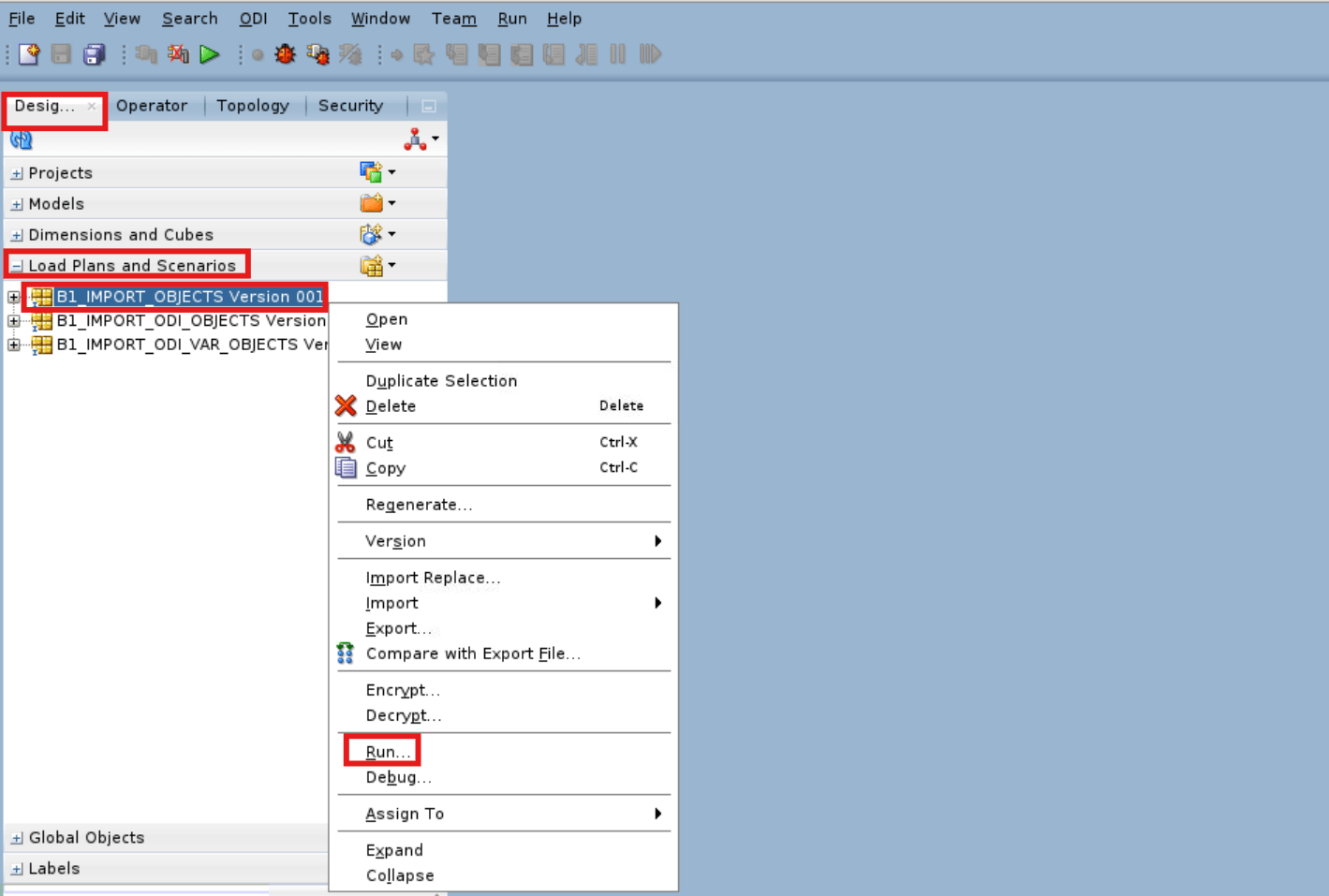
Enter the Run details and click OK.
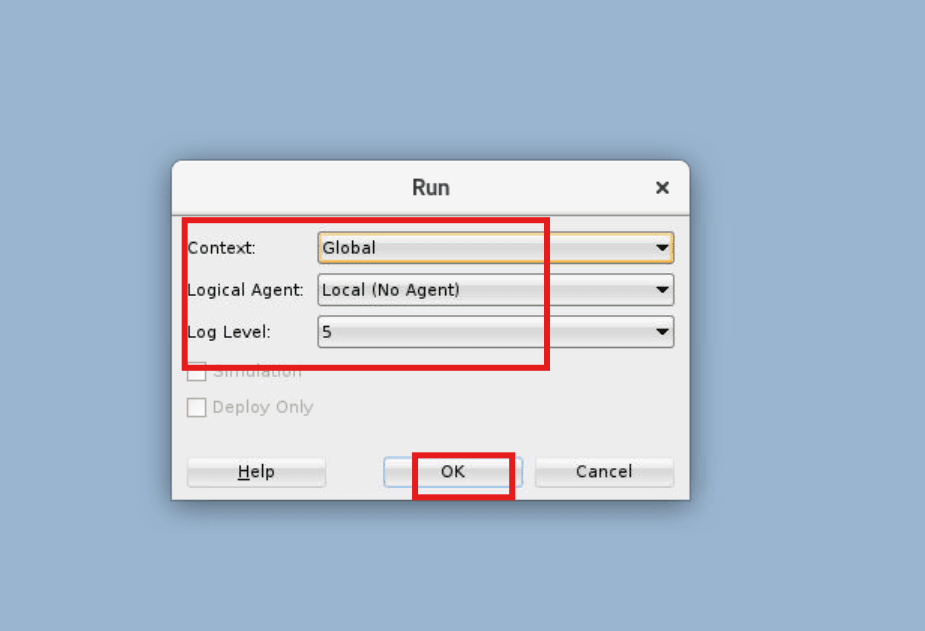
Field Name and Description Value Context
Global Logical Agent Local
-
Set the Session Variables (Variable values) and click OK.
Field Name and Description Value Name
GLOBAL.B1_OBJECTS_DIR Latest Value Uncheck the box
Value Location of BI_V<OUAW Version>_<Build Number> Directory.
Example:
< /u01/OUAW_Deployment/ETL Component/BI_V2510000_39/ >Note:
Ensure to put “/” at the end of directory. -
In the Operator tab, check the status of the job for its completion. Ensure none of the jobs are in failed status.
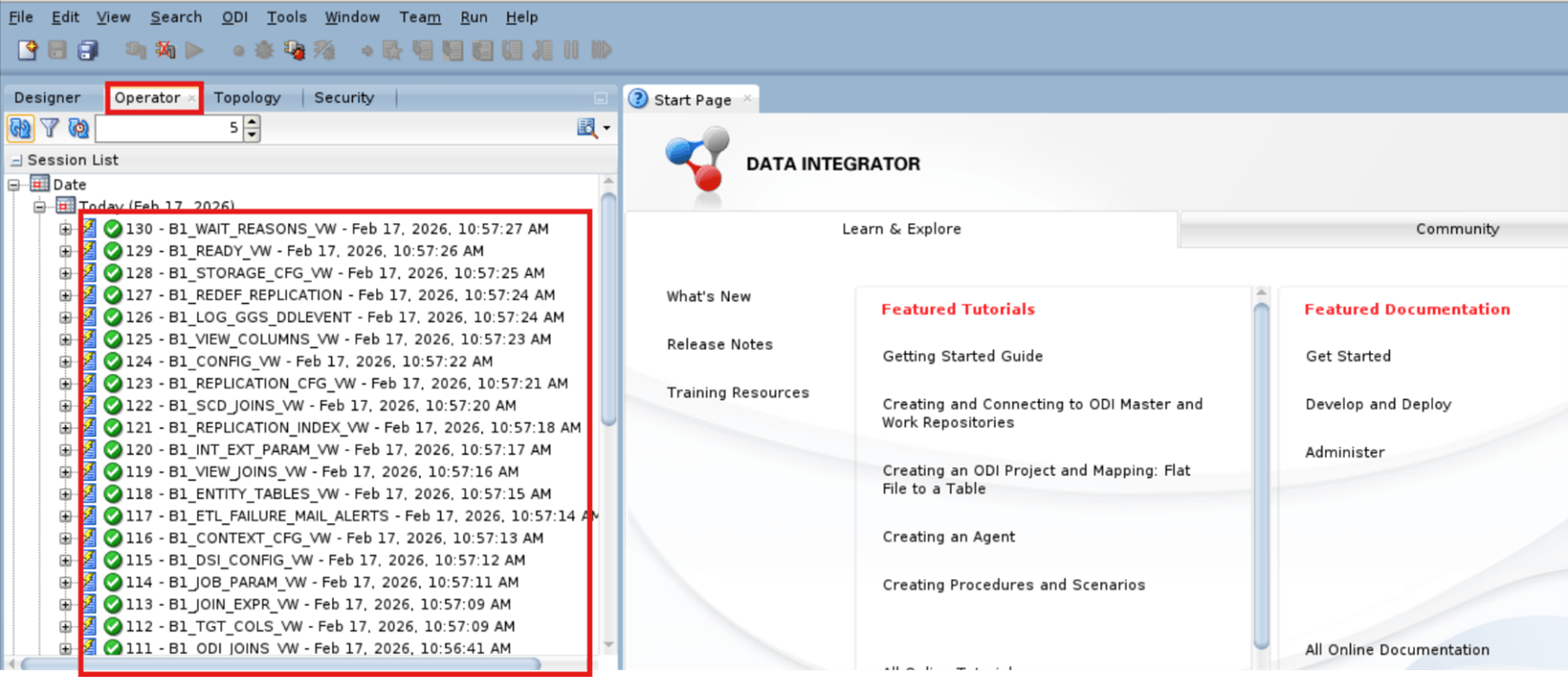
B1_IMPORT_ODI_VAR_OBJECTS Version 001Note:
B1_IMPORT_ODI_VAR_OBJECTS Version 001 needs be executed again.-
Navigate to Designer > Load Plans and Scenarios and right click B1_IMPORT_ODI_VAR_OBJECTS Version 001 then select Run and click OK.
-
Set the Session Variables (Variable values) and click OK.
Field Name and Description Value Name
GLOBAL.B1_OBJECTS_DIR Latest Value Uncheck the box
Value Location of BI_V<OUAW Version>_<Build Number> Directory.
Example:
< /u01/OUAW_Deployment/ETL Component/BI_V2510000_39/ >Note:
Ensure to put “/” at the end of directory.Field Name and Description Value Name
FM_B1_WORK_REP_DETL Latest Value Select the checkbox
Value OBIU (This will be auto reflected.)
Note:
Select the other two Latest Value (FW.B1_RETRY_INITIAL and FW.B1_SET_RETRY_INITIAL) checkboxes.
-
Apply ETL Single Fix
-
Download OUAW 25.10.0.0.0 PaaS Single Fix (Patch 38976085) from My Oracle Support and unzip it. Copy the ETL Component folder to ODI Instance virtual machine.

Note:
Make sure to remember the path of SCEN_B1_SYNC_MODEL_PAAS_Version_001.xml file. - Log in to ODI Studio to Work Repository.
-
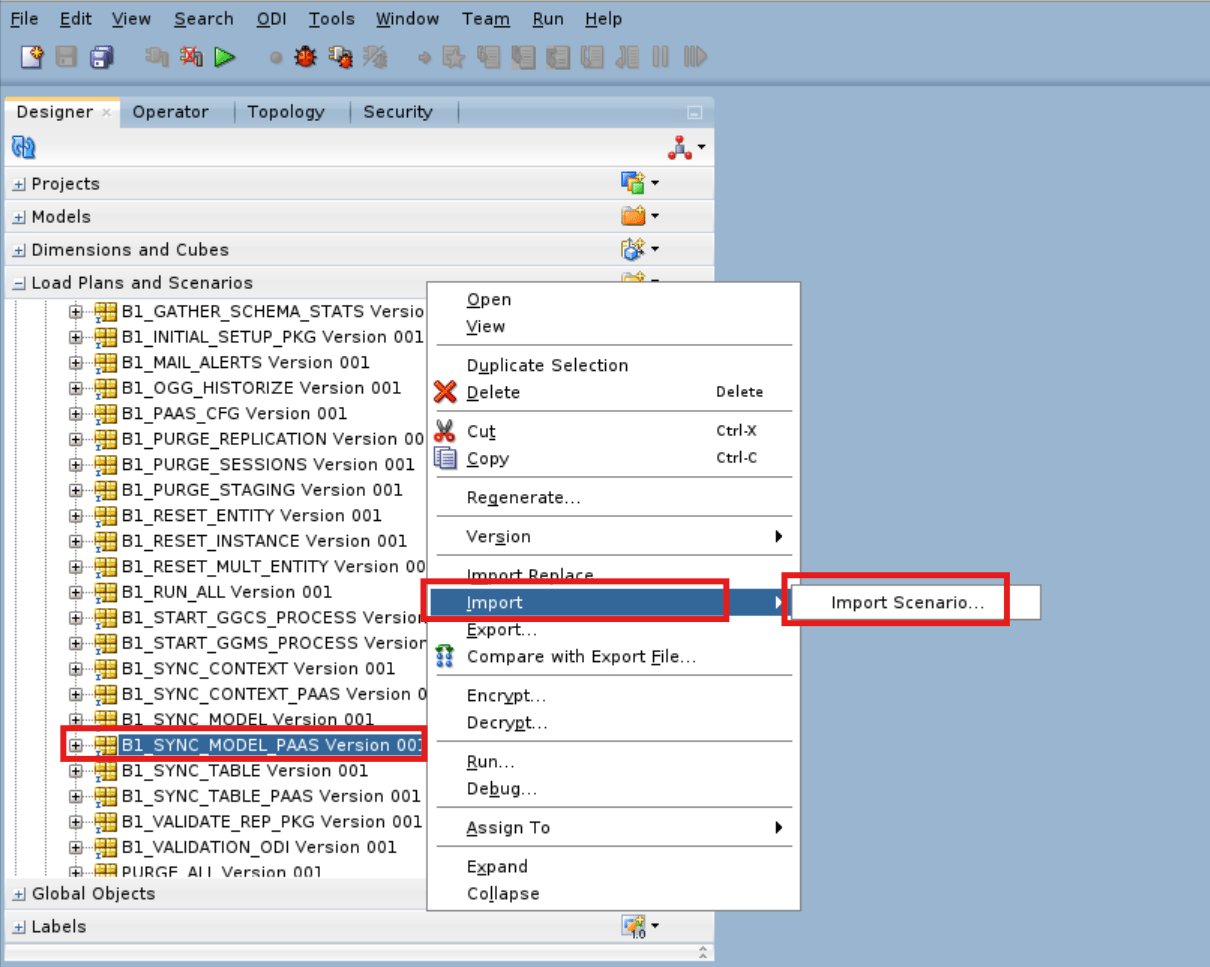
Navigate to Designer > Load Plans and Scenarios > Framework > Scheduler and right click B1_SYNC_MODEL_PAAS then select Import > Import Scenario.
-
Enter the Import Scenario details, select the SCEN_B1_SYNC_MODEL_PAAS_Version_001 checkbox and click OK then click Yes to confirm the import scenario details.
Field Name and Description Value Import Type
Synonym Mode INSERT_UPDATE File import directory Path of SCEN_B1_SYNC_MODEL_PAAS_Version_001.xml file for example,< /u01/OUAW_Deployment_SF/25.10.0.0.0_SF/>.Note:
Make sure to put “/” at the end of directory as per above screenshot.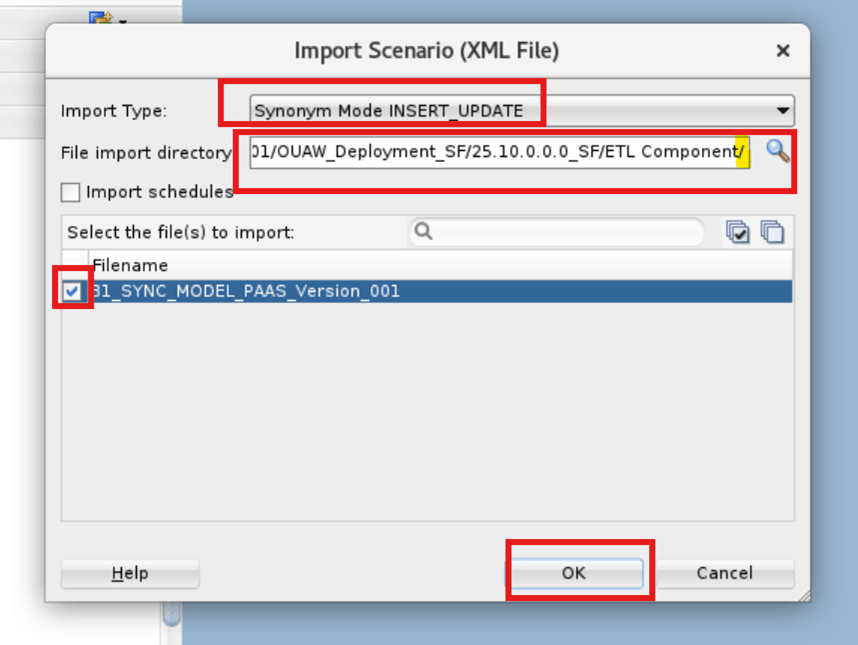
Perform Initial Setup for Star Schema
- Log in to the ODI Studio Work Repository.
-
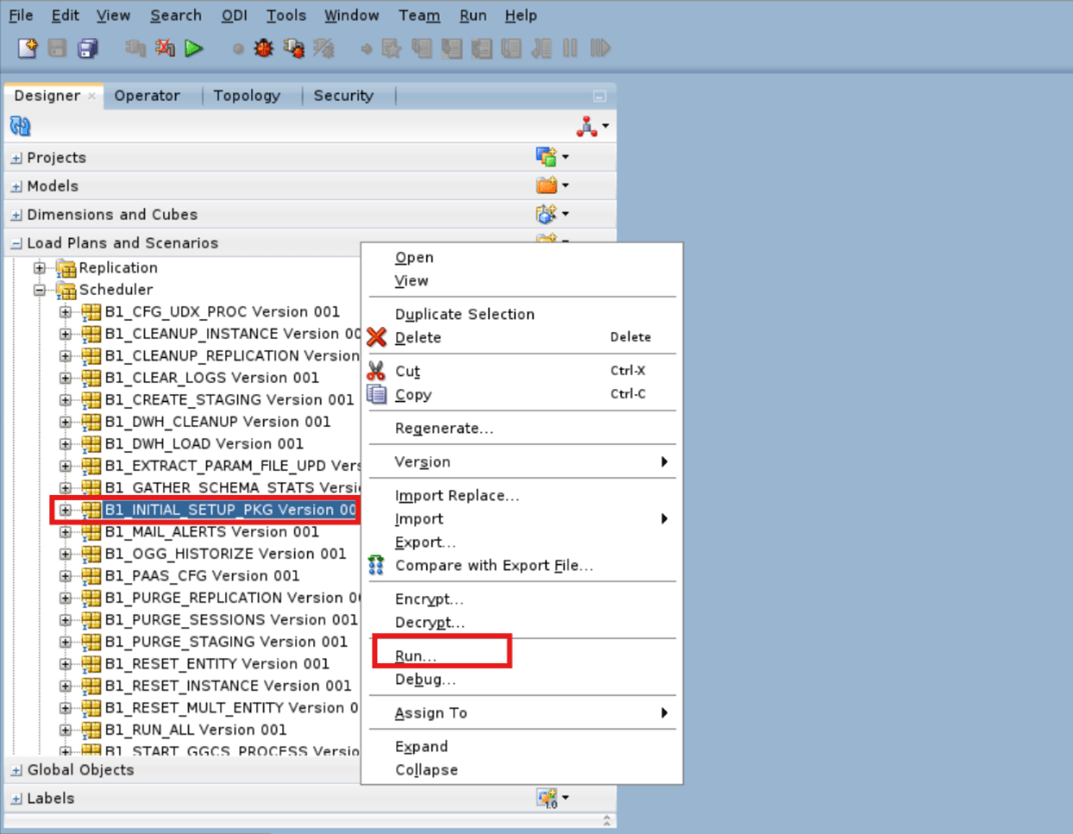
Navigate to Designer > Load Plans and Scenarios > Framework > Scheduler and right click B1_INITIAL_SETUP_PKG Version 001 then select Run.
-
Enter the Run details and click OK.
Field Name and Description Value Context
Global Logical Agent Local (No Agent)
Log Level For example, 6 -
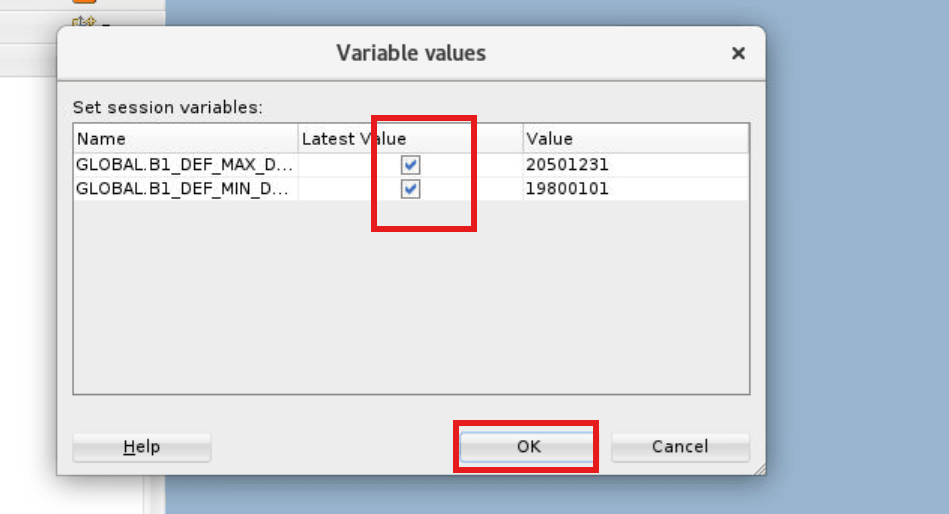
Navigate to Designer > Load Plans and Scenarios and right click B1_INITIAL_SETUP_PKG Version 001 then select Variable Values.
-
Enter the Variable Values details, select the Latest Value checkboxes then click OK.
-
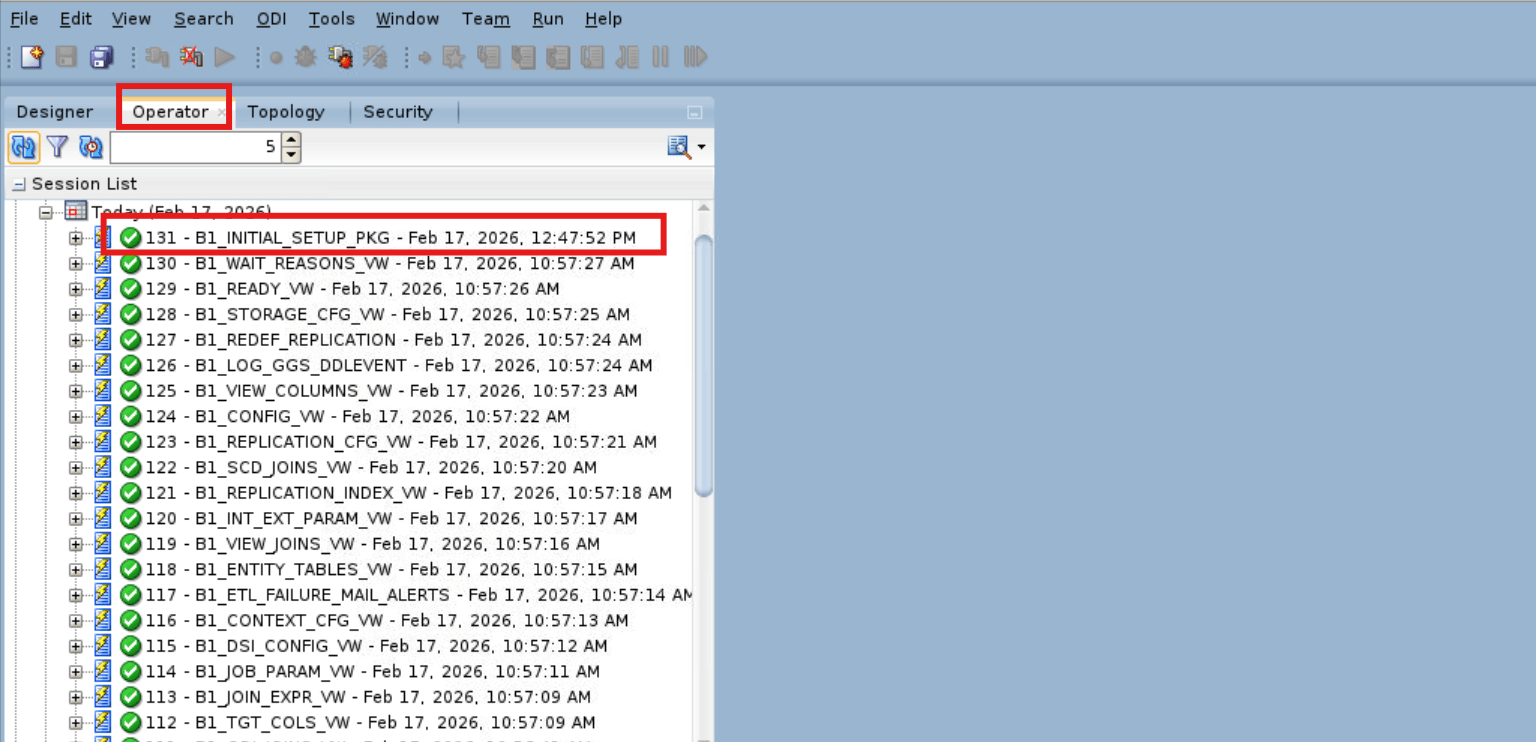
In the Operator tab, check the status of job for its completion.
Increase b1_text_array Type Length from 4000 to 8000 Characters
-
Login to ADB with MDADM User.
sqlplus MDADM/<MDADM Password>@<ADB Service Name> -
Run this SQL to increases the b1_text_array type length from 4000 to 8000 characters.
create or replace TYPE MDADM.b1_text_array IS TABLE OF VARCHAR2(8000);/
Update MDADM.B1_PATCH Table
-
Login to ADB with MDADM User.
sqlplus MDADM/<MDADM Password>@<ADB Service> -
Execute this SQL.
UPDATE MDADM.B1_PATCH SET APPLIED_DTTM = SYSDATE WHERE PROD_VERSION = '25.10.0.0.0'; -
Commit the changes.
Commit;
Create the WebLogic Domain for Oracle Data Integrator Agent
Refer to Configuring the Domain for Collocated/Java EE Agent on Oracle Cloud Marketplace for the steps to create and configure an ODI Domain.
Create Physical Agent (OracleDIAgent)
- Log in to the ODI Studio Work Repository.
-
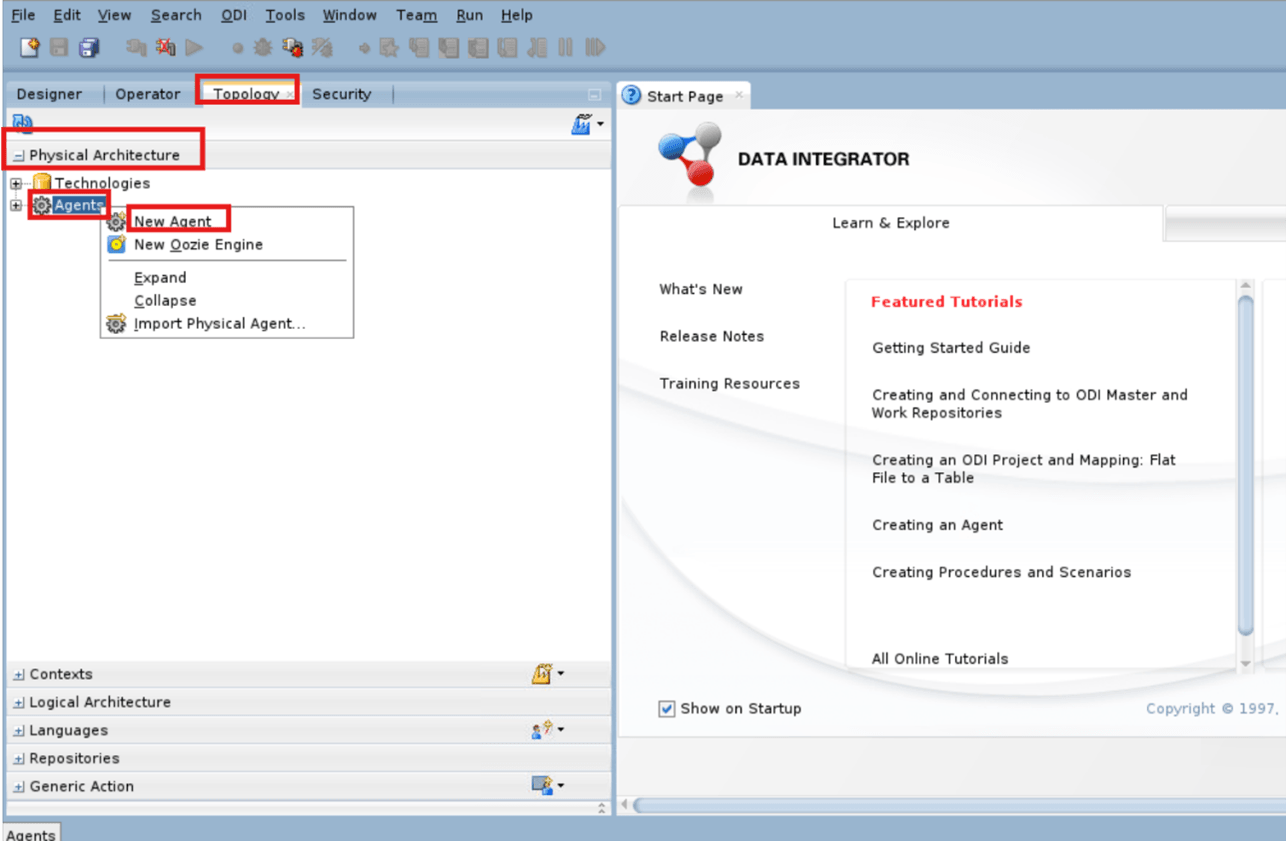
Navigate to Topology > Physical Architecture and right click Agents then select New Agent.
-
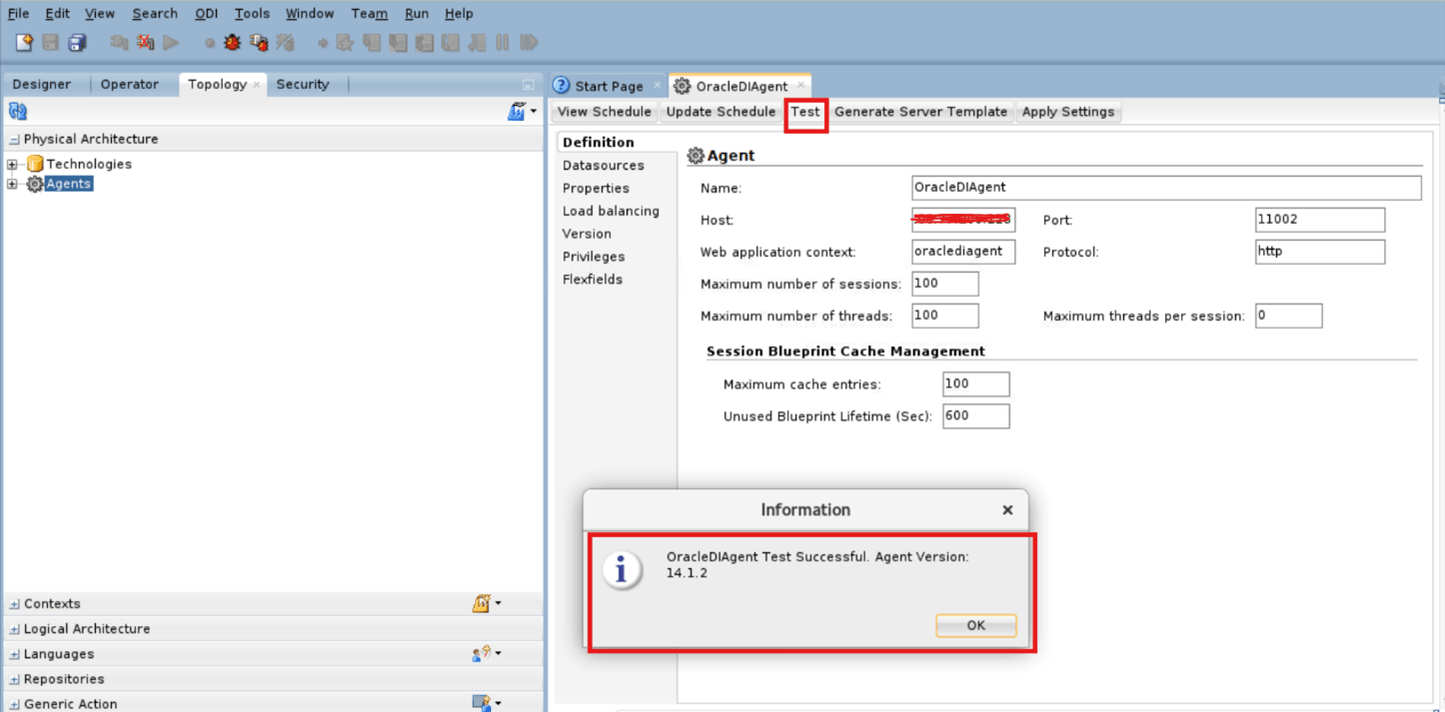
Enter the Agent details and click Save.
Note:
Agent values are case sensitive.- Name: OracleDIAgent
- Host: Your ODI Host
- Port: ODI Managed Port
- Defaults are applied to the rest of the Agent parameters.
- Restart the ODI Admin and Managed servers.
-
Test the Oracle DI Agent connection.
Create Logical Agent (WLS_AGENT)
- Log in to the ODI Studio Work Repository.
-
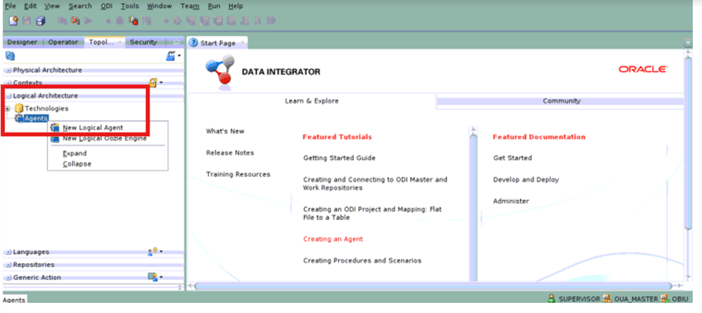
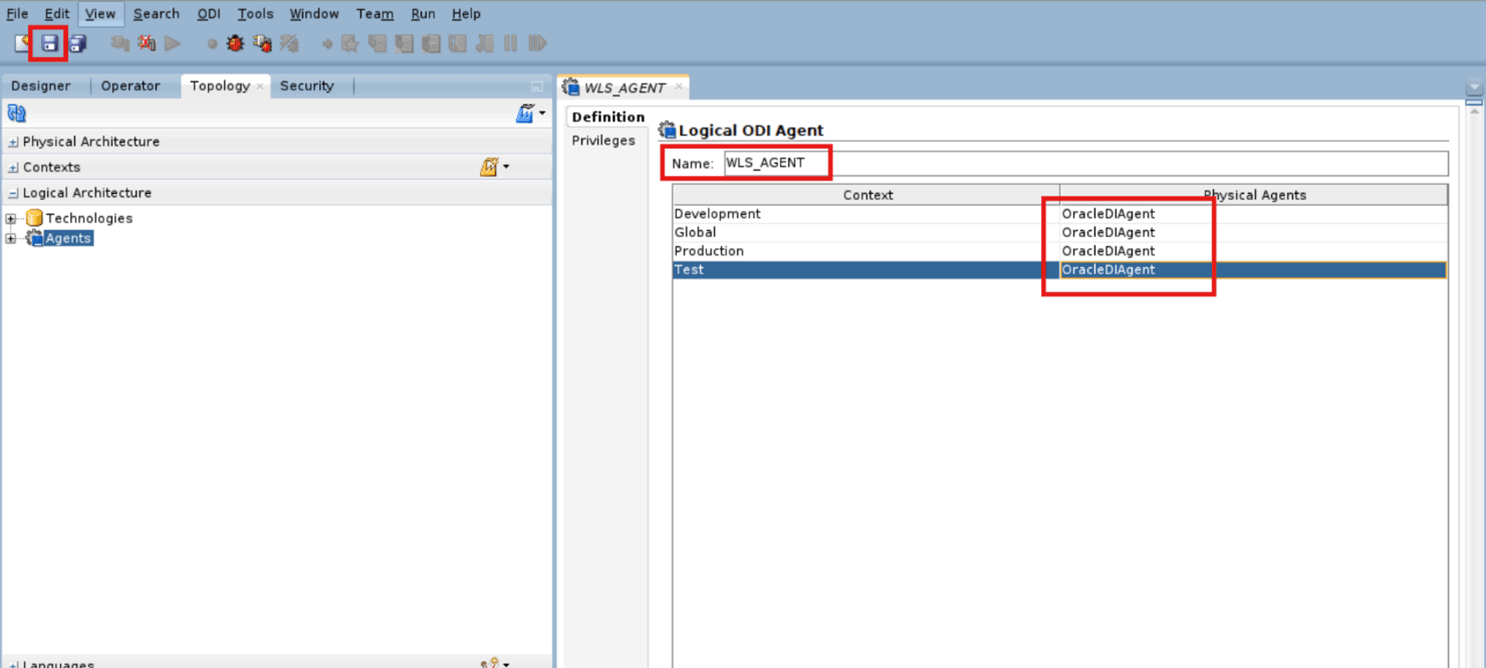
Navigate to Topology > Logical Architecture and right click Agents then select New Agent.
-
Enter the Agent Name (WLS_Agent) and map Physical Agents (OracleDIAgent) with Contexts then click Save.
- Name: WLS_AGENT
- Development: OracleDIAgent
- Global: OracleDIAgent
- Production: OracleDIAgent
- Test: OracleDIAgent
Enable ODI Scheduler
-
In Oracle Data Integrator Studio, navigate to Designer > Load Plans and Scenarios > Framework > B1_RUN_ALL Version 001 and right click Scheduling then select New Scheduling .
-
Enter the Scheduling details.
Field Name and Description Value Context
Logical Agent WLS_AGENT Log Level For example, 5 -
To specify how often the scheduler should run, navigate to the Execution Cycle tab of the Scheduler and select the Many Times option. Set the interval between repetitions.
-
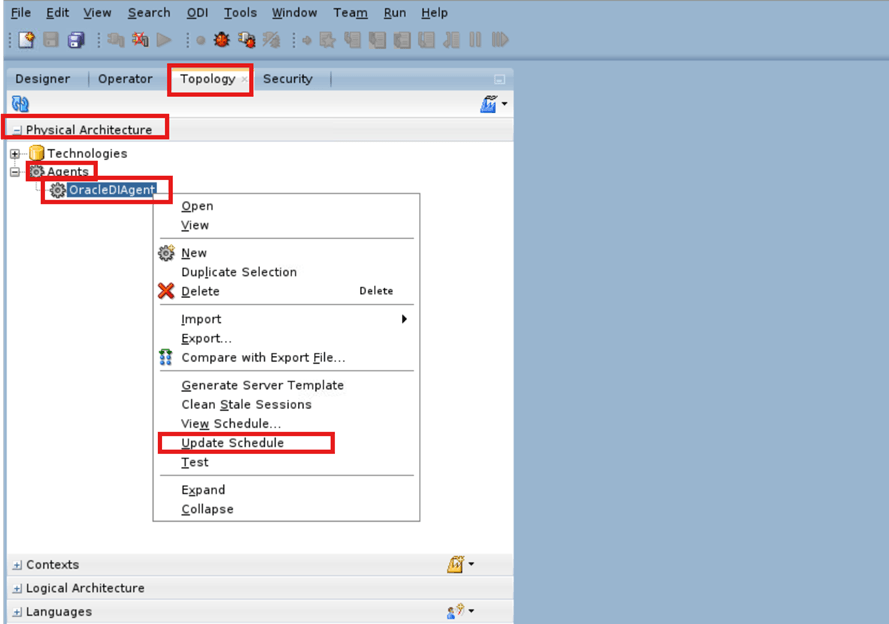
Navigate to Topology > Agents and right click OracleDIAgent then select Update Schedule.
-
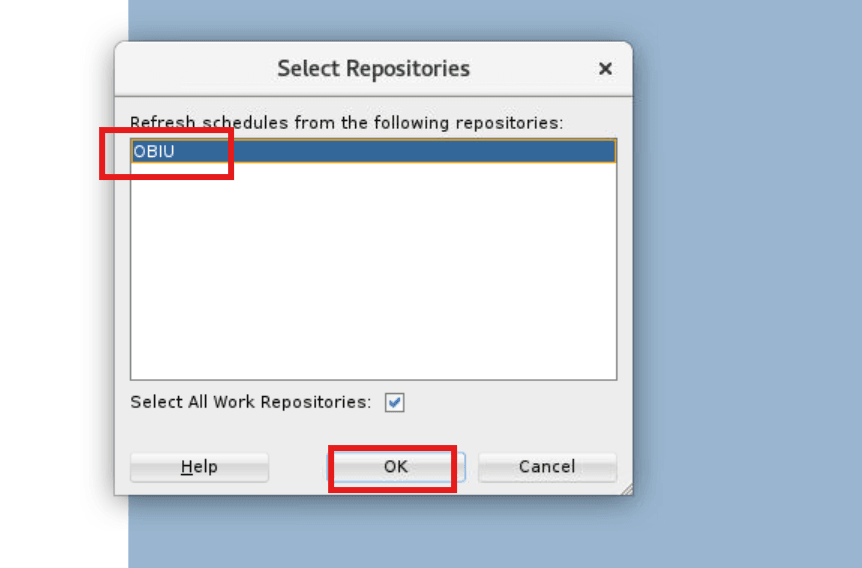
Select OBIU in the Select Repositories dialog and click OK.
Modify Maximum Table Name Length Parameter
-
In Oracle Data Integrator Studio, navigate to Topology > Physical Architecture > Technologies and right click Oracle then select Open.
-
Navigate to the Advanced tab and set the value of Maximum Table Name Length to 128.
-
Click Save.