Configure Email Alerts for ETL Jobs
OUAW supports configuring email alerts for ETL jobs, allowing users to receive email notifications when an ETL job run fails or exceeds a specified runtime threshold. This feature is currently supported for on-premise installation only.
OUAW facilitates two distinct types of Mail Alerts for ETL job monitoring, failures and runtime exceeding threshold duration.
Mail Alerts for ETL Job Failures
- Type of Environment (Production, Testing, Development, and so on)
- Failure Severity of the Entity (1:Critical, 2:High, 3:Medium, 4:Low)
- Entity Name
- Context Code
- Session Number and Name
- Slice Start and End Time
- Session Start and End Time
- Error Message
Mail Alerts for ETL Jobs Exceeding Runtime Threshold Duration
These alerts are sent when an ETL job exceeds a pre-defined execution threshold duration value. These alerts are managed through a scheduled ODI scenario (B1_MAIL_ALERTS).
A single consolidated email is sent during each run, containing a summary of the Running jobs that have exceeded their configured threshold runtime and Completed jobs that have exceeded their threshold runtime between the previous and current scenario executions identified in that iteration.
The mail contains information related to Running Jobs, Completed Jobs, and Summary; provided in a tabular format.
- Type of Environment (Production, Testing, Development, and so on)
- Execution Window (The period for which the job execution data is captured)
- Entity Name
- Context Code
- Session Number and Package Name
- Slice Start and End Time
- Session Start Time
- Status
- Threshold Value of the Job in Seconds
- Run Time of the Job in Seconds
- Session End Time (Applicable only for Completed jobs)
- Entity Name
- Context Code
- Status
- Count of Sessions
Configure Mail Alerts
In this section:
Enable ETL Mail Alerts from Global Configuration
Prerequisites
- An SMTP server that accepts requests from the target database Linux server should be available.
- If the SMTP server uses certificates, a wallet must be created on the database server and the certificate should be added to it.
- Access Control Lists (ACLs) must be configured to allow the ODI work repository user and Metadata user to connect to the SMTP server. Perform these steps to create ACLs on the target database server.
- Connect to the target database as a sys user.
- Run this SQL query by providing the SMTP Server Host Name, SMTP Port Number, and the ODI Work Repository schema name.
BEGIN DBMS_NETWORK_ACL_ADMIN.append_host_ace ( host => '<SMTP Server Hostname>', lower_port => <SMTP Port Number>, upper_port => NULL, ace => xs$ace_type(privilege_list => xs$name_list('connect'), principal_name => '<ODI Work Repository Schema Name>', principal type => xs_acl.ptype_db)); END; / - Run this SQL query by providing the SMTP Server Host Name, SMTP Port Number, and the Metadata schema name.
BEGIN
  DBMS_NETWORK_ACL_ADMIN.append_host_ace (
    host       => '<SMTP Server Hostname>',
    lower_port => <SMTP Port Number>,
    upper_port => NULL,
    ace        => xs$ace_type(privilege_list => xs$name_list('connect'),
                              principal_name => '<Metadata Schema Name>',
                              principal type => xs_acl.ptype_db));
END;
/
Enable ETL Mail Alerts from Global Configuration
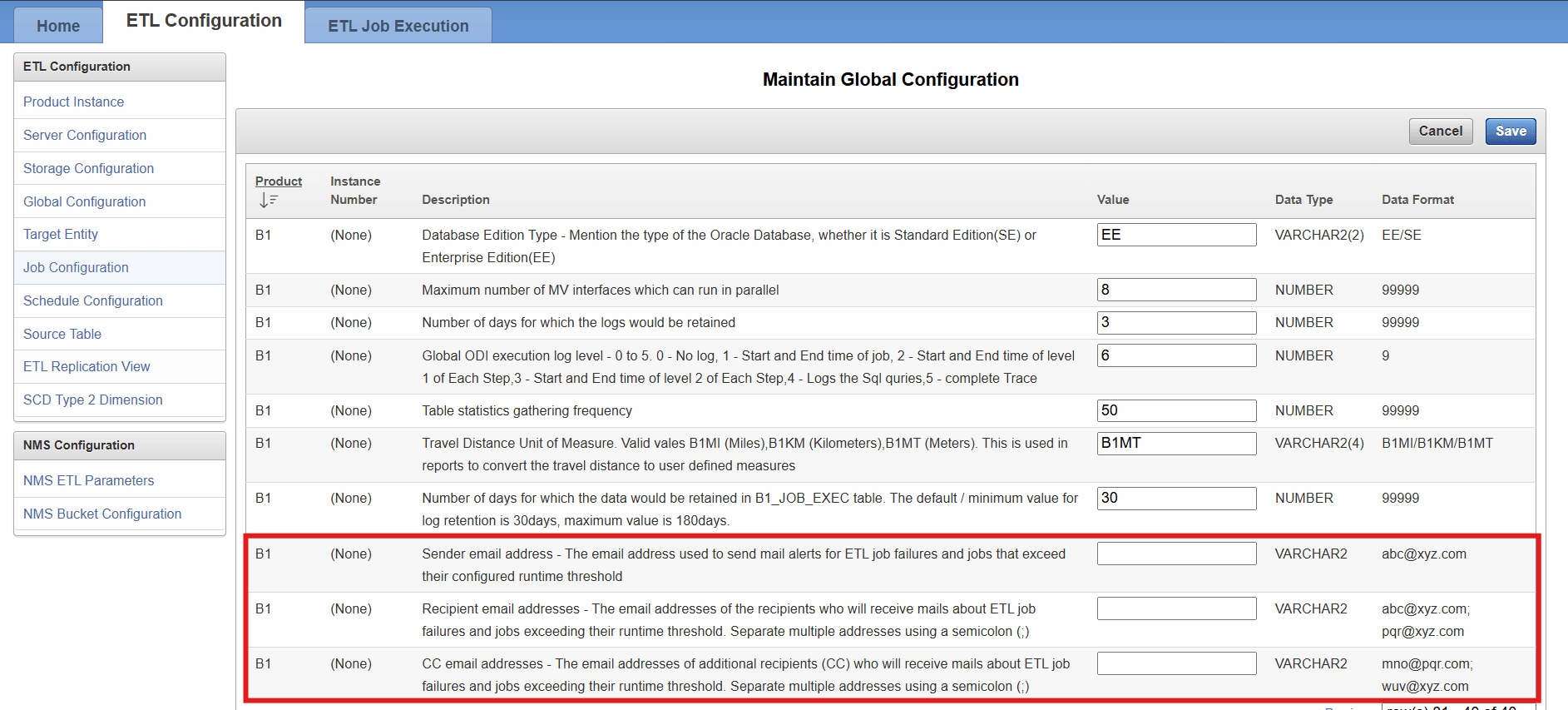
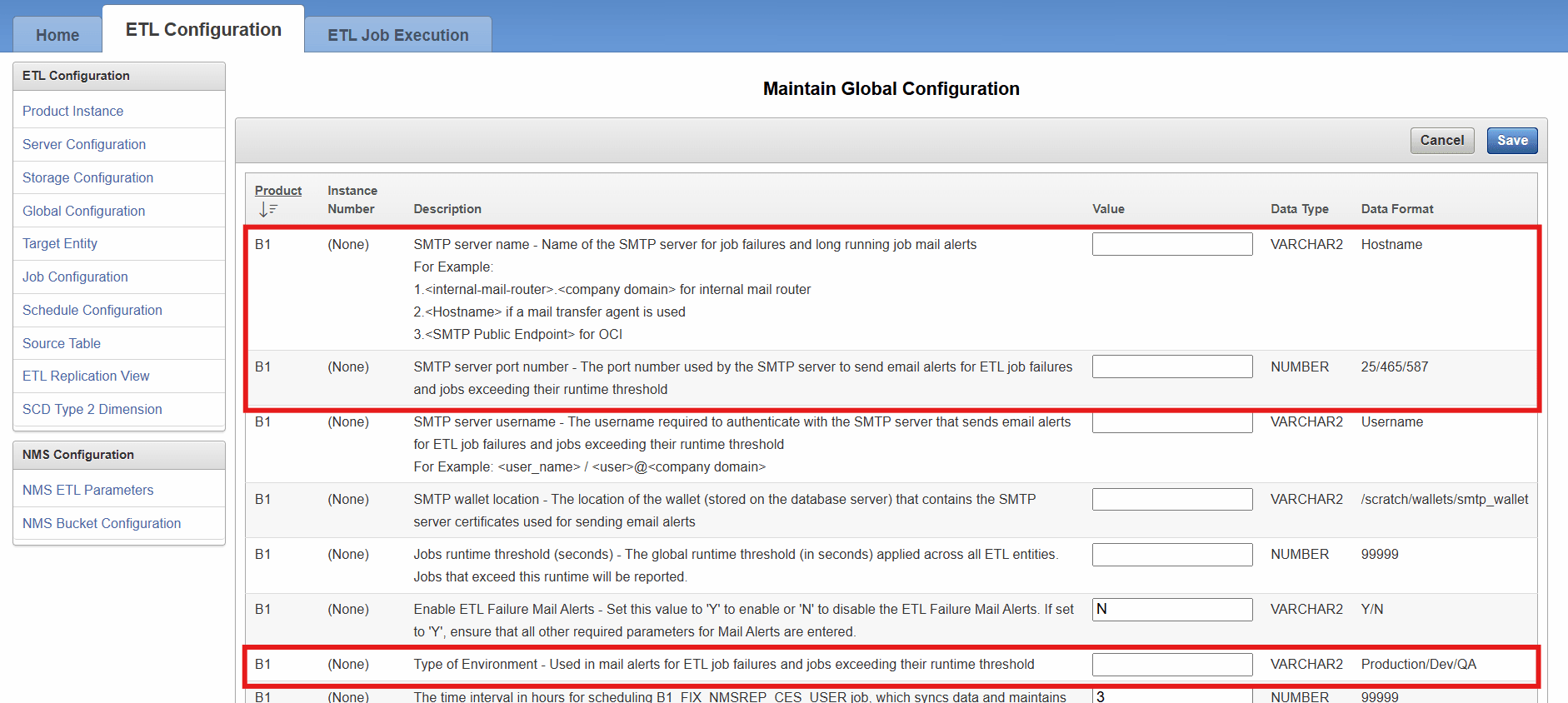
To enable ETL mail alerts, navigate to the Global Configuration page of AdminTool and provide values for the following parameters:
| Parameter | Description |
|---|---|
| Sender email address | The email address used to send mail alerts. |
| Recipient email addresses | The email addresses of the recipients of the mail alerts. Multiple addresses can be entered, each separated by a semi-colon (;). |
| CC email addresses | The email addresses of additional recipients (CC) for the mail alerts. Multiple addresses can be entered, each separated by a semi-colon (;). |
| SMTP server name |
Name of the SMTP server used for sending mail alerts. The below formats could be used:
|
| SMTP server port number | The port number used by the SMTP server to send email alerts. |
| Type of Environment | This value to be included in the Email subject of the Mail Alerts (Production/Development/QA) |
Note:
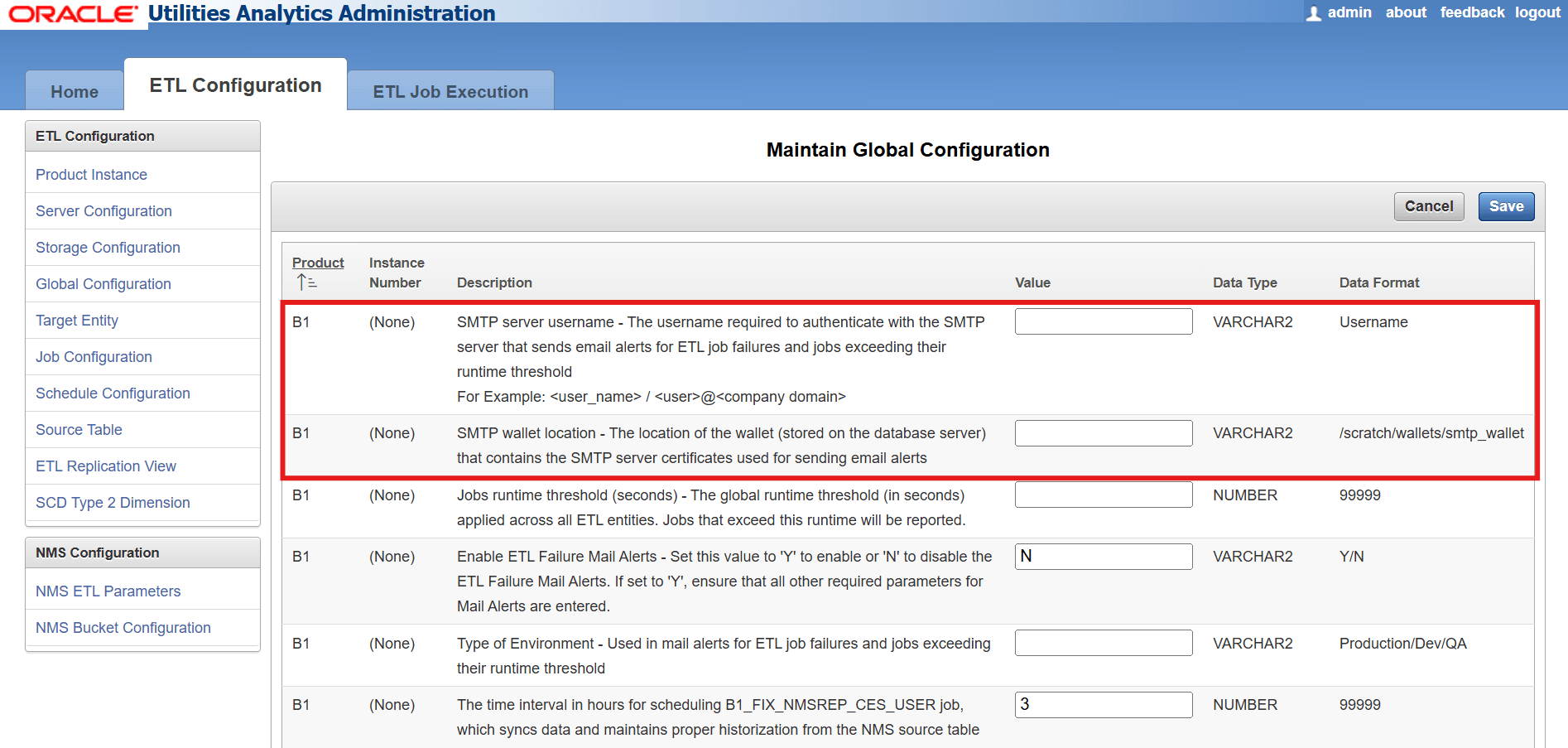
If authentication is done using credentials only, leave the wallet location field empty in the Admin Tool (Step 1) and provide NULL for the wallet password parameter when executing the B1_SMTP_PASS_ENCRYPT procedure (Step 2).- Provide the SMTP server username and SMTP wallet location in the Global Configuration page of the Admin Tool.
- Execute the SQL procedure B1_SMTP_PASS_ENCRYPT with the SMTP server password and wallet password.
- Connect to the target database as a sys user.
- Run the following SQL procedure by providing the SMTP Password and SMTP Wallet Password:
Begin
  <Metadata user>.B1_SMTP_PASS_ENCRYPT(<SMTP Password>,<SMTP Wallet Password>);
end;
/
Deploy Mail Alerts for ETL Jobs
In this section:
Deployment Instructions for ETL Job Failures
Deployment Instructions for ETL Jobs Exceeding Runtime Threshold
Deployment Instructions for ETL Job Failures
- Navigate to the Global Configuration page of AdminTool.
-
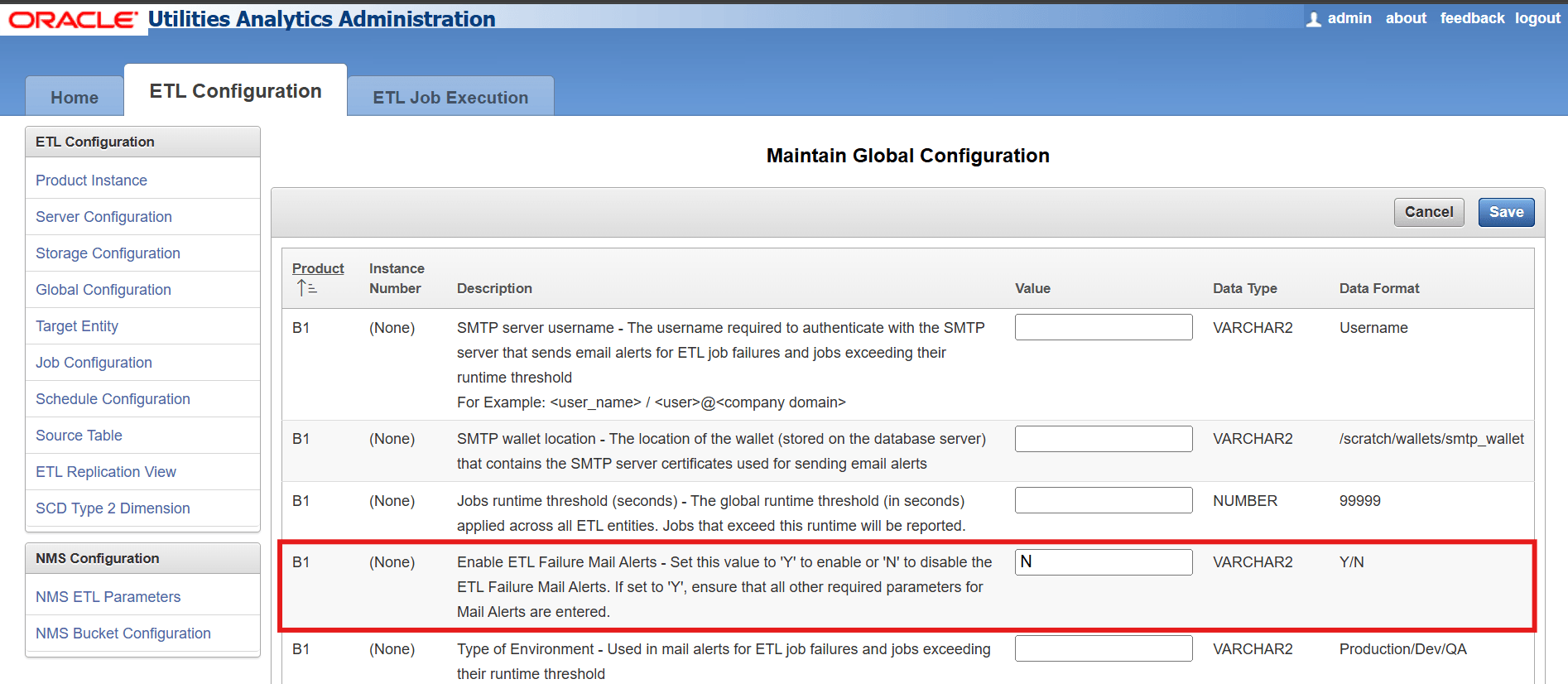
By default, ETL Failure Mail Alerts are disabled (N) at the Global level in the Global Configuration page. Set Enable ETL Failure Mail Alerts to "Y" to activate the ETL job failure mail alerts.
-
Mail alerts can be enabled or disabled for specific entities from the Customization Attributes section of the Job Configuration page. By default, ETL Failure Mail Alerts are marked as "Enable" at the Entity level with a default severity value of 3 (Medium) in the Job Configuration page. You can change the severity by clicking on the severity description hyperlinks below the text box.
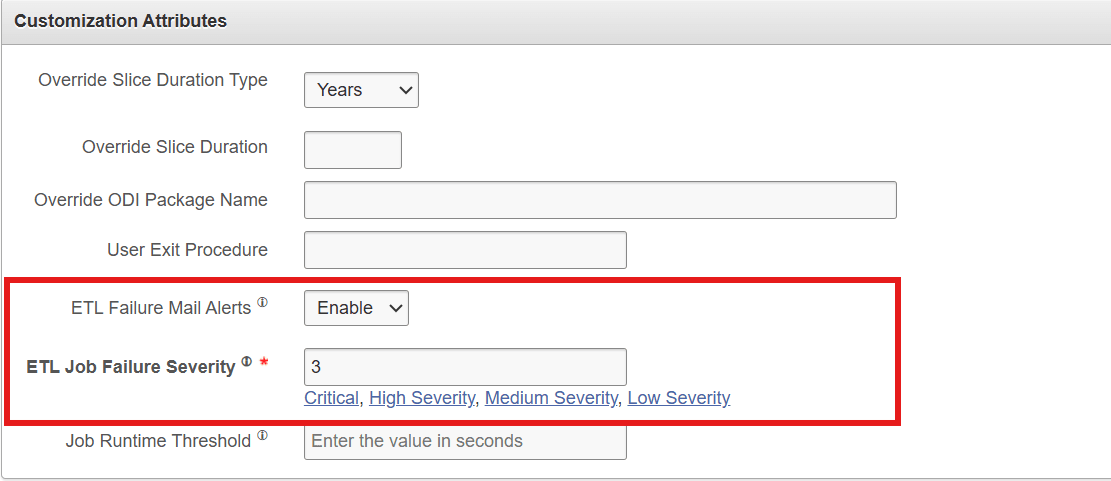
- Only once the ETL Failure Mail Alerts are enabled (set to "Y") at the Global level, the failure mail alerts would be received for all those entities that are marked as "Enable" for the parameter ETL Failure Mail Alerts in the Job Configuration page for an entity.
Deployment Instructions for ETL Jobs Exceeding Runtime Threshold
- In ODI, navigate to Designer > Load Plans and Scenarios > Framework > Scheduler > B1_MAIL_ALERTS.
- Right-click Scheduling and select New Scheduling.
- Select the Source Context as "Global", the Agent as "WLS_AGENT", and the Log Level as "5".
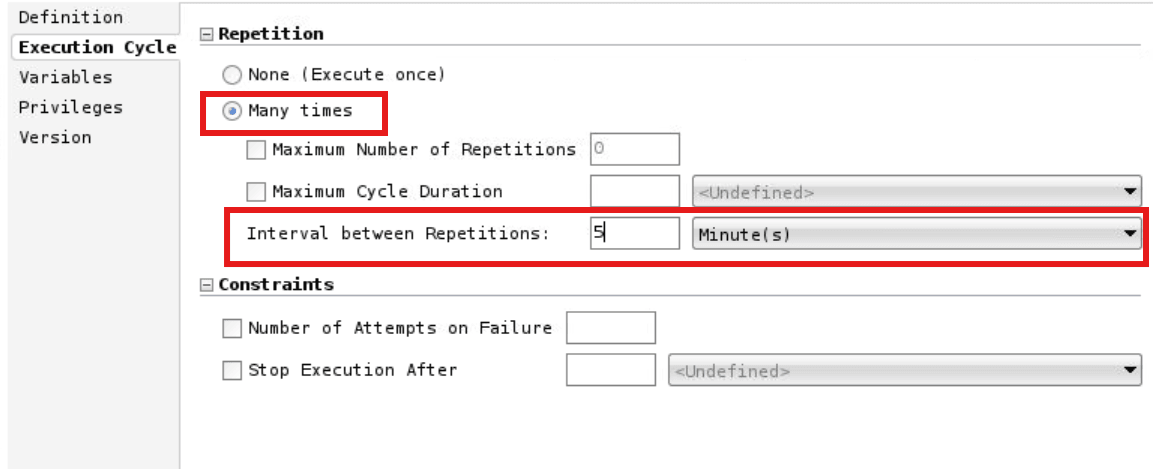
- To specify how often the scheduler should run, navigate to the Execution Cycle tab, and select Many Times.
-
Set the Interval between Repetitions.
Example: To set up the scheduler to run every five minutes, refer to the image below.
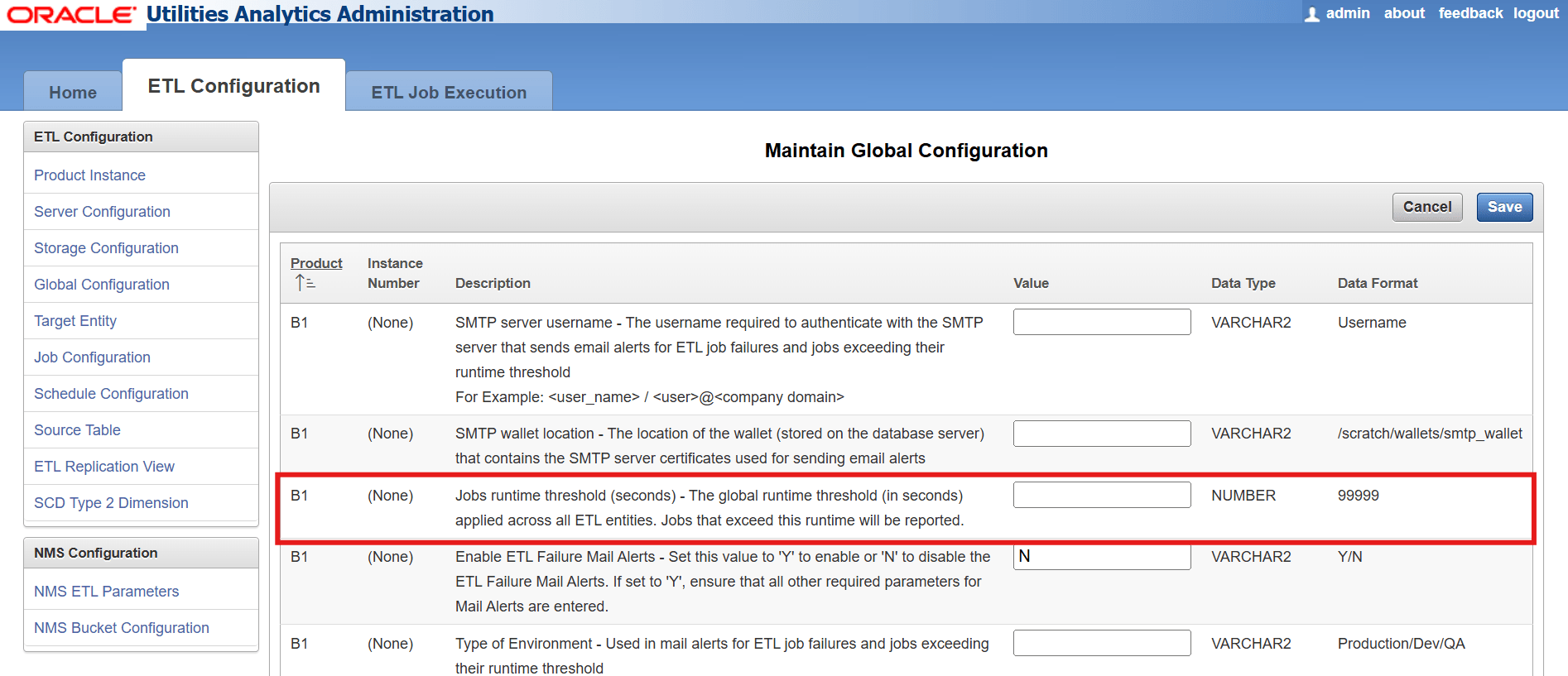
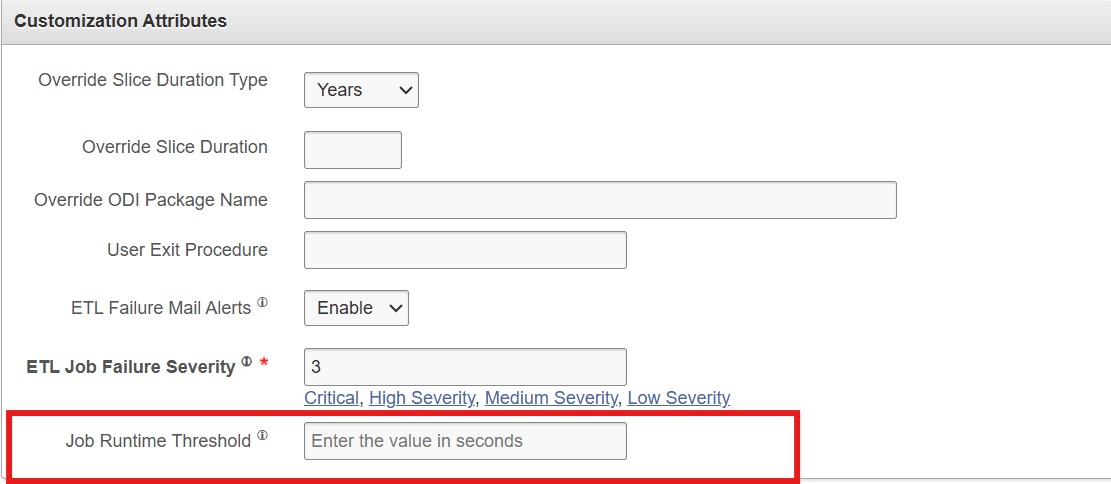
- The Job Runtime Threshold value can be given in two ways via AdminTool.
-
Global Level Threshold (applicable for all the entities), which can be updated from Global Configuration page of Apex.
-
Job Level Threshold (applicable for individual entity), which can be updated from Job Configuration page of Apex.
-