Upgrade Tech Stack for OUAW
This page details the tasks required to upgrade the services that are used to run Oracle Utilities Analytics Warehouse.
GoldenGate Classic Processes Cleanup
WARNING:
GoldenGate processes cannot be rolled back once these have been cleaned up. Perform the GoldenGate process cleanup only if you have decided to upgrade Oracle Utilities Analytics Warehouse from version 2.8.0.2.1 to version 25.10.0.0.0.Note:
Existing GG classic processes need to be cleaned up in both the source and target databases.Clean Up the GG Processes on the Source Database
-
On the source database, log in to the GG command line interface (ggsci prompt).
-
Stop all extract and pump processes associated to this instance if they are not already stopped.
-
Unregister the primary extract processes on the source system related to this context.
GGSCI> dblogin userid <gguser name>, password <Password>
GGSCI> unregister extract <primary extract name> database
Note:
Run this command for each primary extract process created for context code. Primary extract process suffix with "X" and pump extract process suffix with "P". Once the extract process is unregistered, make sure that there is no data related to this context in the source database's DBA_CAPTURE view.Note:
Run this query in the source database and verify that no results are displayed.select * from dba_capture where capture_name like '%<contextcode>%'; -
Delete each one of the instance's extract and pump processes.
GGSCI> Delete extract <extract and pump process name> -
Clean up all trail files present in <Source GG Home>/dirdat/<Context Code>.
-
Clean up all instance-related checkpoint files present in <Source GG Home>/dirchk/.
-
Clean up all context-related report files present in <Source GG Home>/dirrpt/.
-
Clean up all context-related temporary files present in <Source GG Home>/dirtmp.
-
Clean up all context-related obey files present in <Source GG Home>/diroby/.
-
Clean up all context-related parameter files present in <Source GG Home>/dirrpm/.
Note:
Do not modify or remove any other parameter file. For example, do not modify or remove manager.prm or jagent.prm. But the manager and jagent param files can be removed if you opt to uninstall Goldengate Classic. -
Check if there is any data in the source GG owner schema B1_OGG_SYNC_LOG table.
If there is data for OGG_MODEL_CD, delete the records pertaining to the instance that is to be de-registered.select OGG_MODEL_CD FROM <GG Owner Schema>.B1_OGG_SYNC_LOG WHERE OGG_MODEL_CD like '<context code>%'; DELETE FROM <GG Owner Schema>.B1_OGG_SYNC_LOG WHERE OGG_MODEL_CD like '<context code>%'; COMMIT;
Clean Up the GG Processes on the Target Database
-
On the target database, log in to the GG command line interface (ggsci prompt).
-
Stop all replicat processes associated to this context if they are not already stopped.
-
Log in to the database by using the DBLOGIN command from the GGSCI command prompt.
Use the DBLOGIN credential from the <Context Code>.oby file that is located in the <Goldengate Home>/dirtmp directory.
-
Delete from the target system all replicat processes related to this context.
GGSCI> Delete replicat <replicat process name> -
Clean up all trail files present in <Source GG Home>/dirdat/<Context Code>.
-
Clean up all instance-related checkpoint files present in <Target GG Home>/dirchk/.
-
Clean up all context-related report files present in <Target GG Home>/dirrpt/.
-
Clean up all context-related temporary files present in <Target GG Home>/dirtmp.
-
Clean up all context-related obey files present in <Target GG Home>/diroby/.
-
Clean up all context-related parameter files present in <Target GG Home>/dirrpm/.
Note:
Do not modify or remove any other parameter file. For example, do not modify or remove manager.prm or jagent.prm. But the manager and jagent param files can be removed if you opt to uninstall Goldengate Classic. -
Ensure that no entry is present in the checkpoint table for the replicat processes related to the current context.
Select * from mdadm.b1_checkPoint where group_name like '<context code>%';
Upgrade the Tech Stack for the Source Database Server
Note:
- Before upgrading, back up the current environment and ensure you have a rollback plan.
- Make sure the same OS user installs all software, and that you replace all parameters enclosed in <> with valid values.
- While the table below includes some directory structures as examples, you can choose where to install the software.
| Task | Description |
|---|---|
| Download and install GoldenGate Microservices |
|
| Apply patch for GoldenGate Microservices |
Download and apply patch 38139662 (for Linux) from My Oracle Support.
Note: Find the detailed patch installation steps in the README file within each Patch Package. |
| Create Oracle GoldenGate Microservices Deployment |
Note: OUAW only supports GoldenGate Microservice Secure Deployments. Prerequisite:
Add Oracle GoldenGate Microservices Deployment with the following command:
Refer to Deploy for more information Examples:
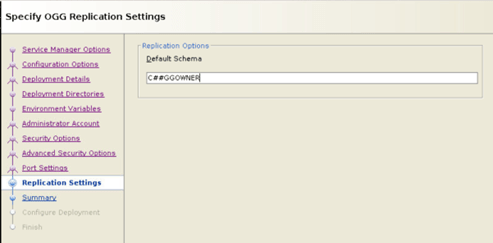
Note: Set the Replication Schema settings.
|
Upgrade the Tech Stack for the Target Database Server
Note:
- Before upgrading, back up the current environment and ensure you have a rollback plan.
- Make sure the same OS user installs all software, and that you replace all parameters enclosed in <> with valid values.
- While the table below includes some directory structures as examples, you can choose where to install the software.
| Task | Description |
|---|---|
| Download and install the Java Development Kit |
Java 17
|
| Download and apply Database Server Patch |
Download and apply the Database Server Patch 37960098 from My Oracle Support to a temporary directory.
Note: Find the detailed path installation steps in the README file within each Patch Package. |
| Download and install GoldenGate Microservices |
|
| Apply patch for GoldenGate Microservices |
Download and apply patch 38139662 (for Linux) from My Oracle Support.
Note: Find the detailed patch installation steps in the README file within each Patch Package. |
| Create Oracle GoldenGate Microservices Deployment |
Note: OUAW only supports GoldenGate Microservice Secure Deployments. Prerequisite:
Add Oracle GoldenGate Microservices Deployment with the following command:
Refer to Deploy for more information Examples:
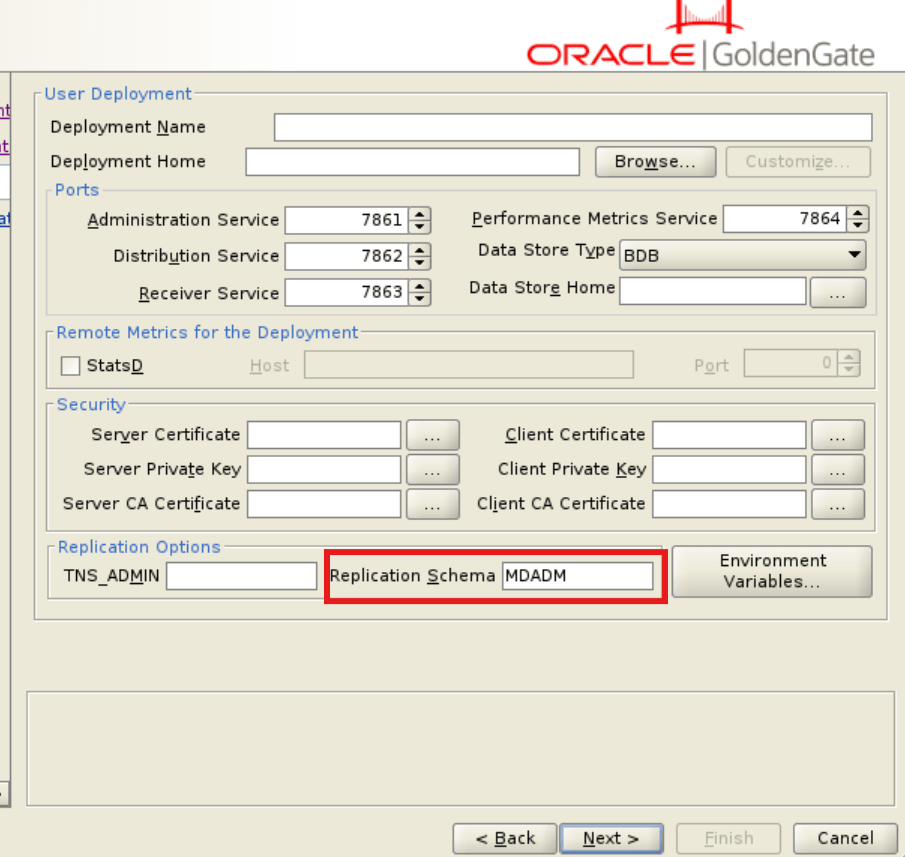
Note: Set the Replication Schema settings.
|
| Download and extract Oracle APEX |
|
| Download the OUAW database software |
|
| Extract the Admin Tool |
|
Upgrade the Tech Stack for the Target Application Server
Note:
- Before upgrading, back up the current environment and ensure you have a rollback plan.
- Make sure the same OS user installs all software, and that you replace all parameters enclosed in <> with valid values.
- While the table below includes some directory structures as examples, you can choose where to install the software. Make sure to keep track of all the home directories you create, as these will be used for OUAW installation.
| Task | Description |
|---|---|
| Download and install the Java Development Kit |
Java 8
Java 17
|
| Download and install database client |
Download the Oracle Database Client from Oracle Software Delivery Cloud and install it at a customized location. Example: </u01/ouaw/clientBase>
Note: This task is optional if both the OUAW application server and the database server are installed on the same machine. See Install Oracle Database Client for more information. |
| Download and install Oracle Fusion Middleware Infrastructure Patch |
FMW 12c
FMW 14c
|
| Download and apply Oracle Fusion Middleware Infrastructure Patch |
FMW/WLS 12c Patches
Note: FMW/WLS 12c are included in OAS STACK PATCH BUNDLE patch which will be applied after OAS Installation later.FMW/WLS 14c Patches
Note: Do not apply any FMW/WLS 14c patch in this step. Patches will be applied after ODI Domain Upgrade. |
| Download and install Oracle Analytics Server (OAS) |
See Install Oracle Analytics Server for more information. |
| Download and apply Oracle Analytics Server (OAS) Patch |
Download and apply the Oracle Analytics Server 8.2 patches 38161336 and 34809489 from My Oracle Support.
Note: Find the detailed patch installation steps in the README file within each Patch Package. |
| Download and install Oracle Data Integrator (ODI) |
|
| Download and apply the ODI patch |
Note: Do not apply any ODI 14c patch in this step. Patches will be applied after ODI Domain Upgrade. |
| Download and Extract APEX |
Download Oracle APEX 24.2 from Oracle Application Express and extract it to a local directory. Example: </u01/ouaw/apex> After extraction, you can see the apex folder. Example: </u01/ouaw/apex/apex> |
| Download and Extract ORDS |
Download the Oracle REST Data source (ORDS) 25.1.1 version from Oracle REST Data Services Download and extract it to a local directory. Example: </u01/ouaw/ords> After extraction you can see the ords folder. Example: </u01/ouaw/ords> |
| Download the OUAW Application Software |
|
Upgrade the Existing Domains and Repository
Note:
Before upgrading a repository or domain activity, make sure you have a rollback plan in case it is necessary to revert your changes.ODI Repository and Domain In-Place Upgrades
- For ODI repository and domain in-place upgrades, follow the steps in Upgrading Oracle Data Integrator.
Note:
The ./ua -readiness may fail while running it, generating the exception: "Failed to establish a connection to data source WLSSchemaDataSource" because of the error "UPGAST-00214: Unable to connect to database as the schema user DEV_WLS_RUNTIME". To solve this, it is necessary to follow the steps from the document 2751829, which is available through My Oracle Support. - Download and apply FMW/WLS 14c patches 38166406, 38015961, 38184117, 38032126, and ODI 14c patches 38172533 and 36668195 from My Oracle Support.
Note:
Find the detailed patch installation steps in the README file within each Patch Package.OAS Repository and Domain In-Place Upgrades
For OAS repository and domain in-place upgrades, follow the steps in Upgrading to the Latest Release of Oracle Analytics Server.
Apex Domain In-Place Upgrade
- Start apex Admin and Managed server.
nohup ./startWebLogic.sh > startWebLogic.log 2>&1 & nohup ./startManagedWebLogic.sh <apex_server1> > StartManagedWeblogic.log 2>&1 & - Remove ords.war and i.war apps from APEX WebLogic console.
- Log in to APEX WebLogic console.
- Navigate to Deployments > Control.
- Click Stop and select Force Stop Now.
- Click Yes.
- On the Configuration tab, click Lock and Edit.
- Under Deployments, select both i and ords.
- Click Delete.
- Confirm the deletion and click Activate Changes.
- Stop apex Admin and Managed server during the apex domain upgrade.
- The same steps that were used for upgrading the OAS domain will be used for the Apex domain in-place upgrade, except from the step for Upgrading Product Schemas. Product schemas/RCU schema are not present in this Apex domain. See Upgrading to the Latest Release of Oracle Analytics Server for details.