Energy Costs View
The Energy Costs view of the Data Browser displays how much a business was billed for energy use, based on historical bill amounts. Business customers can view energy costs for each bill over a 13-month period. Daily and subdaily views are also available if there is enough data.
Requirements
Same as listed in Data Browser. Additional data requirements may apply for utilities that enable the Billing Details insight, which can be configured to display more information about the factors that determine each energy bill.
User Experience
The Energy Costs view displays how much a business was billed for energy use over time. This section describes the user experience for businesses that have billing data and daily AMI data.
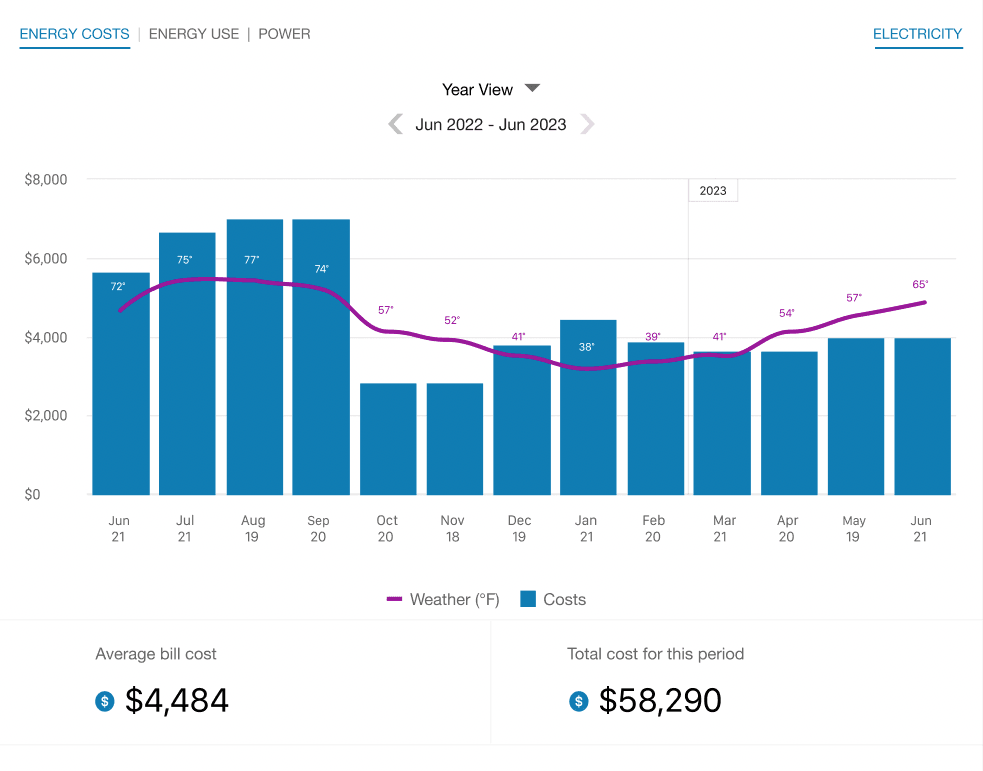
Fuel Menu
The fuel menu allows customers to select which fuel to view data for. By default, electricity is shown. An additional gas menu only appears for dual fuel customers.
A Combined view can be displayed, which combines electric and gas costs into a single number using a price-weighted index. When the Combined view is enabled, the data point tooltips also display combined totals.
Time Menu
Depending on what data is available, the Energy Costs view presents different kinds of trends and insights at varying levels of granularity over time.
- Year view: Energy cost by each bill period in a year. Monthly, bi-monthly, and quarterly bills are supported.
- Bill view: Energy cost by each day in a bill period, as well as the day with the highest demand. AMI data is required for this view.
- Day view: Energy cost by each hour of a day, as well as the interval with the highest demand. AMI data is required for this view.
There are also forward and backward buttons that customers can select to display contiguous blocks of time. In the year view, for example, clicking the forward or backward button displays contiguous 13-month blocks of time for businesses on monthly billing.
Bar Graph
The bar graph uses a vertical axis (Y-axis) to show the cost, and a horizontal axis (X-axis) to show the time period. The bars use the "You" color, which is blue by default and commonly changed to the utility's brand color. See General Display Rules for details on how the graph behaves and how the data visualization can change depending on the selected view.
Weather Data
A line graph representing the average temperature during each time period is overlaid on the bar graph. This allows customers to see how their usage relates to local weather patterns. The weather data is based on data from the airport weather station closest to the location of the business. See Data Browser for details on how weather data is retrieved.
Rates Data
Rates or cost information be displayed in the daily and subdaily views of the Energy Costs view. However, in order for such insights to appear, the Rates Engagement cloud service must be purchased, and rates must be modeled. Assessment will be needed to determine if your business rate structure can be supported. Contact your Delivery Team for more information.
Tooltips
Tooltips are displayed when business customers interact with a data point on the graph. See Energy Tooltips for details on what the tooltips may include.
Cost Insights Bar
For each fuel type available in the Energy Costs graph, a bar is displayed beneath the graph to show additional cost insights. This bar is available for single fuel and dual fuel customers, and displays only in the Year view to show the average bill cost and total annual cost for the selected year. If the year is not yet complete, the average bill and total cost-to-date is shown.
Billing Details
Depending on each utility’s setup and configuration, a list of additional billing details is displayed below the bar graph in the Year view for each of the customer’s gas or electricity bills. The list is presented in a table format and includes more categories of information for each bill, allowing business customers to better understand the factors that determine their costs. The list can be expanded or collapsed, and is sorted by bill period by default, with the most recent bill period at the top. The table columns available by default include:
- Bill Period: The bill period date range. This column remains fixed if the business customer scrolls horizontally.
- <Fuel Type> Cost: The total cost of gas or electricity for the bill period. This column remains fixed if the business customer scrolls horizontally.
- <Fuel Type> Use: The total amount of gas or electricity consumed during the bill period.
Note:
This information is only available for display in the Year view. It does not display in the Bill or Day views.Requirements
- Account, Billing, and Premise data feeds must be established with the utility.
- Additional columns of data can be displayed. For example, you may want to include data showing how a customer's peak hour usage affects the bill. Utilities must coordinate with their Oracle Utilities Opower Delivery Team to set up the appropriate data feeds and configure the columns.
Legend
A legend below the graph defines the elements displayed in the graph. If applicable, the legend includes an indicator for estimated bills.
Disclaimer
Disclaimer messages can be added to the Energy Costs view that are specific to the view. For example, if applicable, a disclaimer message can explain that the amounts shown do not include taxes and other fees. The disclaimer message can also include links to other resources where business customers can find more information.
User Experience Variations
Solar Data and Net Energy Metering
If a business customer has solar power and generates more energy than they consume, the Energy Costs view will show the customer's energy use as a credit. Short green bars are shown for negative values, and a tooltip denotes the negative cost value. This default experience can be configured to display in different ways. Utilities must coordinate with their Delivery Team to determine which display to use.
Year-over-Year View
Depending on your utility’s setup and configuration, the Data Browser time menu may contain an additional year-over-year view that allows business customers to compare energy usage or costs for the past 12 months against the same period from the previous year. With this side-by-side comparison, business customers can identify patterns, assess progress on savings, and understand fluctuations in energy use or cost. The view is available for gas and electricity fuels in the Energy Use and Energy Costs tabs.
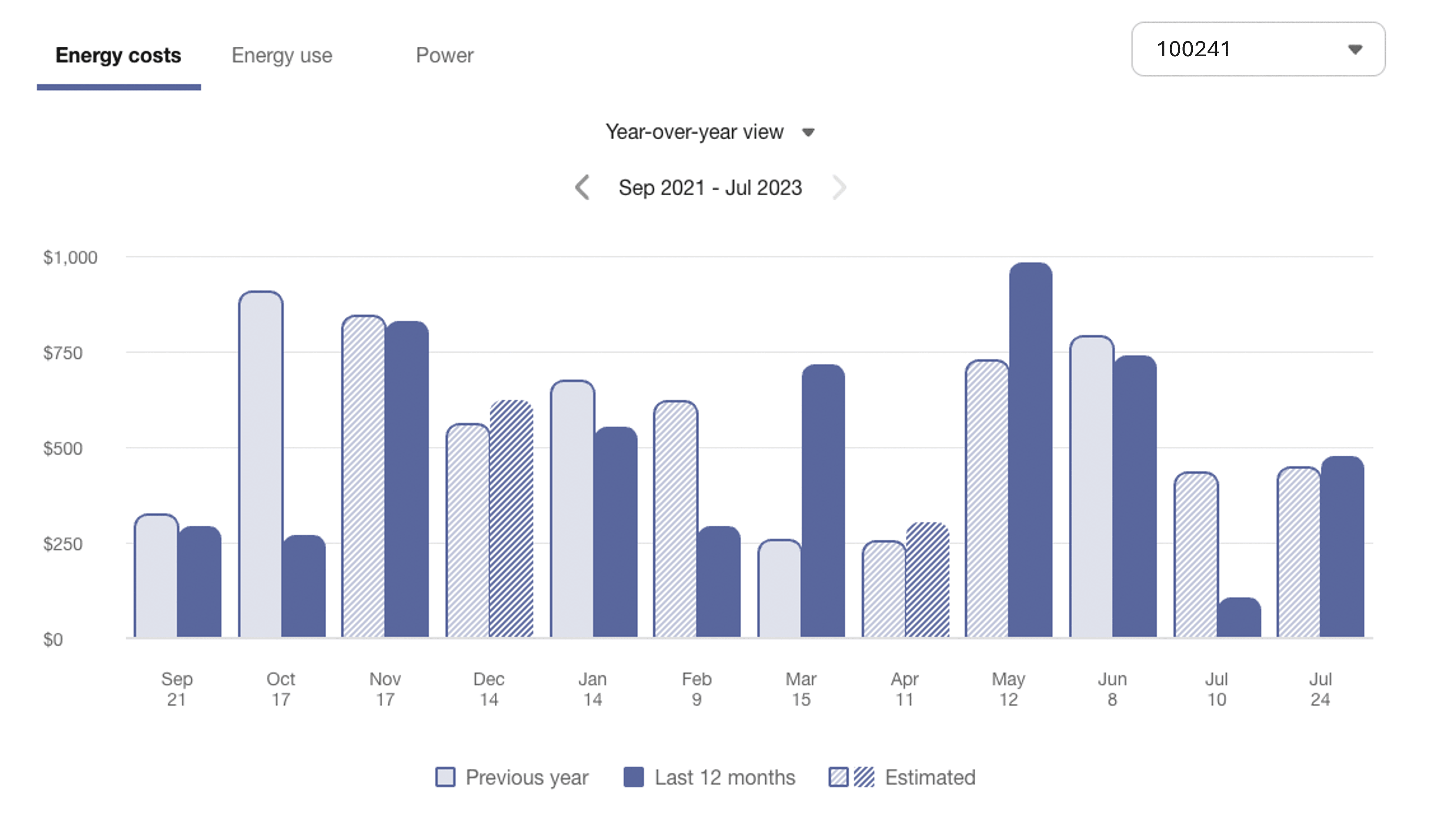
When the year-over-year view is selected, the main graph displays grouped bars for each month over a 12-month period. Each grouping compares the cost for the past 12 months (darker bar) to the same month from the previous year (lighter bar). A legend at the bottom of the chart clarifies what the bars mean.
Note:
If the customer selects the Energy Use view, the graph will show a year-over-year usage comparison for individual service agreements rather than a combination of service agreements, and the Total Bill option will be hidden. This is because the Energy Use view is designed to focus on usage rather than cost information.Estimated Reads: The graph highlights estimated reads using visual and textual indicators. When an estimated bill appears for either the past 12 months or the previous year, a message is shown in the tooltip and the corresponding bar uses a stripe pattern. The legend displays an "Estimated" entry only if at least one estimated read exists. When estimated reads are present for both periods, the tooltip and legend clearly distinguish between them using matching color schemes and styles.
Navigating through Time: When the year-over-year view loads, it uses the current date to determine the current month and displays the most recent 12 months of data. Forward navigation to future dates is disabled since no data would be available for display. Users can navigate backward to earlier data if it is available, and navigate forward again. The legend at the bottom, labeling the bars as “Previous year” and “Past 12 months,” only appears when the most current data is being shown.
Requirements: Customers must be billed monthly, and at least one bill is required for the year-over-year view to display any data. If no data is available, an error message is shown. The ideal state is to have 24 months of billed usage data for a complete year-over-year view.
Limitations:
- Bi-monthly or quarterly bills are not supported.
- To keep the year-over-year view simple and easy to read, weather data is not displayed.
- The year-over-year view is not available for solar customers. Solar customers can be provided with the Compare to Last Year View available through the Distributed Energy Resources Customer Engagement cloud service, which must be purchased separately.