Understanding the Main Menu - Full Operations User Type
The main menu bar has four major sections:

1. The Main Menu icon
The Main Menu opens the side panel with the main menu options:
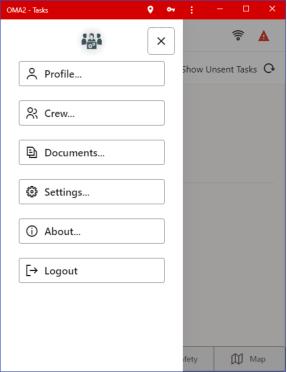
Each Main menu option will be describe in sections that follow.
• About
• Logout
2. The OMA user and Crew status – This section will inform the OMA user of the NMS server they are connected to, their user name they logged in with, the crew they are associated with and the crew status and availability.
3. The Network Status – This will let you know the network status of the device and will have three modes:
- The device is connect to the network and has a good connection to the NMS server.
- The device is connect to the network and the NMS server is not responding
- The device is not connect to any network and the NMS server is not reachable.
4. The Crew Emergency icon – This will bring up the crew emergency popup and will give you the opportunity to cancel the emergency or to notify the NMS system of the emergency. If you do not respond, the notification will happen automatically after a timeout period. Once in Emergency mode, the icon will turn yellow and a subsequent selection of the icon will allow you to cancel the emergency if you can enter your login password.
Understanding Your Profile
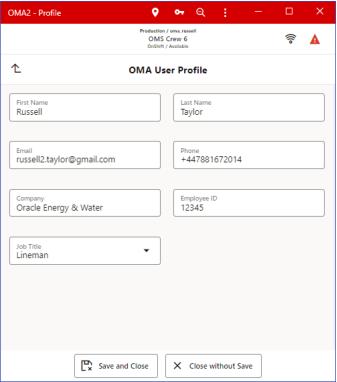
A completed profile is required for all OMA users and will automatically pop up when you log in for the first time. You are required to populate the entire profile in order to continue to use OMA:
Understanding Crews
The crew page contains the following tabs:
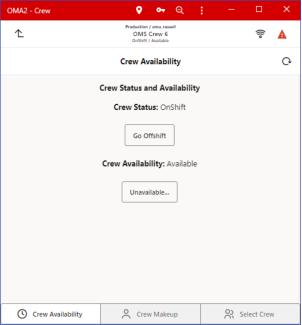
1. The Crew Availability tab
The crew availability tab allows you to put the crew on or off shift and allows them to identify the crew as unavailable (Meeting, Coffee, …) and back to available:
2. The Crew Makeup Tab
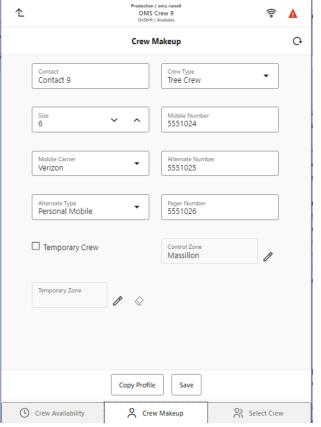
The Crew Makeup tab allows you to update the details about the crew they are associated with:
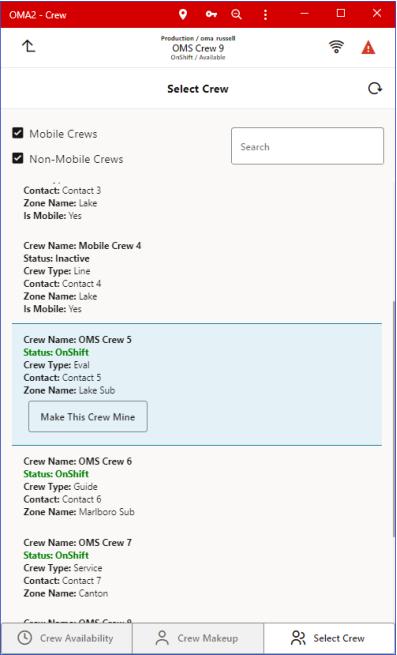
3. The Select Crew Tab
The Select Crew tab is available to users with permission to change their associated crew. To associate yourself with a crew, select the crew card and then hit the check mark. Your associated crew will then appear on the top of the main menu bar.
Using the Documents Page
The Documents page lists any files or documents made available for the crew:
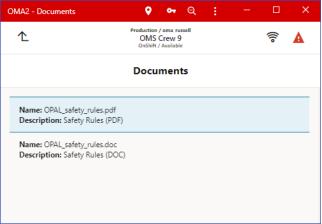
If you tap a file in the list, you will have the option to view  or download
  it.
it.
or download it.Understanding Settings
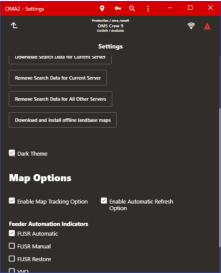
The Settings page provides options for data management, map option, and other visual indications.
Data Management
Enables you to download or remove map and search data currently stored on your device. The next time you log on you will be prompted to download the maps again.
Theme
You may switch between the Light Theme and the Dark Theme

Switching Options
In Switching Options section, there is a toggle for On Step Complete, do transition. This toggle enables or disables the switching functionality for automatic transition when you complete a switching step. When enabled, it will automatically transition the model according to what the step requests. When disabled, you will need to manually transition the model according to what the switching step directs.