1.5.1 Process to Create Manual Track
This topic describes the systematic instructions to Create Manual Track.
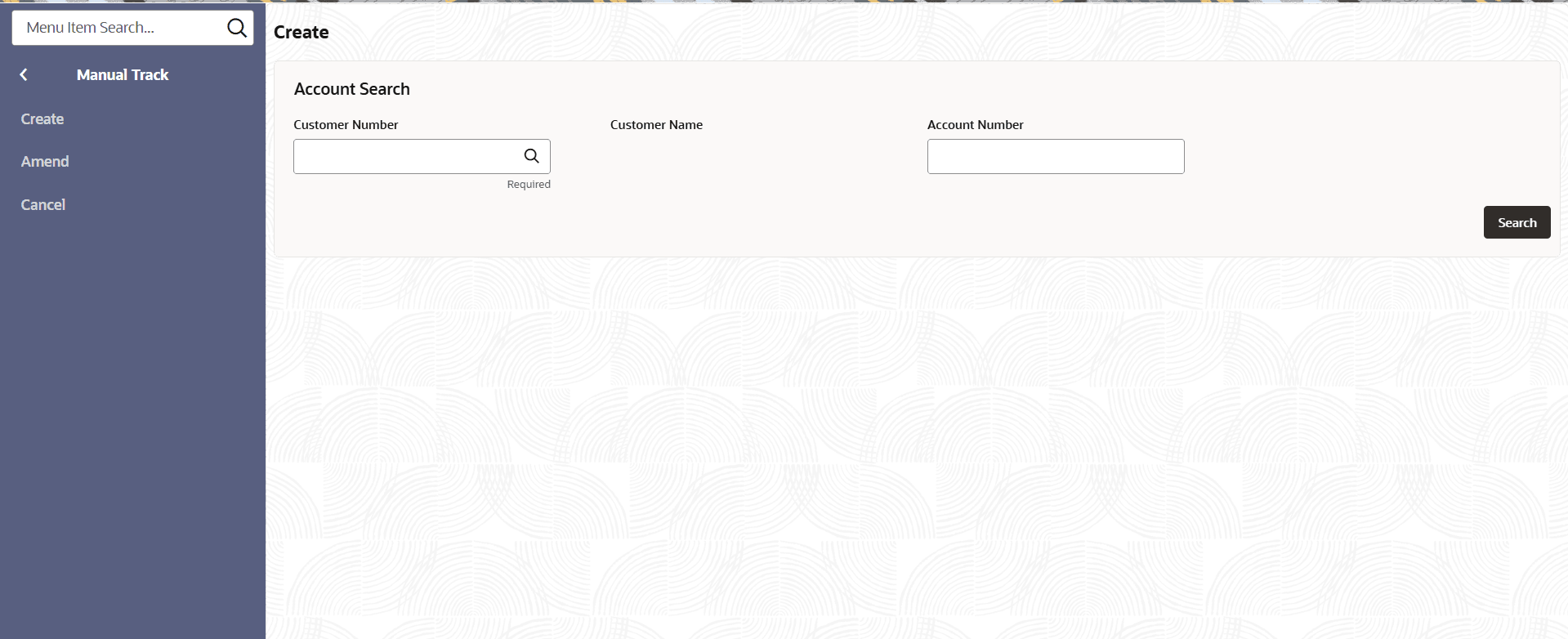
- Click Account Transactions under Account Transactions, Click Manual Track and Click Create.The Manual Track page displays.
For more information on fields refer to the field description table.
Table 1-16 Manual Tracker - Field Description
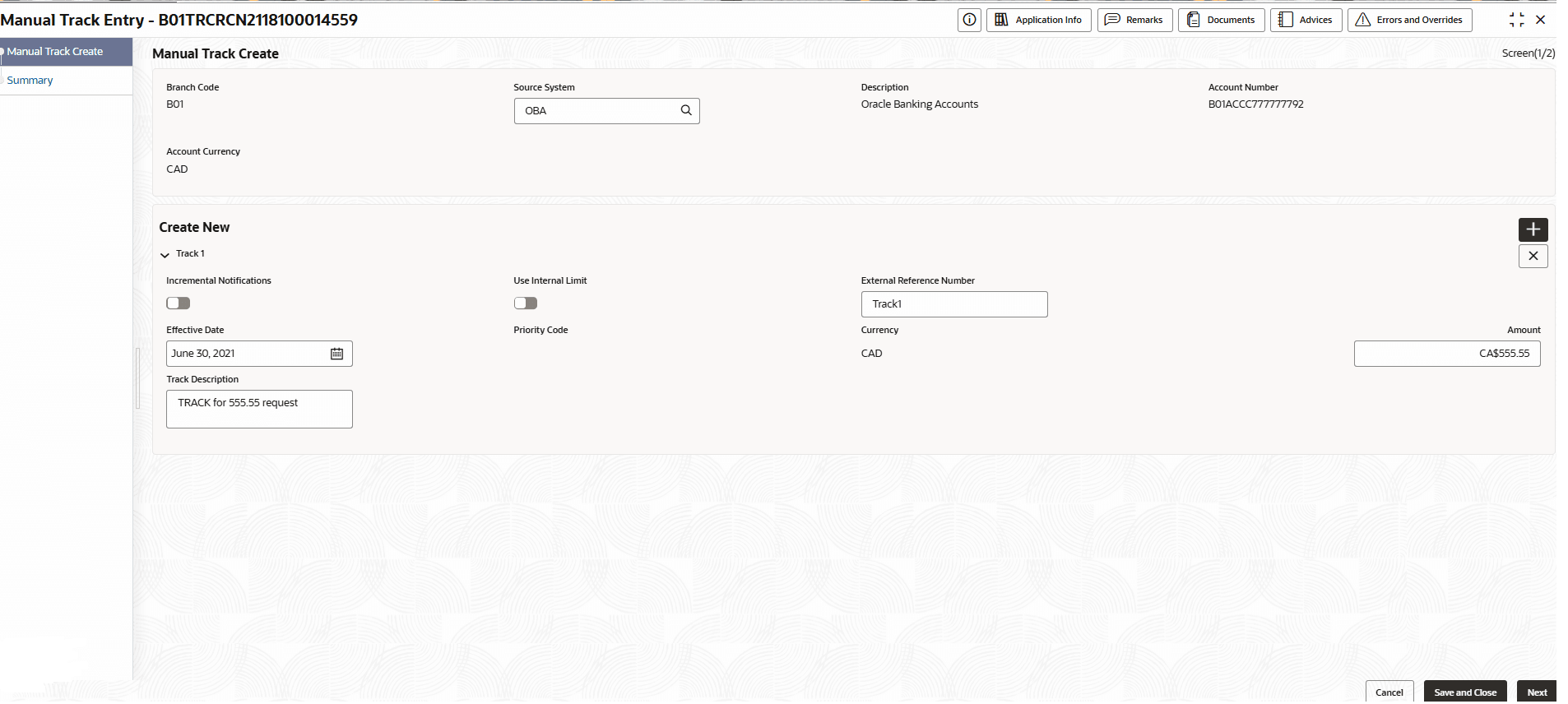
Field Description Customer Number Click Search icon to select the customer number. Customer Name Displays the customer name. Account Category Displays the Account Category. Currency Displays the Currency. Currency Description Displays the Currency Description. Account Number Displays the Account Number. - User has to select the required account number to initiate. Click Initiate.The Manual Track Entry screen displays.
For more information on fields refer to the field description table.
Table 1-17 Manual Track Entry - Field Description
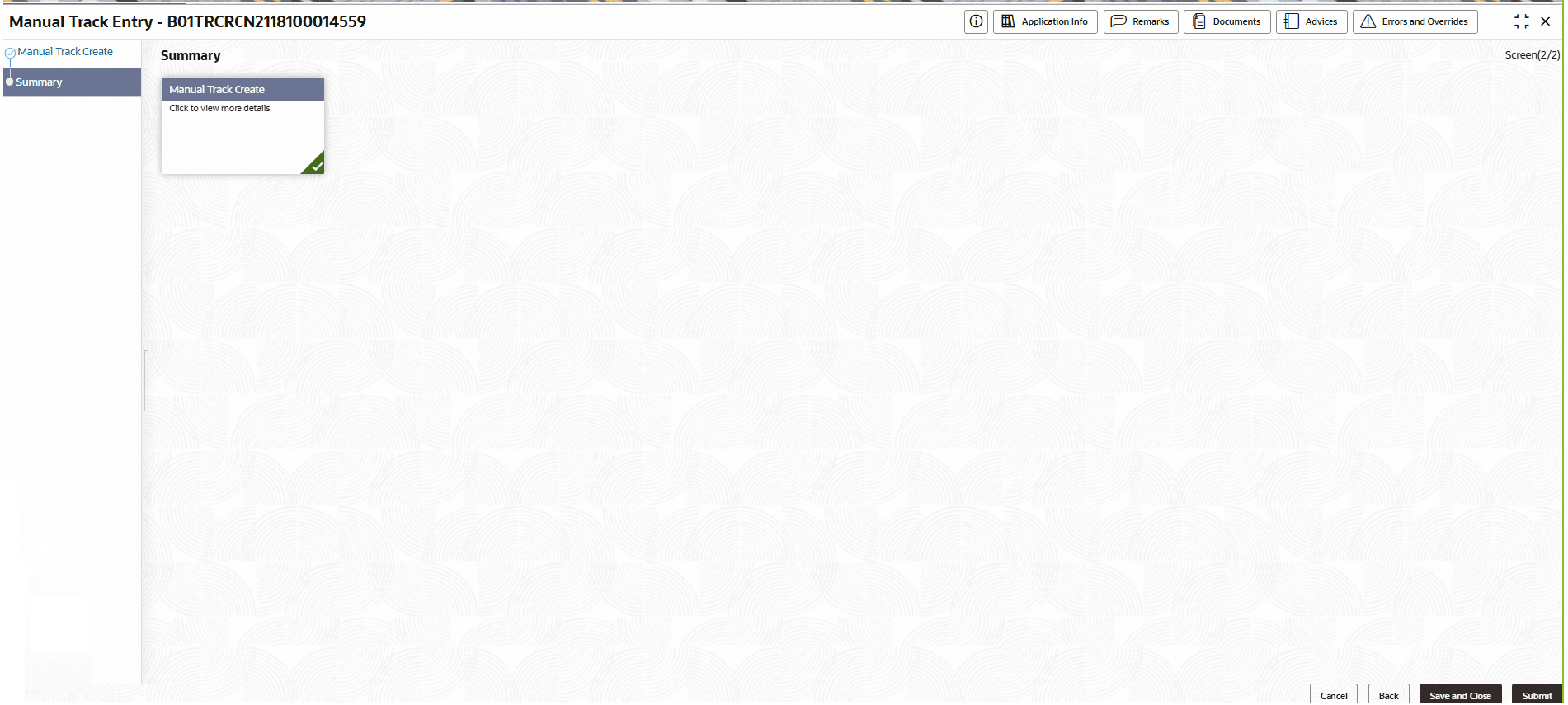
Field Description Branch Code Displays the branch code. Source System Click Search icon to select source system. Description Specify the description. Account Number Specify the account number. Account Currency Displays the account currency. - Click Next.The Summary screen displays the edited or new tiles with a checkmark in green on the bottom right of the tile.
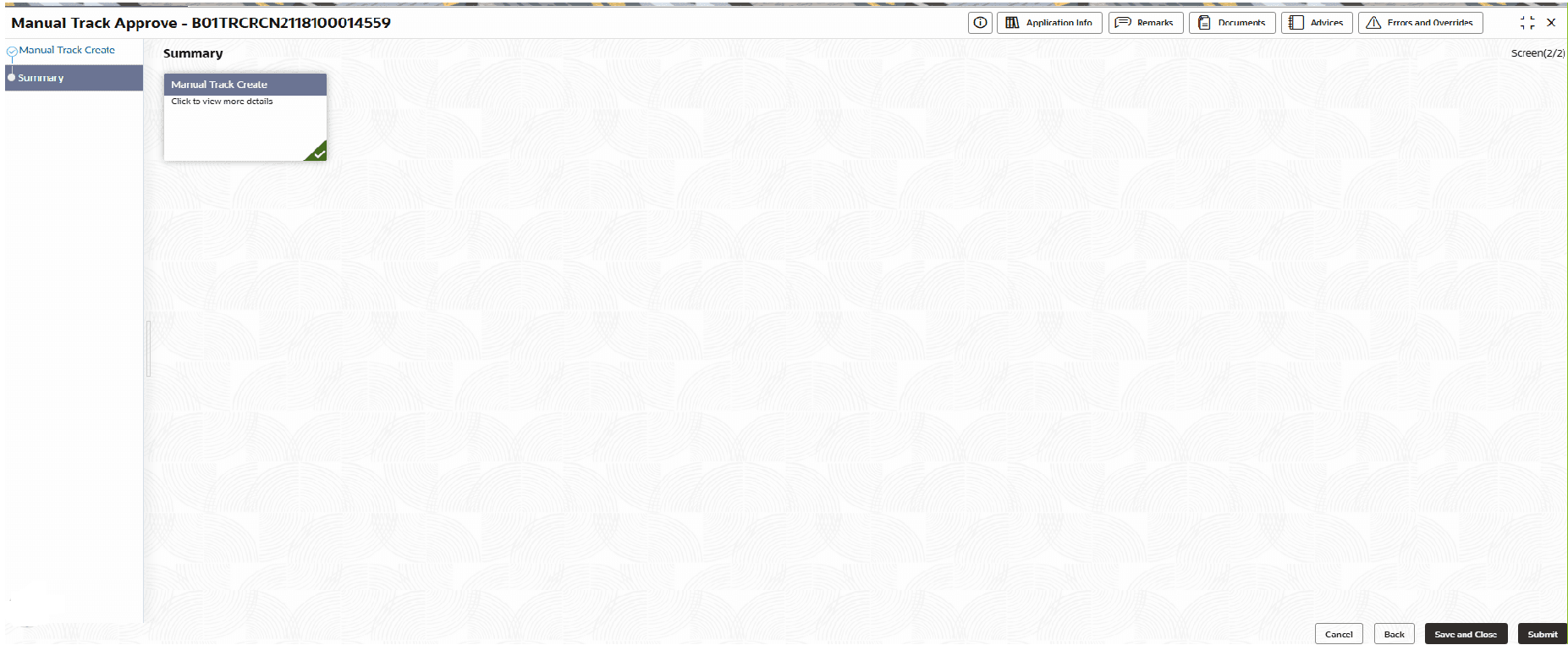
- Click Next.The Summary page displays.
- Confirm that the account has the Track Receivable.
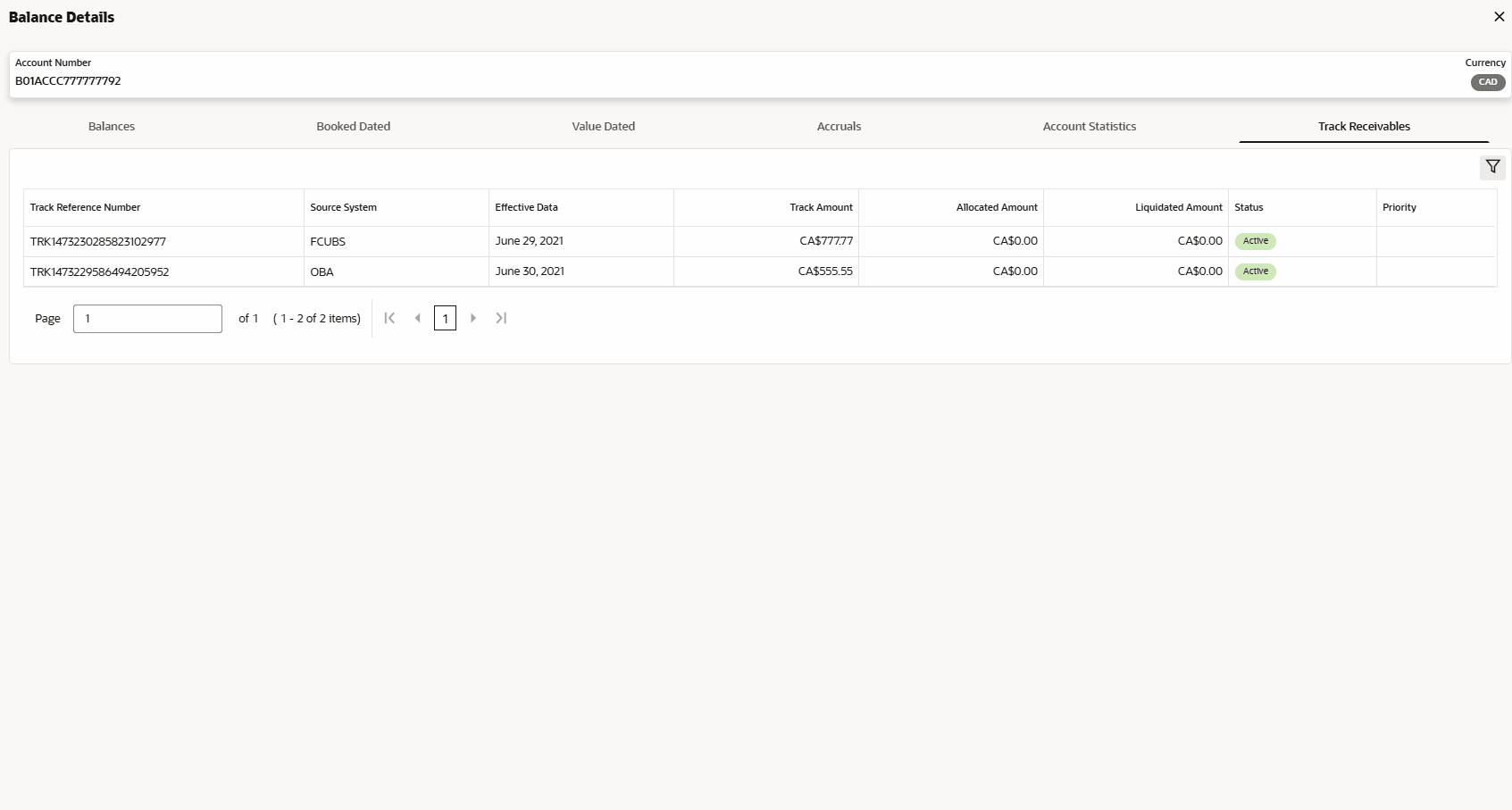
- View the account balance details in the 360 view and click on Track Receivable tab.The Balance Details Page displays.
- View the account balance details in the 360 view and click on Track Receivable tab.
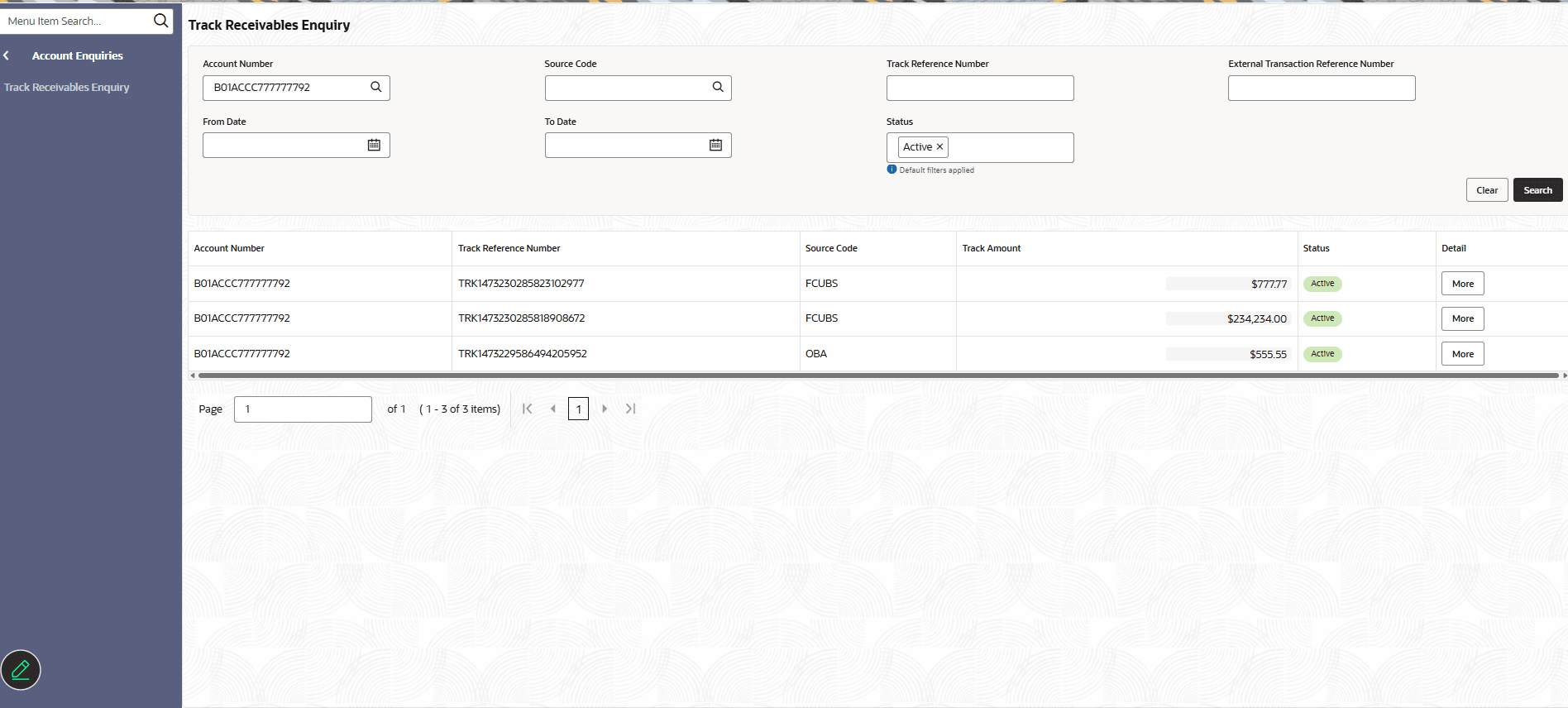
- Click Track Receivables Enquiry under Account Enquiry.The Track Receivables Enquiry Page displays.
For more information on fields refer to the field description table.
Table 1-19 Track Receivables Enquiry - Field Description
Field Description Account Number Click Search icon to select the account number. Source Code Click Search icon to select the source code. Track Reference Number Specify the track reference number. External Transaction Reference Number Specify the external transaction reference number. From Date Click Calendar icon to select the from date. To Date Click Calendar icon to select the to date. Status Specify the Status.
Parent topic: Manual Track