1.5.2 Process to Amend Manual Track

This topic describes the systematic instructions to Amend Manual Track.

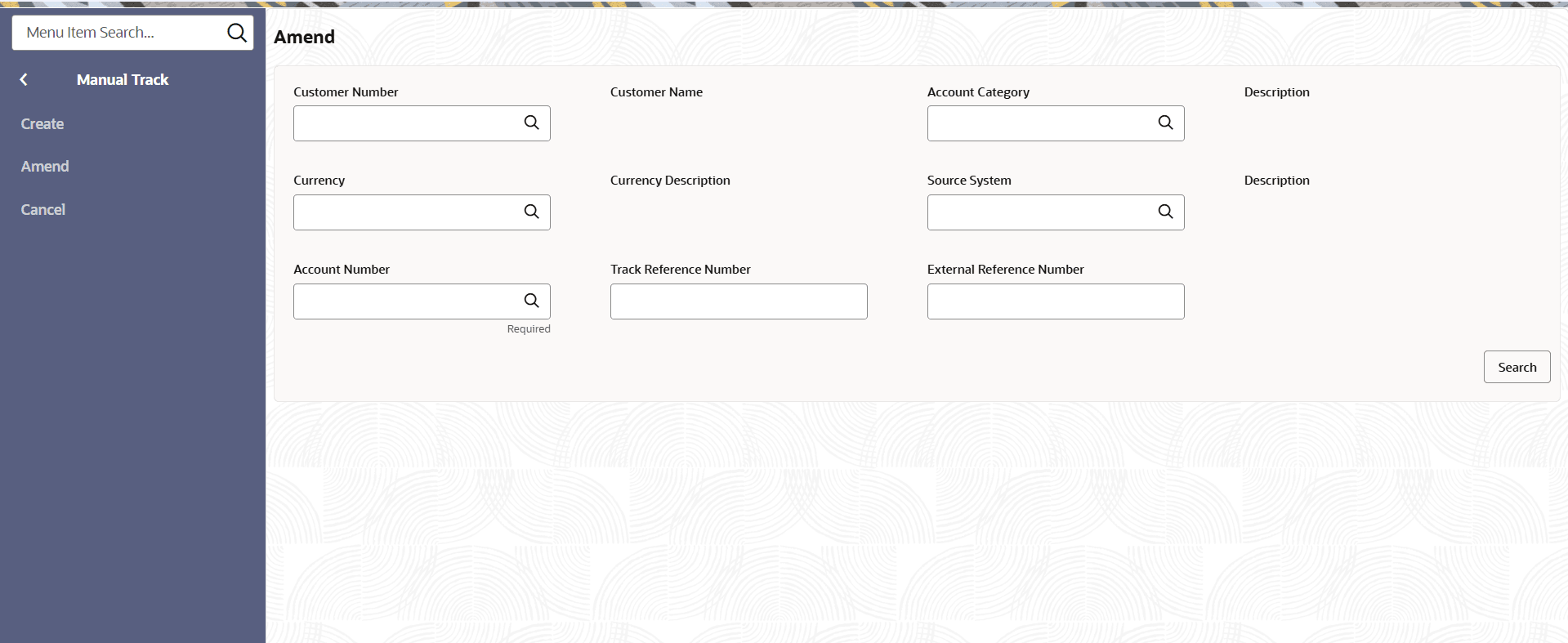
  1. Click Account Transactions under Account Transactions, Click Manual Track and Click Amend.
    The Manual Track page displays.

    Figure 1-33 Amend - Manual Track


    For more information on fields refer to the field description table refer manual tack creation.

  2. User has to select the required account number to initiate. Click Initiate.
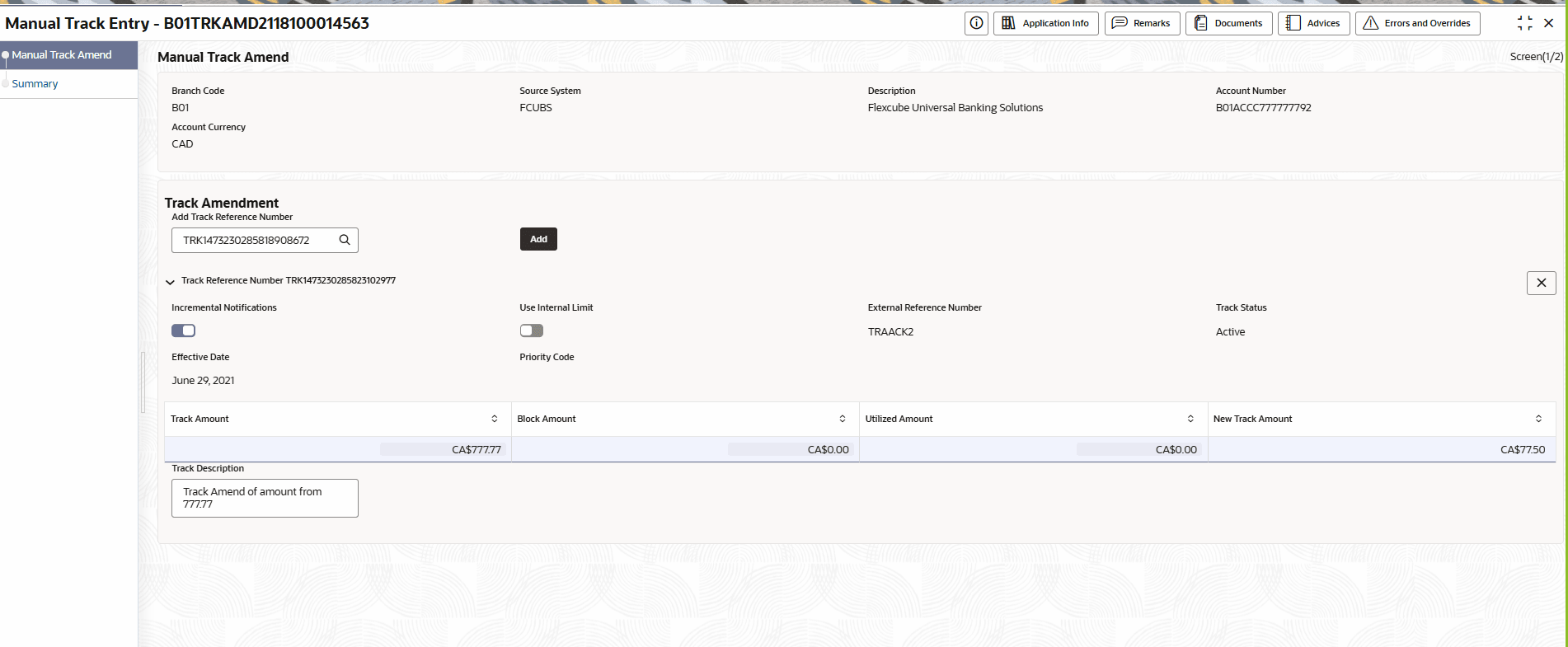
    The Manual Track Entry page displays.
    For more information on fields refer to the field description table.

    Table 1-20 Manual Track Manual

    Field Description
    Branch Code Displays the branch code.
    Source System Displays the source system.
    Description Displays the description.
    Account Currency Displays the account currency.
    Add Track Reference Number Click Search icon to select the track reference number.
    Add Click Add button to add track reference number.
    Incremental Notification Enable Incremental Notification option, if required.
    Use Internal Limit Enable Incremental Notification option, if required.
    External Reference Number Displays the External Reference Number.
    Effective Date Displays the Effective Date.
    Track Status Displays the Track Status.
    Effective Date Displays the Effective Date.
    Priority Code Specify the Priority Code.
    Track Amount Displays the Track Amount.
    Block Amount Displays the Block Amount.
    Utilized Amount Displays the Utilized Amount.
    New Track Amount Displays the New Track Amount.
    Track Description Displays the Track Description.
  3. Click Next.
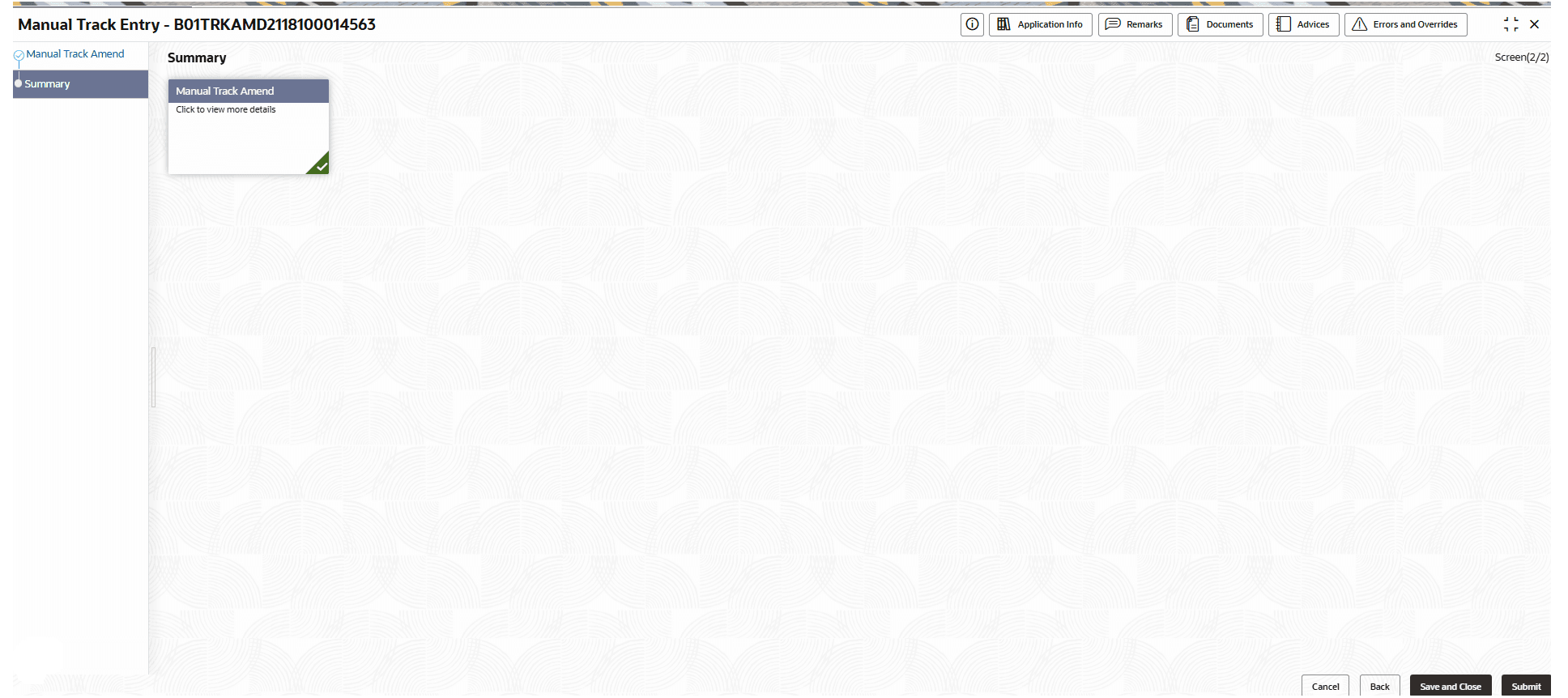
    The Summary screen displays the edited or new tiles with a check mark in green on the bottom right of the tile.
  4. Click Submit from the Summary screen.
    The Stage Movement Submission dialog displays the Overrides stage.
  5. To complete the Stage Movement Submission process, follow the steps below:
    1. Accept any Overrides generated and click Proceed Next.
      The Checklist stage fetches and displays checklists mapped to this stage.
    2. Confirm the checklist items and then click Proceed Next.
      The Outcome stage displays.
    3. Select Proceed from the drop-down list and click Submit.
      The Stage Movement Submission process creates the Manual Track Approve task.
  6. To complete the approve Manual Track Approve task follow the steps below:
    1. Click Tasks, and under Tasks, click Free Tasks.
      The Free Tasks page displays.
    2. Search the listed tasks with these column values. The Process Name column contains Manual Track Receivable Amend , the Stage column contains Manual Track Approve.
  7. Click Acquire and Edit.
    The Manual Track Approve page displays.
  8. User has to select the required account number to initiate. Click Initiate.
    The Manual Track Amend screen displays.
  9. Click Next.
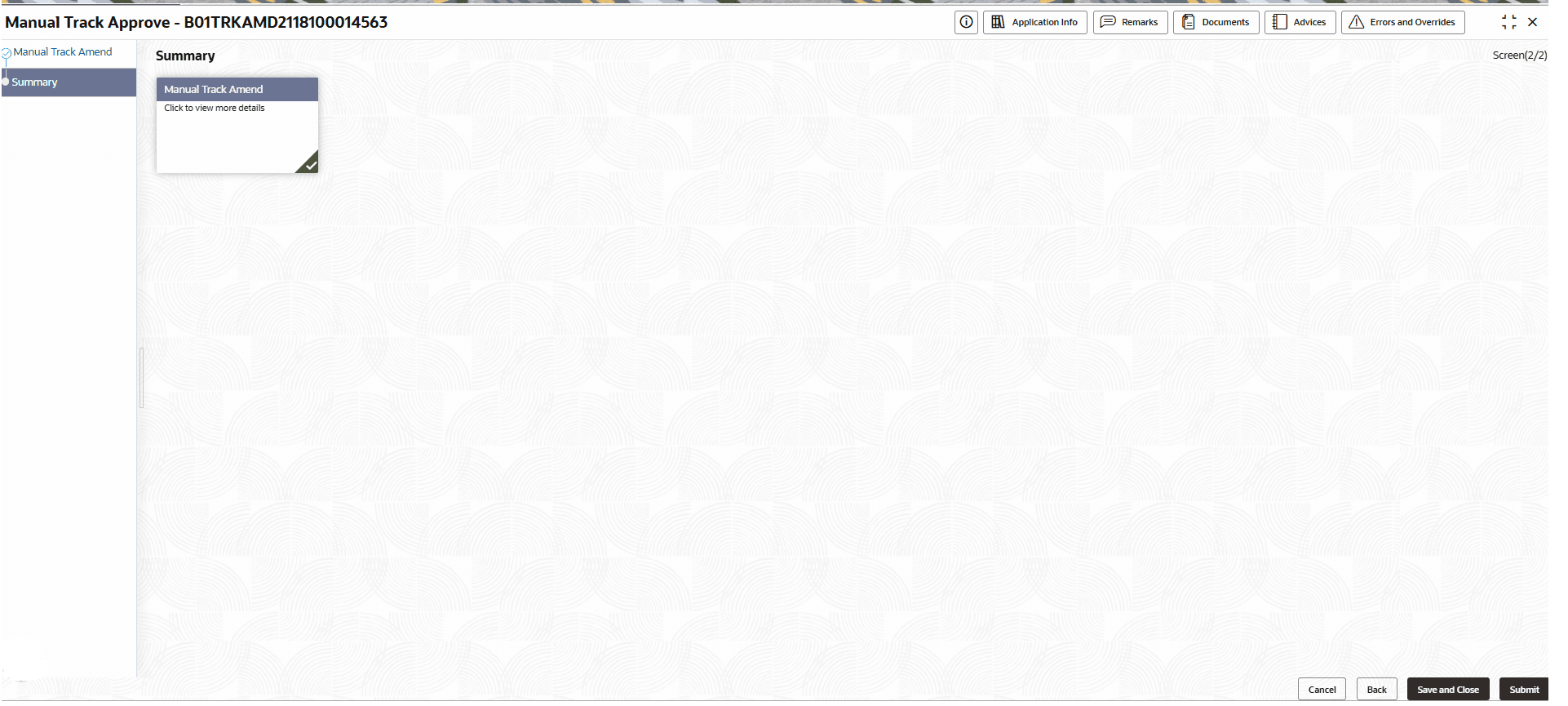
    The Summary screen displays the edited or new tiles with a check mark in green on the bottom right of the tile.

    Figure 1-36 Manual Track Approve


  10. Review the updated Manual Track Details and click Submit from the Summary page.
  11. To complete the Stage Movement Submission process, follow the steps below:
    1. Accept any Overrides generated and click Proceed Next. The Checklist stage fetches and displays checklists mapped to the Approve stage.
    2. Confirm the checklist items and then click Proceed Next. The Outcome stage displays.
    3. Select PROCEED from the drop-down list.
    4. Click Submit.
  12. To complete this Manual Track Handoff Retry task follow the steps below:
    1. Click Tasks, and under Tasks, click Free Tasks.
      The Free Tasks page displays.
    2. Search the listed tasks with these column values. The Process Name column contains Manual Track Receivable Amend , the Stage column contains Manual Track Handoff Retry.
  13. Click Acquire and Edit.
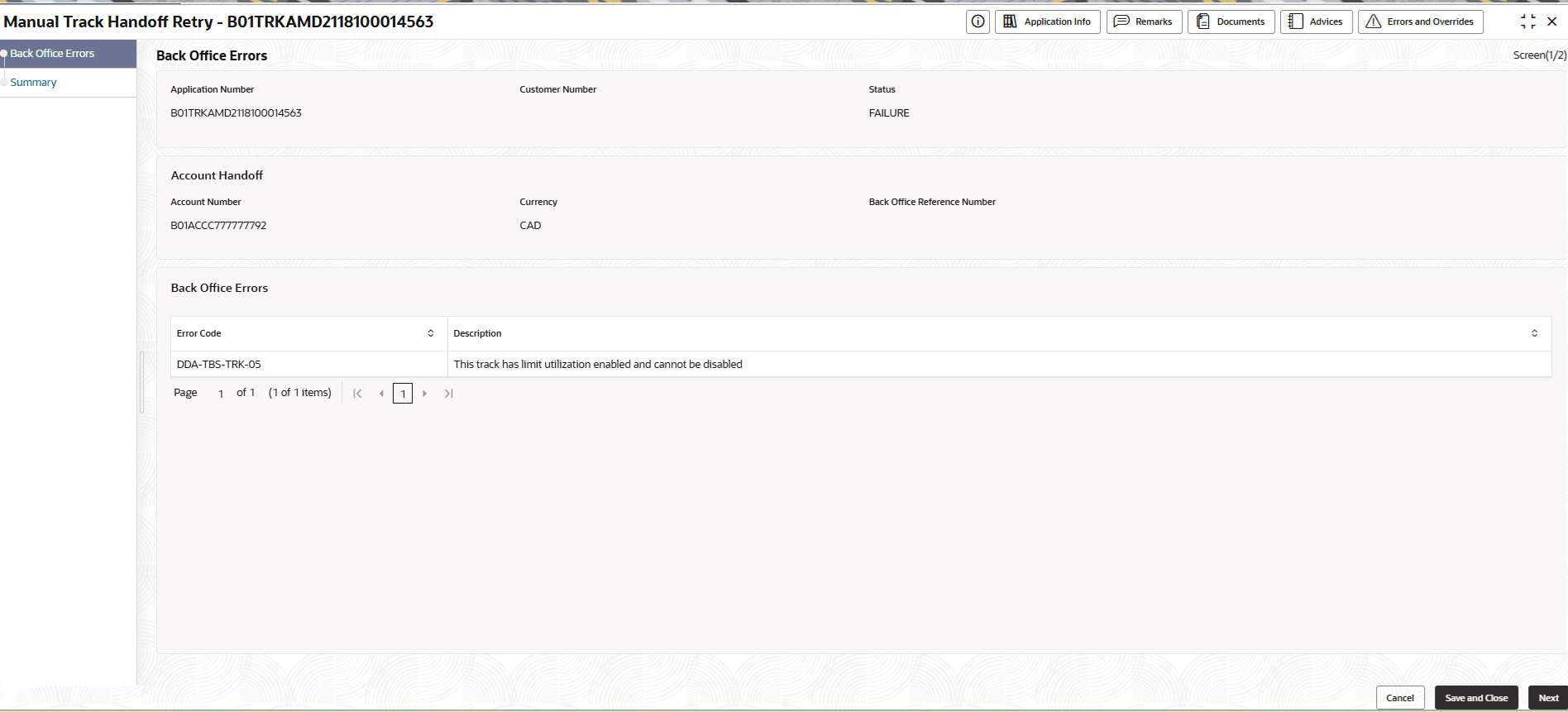
    The Manual Track Handoff Retry page displays with Back Office Errors Details.

    Figure 1-37 Manual Track Handoff Retry - Back Office Errors


  14. Click Next.
    The Summary screen displays the edited or new tiles with a check mark in green on the bottom right of the tile.
  15. Click Submit from the Summary page.