4.2 Account Amendment
This topic describes the systematic instructions to change specific details of an existing customer account, such as preferences, features, account status, and other account details.
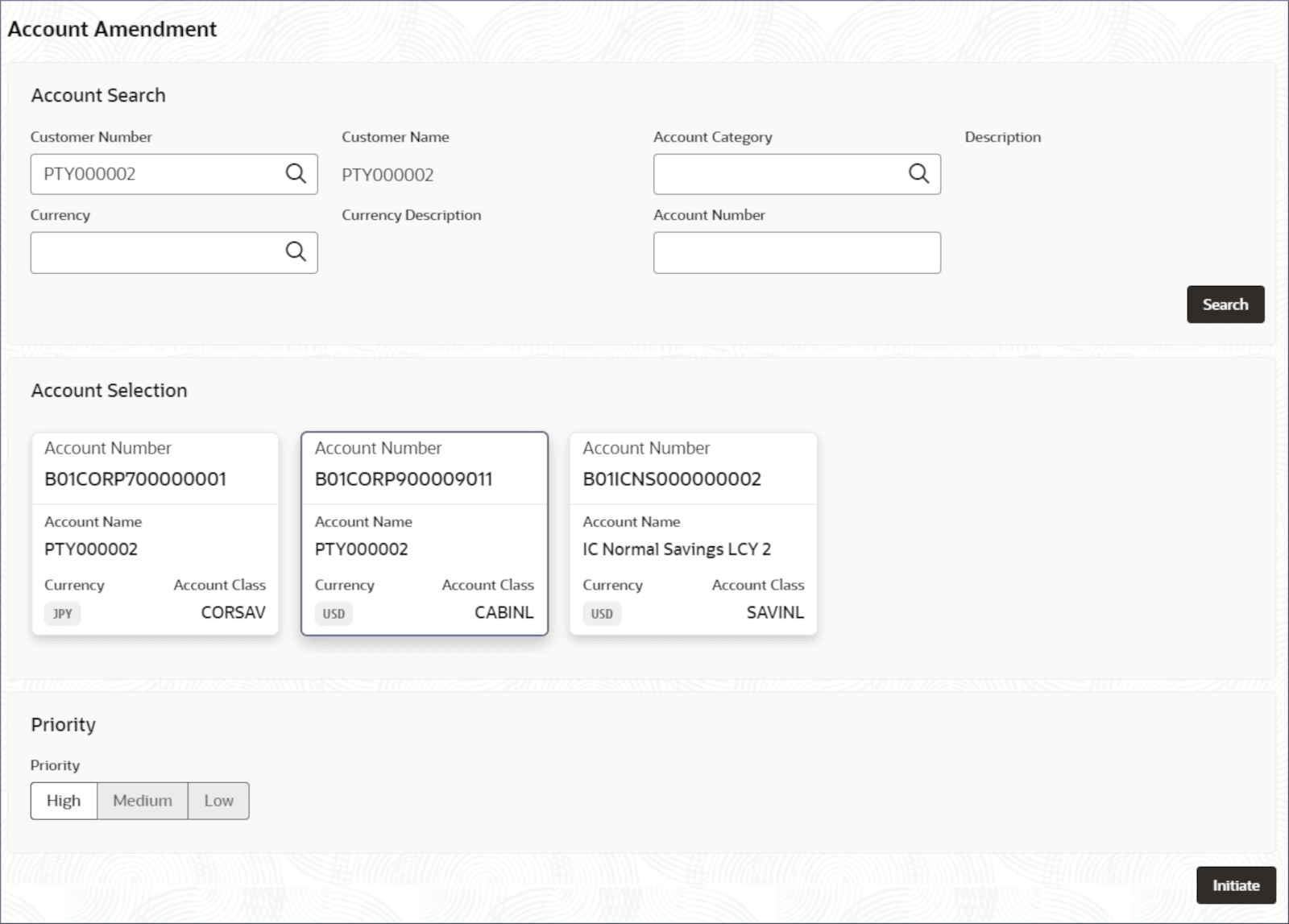
- On the Home screen, click Corporate Account Services. Under Corporate Account Services, click Account Amendment.The Account Amendment page displays.
- In the Account Search section, specify one or more fields. For more information on fields, refer to the field description table.
Table 4-2 Account Search- Field Description
Field Description Customer Number Specify the CIF number of the customer to update the associated account details. Customer Name Displays the name of the selected customer. Account Category Specify the account category to which the account belongs. Description Displays the description of the selected account category. Currency Specify the operating currency of the account. Currency Description Displays the description of the operating currency. Account Number Specify the required account number. To fetch the customer account:- From the Customer Number dialog, click Fetch.
- Search for the required customer.
- Click the required customer number from the results.
- Click
.The Account Selection section displays the accounts matching the search filters. - Select the required account tile and click Initiate.The Account Amendment Update Entry- Application Number page displays.
Tip:
Make a note of the Application Number. This is needed to identify the task at the entry, enrich, and approval stages in the matching process, on the Free Tasks page. - From the Summary screen or the data entry tabs on the left of the page, click the required data entry tile.The data entry screen displays.
Note:
For more details about the data segments, see the Account Creation topic. - Update the required information in the data entry screens.
- Click Next.
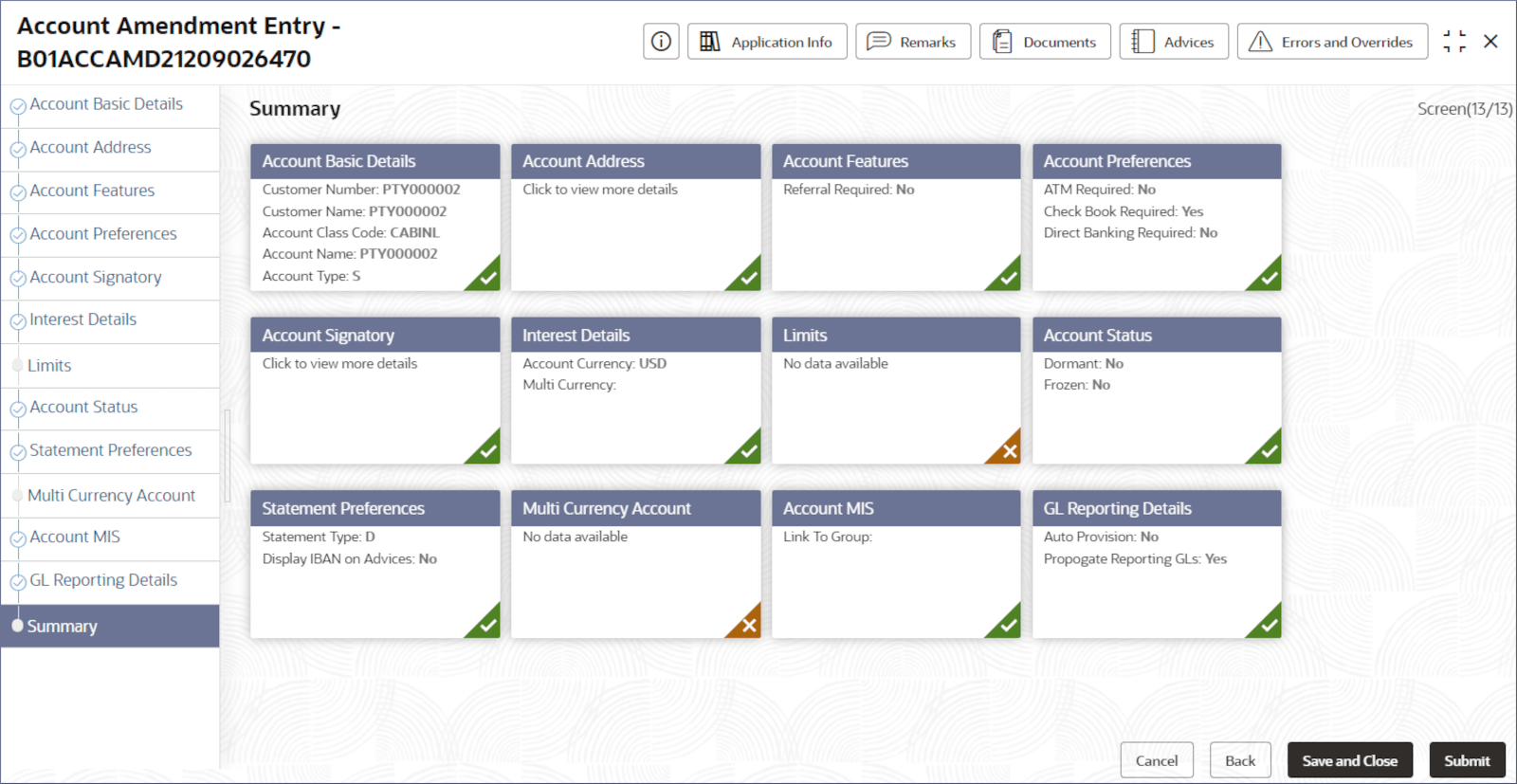
- When the required updates are complete, click the Summary tab on the left of the page.The Summary screen displays all the data entry screen tiles.
- Click Submit.The Stage Movement Submission dialog displays the Overrides stage.
- To complete the Stage Movement Submission process, follow the steps below:
- Accept any Overrides generated and click Proceed Next.The Checklist stage fetches and displays checklists mapped to this stage.
- Confirm the checklist items and then click Proceed Next.The Outcome stage displays.
- Select PROCEED from the drop-down list and click Submit.The Stage Movement Submission process creates the Approve Address Update task.
- Accept any Overrides generated and click Proceed Next.
- To complete the Approve Account Amendment task, follow the steps below:
- Click Tasks under Tasks, click Free Tasks. The Free Tasks page displays.
- Search the listed tasks with these column values. Process Name column contains ACCOUNT AMEND, the Stage column contains Approve Account Amendment, and the Application Number column has the number noted in Step 4.
- Click Acquire and Edit.The Approve Account Amendment - Application Number page displays.
- Review the amendments made and click Submit from the Summary page.The amendments to the account are approved.
- Click Tasks under Tasks, click Free Tasks.
- To confirm that the two stages of the Account Amendment process are complete, click Tasks under Tasks, and then click Completed Tasks.The Completed Tasks screen displays the entries for the Entry, and Approve stages.
To view the amended account details, see Account Search.
Parent topic: Corporate Account Services