3.1 Account Search
This topic explains the instructions provided for the Corporate accounts search and view the account details. It provides a snapshot view of the account.
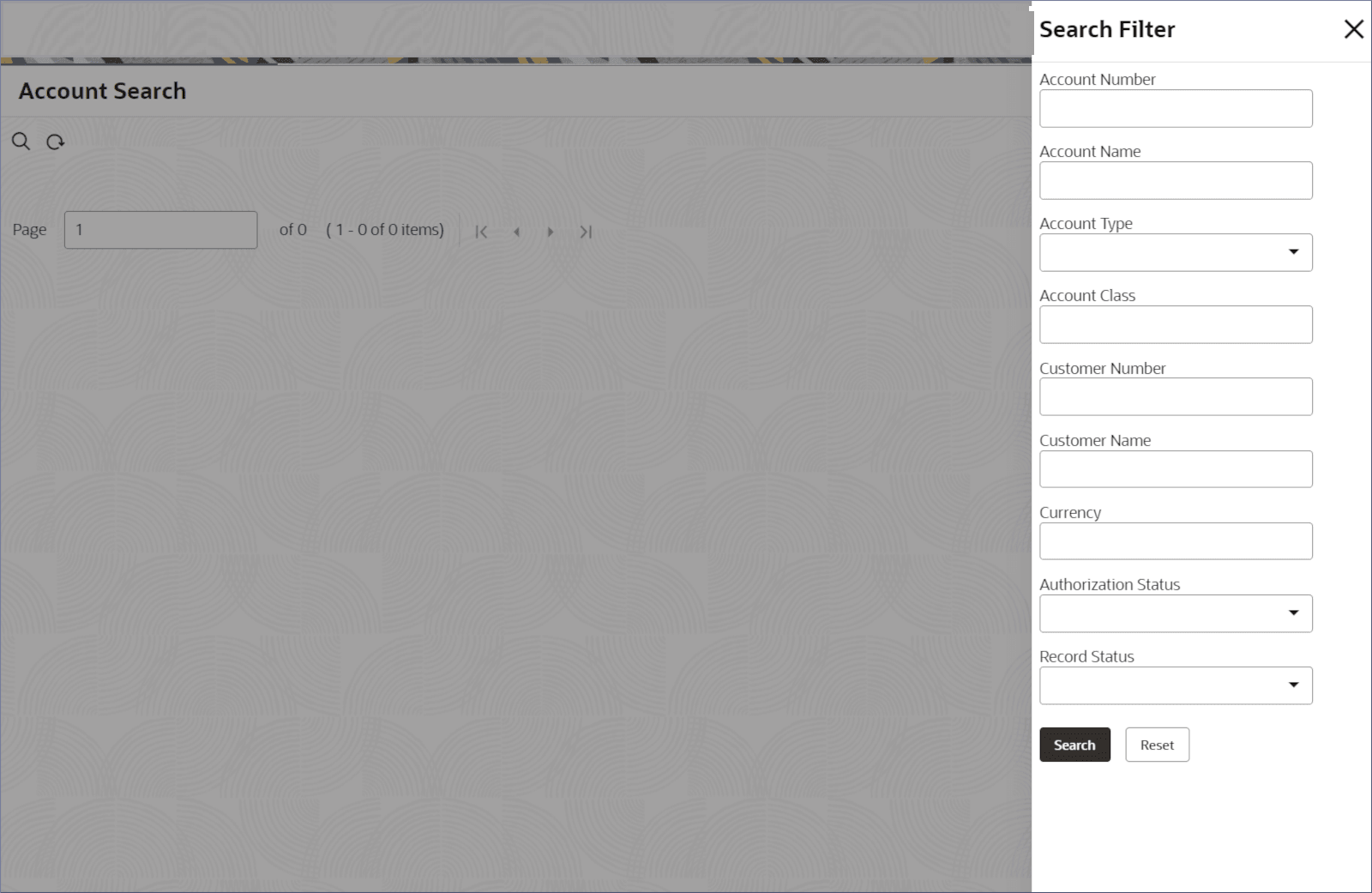
- Click the Search icon at the top left of the page.
The Search Filter dialog displays.
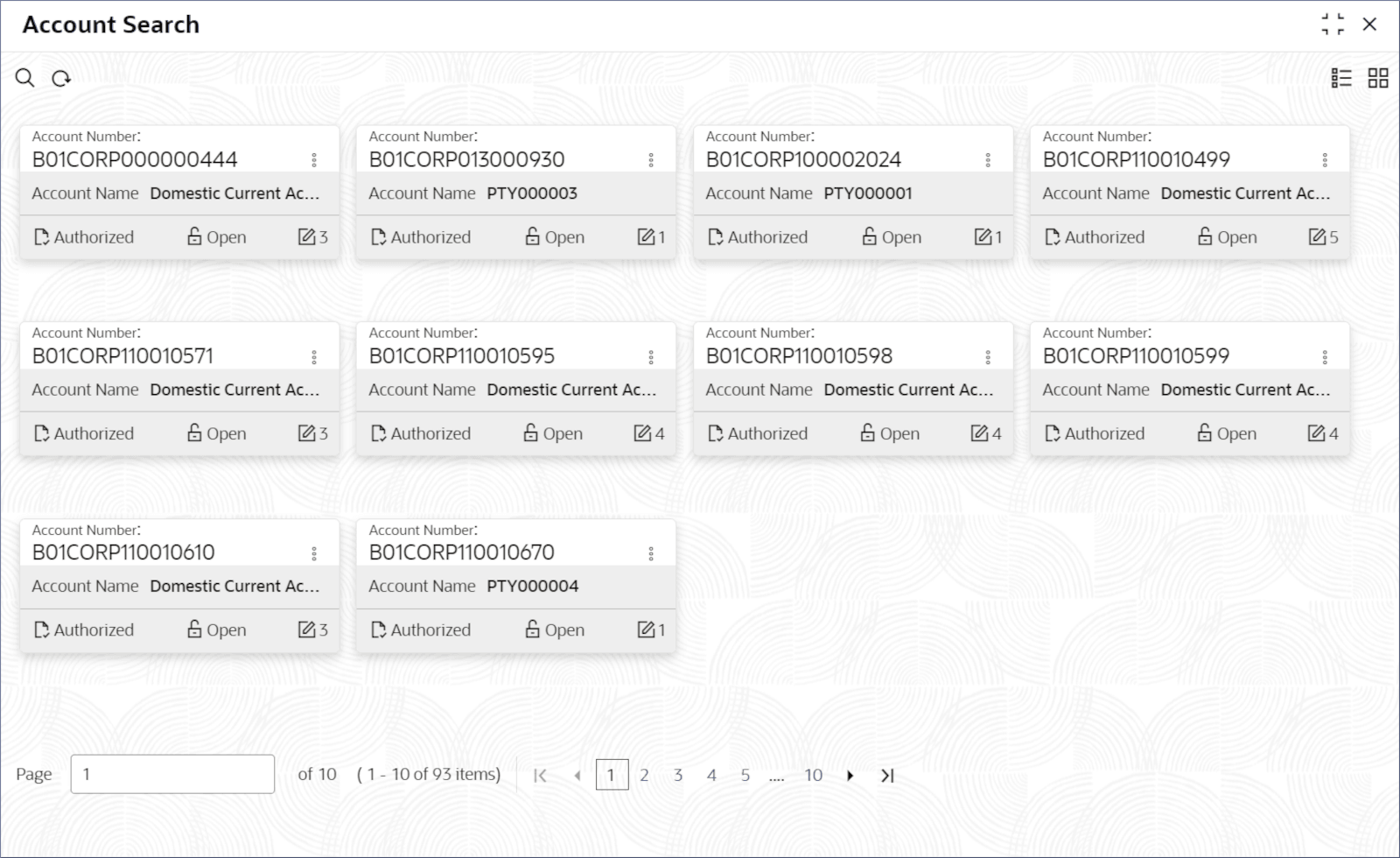
- Click Search.The Account Search page displays the accounts matching the search filters in the Tile view.For more information on fields, refer to field description table below:
Tip:
Change the view between the Tile view and the List view, by selecting the options available from the top right corner of the page.Table 3-2 Account Tile Details - Field Description
Field Description Account Number Displays the account number. Account Name Displays the name of the account. Status Displays the status of the record. The following table describes the action items in the More Options and the action items on the page.
Table 3-3 Action Items Description
Action Item Description Unlock Unlock a record and make amendments. Close Close a record to prevent it from being unlocked and amended. Copy Copy a record and launch the Account Class Maintenance screen in edit mode. View View the details of a record. Delete Delete a record. Note: Once deleted, the record can no longer be used to define an entity. But entities already defined using the record can continue to use it.
Reopen Reopen a closed record. Authorize Authorize a record to make it active and available to define entities. Note: Creator of a record cannot authorize the component. Another user with authorize permissions can.
Audit Select to view the Maker, Checker, Status, and Modification Number of the record. Errors and Overrides Select to view all existing errors or warnings on the page. Note:
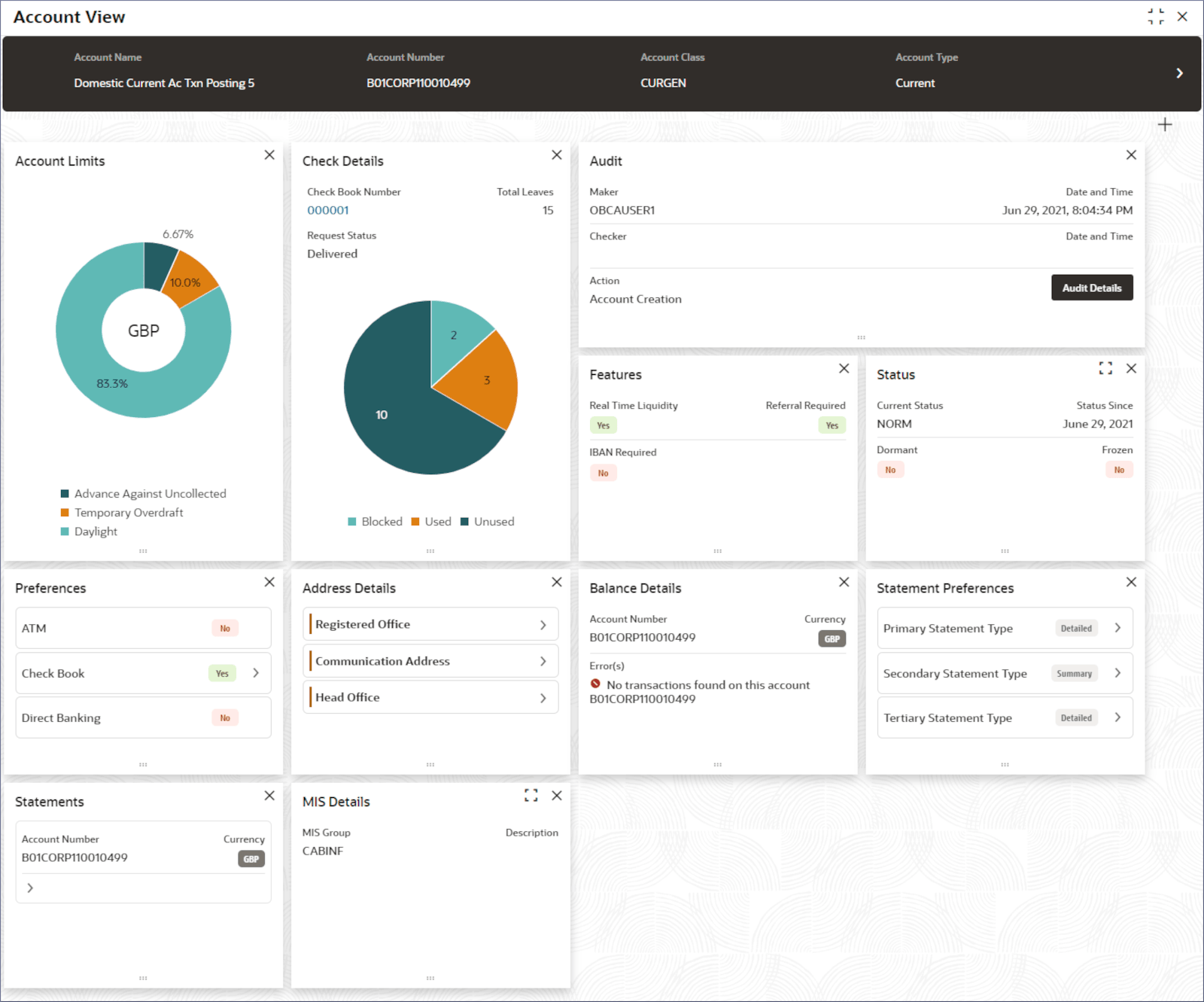
The actions user can perform depend on role and the record status. - To view an Account details, click More Options and select View.The Account View provides a comprehensive 360 degree of the Account details in different tiles also referred to as widgets. The basic details of the account are visible at the top of the page. The widgets that display in the Account View depends on the user permission. User can perform the following actions on each tile:
- Position the tiles on the page. Click and hold the Drag and Drop icon at the bottom of a tile, then drag and drop the tile to the required position.
- Click Expand on a tile to view the field details in a pop-up dialog.
- Click Right or Left of a tile to scroll through the details.
- Hover over linked field values (blue text) or fields with the Next icon and click the Pointer icon that appears to view the field details in a pop-up dialog.
Note:
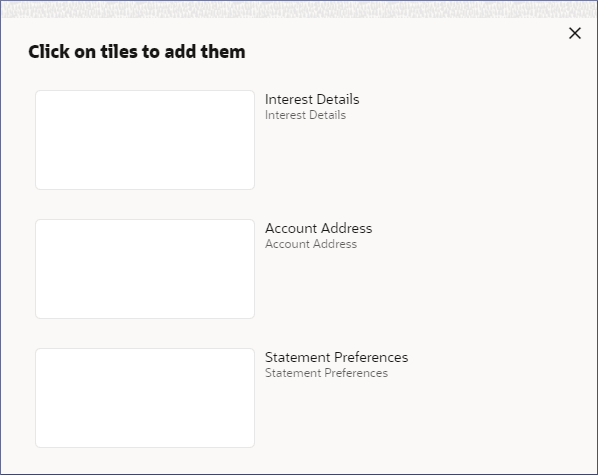
Actions available on a tile are context sensitive and not all actions are available on all tiles. - To add or remove a tile from the page, follow the steps below:
- Click Add at the top right of the page. A dialog displays the tiles that are not present on the screen.
- Click Add at the top right of the page.
- Account Search - Balance Details
This topic explains the systematic instructions to view the account balance details. - Account Search - Address Details
This topic explains the systematic instruction to view the address details of an account. - Account Search - Statements Details
This topic explains the systematic instruction to view the statement details of an account. - Account Search - Statement Preferences
This topic explains the systematic instructions to view the statement preferences of an account. - Account Search - Check Details
This topic explains the systematic instructions to view the check details of an account. - Account Search - Account Limits
This topic explains the systematic instructions to view the limit details of an account. - Account Search - Preferences Detail
This topic explains the systematic instructions to view the preference details of an account. - Account Search - Multi Currency Details
This topic explains the systematic instructions to view the multi currency account details. - Account Search - Interest Configuration
This topic explains the systematic instructions to view the interest configuration details of an account. - Account Search - MIS Details
This topic explains the systematic instructions to view the MIS details of an account. - Account Search - Uncollected Funds
This topic explains the systematic instructions to view the uncollected funds in an account. - Account Search - Audit Details
This topic explains the systematic instructions to view the audit details of the account creation and modification. - Account Search - Status
This topic explains the systematic instructions to view the account status details. - Account Search - Document Details
This topic explains the systematic instructions to view the documents provided during the corporate account creation. - Account Search - Signatories Detail
This topic explains the systematic instructions to view the signatories of an account. - Department Approval
The Department Approval will be read-only and will display data already captured during different stages of the account closure lifecycle. - Closure Balance Details
The Closure Balance Details will be read-only and will display data already captured during different stages of the account closure lifecycle.
Parent topic: Corporate Account Enquiries