3.1.3 Account Search - Statements Details
This topic explains the systematic instruction to view the statement details of an account.
User can search for the required account and open the 360 view of the account. To find and view the account, see Account Search.
The Statements tile displays the account statements. For a multi-currency account, it displays the statements of the sub-accounts. User can scroll the different sub-accounts by clicking the Dots on the tile as shown in the image below. The statements presented are based on the preferences set in the Statement Preferences data entry screen during the account creation. For more information on adhoc statement requests, see Account Statement Request. For more information on setting statement preferences for the account, see Account Creation.
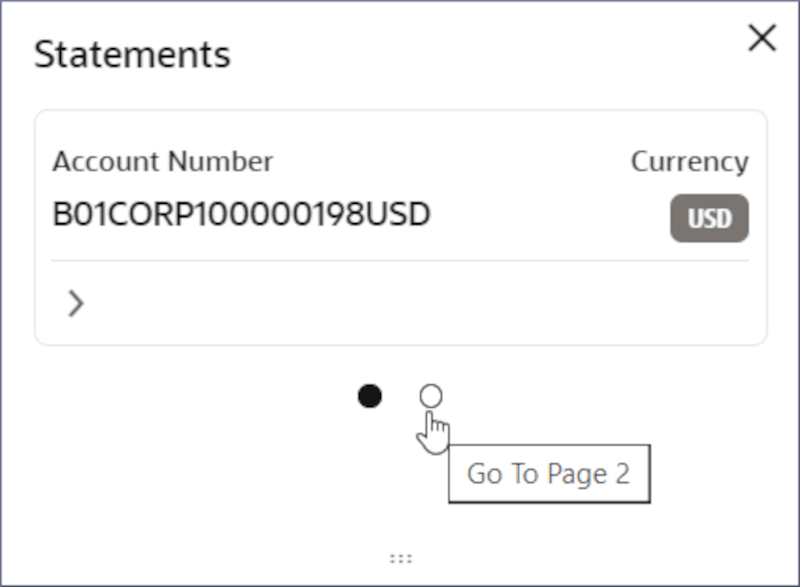
- To view the account Statements, follow the steps below:
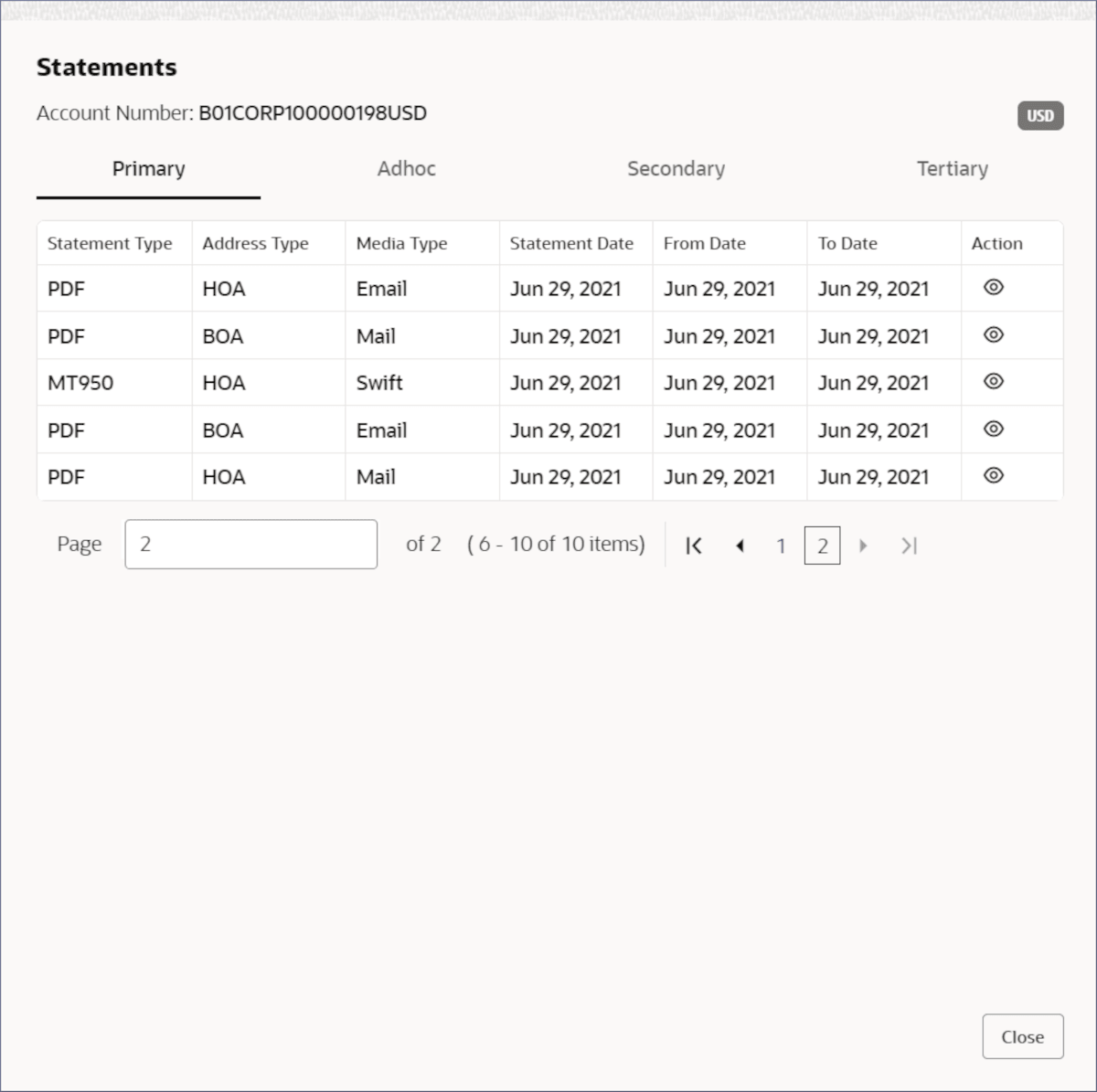
- Click the Account Number in the Statements tile.The Statements dialog displays the Primary tab listing the primary statements generated. For more information on fields, refer to field description table below:
Table 3-9 Statement Details - Field Description
Field Name Description Statement Type Displays the statement format. Address Type Displays type of the address. The possible options are: - HOA- Head Office Address
- ROA- Registered Office Address
- BOA- Branch Office Address
- COA- Communication Address
Media Type Displays the address type to deliver the statement. The possible options are: - Fax
- Swift
Statement Date Displays the date on which the statement was generated. From Date Displays the start date of the generated statement. To Date Displays the end date of the generated statement. Action Click to open and view the generated statement.
- Click the Account Number in the Statements tile.
Parent topic: Account Search