4.1.1 Check Deposit Against Account
The Teller can use the Check Deposit screen to carry out the check deposit transaction for a customer.
To capture the check deposit request:
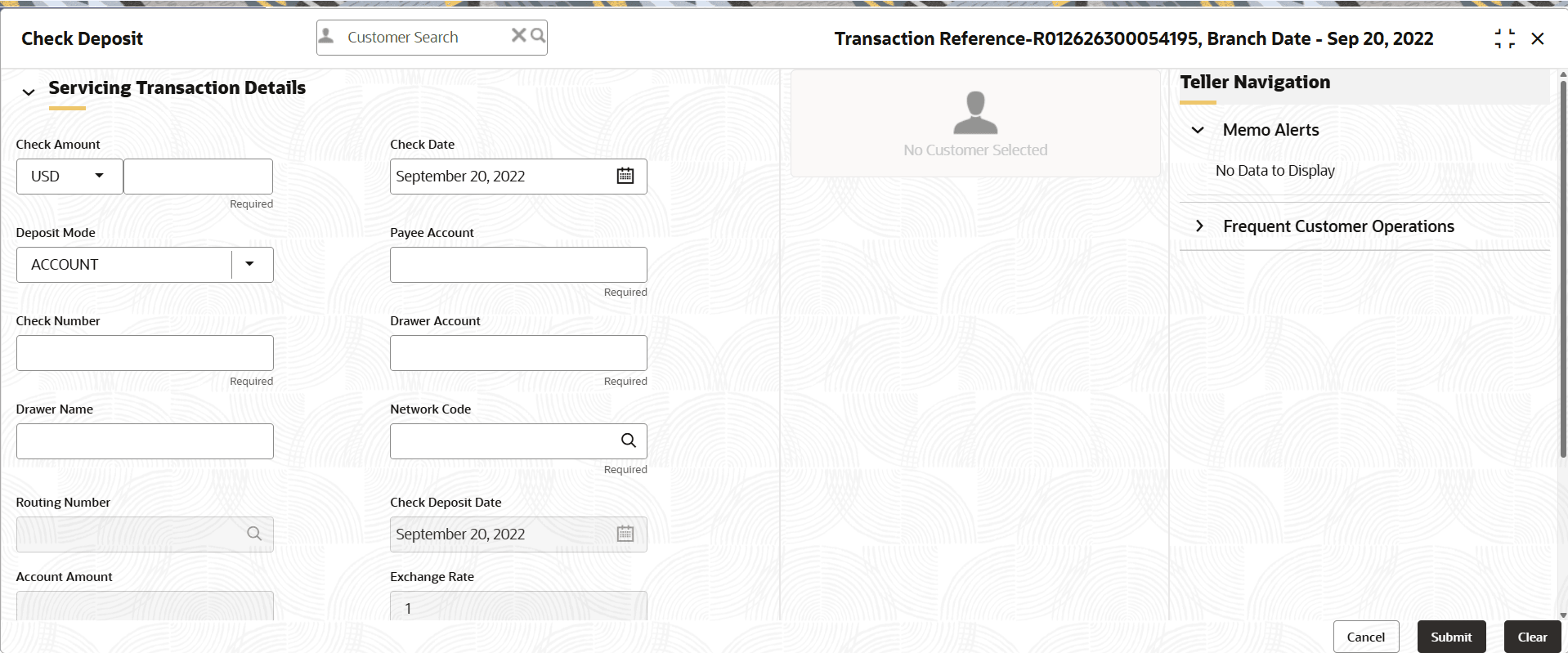
- On the Home screen, from Teller mega menu, under Clearing, click Check Deposit or specify Check Deposit in the search bar and select the screen.The Check Deposit screen is displayed.
- On the Check Deposit screen, specify the fields. For more information on fields, refer to the field description
table.
Note:
The fields marked as Required are mandatory.Table 4-1 Check Deposit (Account Mode) - Field Description
Field Description Check Amount
Specify the currency and amount mentioned in the check that needs to be deposited in the account.
Check Date
Specify the check issued date.
Deposit Mode
Select the deposit mode as Account from the drop-down values.
Payee Account
Specify the customer account number in which the check needs to be deposited. When user press the Tab key, the following details are displayed:
-
Customer ID
-
Image
-
Signature
-
KYC Status
-
Account Balance
-
Address
Note: If the specified account number is a joint account holder, the joint holder details of the account can be viewed in the Customer Information Widget along with the mode of operation.
Check Number
Specify the MICR number displayed on the check.
Drawer Account
Specify the account number on which the check is drawn.
Drawer Name
Specify the name of the drawer account.
Network Code
Specify the network code.
Note: User can also select from the list of maintained clearing codes.
Routing Number
Specify the routing number for check clearance. The list of values will call the Oracle Banking Payments service to fetch the list of routing numbers based on the Clearing Network Code selected.
Check Deposit Date
Displays the current posting date as the check deposit date.
Account Amount
Displays the account amount.
Exchange Rate
Displays the exchange rate used to convert the check currency into transaction currency, and it can be modified.
Note: If the transfer currency is the same as the account currency, the system displays the exchange rate as 1. This field is displayed only if
Multi-Currency Configurationat Function Code Indicator level is set as Y.Negotiated Exchange Rate
Specify the negotiated exchange rate that should be used for foreign currency transactions between the treasury and the branch. User need to specify the negotiated exchange rate only when the currencies involved in the transaction are different.
Note: This field is applicable only if the transaction involves cross currency and only if cross currency enabled and
Negotiated_Rate_Enabled Configurationat Function Code Indicator level is set as Y.Negotiated Reference Number
Specify the unique reference number that should be used for negotiation of cost rate, in foreign currency transaction. If user have specified the negotiated cost rate, then user need to specify the negotiated reference number also.
Note: Accounting system books the online revaluation entries based on the difference in exchange rate between the negotiated exchange rate and transaction rate.
Total Charges (LCY)
Displays the total charge amount, which is computed by the system.
Note: This field is displayed only if
Total Charges Configurationat Function Code Indicator level is set as Y.Narrative
Displays the default narrative as Check Deposit, and it can be modified.
-
- Specify the charge details. For information on the fields in the Charge Details segment, refer to Charge Details.
- Click Submit.
A teller sequence number is generated, and the Transaction Completed Successfully information message is displayed.
Note:
The transaction is moved to authorization in case of any warning raised when the transaction saves.When user submit, the transaction details are handed off to the Oracle Banking Payments system for Outward Clearing transaction processing with external system status as Pending.
After the transaction is processed and responded from the Oracle Banking Payments with appropriate status, the Teller selects the transaction from Journal Log and completes the transaction.
OBBRN will only do data capture and populate the request to OBPM for main leg accounting. Charge accounting will be posted to DDA from OBBRN.
Note:
System shall automate the completion of payment transactions from Journal log, once the ‘Success’ notification is received from Oracle Banking Payments based on the flag Auto Processing as Y in SRV_TM_BC_PARAM_DTLS.
Parent topic: Check Deposit