2.10.1.52 Drawdown Condition Precedent
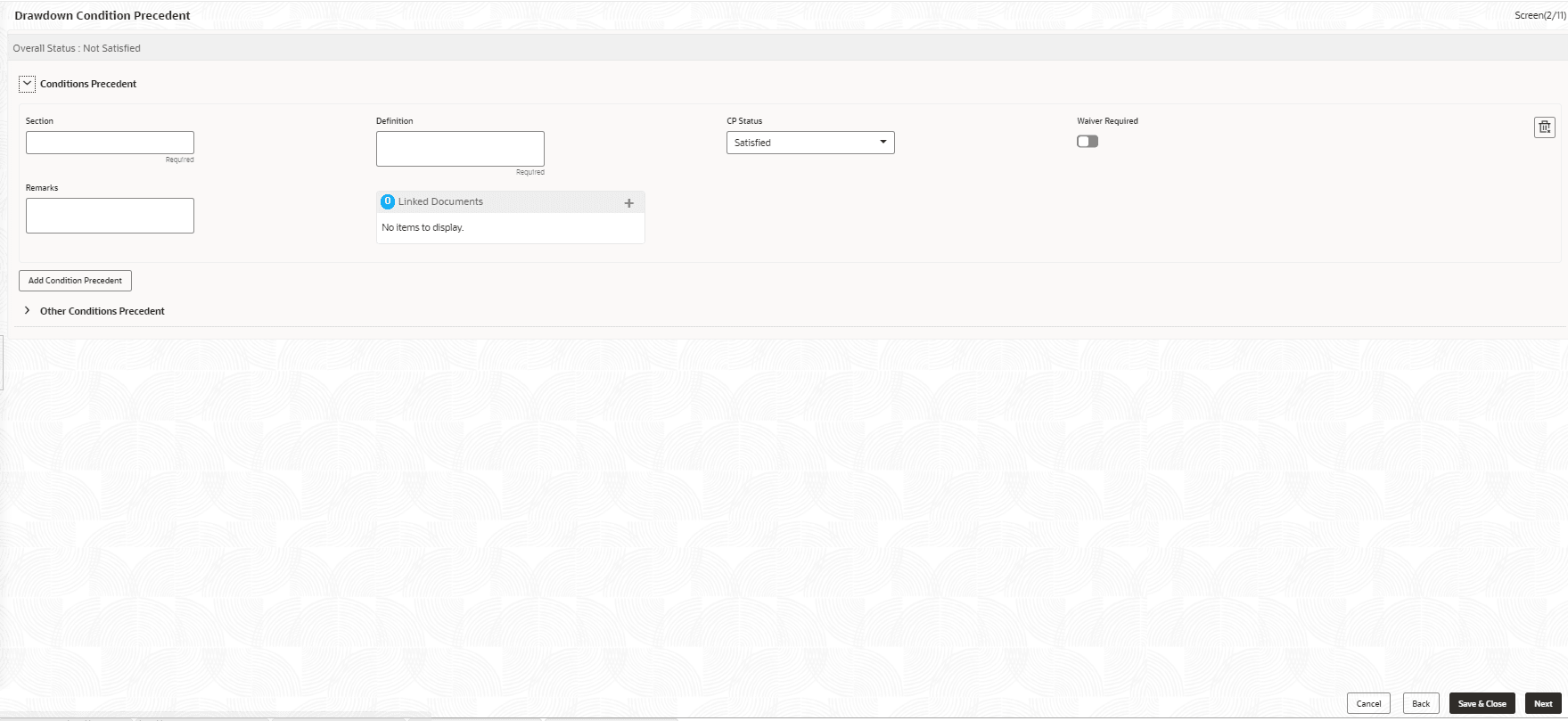
This topic describes the systematic instructions to drawdown condition precedent screen. Use Drawdown Condition Precedent screen to capture the Drawdown Condition Precedent such as CP Status and so on.
- In the Participant Drawdown, click Drawdown
Condition Precedent tab and provide the required details.The Drawdown Condition Precedent screen displays.
For more information on fields, refer to the field description table.
Table 2-68 Conditions Precedent - Field Description
Field Description Section Enter the section. Definition Enter the definition. CP Status Select the status from the drop-down list. Waiver Required Click to select for wavier required. Exceptional Approval Required Click to select for approval required. Remarks Enter the remarks. Linked Documents Click to add documents.
Parent topic: Cash Flow