3.1 Creating Application
In Initiate Credit Proposal window:
- Select the Application Priority based on the party requirement. The
options available are Low, Medium and High.Note: Application Branch field is displayed by default.
Customer Details
- Select the Customer type. The options available are New and Existing.
Figure 3-5 Initiate Credit Proposal- Customer Details
Figure 3-6 Initiate Credit Proposal- Customer Details
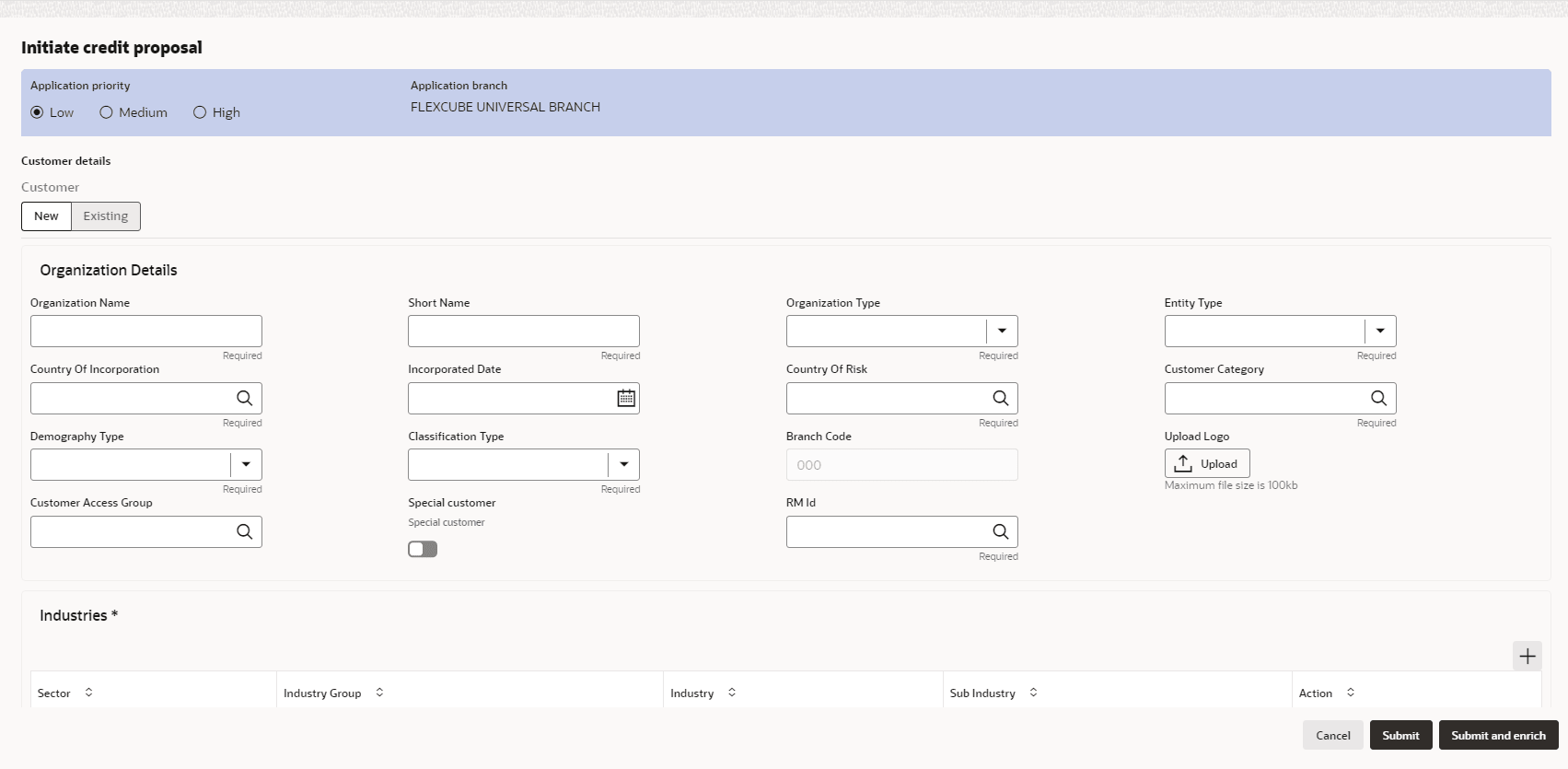
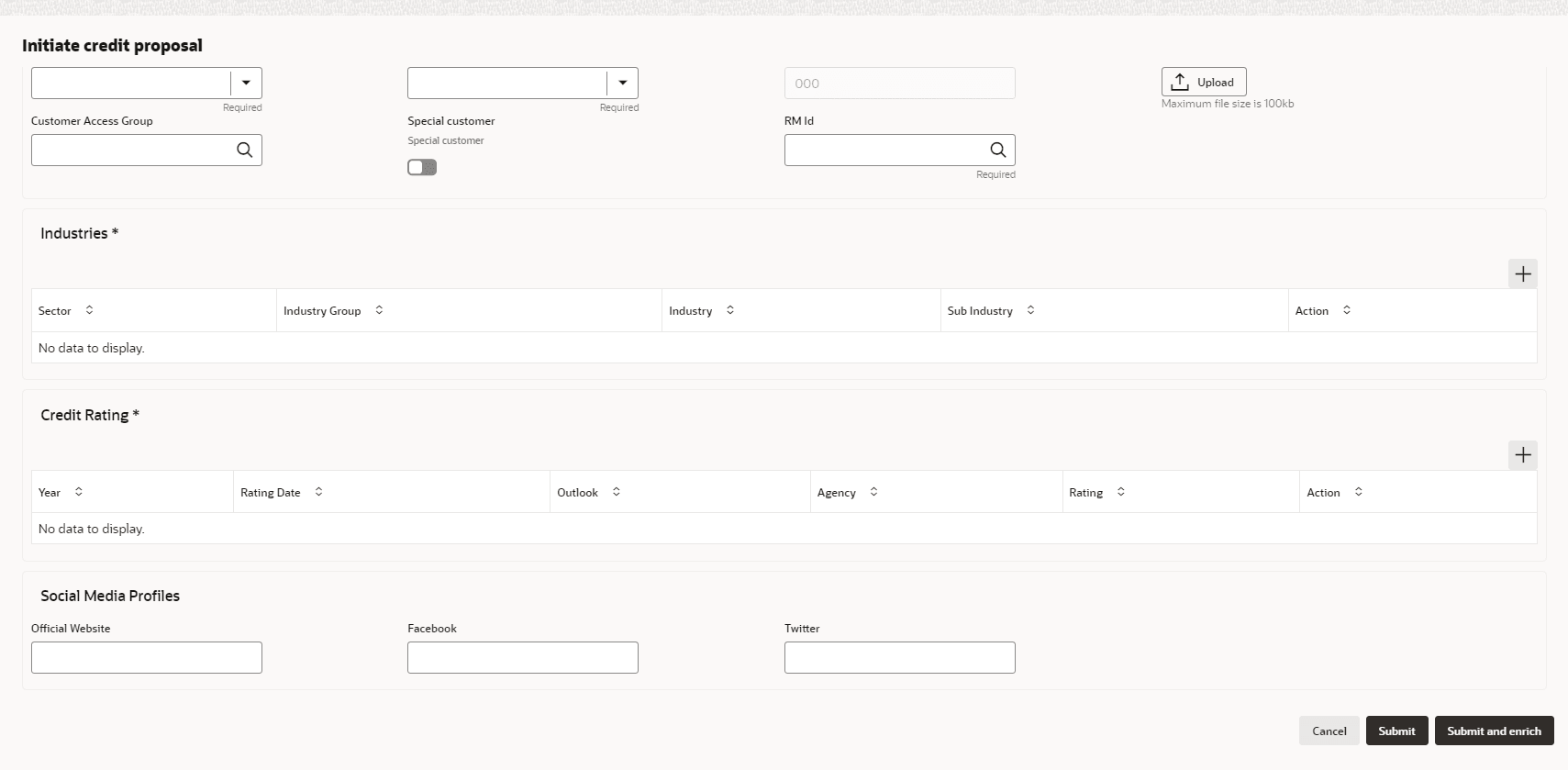
- Organization DetailsFor information on fields in the Organization Details screen, refer the below table.
Table 3-1 Organization Details
Fields/ Icons Description Organization Name Enter Organization Name for the party. Short Name Enter Short Name for the party. Organization Type Select Organization Type from the drop-down list. The options available are: - Conglomerate
- Single
Entity Type Select Entity Type from the drop-down list. The options available are : - Proprietorship
- Pvt Ltd
- Public Ltd
- Govt Owned
- Trusts
- Clubs
- Society
- Associations
- Limited Liability Partnership
- Foreign Bodies
- NGO
- Others
Table 3-2 Organization Details
Fields/ Icons Description Country of Incorporation Click Search icon and select Country of Incorporation. Incorporation Date Click Calendar icon and select Incorporation Date. Country of Risk Click Search icon and select Country of Risk, i.e country on whose books the risk exposure will be recorded for the party. Customer Category Click Search icon and select Customer Category, for example Corporate, Labour, Individual, Banks etc. Demography Type Select Demography Type from the drop-down list. The options available are : - Domestic
- Global
Note:
If you select Global option, Geographical Spread field appears.
Geographical Spread Search and select all the countries in which the party is operating Geographical Spread. Classification Type Select Classification Type from the drop-down list. The default options available are: - Micro
- Small
- Medium
Branch Code Branch Code is displayed by default. Upload Logo Click Upload Logo, to upload the company logo file. Customer Access Group Click Search icon and select Customer Access Group. Special Customer Select Special Customer, if the party is eligible for special customer service. RM Id Enter RM Id of the Relationship Manager initiating the Proposal.
Industries
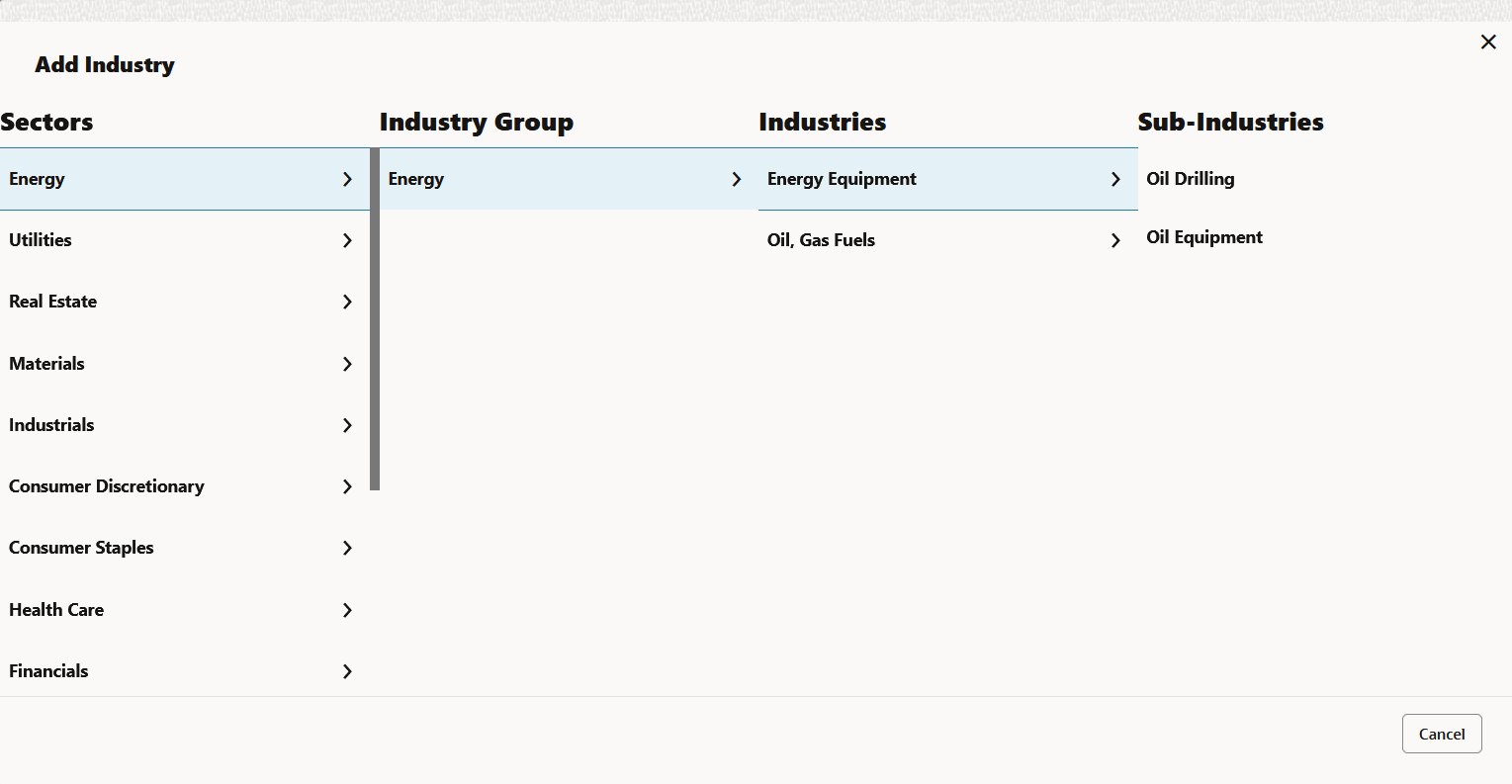
- To capture the line of business of the party, click
+.The Add Industry window is displayed.
For information on fields in the Add Industry screen, refer the table below.
Table 3-3 Add Industry
Fields/ Icons Description Sector Select Sector of the party. Industry Group Available industry group under Sector will appear. Select Industry Group appropriate for the party. Industry Available industries under industry group appears. Select Industry appropriate for the party. Sub Industry Available sub-industries under industries appears. Select Sub Industry appropriate for the party. Delete Click Delete, if you need to delete the industry details. Note:
If the party is into different sectors, the user can capture all the sector details while initiating credit proposal. To add another sector information, click +.
Credit Rating
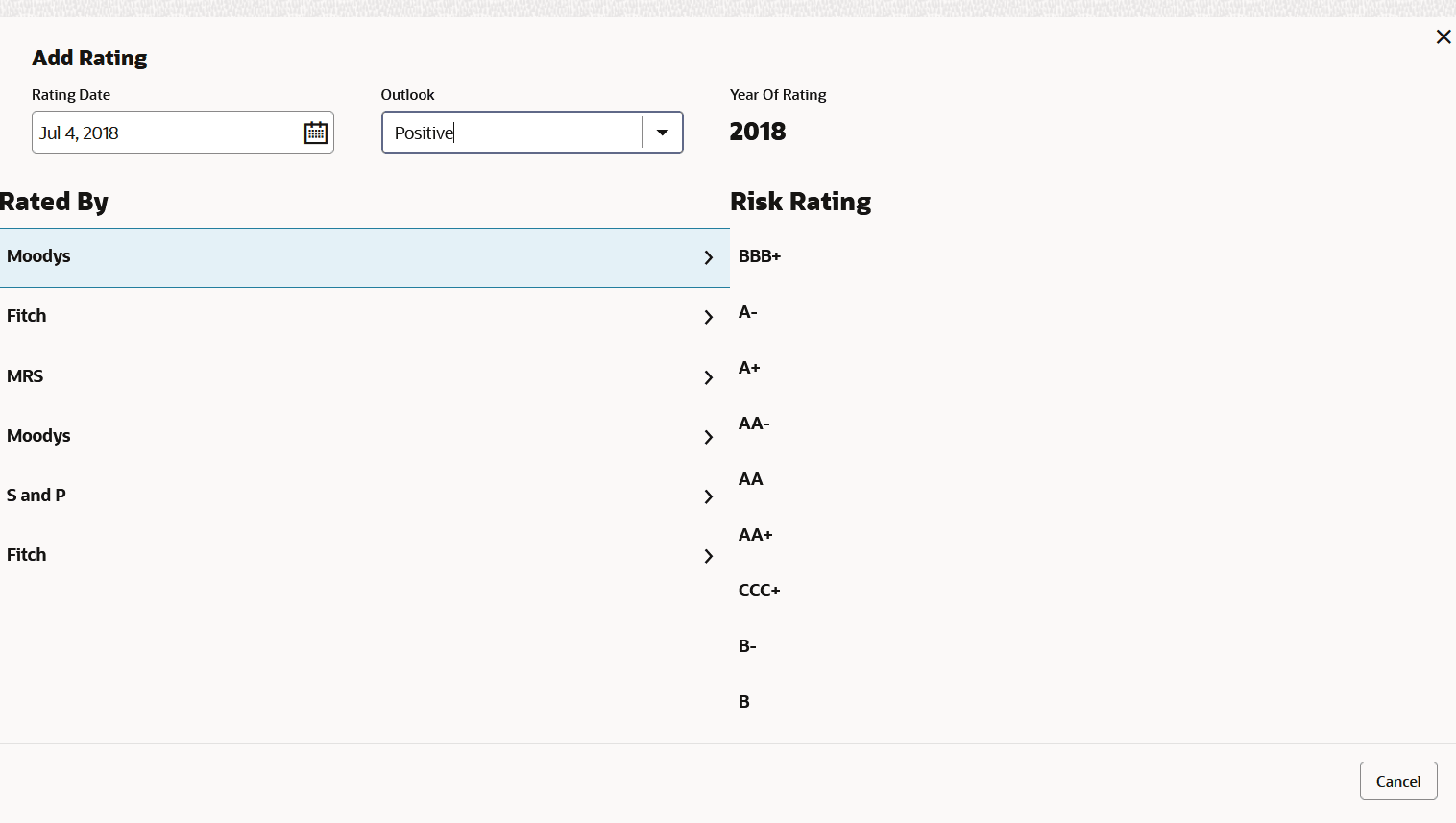
- To capture rating information of the party, click +.The Add Rating window is displayed.
- Select the following details:
For information on fields in the Customer Rating screen, refer the table below.
Table 3-4 Customer Rating
Fields/ Icons Description Rating Date Select Rating Date. The date when the rating was done by the rating agency. Outlook Select Outlook. The outlook given by the rating agency. Risk Ratings Select Risk Ratings. The risk rating given by the rating agency. Year Of Rating Year of Rating is automatically populated based on the selected Rating Date. Rated By Select Rated By. The rating agency name. Delete Click Delete, to delete the added rating. Note:
If the party is rated by different rating firms, all the rating information must be captured while initiating credit proposal. To add another rating information, click + Add ratings again.
Social Media ProfilesFor information on fields in the Social Media Profiles screen, refer the table below.
Table 3-5 Social Media Profiles
Fields/ Icons Description Social Media Profiles Enter the following addresses in respective fields: - Official Website Address
- Facebook Address
- Twitter Address
Submit, Submit and Enrich, and Cancel
For quick initiation, the RM clicks Submit and submits the application. For more information about Submit, Submit and Enrich and Cancel fields refer the table below.
Table 3-6 Submit, Submit and Enrich, and Cancel
Fields/ Icons Description Submit If you click Submit, a task will be created in the next stage and stored in Free Task. Submit and Enrich If you click Submit and Enrich, you will be directly taken to the next stage of the application. Cancel If you click Cancel, the application will not be initiated and the proposal is cancelled. Note:
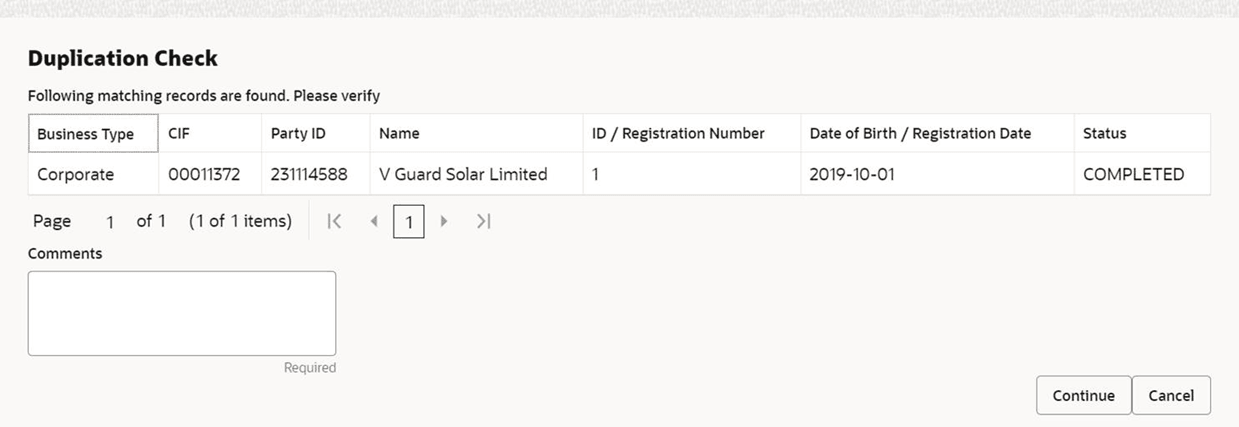
During child party creation, Create button appears instead of Submit, Submit and Enrich, and Cancel buttons. Click Create to add the child party for the existing party. - Dedupe Check Screen
If the party is available, then the system stops here and asks for further action.
Parent topic: Proposal Initiation