3.4 Other Bank Facilities
Details about the facilities availed by the party from other banks can be captured in this data segment. If user click Next in the Customer Info screen, the Other Bank Facilities screen is displayed.
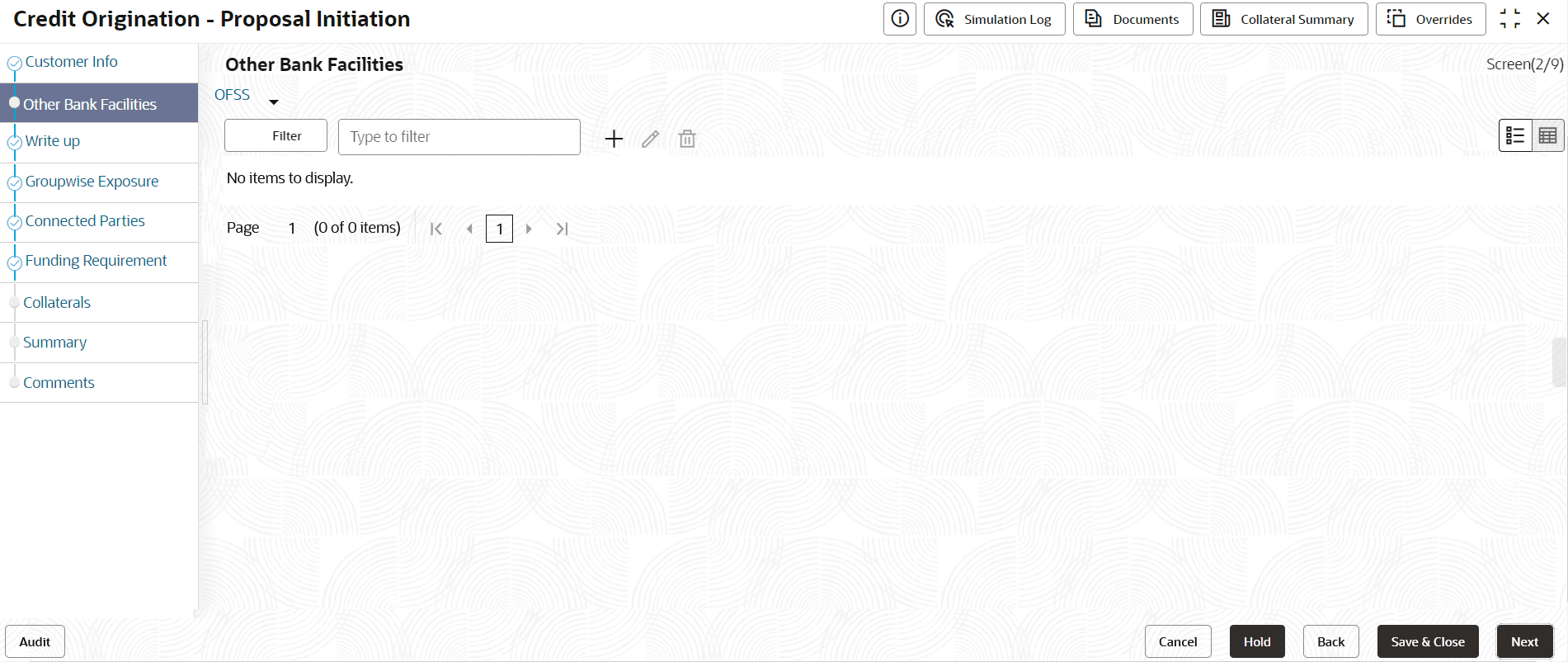
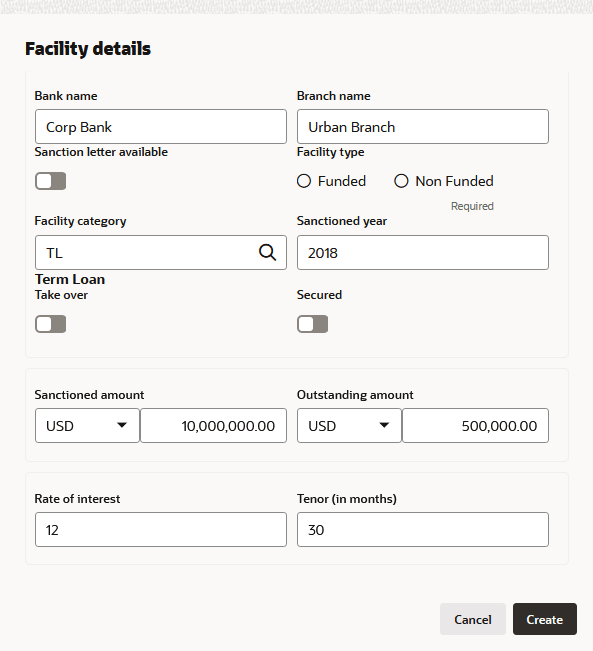
- Click + icon.The Facility Details window is displayed.
For information on fields in the Facility Details screen, refer the table below.
Table 3-8 Facility Details
Field/Icon Description Bank Name and Branch Name In Bank Name and Branch Name fields, enter the name of other bank from which the party has availed facility. Sanction Letter Available Enable Sanction Letter Available option, if sanction letter is available for the other bank facility. Facility Type Choose Facility Type. The options available are: - Funded
- Non-Funded
Facility Category Select Facility Category from the drop-down list. Sanctioned Year In the Sanctioned Year field, enter the year in which the other bank facility is sanctioned. Take Over Enable Take Over option, if the party has requested the bank to takeover the facility. Once this option is enabled the facility gets added in the funding requirement section by default.
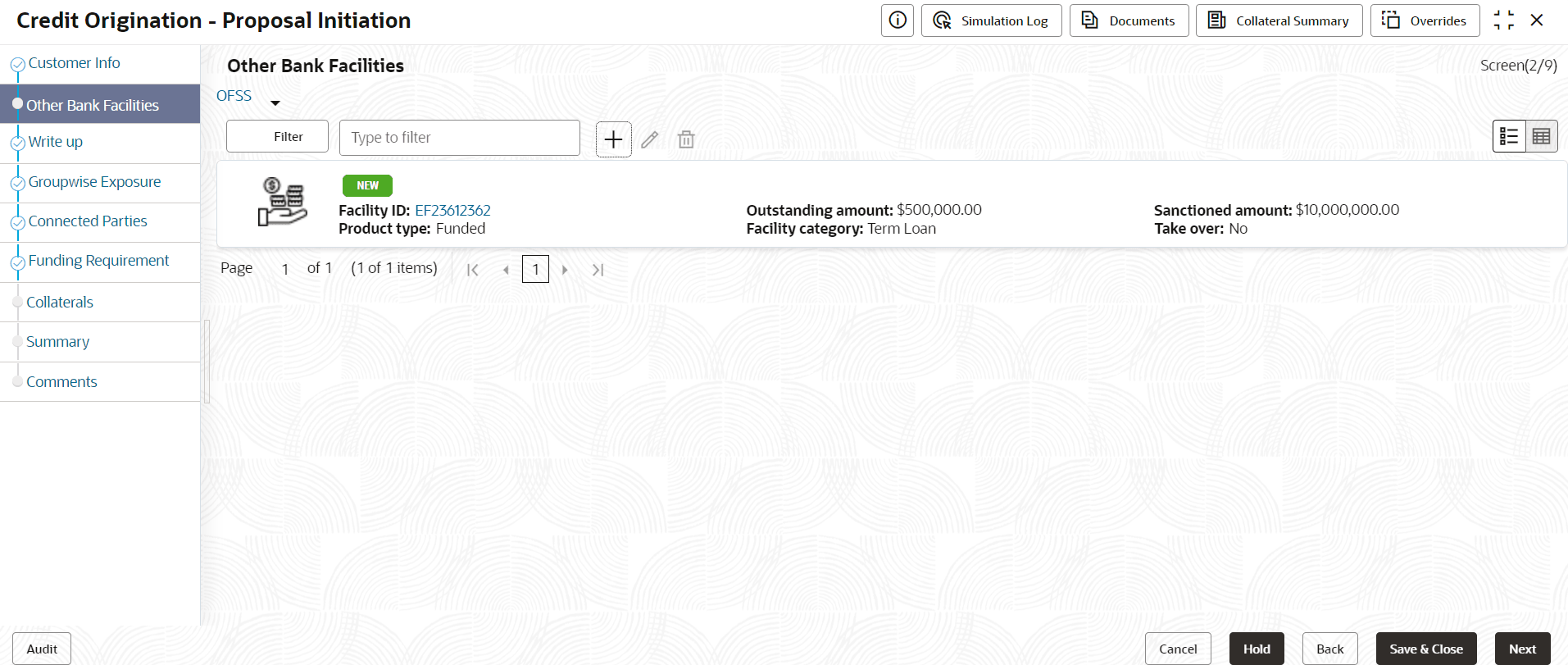
Currency Search and select Currency for the sanctioned amount. Sanctioned Amount In the Sanctioned Amount field, specify the initial facility amount sanctioned by the other bank. Outstanding Amount Specify Outstanding Amount to be paid by the party. Rate of Interest Specify Rate of Interest at which facility is offered by the other bank. Tenor Specify Tenor of the other bank facility. Secured Enable Secured option, if the other bank facility is secured with collateral. - Click Create. Other bank facility is added and displayed as shown
below:
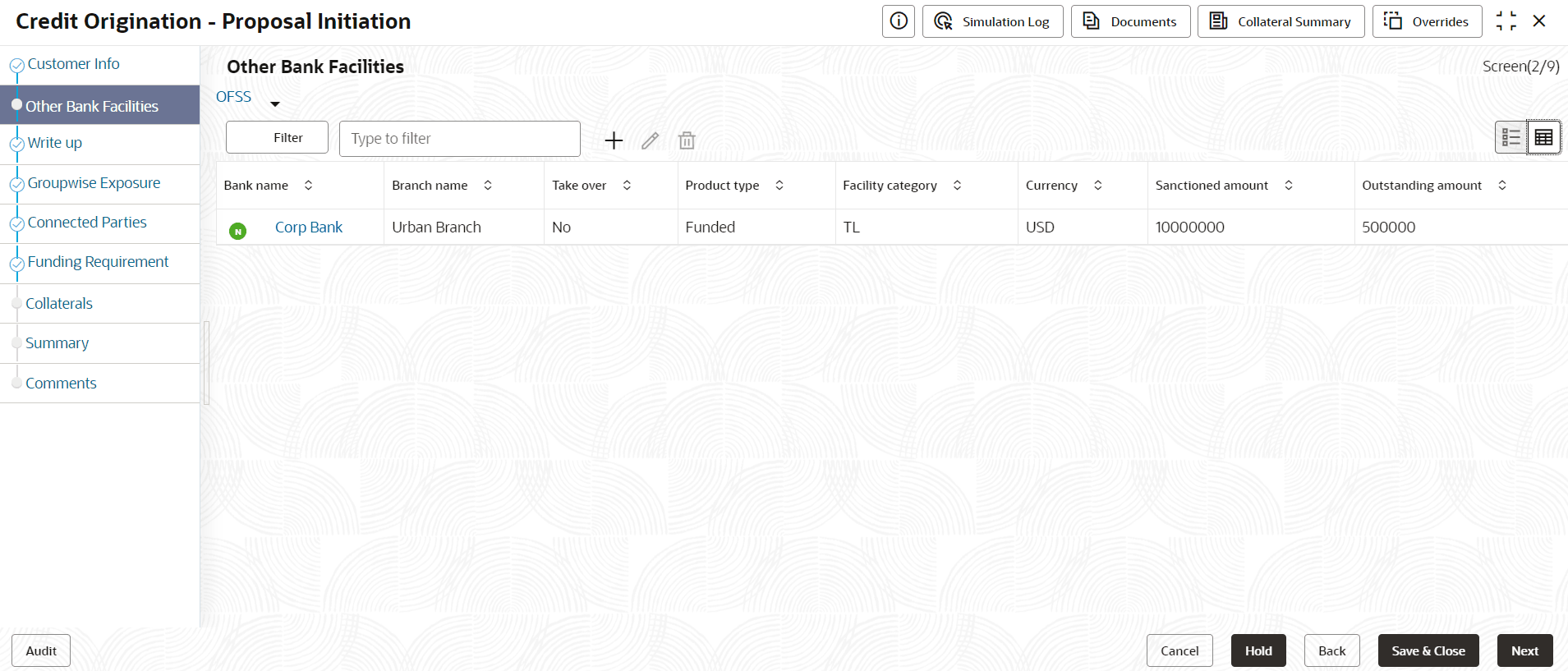
- To change the list view to table view, click the table view icon at the right
corner. View is changed as shown below:
Note:
If the party has availed more than one facility from any bank, add all the other bank facilities information by clicking the add icon again. - To filter the required facility from all the available other bank facilities,
click Filter button. The Filter window is displayed.

Parent topic: Proposal Initiation