3.3 Customer Info

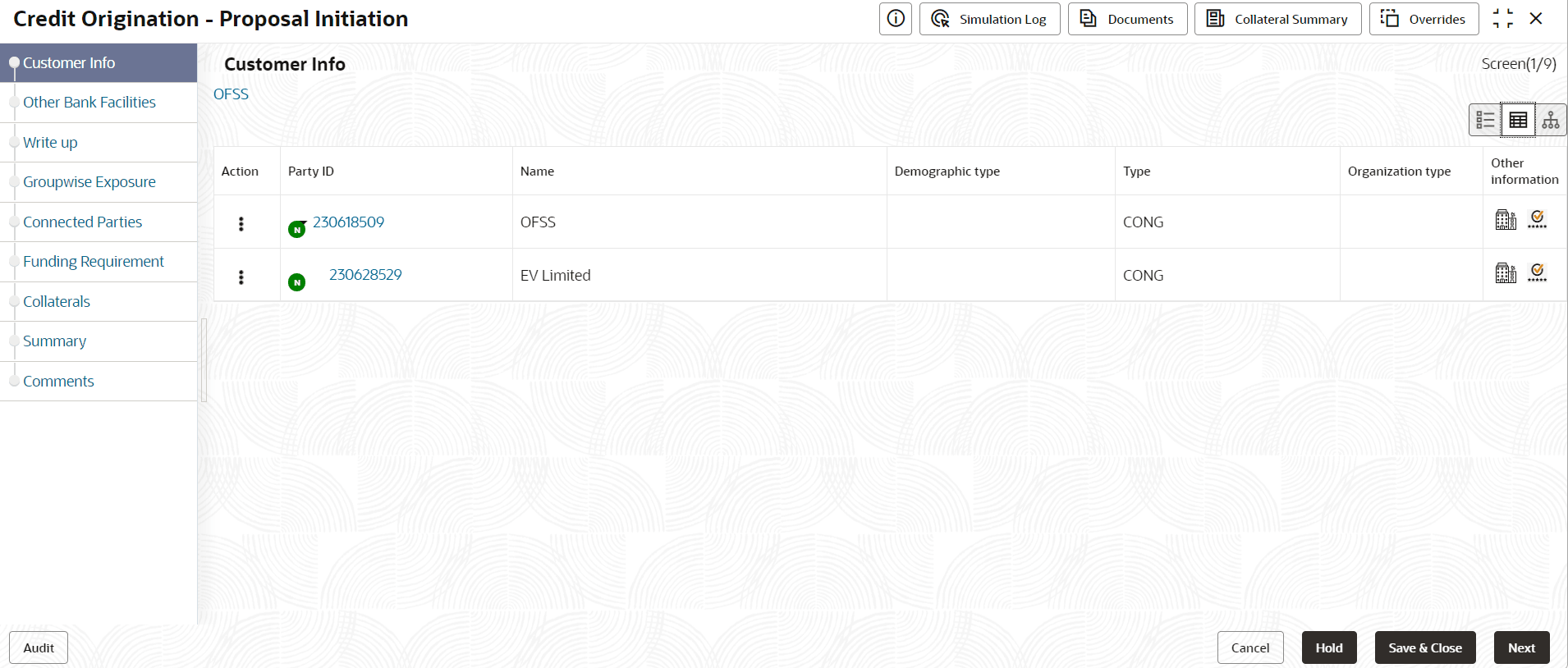
This data segment allows to view and modify the basic information captured during credit proposal initiation and add child parties to the party. Click Submit and Enrich in the Initiate Credit Proposal window. Customer Info screen is displayed.
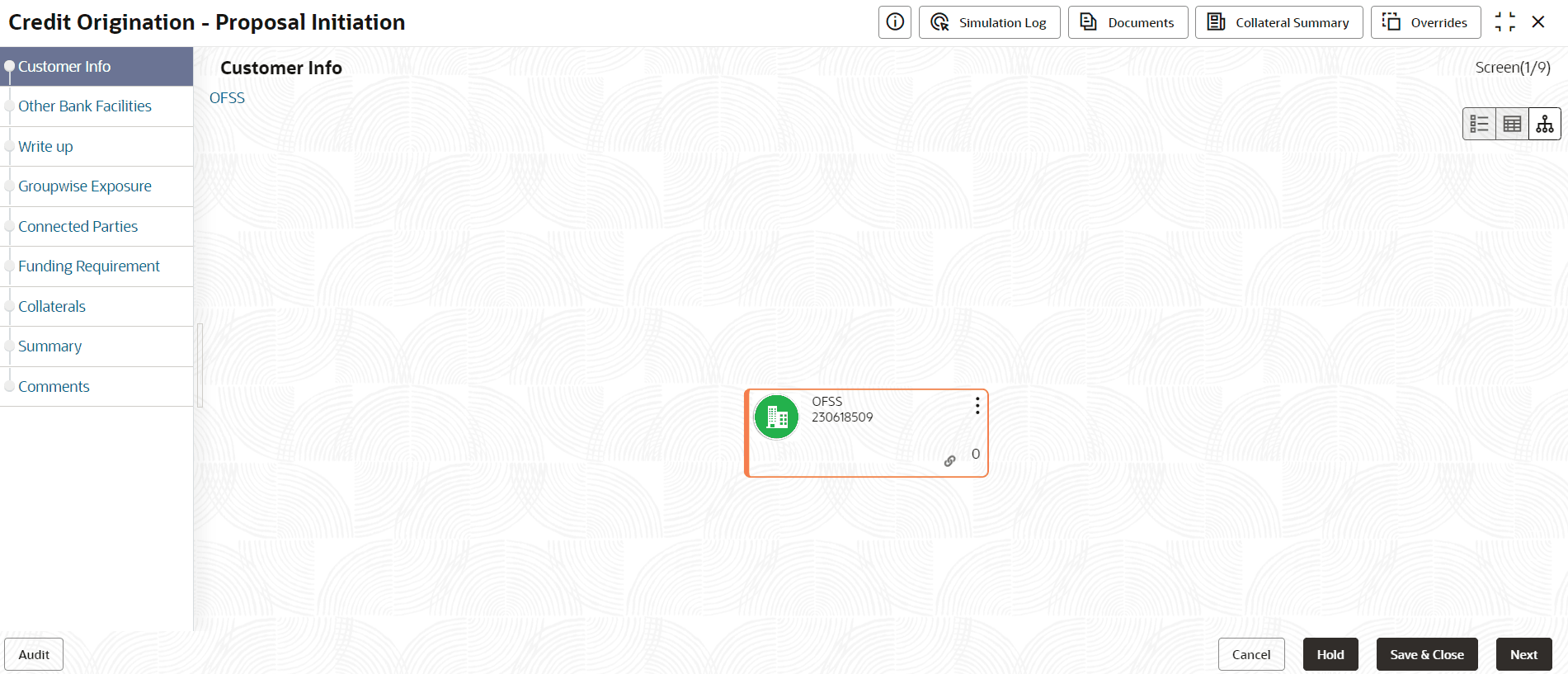
Click Action button, the list of action options are displayed.
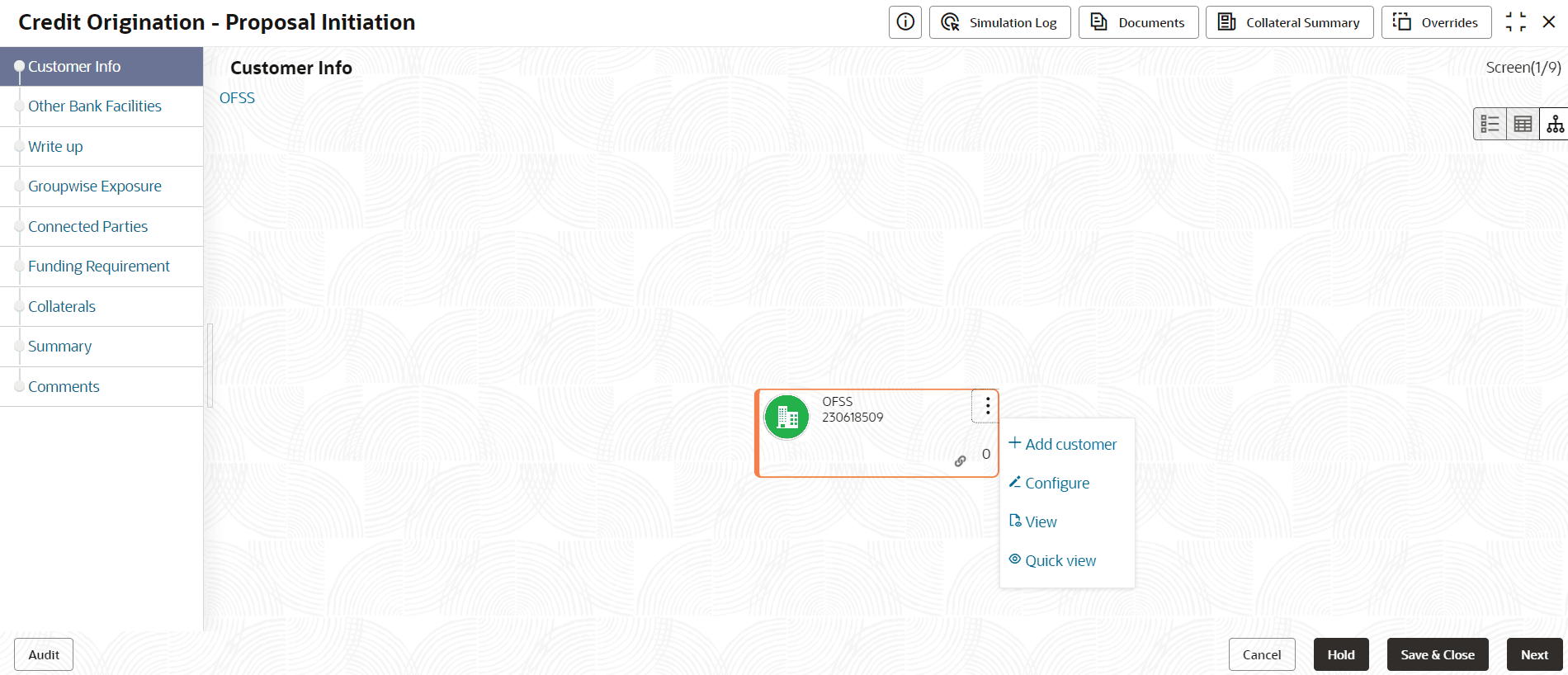
Figure 3-12 Customer Info Action List


  1. Select the required option to perform the following actions:
    • Add Customer
    • Configure
    • View
    • Quick View

    The following table describes the functionality of each actions listed above:

    Table 3-7 Customer Info

    Actions Functionality
    View Displays and allows to edit Customer Details window for viewing party details.
    Quick View Displays View Entity Details window.
    Configure Displays Customer Details window for adding or editing party details.
    Add Customer To add a child party of the party, click Add Customer. The Customer Details window appears.

    Refer Creating Application section for information on adding party.

    Note: After creating the party, right click the customer icon to Add Customer, View party details, Quick View party details, Configure party information and Delete party if required.

  2. Click the settings icon at the right corner, to change the layout. Layout options appear as shown below:

    Figure 3-13 Customer Info Layout


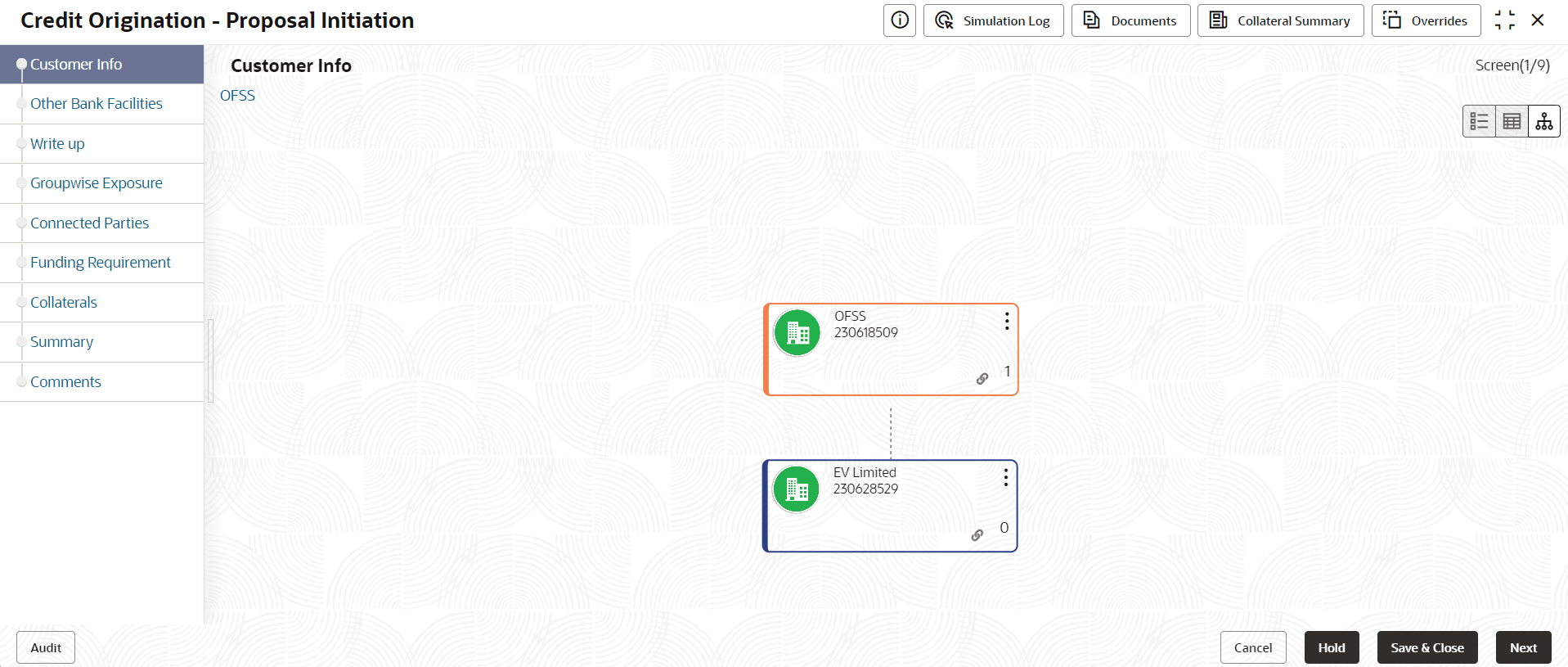
  3. Click the required Layout option. Layout is changed as shown below:

    Figure 3-14 Customer Info Layout Change


    Note:

    For more information on layout changes, please refer Customer Acceptance> Enitity Overview section.
  4. Click Next, to go to the next page. The Other Bank Facilities page appears.