3.8 Liability Details
This topic describes the information about the liability details.
- Click Next in the Connected
Parties screen.The Liability Details page is displayed.
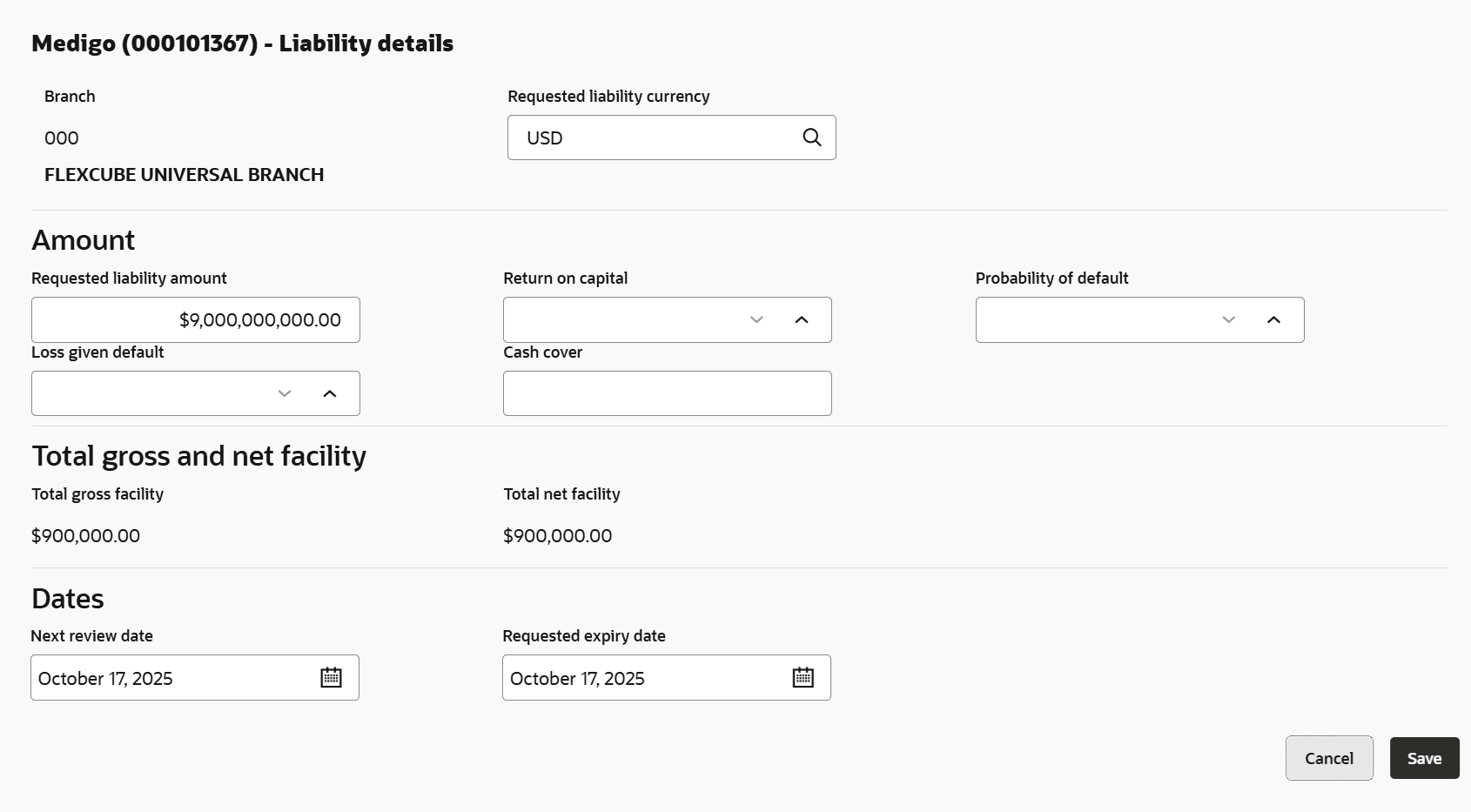
- Select the required liability and click Edit.The Liability Details window is displayed.
- Specify the details on the Liability Details page.
Table 3-16 Liability Details
Fields Description Requested Liability Currency Select the currency in which the liability is requested by the party. Requested Liability Amount Liability amount requested by the party. Return On Capital Ratio calculated by dividing the after tax operating income by the average book-value of the invested capital. Probability of Default Estimate of the likelihood that the entity will be unable to meet its debt obligations. Loss Given Default Amount of money a bank or other financial institution loses when a borrower defaults on a loan. Cash Cover Amount deposited by the party in your bank. Total Gross Facility Displays the total gross facility. Total Net Facility Displays the total net facility. Next Review Date Select the next review date when the party's liability needs to be reviewed. Requested Expiry Date Select the requested expiry date for the liability based on your party request. Allowed Customers For This Liability:
The Allowed Customers For This Liability option can be used once the liability details are entered for a party.
- To add the Allowed Customers For This Liability, select
required liability and click Edit icon.
The Liability Details screen displays.
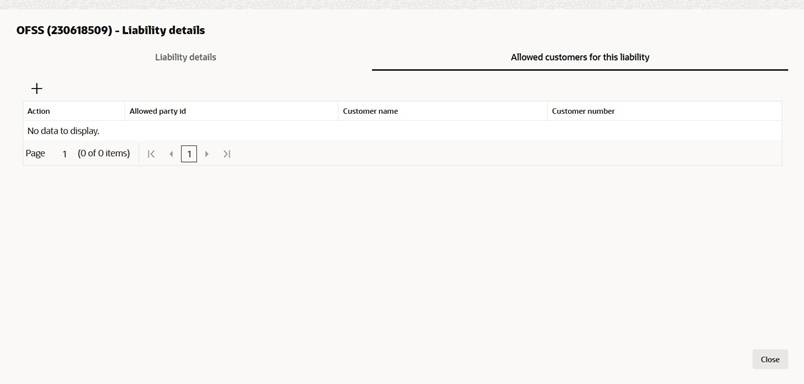
- Click sub-system Allowed customers for this liability. The Allowed customers for this liability screen displays.
Figure 3-36 Allowed Customers For Liability
- Click + icon. The Allowed Customer screen displays.
- Click drop-down of the Current Application Party Ids without liability field. The drop-down shows other new party Ids added as part of the current applicatio
- Click Party ID. The selected ID is added to the Party ID field.
- Click Link. The party gets linked to the liability.
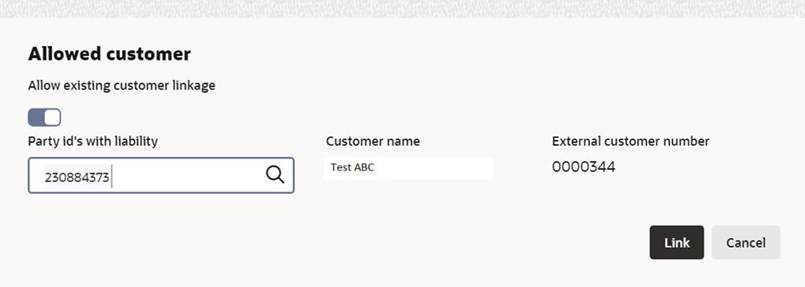
To link an existing customer to the liability:
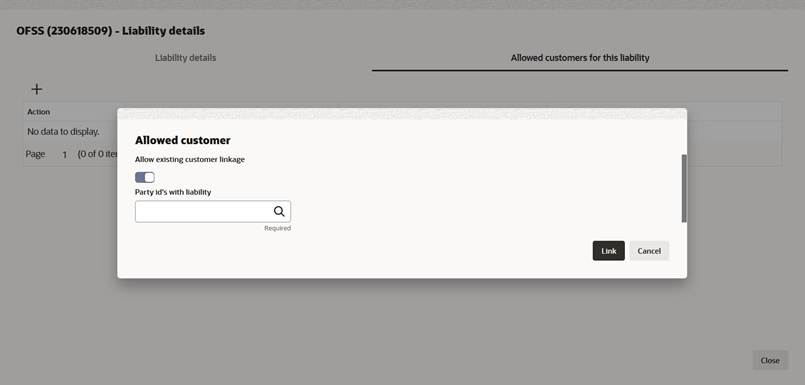
- Enable Allow existing customer linkage option.The Allowed Customer screen displays.
- Click Search in Party Ids with
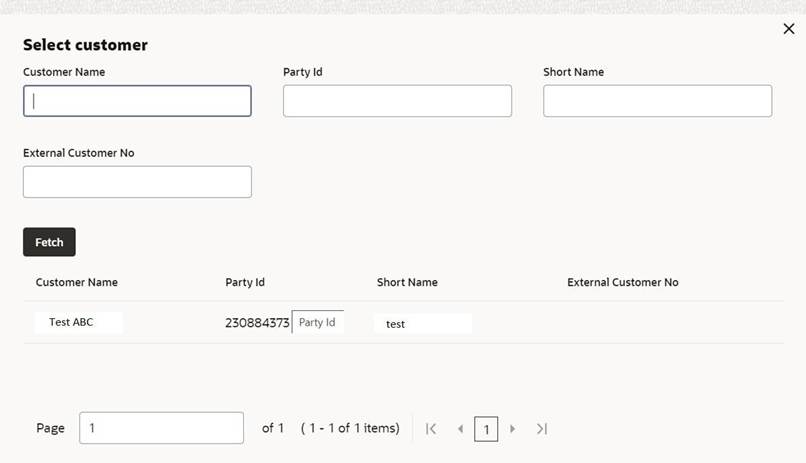
liability field.The Select Customer screen displays.
- Click Fetch.The party details list appears.
- Select Party ID from displayed list. The selected Party
ID is added in the Party ID's with liability field.The Allowed Customer screen displays.
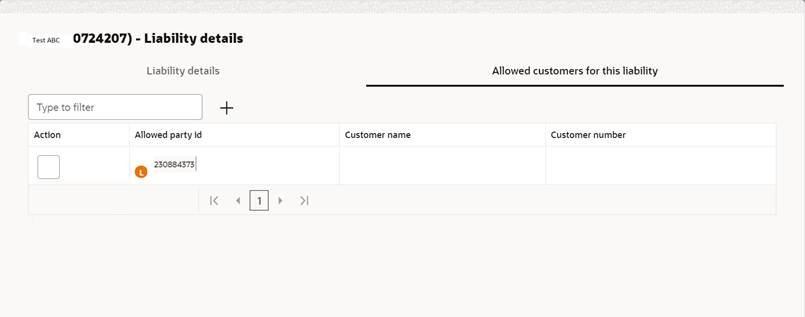
- Click Link. The external party gets linked to the
liabilityThe External Party Linaked to Liability screen displays.
Figure 3-40 External Party Linked to Liability
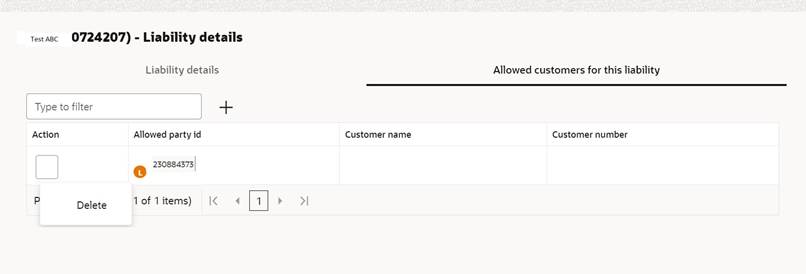
- If the party needs to be deleted / delinked from the liability then select the
party and click Delete to delete the party linkage
information.The Delete Party Linkage Information screen displays.
Figure 3-41 Delete Party Linkage Information
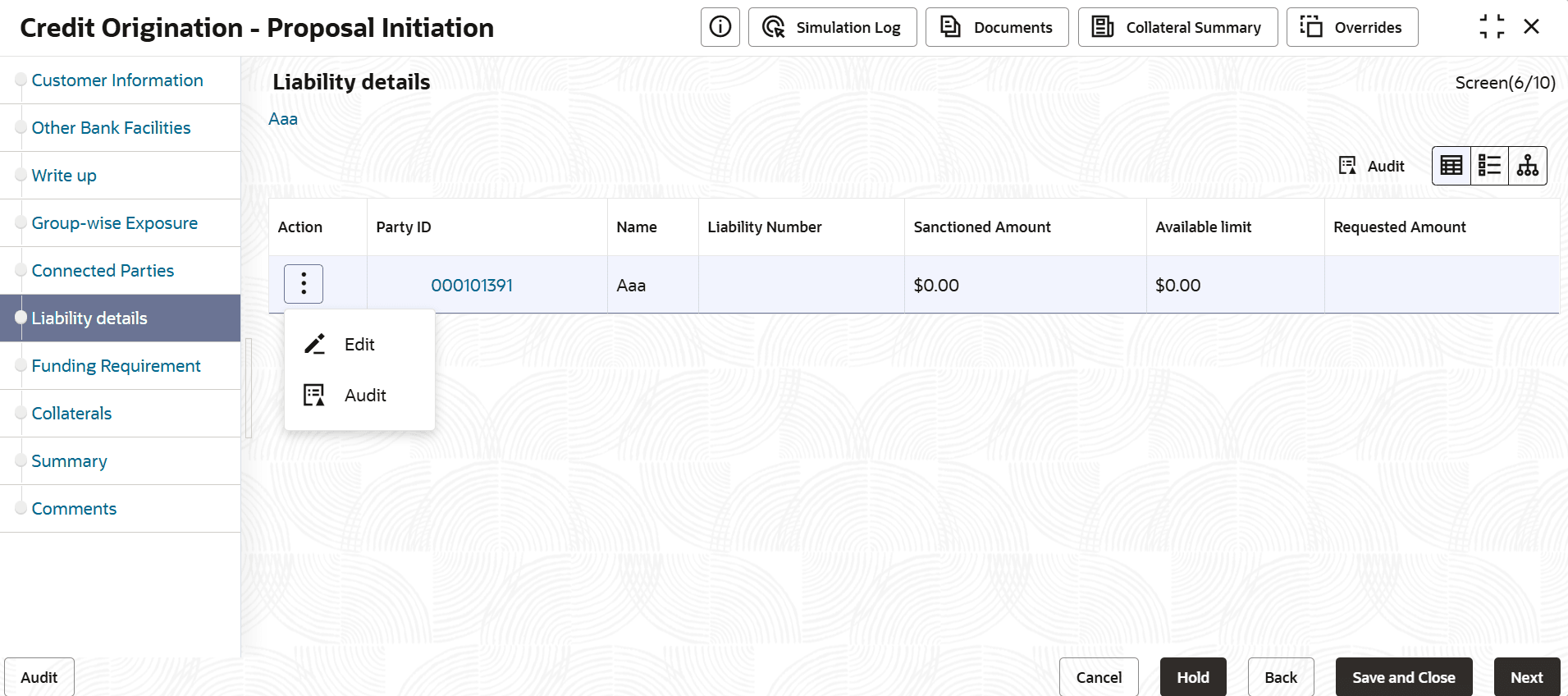
- Click down arrow next to the party name in the left corner, to add the allowed party of a child party. The child party list appears.
- Select the required Child Party. Add the party linkage information of the child
party and click Next.The Funding Requirement page appears.
Parent topic: Proposal Initiation